

Syslog Setup
Use Settings → Inputs → Syslog to associate a sending device with the correct log parser in NeQter.
Create the input before forwarding logs. Messages that do not match a configured input are dropped. Choose Other for an unsupported source that you want to collect into a custom index.
Before you begin
Confirm the appliance’s reachable address and its configured syslog receiving port and transport with your deployment administrator. Also identify the source IP address that the appliance will see, including any address translation or relay. The input’s IP address identifies the sender; it is not the appliance’s destination address.
The Syslog input form configures source matching and parsing. It does not configure the device’s forwarding service or offer listener port and transport controls.
Add the input
- Open Settings → Inputs → Syslog and select Add input.
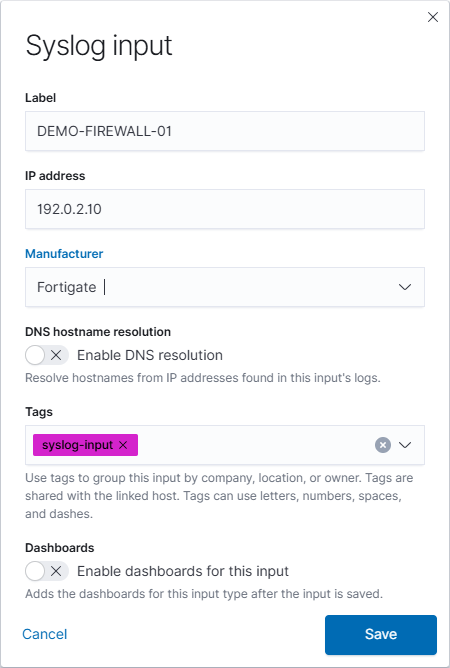
- Enter a recognizable Label and the sending device’s IP address.
- Choose the matching Manufacturer. Select Other when a matching parser is unavailable.
- Review the optional fields below, then select Save. Cancel or X closes the unsaved form.
| Option | Use it for |
|---|---|
| Enable DNS resolution | Resolve hostnames from addresses found inside the input’s logs. This option is absent for Other. |
| Tags | Group inputs by site, company, owner, or another useful label. Select existing tags or add a new one. |
| Enable dashboards for this input | Add the available dashboards for the selected source after saving. Changing Manufacturer resets this pending choice. |
Configure the sender
Configure remote syslog on the device using the appliance’s destination address, the confirmed receiving port and transport, and the format appropriate for its parser. Enable the event categories or device rules that should generate logs, then save the sender’s configuration.
Use the Firewall Setup guide for vendor references and the common setup checklist. For an unlisted product or unclear log format, use Settings → Support.
Verify reception
- Generate a test log on the sending device and note its time.
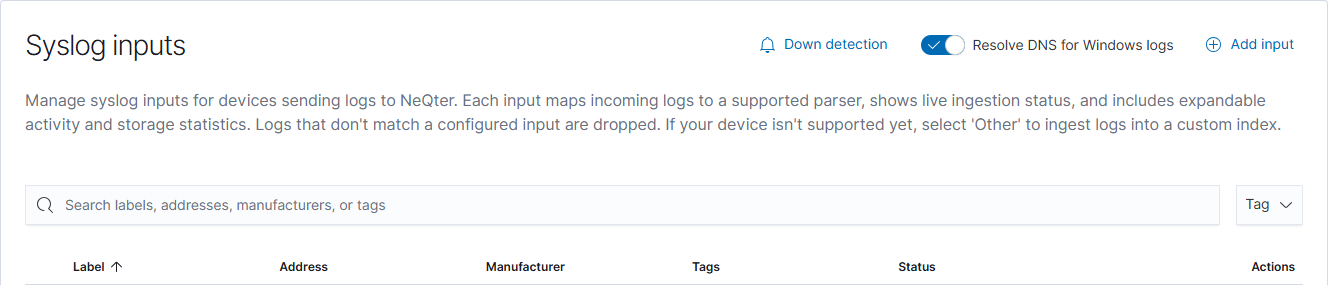
- Find the input in the Syslog table. Receiving means logs arrived in the past minute; Not receiving means none were detected during that window.
- Open the input’s three-dot menu and choose Show details. Review Last seen, Indices with logs, and the activity statistics; select Refresh stats if needed.
- In Discover, select the corresponding data view and time range. Confirm the sender, event time, and parsed fields in a real event.
If nothing arrives, check the sender’s source address, destination, routing/firewall rules, transport, port, and enabled logging categories. If messages arrive but fields are wrong, review the manufacturer/parser and the sender’s log format.
For later changes, a supported input’s three-dot menu offers Edit and Delete. Other inputs do not support that Edit action. See the full Syslog reference for configuration details, deletion confirmation, and down detection.