

Settings Backups
Open Settings > Backups > Settings backups in NeQter. A settings backup contains NeQter configuration and supporting settings. It can help recover configuration that was changed or lost; log archives are managed separately on Logs & log archives.
Configuration
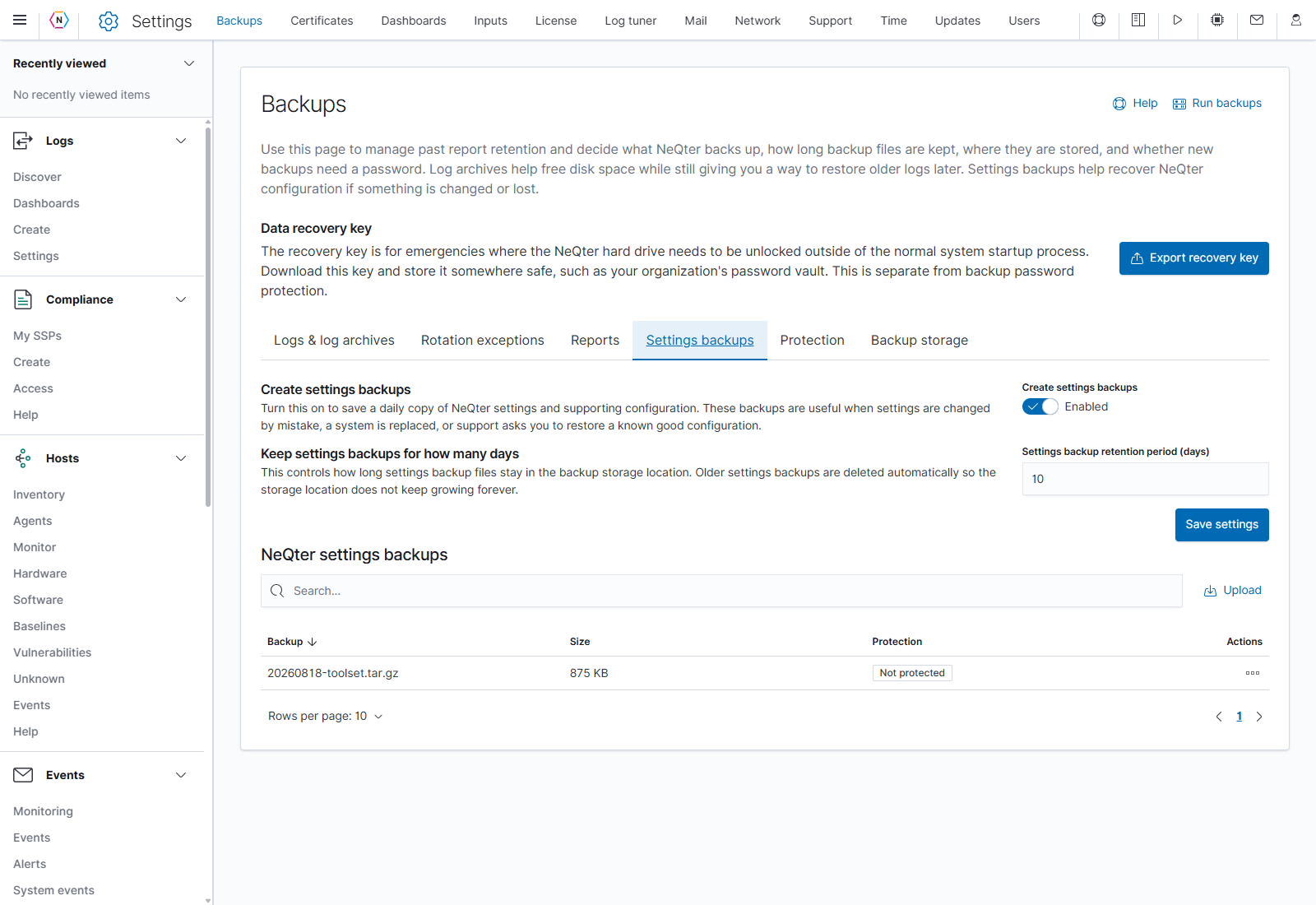
- Enable Create settings backups to create a daily configuration backup.
- Enter Settings backup retention period (days) from 1 to 1,095. This determines how long the backup files are kept before automatic cleanup.
- Click Save settings to apply the switch and retention period together.
The screenshot shows a 10-day retention period on the reference appliance. Choose the period appropriate for your environment. Backup files use the location saved on Backup storage.
Backup
The built-in Help identifies 1 a.m. as the daily automatic backup time. To create a backup between automatic runs, click Run backups at the top of the page. This starts an operation immediately using the saved backup configuration.
After it completes, review NeQter settings backups. The table shows the filename, compressed Size, and Protection status. Use Search, sortable headings, Rows per page, and the page arrows to locate a file.
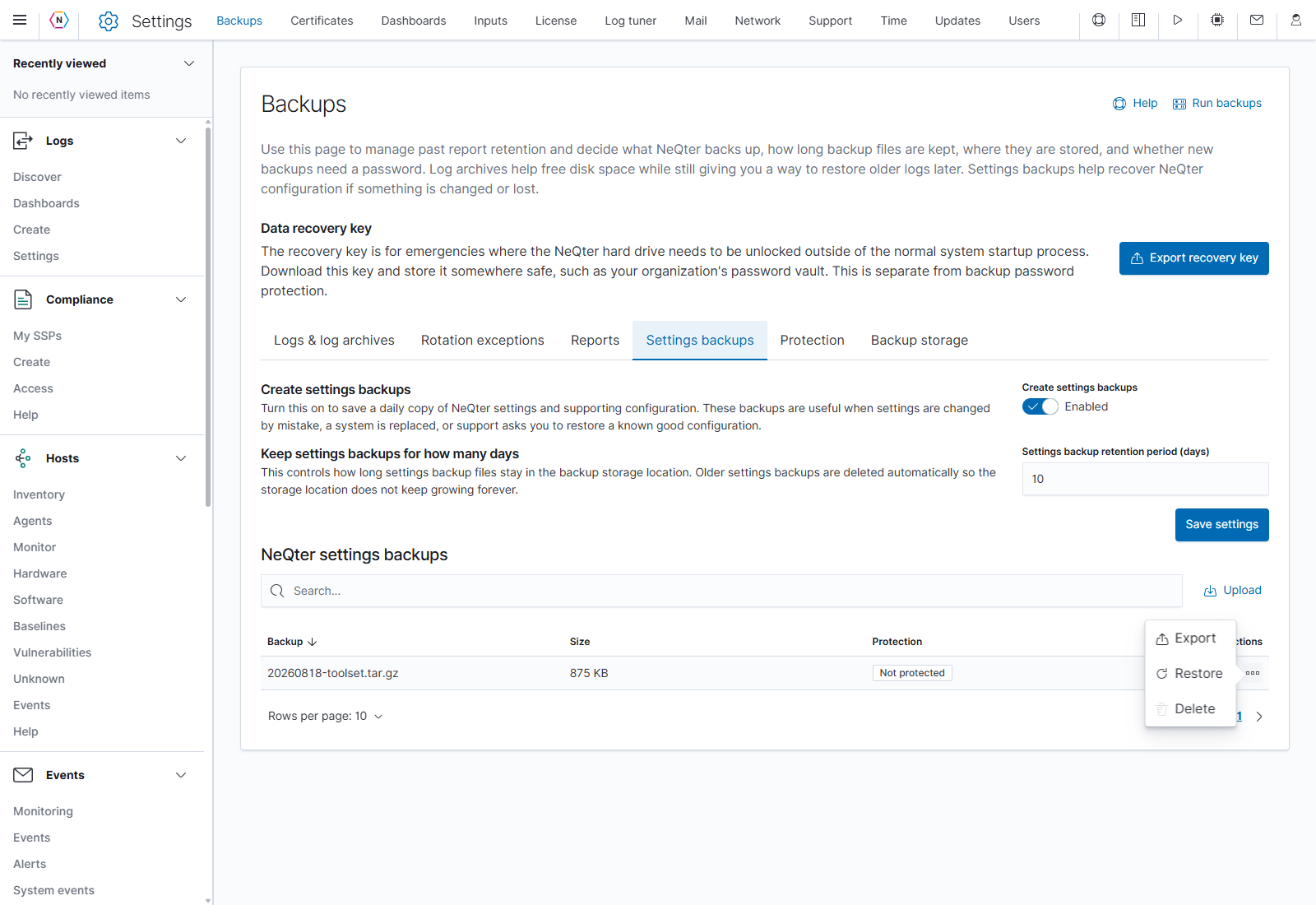
The three-dot menu under Actions contains:
| Action | Result |
|---|---|
| Export | Downloads that settings backup to your computer. |
| Restore | Reads the selected backup and opens its restore choices if it is compatible. |
| Delete | Opens a confirmation. Yes, delete it removes that stored file; No, don’t delete it cancels. |
Upload a settings backup
- Click Upload above the settings-backup table.
- Choose the original NeQter settings-backup
.tar.gzfile. - Click Upload inside the flyout and wait for it to finish. Selecting the local file alone does not send it.
- Locate the uploaded file in the table. Use Restore only when you intend to apply its configuration.
The flyout’s close link or X closes the chooser. Uploading a file and restoring its contents are separate actions.
Restore
- Find the required file and select Restore from its three-dot menu.
- If the file is protected, enter the password used to create that backup.
- Review the available configuration areas. NeQter settings and required saved-search/index-pattern content may be fixed selections; compatible optional areas can be selected separately.
- When the selection is correct, click Yes, restore these settings to apply the backup contents. This replaces the selected configuration on the appliance.
- Wait for the restore to finish and review its result before using the restored configuration.
This interface restores NeQter settings backups created by version 3 or newer. An incompatible file produces a compatibility notice. Ok closes that notice without restoring the file.
While a backup, restore, or transfer is active, NeQter displays its status and disables conflicting actions. A vulnerability scan can also prevent a backup or restore from starting.
Password protection
Store the password in a secure location. Changing the backup password later does not unlock existing backups, and the appliance recovery key cannot replace it. This applies to both settings backups and log archives.
Use Settings > Backups > Protection to require a password when restoring new backup files. This setting applies to both log archives and settings backups created after it is saved.
- Enable Password protect new backups.
- Enter a Password of at least eight characters, then enter the same value in Confirm password.
- Store the password with your recovery information and click Save settings.
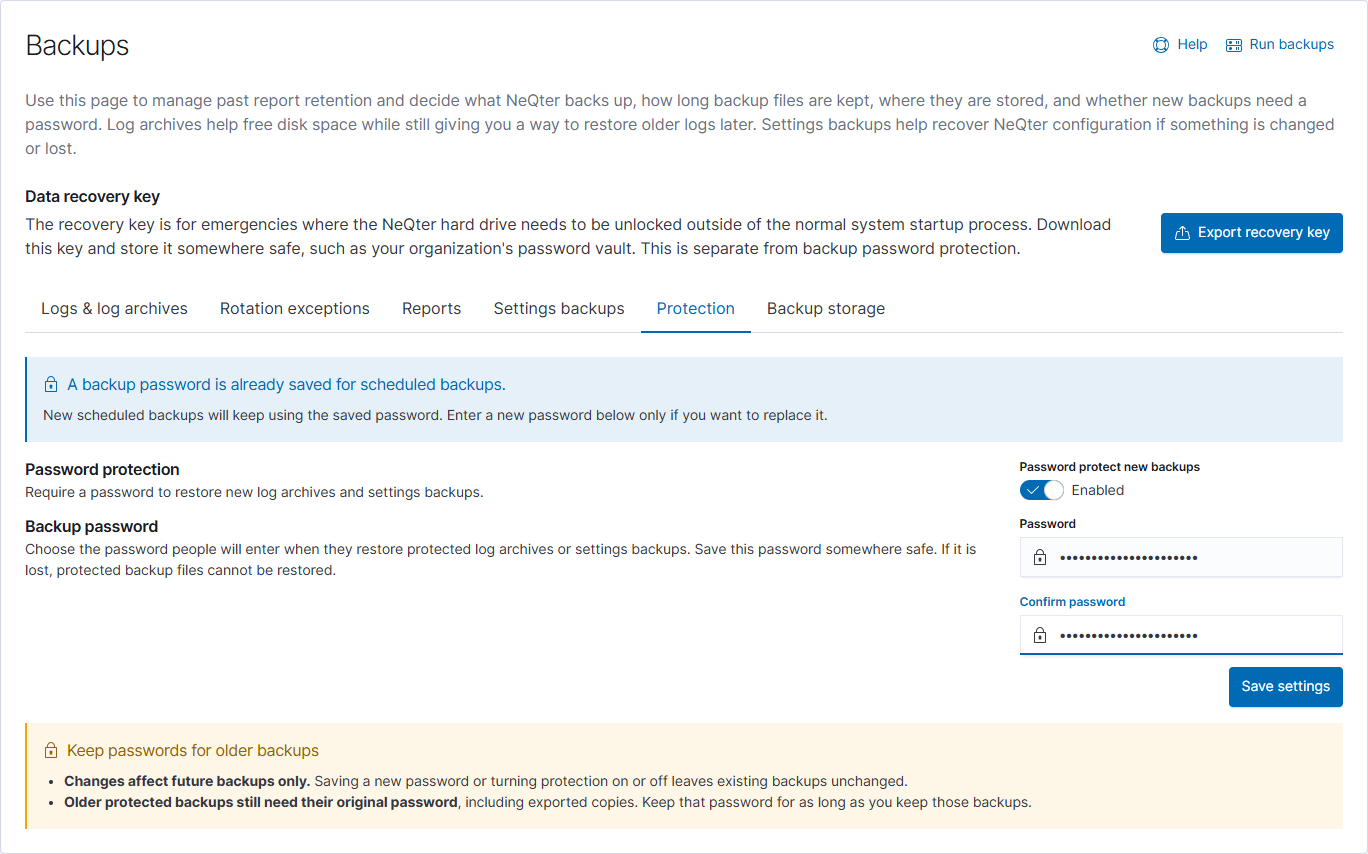
If a backup password is already configured, leaving both password fields blank preserves it; fill both fields to replace it. Existing files keep the protection and password they had when created. Disabling protection and saving affects future backups.
The backup password is separate from the appliance recovery key and the remote file-share account password. Keep the password needed for each protected backup: the file cannot be restored without it.