
Duo Log Sync — Windows Setup Guide
This guide installs the Python package from Duo’s official Duo Log Sync repository on a Windows collector and forwards its events to NeQter. The collector needs access to the Duo API and the appliance’s syslog listener.
Step 1: Prepare Duo and NeQter
Create a Duo Admin API application with Grant read log permission and securely record its integration key, secret key, and API hostname. Use a compatible Python version from Duo’s supported list. The example below assumes Python 3.11 and Git are installed. Duo Log Sync requires the collector’s timezone to be UTC/GMT.
In NeQter, open Settings → Inputs → Syslog → Add input. Enter a descriptive Label, the Windows collector’s source IP address, and Duo Security as Manufacturer. Select Save. Account for any source translation between the collector and NeQter.
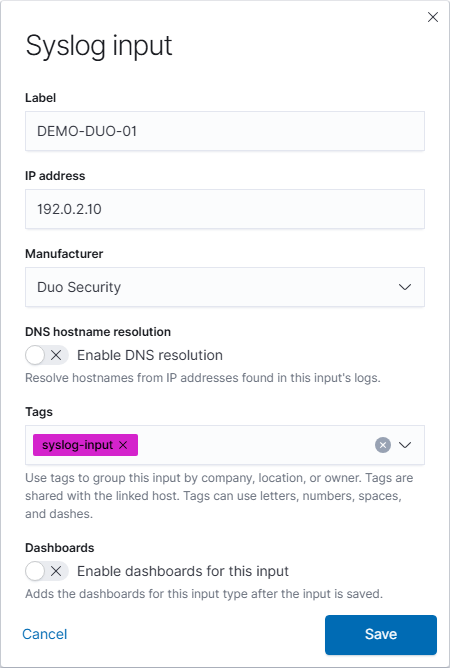
Confirm the appliance’s receiving port and transport before continuing.
Step 2: Install in a virtual environment
From PowerShell, create a new installation directory and install the package:
New-Item -ItemType Directory -Path C:\DuoLogSync
git clone https://github.com/duosecurity/duo_log_sync.git C:\DuoLogSync\src
py -3.11 -m venv C:\DuoLogSync\venv
C:\DuoLogSync\venv\Scripts\python.exe -m pip install --upgrade pip setuptools wheel
C:\DuoLogSync\venv\Scripts\python.exe -m pip install C:\DuoLogSync\src
C:\DuoLogSync\venv\Scripts\duologsync.exe --help
New-Item -ItemType Directory -Path C:\DuoLogSync\logs,C:\DuoLogSync\checkpoint
Copy-Item C:\DuoLogSync\src\example_config.yml C:\DuoLogSync\config.yml
These commands use Python’s virtual environment and pip’s local project installation. The installed duologsync.exe is in the environment’s Scripts directory. You do not need to activate the environment when using its full paths.
Step 3: Configure forwarding
Edit C:\DuoLogSync\config.yml. The following example uses the current configuration structure and fictional placeholders. Replace the credentials and destination, and match the port and transport to the appliance:
version: '1.0.0'
dls_settings:
  log_filepath: 'C:\DuoLogSync\logs\duologsync.log'
  log_format: 'JSON'
  api:
    offset: 1
    timeout: 120
  checkpointing:
    enabled: true
    directory: 'C:\DuoLogSync\checkpoint'
servers:
  - id: 'neqter'
    hostname: '192.0.2.50'
    port: 514
    protocol: 'UDP'
account:
  ikey: 'YOUR_INTEGRATION_KEY'
  skey: 'YOUR_SECRET_KEY'
  hostname: 'api-XXXXXXXX.duosecurity.com'
  endpoint_server_mappings:
    - endpoints: ['auth', 'activity']
      server: 'neqter'
  is_msp: false
Use single-quoted Windows paths so backslashes remain literal. The initial lookback here is one day. Use Duo’s configuration template for additional endpoints, transport, certificates, or MSP settings. Restrict file permissions to the administrators and account that run the collector; that account needs write access to the log and checkpoint directories.
Step 4: Run and verify
Start it in the foreground:
C:\DuoLogSync\venv\Scripts\duologsync.exe C:\DuoLogSync\config.yml
Pass the configuration path directly. The upstream command-line interface does not define --config, --test, or --log-level options.
Generate a Duo event, allow for API availability and polling, then select the Duo data source and matching time range in NeQter Discover. Review C:\DuoLogSync\logs\duologsync.log for program errors. Stop the foreground process with Ctrl+C before configuring continuous operation.
Step 5: Run continuously
Use Task Scheduler → Create Task with an account that can read the configuration and write its log/checkpoint files. Configure a startup trigger and Run whether user is logged on or not. Windows supports application startup tasks through Task Scheduler. Set the action as follows:
| Task action field | Value |
|---|---|
| Program/script | C:\DuoLogSync\venv\Scripts\duologsync.exe |
| Add arguments | C:\DuoLogSync\config.yml |
| Start in | C:\DuoLogSync |
Configure restart on failure and prevent overlapping instances. Review any task time limit so the collector can remain running. Run the task, check its status/history, and confirm new Duo events reach NeQter after a collector restart.
Step 6: Enable the dashboard
Open Settings → Dashboards → Duo Security, enable the index if needed, select Overview, then select Apply changes. Open the result through Logs → Dashboards.

If no events appear, check API permissions, configuration errors, collector file permissions, source input matching, the receiving port/transport, and the time range in Discover.