NeQter Labs How to Guides
Fortinet / Fortigate
Step 1: NeQter Input Setup
1. Log in to NeQter and go to the NeQter Settings > Inputs page.
2. Click on the Add input button in the top right corner, fill in the following information:
- Name of the Fortinet device (can technically be anything).
- IP Address of the Fortinet device.
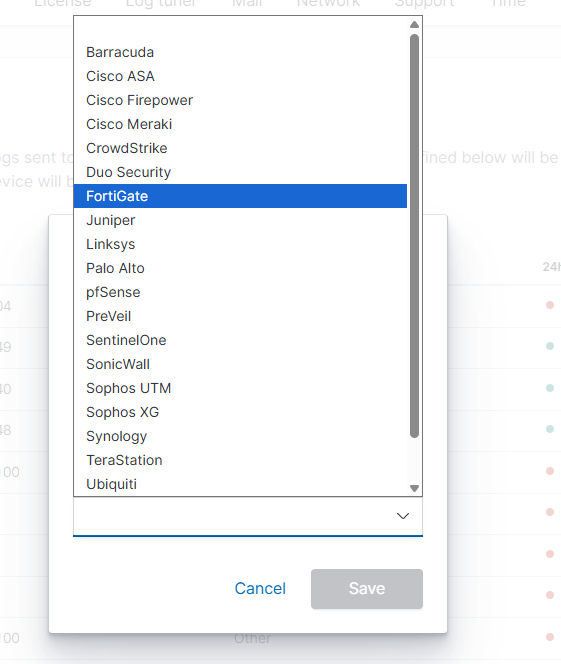
- Select Fortigate as the value for the Manufacturer.
3. Click Save to save your new input.
Step 2: NeQter Dashboard Setup
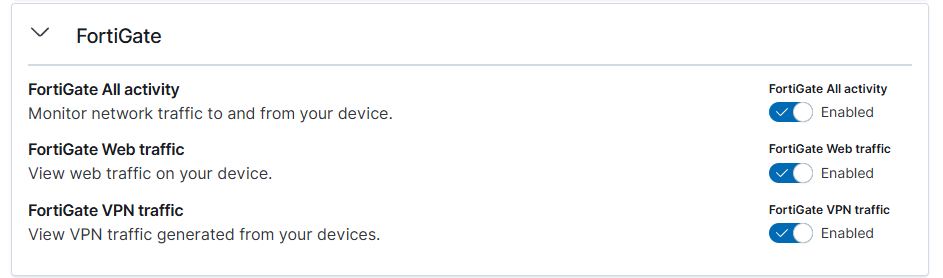
1. Go to NeQter Settings > Dashboards
2. Expand the Fortigate dropdown and toggle the desired Fortigate capabilities to enable them.
3. Save your changes at the top of the Dashboards panel by clicking Apply changes.
Step 3: Fortinet Configuration
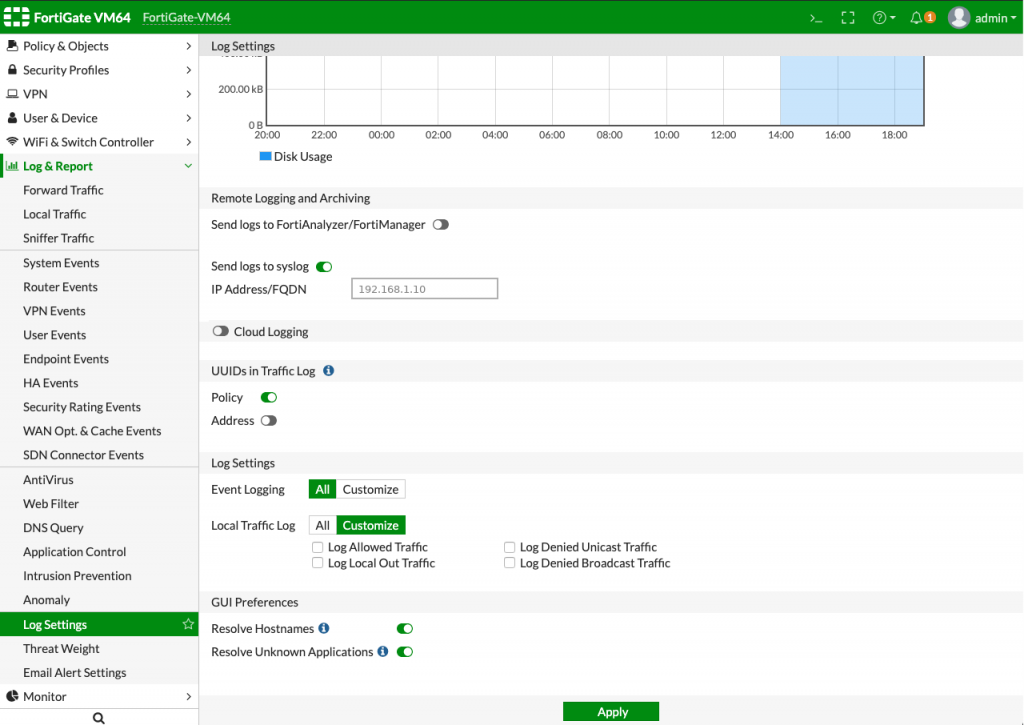
1. Login to the Fortinet device and go to Log & Report > Log Settings.
2. Scroll to the Remote Logging and Archiving Section, enable Send logs to syslog and in the IP Address/FQDN Text Box, type in the NeQter’s IP Address.
Step 4 (Optional): Fortinet UDP Configuration
For some Fortinet Environments, syslog over TCP does not function correctly. If logging is intermittent or not working, follow the steps below:
1. Access the Fortinet CLI Console which can be accessed on the top of the webui as seen in the image below:

2. Type in the following commands to set the syslog mode as UDP.
config log syslogd setting
set mode udp
Barring misconfigurations, traffic should be see on the NeQter within an hour. If no new traffic is seen after following the above steps, contact support here for further assistance.