
Hosts
Hosts brings together your known devices, agent inventory, availability monitoring, installed software, baselines, and related findings. Start with Inventory to find a device, then select its hostname to investigate that host.
NOTE: New screenshots use example host identifiers and IP addresses. Configuration examples show drafts; replace example values with the settings appropriate for your environment.
On this pageCollapse sections
- Hosts
- Open Hosts and choose a page
- Review your first host
- Set the time range and refresh
- Read the Inventory overview
- Open a host and read Insight
- Edit host information
- Download Inventory
- Agents
- Groups
- Monitor
- Compare hardware across hosts
- Review software across hosts
- Define expected software with Baselines
- Vulnerabilities
- Unknown
- Events
- Hosts Help
- Permissions and saved changes
- Troubleshooting
Open Hosts and choose a page
Open the navigation menu at the top left, expand Hosts, and select Inventory. Once you are in Hosts, the same pages appear across the top of the application.
| Hosts page | Use it for |
|---|---|
| Inventory | Find known hosts, inspect individual devices, organize them into groups, and edit host information. |
| Agents | Review hosts reporting through a NeQter agent and manage their agent configuration. |
| Monitor | Review the availability checks configured for hosts and services. |
| Hardware | Compare reported hardware and system inventory across hosts. |
| Software | Review installed software and its update information. |
| Baselines | Define and review the expected software state assigned to hosts or groups. |
| Vulnerabilities | Review vulnerability findings associated with known hosts. |
| Unknown | Review discovered devices that have not been added to the known-host inventory. |
| Events | Review events associated with hosts. |
| Help | Open the Hosts help content. |
The navigation menu button shows or hides the left navigation. Its dock control keeps the navigation alongside the page. Use the close × on a host flyout to return to the host list.
Review your first host
- Open Hosts → Inventory.
- Type part of a hostname or IP address in Search hosts. The list filters as you type.
- Select the blue Hostname of the device you want to inspect.
- On Insight, confirm the host name, group, last-seen time, and available monitoring or inventory information.
- For an agent host, open Metrics and select a time range that includes its recent reporting activity. Select Refresh to fetch the view again.
- Open Hardware, Software, or another host tab for the detail you need.
- Close the flyout with × to return to Inventory. Clear your search text before looking for a different host.
A host can report through an agent without having a network availability monitor. Not monitored means no applicable monitor configuration is present; check Last seen and the host’s reported data separately.
Set the time range and refresh
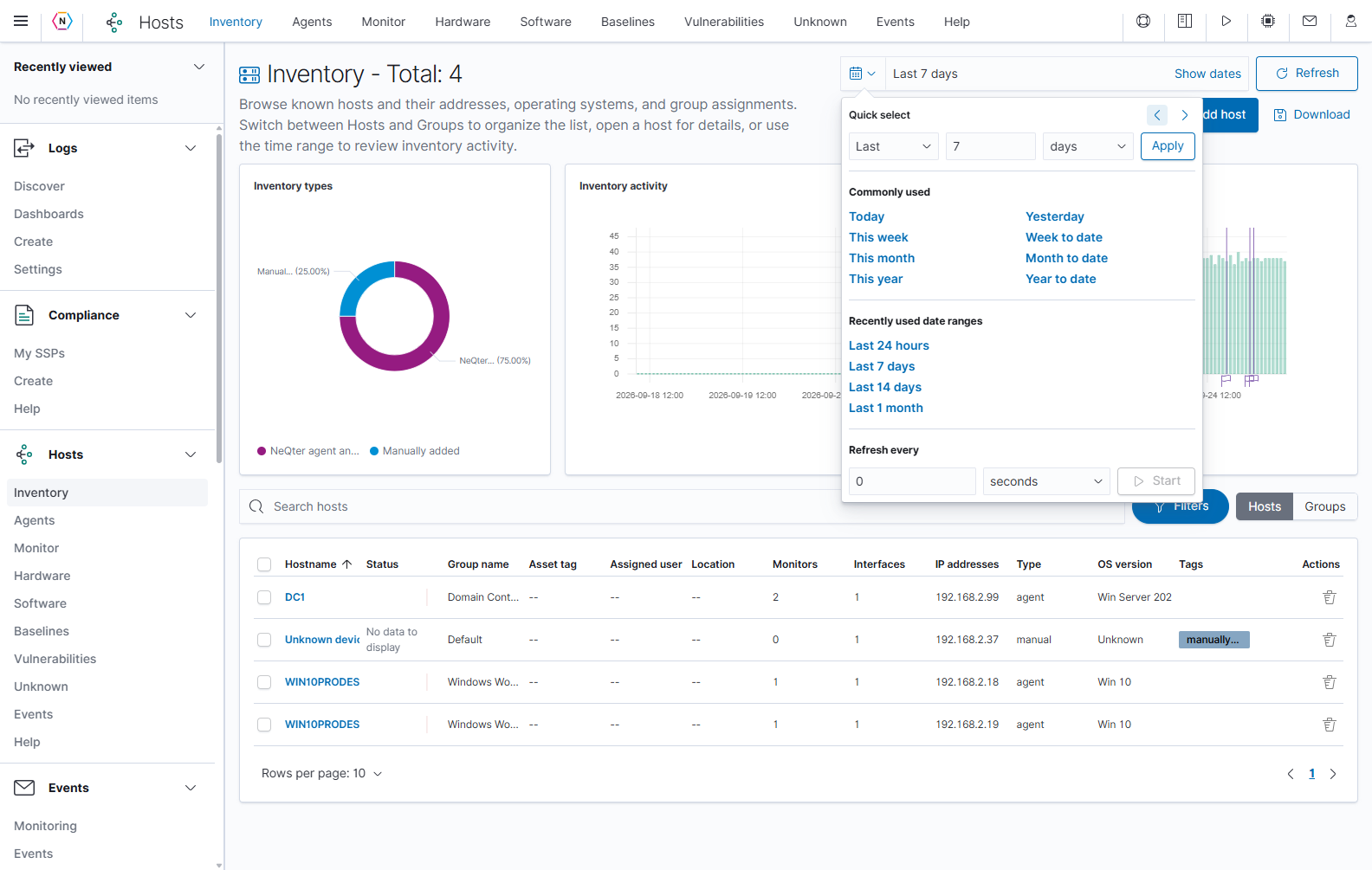
Most Hosts pages have a date picker at the upper right. Use it to align an investigation with the time of a change, an outage, or a scan result.
| Time control | How to use it |
|---|---|
| Calendar and arrow button | Opens the quick-select menu. |
| Quick select | Choose the direction, amount, and unit, such as Last 7 days, then select Apply. |
| Previous/next time-window arrows | Move the selected interval backward or forward by the same window length. |
| Commonly used | Choose a calendar shortcut, such as Today, Yesterday, or This week. |
| Recently used date ranges | Reuse one of the offered ranges without entering it again. |
| Show dates | Shows the start and end controls for inspecting or choosing exact boundaries. |
| Refresh | Reloads the selected interval. With a relative range ending in now, the interval advances as time passes. |
| Refresh every | Enter an interval and unit, then select Start to enable periodic refreshing. Pause it when you want the display to remain stable during a review. |
The effect depends on the page. Inventory’s date range controls its activity chart and time-based details; its saved host list is searched and filtered separately. Agents also limits reported hosts by inventory activity in the range. Monitor, Vulnerabilities, and Events use the range for their historical results. Hardware and Software focus on available inventory rather than a continuous live reading. Check a flyout’s own date range after opening it, especially Event details, which can use a different starting range from its directory.
Read the Inventory overview
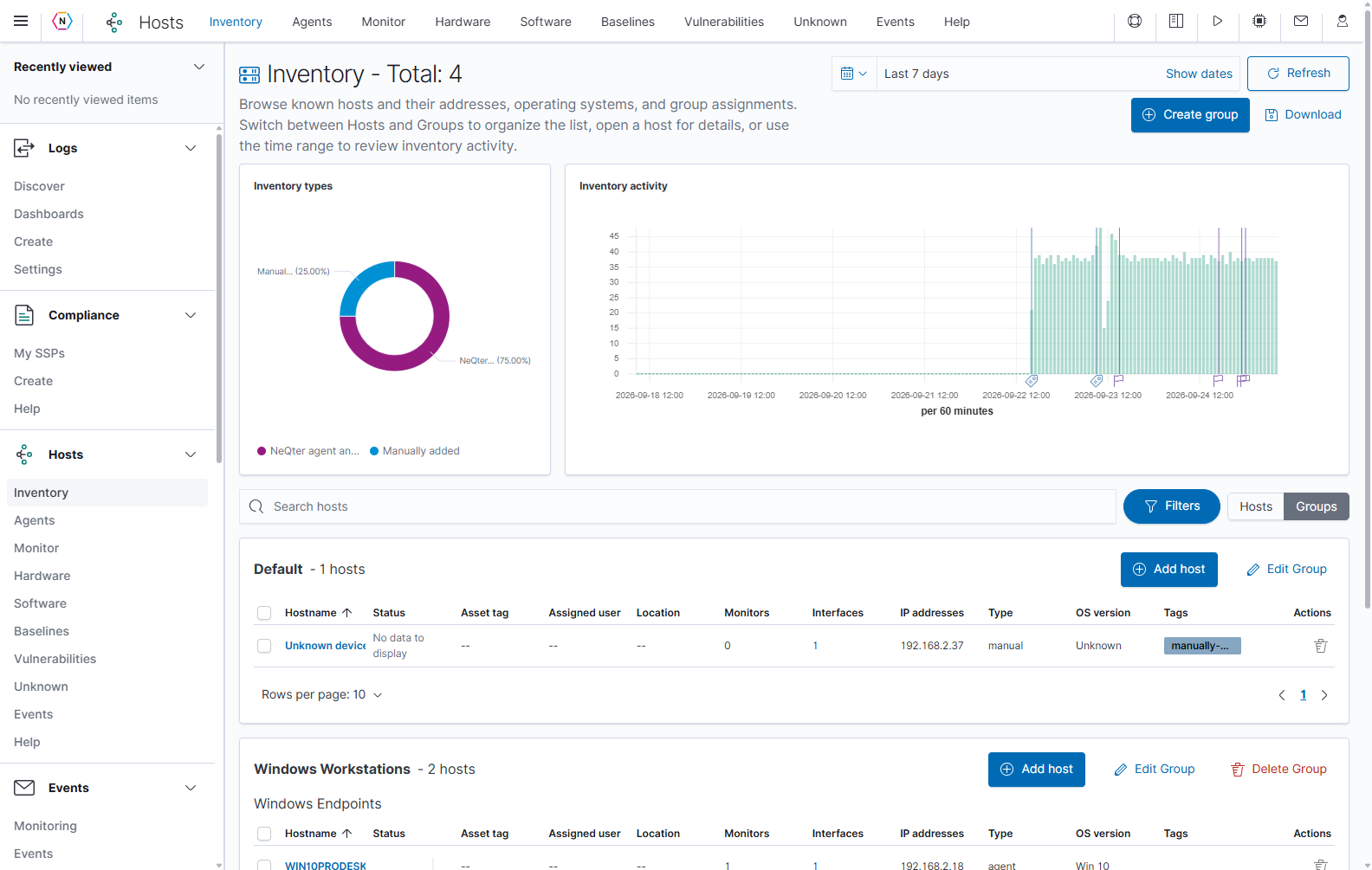
Inventory shows the known-host total, inventory type breakdown, activity chart, filters, and host tables. The example opens in Groups view, with a separate table beneath each group name.
| Control or area | What it does | How to use it |
|---|---|---|
| Inventory - Total | Reports the inventory total shown by the page. | Use the tables and active filters to understand which hosts you are reviewing. Screenshot totals are examples. |
| Inventory types | Summarizes the types of hosts represented in Inventory. | Read the legend to distinguish agent hosts, hosts with both an agent and monitors, and network-monitored hosts. |
| Inventory activity | Plots inventory activity over the selected time range. | Compare recent activity with quieter periods. The date range is an activity window, not a request to restore an old inventory snapshot. |
| Calendar and displayed time range | Choose the interval for time-based activity. | Select a quick range, or choose Show dates to edit the endpoints. |
| Refresh | Reloads the view. | Use after changing the time range or when checking for new reporting activity. |
| Create group | Starts group creation. | Use groups to organize hosts and apply the available group configuration. |
| Download | Opens Download current view. | Choose a file type and optionally configure the exported fields. |
| Hosts / Groups | Switches between one host table and separate group tables. | Choose Hosts to compare devices together; choose Groups to work within an organizational group. |
| Group name and host count | Identify each group and the hosts represented beneath it. | Scroll to the group you need before using its controls. |
| Add host in a group | Immediately creates a manual host record in that group and opens its editor. | Use when you intend to create a host. Closing the editor does not undo creation. |
| Edit group | Opens that group’s settings. | Check the group name before changing its configuration. |
For the time-picker controls, see Set the time range and refresh in Discover. Inventory search and category filters determine which hosts you see; the date picker supplies the interval for activity and historical measurements.
Find hosts with search and filters
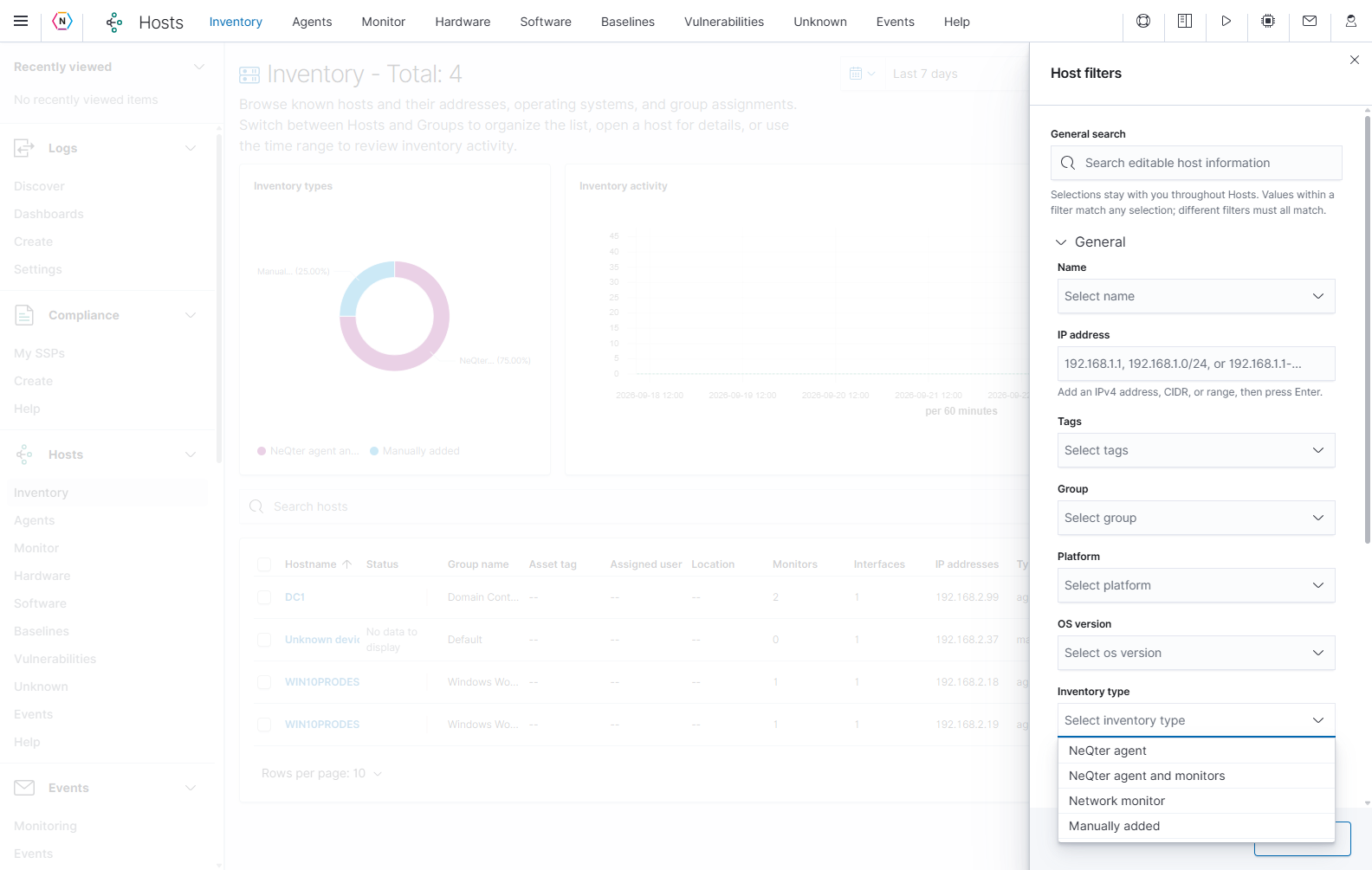
The Search hosts box narrows the current Inventory page. Select Filters to open the shared Host filters flyout. General search searches editable host information across Hosts; the General section includes name, IP address, tags, group, platform, OS version, inventory type, and asset fields. Values within one filter match any selected value; different filters must all match.
| Filter | How to use it |
|---|---|
| Search hosts | Enter a recognizable value, such as part of a hostname or address. Clear the text to remove the text condition. |
| Groups | Select an organizational group to narrow the host list. |
| Tags | Select a tag attached to the hosts you need. |
| Platforms | Narrow the list by the reported platform. |
| OS version | Narrow the list by its reported operating-system version. |
| Inventory type | Select a collection or monitoring category from the available options. |
| Clear all, in Host filters | Remove the shared host filtering conditions. Clear the separate page search as needed. |
Open a filter to choose its available values. Shared filter selections follow you between Hosts pages. Close the flyout to review the resulting list; closing it keeps the selected filters.
Check the active search and category filters together when an expected host is missing. An Unknown OS value means the inventory has no recognized OS version for that record; it is not the same as the separate Unknown devices page.
Read and sort the host table
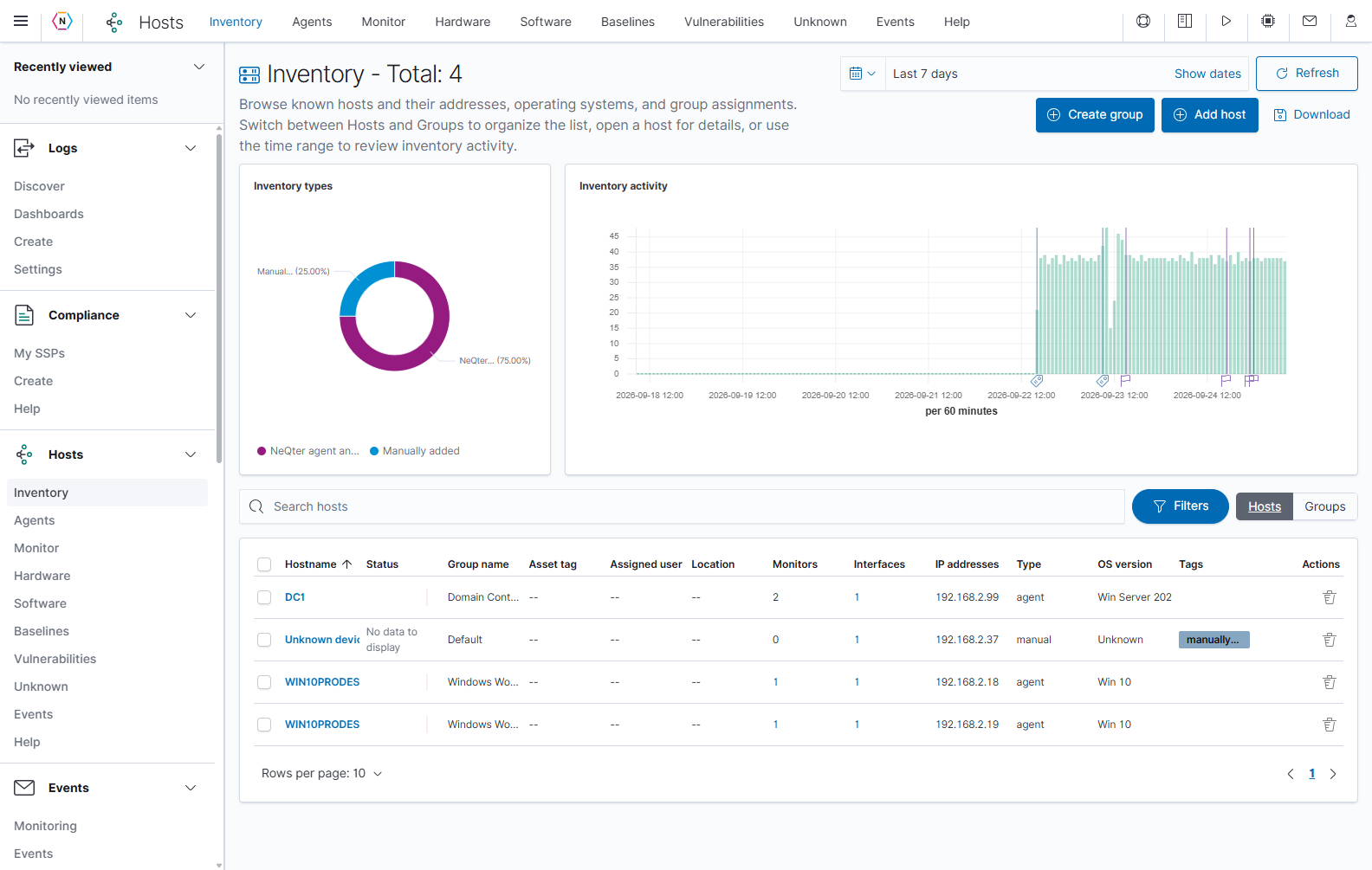
Select Hosts beside the filters to display the host list together. Select Groups to return to tables arranged by group.
| Column or control | Meaning and action |
|---|---|
| Hostname | The host’s displayed name. Select the blue name to open Host information, starting on Insight. |
| Status | Shows the available status history. No data to display means this view has no status data to plot; inspect the host before treating it as an outage. |
| Group name, in Hosts view | The organizational group containing the host. In Groups view, the group name appears above its table. |
| Asset tag | The hardware asset identifier recorded for the host. |
| Assigned user | The person associated with the host in its metadata. |
| Location | The location recorded in the host editor. |
| Monitors | The number of configured service monitors for the host. |
| Interfaces | The number of host network interfaces represented in the record. |
| IP addresses | The addresses associated with the host. +1 more indicates additional addresses; open the host for its interface details. |
| Type | The record’s source/type, such as agent, input, or manual. This column is distinct from the friendly inventory-type filter labels. |
| OS version | The operating-system version reported for the host, or Unknown when unavailable. |
| Tags | Labels attached to the host for identification and filtering. |
| Sortable column heading | Select a heading to sort by that value; the arrow shows the current direction. Select again to reverse it. |
| Row checkbox / heading checkbox | Select individual rows or the selectable rows offered by the table for its selection actions. Select the hostname when you want to inspect a host. |
| Trash icon under Actions | Starts deletion of that host record. Review the named host in the confirmation before continuing. |
| Rows per page, page numbers, previous/next arrows | Change the number of visible rows or move between table pages. Group tables have their own paging controls. |
An empty asset field shown as – means no value is recorded there. Enter that information in the host’s Edit tab when you need it in Inventory.
Open a host and read Insight
Selecting a hostname opens the Host information flyout on Insight. The host list remains in the background. Confirm the name at the top of Insight before interpreting the cards or using an action.
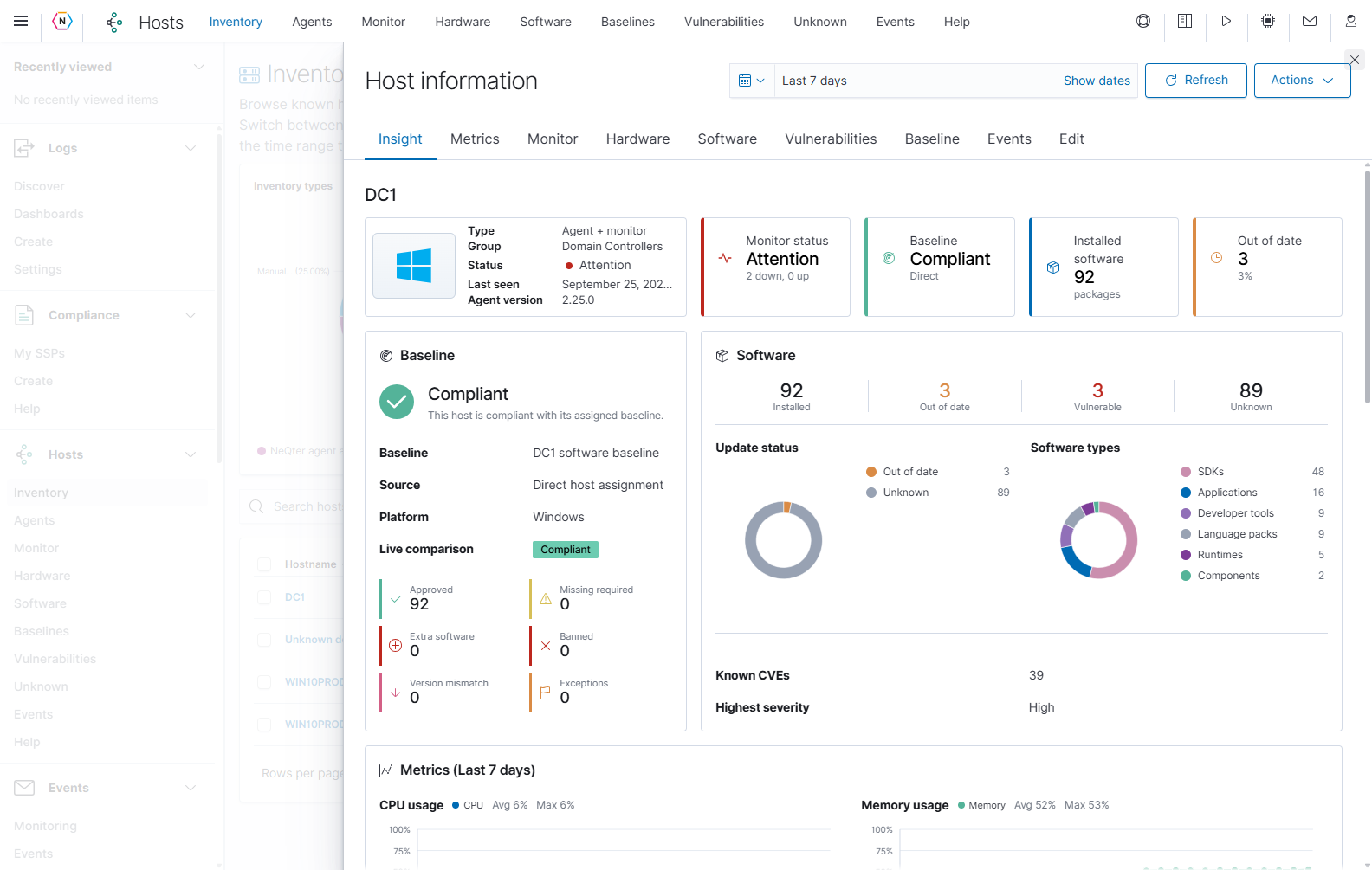
| Insight area | What to read |
|---|---|
| Identity card | Host type, group, status, last-seen time, and agent version where available. Agent version describes the installed endpoint agent. |
| Monitor status | Whether a monitor is configured and its available status. |
| Baseline | The expected-state baseline assigned directly or through the host’s group. No baseline assigned means the host has no baseline to compare against. |
| Installed software / Out of date | Software totals and available update classification. Read Unknown counts as well; an unknown update status is not a verified up-to-date result. |
| Software summary | Installed, out-of-date, vulnerable, and unknown package counts; software types; known CVEs; and highest reported software severity. |
| Metrics | CPU, memory, disk, and network measurements over the selected time range. |
| Events | Host event severity totals and available events for that range. View all events opens the host’s event view. |
| Vulnerabilities | The host’s available scan findings, severity breakdown, and recent findings. These are separate from the installed-software update counts. |
| Network and monitors | Primary address, interfaces, and monitor configuration represented in the record. |
| Asset details | Entered asset tag, assigned user, location, description, tags, and custom fields. |
| System snapshot | Reported manufacturer, model, serial number, operating system, processor, memory, and last inventory time. |
Scroll within the flyout to reach the lower cards. A zero total or empty card describes the information available to that section; compare it with the host’s last reporting time and the selected interval.
| Flyout tab or control | Use it for |
|---|---|
| Insight | Return to the combined host overview. |
| Metrics | Review historical resource and network measurements for an agent host. |
| Monitor | Review the host’s configured service checks and their results. |
| Hardware | Inspect that host’s reported system and hardware inventory. |
| Software | Inspect software reported by an agent host. |
| Vulnerabilities | Review available vulnerability findings associated with the host. |
| Baseline | Review the agent host against its assigned baseline. |
| Events | Review events associated with this host. |
| Edit | Change host metadata and manage its interfaces, monitors, and baseline assignment. |
| Time picker and Refresh | Set the interval for the flyout’s time-based sections and reload their results. |
| Actions | Open the available vulnerability-related host actions. |
| Close × | Close Host information and return to the underlying page. |
The tabs shown in the example belong to an existing agent host. Agent-specific information and tabs are not present for every inventory record.
Read host Metrics
Select Metrics in the host flyout. Choose an interval that contains agent reports and select Refresh.
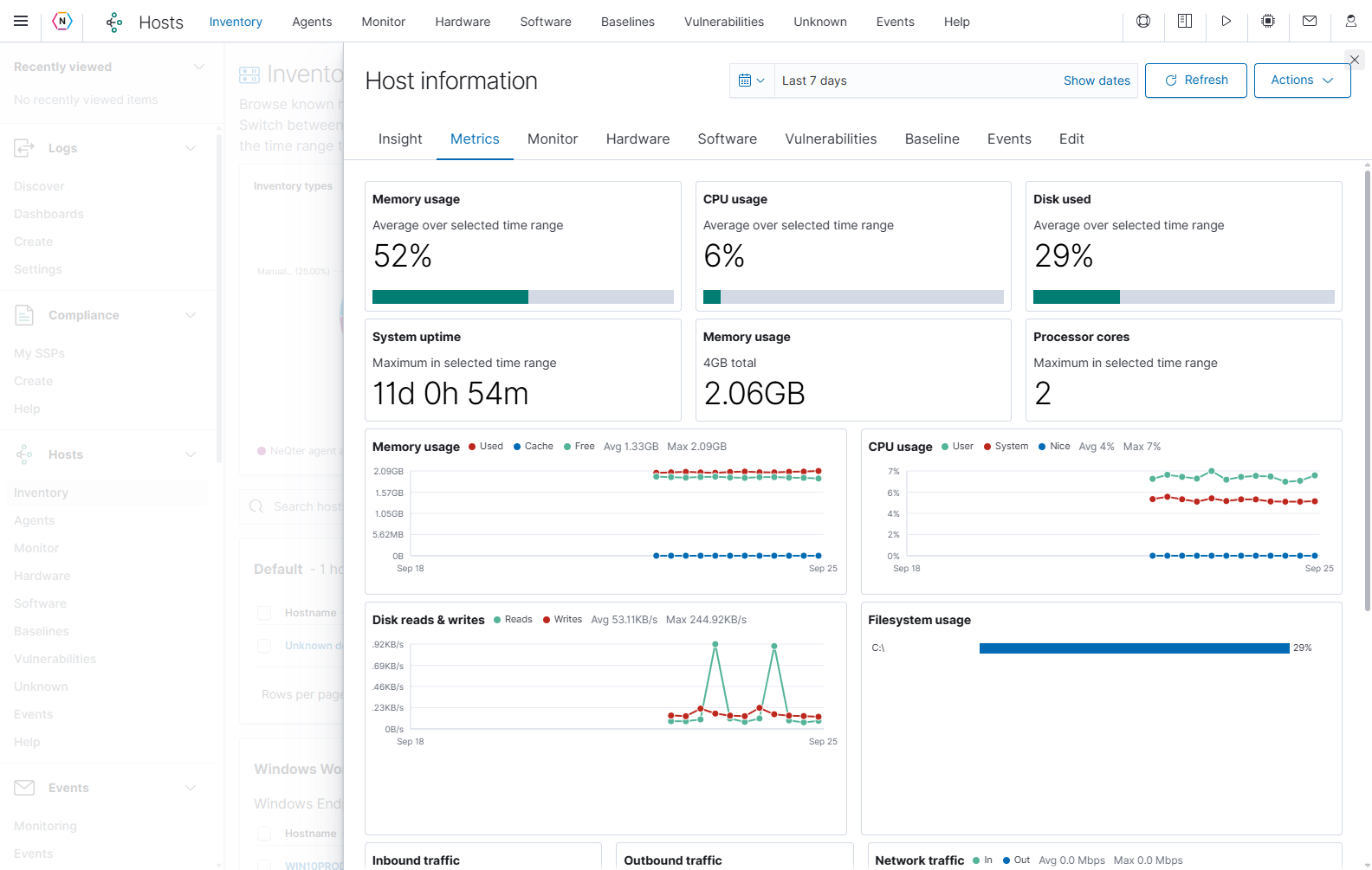
| Metric | How to interpret it |
|---|---|
| Top Memory usage, CPU usage, and Disk used percentages | Averages over the selected time range, as stated beneath each heading. |
| System uptime | The maximum reported uptime within the selected interval. |
| Memory amount and total | The displayed memory usage in relation to the host’s reported total capacity. |
| Processor cores | The maximum reported core count in the selected interval. |
| Memory and CPU charts | Trends split into their displayed series. Use the legend and Avg / Max labels to identify what each number summarizes. |
| Disk reads & writes | Read and write throughput over time. |
| Filesystem usage | Usage for individual filesystems. Review each filesystem separately from the overall Disk used card. |
| Inbound traffic / Outbound traffic | Traffic rates and the displayed counter totals. A cumulative counter total is different from the current rate. |
| Network traffic and per-interface panels | Incoming and outgoing network measurements, including the available interface breakdown. |
The example’s averages, maximum values, and individual filesystem percentages describe different calculations. They are not expected to match one another.
Use host Actions
The flyout’s Actions menu contains vulnerability-related actions for the selected host.
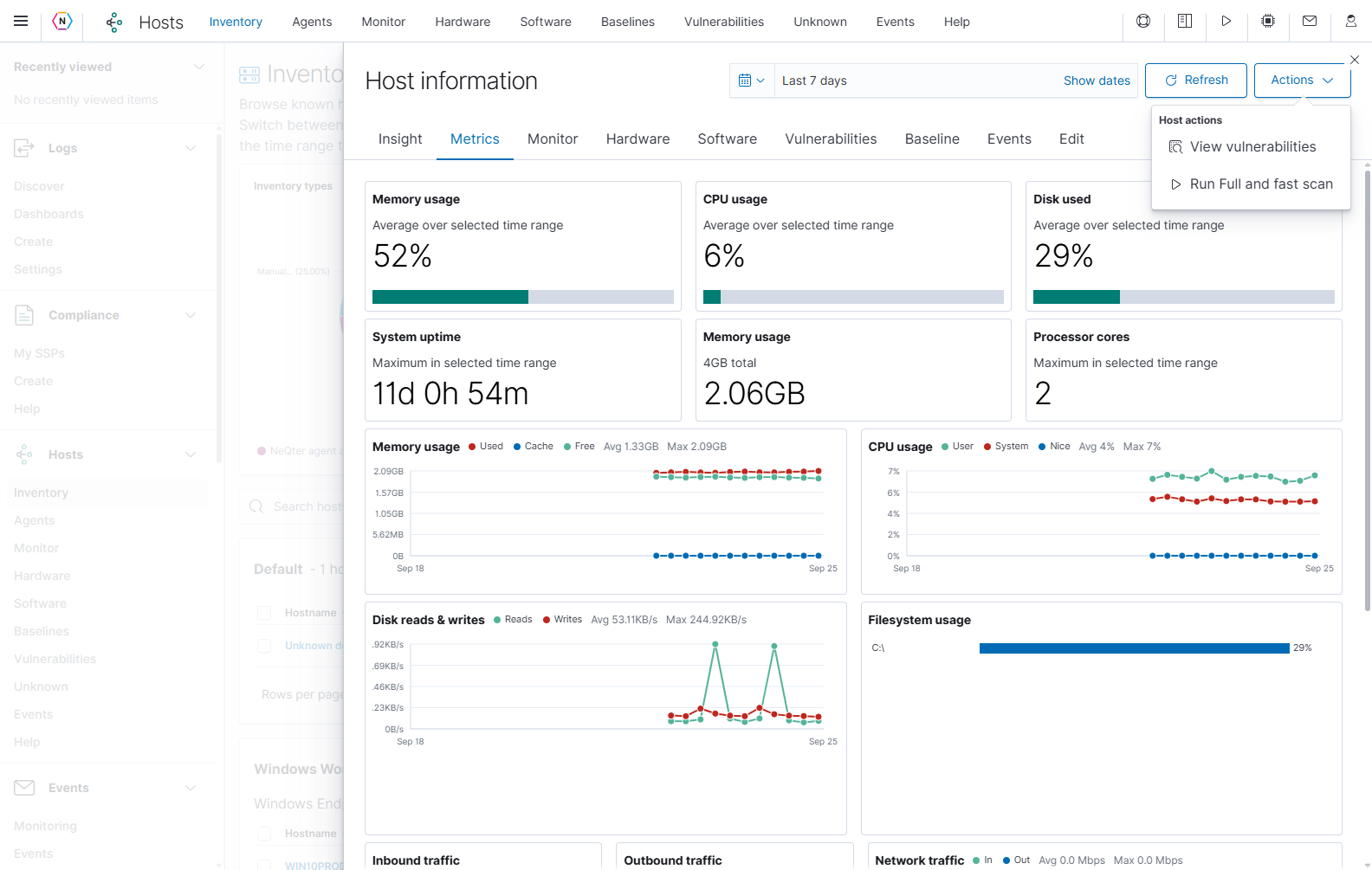
| Action | Purpose |
|---|---|
| View vulnerabilities | Look up the host’s addresses in the vulnerability scanner and open the matching scanner host-details view. This is a separate scanner flyout. |
| Run Full and fast scan | Start a Full and fast vulnerability scan. With one address, the scan starts immediately. With multiple addresses, choose the target address first; selecting it starts the scan. |
Edit host information
Open the host, select Edit, and scroll through the form. The main Save button applies the editable host metadata. Interface, monitor, and baseline controls have their own save behavior, described below.
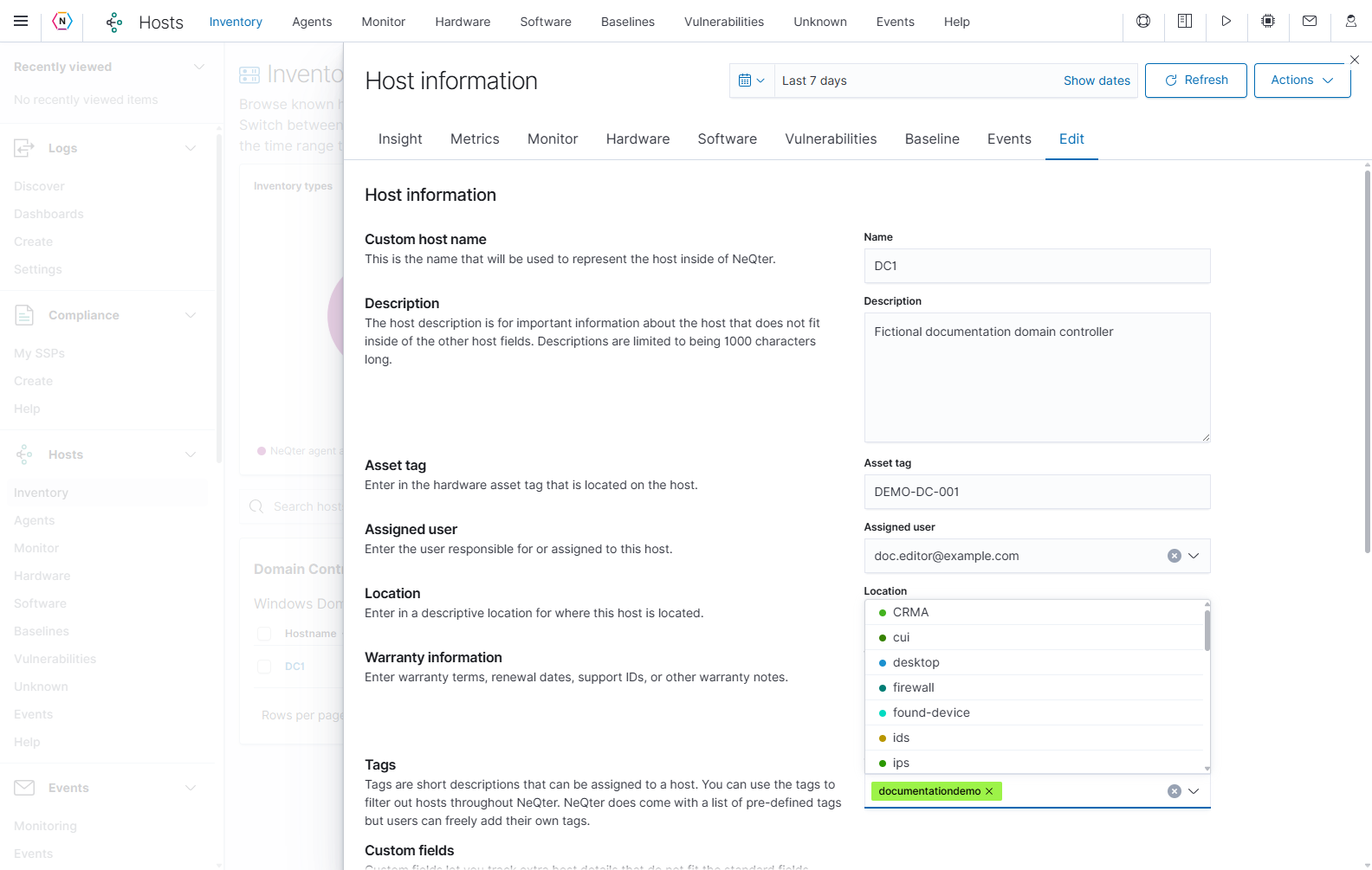
| Field or control | How to use it |
|---|---|
| Name under Custom host name | Set the name used to represent this host inside NeQter. |
| Description | Enter supporting host information, up to 1,000 characters. |
| Asset tag | Enter the device’s hardware asset identifier. |
| Assigned user | Select or enter the person responsible for or assigned to the host. |
| Location | Enter a descriptive physical or organizational location. |
| Warranty information | Record warranty terms, renewal dates, support IDs, or related notes. |
| Tags | Choose existing tags or add your own labels for host identification and filtering. |
| Custom fields → Add field | Choose an existing field name or create one, then enter the value for this host. A custom-field removal is saved with the main host form. |
| Group | Choose the organizational group. Agent hosts inherit group configuration; other hosts use groups for organization and reporting. |
| Save | Commit the name, description, asset fields, assigned user, location, warranty notes, tags, custom fields, and group changes. |
| Assigned baseline | Select a direct host baseline, or No direct baseline. This selection saves immediately, independently of the main Save button. |
| Baseline link icon | Open Baselines to review the available baseline definitions. |
| Delete host | Open the host-deletion confirmation. Requires Hosts admin access. An active agent can recreate its inventory record when it next checks in. |
If the group assigns a baseline, the host inherits it and the direct host-baseline selection is locked. Review the group assignment when you need to change that expected state.
To update ordinary asset information, enter the values, select Save, and reopen Insight or Inventory to verify the result. Save metadata edits before changing an interface, monitor, or baseline: those separate actions reload the host and can replace unsaved metadata edits with the saved values.
Add a manual host
- In Inventory, choose Groups and locate the group that should contain the device.
- Select that group’s Add host. This immediately creates a manual inventory record and opens its Edit tab.
- Enter a recognizable Name and the asset information you need.
- Select the main Save button to commit those metadata fields before using the separate interface or monitor controls.
- Add a network interface for the device, then configure a service monitor if you want availability checks.
The flat Hosts table also provides Add host. Closing the resulting editor does not cancel creation of the manual record. If the host was created by mistake, remove that specific record using Delete host and its confirmation.
Add or manage network interfaces
Scroll to Host network interfaces in the host’s Edit tab. The table shows each interface’s Name, Address, Type, and available actions.
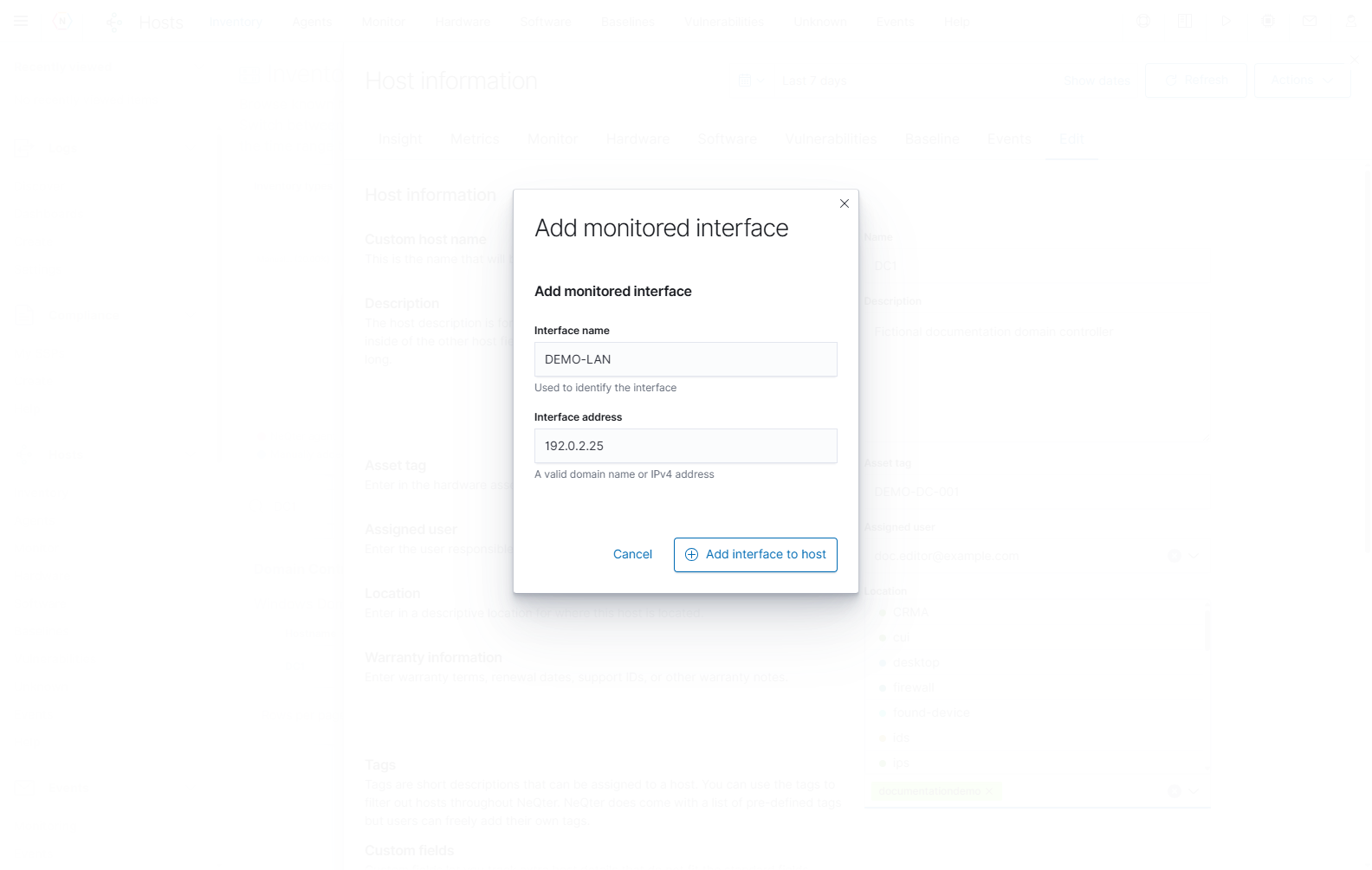
- Select Add interface.
- Enter an Interface name that identifies the connection.
- Enter Interface address as a valid domain name or IPv4 address.
- Select Add interface to host to save the interface immediately, or Cancel to close the form without adding it.
- Confirm the interface appears in the host’s table before choosing it in a monitor.
| Interface action | Behavior |
|---|---|
| Add interface | Opens the interface form. |
| Add interface to host | Adds and saves the interface independently of the main host Save button. |
| Edit action on a User added interface | Opens its settings; Update interface settings saves the change immediately. |
| Delete action on a User added interface | Immediately removes the interface when no monitor references it. Remove the dependent monitor before deleting an interface it uses. |
| NeQter added type | Identifies an automatically added interface. These interfaces are not editable or deletable through the user-added interface actions. |
Interface and monitor configuration, including deletion of eligible interfaces or monitors, requires Hosts write access. These controls do not use the same confirmation workflow as Delete host.
Add a service monitor
In Edit → Service monitoring, select Add monitor. A monitor checks a selected interface using ICMP or a TCP port. The Monitor tab and Hosts Monitor page provide the related monitoring views.
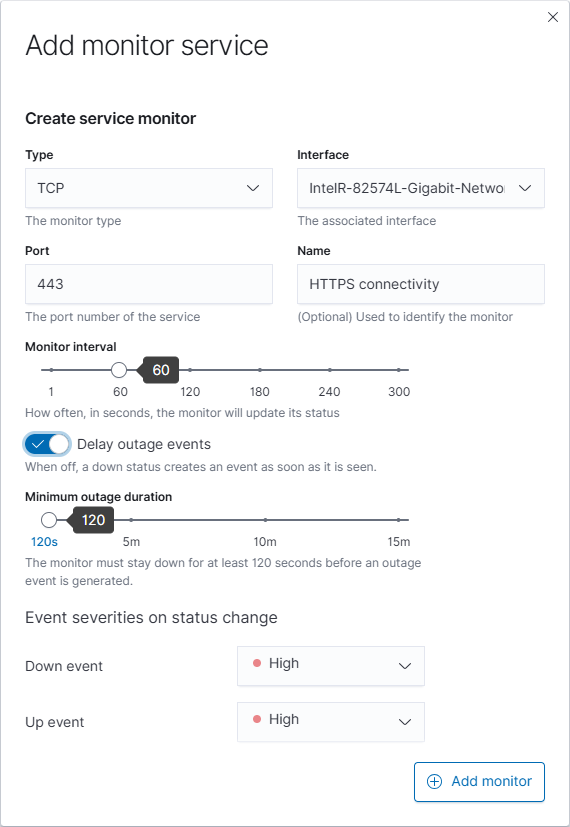
| Monitor field | How to use it |
|---|---|
| Type | Choose ICMP for an ICMP reachability check or TCP for a connection check on a service port. |
| Interface | Select the host interface whose address the check should use. Add the interface first if it is missing. |
| Port, for TCP | Enter the service’s TCP port, such as 443 for an HTTPS listener. A TCP check tests connectivity to the port; it does not inspect a web page’s contents. |
| Name | Optionally enter a recognizable label for the monitor. |
| Monitor interval | Set how often the monitor updates its status, from 1 to 300 seconds. The numbered points and slider set this interval. |
| Delay outage events | Off creates a down event as soon as the down status is observed. On requires the outage to persist for the configured minimum duration before creating the event. |
| Minimum outage duration, with delay enabled | Set a duration of at least two monitor intervals and no more than 900 seconds. |
| Down event | Choose the event severity for a transition to down. |
| Up event | Choose the event severity for recovery to up. |
| Add monitor | Save the monitor configuration immediately. This is separate from the main host Save button. |
| Close × | Abandon the monitor form before adding it. |
For an HTTPS connectivity check, choose TCP, select the interface, enter port 443, name the monitor, set its interval and outage behavior, then select Add monitor. Review its results under Monitor after checks have run.
The service-monitor table lists each monitor’s Name, Type, Interface, Port, and Interval. Its edit action opens the monitor form; Update monitor settings saves changes immediately. Its delete action immediately removes the monitor configuration.
Download Inventory
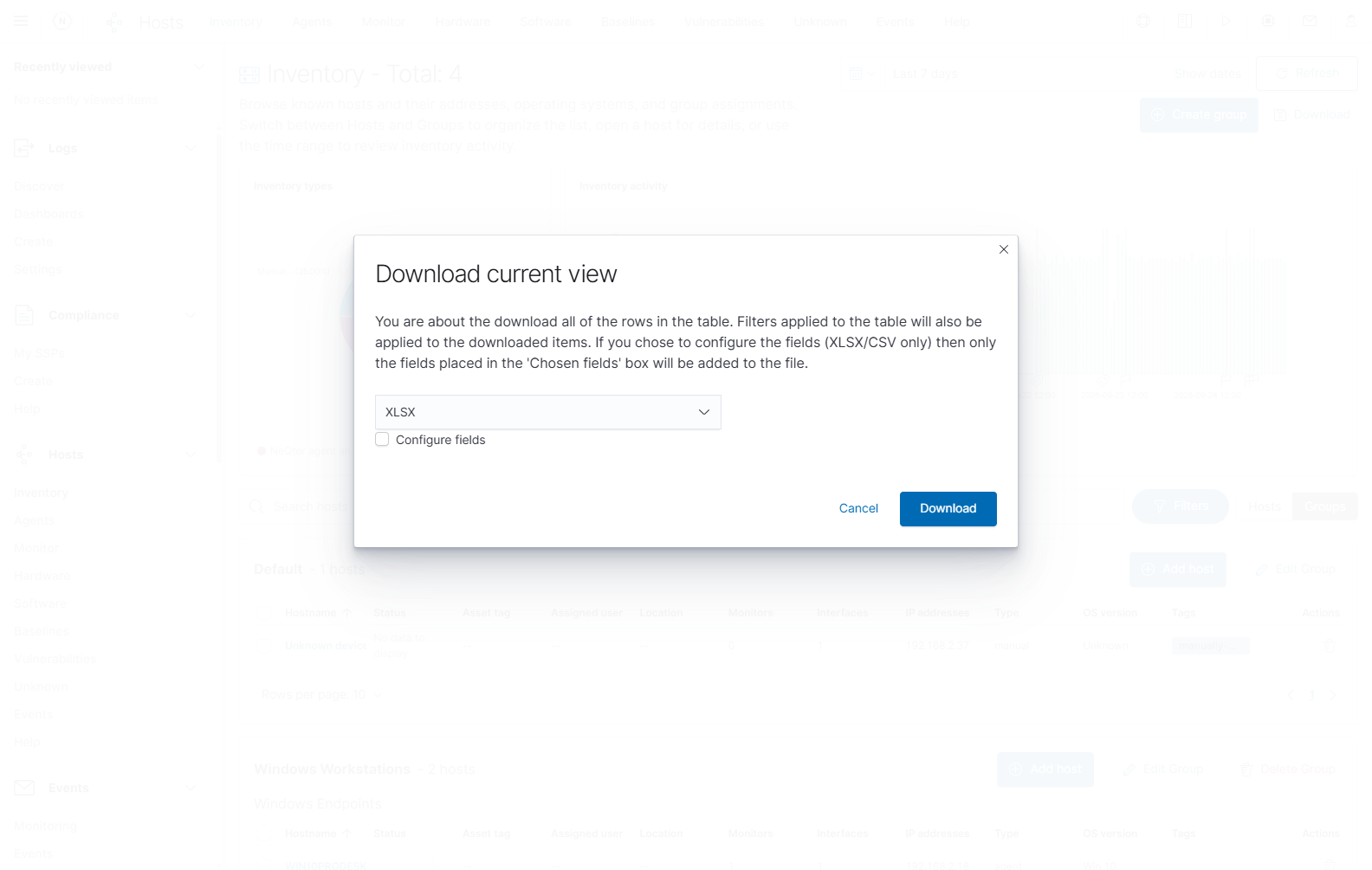
Select Download at the upper right of Inventory to open Download current view. Choose the format and exported fields in the dialog before downloading.
| Control | How to use it |
|---|---|
| File-type selector | Choose XLSX, CSV, or JSON. The example opens with XLSX selected. |
| Configure fields | For XLSX or CSV, choose which fields to include in the file. |
| Cancel or close × | Close the dialog without downloading a file. |
| Download | Generate the file using the chosen format and field configuration. |
Inventory Download includes the hosts matching the current search, group, tag, platform, OS-version, and inventory-type filters across all table pages. Row-selection checkboxes do not limit this export. Review those conditions before downloading, then check the resulting file’s rows and fields before sharing it.
Choose fields for XLSX or CSV
Turn on Configure fields to display Available fields and Chosen fields. The available list includes host metadata and reported inventory fields; its labels can be more detailed than the Inventory table’s column names.
- Choose XLSX or CSV.
- Select Configure fields.
- Drag the fields you need from Available fields into Chosen fields. Start with identifying fields such as Meta name, Meta asset tag, Meta assigned user, and Meta location, then add the reported inventory details you need.
- Drag fields within Chosen fields to set their exported column order. Drag a field back to Available fields to remove it. Review the list before selecting Download; leaving Chosen fields empty does not select all fields.
- Open the downloaded file and verify its contents.
Field configuration applies to the XLSX and CSV exports. Choose JSON when you need the available structured host data rather than a selected spreadsheet-column layout.
Agents
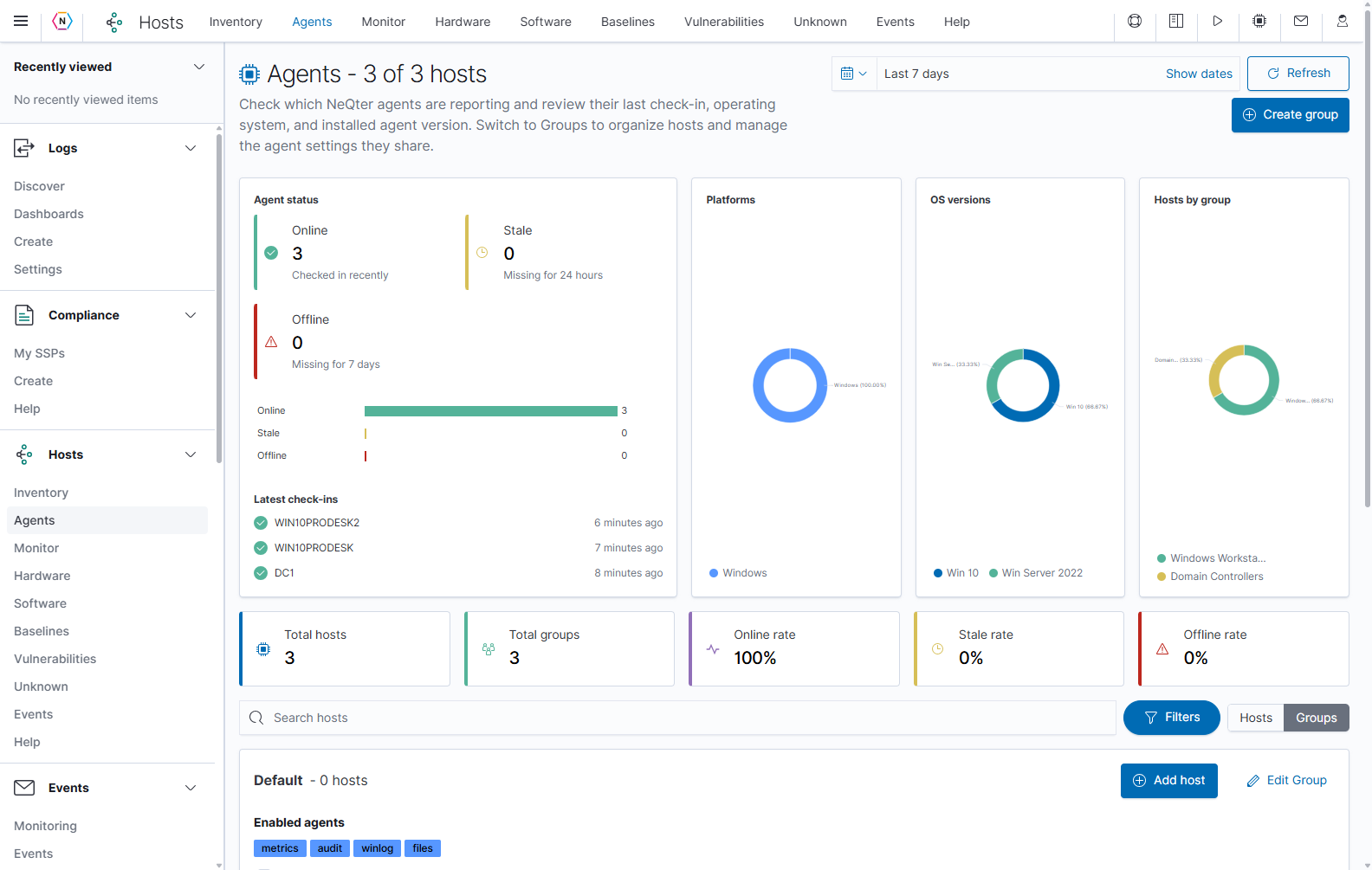
Open Hosts > Agents to check devices that report through the NeQter agent. This page answers when an agent last reported, which platform and agent version it uses, and which group supplies its configuration.
Read agent status
| Label or panel | Meaning |
|---|---|
| Online | The latest agent inventory is less than one full day old. |
| Stale | The latest inventory is at least one day old but less than seven days old. |
| Offline | The agent has not supplied inventory for seven days or more. |
| Latest check-ins | The most recent reporting devices and the age of their inventory. Find the same name in the table to investigate that device. |
| Platforms | The operating-system families represented by the agents, such as Windows or Linux. |
| OS versions | The operating-system versions represented by the agents. |
| Hosts by group | How the agent hosts are distributed between groups. |
| Total hosts / Total groups | Summary counts for the page. A group may exist without a reporting agent. |
| Online rate / Stale rate / Offline rate | The share of agent hosts in each reporting category. |
These labels describe inventory reporting. An Offline agent can belong to a powered-on computer whose agent service or network connection is not working. Compare Last seen, host metrics, and configured network monitors before deciding what failed. The group’s configurable down-detection events use their own thresholds.
Search and use the agent table
- Choose a time range that includes the inventory activity you need, then select Refresh. Widen the range when looking for an agent that has been absent for several days.
- Search for a host name, IP address, OS version, or agent version.
- Open Filters and use the General and Agents sections to narrow platform, group, reporting status, and OS version. Use Clear all to reset shared filters and clear the separate page search as needed.
- Choose Hosts for one table or Groups to place the agents under their assigned groups.
- Open a host name to review its information. The Metrics, Software, Baseline, and Events tabs provide additional context when available.
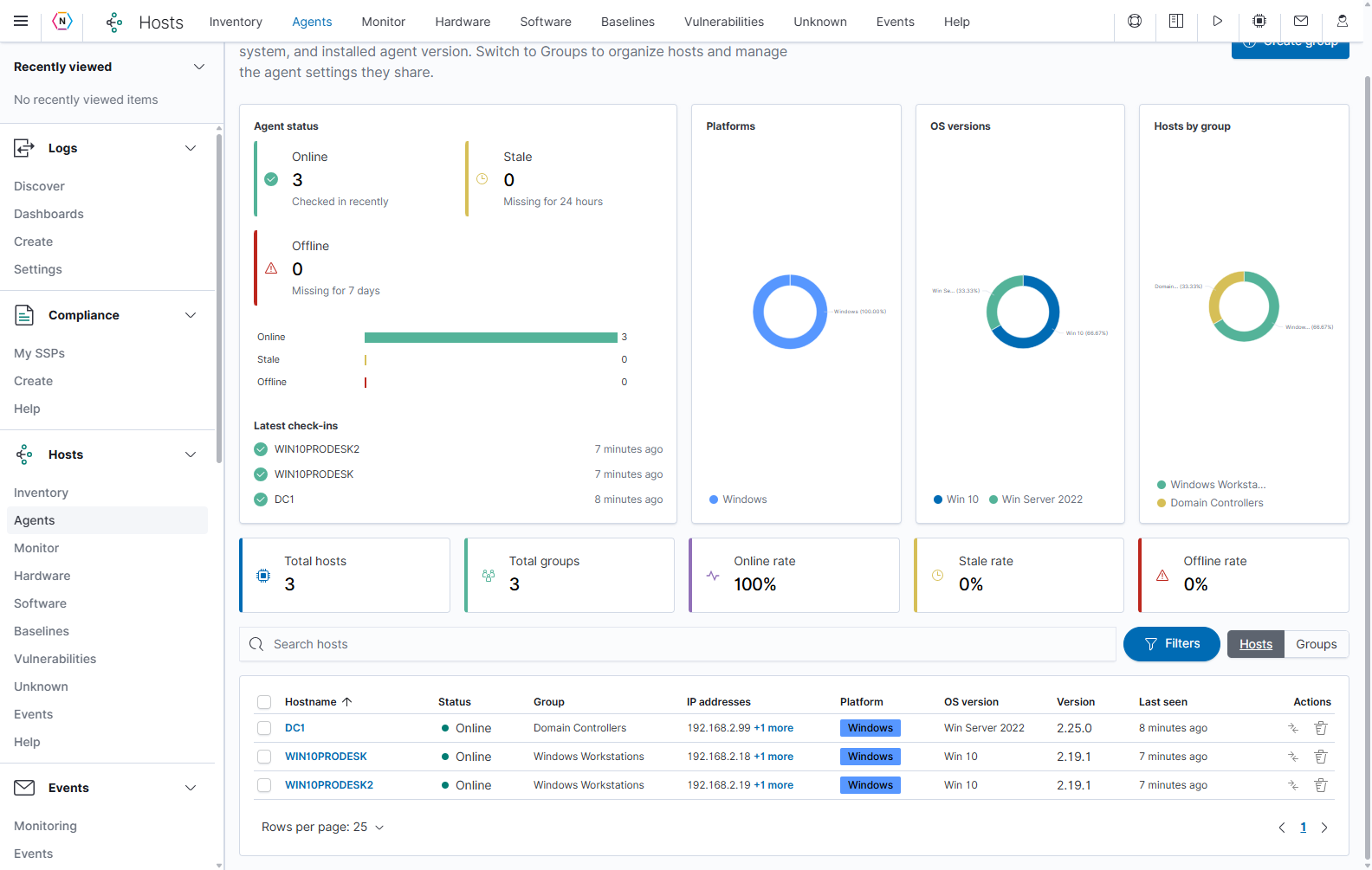
| Control or column | How to use it |
|---|---|
| Hostname | Opens the host’s information. Select the heading to sort the list by name. |
| Status | Shows the inventory reporting category described above. |
| Group | Identifies the group currently assigned to the host. |
| IP addresses and +N more | Show the first address and indicate additional interfaces. Open the additional-address display or host details to review the remaining addresses. |
| Platform / OS version | Identify the host operating system. |
| Version | Shows the NeQter agent version reported by the device. This can differ from the appliance version. |
| Last seen | Shows the age of the most recent agent inventory. It is not the last user login. |
| Row checkbox / heading checkbox | Select one or more hosts for available bulk actions. Review the selected count before saving an action. |
| Move host action | Opens a destination-group confirmation for that host. |
| Delete action | Opens the host deletion confirmation. It requires Hosts administrator access. An installed agent can add its record back at the next check-in. |
| Rows per page, page number, and arrows | Change the displayed page size and move through the results. |
Move agents and make bulk changes
Use Move host on an individual row, or select hosts and use the available move action. In Change group, choose the destination and select Yes, move the hosts to commit. Cancel or the close button leaves the assignment unchanged.
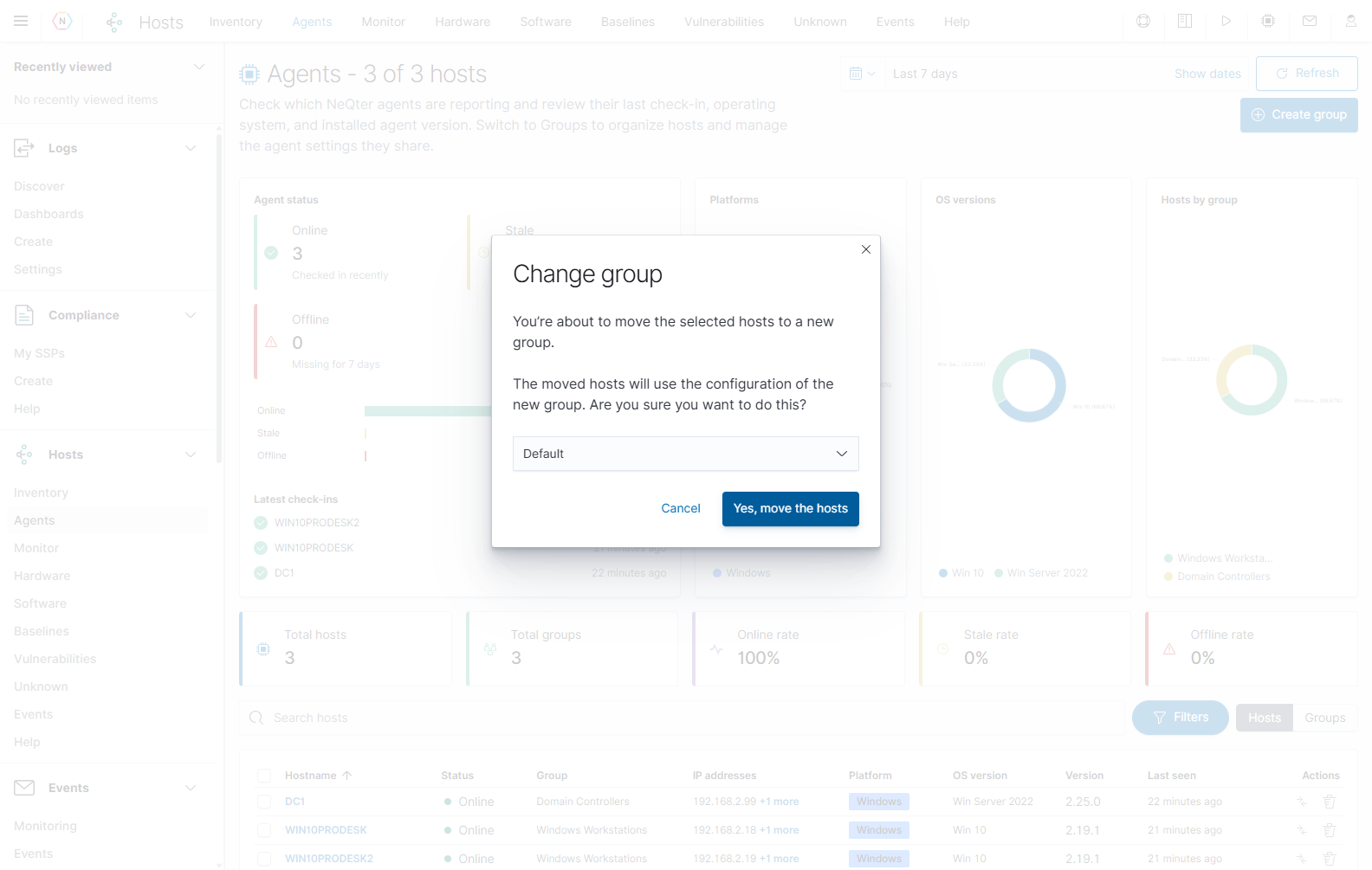
Moving an agent changes which group configuration it receives. Review the destination group’s collection settings and baseline before confirming.
Bulk edit opens shared metadata fields for selected hosts. Enable only the fields you intend to change. The form supports description, asset tag, assigned user, location, warranty information, group, tags, and custom fields. For tags, choose Add tags, Replace tags, or Remove tags. For custom fields, choose Add or update fields or Replace all custom fields. Select Save changes to apply the enabled fields; Close leaves the draft unapplied. A bulk Delete action opens a separate confirmation and requires administrator access.
Groups
Groups organize hosts and provide shared agent configuration. Open the Groups view on Inventory or Agents, then select Edit group on the group you want to change. Select Create group to prepare a new group. The editor has stacked Details, Logs, Down detection, and Baseline sections; scroll within the flyout to reach each section.
| Control | What it does |
|---|---|
| Details | Edits the group’s name and description. Use a name that describes the intended host role or configuration. |
| Logs | Configures collection separately for Windows, Linux, and MacOS. |
| Down detection | Configures events for missing inventory or missing agent streams. |
| Baseline | Selects the software baseline inherited by hosts in the group. |
| Save | Creates the new group or saves changes to an existing group’s configuration and baseline assignment. |
| Cancel / X | Closes the editor and discards its unsaved draft. |
| Reorganize groups | Opens the group ordering view. Drag a group to its desired position. Each completed drag saves the order immediately; the editor’s Cancel button does not undo that saved order. |
Configure collection under Logs
Choose Windows, Linux, or MacOS before changing collection settings. A switch enables that collector for the selected platform; enabling a collector can reveal additional options. Unsupported features show a disabled explanation.
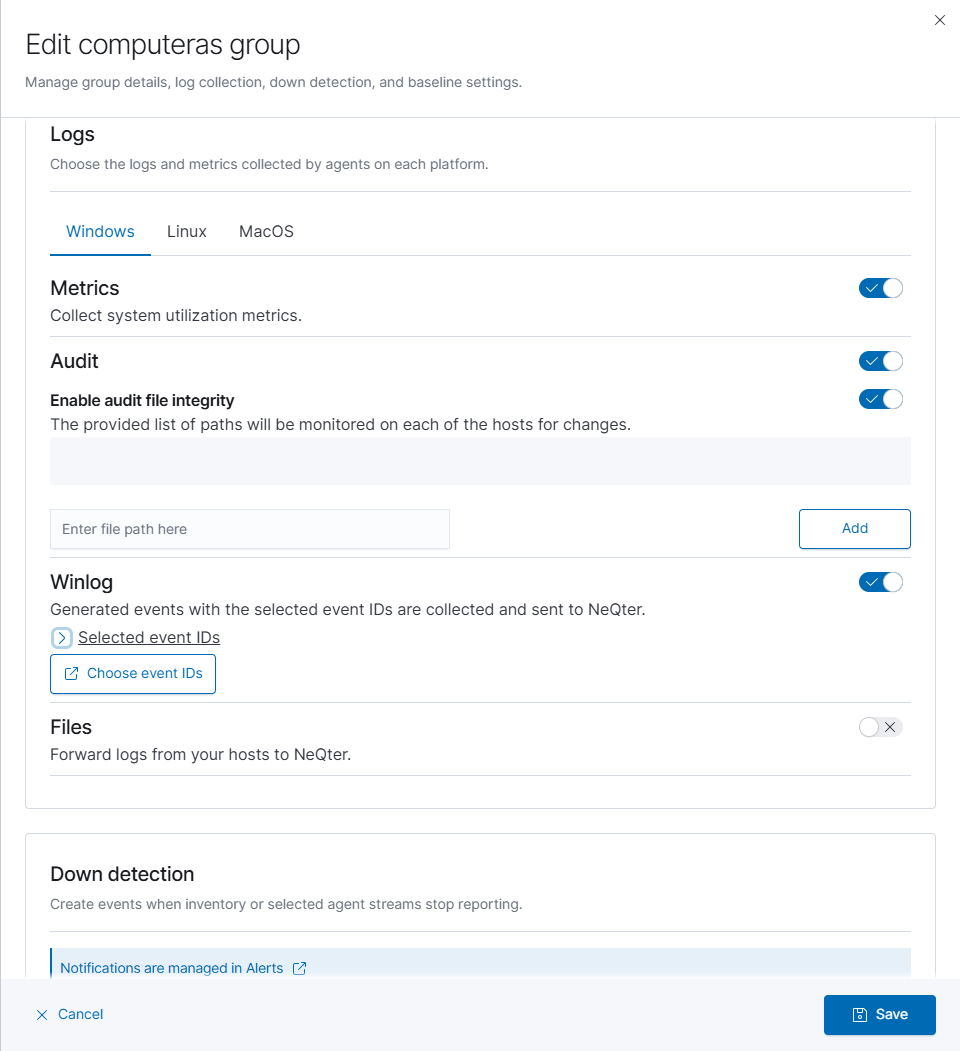
| Collector | Purpose and controls |
|---|---|
| Metrics | Collects system utilization metrics. Enable it when you need performance information from hosts in the group. |
| Audit | Collects security and audit information. Available options depend on the platform. Linux includes auditd monitoring, and file-integrity settings use paths to watch for changes. |
| Winlog | Collects Windows event logs. Use Choose event IDs to review the event IDs to collect, search by event ID or description, and add supported custom IDs. Save the event selection, then save the group. |
| Files | Forwards logs from configured file paths. Enter a path and use Add to place it in the draft list; remove entries that should no longer be collected. Save the group to apply the configuration. |
Changes to one platform’s settings do not configure the other platform tabs. Review each platform used by the group before selecting Save.
Under Audit, turn on Enable audit file integrity, enter a path, and select Add for each location to watch. Under Winlog, Selected event IDs expands or collapses the current selection. Choose event IDs opens the detailed picker.
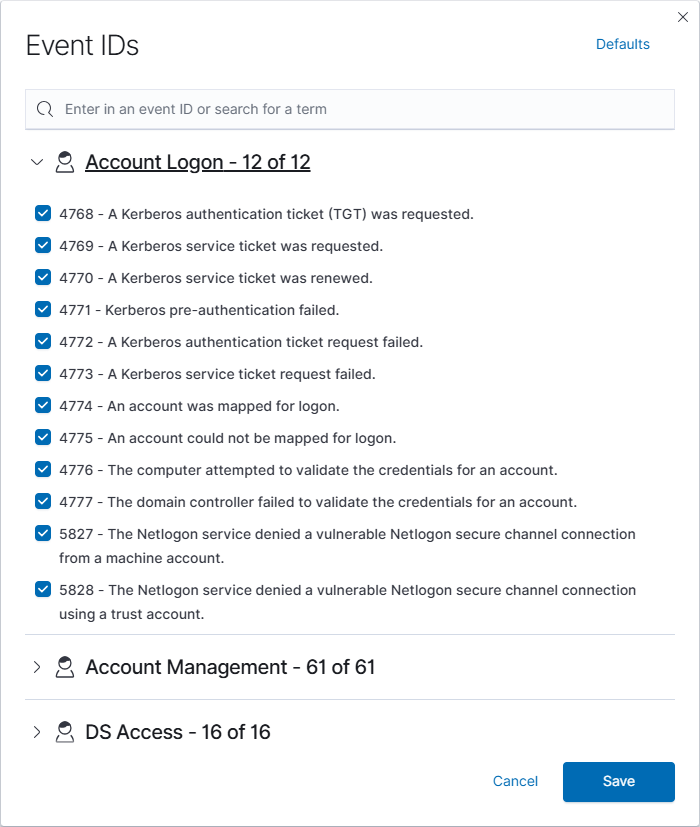
In the event-ID picker:
- Search for an event number or descriptive term, or expand a category such as Account Logon.
- Select the checkboxes for the events to collect. The category heading shows the selected count and total choices.
- Use Defaults to review the provided preset choices; Apply applies the chosen preset to the draft selection. Use Add custom event id and Add for a supported ID that is not listed.
- Select the dialog’s Save to return the selection to the group editor, or Cancel to leave the picker without applying the draft selection.
- Select the group editor’s Save to commit the group configuration.
Configure down detection
Down detection creates host events when reporting stops. It does not control the fixed Online, Stale, and Offline labels on the Agents page.
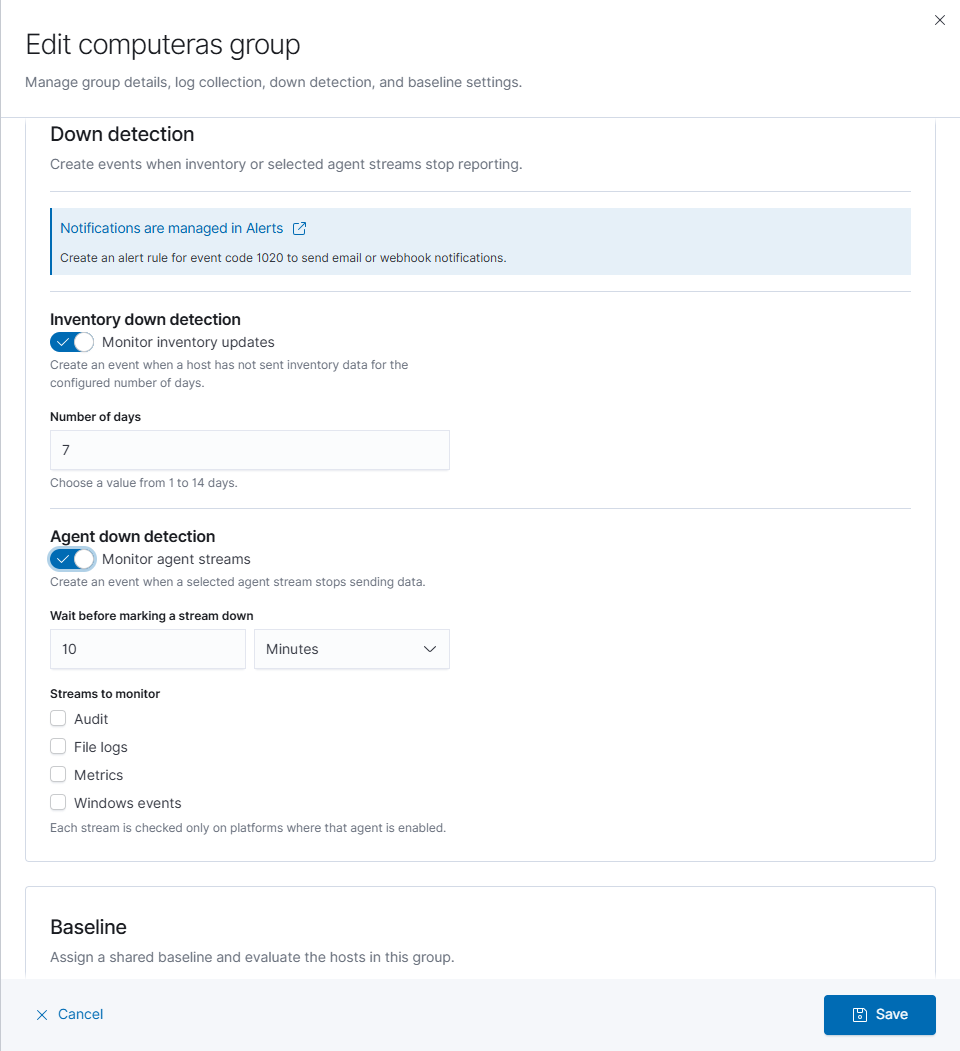
| Control | How to use it |
|---|---|
| Monitor inventory updates | Turn it on to create an event when a host has not supplied inventory for the configured period. |
| Number of days | Appears when inventory monitoring is enabled. Choose 1 through 14 days. |
| Monitor agent streams | Turn it on to check whether selected collectors stop sending data. |
| Wait before marking a stream down | Set the amount and unit: 10 through 1,440 minutes, or 1 through 24 hours. |
| Streams to monitor | Select the available streams, such as Audit, File logs, Metrics, and Windows events. Each stream is checked only on platforms where that collector is enabled. |
| Save | Saves the group’s down-detection settings. |
To send an email or webhook when a stream-down event occurs, configure an alert rule for event code 1020 in Alerts. The message in this section points to that separate notification workflow.
Assign a group baseline
Use Baseline > Group baseline to choose the software policy that hosts in the group should inherit. The external-link icon opens Baselines for policy management.
Select Save to apply the group assignment. A group baseline takes precedence over a direct host baseline, so hosts in that group cannot override it individually. Removing an existing assignment requires Hosts administrator access.
For an existing group with hosts and an eligible baseline, Evaluate hosts against baseline saves the selected assignment and compares the group’s hosts. This is an action that updates stored results, rather than a preview of an unsaved choice. Review the findings in Baselines or the individual host’s Baseline tab.
Delete a group
In the Agents Groups view, eligible groups have Delete group for Hosts administrators. The confirmation explains that the group’s hosts will move to Default and receive the Default group’s configuration. Select Yes, delete the group only when that reassignment is intended, or Cancel to keep the group. The Default group is protected.
Monitor
Open Hosts > Monitor to review configured network checks. A host can have several monitors, and each monitor checks a particular interface and service. For example, an ICMP check can succeed while a TCP check on one port fails.
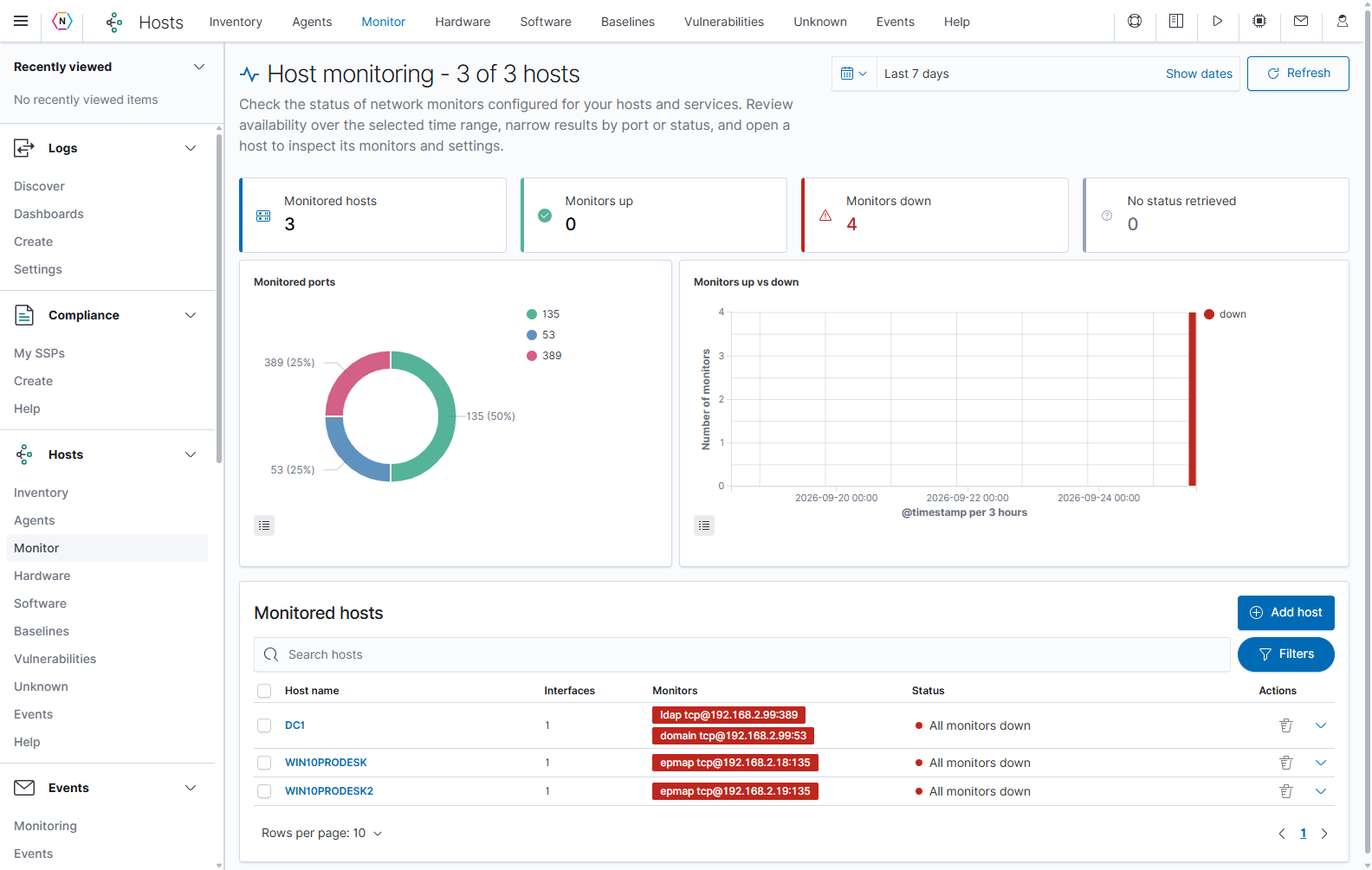
| Panel or control | Meaning and use |
|---|---|
| Time picker and Refresh | Select the period for monitoring history and reload the data. |
| Monitored hosts | Counts devices with monitoring configuration. |
| Monitors up / Monitors down | Counts individual checks in each state. These counts can exceed the number of hosts. |
| No status retrieved | Counts checks without a retrieved result. Check whether the monitor has had time to run and whether data is available. |
| Monitored ports | Shows the configured service-port distribution. Select a chart value to narrow the relevant results. |
| Monitors up vs down | Shows the volume of up/down monitor results over the chosen time range. |
| Legend button beneath a chart | Hides or shows the chart legend. A legend value opens the available chart options. |
| Search and Groups / Tags / Platforms / OS version | Find a device using its recorded identity and inventory details. |
| Ports | Limits the view to hosts with matching monitored service ports. |
| Host status | Select All monitors up, Some monitors down, All monitors down, or No status retrieved. |
| Clear filters | Clears the active search and filter conditions. |
| Host name | Opens the host’s Monitor tab for its detailed checks and history. |
| Interfaces / Monitors / Status columns | Identify the interface count, configured checks, and combined host status. Read the individual monitor labels when only some checks fail. |
| Row expand arrow | Opens the monitor details beneath that row; select it again to collapse the row. |
| Row checkboxes | Select hosts for the available bulk actions. |
| Trash action | Starts deletion of the host record, with confirmation. Use the host’s monitor editor when you intend to remove only one monitor. |
| Add host | Immediately creates a saved manual host and opens its editor. Add the correct interface and monitor settings to complete its setup. |
| Rows per page and page arrows | Control the table’s displayed rows. |
Investigate one host’s monitors
- Search for the device or filter Host status to find failed checks.
- Open the host name and confirm the Interfaces address.
- Read each monitor’s type, port, interval, and status. Compare a TCP failure with the other checks on the same host.
- Review the status timeline and outage records for the selected period.
- Use Edit or the monitor’s pencil button when the saved monitoring configuration needs to change.
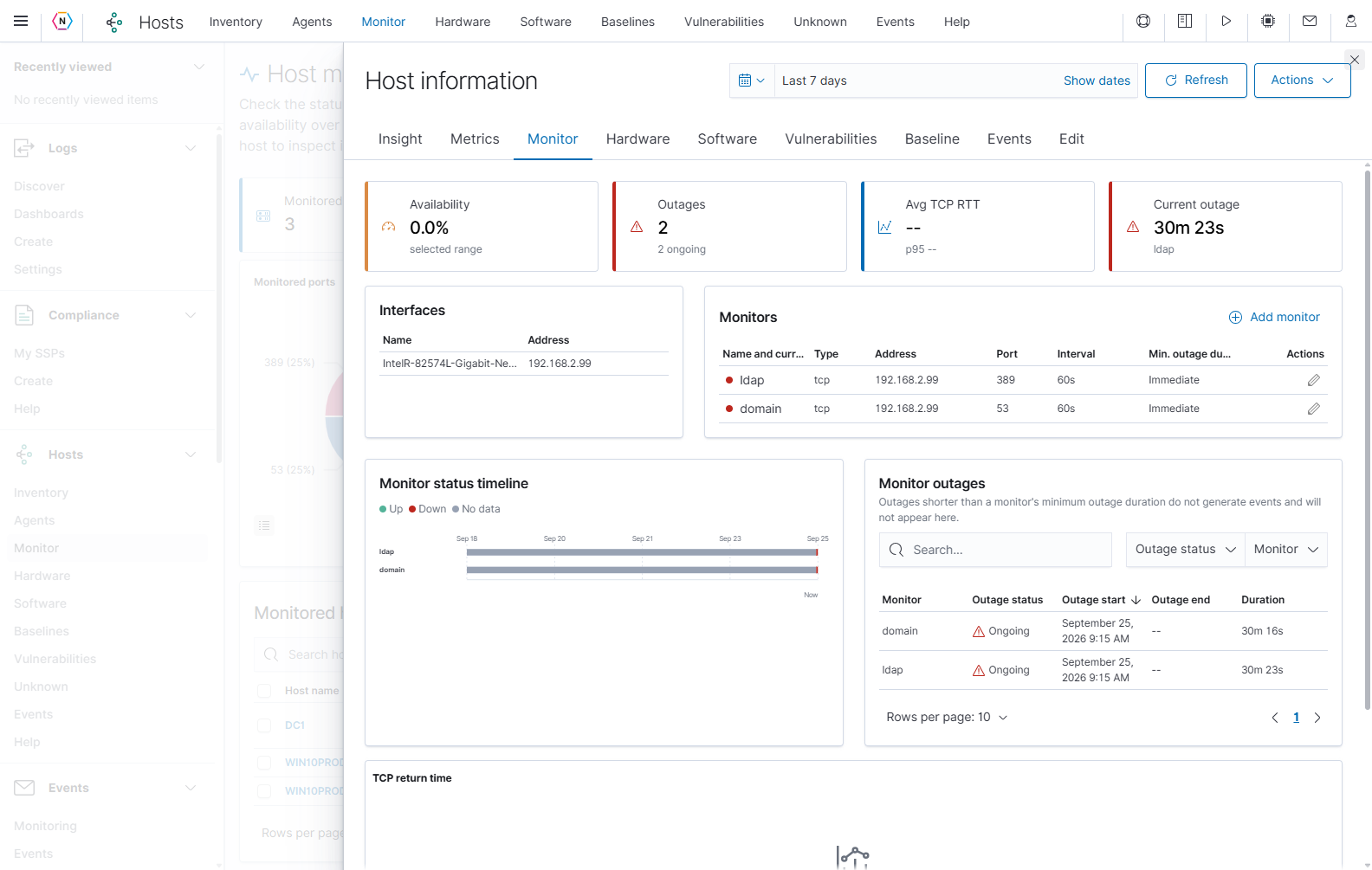
| Host Monitor area | How to interpret it |
|---|---|
| Availability | Availability calculated from the monitoring data in the selected range. Review the timeline for gaps as well as up/down periods. |
| Outages | The recorded outage count, including whether any are ongoing. |
| Avg TCP RTT / p95 | TCP round-trip response-time statistics where available. p95 is the value below which 95% of the measured responses fall. An ICMP-only example can show – here. |
| Current outage | Whether the monitor history identifies an active outage. |
| Interfaces | The saved interface names and target addresses. |
| Monitors | The name/current state, type, address, port, interval, and minimum outage duration for each check. Immediate means no configured outage-event delay. |
| Add monitor / pencil action | Open the monitor form. The form’s Add monitor or Update monitor settings button saves that configuration separately from host metadata. |
| Monitor status timeline | Shows Up, Down, and No data intervals. No data is a gap in results, not a confirmed successful check. |
| Monitor outages | Lists monitor, outage status, start, end, and duration. Search or use Outage status and Monitor to narrow the list; select a column heading to sort. |
Outages shorter than the monitor’s minimum outage duration do not generate outage events and do not appear in the outage list. A brief down interval can therefore appear in monitoring data without a corresponding outage record.
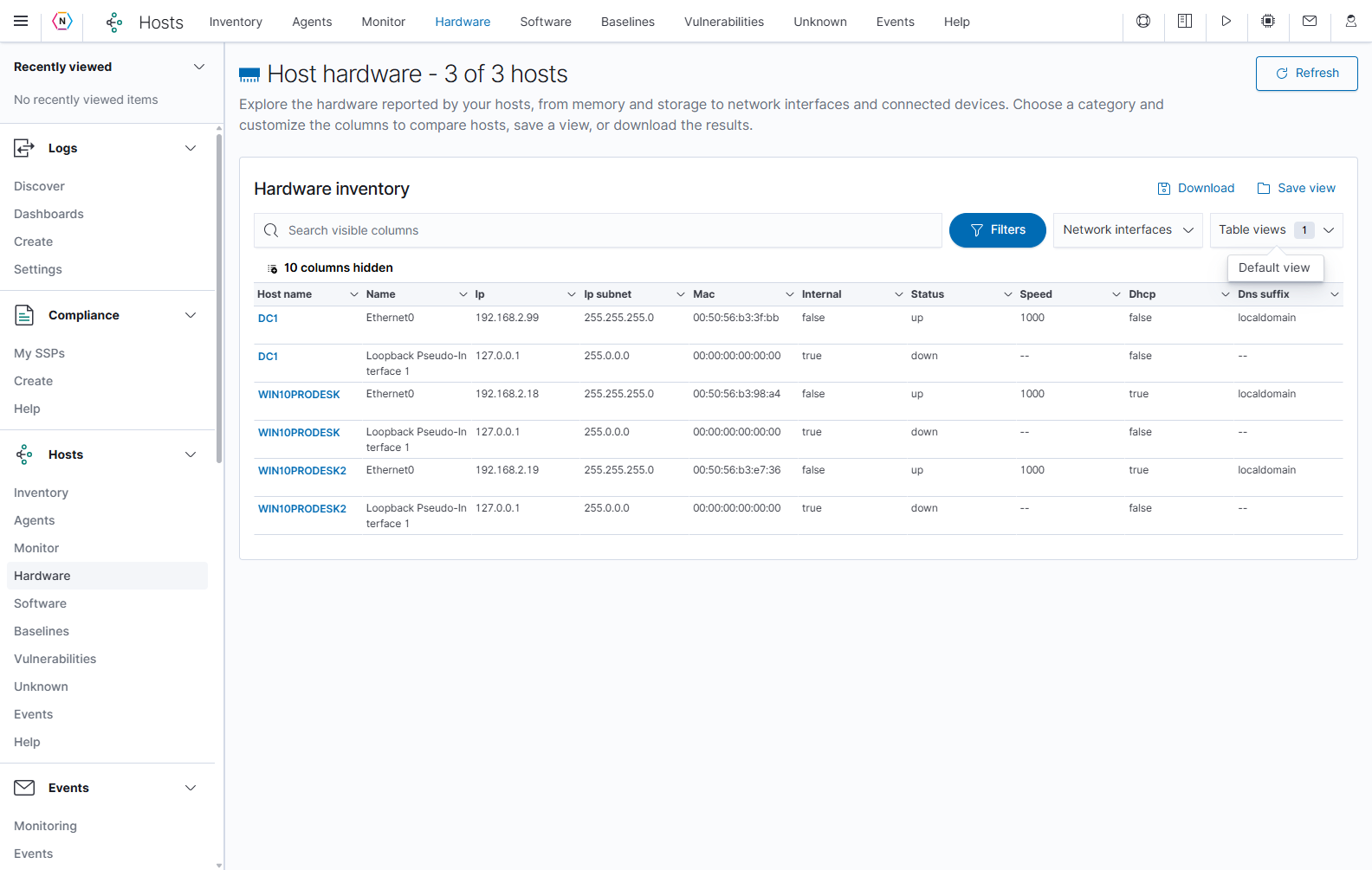
Compare hardware across hosts
Open Hosts → Hardware to review the system and device inventory reported by your hosts. Use this page to answer questions such as which systems are virtual, how much memory they have, or which network interfaces they report.
The Total beside the page title counts hosts. A device category can contain several rows for one host: a computer with several network adapters appears once for each reported adapter.
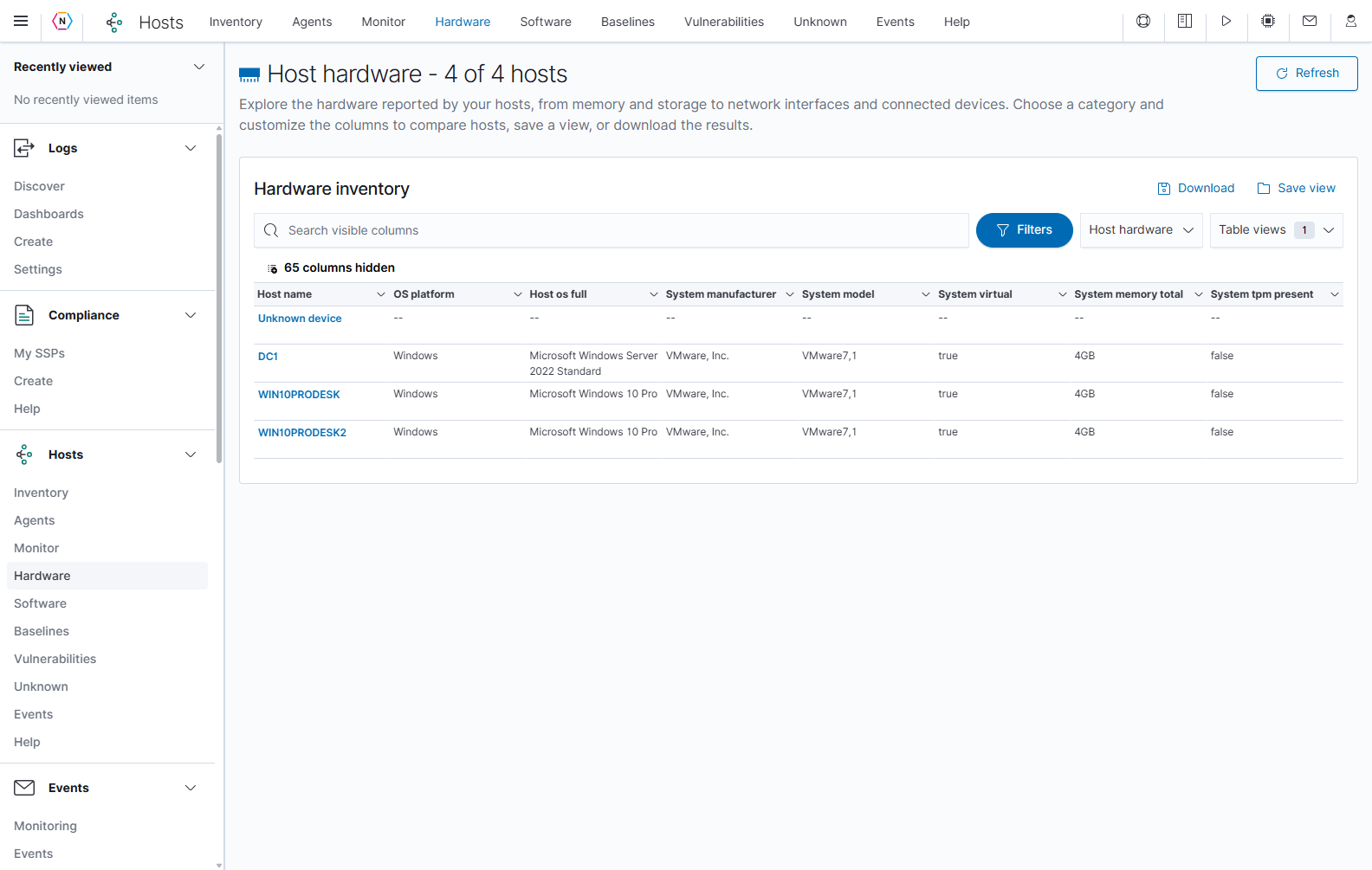
| Control or area | What it does | How to use it |
|---|---|---|
| Refresh | Reloads the available inventory. | Use it after hosts have reported updated information. |
| Search hosts | Narrows the hosts shown. | Enter a recognizable hostname, address, tag, or operating-system value. Erase the text to remove the search. |
| Groups | Limits inventory to selected host groups. | Open the menu and select the groups you want to compare. |
| Tags | Limits inventory by host tags. | Select the tags relevant to your investigation. |
| Host hardware / category selector | Chooses the kind of inventory to display. | Select a category such as Memory devices or Network interfaces. The available columns change with the category. |
| Table views | Opens saved hardware views. | Select a saved name to restore its category, columns, and host/group/tag selections. |
| Clear filters | Clears the selected host, group, and tag filters. | Use it to broaden the results. Remove search text separately. |
| N columns hidden | Opens the column selector. | Show, hide, or reorder fields for the selected category. |
| Blue Host name | Opens the host’s details. | Use it when a hardware value needs investigation in the context of that host. |
| Save view | Opens the name dialog for the current hardware view. | Give the view a descriptive name, then save it for reuse. |
| Download | Opens the export options. | Choose the required format using the shared download controls described earlier in this guide. |
| Rows per page, page numbers, and arrows | Control the displayed page of device rows. | Use them when a category contains more rows than fit on one page. |
Saved-view controls require Hosts write access. The available inventory depends on what the host reports; -- indicates an unavailable value. A network interface’s reported Status is a hardware inventory value and should be read separately from the availability results on Monitor.
Choose a hardware category
- Open the category selector, initially labeled Host hardware.
- Choose the information you need.
- Read Host name alongside the device information so you can identify which computer reported each row.
- Adjust the columns if the default view does not include the field you need.
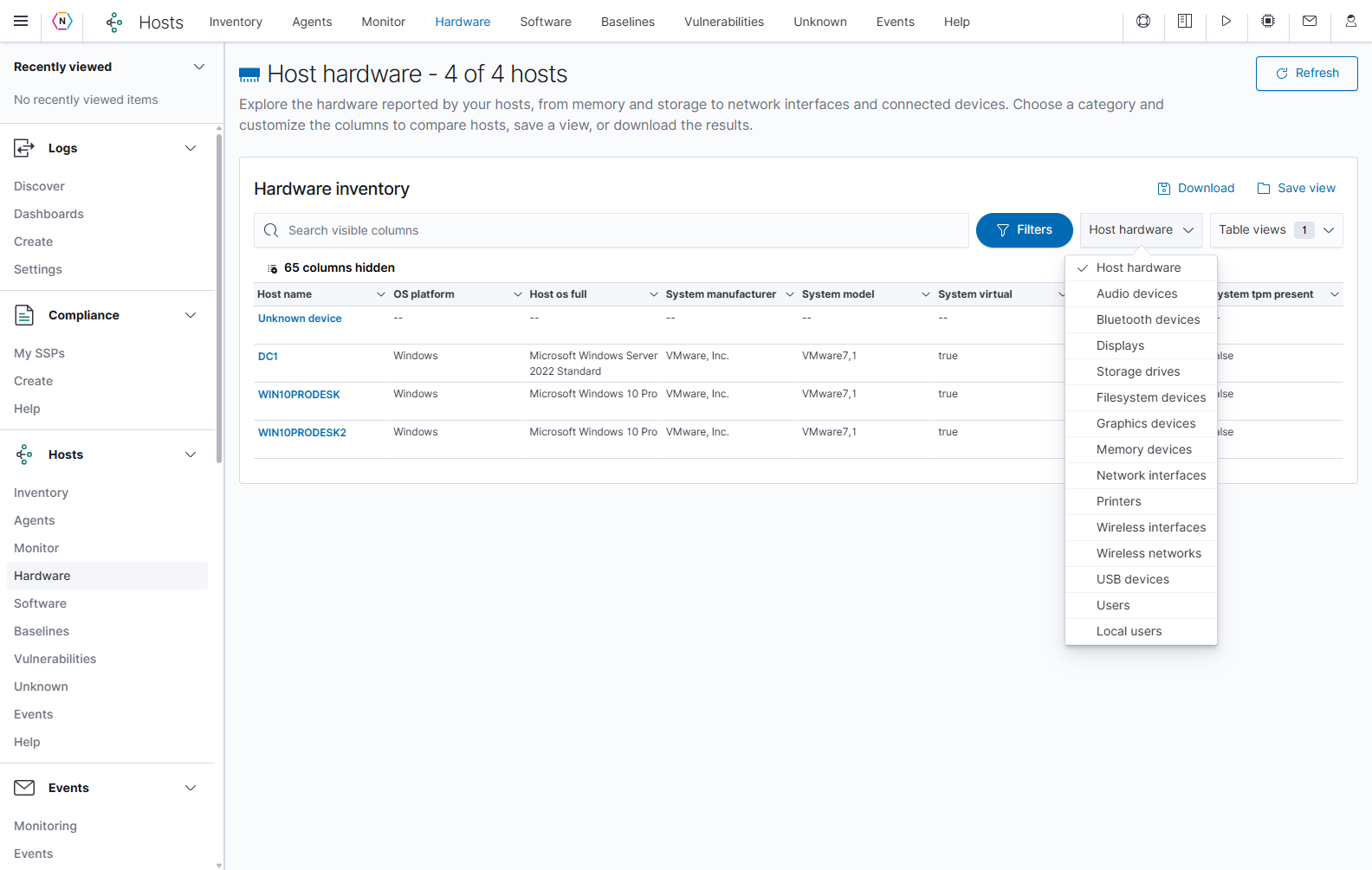
| Category | Information to look for |
|---|---|
| Host hardware | Host identity, operating system, manufacturer, model, memory, virtualization, and other system fields. |
| Audio devices, Bluetooth devices, Displays, Graphics devices | Reported audio, Bluetooth, display, and graphics hardware. |
| Storage drives, Filesystem devices | Physical or virtual storage devices and reported filesystem information. |
| Memory devices | Individual reported memory devices and their characteristics. |
| Network interfaces | Adapter names, IP addresses, subnet information, MAC addresses, status, speed, DHCP, and DNS information. |
| Printers, USB devices | Reported printers and USB devices. |
| Wireless interfaces, Wireless networks | Reported wireless adapter and network information. |
| Users, Local users | The user information reported by the host inventory collector. |
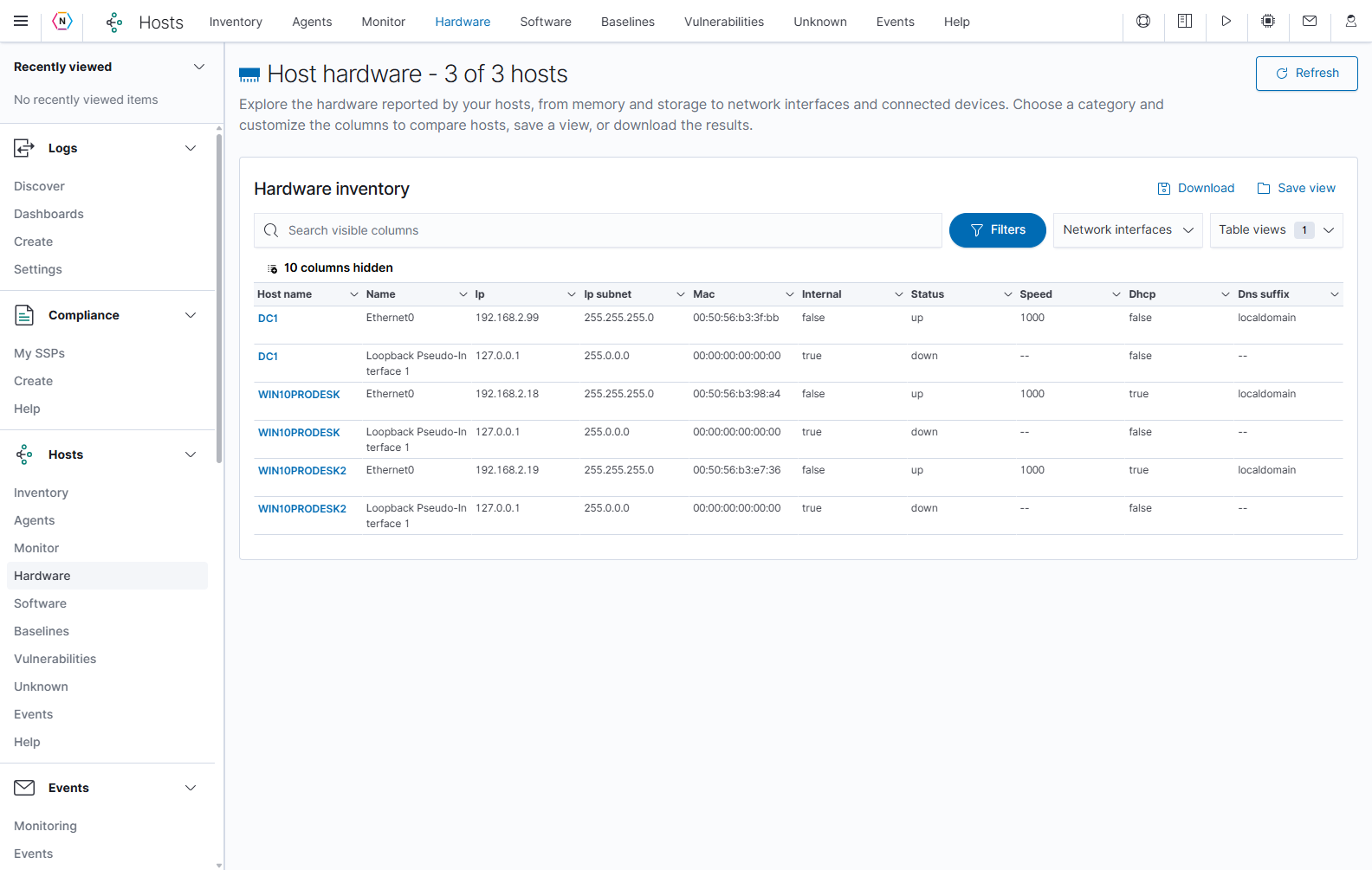
Customize columns and save the view
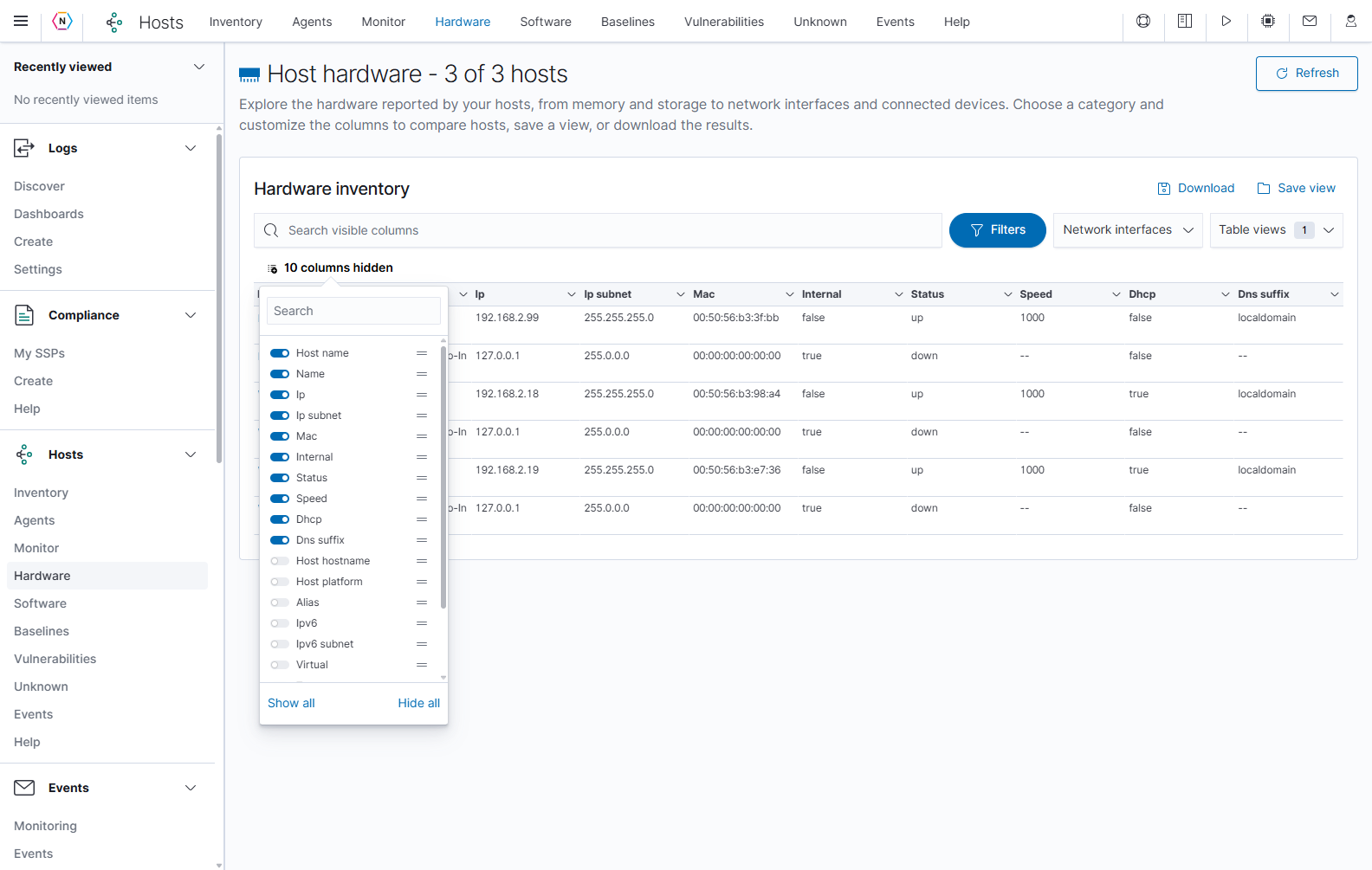
Open N columns hidden above the table. Search for a field by name, then use its switch to show or hide it. Show all enables every column; Hide all clears the displayed selection. Drag a field’s handle to change its order.
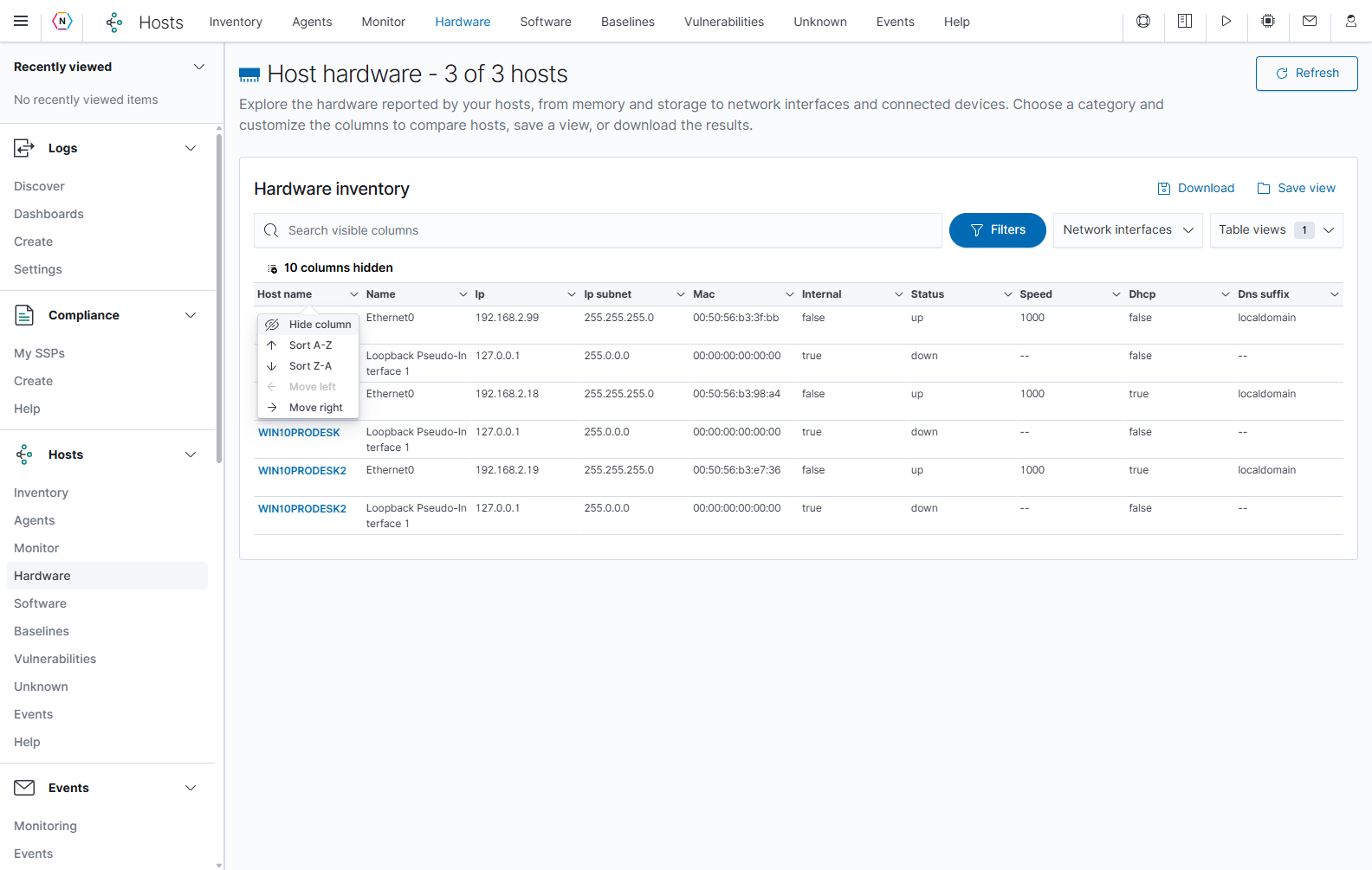
Select a column heading to open its menu. Hide column removes it from the display. Sort A–Z and Sort Z–A change ordering. Move left and Move right move that column one position; an unavailable direction is disabled at the edge of the table. These actions change the view of the reported data.
To reuse your layout:
- Choose a category, select the host/group/tag filters you need, and arrange the columns.
- Select Save view.
- Replace New table view with a descriptive name, such as
Server network interfaces. - Select Save view in the dialog. Cancel or the close button returns without saving a new view.
The saved view retains the category, column configuration, and host/group/tag selections. Search text and the current sort are not part of the saved view.
Open Table views to select a saved view. Default view returns to the default host hardware category and clears the saved host/group/tag selections.
When a saved view offers a delete control, deleting it removes that saved view and requires administrative access and confirmation. It does not remove the underlying hardware inventory.
Review software across hosts
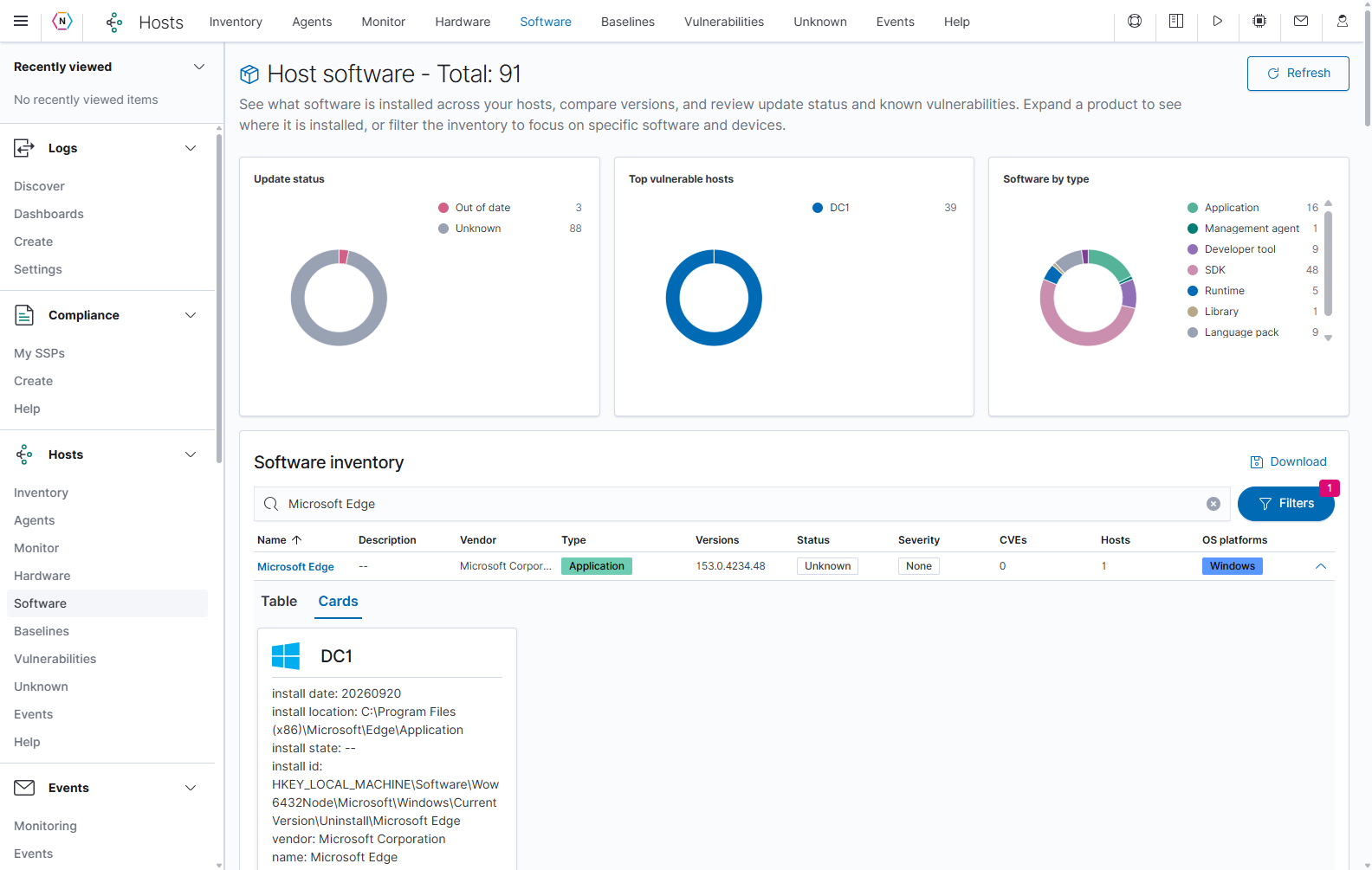
Open Hosts → Software to review installed products, reported versions, vendors, software types, update information, and associated vulnerabilities. The page combines summary charts with an inventory table. Use the filters to focus on the hosts and software you need to investigate.
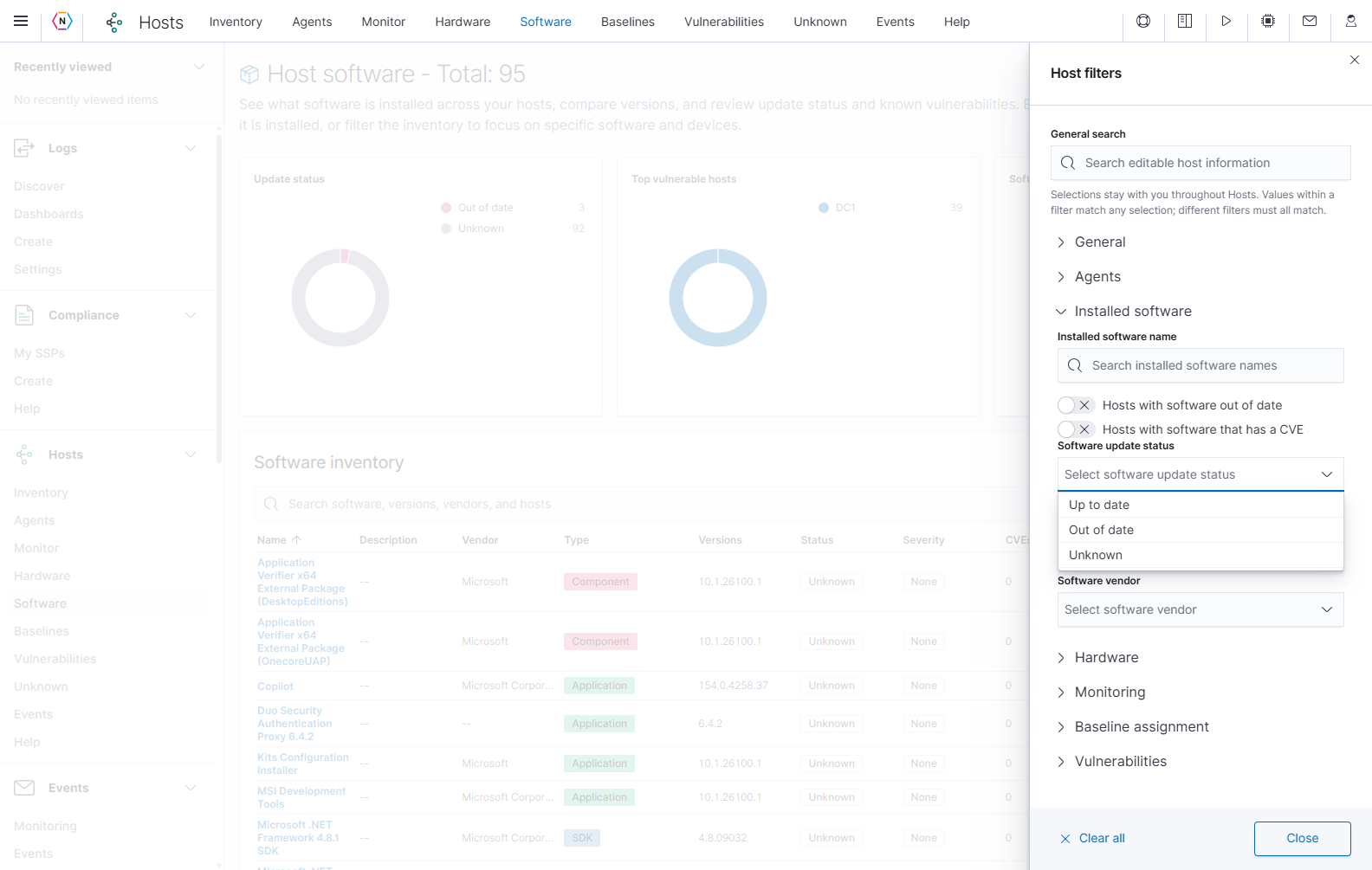
Open Filters > Installed software for software status, type, and vendor controls. Shared host conditions are in General; use General search there to focus all software summaries and installations on a demonstration host. The search beside Filters narrows the current software list.
The page Total counts the filtered software groups. Each group brings together matching reported software names across installations; the Hosts column counts distinct included hosts, while the expanded area lists their installation records.
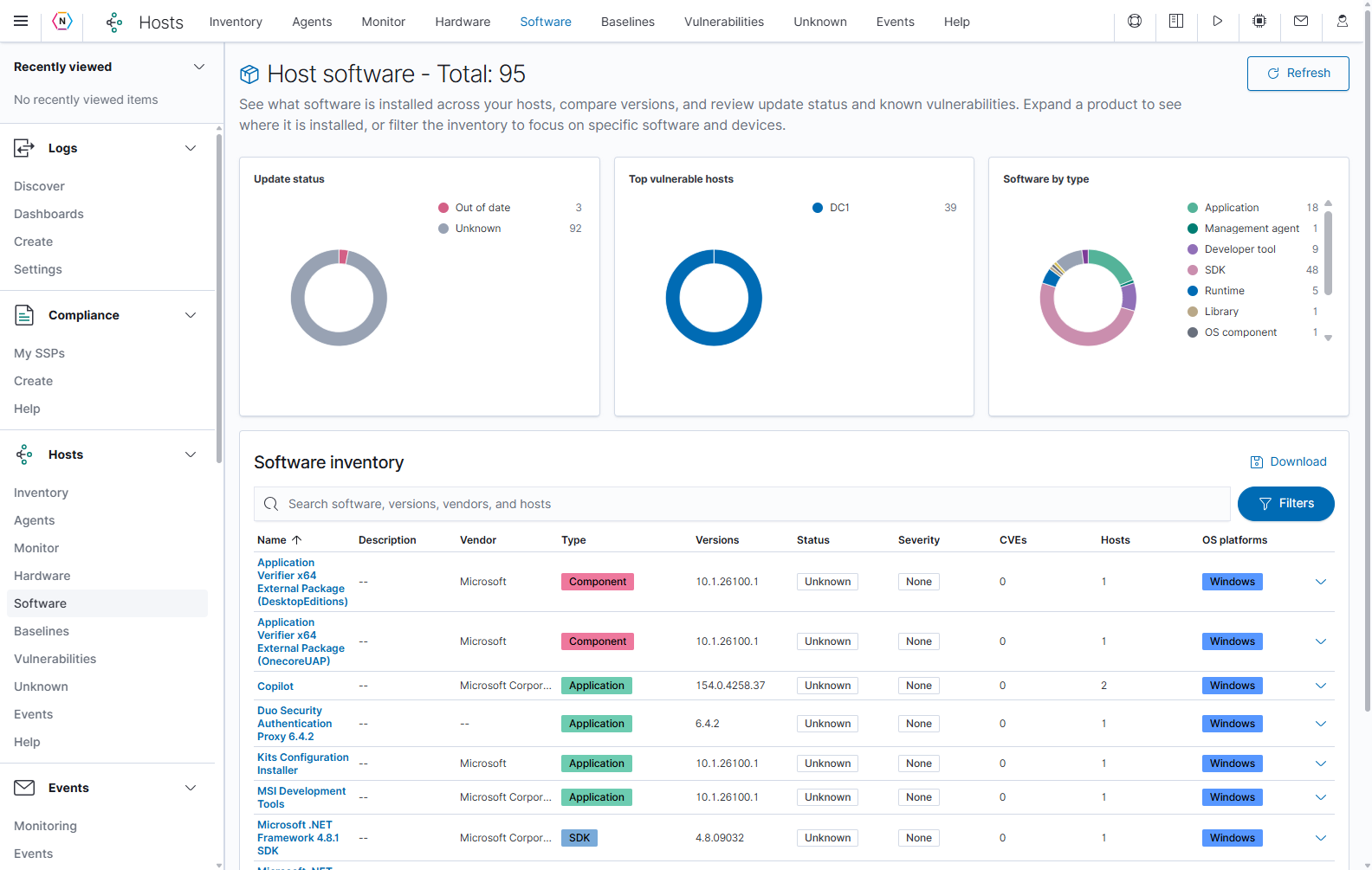
| Control or area | What it does | How to use it |
|---|---|---|
| Refresh | Reloads the software inventory and its available enrichment information. | Refresh after the relevant hosts have reported updated inventory. |
| Update status chart | Summarizes the displayed software’s update classifications. | Select a segment to toggle the corresponding update-status filter. |
| Top vulnerable hosts chart | Highlights up to ten hosts associated with software vulnerability findings. | Select a segment to toggle the corresponding host filter. |
| Software by type chart | Shows the mix of software categories. | Select a segment to toggle the corresponding software-type filter. |
| Search software or hosts | Narrows the inventory by software or host information. | Enter the product or host you are investigating; clear the text to remove the search. |
| Groups, Tags | Limits the host scope. | Select a group or tag to focus on a particular set of devices. |
| Platforms, OS version | Limits the operating-system scope. | Choose the platform or operating-system version relevant to the issue. |
| Vendors | Limits results to selected software publishers. | Select a vendor to review its installed products. |
| Update status | Filters by Up to date, Out of date, or Unknown. | Select the classification you want to review. |
| Software type | Filters by the assigned software category. | Choose applications, runtimes, drivers, security tools, or another available type. |
| Vulnerable hosts | Focuses on hosts with associated software vulnerability findings. | Select the affected host or hosts. |
| Clear filters | Clears the selected filter values. | Use it to restore a broader view; clear search text separately. |
| Download | Opens the inventory export options for installations in the filtered software groups. | Choose an export format for the current investigation. |
| Sortable column headings | Orders the software rows. | Select headings such as Name, Vendor, Type, Status, Severity, CVEs, or Hosts. |
| Software name or row chevron | Expands or collapses the installations beneath a product. | Select it to see which hosts report that product. |
| Rows per page, page numbers, and arrows | Navigates the software results. | Increase the displayed row count or move to the next page. Expanded installation tables have their own pagination. |
Understand the software columns
| Column | Meaning |
|---|---|
| Name and Description | The reported software name and available description. |
| Vendor | The reported software publisher. |
| Type | The software classification, such as Application, Runtime, SDK, or Management agent. |
| Versions | The versions reported for that software across the included hosts. |
| Status | Out of date if any included installation is classified as out of date or a candidate for that status; Up to date only when all included installations have that classification; otherwise Unknown. |
| Severity | The highest available software-vulnerability severity among the included installations. |
| CVEs | The sum of associated Common Vulnerabilities and Exposures counts across installation records. The same CVE on several installations can contribute more than once. |
| Hosts | The number of included hosts reporting that software. |
| OS platforms | The operating-system platforms represented by those installations. |
Treat update and vulnerability information as investigation context. A row with None severity or zero CVEs has no associated finding in the available data; it does not establish that every installation is free of vulnerabilities.
Unknown update status means the tool could not establish that the grouped installations are current. The vulnerable-host chart aggregates installation vulnerability counts; a vulnerable installation with no available count contributes one to that chart.
Find the hosts that have a product installed
- Search for a software name or use Vendor, Software type, or Update status to narrow the list.
- Select the software name or the down chevron at the right of its row.
- Keep Table selected for a compact list of Hostname, Name, Vendor, Version, and Install date.
- Select a blue hostname to open that host’s details.
- Select the row’s up chevron or software name again to collapse its installations.
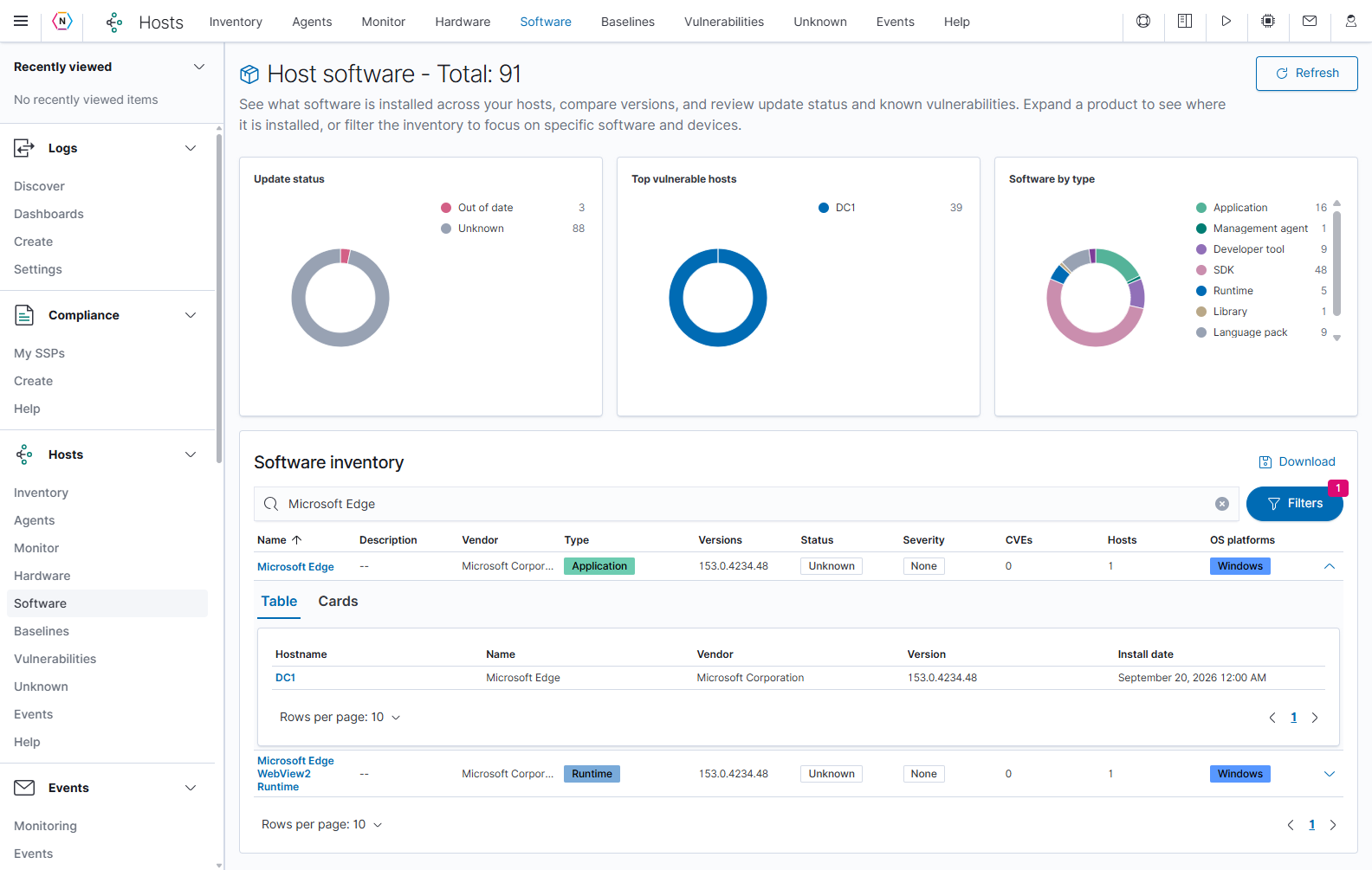
Select Cards for a fuller view of each reported installation. Cards include available installation paths, identifiers, version details, and enrichment information. Some products have many fields, so scroll through the expanded area. Use Table to return to the compact installation list.
Define expected software with Baselines
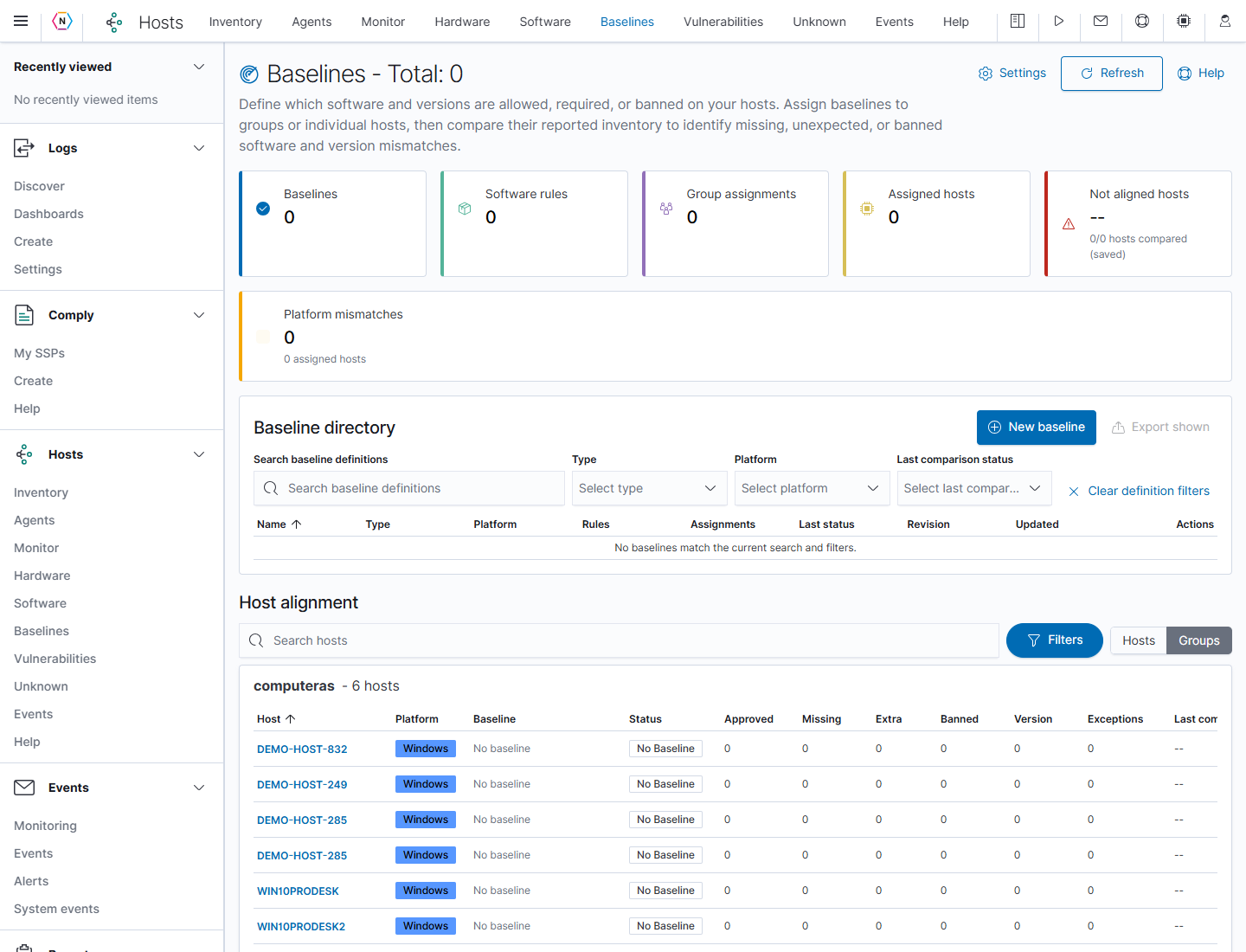
Open Hosts → Baselines to define software policies and compare them with host inventory. A baseline describes software that is allowed, required, or banned, together with any version requirements. Differences between the policy and reported inventory are called drift.
Baselines identify differences for investigation. Install, update, or remove software through your normal device-management process, then allow the host to report fresh inventory before comparing again.
Read the overview and directory
The summary cards count baselines, software rules, group assignments, assigned hosts, Not aligned hosts, and platform mismatches. Not aligned hosts uses the latest saved comparisons for currently assigned hosts; the accompanying compared-host count shows how many have saved results. A dash is not a clean result when no hosts have been compared.
| Control or column | What it does | How to use it |
|---|---|---|
| Refresh | Reloads saved baseline and assignment information. | Refresh after changes or a completed comparison. It does not start a new comparison. |
| Help | Opens the built-in Baselines walkthrough. | Use it for policy examples, assignment behavior, status definitions, and exception guidance. |
| Settings > Revision comments | Opens the shared comment settings for policy revisions. | Hosts administrators can require change explanations and edit their starting template. |
| New baseline > Start new | Opens an empty policy editor. | Enter a name, select a type and platform, add rules, and save the policy. |
| New baseline > Start from host | Opens the source-host and software-type chooser. | Use a reviewed representative host to seed a policy. |
| Export shown | Downloads the displayed policy definitions as JSON. | Review the directory search and filters before exporting. |
| Search baseline definitions | Finds policies by text. | Enter a recognizable policy name or description. |
| Type, Platform, Last comparison status | Filters the directory. | Select a policy type, target platform, or last comparison status. |
| Clear definition filters | Clears the selected directory filters. | Remove the search text separately when broadening the results. |
| Blue baseline Name | Opens the baseline details. | Review its rules, assignments, exceptions, and comparison history. |
| Rules | Counts Allowed, Required, and Banned rules. | Check the rule mix before assigning the policy. |
| Assignments | Shows the number of assigned groups and hosts. | Use it to check the policy’s scope. |
| Last status, Revision, Updated | Shows the saved policy state and its latest available result. | Check whether results are present and whether the policy has changed. |
| Pencil: Manage baseline | Opens the policy editor. | Change the name, description, rules, or assignments. |
| Duplicate icon: Duplicate baseline | Opens a draft based on an existing policy. | Review the copied policy and give it a distinct name before saving it. |
| Trash: Delete baseline | Removes the policy and its host/group assignments. | Use only when the policy is no longer needed. This requires administrative access. |
| Sortable headings and pagination | Orders and pages through the policies. | Select a heading or use Rows per page and the page controls. |
Read Host alignment
The Host alignment table lists hosts, their groups and platforms, the effective baseline, comparison status, finding counts, and the last comparison time. Use Hosts / Groups to change the table layout. Search hosts or open Filters to narrow the assignment source, platform, group, or baseline. Use the horizontal scrollbar to reach columns beyond the visible table width.
This table and the Not aligned hosts card show saved comparison results. Run comparison saves a new result; Refresh reloads existing results. Host Insight calculates a live comparison without saving a baseline run, so Insight can show a result before the Baselines page has saved results.
| Finding or status | Meaning |
|---|---|
| Approved | Installed software accepted by the applicable policy. |
| Missing / Missing required | A required software rule was not satisfied. |
| Extra | Installed software is outside a Combined or Whitelist policy. |
| Banned | Installed software matches a prohibited product or version. |
| Version / Version mismatch | Installed software failed an Allowed or Required version requirement. |
| Exceptions | Findings covered by recorded host-specific exceptions. |
| Aligned | No unresolved software-policy violations were found in the comparison. |
| Not aligned | One or more unresolved policy findings need review. |
| No baseline | No effective policy applies to that host. |
| Not compared | No comparison result is available. |
| Inventory missing | Inventory needed for the comparison was unavailable. |
| Not evaluated | The baseline comparison had no hosts to evaluate. Check its assignments. |
| Partial | Some assigned hosts lacked inventory and none of the evaluated hosts had a violation. |
| Platform mismatch | The host platform is incompatible with the assigned baseline. |
| Unknown | The available software or version information could not be evaluated reliably. |
Finding counts can overlap. For example, an outdated required product can produce both a version mismatch and a missing requirement. Alignment describes this software policy and the inventory used for its comparison.
The Direct baseline selector changes a host’s direct assignment immediately. Choose No direct baseline to remove a direct assignment when your permissions allow it. Hosts that inherit a group baseline are locked against direct overrides.
Inspect a baseline and its comparisons
Select a baseline name to open its details. The header identifies the policy type, rule count, and platform. The top-right icons open Manage baseline, Duplicate baseline, Export baseline JSON, and Delete baseline. Close the flyout with ×.
The body shows the rule mix, group/inherited/direct assignment counts, active exceptions, and assigned hosts. Exception records include the host, finding, status, reason, creator, and creation date. Where available, Revoke removes an exception and requires administrative access.
Select Run comparison under Alignment preview to evaluate the policy against its assigned groups and hosts and store the result. This requires write access. NeQter also compares assigned baselines automatically each day. Comparisons use available stored inventory, so a recent comparison can still rely on older host inventory.
History drift summarizes saved comparison runs over the displayed window and charts changes in aligned and not aligned host counts when history exists. Not enough history or an empty history message means there are insufficient saved runs for that view. The Rules table beneath it lists each rule’s action, software type, match, and version policy, with sorting and pagination.
Review policy revisions and comments
Saving a policy change records its details, software rules, and author. Open a saved baseline and select View changes to review the timeline. Select a revision to inspect its details, choose two revisions to compare them, or use Compare with current to compare a selected revision with the latest saved policy. Revision summaries remain available when comments are disabled.
Assignments, host exceptions, and comparison runs do not create policy revisions. For an older baseline, history begins with the policy present when revision recording starts; earlier policy versions cannot be reconstructed.
Hosts administrators can configure change explanations:
- On Baselines, select Settings > Revision comments.
- Turn on Enable “What changed and why?” to require an explanation when saving policy changes and show comments in the timeline.
- Edit the shared Revision comment template. It provides the starting text for new comments across baselines; it does not rewrite existing comments.
- Select Save settings to apply the choice, or Cancel to discard the draft.
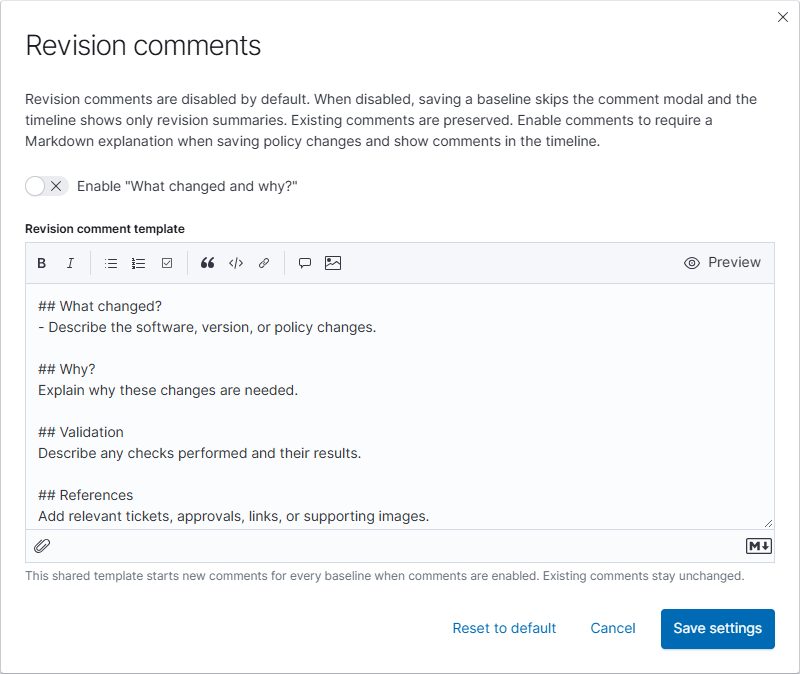
When comments are enabled, Save baseline opens a comment step. Explain the change and its reason, then confirm the save. The editor supports Markdown, image URLs, and uploaded PNG, JPEG, or GIF images. Disabling comments skips that step and hides comments from the timeline while preserving existing comments and the shared template.
Create or edit a policy
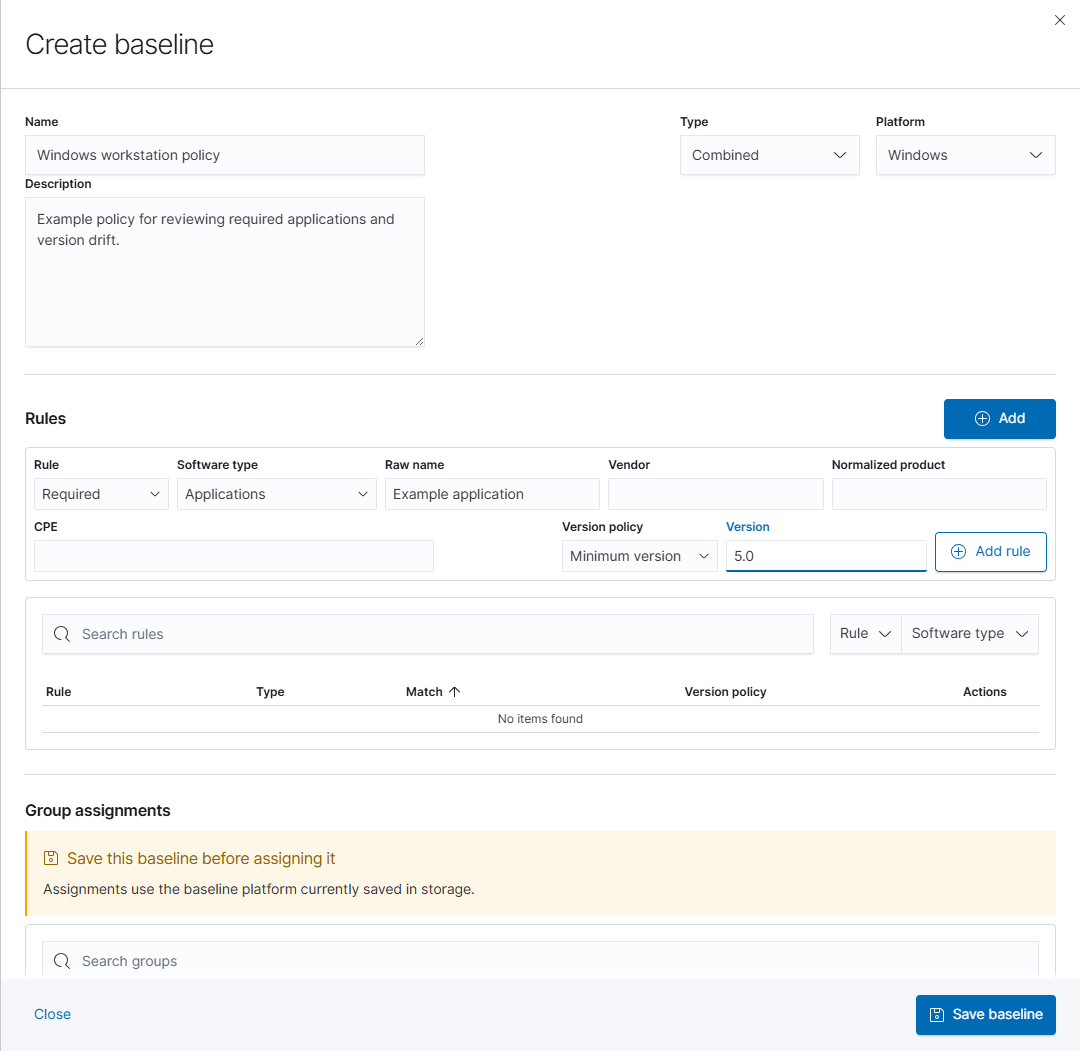
- Select New baseline > Start new, or select an existing policy’s pencil icon for Manage baseline.
- Enter a descriptive Name and Description.
- Choose a Type and Platform.
- Under Rules, select Add > Create a custom rule to enter a match, or Add > Add from installed software to select inventory entries. For a custom rule, choose its rule type, software match, and version policy, then select Add rule to put it in the draft list.
- Review the complete rule list and select Save baseline. If revision comments are enabled, explain what changed and why, then confirm the save. Close or × exits without saving policy edits.
- Assign the saved policy to compatible hosts or groups, then run a comparison from its details.
| Policy type | Behavior |
|---|---|
| Combined | Supports Allowed, Required, and Banned rules. Installed software matching no rule is Extra. |
| Whitelist | Supports Allowed and Required rules. Installed software outside the list is Extra. |
| Blacklist | Supports Banned rules. Software that does not match a ban is approved. |
Changing the policy type can convert existing rules to supported rule types. Review the list afterward. Choose Windows, Linux, or macOS for the target platform, and save a platform change before changing assignments.
| Rule control | Meaning and use |
|---|---|
| Rule: Allowed | The software may be installed but does not have to be present. |
| Rule: Required | The software must be present and meet its version policy. |
| Rule: Banned | A matching product and version produces a prohibited-software finding. A matching ban takes precedence over Allowed or Required rules. |
| Software type | Classifies the rule using the available application, security-tool, runtime, driver, and other software types. |
| Raw name | The product name reported in inventory. |
| Vendor | The software publisher information used by supported matching paths. |
| Normalized product | The standardized product identifier derived from inventory. |
| CPE | A Common Platform Enumeration software identifier. |
| Version policy | Choose Any, Minimum, Exact, or Maximum version; supply the version when required. |
| Add rule | Adds the entered rule to the policy draft. Save the baseline to retain it. |
| Search rules, Rule, Software type | Narrows the rule list while reviewing the draft. |
| Rule and version controls in existing rows | Changes those rules in the draft. Review and save the policy when finished. |
| Row trash icon | Removes that rule from the draft. Save the policy to retain the removal. |
Prefer Add from installed software when the product is already in inventory. Matching one supported identifier can identify software even when other fields differ; adding Vendor does not narrow an otherwise matching raw name. Check the comparison results to ensure the rule matches the intended product.
Any version accepts any installed version. Minimum version includes the chosen version and newer versions; Maximum version includes it and older versions; Exact version requires that version. For a Banned rule, this determines which versions are prohibited. For example, Banned with Maximum version 5.0 prohibits version 5.0 and earlier.
Add rules from installed software
Open Add > Add from installed software in the editor. Search the inventory or use Type and Vendor filters. Expand a product row to choose individual versions, or select its checkbox to select all its versions. Select all filtered selects the matching entries, and Clear selection removes the current selection. Refresh reloads the available inventory choices.
Use Hide software already in baseline to concentrate on new rules. Only software on baseline hosts narrows the choices to assigned hosts. Include software from platforms other than Windows (or the selected platform) broadens the platform scope; check compatibility before adding those entries.
Use the offered Allowed, Required, or Banned action for the selected software, as supported by the policy type. The added rules become part of the draft; review their version policies and select Save baseline in the policy editor. Close returns from the chooser.
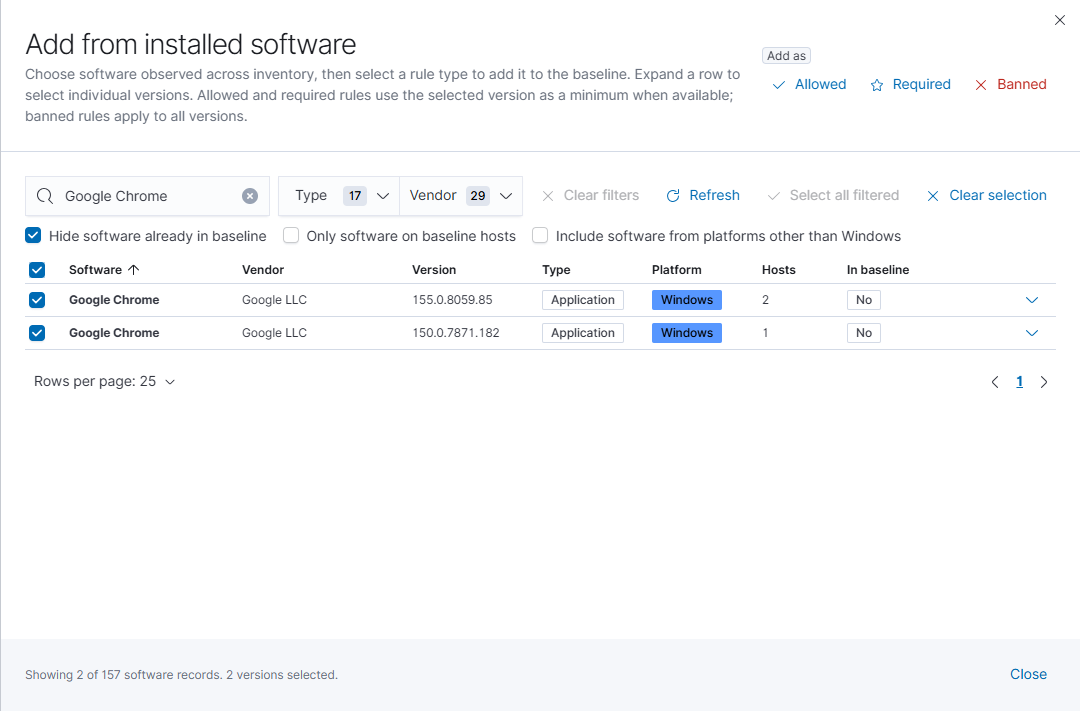
Allowed and Required entries use the selected version as a minimum when a comparable version is available; Banned entries apply to all versions. Review the resulting rules before saving.
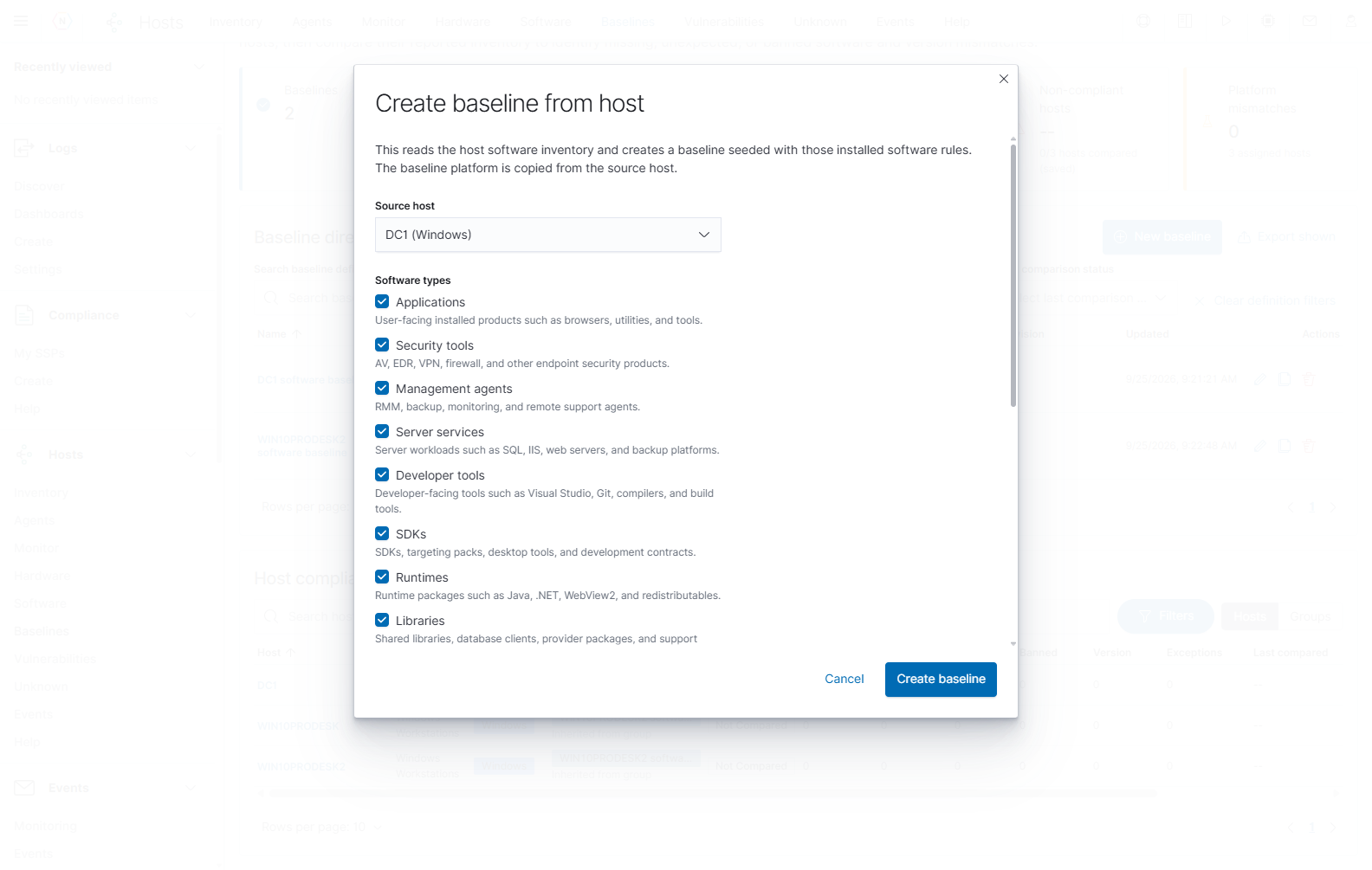
Start from a representative host
- Select New baseline > Start from host in the baseline directory.
- Choose the Source host whose current inventory represents the intended policy.
- Select the Software types to copy. Scroll the dialog to review all categories.
- Select Create baseline to create the policy, or Cancel to leave without creating it.
- Review the resulting policy’s name, type, platform, rules, and versions before assigning it.
The creation step copies the source host’s platform and seeds Allowed rules from the selected software types. When a comparable version is available, it becomes a Minimum version policy; otherwise the rule uses Any version. The source host is not automatically assigned. Choosing software types controls the copied rules, rather than excluding other installed software from later comparisons.
Assign a saved baseline
In Manage baseline, scroll to Group assignments and Host assignments. Search each table to find the intended targets, then review their platforms and currently assigned policies.
| Assignment control | Behavior |
|---|---|
| Assign next to a group | Immediately assigns the saved policy to the group. Its hosts inherit that policy. |
| Assign next to a host | Immediately assigns the saved policy directly to that host when it has no group baseline. |
| Unassign | Removes the assignment when your permissions allow it. |
| Save first | Indicates that the policy must be saved before assignment. |
| Locked direct assignment | Indicates that a group policy takes precedence over the host’s direct assignment. |
Assignment changes take effect immediately and are separate from Save baseline, which saves the policy and its rules. Assigning a baseline to a group removes existing direct assignments for that group’s members. Removing the group assignment later does not restore those old direct assignments.
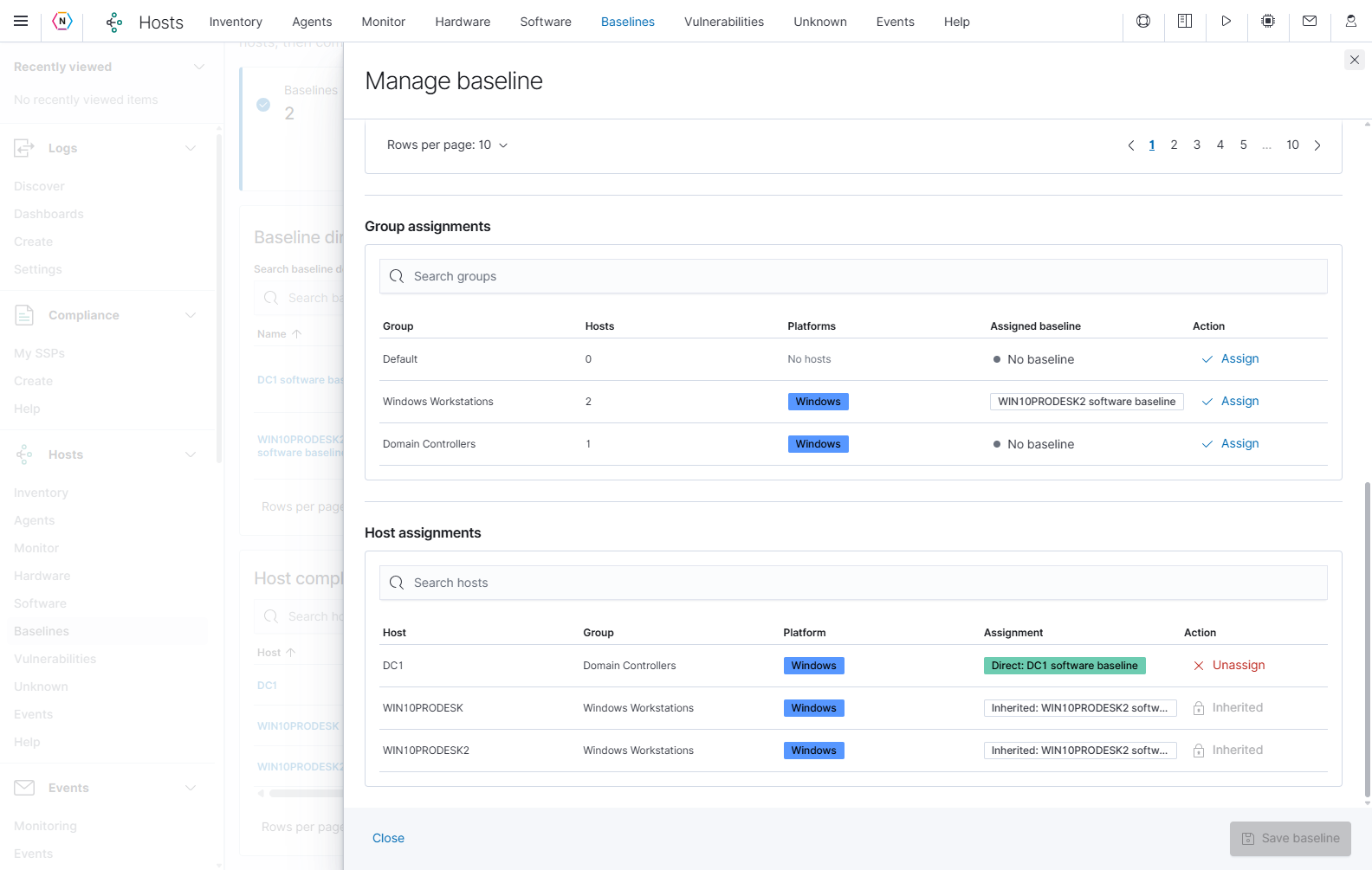
Start with a representative set of compatible hosts. Close the editor, open the baseline details, run a comparison, and investigate the results before extending the assignment.
Investigate findings and maintain exceptions
Open a host from Host alignment to investigate its Baseline tab. Check both the comparison and inventory times. Review the individual software findings and missing requirements, then correct the software installation or adjust an approved policy rule as appropriate.
For an approved deviation on one host, use Add exception on its finding and enter a reason. This requires write access. The exception applies to that host’s matching finding; the policy still applies to other hosts. Excepted software remains visible, and an excepted missing requirement is removed from the missing requirements list. Exceptions remain active until an administrator revokes them from the baseline details.
Stale references to deleted hosts, groups, or baselines are cleaned up automatically. Review platform conflicts and inherited group assignments separately from software findings; they need different corrections from missing or prohibited software.
The page’s Help button contains a complete policy example and further explanations of assignments, comparisons, and exceptions.
Vulnerabilities
Open Hosts > Vulnerabilities to investigate scanner findings by host or by vulnerability. Access to this page requires the separate Vulnerabilities permission.
Start from an affected host
- Choose a time range containing the scan results, then select Refresh.
- Keep the Hosts tab selected and search for an address or host name.
- Use Inventoried or Unknown to narrow by inventory membership, or filter by Categories, Tasks, Reports, and Severities.
- Review the host’s high-, medium-, and low-severity counts. Expand its row to inspect the related findings and their scan details.
- Open the host when you need its identity and inventory context. For an unknown device, verify its address and ownership before adding it to Inventory.
| Control or field | Meaning and action |
|---|---|
| Top vulnerability categories | Groups results by detection category. Selecting a category filters the investigation. |
| Vulnerability severity over time | Shows how findings are distributed across the chosen period and severities. |
| Hosts / Vulnerabilities tabs | Switch between grouping results by affected address and grouping the same kind of finding across hosts. |
| Inventoried / Unknown | Narrow the Hosts table by whether the address is matched to saved Inventory. |
| Categories | Select the finding families to include, such as SSL and TLS or Windows. |
| Tasks / Reports, on Hosts | Narrow results to a scan task or a particular scan report. |
| Severities | Narrow results to the selected severity categories. |
| QoD | Sets the minimum Quality of Detection; see below. |
| Clear filters | Resets the table’s filter choices. Recheck the separate search text and time range when results remain narrower than expected. |
| Add host to inventory plus icon | Immediately saves the discovered host to Inventory and opens its editor. It is a creation action, not a detail-expansion button. |
| Row expand/collapse arrow | Shows or hides the findings associated with that row. |
| Download | Opens the export workflow for the current vulnerability view. Review the exported scope and columns. |
| Vulnerability scanner | Opens the scanner workspace for scans and scanner-specific investigation. See the Vulnerability Scanner manual. |
Start from a finding
Select the Vulnerabilities tab when the question is which devices share a weakness. Search for the finding name, narrow its category and severity, then expand a row to review the affected hosts and supporting details.
| Column | What it tells you |
|---|---|
| Vulnerability | The scanner’s finding name. |
| Severity score / Severity | The scanner’s impact score and classification. Informational log detections can appear alongside vulnerabilities. |
| QoD | Confidence in the detection method. |
| Hosts affected | How many matching hosts are associated with that finding in the current results. |
| Category | The detection family or subject area. |
| Solution type | The type of remediation guidance, such as a mitigation, when the scanner provides it. |
| Affected | Product or service information describing the affected condition. |
| CVE | Standard vulnerability identifiers associated with the finding, when available. |
Read the evidence, affected version or service, and proposed solution before deciding what action the device needs. An informational service-detection row does not by itself establish that a host has been compromised.
Set the minimum QoD
Enter the minimum score in the Minimum QoD field above the results. The default is 70 on a 0-to-100 scale. Raising it excludes findings supported by lower-confidence detection methods; lowering it includes more of those findings.
QoD and severity answer different questions: severity describes potential impact, while QoD describes detection confidence. If a finding seems missing, check both filters, the scan time range, and any task/report restriction.
Unknown
Open Hosts > Unknown to find devices discovered by vulnerability scans or IP-range discovery that have not been matched to saved Inventory. Unknown describes inventory membership; it does not label a device as malicious.
| Control or column | How to use it |
|---|---|
| Time picker / Refresh | Select the period for scan findings and reload the directory. Saved range-discovery metadata can remain available independently of that scan-result period. |
| Search unknown hosts | Search the displayed discovery information. |
| Filters | Opens the shared host filters. Narrow the directory by scan source or discovery tags using the available Unknown-host filters. |
| Host / Host name | The discovered address and reported name. Unknown-host means no recognized host name was supplied. |
| Manufacturer / MAC address | Device identity information when available. – means the value was not retrieved. |
| Tags | Indicates the source, such as vuln-scan-discovered or range-scan-discovered. |
| Address link / expand arrow | Opens discovery details. For an unsaved device, NeQter can actively gather fresh network details when that view opens. |
| Add host to inventory plus icon | Immediately saves the device as a host and opens Edit. Review its identity first; this does not install a NeQter agent. |
| Scan IP range | Opens the discovery-scan form. |
| Download | Opens export options. Check the downloaded rows: the directory’s text search and tag filter may narrow the screen without narrowing the same rows in this export. |
| Vulnerability scanner | Opens the separate scanner workspace. |
| Rows per page, page numbers, and arrows | Control directory paging. |
To add a known device, compare its address and discovery details with existing Inventory, select its plus icon, enter meaningful name and asset information, and select Save. Add or review its interfaces and monitors as needed. A changed IP address can make the same physical device appear under a new discovery record, so check for an existing host first.
Discover an IP range
Users with Hosts write access can select Scan IP range. The form accepts a single IPv4 address, a CIDR range containing up to 4,096 addresses, or an octet range. Use a range you are responsible for managing.
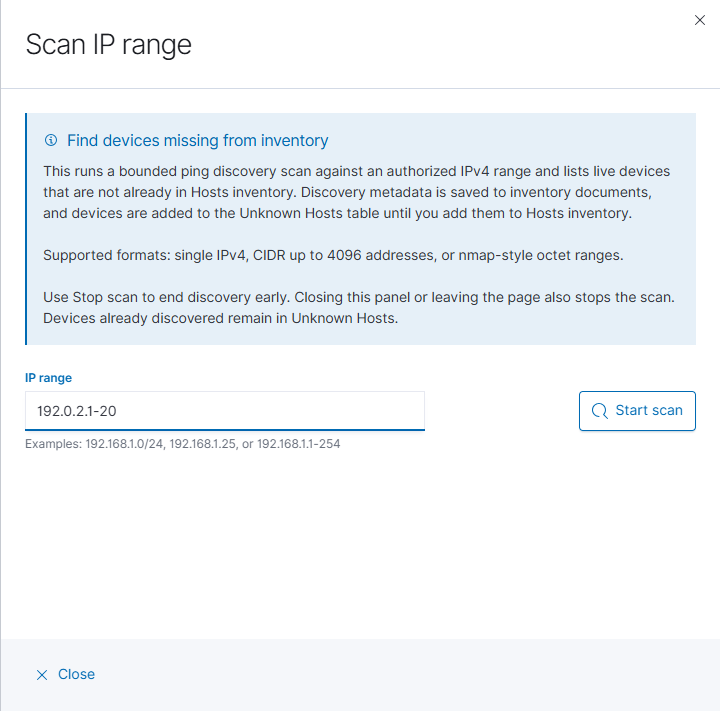
- Enter the IP range, for example
192.168.1.25,192.168.1.0/24, or192.168.1.1-254. Replace the example with your intended network. - Select Start scan to begin the ping-discovery task. This starts work on the appliance and saves discovery metadata.
- Review Status, Target, Range size, Unknown found, and Elapsed as results arrive.
- Review the New unknown devices addresses, names, manufacturers, and MAC addresses before adding devices to Inventory.
- Use Stop scan to end discovery early. Closing the panel with Close or X, or leaving the page, also stops the scan. Devices already discovered remain in Unknown Hosts.
Discovery places responsive devices that are not already in Inventory into Unknown. Saving the discovery metadata does not automatically promote every result into the managed Inventory list.
Events
Open Hosts > Events to investigate host-related events in the selected time range. Examples include new hosts, inventory changes, agent version changes, added or removed hardware, local-user changes, software changes, and monitor up/down transitions. This page and the host’s Events tab require Events access.
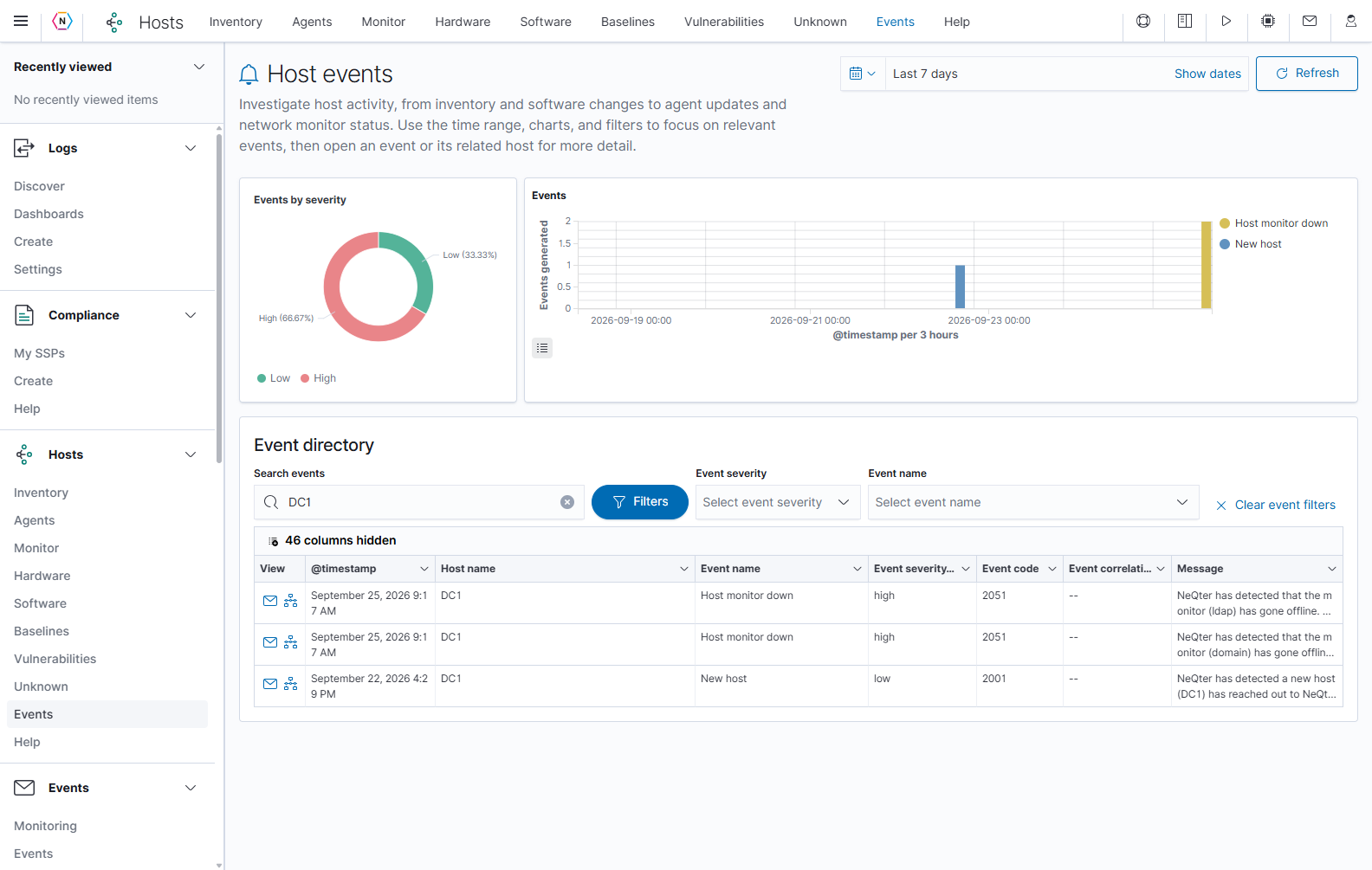
Find an event
- Set the time range and select Refresh.
- Enter a host name or event text in Search events. Open Filters for shared host conditions, or use Event severity and Event name beside the event search. The illustrated investigation is filtered to demonstration host DC1.
- Use Events by severity or the activity chart to focus on the relevant category and period. The legend button shows or hides a chart’s legend.
- Read @timestamp, Host name, Event name, Event severity, Event code, and Message in the directory.
- Select the envelope-shaped View event action to open the event, or View host beside it to investigate the associated host.
| Directory control | Purpose |
|---|---|
| Clear event filters / Clear all in Host filters | Clear event-specific or shared host conditions. Check the separate page search, chart selection, and time range as well. |
| N columns hidden | Opens the column selector so you can show additional event fields. The count depends on the available fields. |
| Column-heading menu | Offers the supported sorting and column-layout actions. |
| Cell filter controls | Add an include or exclude condition where supported. Review the resulting filters after selecting an icon. |
| Cell expand control | Opens the full value when text is truncated in a cell. |
| Rows per page, page numbers, and arrows | Control how many events appear and move between result pages. |
The event code identifies the kind of NeQter event. The correlation identifier can connect related events from the same change. The event message and supporting data explain what was detected.
Read event details
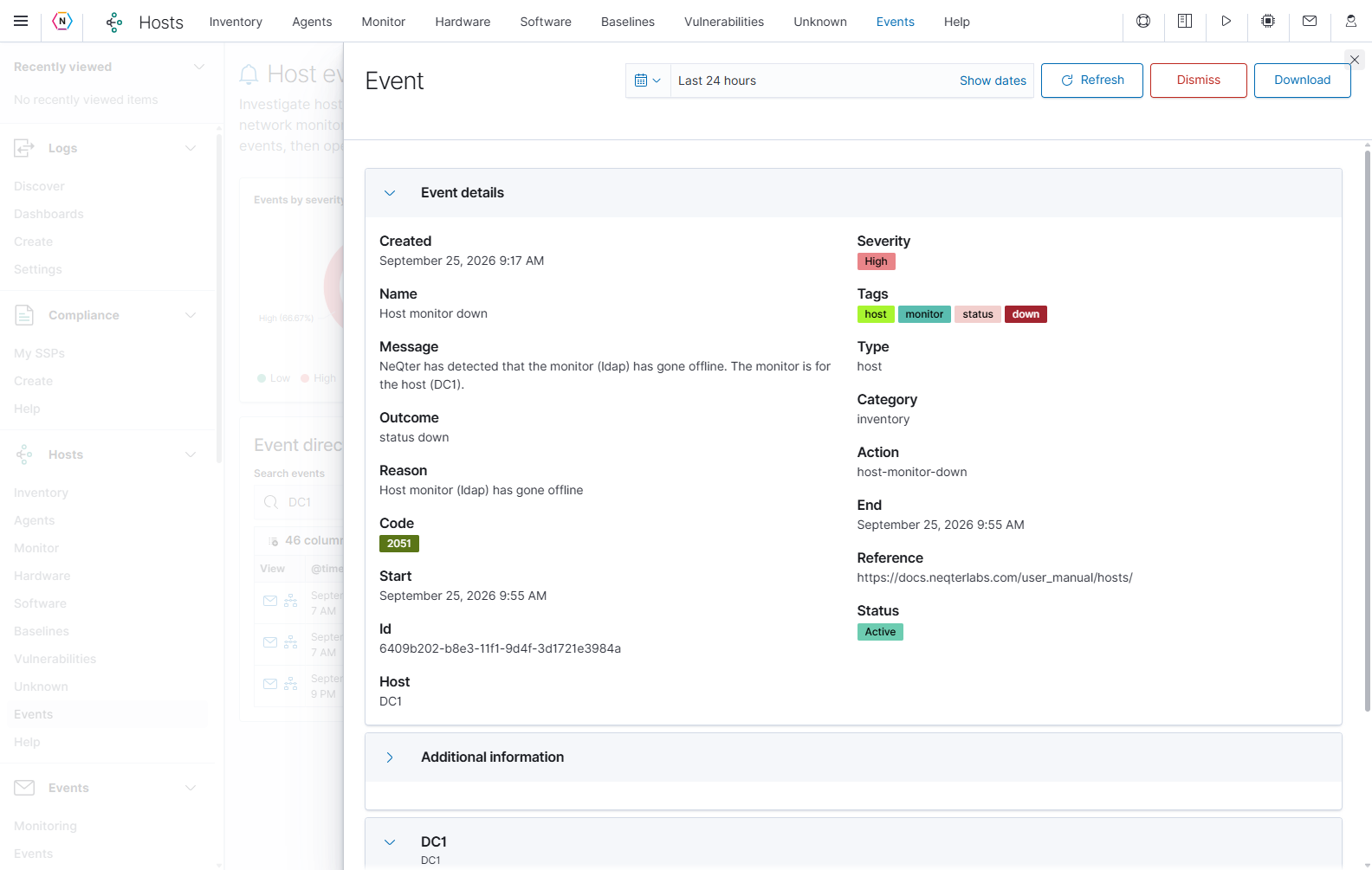
| Flyout area or control | How to use it |
|---|---|
| Event details | Read the message, reason, outcome, code, creation time, start/end time, host, and classification. The creation and event times can represent different parts of the event’s lifecycle. |
| Status | Shows whether the event is Active or Dismissed. A dismissed status records review state; it does not fix the condition that caused the event. |
| Additional information | Supporting information depends on the event type. Some events provide expandable original data or copy controls; the illustrated monitor event also provides host context farther down. |
| Host and change sections farther down | Review the device context and detected-change information supplied for this event type. Expand a section when it offers an expansion control. |
| Time picker / Refresh | Controls supporting time-based information in the flyout. Check this range separately from the directory’s range. |
| Download | Downloads the report for this event. |
| Dismiss | Opens a reason-and-confirmation dialog for users with Events write access. Enter the review reason and select the dialog’s Dismiss to save the status change. Cancel leaves it active. |
| X | Closes the event view. It does not dismiss the event. |
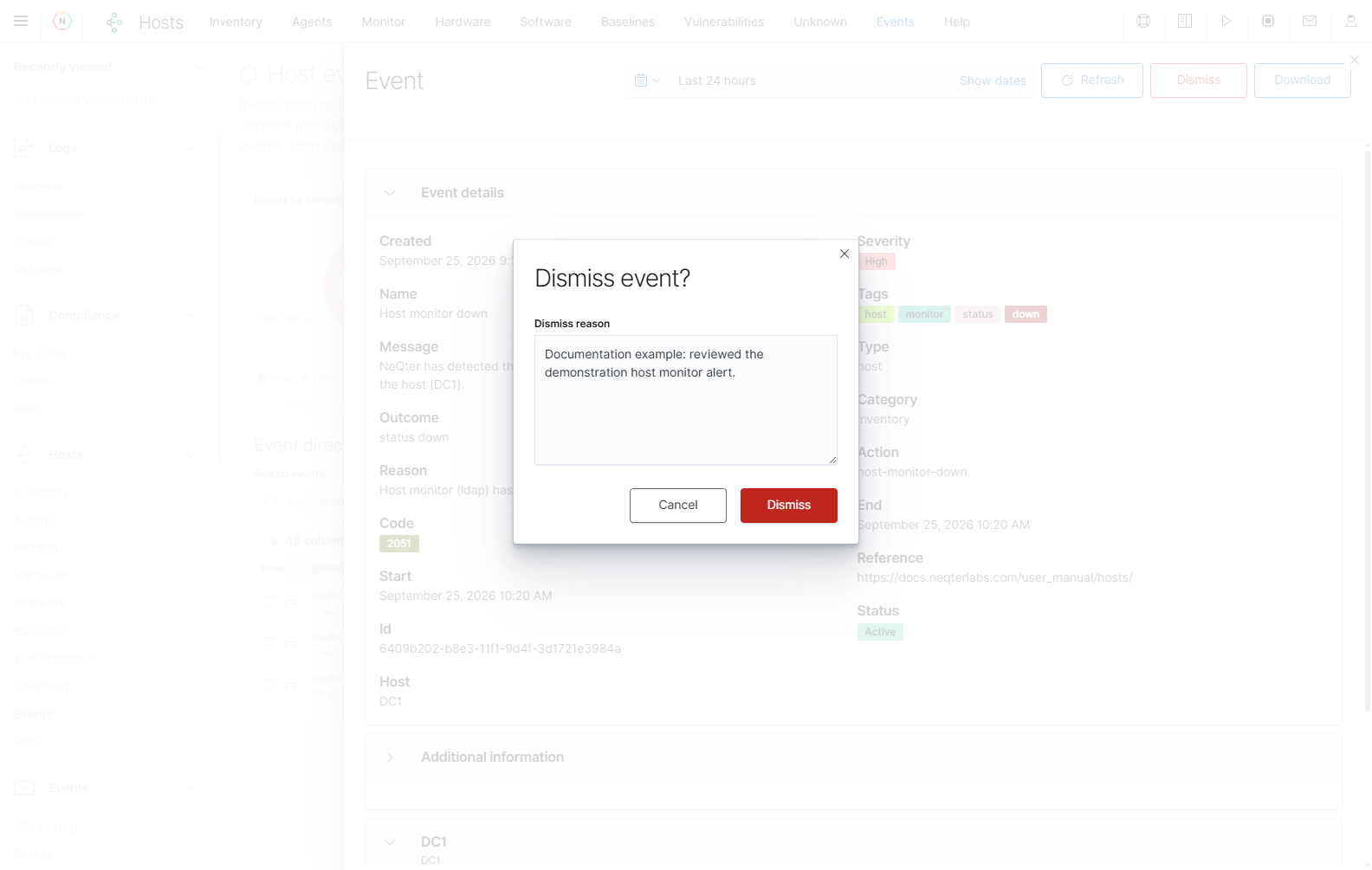
For the original source logs behind an investigation, use Discover. Host events describe changes and monitoring conditions recorded by NeQter; their event messages are not a replacement for every underlying source log.
Hosts Help
Select Help in the Hosts navigation to read the built-in page overview, common workflow, terminology, filtering examples, and troubleshooting guidance. This is the Hosts application’s Help page, separate from the general help icon in the header.
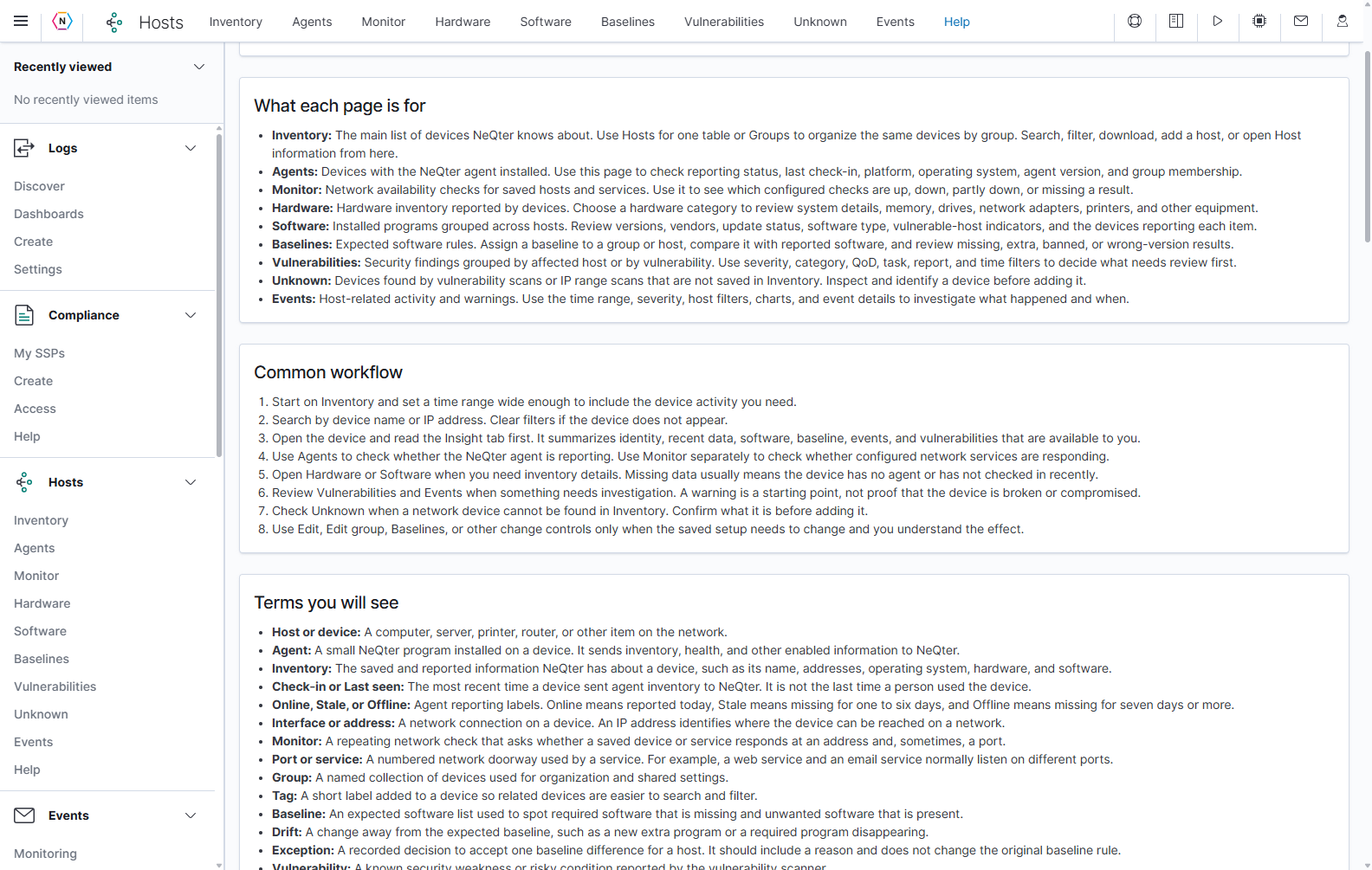
| What you see | What to check |
|---|---|
| A host is missing | Clear search and filters. On Agents, widen the inventory-activity time range. Check Inventory and Unknown for the same address. |
| Different totals on different pages | Compare the filters and what each page counts: hosts, monitors, software groups, or findings. One host can have several monitors and many software entries. |
| Stale or Offline agent | Check Last seen, the device’s connectivity, and the NeQter agent service. Agent status does not establish the state of every network service. |
| Some monitors down | Open Monitor for that host and identify the failing address and TCP port or ICMP check. Compare its timeline and outage threshold with the event history. |
| Empty Metrics, Hardware, or Software | Confirm that the host has the appropriate agent and recent inventory or metrics. Widen time-based views and refresh. |
| A tab or button is unavailable | Check whether the device is saved, has an agent, supports that information, and whether your account has the necessary permission. |
| A vulnerability finding is missing | Check the scan time range, minimum QoD, severity/category filters, and any task/report selection. |
| Unexpected baseline results | Review the group’s inherited policy, the host platform, reported software versions, and the comparison and inventory timestamps. |
| Save fails | Read the field error or notification, complete required values, and verify write access before trying again. |
Permissions and saved changes
| Action | Access and effect |
|---|---|
| Search, filter, sort, open supported details, or download | Hosts read access permits the normal viewing workflow. Separate Events or Vulnerabilities permissions can also be needed for those data. |
| Add/edit hosts, move hosts, create/edit groups, manage interfaces and monitors | Requires Hosts write access. These actions change saved configuration when their commit controls are used. Add host itself creates immediately. |
| Delete interfaces or monitors | Requires Hosts write access. Eligible interface and monitor trash actions save immediately. |
| Delete hosts or groups | Requires Hosts administrator access and confirmation. Deleting a group also reassigns its hosts to Default. |
| Manage hardware views and software baselines | Saving requires Hosts write access; deleting saved views/baselines and removing assignments requires Hosts administrator access. See their sections for individual controls. |
| Open Hosts Events and event details | Requires Events read access in addition to the Hosts workflow. |
| Dismiss an event | Requires Events write access. The confirmation saves the event’s review status. |
| Open the Hosts Vulnerabilities page or scanner details | Requires Vulnerabilities read access. |
| Start a vulnerability scan | Requires Vulnerabilities write access and starts a scanner task. |
Opening a form, changing a view, and confirming a saved action are separate steps. Read the button label and the selected host or group before committing. Several controls apply immediately: Add host, direct-baseline selection, group reordering, and eligible interface/monitor deletion.
Troubleshooting
| What you see | What to check |
|---|---|
| An expected host is missing | Clear the text search and category filters. Check Inventory, Agents, and Unknown for the appropriate record. Widen the time range on pages that limit records by reporting activity. |
| An agent is Stale or Offline | Check Last seen, the agent service, connectivity to NeQter, and its assigned group. Compare network-monitor results before deciding whether the device itself is unavailable. |
| An agent says Not monitored | The agent and service monitoring are separate. Check its inventory check-ins, then configure an interface and ICMP or TCP monitor if you need reachability checks. |
| No data to display in a status chart | Check the selected interval and whether a monitor has supplied results. An empty chart is not an observed down result. |
| Only some of a host’s tabs contain data | Verify the host’s source and the collection settings in its group. An input or manually added host does not automatically have agent hardware, software, or performance reports. |
| A host’s asset fields are blank | Open Edit, enter the missing metadata, and select the main Save button. Automatically collected inventory does not fill every ownership or asset-management field. |
| Unsaved metadata disappears after another action | Save host metadata before using interface, monitor, or baseline controls. Those controls save independently and reload host information. |
| A TCP monitor is down | Confirm the selected interface, address, and port, then check the service listener and network path from NeQter. A working ICMP check does not establish that the TCP service is reachable. |
| A brief outage has no event | Review Delay outage events and the minimum outage duration. Outages below the configured duration may appear in status history without producing an outage event. |
| Hardware fields are empty | Select the matching inventory category and check the latest collected inventory. Not every platform reports every field. |
| Software update status is Unknown | NeQter does not have a resolved update classification for that package. Check its reported version and supporting product information. |
| A baseline is Not Compared | Confirm its assignment and whether an evaluation has run. This state does not establish compliance. |
| A direct baseline selector is locked | The host inherits a group baseline. Review the group assignment. |
| A discovered host has no manufacturer or MAC address | Discovery evidence may be incomplete. Review the discovery source; retrieving fresh details can perform network probes. |
| A deleted agent host returns | Deleting the inventory record does not uninstall the agent. A later check-in can recreate its record. |
| A button is disabled or a page is unavailable | Check the required permission and prerequisites, such as selecting hosts or having a network interface. Events and vulnerability views also use their respective permissions. |
| An export contains unexpected rows | Check that page’s filtering and export behavior. Inventory, Hardware, and Unknown do not all pass the same filters to their download controls. Review the downloaded file before using it. |
For raw log investigations, continue with Discover. For charts built from collected events, use Dashboards. For scanner administration, see Vulnerability Scanner.