Events
Events helps you detect activity, review the records NeQter creates, and choose how those records reach your team. A monitor evaluates a saved search on a schedule. When its condition matches, it can create an event. An alert configuration delivers matching events by email or webhook.
For a complete walkthrough, follow the Create a Monitor Guide or the Alert and Template Guide.
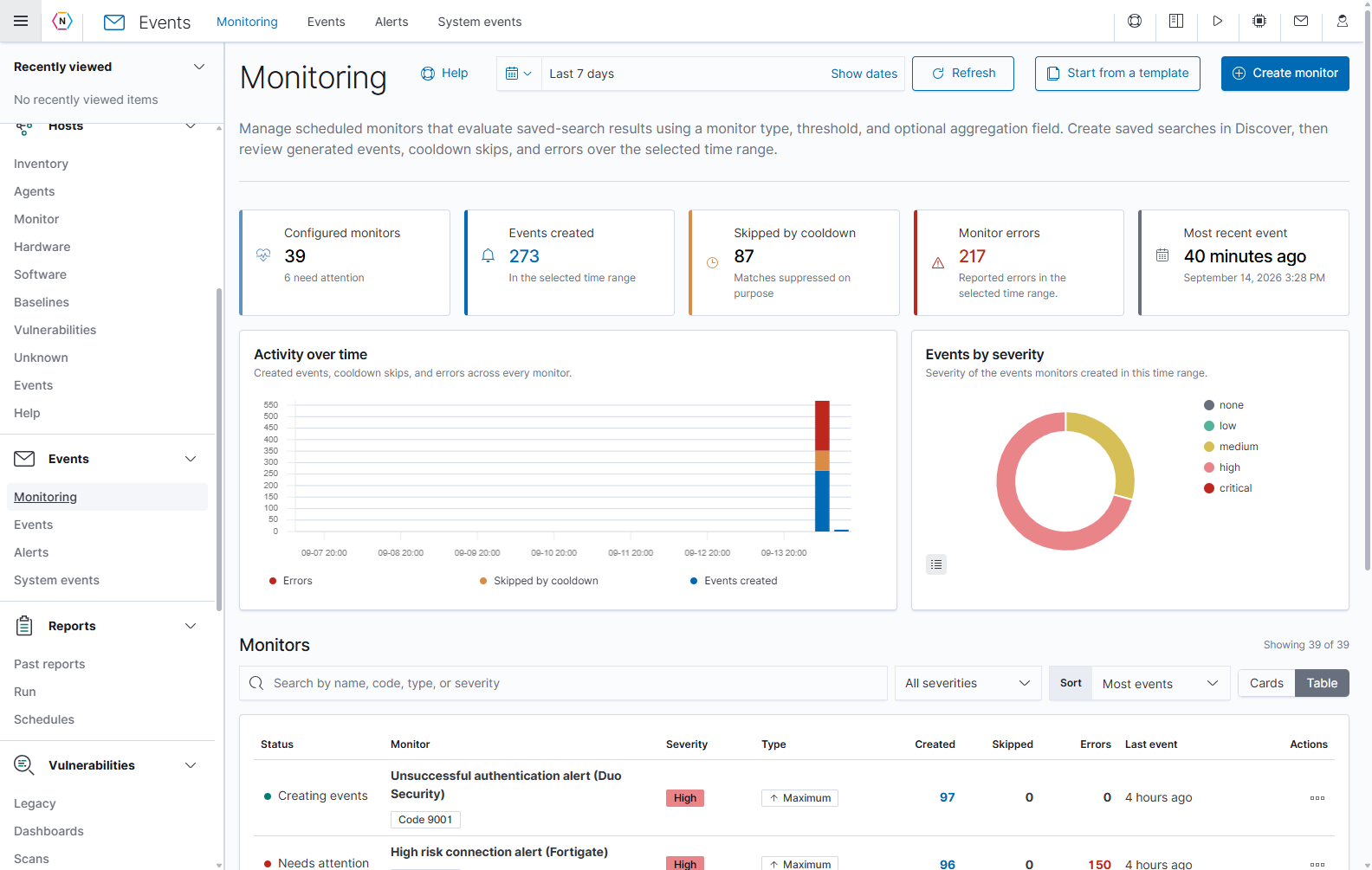
The Monitoring landing page. The top tabs and the expanded Events navigation open the same four pages.
On this pageCollapse sections
- Events
- Open Events and choose a page
- Monitoring
- Set the time range and refresh
- Read the summary and charts
- Choose Cards or Table
- Find a monitor
- Interpret monitor status
- Open a monitor’s configuration
- Review monitor events
- Read status and recent results
- Investigate an aggregation value
- Use View, Edit, and Delete
- Investigate monitor errors
- Create a monitor
- Choose the saved search
- Choose a monitor type and threshold
- Set the schedule in Advanced
- Limit repeated events with Cooldown
- Delay an event with Pause and collect
- Save or discard a monitor draft
- Start from a template
- Open Monitoring help
- Events
- Alerts
- System events
Open Events and choose a page
Expand Events in the main navigation, or use the tabs across the top after opening it.
| Page | What it does |
|---|---|
| Monitoring | Creates scheduled checks of saved-search results and shows their events, skipped matches, results, and errors. |
| Events | Searches and reviews event records, opens their details, exports rows, and dismisses reviewed events. |
| Alerts | Chooses which event codes or severities send notifications and their email or webhook destinations. |
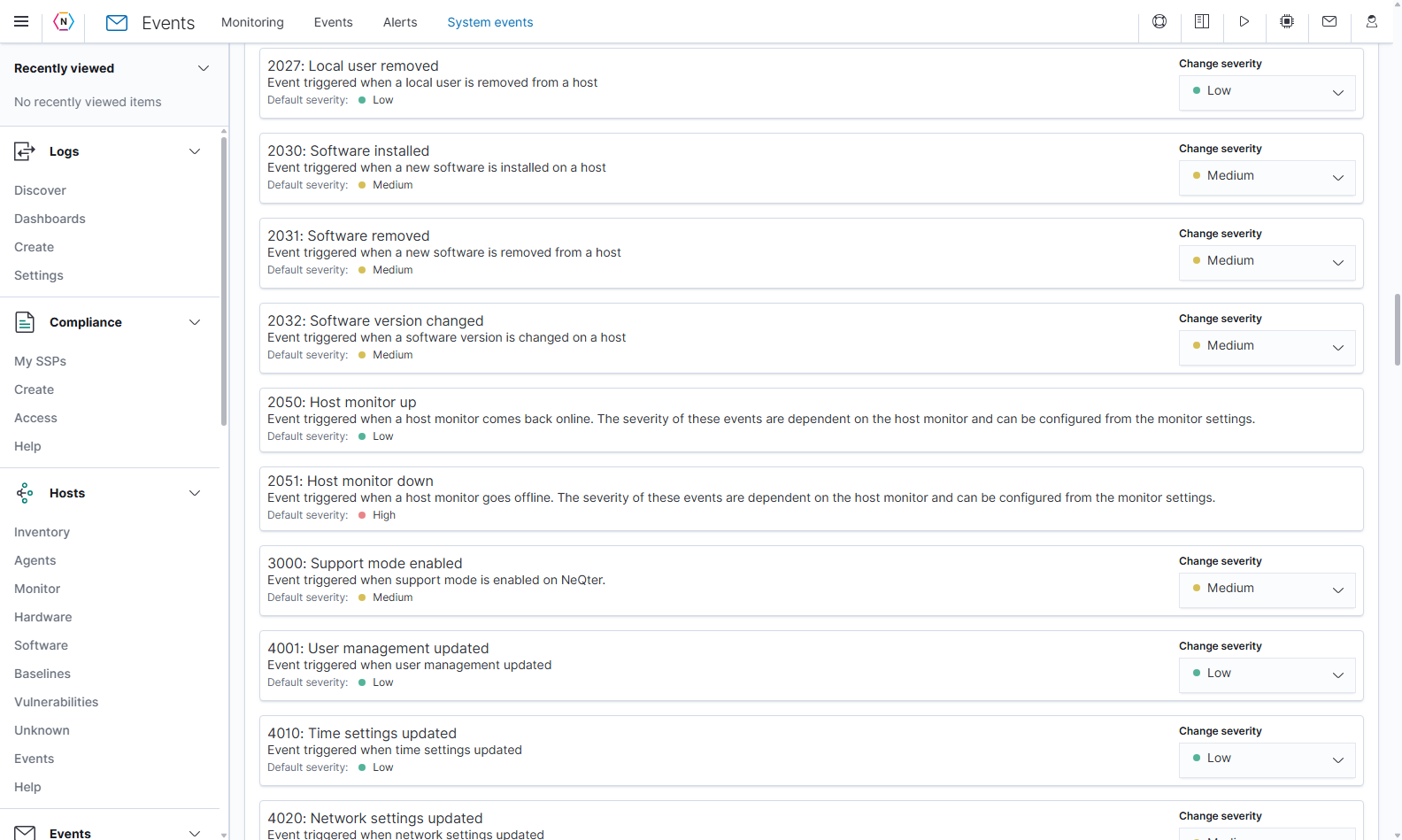
| System events | Lists built-in event definitions and changes the severity assigned to future events. |
Reports has its own navigation and separate documentation. For network interfaces, service checks, and host availability, use Hosts > Monitor.
Global administrator access is required to view or change Monitoring and Alerts configurations. The Events page provides dismissal controls to users with Events write access. The controls available to your account may therefore differ from these administrator screenshots.
For a first review:
- Open Monitoring and confirm the time range.
- Review Monitor errors and the monitors marked Needs attention.
- Open a monitor’s Details or View action to inspect its configuration, recent runs, and events.
- Open an event with its eye button and read its reason and supporting information.
- Use Alerts when you need matching events delivered to a destination.
Monitoring
Monitoring runs a saved Discover search repeatedly and compares the result with a configured threshold. The page shows both what is configured and what happened during the selected history window.
Set the time range and refresh
The header starts at Last 7 days. Use the calendar/dropdown control for Quick select: choose the direction, amount, and unit, then select Apply. Commonly used provides ranges such as Today and Yesterday; Recently used date ranges provides convenient history selections. The left/right arrows move to the previous or next time window.
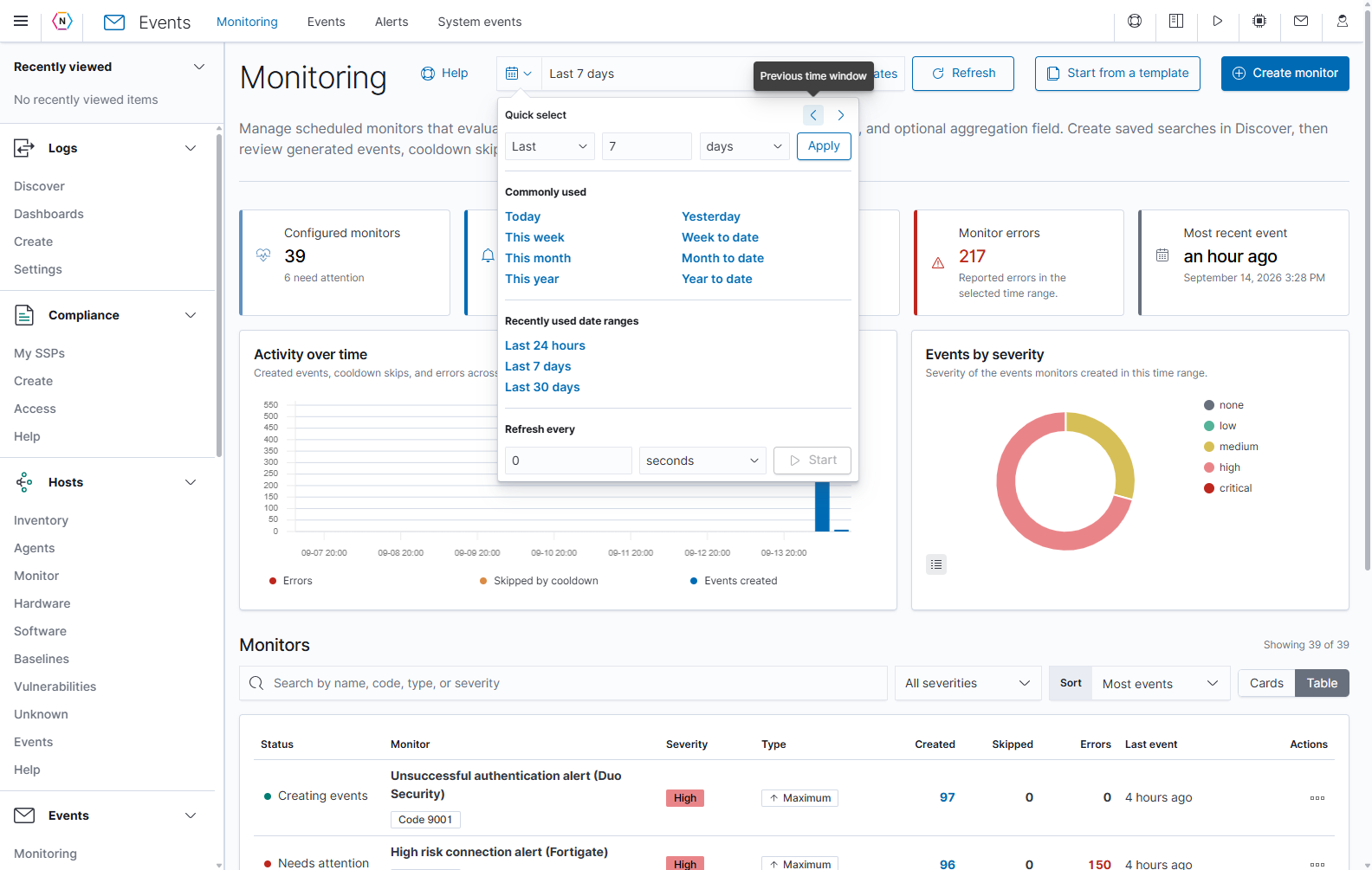
Quick select changes the history displayed on the page. Refresh every controls how often this view updates.
Show dates exposes the start and end values so you can inspect or change them. Use relative values for a moving window or an absolute start and end when investigating a specific period. Apply the date change when the picker asks you to update it, then use Refresh to reload the page.
Under Refresh every, enter a positive interval, choose its unit, and select Start when watching new activity. Stop automatic refresh when you want the page to stay on the current results. Page refresh affects what you are viewing. A monitor’s own Frequency, Time window, and daily Time range determine when it evaluates data.
| Time setting | What it controls |
|---|---|
| Page time range | The history used for summary counts, charts, monitor statuses, and activity columns. |
| Monitor Time window | How far back each scheduled evaluation searches. |
| Monitor Frequency | How often the scheduled evaluation runs. |
| Monitor Time range / Active days | The daily hours and days when the monitor is allowed to run. |
| Page automatic refresh | How often the displayed information is refreshed. |
For example, a monitor can run every five minutes, evaluate the preceding ten minutes, and appear in a page displaying the last seven days. Changing the page to one hour does not change that monitor’s five-minute schedule or ten-minute lookback.
Read the summary and charts
| Summary | Meaning |
|---|---|
| Configured monitors | Number of monitor configurations. The accompanying text identifies how many reported errors during this page’s time range. |
| Events created | Normal events created by those monitors in the selected range. |
| Skipped by cooldown | Matches suppressed by the configured cooldown behavior. These are separate from normal created events. |
| Monitor errors | Error records associated with the monitors during the selected range. |
| Most recent event | Most recent normal monitor event within the selected range, with relative and exact time. |
Activity over time compares events created, cooldown skips, and errors. Use the legend to identify each colored series and hover over the chart to inspect values. Events by severity groups normal monitor events by severity. An empty chart can mean there was no matching activity in the selected history window.
If the page says Activity unavailable, it could not load event history. The monitor configurations can still be available. Use Try again or Refresh to retry; a dash is different from a successful count of zero.
The summary and upper charts cover all configured monitors. The search and severity filter in the Monitors section narrow the list below them.
Choose Cards or Table
Use Cards for a visual comparison of individual monitors. Each card shows its status, severity, name, description, type, event code, result chart, run frequency, most recent event, and created/skipped/error counts. Details opens the monitor. The pencil opens its edit form; the trash button begins deletion.
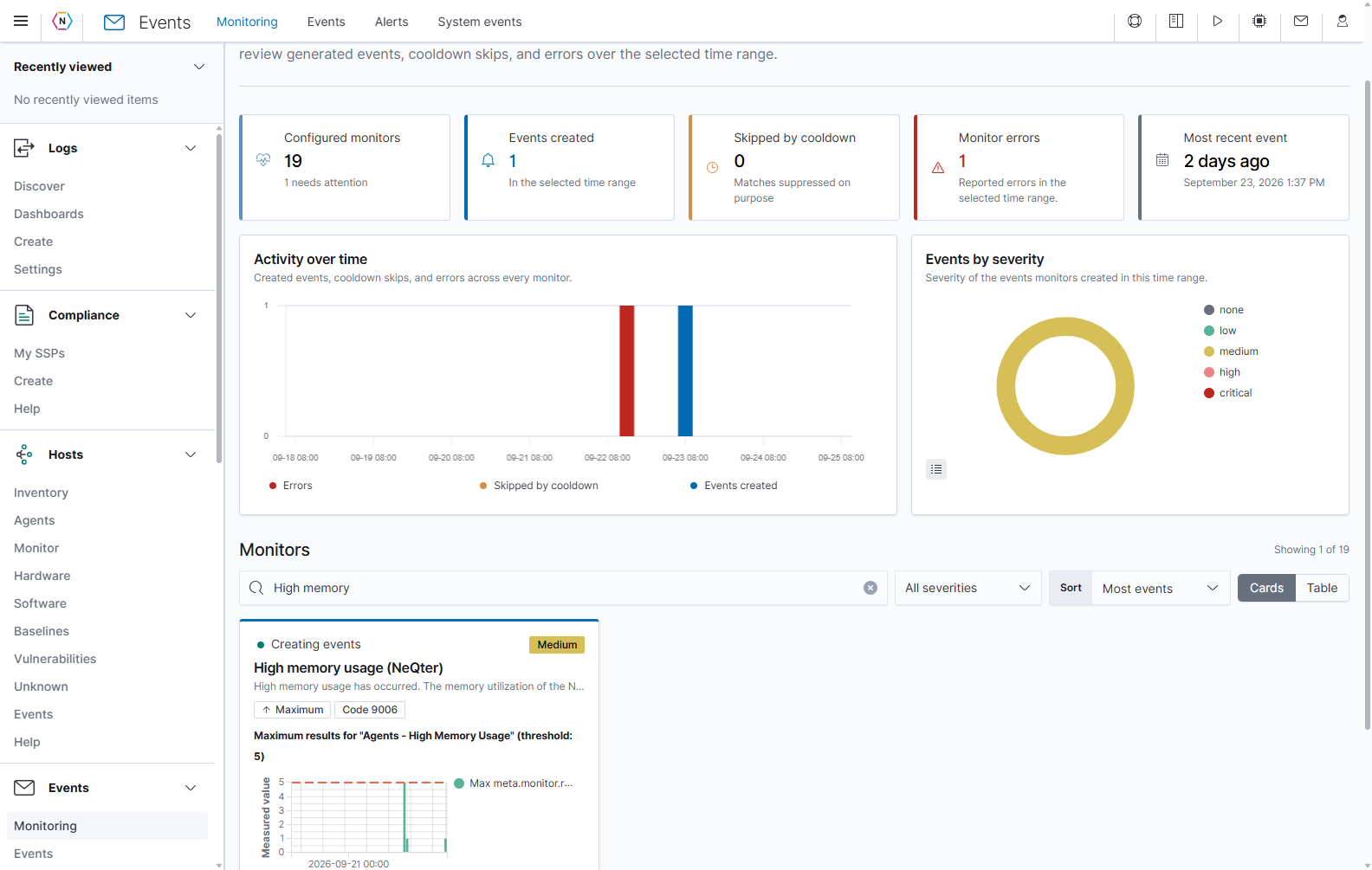
Cards place each monitor’s recorded results beside its activity counts. The result chart and the created-event count measure different things.
Use Table to compare many monitors in rows. NeQter remembers your Cards/Table choice in this browser.
| Table column | Meaning |
|---|---|
| Status | Summary of the monitor’s event and error activity during the selected range. |
| Monitor | Configuration name and its event-code badge. The description is available on hover. |
| Severity | Severity assigned to events created by the monitor. |
| Type | The measurement used to decide whether the saved search matched: Minimum, Maximum, Change, or Unique Count. |
| Created | Normal events created in the selected range. |
| Skipped | Cooldown skip records in the selected range. |
| Errors | Monitor error records in the selected range. |
| Last event | Time of the most recent normal event in this range. Hover for its exact time. |
| Actions | View, Edit, and Delete, shown as icons or in the three-dot menu. |
Use the page numbers, next/previous arrows, and Rows per page below the table to move through records. Sortable column headings provide an additional way to arrange rows.
Find a monitor
Type into Search by name, code, type, or severity to narrow the monitor list. The search also includes descriptions, ignores letter case, and matches part of a value. A code such as 9001 identifies events generated by that monitor.
Open All severities to choose Critical, High, Medium, Low, or None. Selecting All severities removes that restriction. The Showing x of y count reports the filtered list size and total configured monitors.
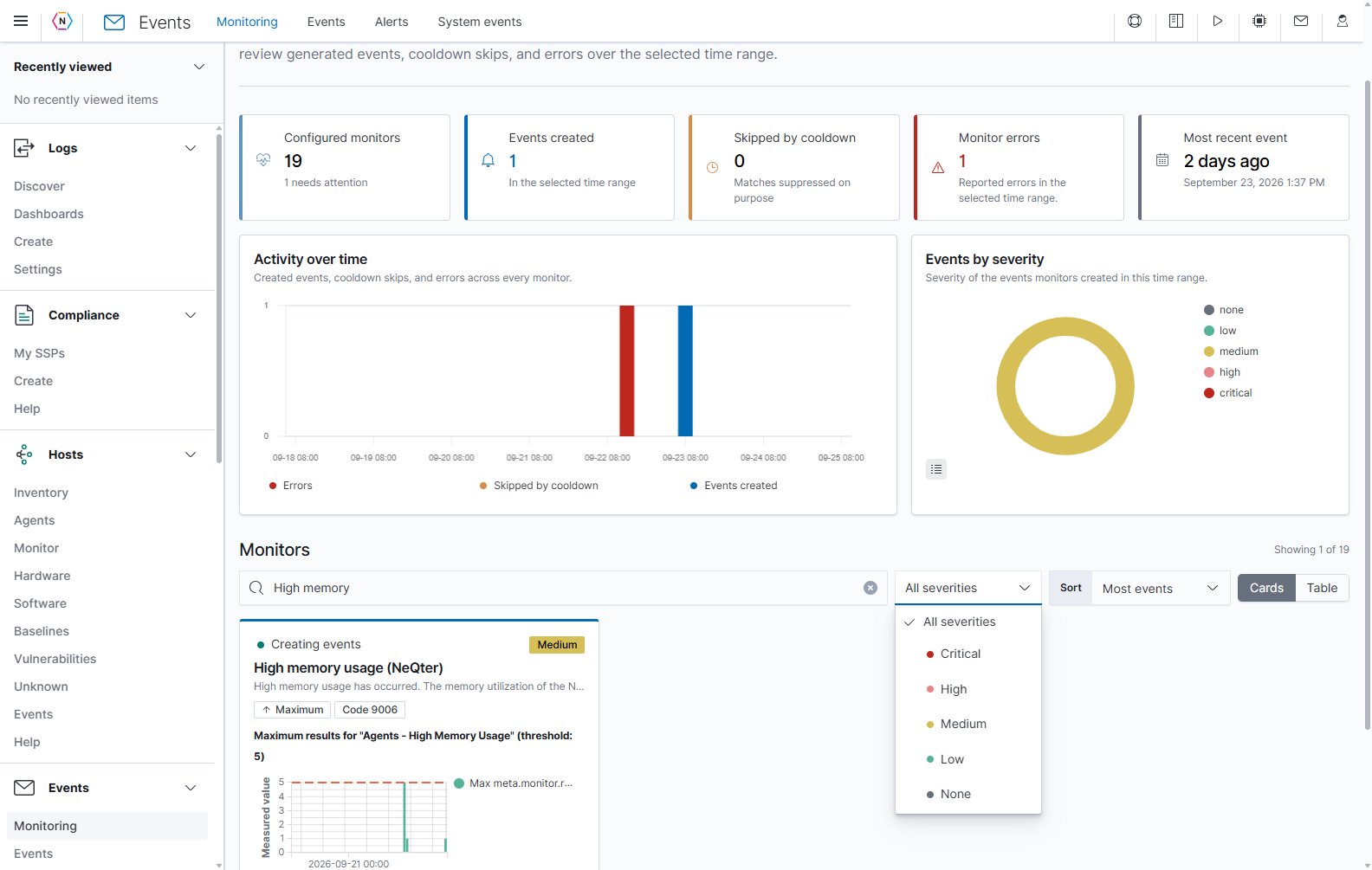
The severity filter narrows the monitor list. It does not change any monitor’s configured severity.
Use Sort to choose the order most useful for your review.
| Sort option | Result |
|---|---|
| Most events | Highest created-event count first. |
| Most errors | Highest error count first. |
| Recent activity | Most recent normal event first. |
| Highest severity | Highest configured severity first. |
| Name A-Z | Monitor names in alphabetical order. |
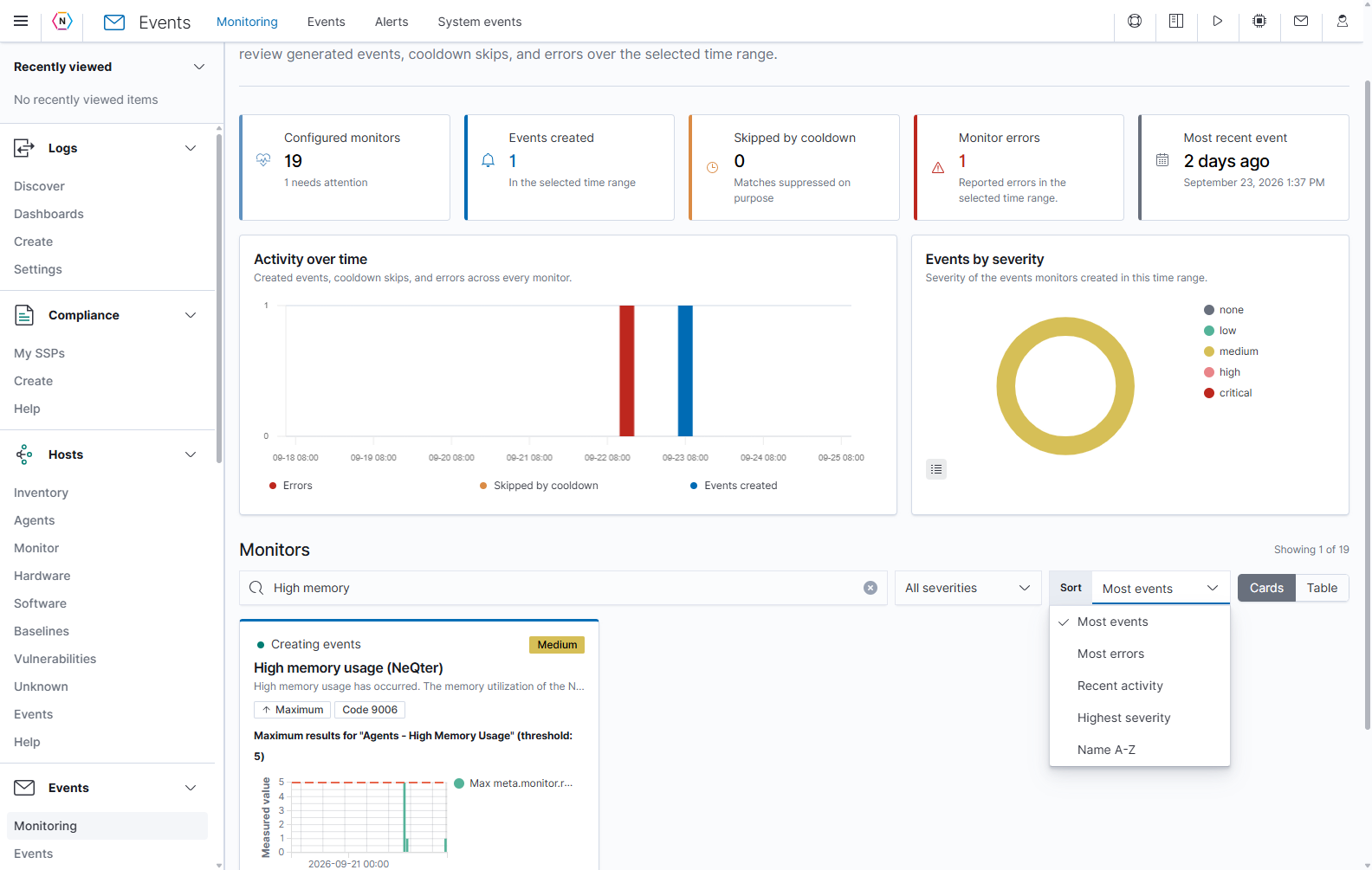
Choose Most errors when investigating failed evaluations, or Recent activity when looking for the latest created events.
If no records match, Clear filters clears the search and severity restriction. A monitor does not disappear from the configuration list simply because it had no events during the selected time range.
Interpret monitor status
| Status | What it means |
|---|---|
| Needs attention | At least one error was recorded during the selected range. The monitor may also have created events. |
| Creating events | The monitor created normal events and reported no errors during the selected range. |
| Quiet | No normal events or errors were recorded during the selected range. Cooldown skips may still exist. |
| Activity unavailable | The page could not load the history needed to determine status. |
A Quiet monitor may have run successfully without meeting its condition. Review its recent runs before treating silence as a failure.
Open a monitor’s configuration
Select Details on a card or View in the table’s Actions menu. The details panel opens over the Monitoring page. Its time picker starts with its own Last 7 days range; check it when your investigation uses a different period.
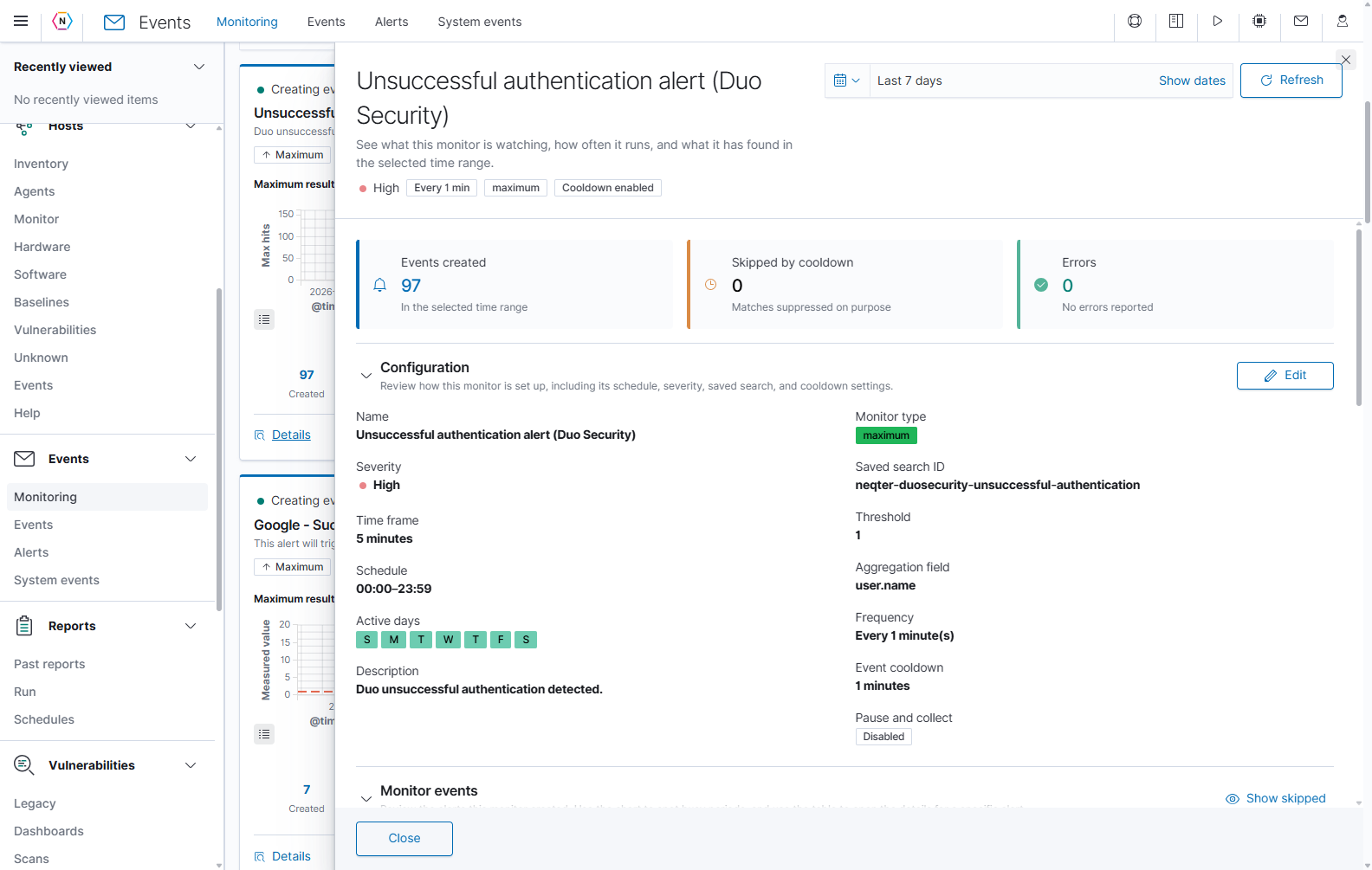
This monitor evaluates a saved Duo Security search. Its configured lookback, frequency, threshold, grouping field, and cooldown are visible together.
The header identifies the monitor and shows severity, frequency, type, and enabled cooldown. The three summary cards show this monitor’s created events, skipped matches, and errors within the details time range.
Expand or collapse Configuration with its arrow. Read the name, severity, Time frame (the lookback), daily schedule, active days, description, monitor type, saved-search ID, threshold, aggregation field, frequency, cooldown, and pause-and-collect settings. These are display values; use Edit to open a form for changes.
Use the panel’s own scrollbar to reach later sections. Close at the bottom or X in the upper-right returns to the monitor list.
Review monitor events
Expand Monitor events to see the event history. The Events over time chart shows when events were created; the table provides timestamp, code, type, category, action, and reason.
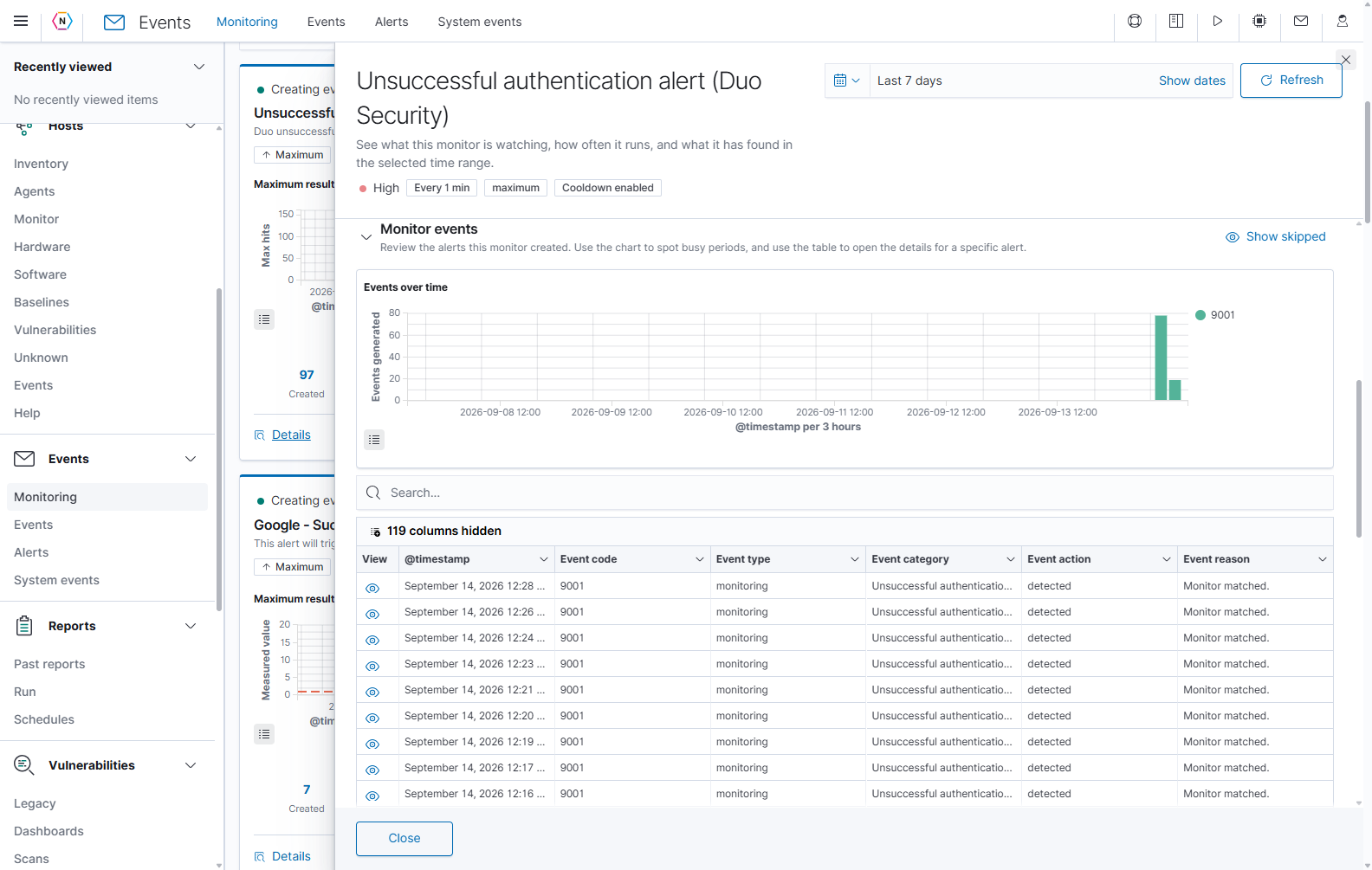
The eye in a row opens that event’s details. The displayed event code connects the record to this monitor.
Use the table’s search field to narrow its rows. Columns hidden opens the column chooser; column menus provide visibility and positioning controls. The row eye opens the event viewer, where you can read the event’s details and supporting information. Event-viewer controls are explained in the Events section.
Show skipped includes cooldown skip history alongside the normal event chart and broadens the table to related records tagged with this monitor’s code. Related error records may also appear in the table. Select Hide skipped to return to normal monitor events.
The detail tables initially load up to 500 rows. When more are available, Load 500 more increases the loaded set, up to 10,000. The table’s page size controls how many loaded rows you see at once.
Read status and recent results
Expand Status and results to compare the monitor’s threshold with its recorded evaluations. For an aggregated Maximum monitor, the page includes a pie chart of aggregation values and a result chart broken down by those values. Other types show their applicable measurement chart.
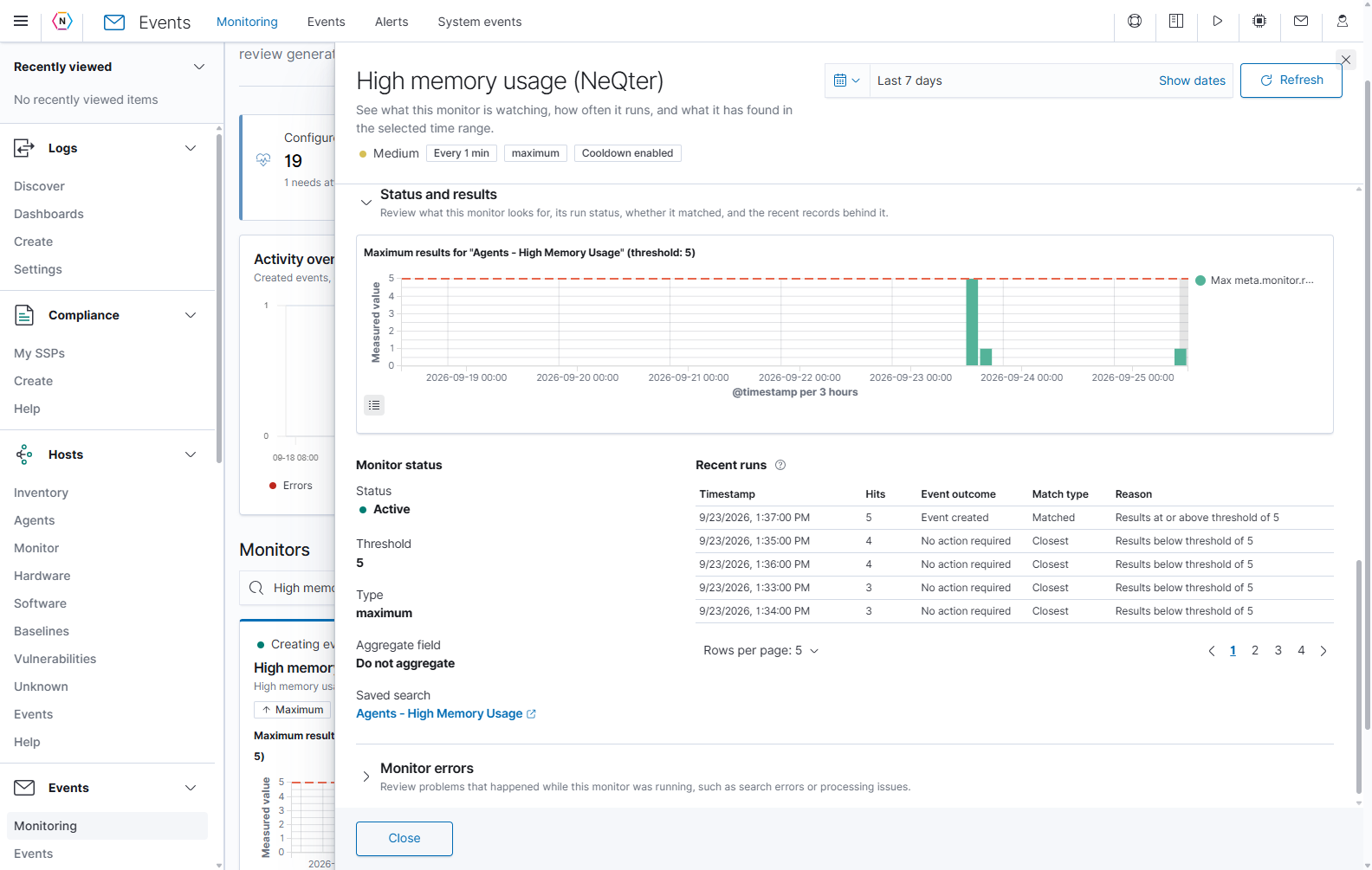
A run can show Matched while its Event outcome says Event creation skipped. Matching the condition and creating a new event are separate steps.
The Monitor status area repeats the threshold, type, aggregation field, and saved search. Active identifies the monitor configuration here; use recent run outcomes and errors to assess what happened. Select the saved-search link to open it in Discover in another tab.
Recent runs shows the last 20 matching runs in the selected range. If fewer than 20 matches exist, NeQter fills the list with the closest nonmatching runs. It is a focused review list, rather than a complete chronological record of every execution.
| Recent runs column | How to read it |
|---|---|
| Timestamp | Time recorded for the evaluation result. |
| Hits | Result count recorded by that evaluation. |
| Event outcome | What happened to event creation, such as Event created or Event creation skipped. |
| Match type | Matched, or Closest for one of the selected nonmatching results. |
| Aggregate value / Reason | The group evaluated by an aggregated Maximum monitor, or the recorded reason for other types. |
Use Rows per page to show 5, 10, or 20 recent results and the page arrows to move between them.
Investigate an aggregation value
For a Maximum monitor with an aggregation field, Top aggregation values lists the individual values and their strongest recorded results.
Here the aggregation field is user.name, so each row represents a user value observed by the monitor.
- Aggregation value identifies the group, such as a user name or source address.
- Max hits is that group’s highest recorded hit count within the selected range.
- Monitor query start time / end time show the evaluation window associated with that maximum result.
- Detected count counts matching result records for the group during the selected range.
- Discover > Open opens the saved search in another tab, with that aggregation value and the details time range.
- The eye in Actions opens the underlying monitor-result document for inspection.
Use the sortable count headings and pagination to compare values. A large hit count identifies activity to investigate; the monitor’s query and threshold explain why it mattered.
Use View, Edit, and Delete
In Table view, select the three-dot Actions button when the actions are collapsed.
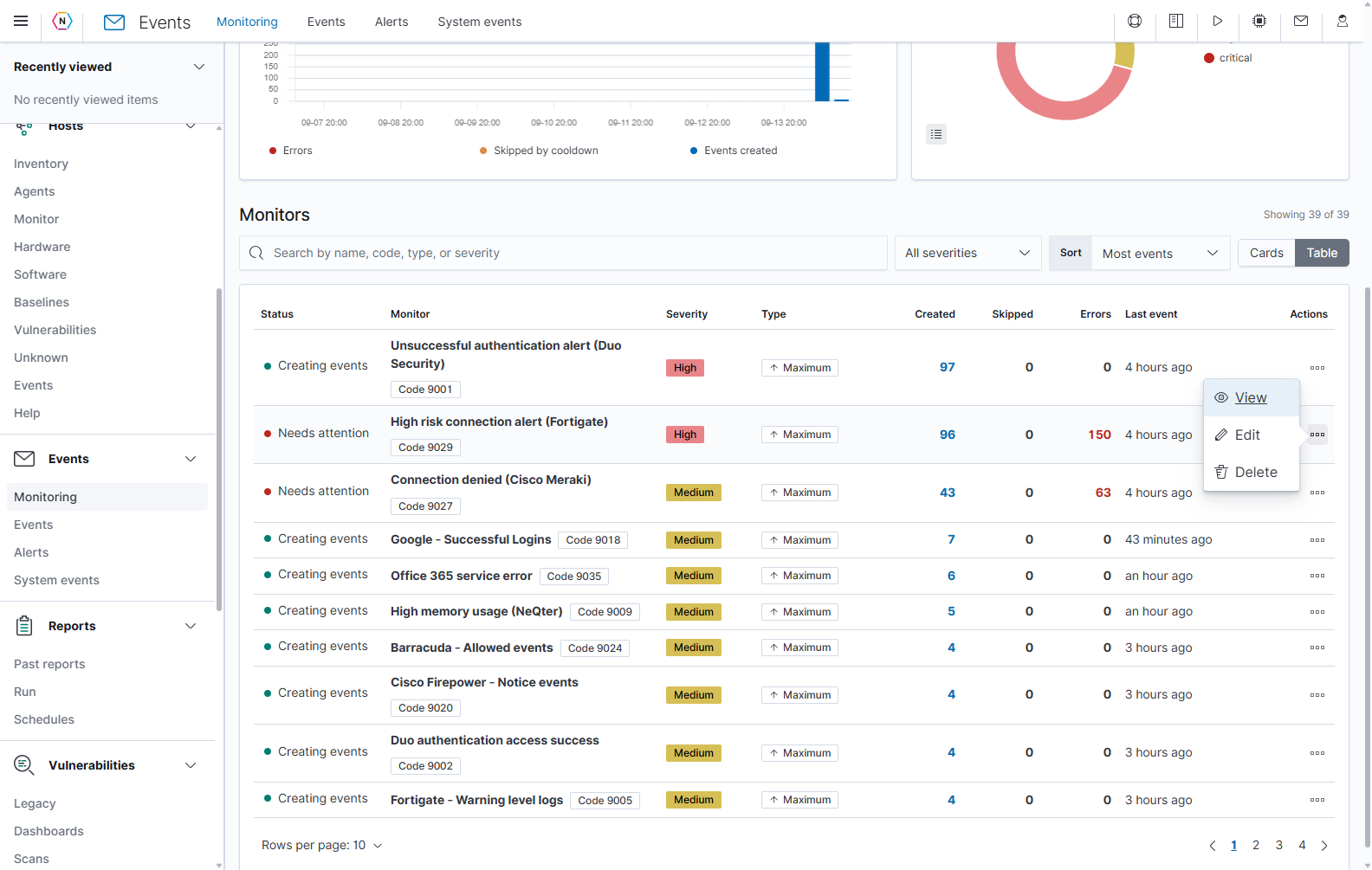
The menu belongs to its row. Confirm the monitor name before opening an edit or deletion workflow.
| Action | What happens |
|---|---|
| View | Opens the details, events, results, and errors panel. |
| Edit | Opens the existing configuration in an edit form. Changes take effect after Save. |
| Delete | Opens a confirmation. Confirming Delete removes the monitor and stops future runs; the saved search and past events are retained. |
Use Cancel in an edit form or deletion confirmation to leave the saved monitor as it was. A deleted monitor cannot be restored with an Undo button.
Investigate monitor errors
Open the affected monitor and expand Monitor errors. This section starts collapsed. Its chart shows errors over time; the rows include timestamp, event code, action, and reason.
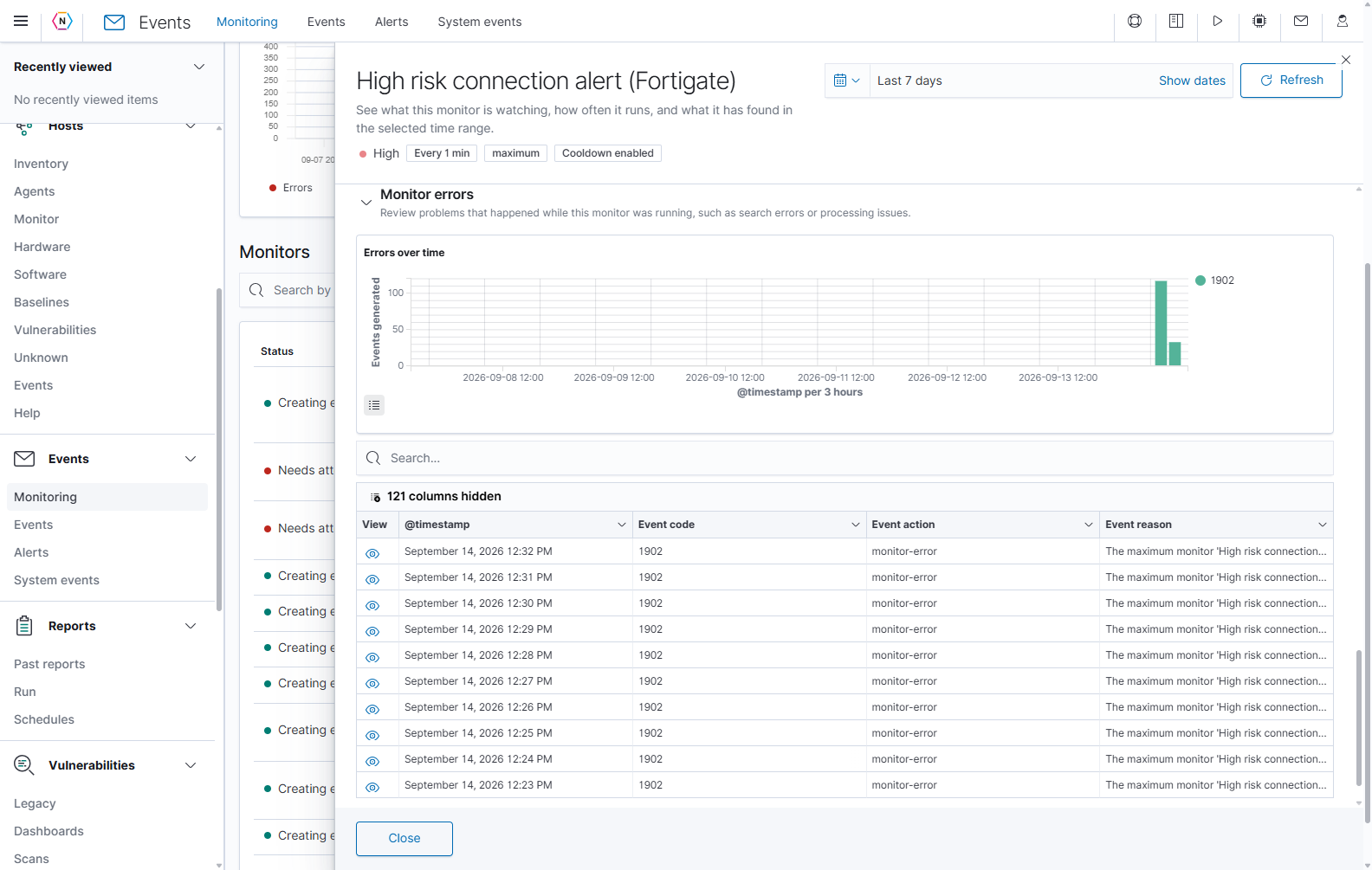
The error list explains the Needs attention status. Open a row’s eye button to read its full reason.
Use the search field to find a particular code or reason. Widen the time range if you are tracing when the problem started. An aggregation limit, search failure, or processing error needs a different correction; read the event before editing the configuration. After saving a correction, review subsequent runs and refresh the history. Earlier errors remain visible when they are inside the selected range.
Create a monitor
Start by opening Discover and saving a search that selects the records you want evaluated. Confirm the selected data view, query, and filters produce useful results. Then return to Events > Monitoring and select Create monitor.
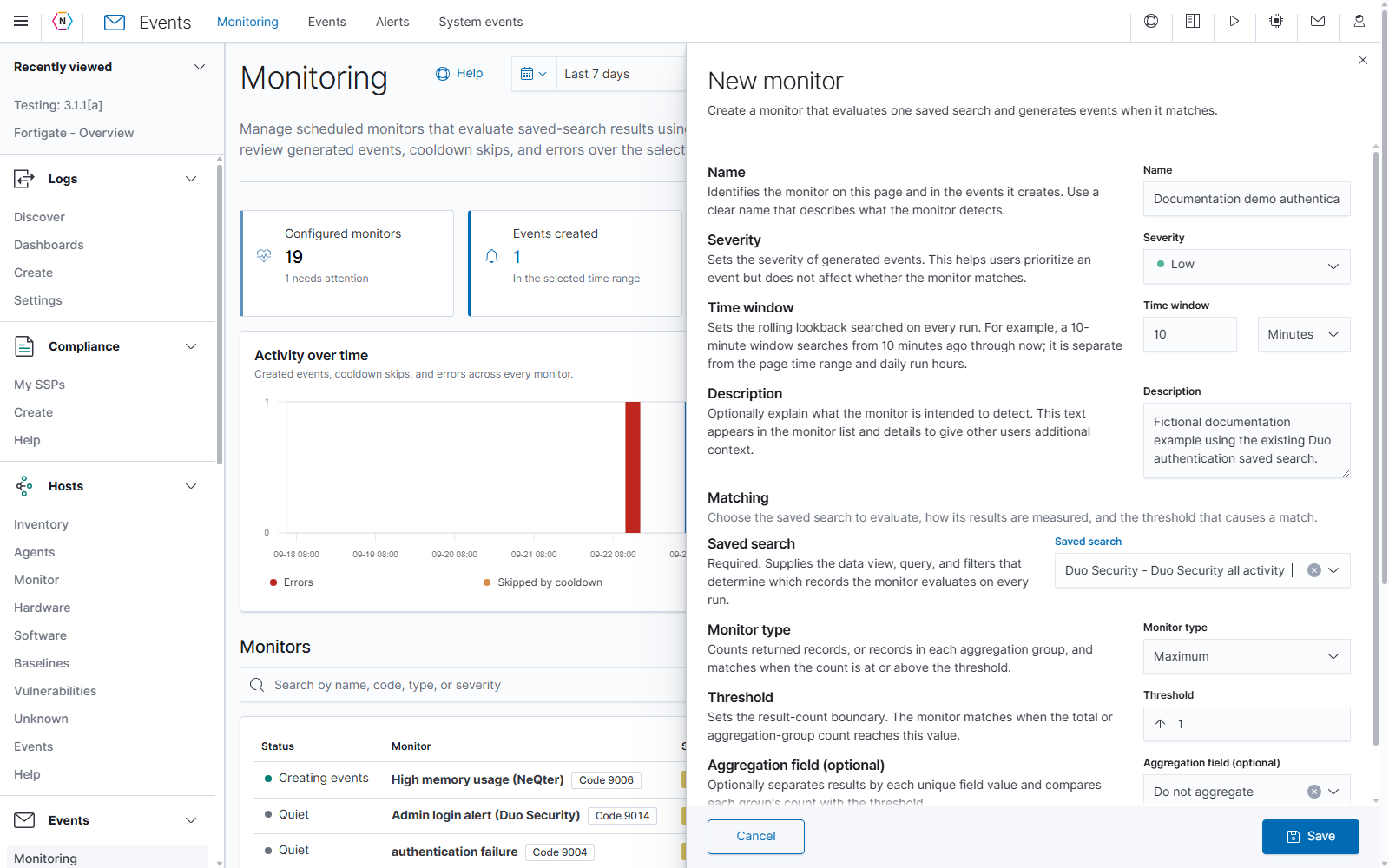
The blank form starts with Low severity, a ten-minute lookback, and Maximum matching with threshold 1. A saved search is required.
| Field | How to use it |
|---|---|
| Name | Enter a clear description of what the monitor detects. Required; up to 255 characters using letters, numbers, spaces, dashes, dots, or underscores. |
| Severity | Choose None, Low, Medium, High, or Critical for generated events. Severity helps prioritize events without changing the match condition. |
| Time window | Set the rolling lookback searched on each run. Choose Minutes, Hours, or Days. |
| Description | Optionally record purpose, expected behavior, or investigation context; up to 1,000 characters. |
| Saved search | Choose the existing Discover search that supplies the data view, query, and filters. |
| Monitor type | Choose how the returned records will be measured. |
| Threshold | Set the numerical boundary for a match. Its meaning depends on type. |
| Aggregation field | Select a measurement/grouping field when needed by the chosen type. |
The time-window controls allow 5–10,080 minutes, 1–168 hours, or 1–7 days. The threshold input allows 1–1,000. Choose the lookback and frequency together so you understand whether adjacent evaluations overlap.
Choose the saved search
Open Saved search, type part of its name to find it, and select the result. No saved search is a placeholder and cannot be used to save a monitor. The clear button removes the draft selection.
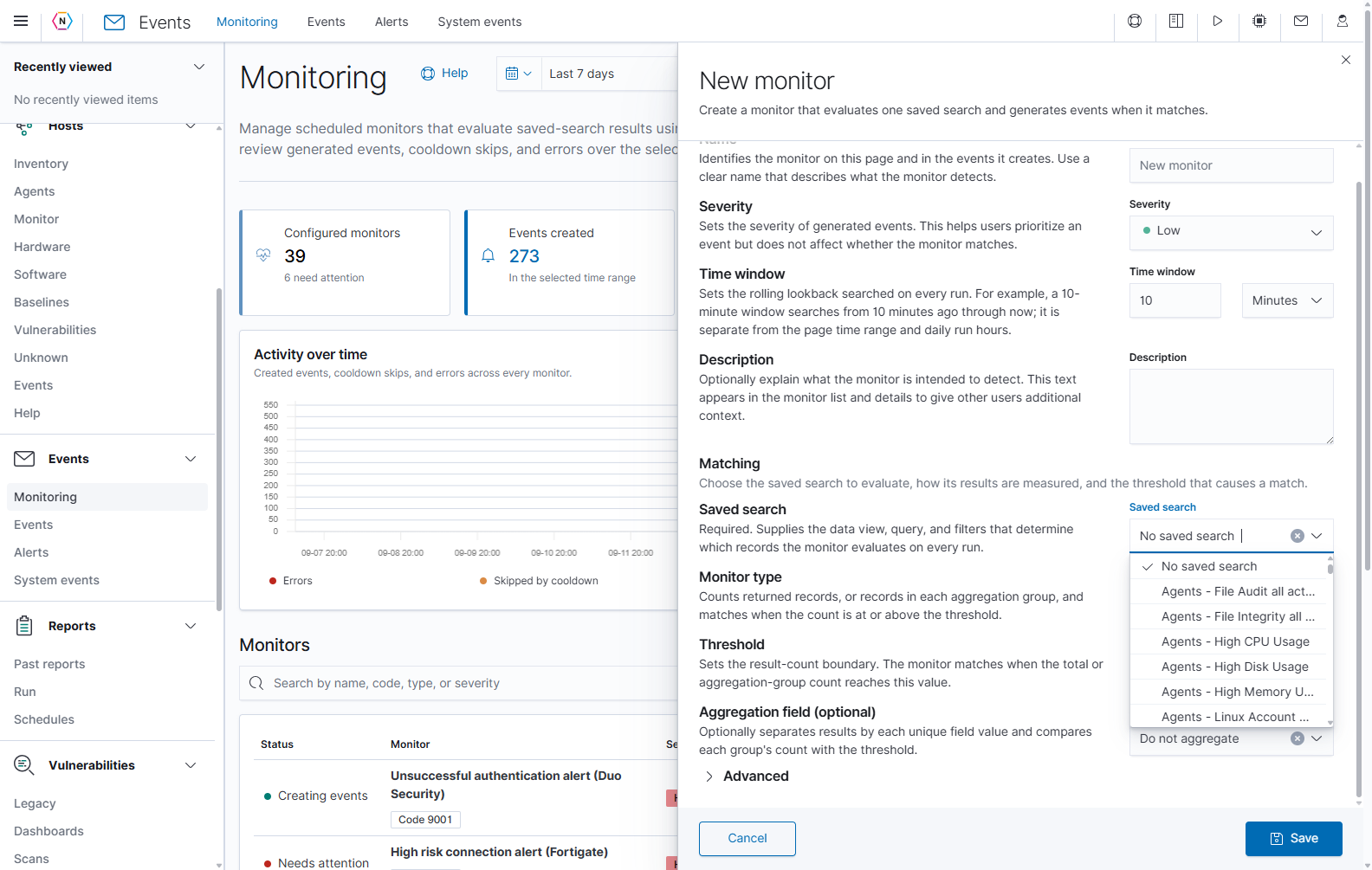
Select a search appropriate to the data and condition you want to monitor. Choosing it does not modify the saved search.
The selected search supplies the fields available in Aggregation field. For example, a search with user names can support one group per user, while a network search might use a source address. Check the aggregation selection again if you change the saved search.
Choose a monitor type and threshold
| Type | A match occurs when | Example |
|---|---|---|
| Minimum | The total record count is below the threshold. | Detect a firewall that has stopped sending logs. Use a saved search for that firewall, a ten-minute time window, and threshold 1. The monitor matches if no records arrive in that window. |
| Maximum | The total count, or a group’s count, is at or above the threshold. | Detect repeated failed sign-ins. Search for failed authentication events, group by user.name, and use a ten-minute time window with threshold 5. The monitor matches a user with five or more failures. |
| Change | The selected field changes more times than the threshold. | Detect an unstable device address. Search for one device’s records and select its reported IP address field. With a thirty-minute time window and threshold 2, the monitor matches when that field changes more than twice. |
| Unique Count | The selected field has at least the threshold number of distinct values. | Detect login attempts from many sources. Search for failed sign-ins to one account and select source.ip. With a fifteen-minute time window and threshold 10, the monitor matches when attempts come from ten or more distinct IP addresses. |
Changing Monitor type resets its threshold, aggregation field, and any Max count value to that type’s defaults. Recheck the matching fields before saving.
For Maximum, leave Do not aggregate selected to compare the total result count. Choose an aggregation field to evaluate each distinct value separately. With aggregation selected, Max count appears: it limits how many matching groups are evaluated in a run, from 1 to 100, with a default of 20. Reaching that limit reports an error because additional matching groups may exist.
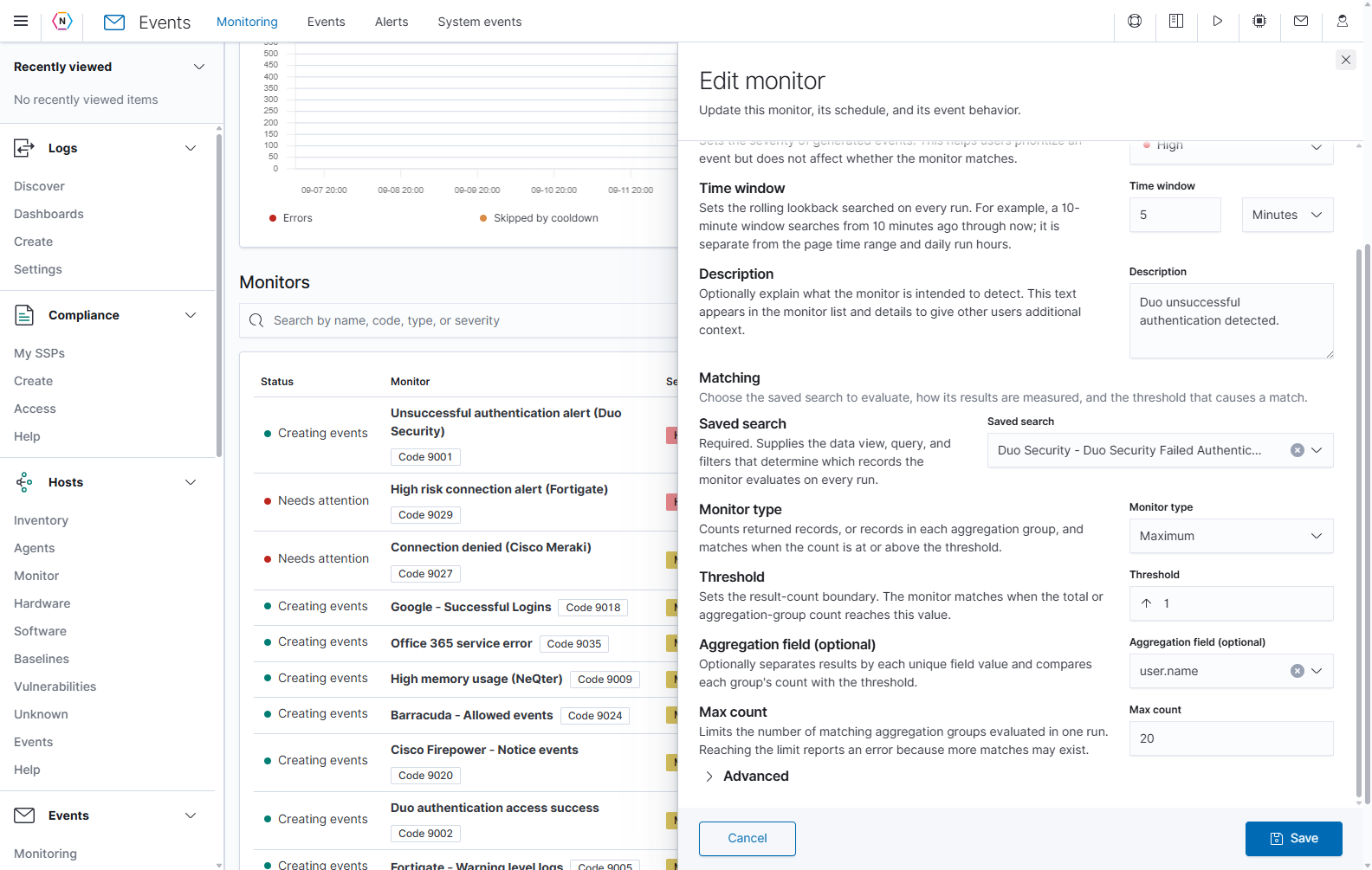
This existing monitor groups by user.name. Threshold controls matching counts; Max count controls how many matching groups are evaluated.
For Minimum, no aggregation field is used. Its default threshold is 100.
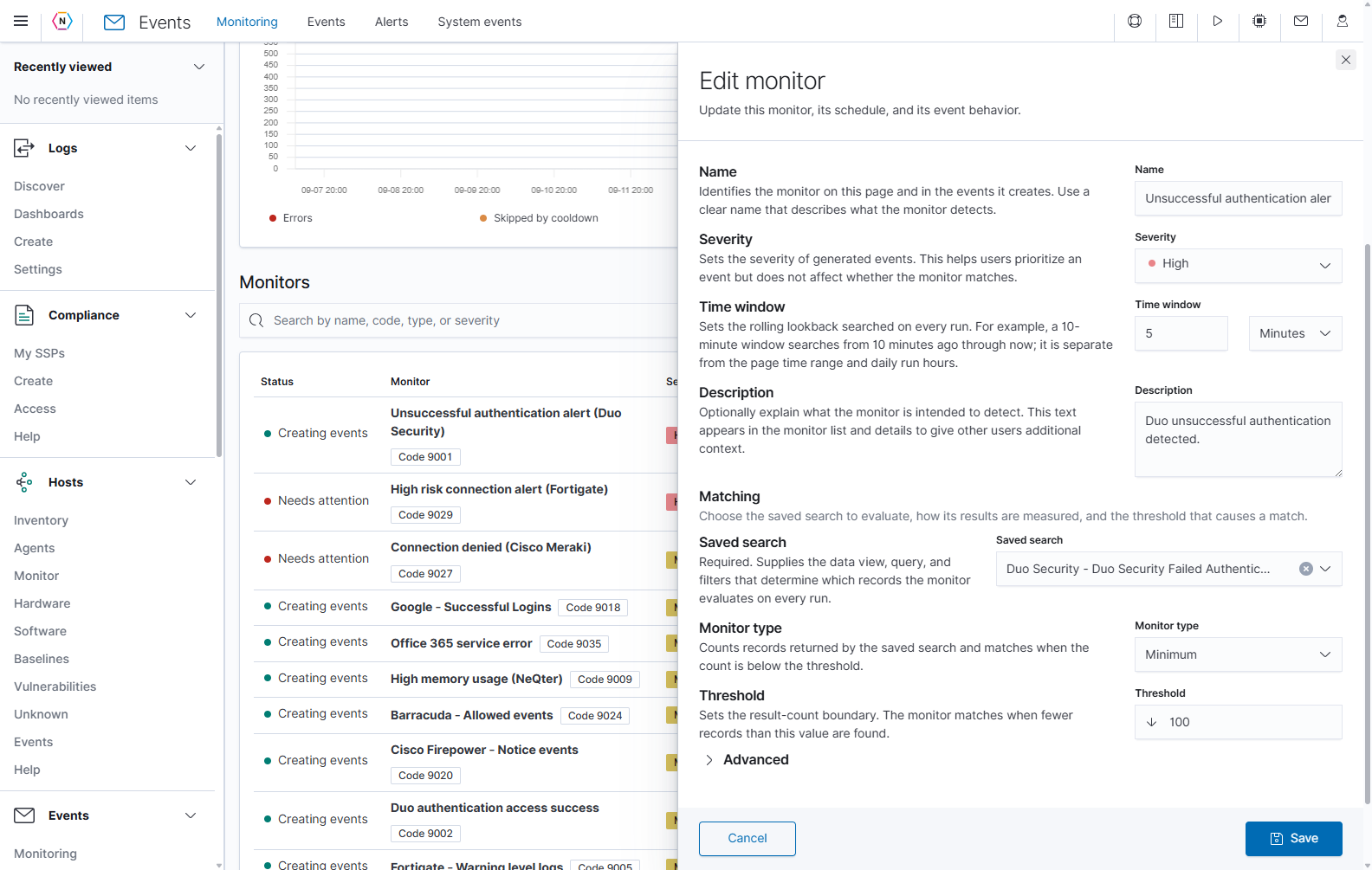
The screenshot shows an unsaved type change in an edit form. A Minimum threshold of 100 matches a result count below 100.
For Change, choose the required field in Aggregation field and enter the number of changes allowed before the condition matches. Its default threshold is 5.
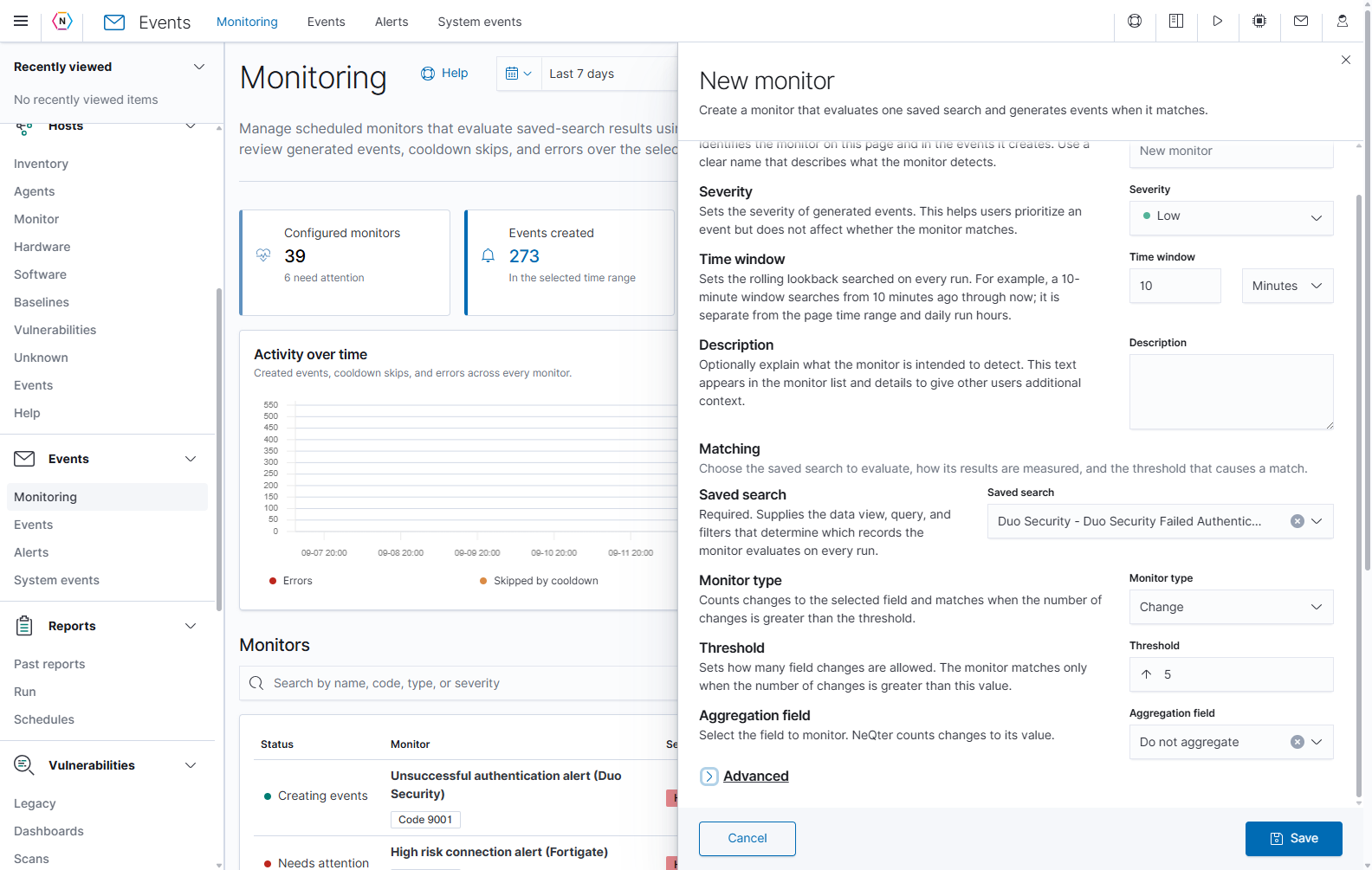
This Change draft shows the type and threshold. Select a real aggregation field before saving; Do not aggregate is not sufficient for this type.
For Unique Count, select the field whose distinct values should be counted. The field is required and the default threshold is 10.
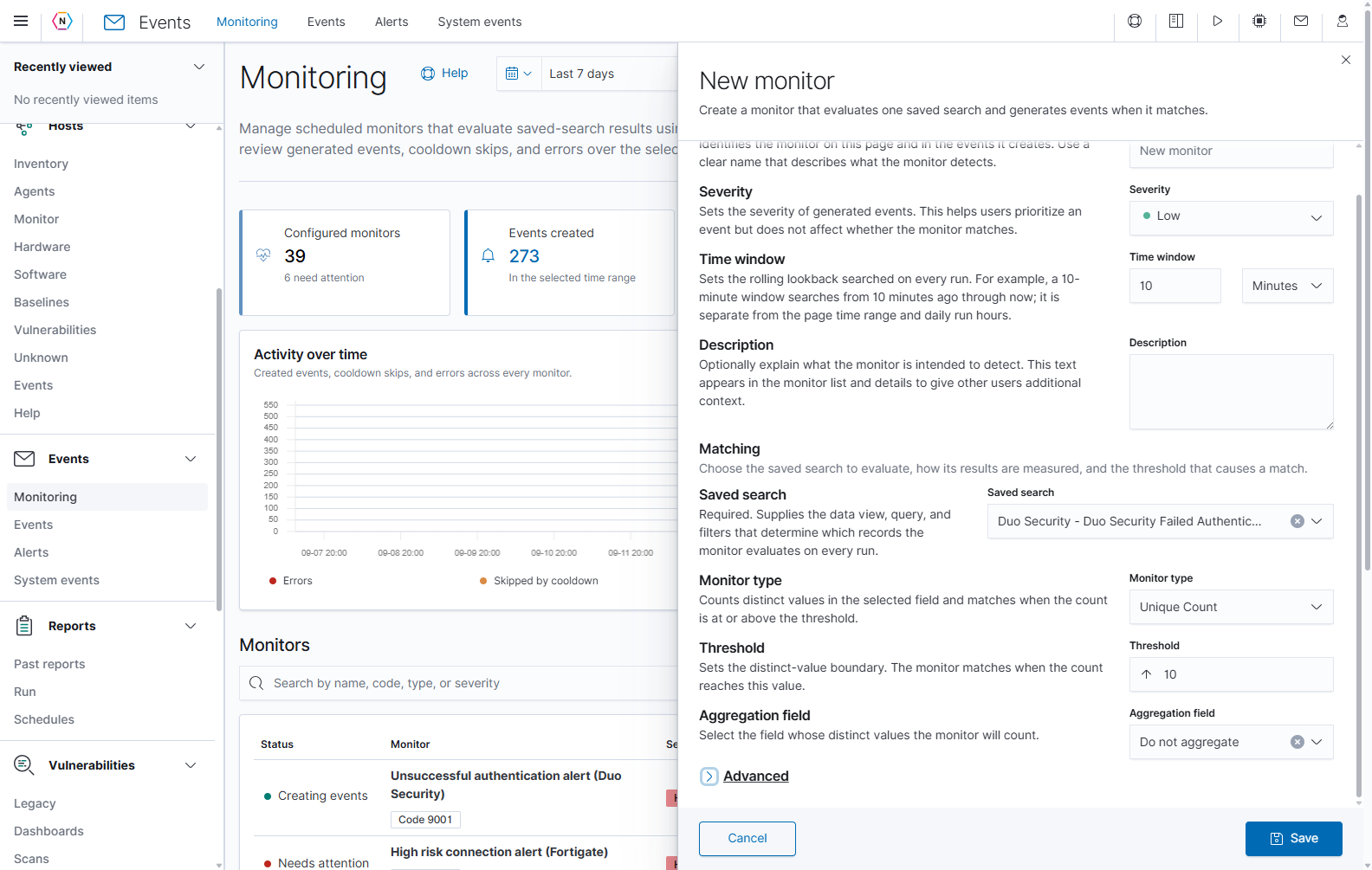
Choose a field such as a user name or address according to your saved search, then review the distinct-value threshold.
Set the schedule in Advanced
Expand Advanced to set evaluation frequency, daily hours, active days, and repeated-event behavior. Scroll inside the form to see the complete section.
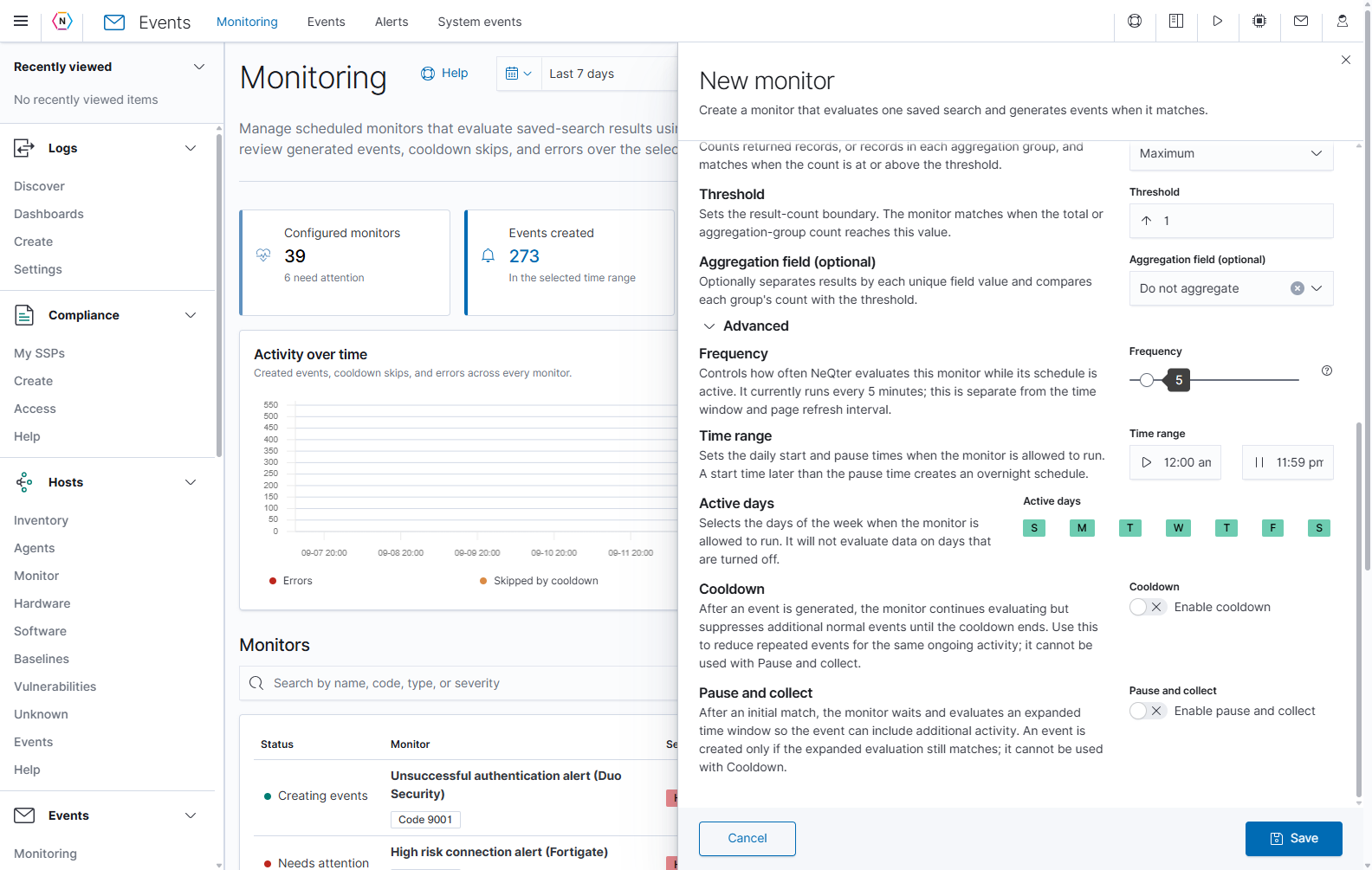
Advanced settings belong to the monitor being created or edited. They take effect when the form is saved.
| Control | What it does |
|---|---|
| Frequency | Sets evaluation interval from 1 to 60 minutes; the new-monitor default is 5. Move the slider to change it. |
| Time range, start | Chooses when the monitor may begin running each active day. |
| Time range, pause | Chooses when the daily running period ends. A start later than the pause creates an overnight schedule. |
| Active days | Click each day badge to include or exclude that day. Hover to confirm the full day name. Green means enabled; red means disabled in the edit form. |
| Cooldown | Enables a waiting period between normal generated events while evaluations continue. |
| Pause and collect | Delays event creation after an initial match, then evaluates an expanded period. |
The daily start/pause defaults cover 12:00 a.m. through 11:59 p.m., with all seven days selected. The same initial used for Tuesday/Thursday and Sunday/Saturday makes the hover text useful when selecting days.
Limit repeated events with Cooldown
Enable Cooldown when an ongoing condition should not create another normal event on every evaluation. Then set Time between events with the slider. The duration is 1–120 minutes, with a default of 15.
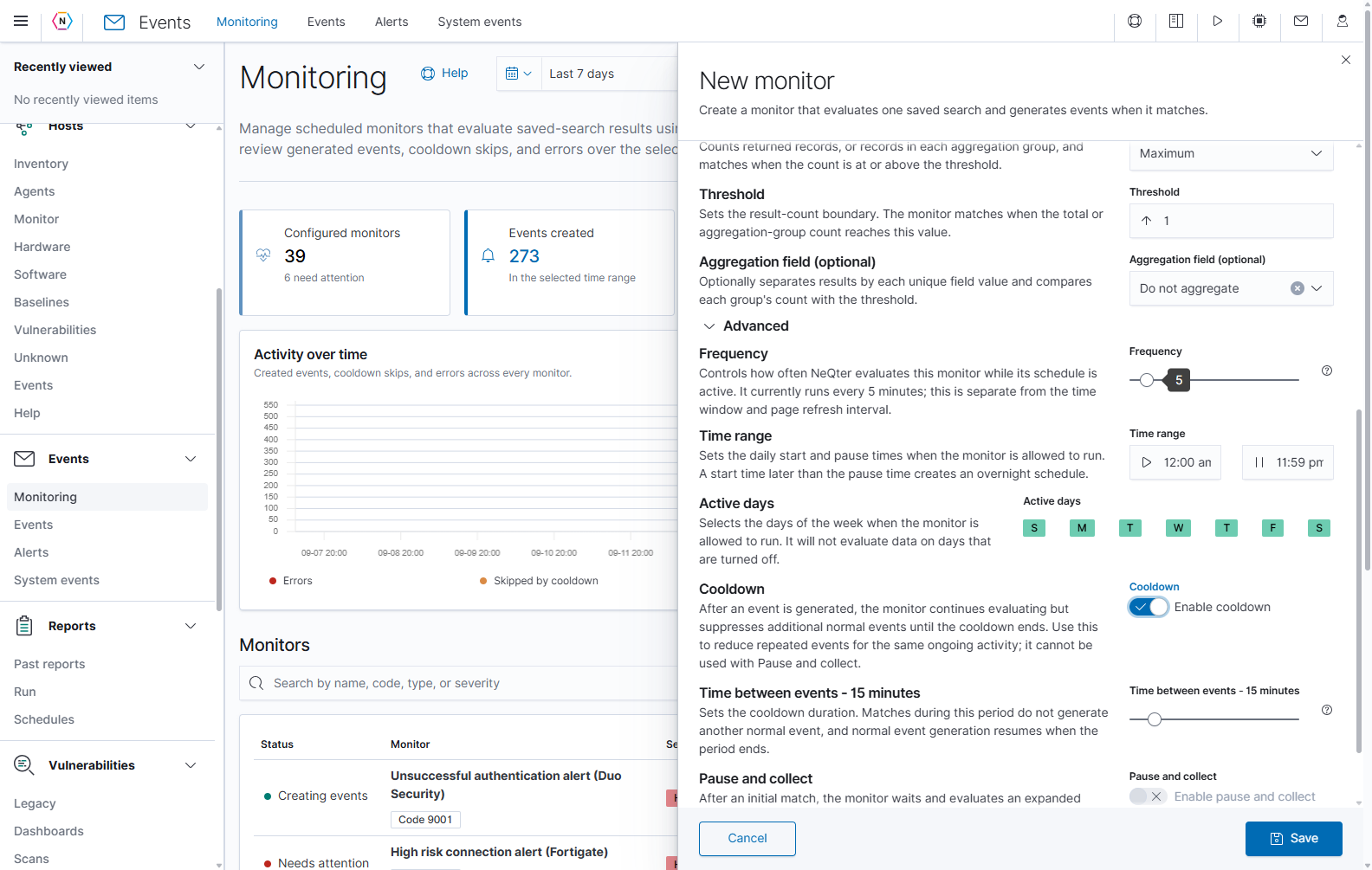
The monitor continues evaluating during cooldown. Matching evaluations can be recorded as skipped rather than creating another normal event.
Once the cooldown ends, a later matching evaluation can create another event. Disable Cooldown if every matching evaluation should be allowed to generate a normal event.
Delay an event with Pause and collect
Enable Pause and collect to wait after an initial match and include additional activity. Set Event generation delay from 1 to 120 minutes, with a default of 15. At the end of the delay, NeQter evaluates an expanded time window and creates an event only if that evaluation still matches.
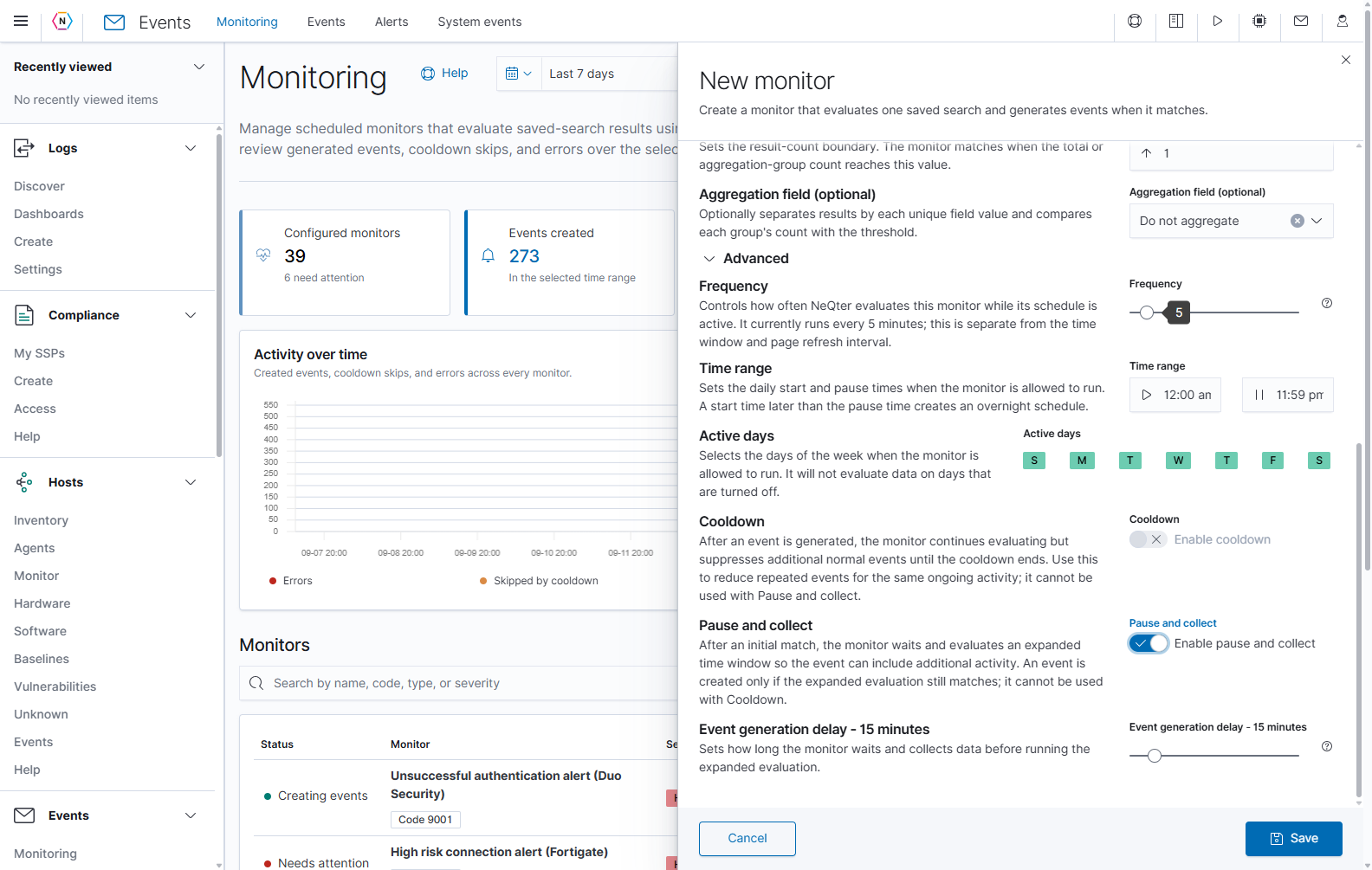
Cooldown and Pause and collect cannot be enabled together. Turn off the current choice before enabling the other.
Save or discard a monitor draft
Select Save at the bottom to validate and save the configuration. The form requires a valid name, a saved search, and an aggregation field for types that require one. Correct any validation messages and save again. A new saved monitor begins participating in its configured schedule; an edited monitor uses the updated configuration for future evaluations.
Use Cancel or the upper-right X to discard unsaved form changes. Choosing types, toggling Advanced options, or changing day badges in this form does not save them by itself.
After saving, locate the monitor in the list and open Details. Review later runs, event outcomes, and errors to verify the saved search and threshold behave as expected. Configure an Alert separately if generated events should be sent to email or a webhook.
Start from a template
Select Start from a template for a prefilled configuration. The chooser groups templates by source or integration. The available groups depend on the data views present in your system.
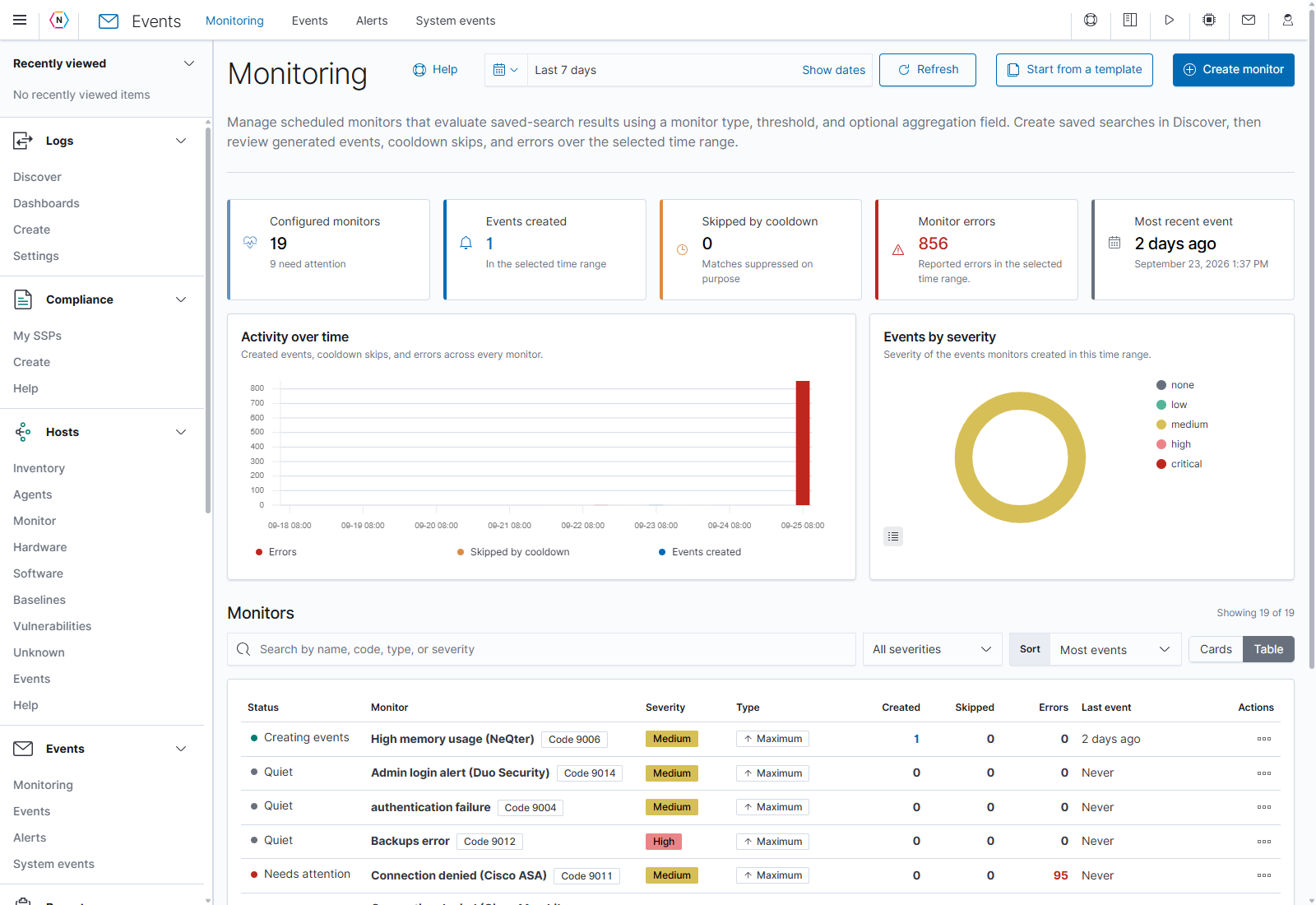
Use the search field or expand a source heading to locate a suitable starting point.
Type into the search field to match template names and descriptions. Matching sections expand while you search. Select a group’s arrow to view its templates, read the description, and choose Use template beside the desired item.
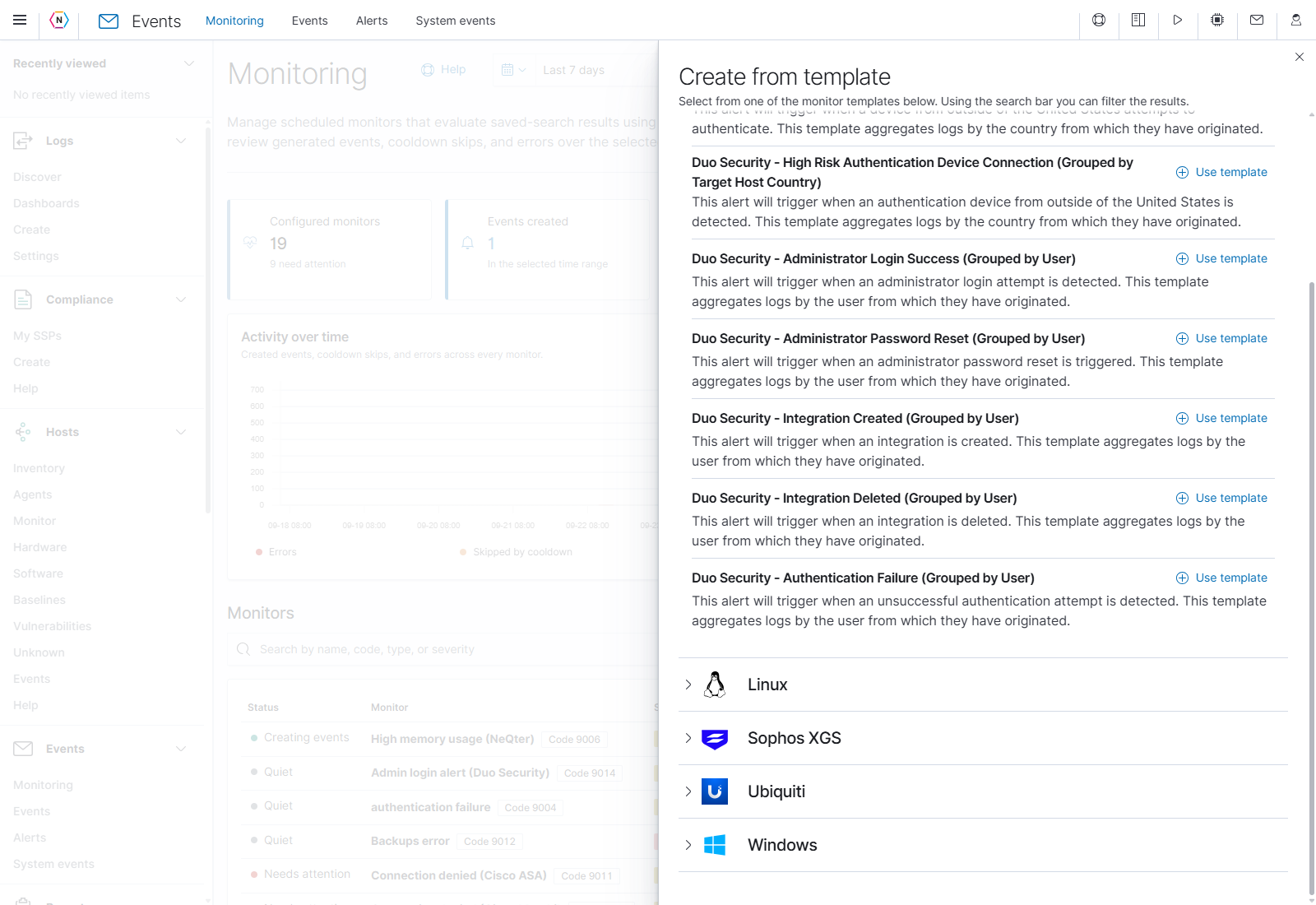
Use template opens a draft. It does not create a running monitor immediately.
Review the prefilled New monitor form. Confirm its name, severity, time window, saved search, type, threshold, grouping, and Advanced settings match the intended use.
Review the selected saved search and all matching fields before saving a template-based monitor. The filled form illustrates the editor.
Select Save to create the monitor after reviewing the complete form, or Cancel to discard it. A template does not create or repair a missing saved search, so confirm that its selected search exists and is appropriate for your collected data.
Open Monitoring help
Select Help beside the Monitoring page title for an explanation of the workflow, page controls, status meanings, basic fields, matching types, and Advanced settings. Scroll inside the help panel to reach each section.
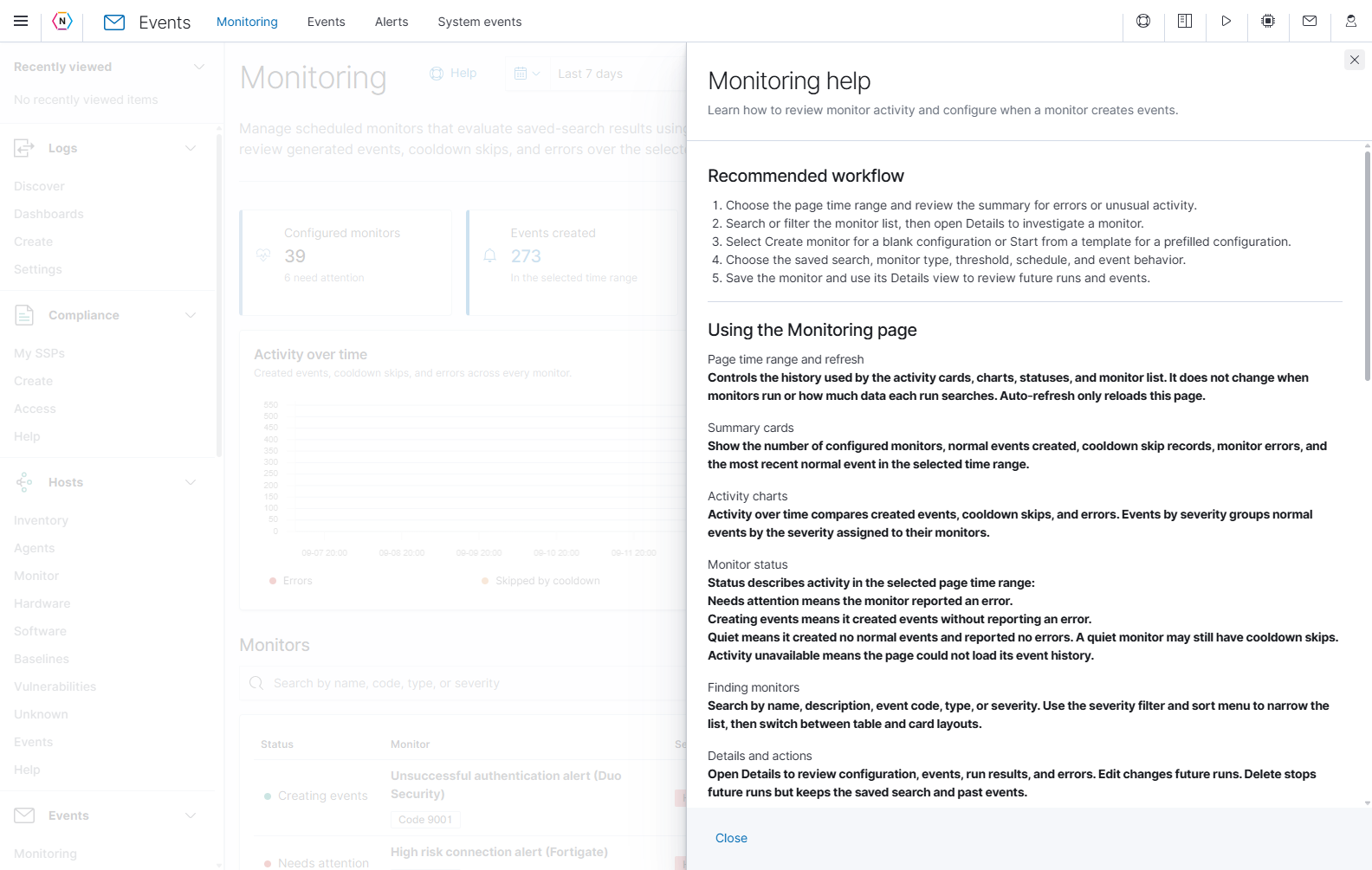
Help is available while reviewing Monitoring. It explains both the page controls and how the monitor’s evaluation settings work.
Use Close at the bottom or the upper-right X to return to the page.
Events
Open Events → Events to investigate the records NeQter has generated. This page combines monitor results with appliance, user, host, configuration, and service events. Use Monitoring to change the rules that evaluate saved searches; use Alerts to choose which generated events are delivered to recipients.
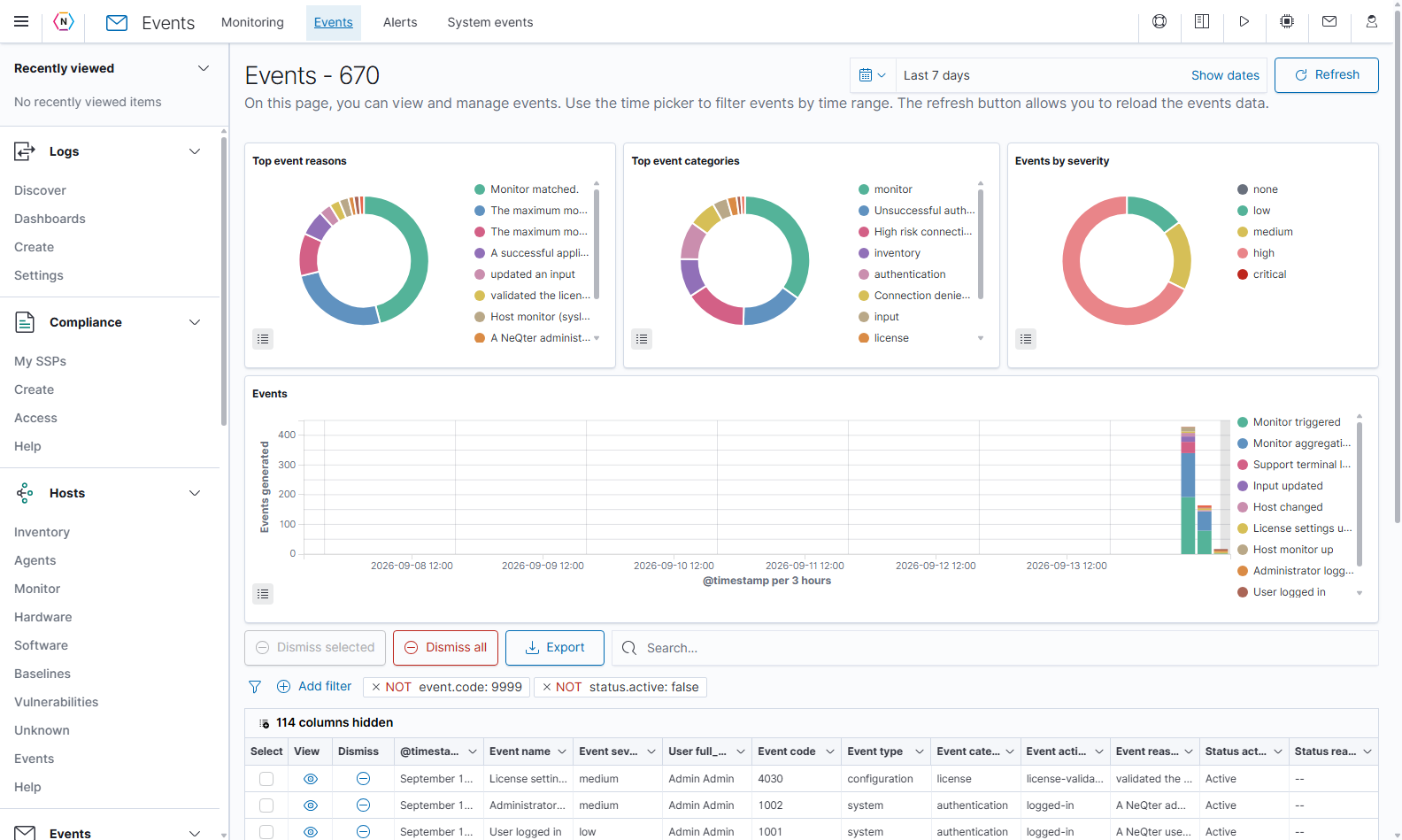
Read the overview and choose a time range
| Area or control | Meaning and use |
|---|---|
| Events - count | The number of matching event records. This total can be larger than the number of rows currently loaded in the table. |
| Time picker, initially Last 7 days | Sets the period to investigate. Choose a relative range or specify start and end dates using the shared time controls described above. |
| Show dates | Displays the dates represented by the current time selection. |
| Refresh | Reloads results using the selected time range. It does not run a monitor manually. |
| Top event reasons | Groups events by the explanation recorded in event.reason. |
| Top event categories | Groups events by category, such as authentication, inventory, or a monitor’s name. |
| Events by severity | Shows the distribution of None, Low, Medium, High, and Critical events. |
| Events timeline | Shows generated-event counts over time, split by the most common event names. Read the time interval beneath the chart when comparing bars. |
| Chart legend and Toggle legend icon | Identify the displayed series and show or hide the legend. Hover over chart values to inspect their details. |
Open a legend entry to use Filter for value (plus) or Filter out value (minus). These add a filter to the page. The color swatches change that series’ display color. For example, the High severity legend entry lets you include or exclude High events.
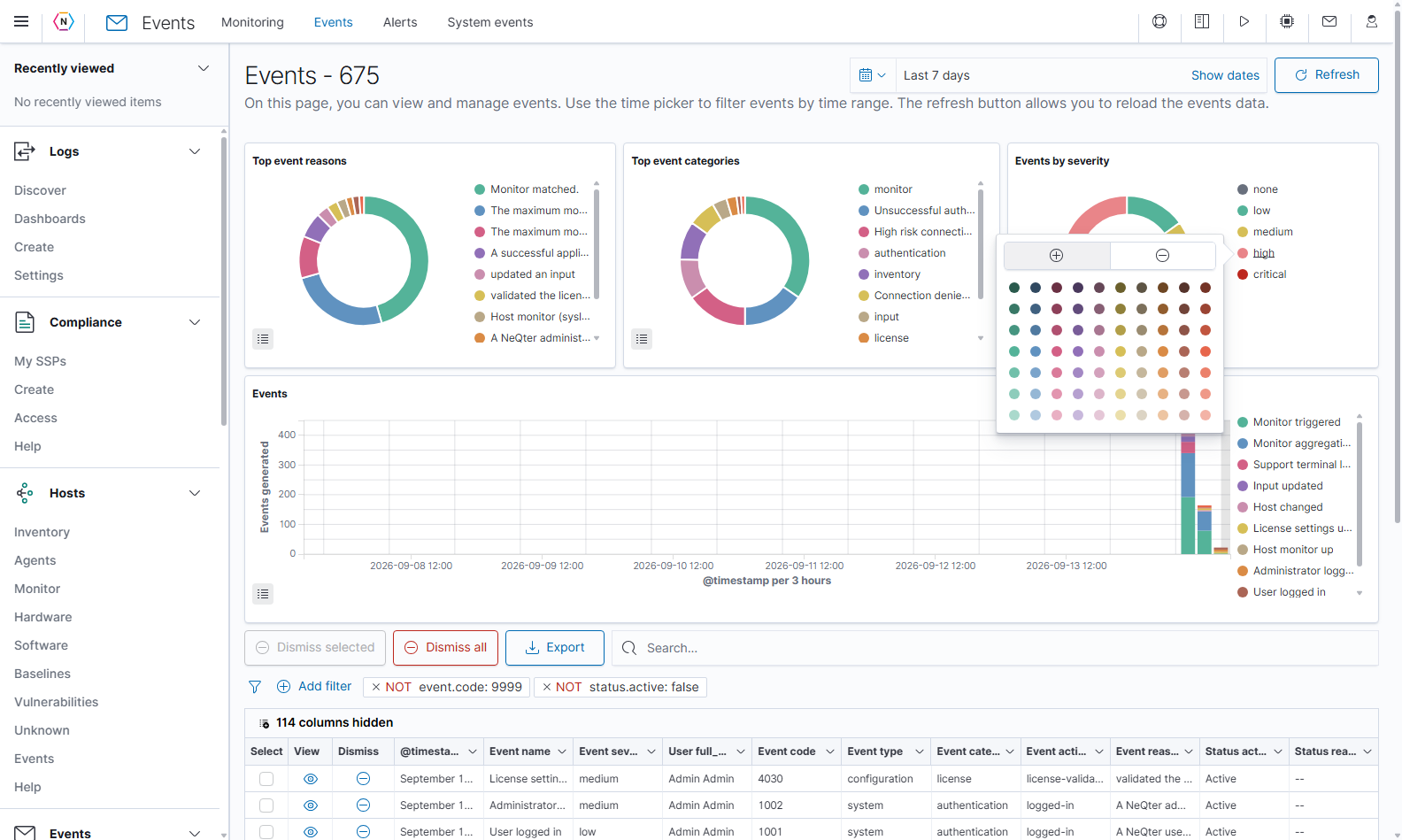
Time selections and filter pills affect both charts and the event table. Text entered in the table’s Search bar filters the table only. Keep this distinction in mind when the rows shown differ from the chart distribution.
Use the event table
Scroll below the charts to see the event rows. The table initially displays the newest events first, with 20 rows per page.
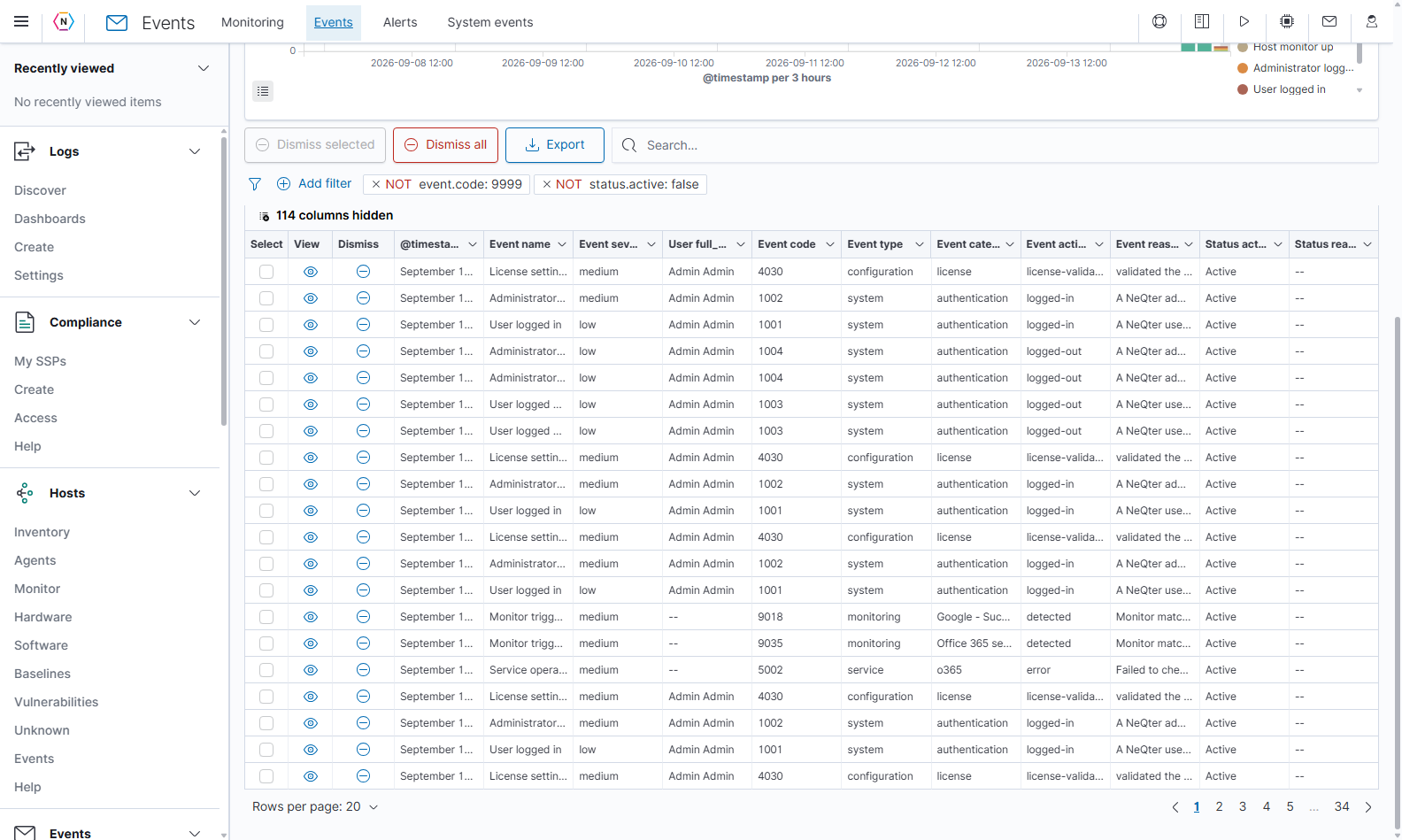
| Table control | How to use it |
|---|---|
| Search… | Enter a KQL-style query and press Enter. For example, event.code:9018 finds a particular monitor’s events, and event.severity_label:high finds High events. Clear the query and press Enter to remove the search. |
| Add filter | Opens the structured field/operator/value filter builder. |
| Filter pills | Show the active filters. Select a pill’s remove control to remove that filter. |
| Funnel/Clear filters icon | Removes the filter pills. This can also remove the default exclusions described below. |
| N columns hidden | Opens the field visibility and ordering controls. |
| Select checkboxes | Select active events for Dismiss selected. Selection and dismissal controls require Events write access; dismissed events cannot be selected for dismissal again. |
| Eye/View event | Opens the event’s details and available supporting information. |
| Minus-circle/Dismiss event | Opens the dismissal-reason dialog for that event. |
| Dismiss selected | Opens a confirmation for the checked events. |
| Dismiss all | Opens a confirmation for all active events in the current loaded result set, including other table pages. |
| Export | Immediately downloads the currently loaded event rows as CSV. |
| Rows per page | Selects 20, 50, or 100 rows per page. |
| Page numbers and previous/next arrows | Move through the loaded results. |
The default filter NOT event.code: 9999 hides records created when a monitor matched but normal event creation was skipped. The default NOT status.active: false hides dismissed records. Remove the relevant pill when you need to investigate skips or review earlier dismissals.
| Default column | What it tells you |
|---|---|
| @timestamp | When the event was recorded. |
| Event name | The kind of event, such as Monitor triggered or Administrator logged in. |
| Event severity_label | The event’s recorded severity. |
| User full_name | The associated user’s full name when the event contains one. |
| Event code | The event identifier used by monitor and alert rules. |
| Event type | A broad classification, such as monitoring, system, or configuration. |
| Event category | The affected area or monitor category. |
| Event action | The recorded action, such as detected, logged-in, or error. |
| Event reason | The explanation for the event. |
| Status active | Active or Dismissed. |
| Status reason | The recorded status-change reason, when present. |
-- means that a field has no displayed value for that event. Open View event when a cell is shortened or you need the full context.
Build a precise filter
- Select Add filter.
- Search for and select a Field, such as
event.code. - Choose an Operator.
- Enter or select the required Value or range bounds.
- Optionally enable Create custom label? and supply a recognizable label for the pill.
- Select Save to apply this page filter, or Cancel to discard the filter draft.
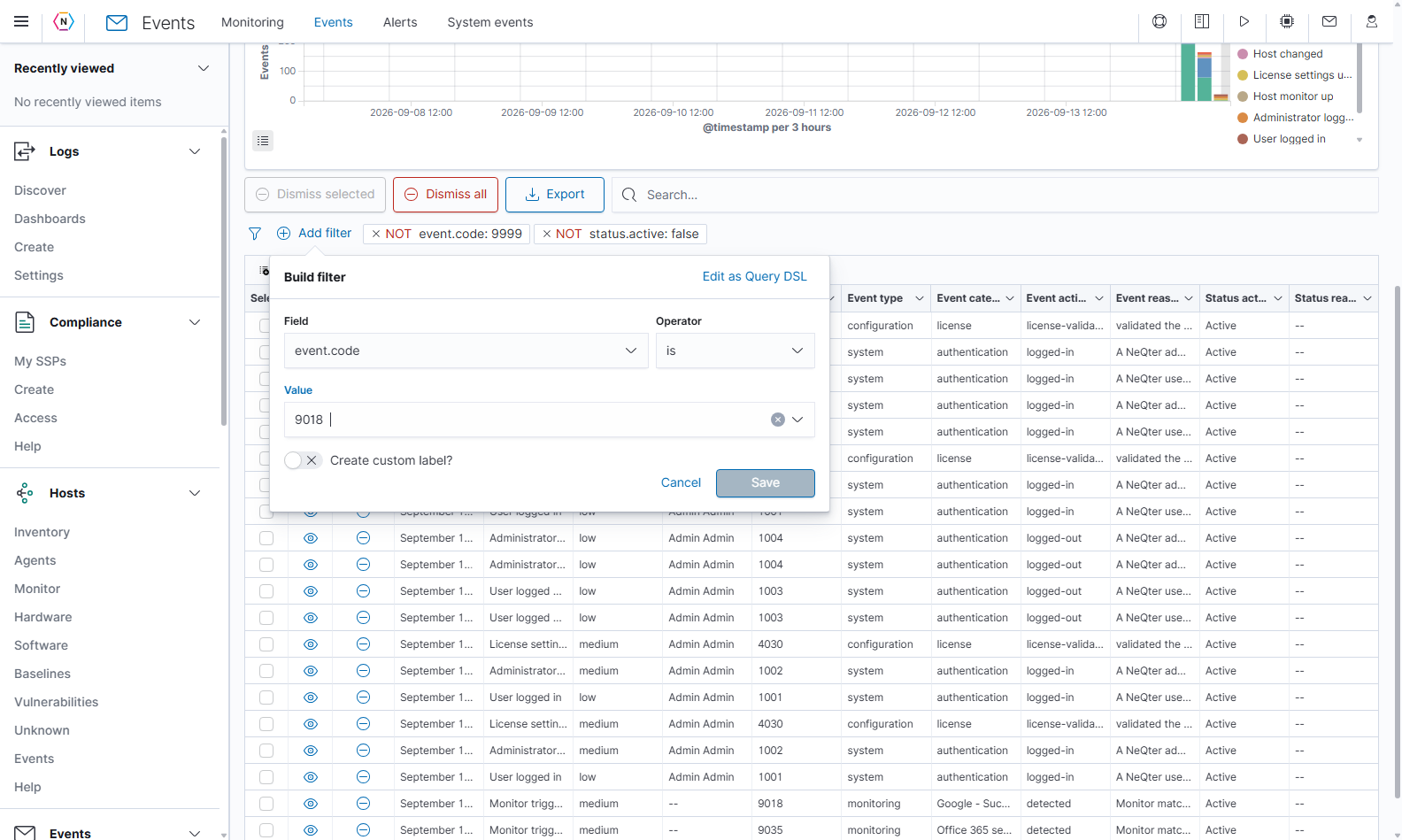
| Filter option | Meaning |
|---|---|
| is / is not | Includes or excludes an exact field value. |
| is one of / is not one of | Includes or excludes a set of values. Enter the required options in the multi-value input. |
| is between / is not between | Applies a range to a supported numeric, date, or IP field. The range starts inclusively and ends exclusively; either bound can be left open. |
| exists / does not exist | Finds events with or without the field. |
| Create custom label? | Changes how the filter pill is labeled, while preserving the underlying condition. |
| Edit as Query DSL | Switches to a JSON filter editor for advanced conditions. Enter a valid, nonempty JSON object. |
| Edit filter values | Returns from Query DSL to the structured form. |
Available operators and suggested values depend on the field type. Changing the field resets the operator and value choices. A filter’s Save applies it to the current view; it does not create a saved search or edit an event.
For supported fields, table-cell actions also offer Filter for and Filter out for the displayed value. For an empty cell, these use field-existence conditions. If a query is invalid, correct the error shown by the table or clear the search and press Enter.
Choose the fields you want to see
Open N columns hidden. Use its search field to find a column, then turn its switch on or off. Show all enables all available fields; Hide all clears the displayed selection. Drag a field’s handle to change its order.
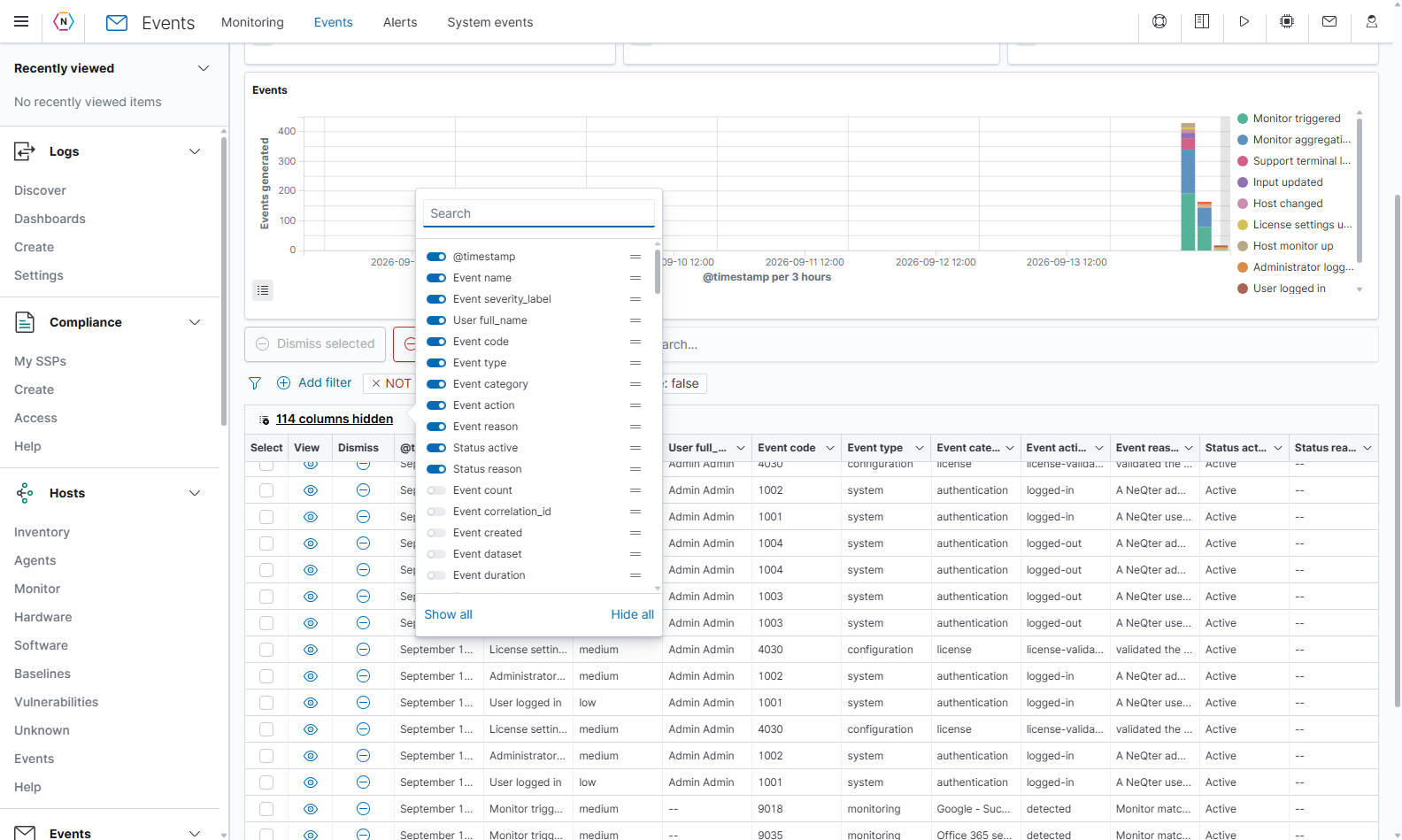
Open a column heading’s menu to use Hide column, Move left, or Move right. Hidden fields remain in the event record and are still available through the column selector and event details.
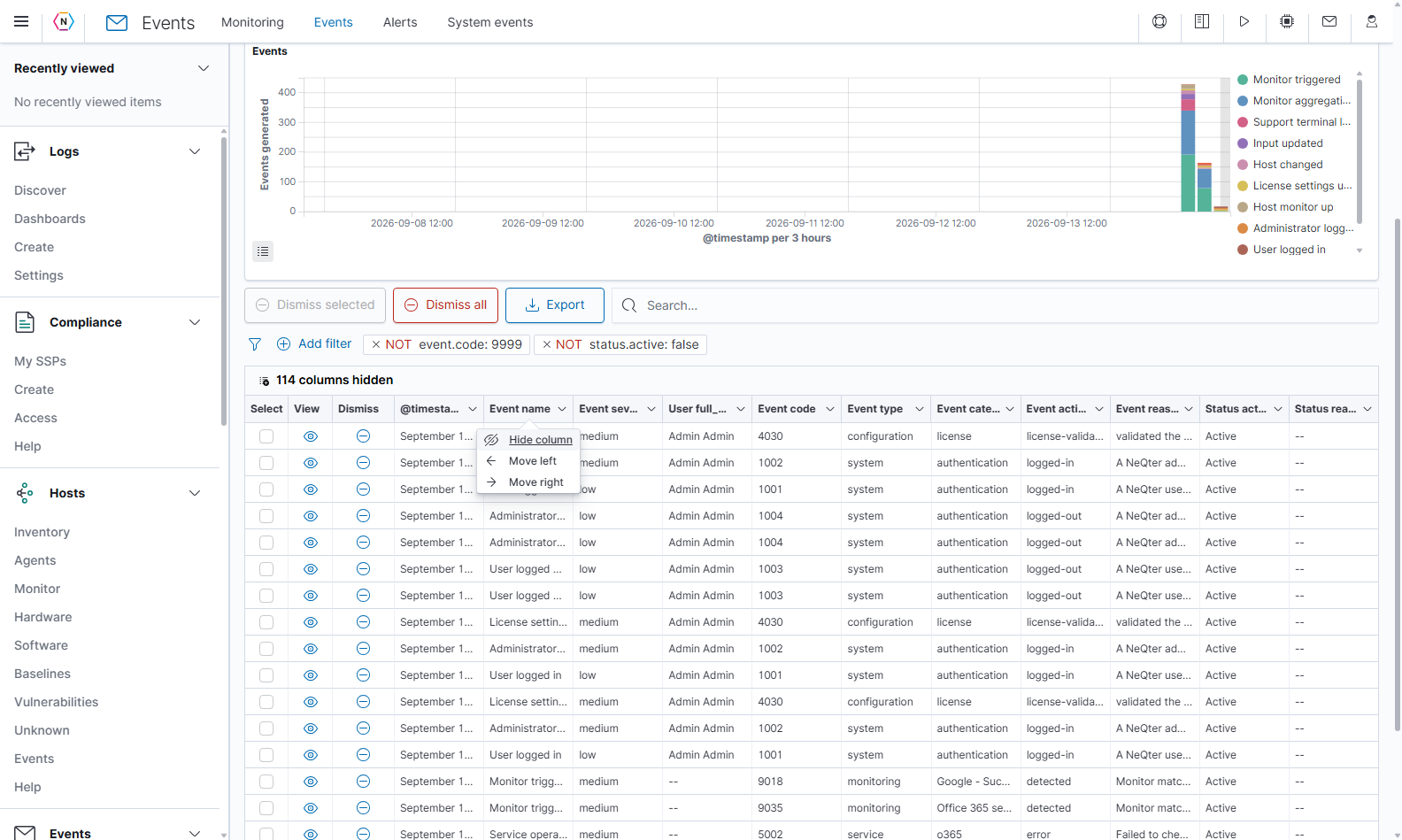
Investigate an individual event
Select the eye icon in a row. The flyout presents the event record, then any additional sections available for that event type.
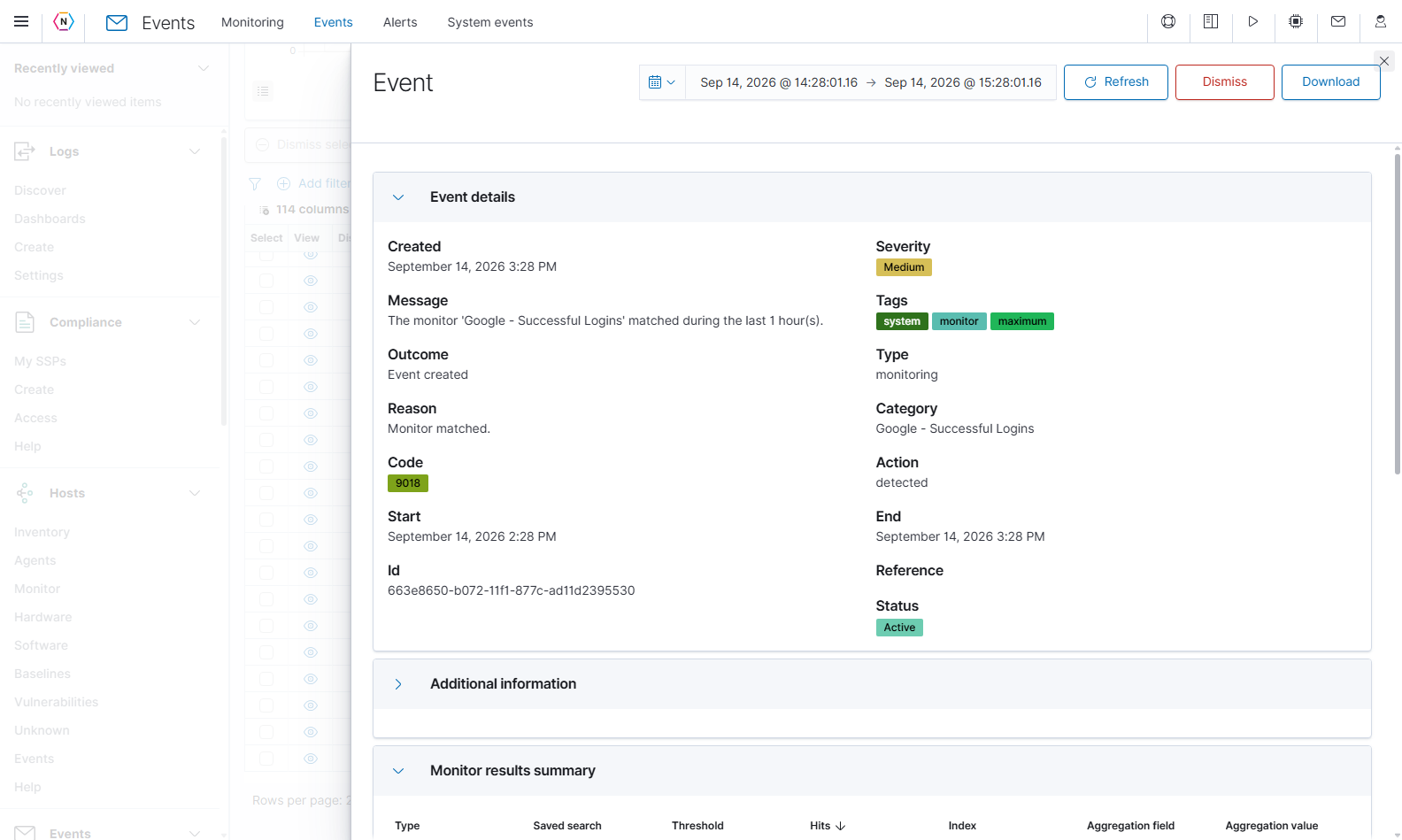
| Flyout field or control | Meaning and use |
|---|---|
| Created | The event’s creation time. |
| Message, Outcome, Reason | What happened, its recorded result, and the explanation. |
| Code and Id | The event code used for classification and the unique identifier for this record. |
| Start / End | The event’s associated time window when provided. A monitor event can record the period its saved search evaluated. |
| Severity, Tags, Type, Category, Action | Classification and context that help connect the event to its source. |
| Reference | Supporting reference information, if included. |
| Status | Whether the event remains active or has been dismissed. |
| Flyout time picker and Refresh | Change and reload the surrounding chart/log context. The picker starts with the event’s Start/End window when available, otherwise Last 24 hours. This does not change the event’s timestamp. |
| Section chevrons | Expand or collapse the available detail sections. |
| Dismiss | Opens the dismissal-reason dialog when the event is active and your account has write access. |
| Download | Downloads an HTML report named event_<id>.html for the event. |
| Close X | Returns to the event list. |
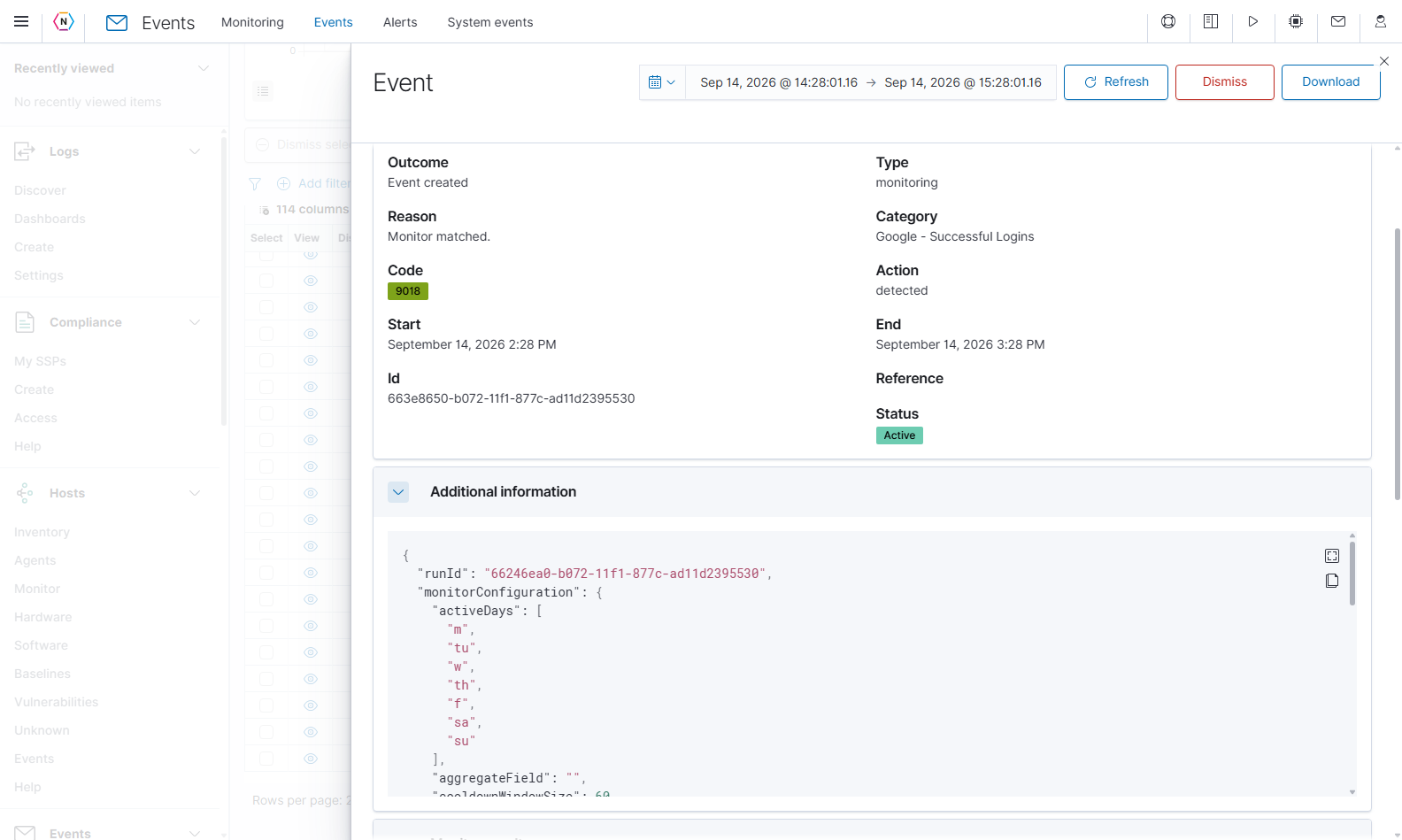
Some events include Additional information in JSON form. Expand it when you need details such as the original monitor configuration or run identifier. The code block’s Expand icon enlarges the view; Copy copies its contents. Available sections depend on the event type.
A monitor-generated event can also show Monitor results summary, Results for monitor, and Logs for saved search. Review the saved search, threshold, hit count, index, and aggregation field/value to understand why the monitor matched. Go to discover opens the saved search in a new tab for further investigation.
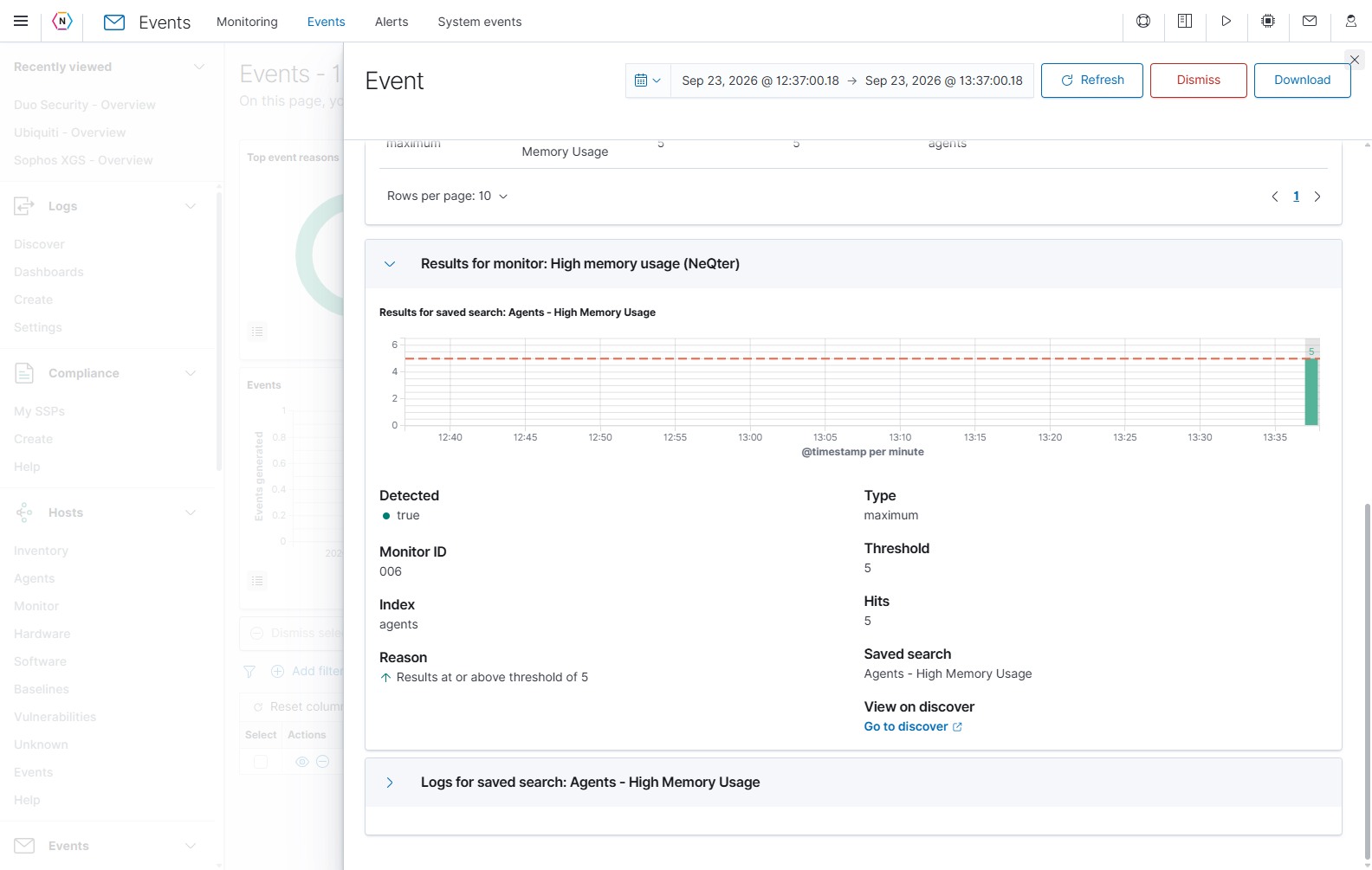
A stored event and a fresh query of its underlying logs can show different amounts of information. If a contextual section has no results, check its selected time window and the availability of source data before interpreting it as evidence that the original event did not occur.
Dismiss reviewed events
Dismissal marks a record as dismissed while retaining it for later review. It does not correct the underlying condition or stop the monitor from evaluating future data.
- Review the event and its supporting information.
- Use the row’s Dismiss event, the flyout’s Dismiss, or select rows and choose Dismiss selected.
- Check the target event or event count in the confirmation.
- Enter an optional Dismiss reason explaining the review or action taken.
- Select the final red Dismiss to update the record. Cancel or the close button exits without changing its status.
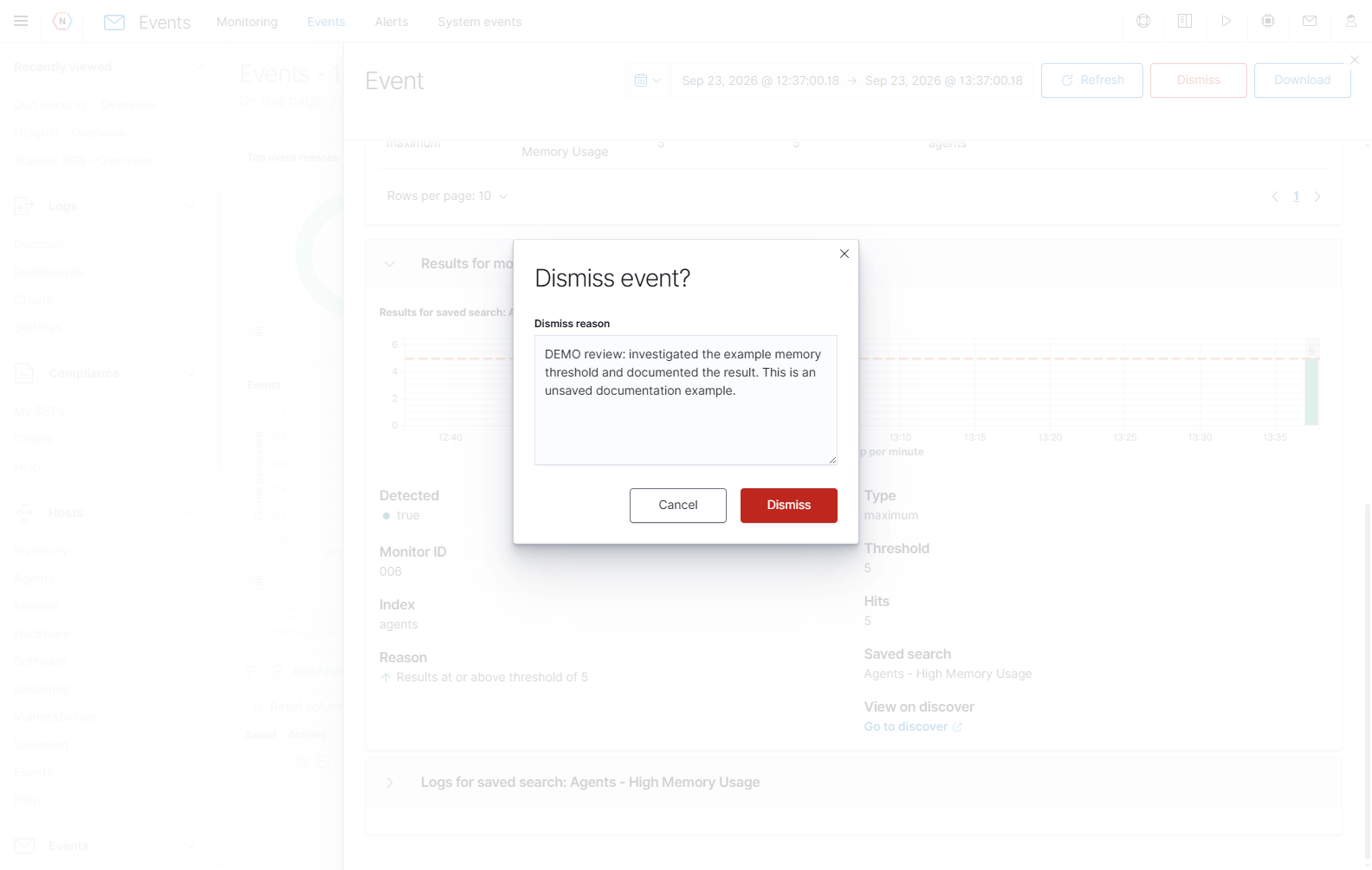
Dismiss all applies to active events in the loaded result set, not just the visible page. The main Events table loads up to 10,000 rows. Narrow the time range and filters, and review the confirmation count before using a bulk dismissal. Remove the NOT status.active: false filter to find dismissed records afterward.
Export event records
Select Export above the table to download CSV immediately. It contains all currently loaded rows, regardless of checked rows, the current pagination page, or hidden columns. The export includes the available event fields, including identifiers such as _id and _index.
The matching count can exceed the table’s 10,000-row loading limit. For a complete export of a large period, narrow the time range or filters into smaller result sets. For a formatted report of one event, use that event flyout’s Download button instead. Scheduled and historical reports have their own Reports guide.
Alerts
Open Events → Alerts to manage delivery rules. NeQter checks these configurations when it creates an event. A matching rule delivers the event to its configured email addresses or webhook destinations. Global administrators can view and manage these configurations.
The screenshot appliance has no saved alert configurations. The examples below use unsaved drafts to show the available controls; no email or webhook configuration was created.
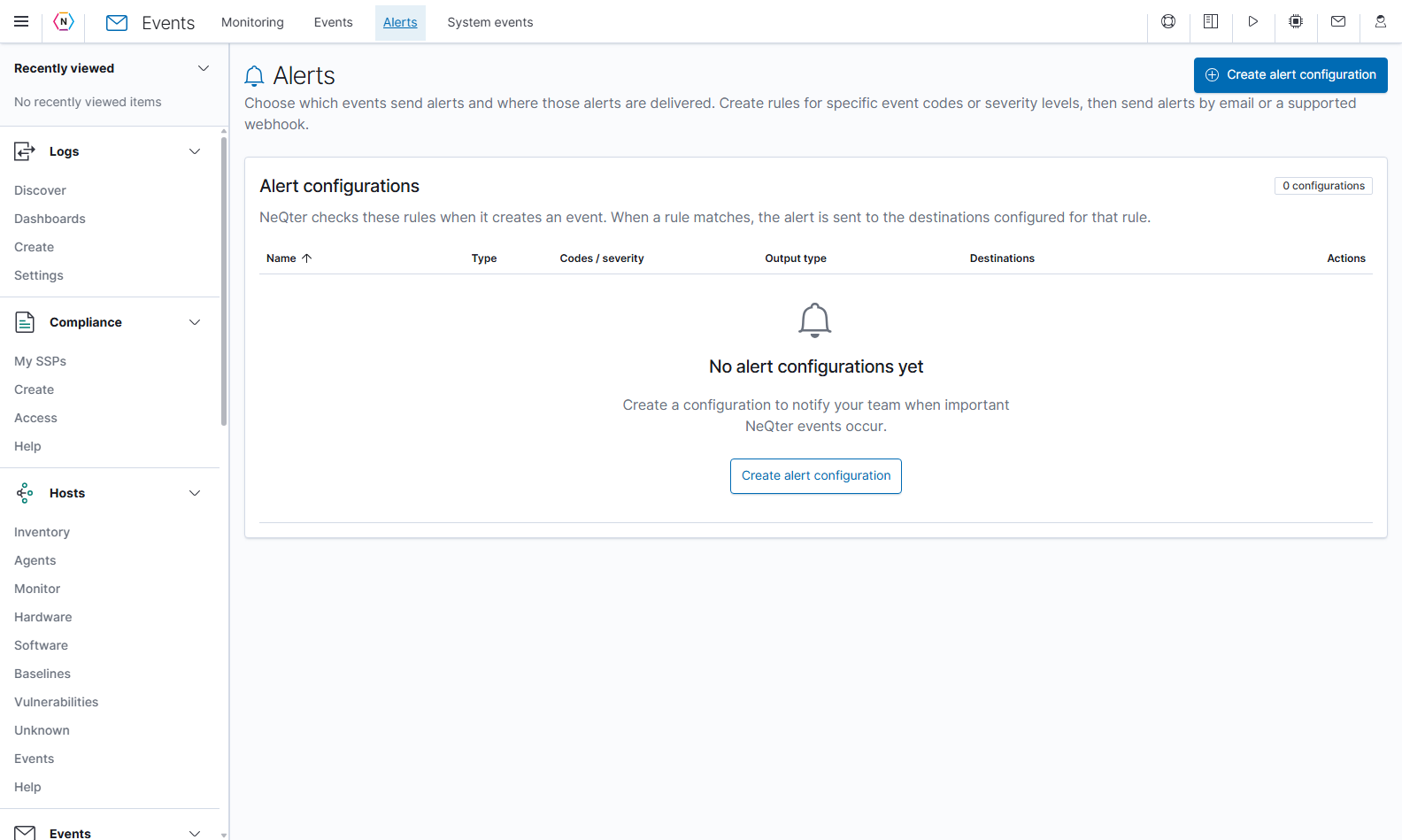
| Table field or action | Meaning |
|---|---|
| Name | The delivery configuration’s name. |
| Type | Whether it matches Event codes or Event severity. |
| Codes / severity | The chosen codes or minimum severity. Hover over a code badge to identify the event. |
| Output type | Email or Webhook. |
| Destinations | The configured recipients or endpoints. A webhook can display a service label; its tooltip shows the address. |
| Create alert configuration | Opens a new unsaved rule. Both create buttons in the empty state open the same form. |
| Edit action | Opens an existing rule as a draft. Select Save to keep changes or Cancel to discard them. |
| Delete action | Opens a confirmation. Its final Delete removes that delivery configuration. |
Create an alert rule
- Select Create alert configuration.
- Enter an Alert name that describes the events and intended destination.
- Select Alert rule type: Event codes or Event severity.
- Choose the codes or minimum severity that should generate a notification.
- Choose Output type, then add the matching email or webhook destinations.
- For email, review the template, subject, and triggering-event options.
- Select Save to create the delivery rule. Cancel or the flyout’s close button discards the draft.
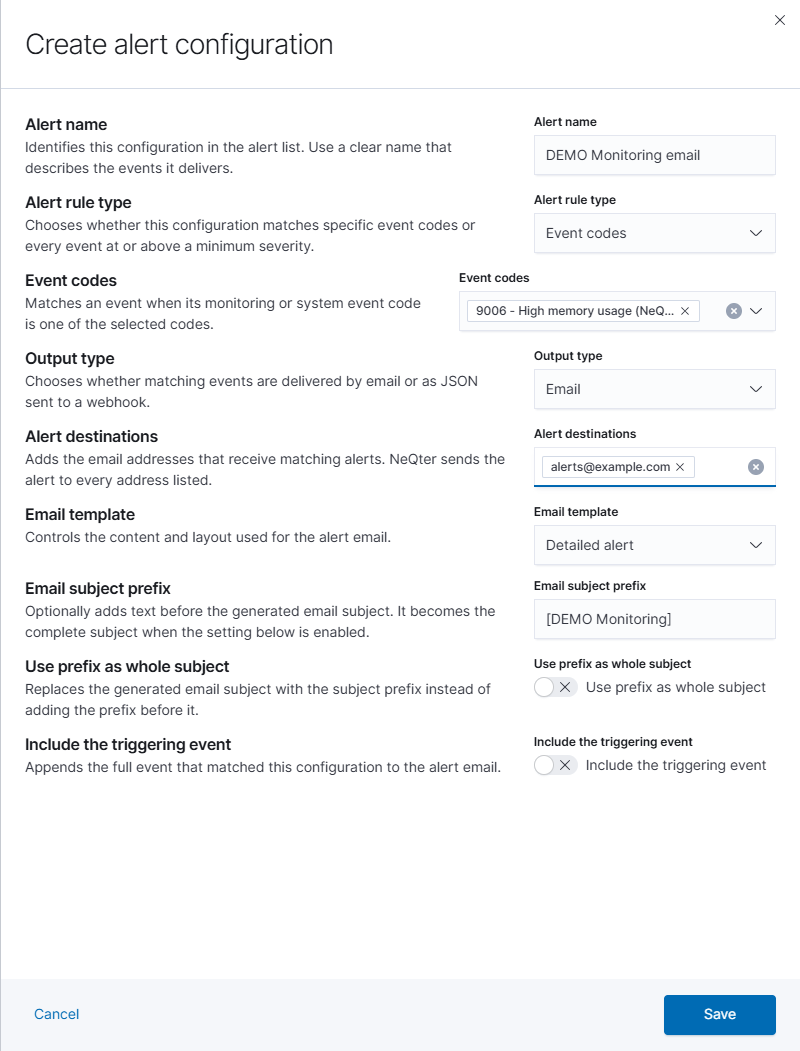
| Form control | Meaning and use |
|---|---|
| Alert name | Required descriptive name, up to 255 characters. Use letters, numbers, spaces, dashes, periods, and underscores. |
| Alert rule type | Selects code matching or a minimum severity. Review your selections when changing it because incompatible choices are cleared. |
| Event codes | Selects one or more monitor or system event codes. At least one is required for a code rule. |
| Event severity | Sets the minimum severity. Events at this level and every higher level match. |
| Output type | Chooses Email or Webhook. Changing it clears the previous output type’s destinations from the draft. |
| Destination input and Add | Enter an address/URL, then select Add or press Enter to add it to the draft’s list. At least one destination matching the output type is required. |
| Destination trash icon | Removes that destination from the draft. Saving the form applies the revised destination list. |
| Save | Validates and persists the delivery configuration. |
| Cancel / close X | Discards changes. |
Match specific event codes
Choose Event codes, then open the code selector. Search for a code or event name and select the appropriate items. The menu includes Monitoring codes and System event codes. Remove an unwanted selected item with its remove control.
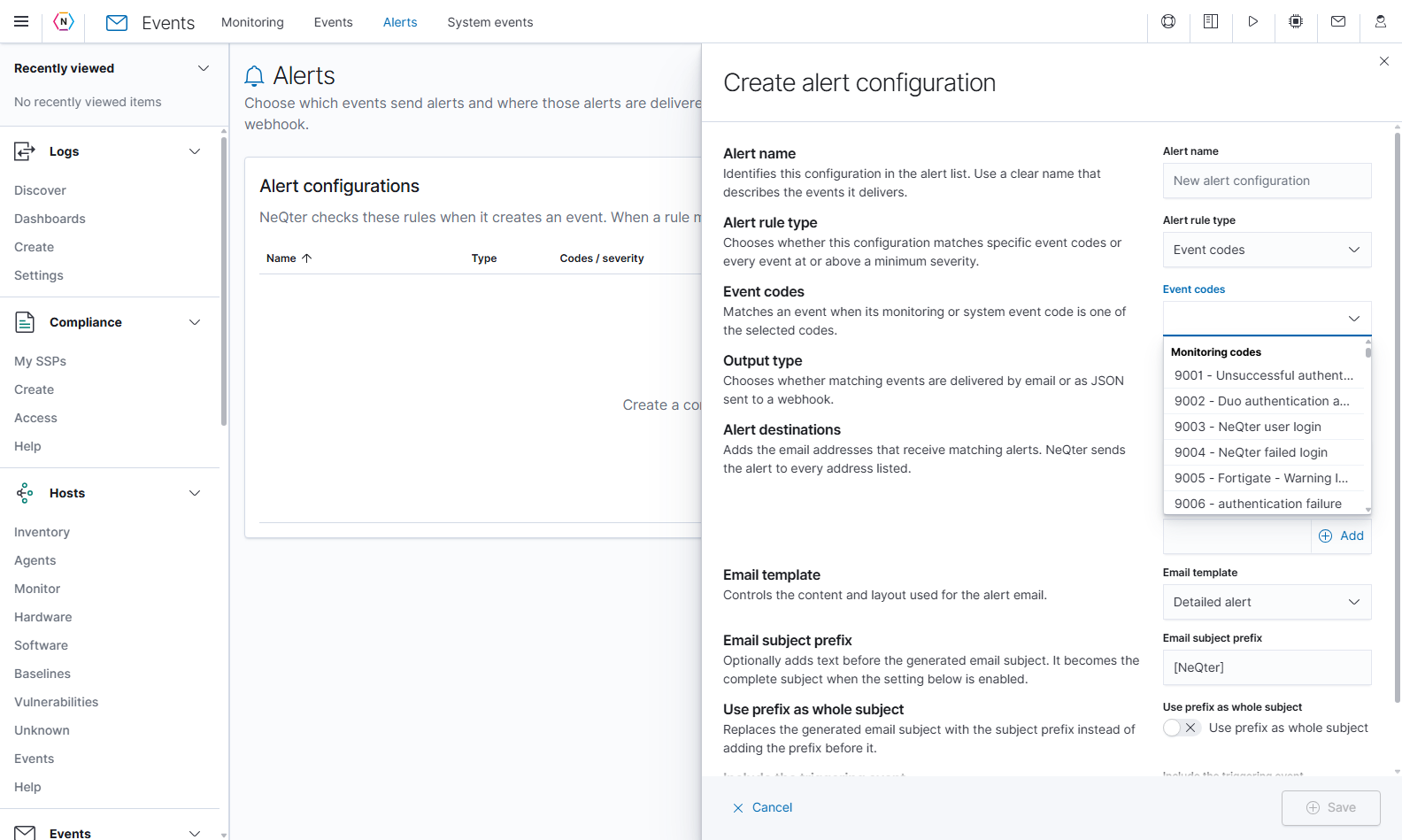
For example, select a particular monitor’s code when you want notifications from that monitor regardless of unrelated events elsewhere in the system. Use the code shown on the Monitoring page or in an event’s details to identify the intended source.
Match a minimum severity
Choose Event severity to expose its severity selector. The available order is None → Low → Medium → High → Critical. A rule set to High matches both High and Critical events. None is the lowest threshold; it does not disable the rule.
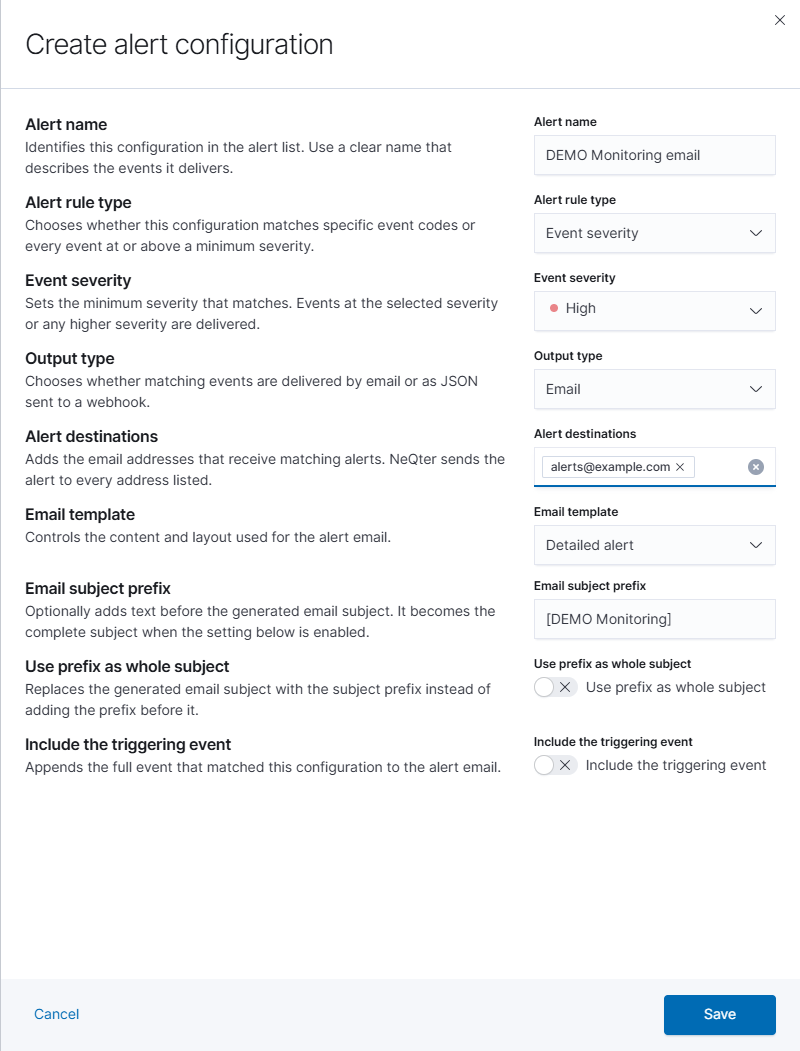
Deliver by email
Choose Email, enter each recipient in Alert destinations, and press Enter to add it. NeQter sends a matching alert to every address listed. Duplicate destinations are rejected. The example address below is part of an unsaved draft.
| Email option | How to use it |
|---|---|
| Email template | Selects the content and layout of the message. The screenshot system offers Detailed alert. |
| Email subject prefix | Adds text before the generated subject; the default is [NeQter] . The field accepts up to 255 characters subject to the form’s validation. |
| Use prefix as whole subject | Uses the prefix text as the complete subject. Supply a nonempty prefix when this is enabled. |
| Include the triggering event | Appends the full event that matched the rule to the email. |
Deliver to a webhook
Choose Webhook, enter a valid HTTP or HTTPS endpoint in Webhook destinations, and press Enter to add it. Repeat for additional endpoints. NeQter sends JSON to every listed URL and adapts the payload for supported services. Select the destination’s × to remove it from the draft.
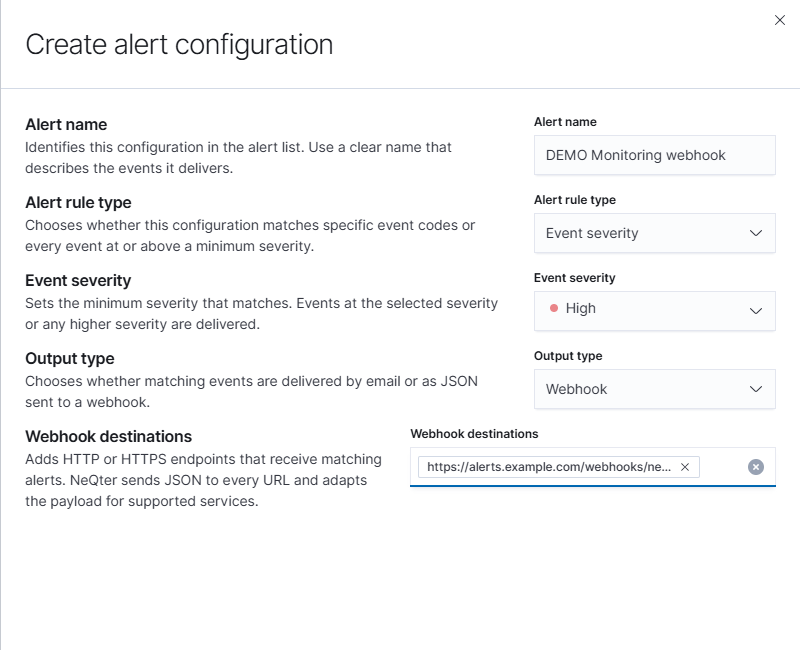
Webhook and email destinations belong to their respective output types. If you switch the output type, add and review the new destinations before saving. An alert rule’s match fields select generated events; monitor schedules, lookback windows, and thresholds are configured under Monitoring.
Maintain and troubleshoot delivery rules
After rules exist, review their Codes / severity, Output type, and Destinations together before editing. A severity change can affect which severity-based delivery rules match future events. Deleting a configuration removes that delivery rule while retaining the underlying monitor and event records.
If an expected notification is absent, first confirm that an event was generated in the Events page. Check its code and severity against the alert rule and verify the destination. 1904: Alert delivery failed identifies a failed alert delivery; inspect that event’s details for the reported failure. Creating an alert configuration does not itself generate a monitor event.
System events
Open Events → System events to review NeQter’s built-in event definitions and their severities. Each definition explains what causes that event. Use the Events page when you want to search the actual records generated from these definitions.
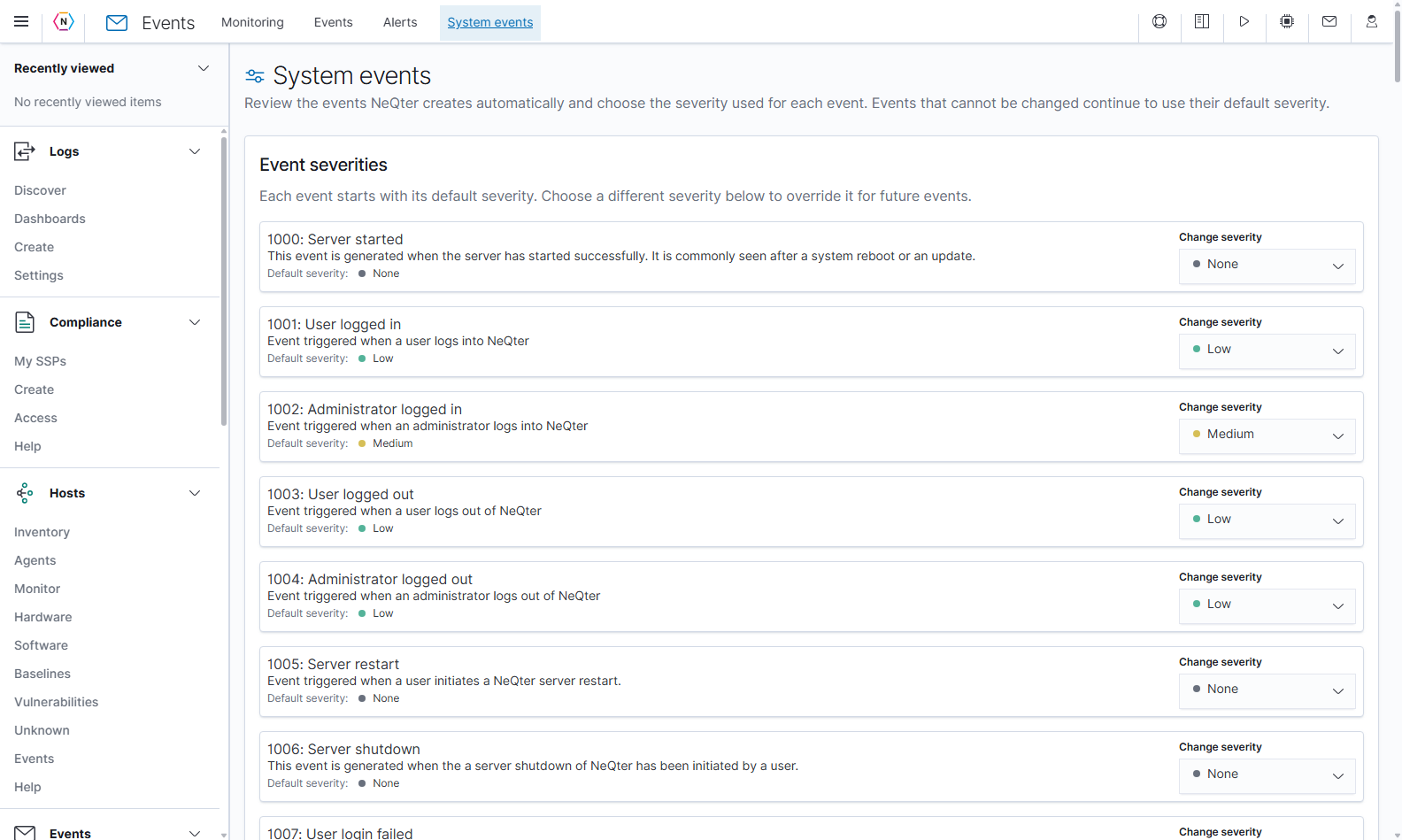
| Item | Meaning |
|---|---|
| Code and event name | Identify the definition, for example 1002: Administrator logged in. |
| Description | Explains what activity produces the event. |
| Default severity | Shows the definition’s baseline severity. |
| Change severity | Shows the current severity selection and lets you choose an override where the definition allows it. |
| No severity selector | The definition’s severity cannot be changed from this page. Read its description for any separate configuration location. |
Change the severity of future system events
- Find the event by code or name. The browser’s Find command can help locate an entry in the long list.
- Read its description and Default severity.
- Open Change severity and choose the intended level.
- Check the updated selection and success message.
Choosing a level saves the change immediately. There is no separate Save button or confirmation. The override affects future events; it does not rewrite the severity of older event records. To return to the baseline severity, select the level shown by Default severity.
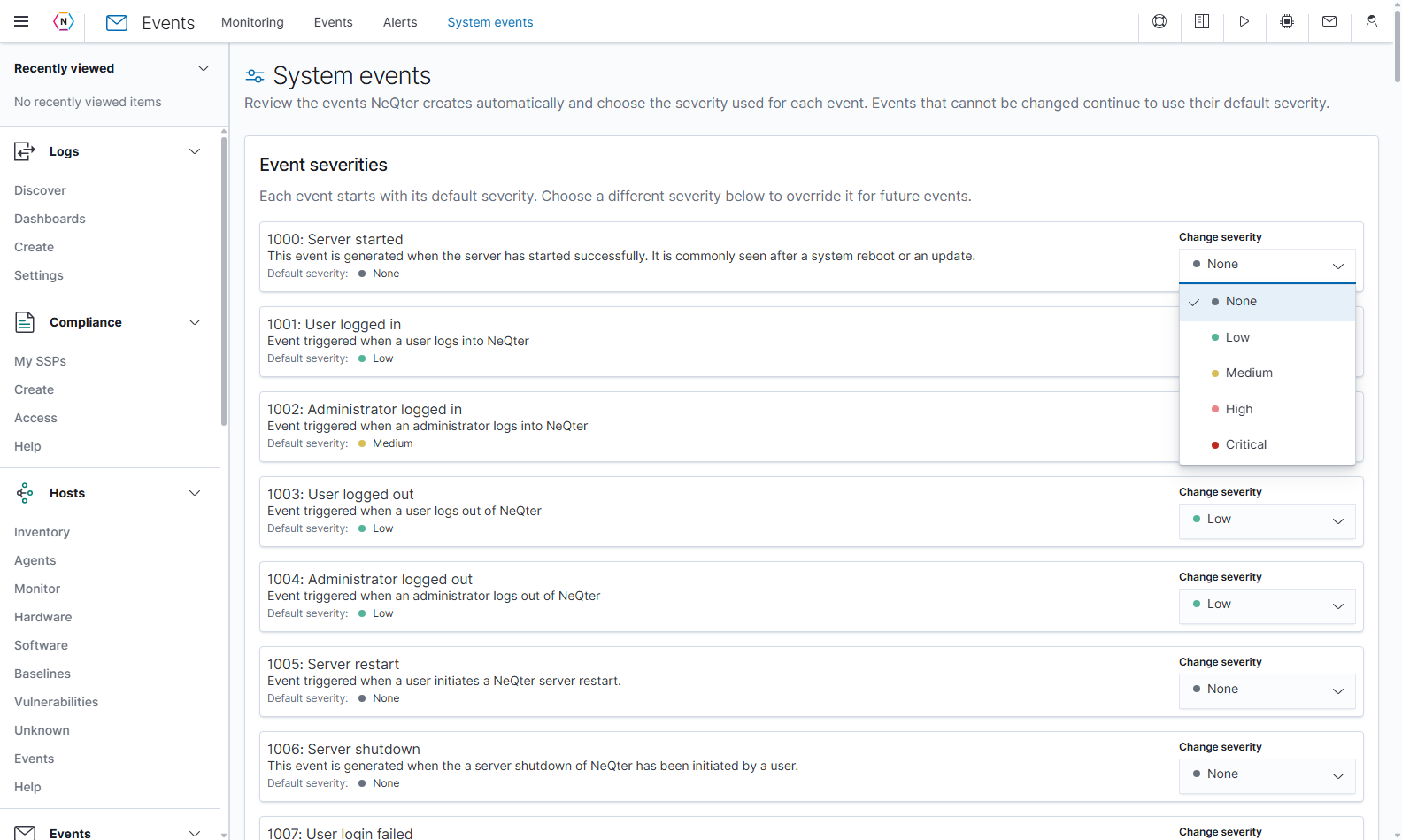
| Severity | How to interpret it |
|---|---|
| None | Lowest severity classification. It does not prevent the event from being recorded. |
| Low | Lower-priority activity. |
| Medium | Activity assigned a middle severity level. |
| High | Higher-priority activity. |
| Critical | Highest severity classification. |
Choose levels consistently with the alert rules your team uses. For example, a future event raised from Medium to High can start matching a High-and-above alert rule.
Find the relevant event family
The catalogue includes these groups. Read each entry’s description for its exact trigger.
| Area | Example definitions |
|---|---|
| Appliance lifecycle and access | Server started/restart/shutdown; user and administrator login/logout; failed login, account lock, MFA verification failure, and backup-code use. |
| Disk health | Self-test failure/completion/abortion, potential failure, a test still in progress, and disk-test errors. |
| Down detection and terminal access | Down detection/recovery and NeQter, support, or recovery terminal logins. |
| Monitoring and delivery | 1901: Monitor error, 1902: Monitor aggregation maxed, 1903: Monitor change maxed, 1904: Alert delivery failed, and 1905: Report email delivery failed. |
| Host inventory | New host, agent-version or host-detail changes, USB/filesystem/drive/local-user additions and removals, and software installation/removal/version changes. |
| Host availability | 2050: Host monitor up and 2051: Host monitor down. |
| Administration and configuration | Support mode, user management, time, network, license, input, mail, monitor and alert configuration changes. |
| Reports and backups | Report schedule/retention activity and backup/archive operations, protection, storage, rotation, retention, and failures. |
| Host configuration | Baseline activity, host-group activity, host-monitor configuration activity, and host-inventory configuration activity. |
| Services | Service start/stop, operation/fatal errors, disabled tenants/services, settings changes, tenant addition/removal, and scheduled-report operation failure. |
| Monitor outcome definitions | 9000: Monitor triggered and 9999: Monitor event skipped. Individual configured monitors also have their own monitoring codes. |
The Host monitor up/down entries illustrate why some rows have no selector. Their descriptions direct you to the host monitor’s settings to configure severity. Use Hosts → Monitor for those controls.