
Veeam Configuration Guide
Use the Windows NeQter Agent to collect Veeam Backup & Replication events, then review them in Discover and the Veeam dashboard. These instructions use the NeQter interface.
Install the agent on the Windows device that produces the Veeam events before starting. See the Windows Agent Manager Deployment Guide for installation.
NeQter Configuration
- Open Hosts → Agents and confirm the Windows device is reporting.
- Choose the Groups view. Find the device’s group and select Edit Group.
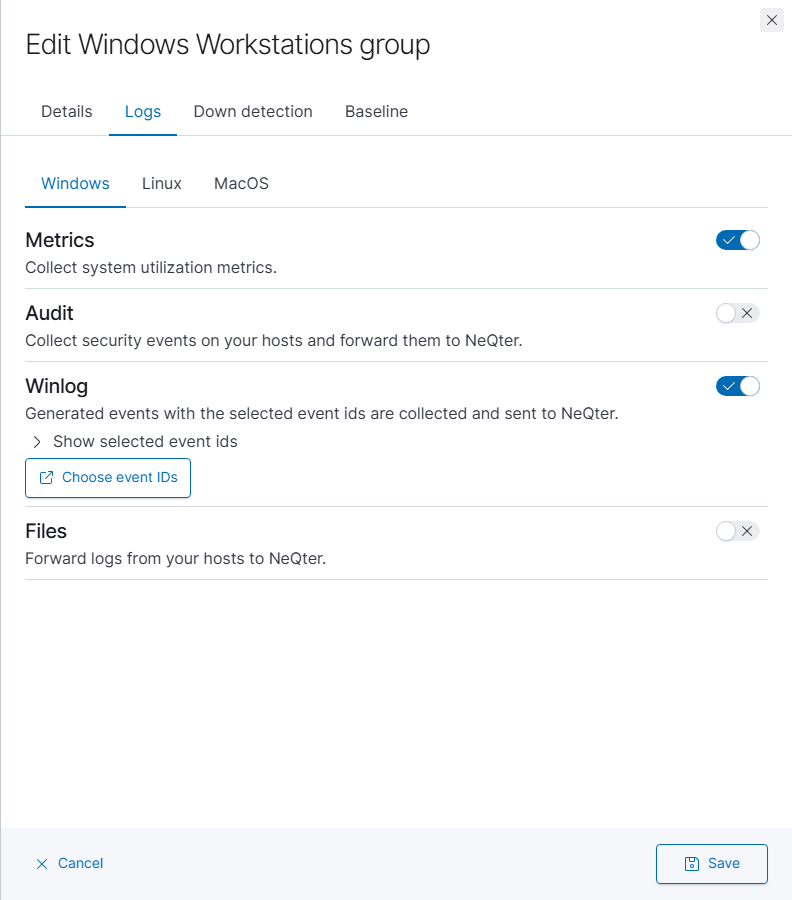
- Open Logs → Windows. Enable Winlog, then select Choose event IDs.
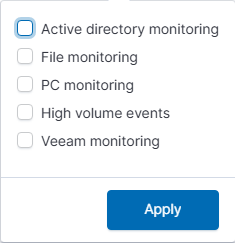
- In Event ids, open Defaults and select Veeam monitoring along with the other presets needed for this group. Select Apply to apply those choices to the draft. Alternatively, expand Veeam Backup & Replication and select the specific event IDs you need.
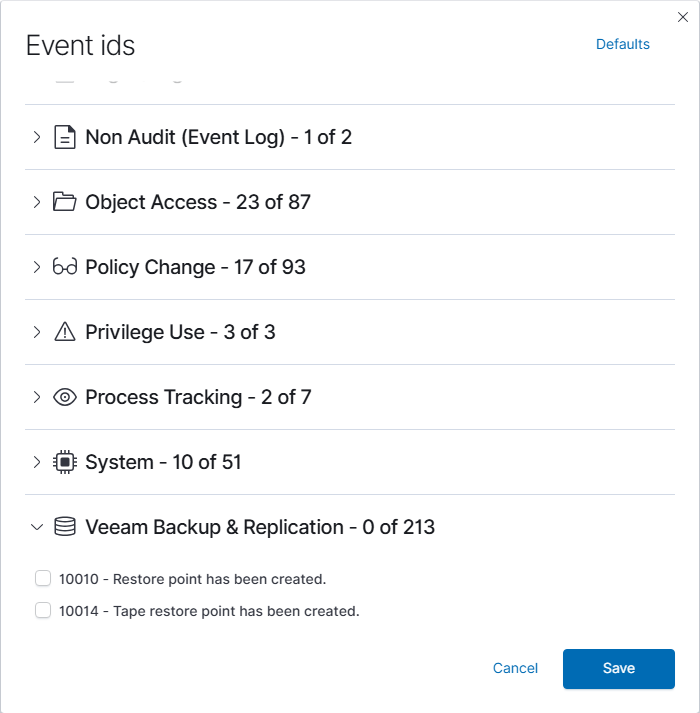
- Review the selection and select Save in the event dialog.
- Select Save in the group editor to commit the configuration. This affects the Windows agents in that group. Cancel discards the unsaved group draft.
See Hosts: Configure collection under Logs for the complete group workflow.
Windows Agent Configuration
On the Windows device that produces the Veeam events:
- Open
%ProgramData%\NeQter Labs Agent Manager\Agents\Winlog. Enable the display of hidden items if needed. - Back up
config.yml, then open it in a text editor with permission to save the file. - Find the existing
winlogbeat.event_logs:list. Add the Veeam channel to that list, preserving its other entries and YAML indentation:
winlogbeat.event_logs:
  - {name: Veeam Backup}
This example shows only the Veeam entry. Keep the other event-log entries already present in the file. If the Winlog folder is absent or empty, first confirm that Winlog is enabled for the device’s group.
- Save the file and allow the agent to forward newly generated Veeam events.
Verify collection and enable the dashboard
- Confirm a Veeam event exists on the Windows device and note its time.
- Open Discover, choose the Windows data source, and select a time range that includes that event. Confirm the host, event channel, and event ID in the returned record.
- Open Settings → Dashboards. Find Windows, enable its index if needed, and select Veeam Backup Jobs.
- Select Apply changes at the top of the page, then open the Veeam dashboard from Logs → Dashboards.

If logs are missing, check the agent’s recent check-in, group membership, Winlog setting, selected event IDs, and local event-log configuration. Dashboard selection makes the dashboard available; collection must already be working for it to display events.