
Create a Monitor Guide
A monitor evaluates one saved search on a schedule. Its type and threshold determine when NeQter creates an event. Use Events → Alerts afterward to deliver matching events by email or webhook.
To begin with a prefilled configuration, use the Alert and Template Guide.
Prepare a saved search
- Open Logs → Discover and choose the data view containing the records you want to monitor.
- Set the query and filters, apply them, and inspect representative results. For example, a Duo authentication review could use the
duo-securitydata view andevent.outcome: "denied". - Save the search with a descriptive title. Reopen it and verify its data view, query, and filters. Follow the Discover Saved Search Guide for the complete workflow.
The monitor selects this saved search by name. Its own Time window supplies the rolling lookback for each evaluation. The history range displayed in Discover or Monitoring is a separate control.
Open the monitor editor
Open Events → Monitoring and select Create monitor. The New monitor panel opens as a draft.
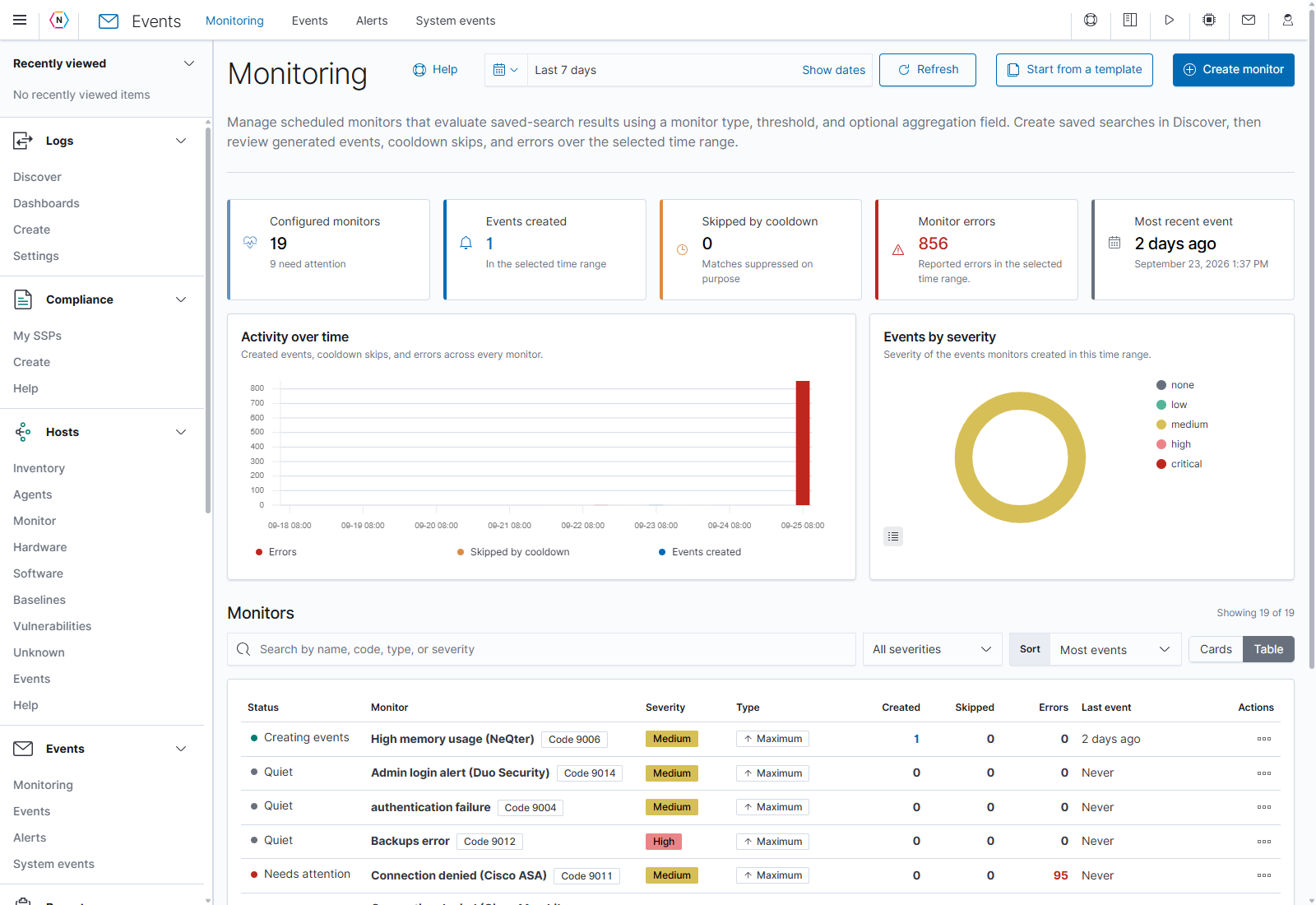
Enter a descriptive Name and Description. Set Severity for the events this monitor creates, and choose its Time window. A ten-minute window evaluates the preceding ten minutes on every run.
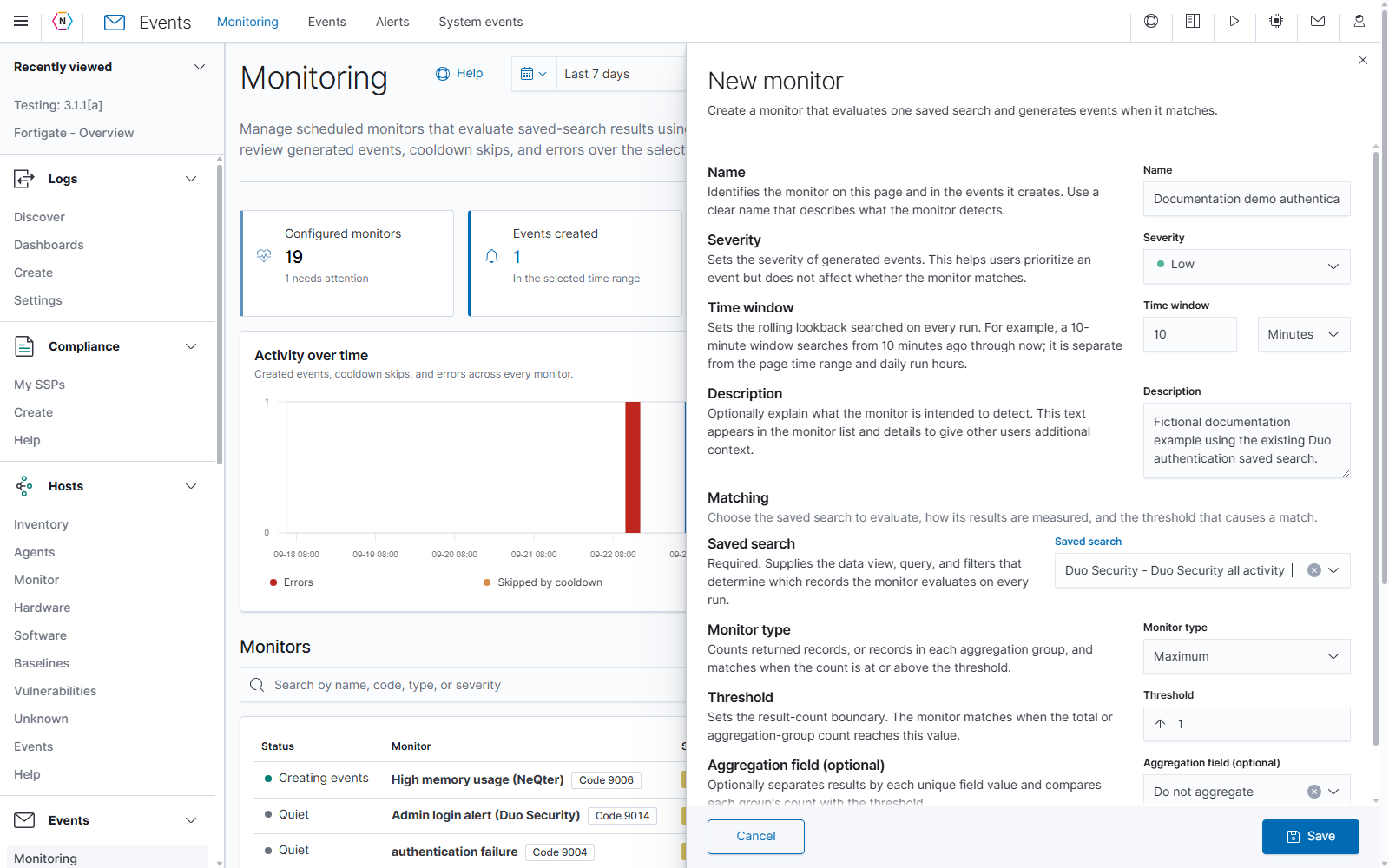
Choose what causes a match
Under Matching, choose the saved search you prepared. Check the exact title, especially when several searches have similar names.
| Setting | How to choose it |
|---|---|
| Saved search | The saved Discover search that selects the records to evaluate. |
| Monitor type | The measurement and comparison used for matching. Start with Maximum when you want an event at or above a count. |
| Threshold | For Maximum, the result count needed for a match. A threshold of 5 matches five or more selected records. |
| Aggregation field (optional) | For Maximum, evaluates separate counts for values of the selected field. Do not aggregate evaluates the total result count. |
| Max count | Limits matching aggregation groups evaluated in one run. Reaching this limit reports an error because additional matches may exist. |
Aggregation field example
Suppose your saved search returns denied sign-ins. Set Monitor type to Maximum, Threshold to 5, and Time window to ten minutes. Select user.name as the Aggregation field to count denied sign-ins separately for each user. The field must be available in your saved search.
If Alice has three denied sign-ins and Bob has three within that window, neither user reaches the threshold, so the monitor does not match. If Alice has five, her group matches. With Do not aggregate, all users’ denied sign-ins are counted together: Alice’s three plus Bob’s three total six, so the monitor matches.
Available monitor types include Minimum, Maximum, Change, and Unique Count. Their threshold meanings differ. Minimum matches a count below the threshold; Unique Count uses the number of distinct values in its required field. Review the editor’s type-specific explanation when changing type, and recheck the threshold and field selections. See the monitor-type reference for more detail.
If the selector shows No saved search, choose a valid saved search before saving. If no searches load, check that the searches and their data views are still available. An unavailable data view must be resolved before the monitor can evaluate its search.
Set the schedule and event timing
Expand Advanced to set when the monitor runs and how repeated matches create events.
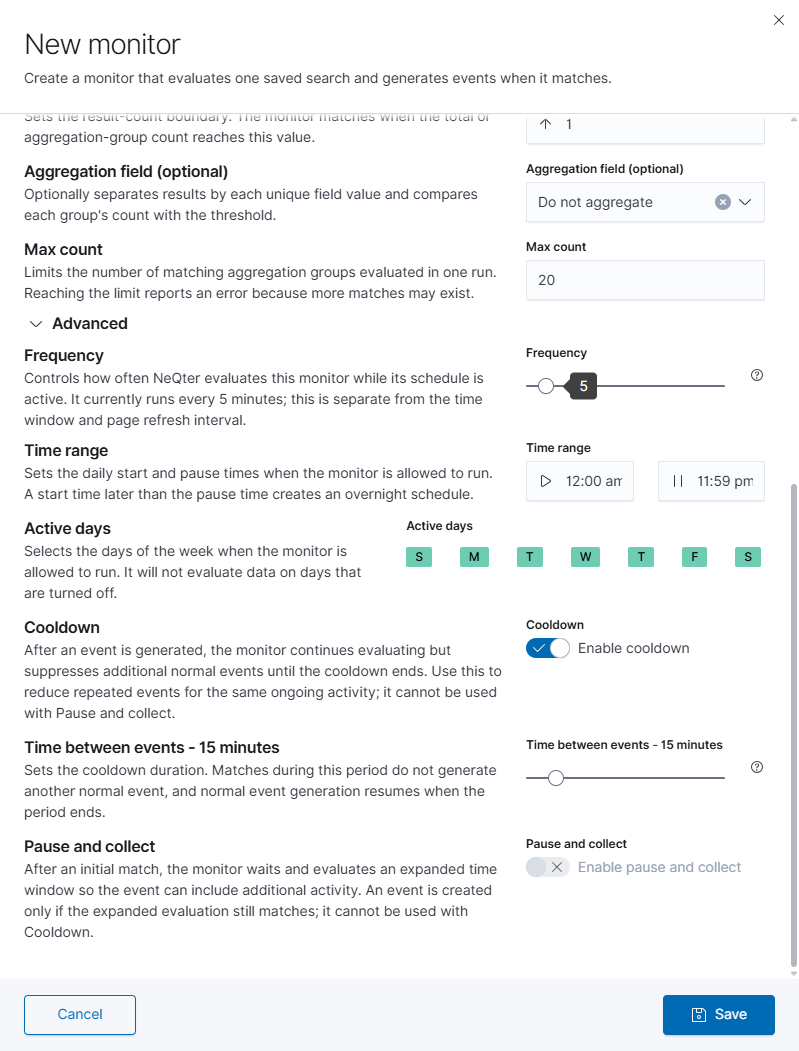
| Control | Meaning | Example |
|---|---|---|
| Frequency | How often the monitor evaluates its saved search while its schedule is active. Each run uses the monitor’s Time window to determine how far back to search. | With a five-minute frequency and a ten-minute time window, a run at 9:10 a.m. checks the preceding ten minutes. A run at 9:15 a.m. checks the preceding ten minutes again, so the evaluation windows overlap. |
| Time range | The daily start and pause times that determine when evaluations may run. A start time later than the pause time creates an overnight schedule. | Use 8:00 a.m.–6:00 p.m. for business-hour monitoring, or 6:00 p.m.–8:00 a.m. for overnight monitoring. This schedule controls when checks run; Time window controls which records each check examines. |
| Active days | The days of the week when the monitor may evaluate data, together with the configured daily time range. | Select Monday through Friday for a business-hour monitor, or all seven days for monitoring that also runs on weekends. Check the day labels or hover text to distinguish Tuesday from Thursday and Saturday from Sunday. |
| Cooldown | After an event, the monitor continues evaluating but suppresses additional normal events during the cooldown period. Matching runs may appear as skipped in the results. Cooldown cannot be enabled with Pause and collect. | For repeated failed sign-ins, enable a fifteen-minute cooldown to reduce repeated events from ongoing activity. When cooldown ends, another matching evaluation can create a new event. |
| Time between events | Sets the cooldown duration when Cooldown is enabled. The available duration is 1–120 minutes; the default is fifteen minutes. It does not change the evaluation frequency or guarantee an event when the duration ends. | If an event occurs at 9:00 a.m. with a fifteen-minute cooldown, further matches during that cooldown do not create additional normal events. Once it expires, a later matching run can create another event. |
| Pause and collect | Delays event creation after an initial match. Set Event generation delay to 1–120 minutes. When the delay ends, NeQter evaluates an expanded window and creates an event only if it still matches. This option cannot be enabled with Cooldown. | For a burst of failed sign-ins, set a five-minute delay to include additional activity before deciding whether to create an event. An initial match at 9:00 a.m. is followed by an expanded evaluation after the delay; a normal event is created only if that evaluation matches. |
Cooldown and Pause and collect cannot be enabled together. For example, a monitor can evaluate a ten-minute lookback every five minutes and use a fifteen-minute cooldown to reduce repeated events from the same ongoing activity.
Save and check results
- Review the saved search, type, threshold, grouping, schedule, and severity together.
- Select Save. To leave without creating the monitor, select Cancel.
- Find the new monitor and note its assigned event code. In Table layout, open the row’s All actions menu and select View; in Cards, use Details.
- Choose a history range that includes completed runs and select Refresh.
- Expand Status and results. Compare the chart with Recent runs, including the measured value, outcome, match type, and reason. Check Monitor errors if a run could not complete.
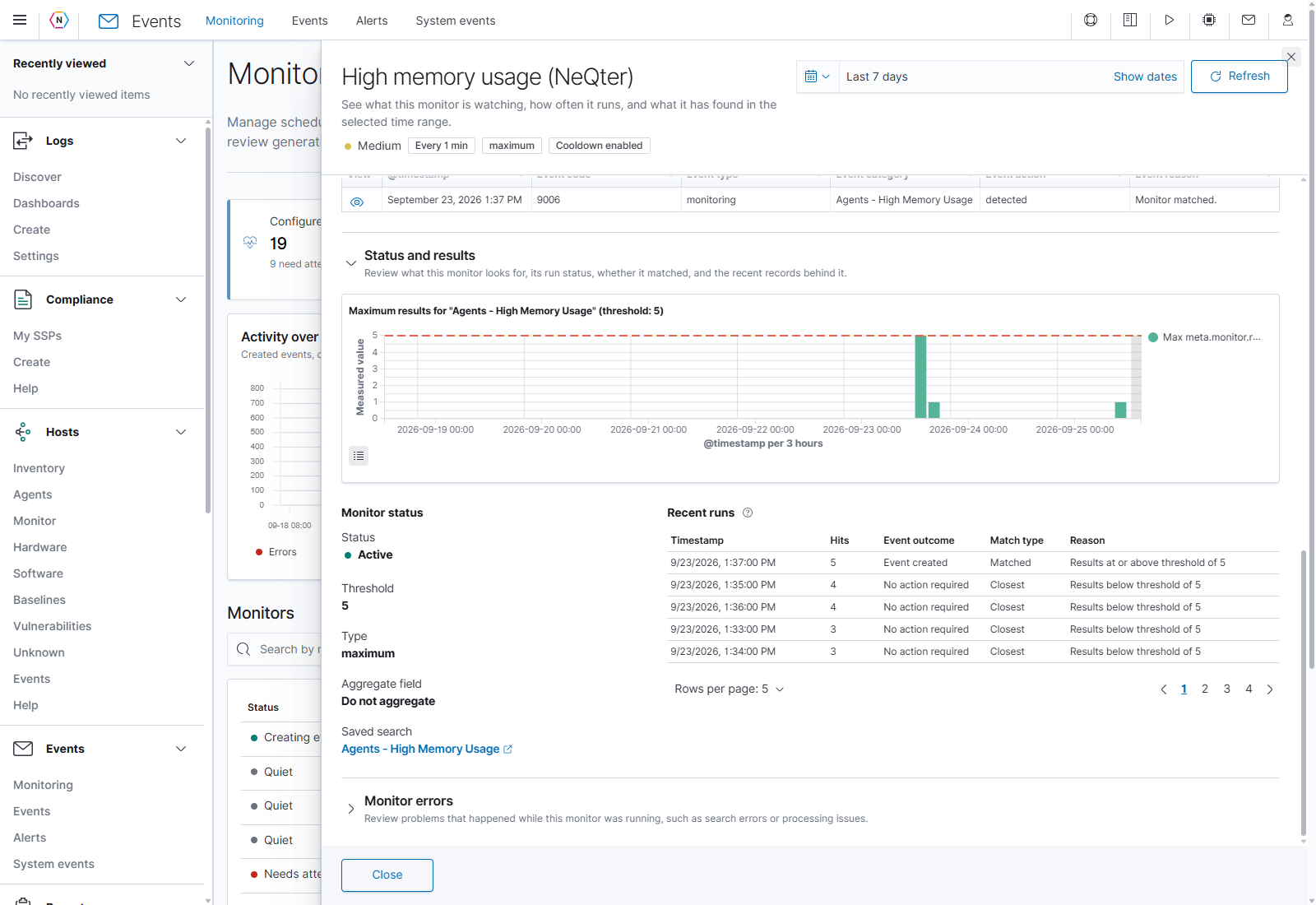
The monitor’s Monitor events section links to generated events. Confirm the code, severity, and evaluation window before using the rule for ongoing notifications. A quiet monitor can have successful runs that did not match; review run results as well as the event count.
Add email or webhook delivery
Open Events → Alerts and create a delivery configuration for this monitor’s event code, or choose an appropriate minimum severity. Add the recipient or endpoint and save that configuration. Follow Create the delivery rule for fields and screenshots.