
First Steps
Prepare the appliance, establish network access, and secure the administrator account before adding users or log sources.
Starting your device
For a physical appliance, install it in its intended location with adequate ventilation. Connect the management Ethernet port identified in the supplied hardware instructions, then connect a monitor and USB keyboard. Rack appliances and SOHO models can have different display connectors; use the connector fitted to your model. Power on the appliance and wait for the console login prompt.
For a virtual appliance, open its console through your virtualization platform and check that its network adapter is connected to the intended network.
Sign in with the console credentials supplied with the appliance. On appliances provisioned with the original factory console account, the username and initial password are both neqter. Use the assigned password if it has already been changed. The console account is separate from the web administrator account.
Change the console password
In NeQter Configuration Manager, use the arrow keys to select Change Password, then press Enter. Follow the confirmation and password prompts, including the complexity requirements shown on your appliance. Enter the new password again when prompted and confirm the change.
Keep the console credentials available to authorized administrators for future maintenance. Changing this password does not change the web administrator’s password.
Configure the IP address
Select Change IP Address in the console configuration manager. Follow the prompts to enter:
- The assigned static IPv4 address and CIDR prefix, such as
192.168.10.20/24. - The default gateway for that network.
- The DNS server address.
Review the values before confirming them. Keep the console connected until you have verified browser access.
After browser access is established, you can review these settings under Settings > Network. See Network Configuration for the interface and field descriptions.
Sign in to the web interface
From a computer that can reach the appliance, open Chrome and enter the appliance address using HTTPS and port 5000. For example:
https://192.168.10.20:5000/
Replace the example address with your appliance’s address. A new appliance may present a browser warning for its default self-signed certificate. Confirm that you are connecting to the intended appliance before accepting an exception. Your organization’s browser policy may require an administrator to install a trusted certificate; see Certificates.
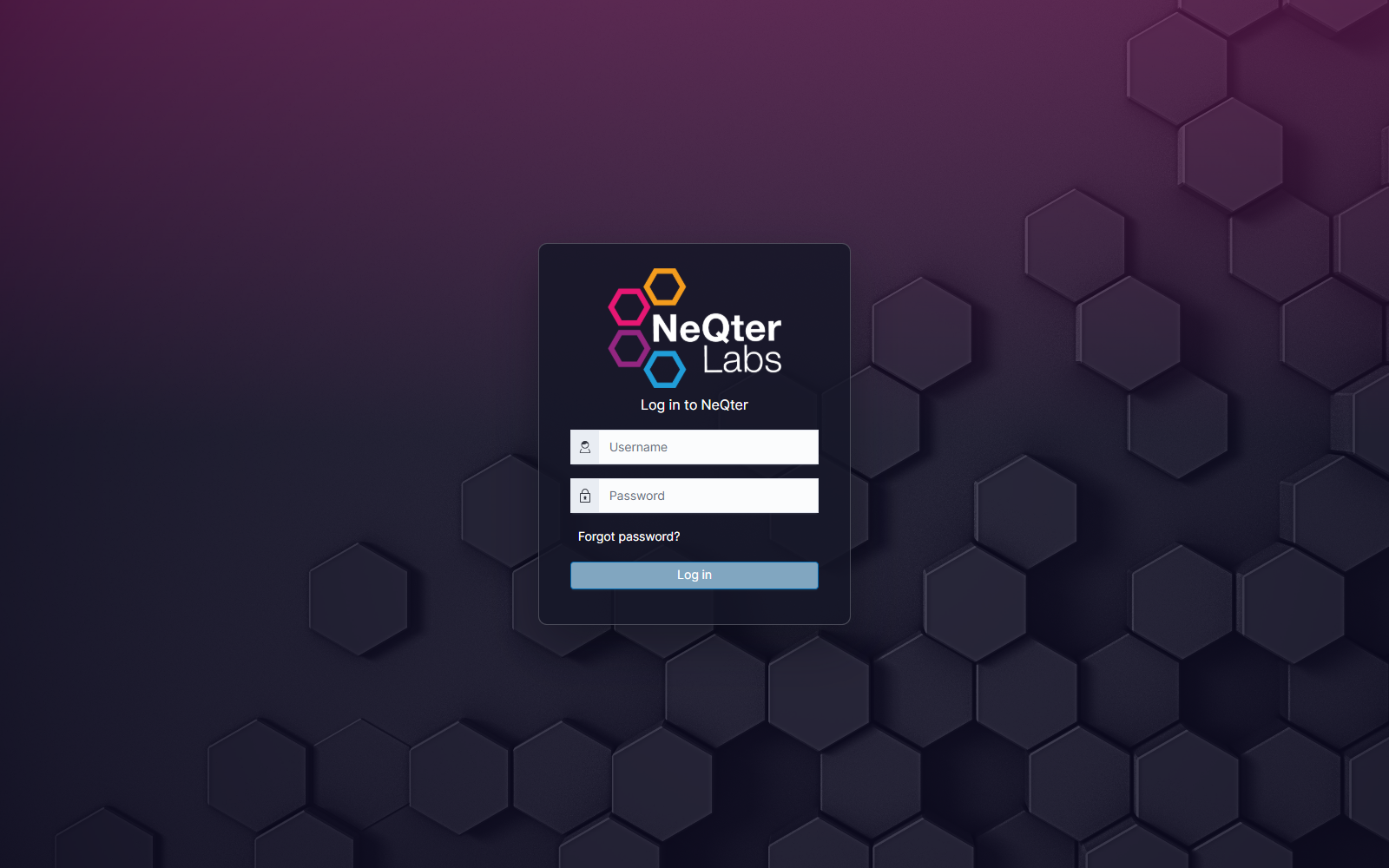
If a login notice appears, read it and select Acknowledge. Enter your username and password, then select Log in. For a new appliance that still has the factory web credentials, use admin@neqter.local and the initial password Admin. Use the assigned credentials if the account has already been configured.
Change the default administrator password
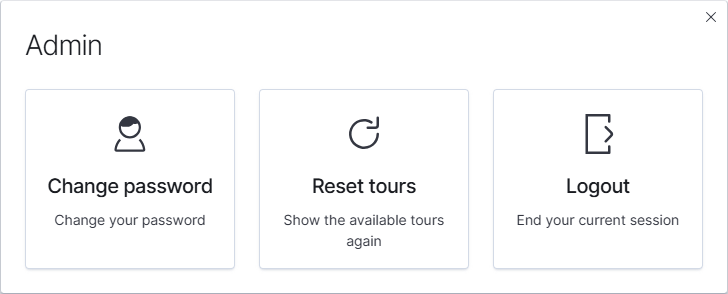
- Select the person icon at the top right of the interface.
- Select Change password.
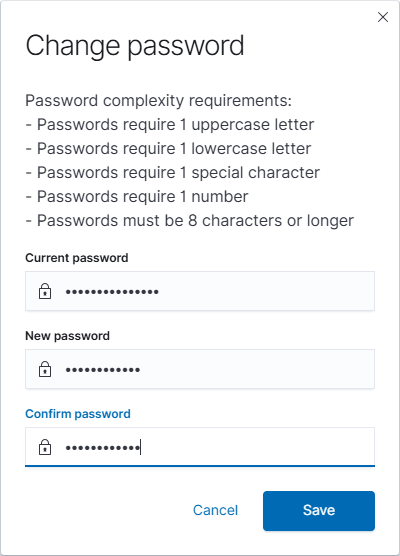
- Enter the Current password, New password, and matching Confirm password.
- Follow the password requirements displayed in the dialog, then select Save. Cancel or X closes the dialog without applying a change.
Check the installed version
Open Settings > Updates to see the installed version and available updates. Select Check for updates to refresh availability; this does not install an update.
Before installing an available update, review its release information and choose an appropriate maintenance window. The installation can interrupt access and log collection and may reboot the appliance. Follow the update workflow and wait for it to finish; do not power off or manually restart the appliance during installation. See Updates for online, scheduled, and offline workflows.
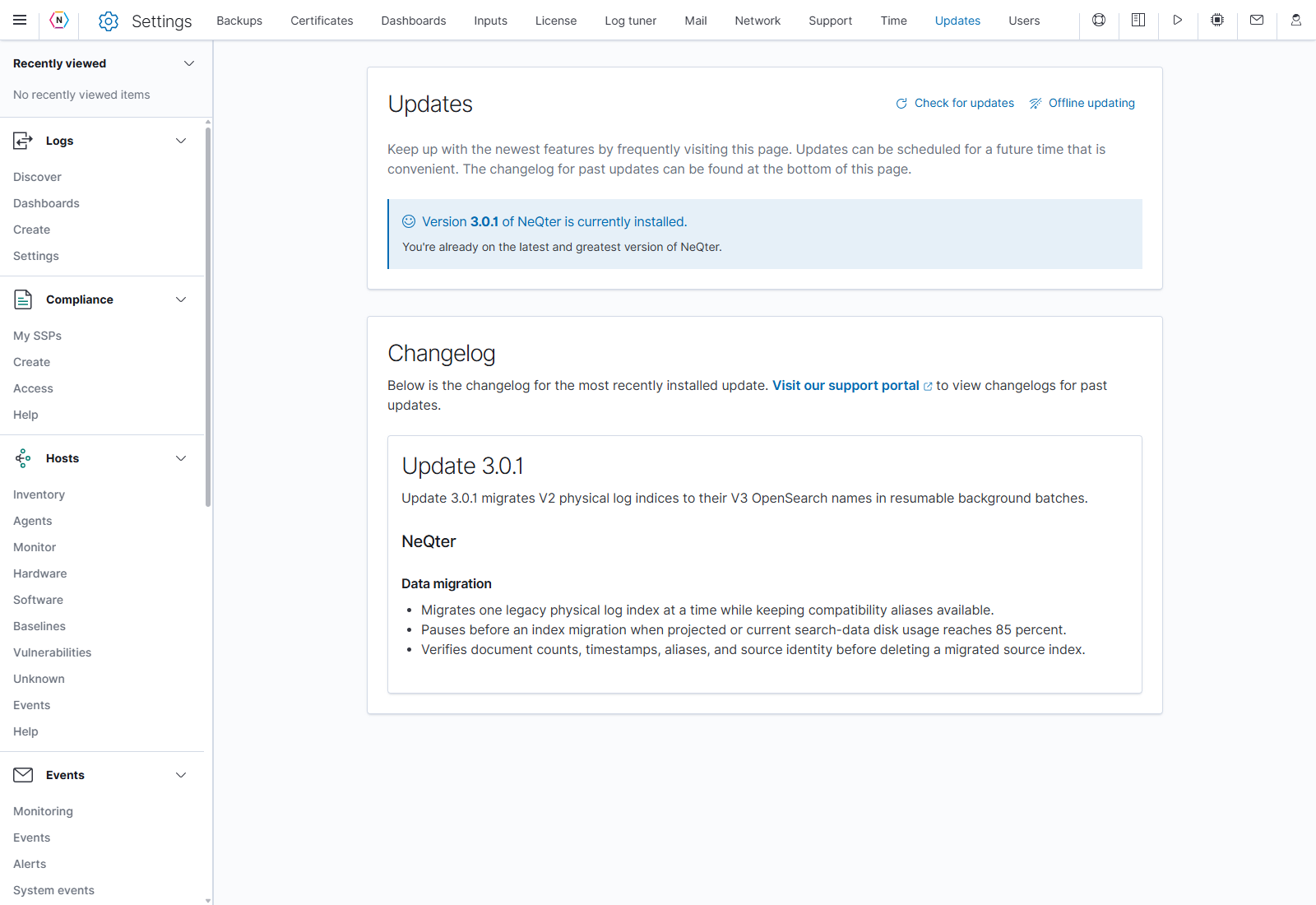
Use the navigation menu
The menu icon at the top left opens or closes the primary navigation. Expand a group such as Hosts, Events, or Settings, then select its page. On a desktop, Dock navigation keeps the menu open; Undock navigation releases it. These controls replace the older bottom-left navigation workflow.
Continue with Users to create individual accounts, then review Certificates, Network, and Backups.