
Dashboards
Dashboards turn collected logs into charts, tables, and summaries. Use them to review activity, compare categories, find unusual changes, and narrow an investigation. Open Discover when you need to read the individual log records behind a result.
On this pageCollapse sections
- Dashboards
- Open Dashboards
- Choose enabled indices and dashboards
- Run your first dashboard review
- Identify the controls above the dashboard
- Set the time range and refresh
- Search the dashboard
- Add and manage filter pills
- Use a dashboard’s filter controls
- Read the panels
- Interact with a chart and its legend
- Open a panel’s menu
- Inspect a chart and download its values
- Read individual events inside a dashboard
- Use Full screen or maximize a panel
- Create your own dashboard
- Save, reopen, or discard a dashboard
- Share a dashboard link
- Access reports from Dashboards
- Troubleshooting
Open Dashboards
Open the navigation menu at the top left, then choose Logs → Dashboards. When you are already in Logs, you can select Dashboards in the top navigation.
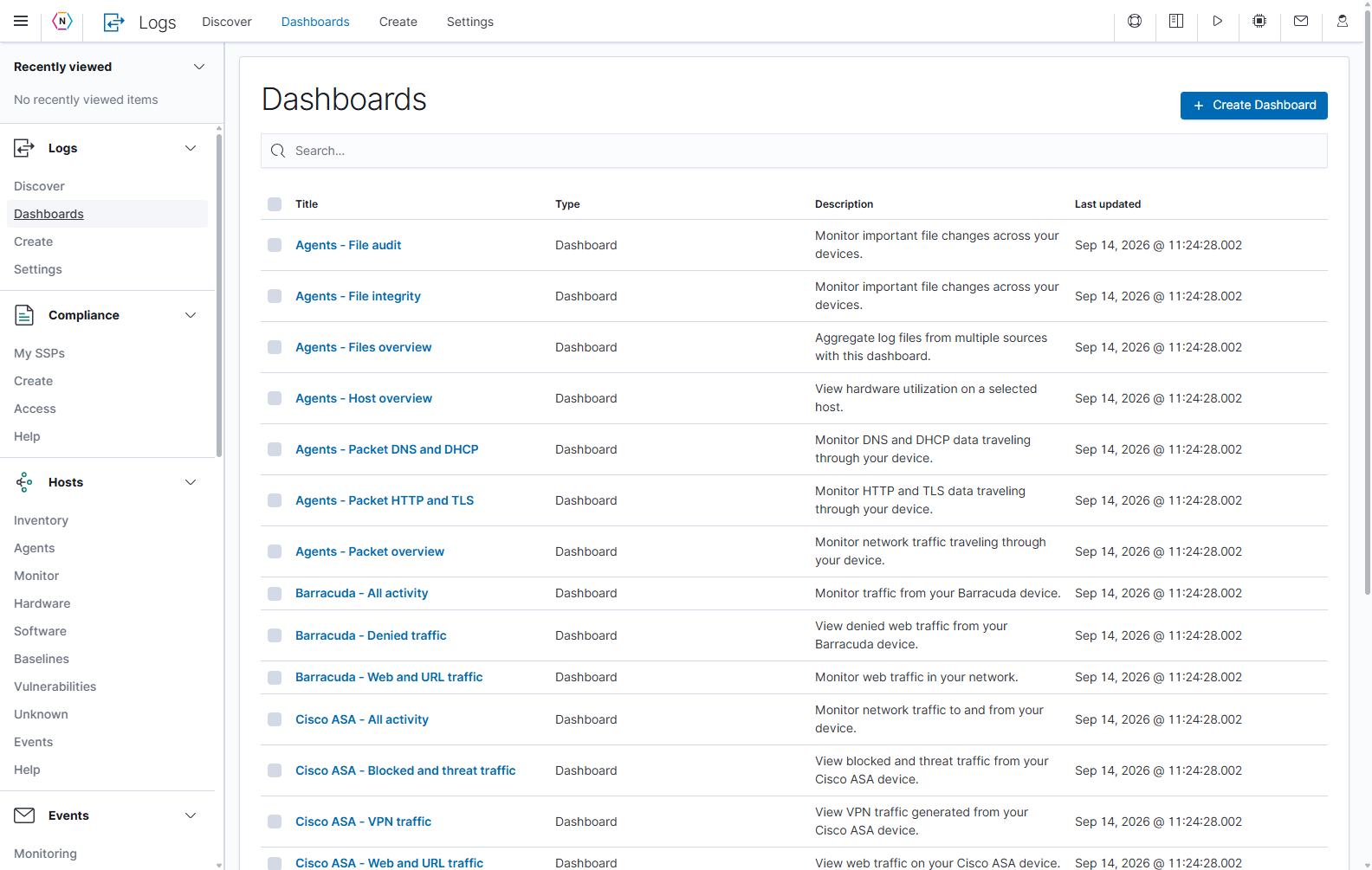
| Control or column | What it does | How to use it |
|---|---|---|
| Search… | Narrows the dashboard list. | Enter part of a title, such as Fortigate, then press Enter. This searches the list, not the logs inside a dashboard. Clear the text and press Enter to show the full list again. |
| Title | Identifies the saved dashboard. | Select the blue title to open it. Read the full title: Overview, VPN traffic, and Blocked and threat traffic answer different questions. |
| Type | Identifies the saved item’s type. | The items shown here are dashboards. |
| Description | Explains the dashboard’s intended purpose. | Use it to choose the view that matches your investigation. |
| Last updated | Shows when the saved dashboard definition was last changed. | This is not the timestamp of the newest log or evidence that the data is current. Check the time range and refresh the opened dashboard. |
| Column headings | Sort the list when the heading supports sorting. | Select a heading to change its order. |
| Selection checkboxes | Select eligible custom dashboards for list actions. | Managed NeQter dashboards cannot be selected for deletion. Opening a dashboard uses its title link. |
| Create Dashboard | Opens a new dashboard. | Start here when you want to assemble your own set of panels. |
| Create in the Logs navigation | Opens dashboard creation. | Provides another way to start a custom dashboard. |
| Recently viewed | Lists dashboards and other items you have opened. | Select a title to return to it. The arrow expands or collapses the list. |
| Navigation menu button | Opens or closes the main navigation. | Hide the navigation when you need more horizontal space. |
| Rows per page, page numbers, and arrows | Control how many dashboards are displayed and move between list pages. | Scroll to the bottom of the list, choose a page size, or select another page. |
Managed dashboards are provided by NeQter for particular inputs or purposes. Choose their availability in Logs → Settings, as described below. Enabling a dashboard does not start collecting the corresponding logs; the input must also be configured.
Choose enabled indices and dashboards
Open Settings in the Logs navigation to display Manage dashboards. The main navigation’s Settings → Dashboards opens the same management controls. Each source has an Enable index switch and checkboxes for its individual dashboards.
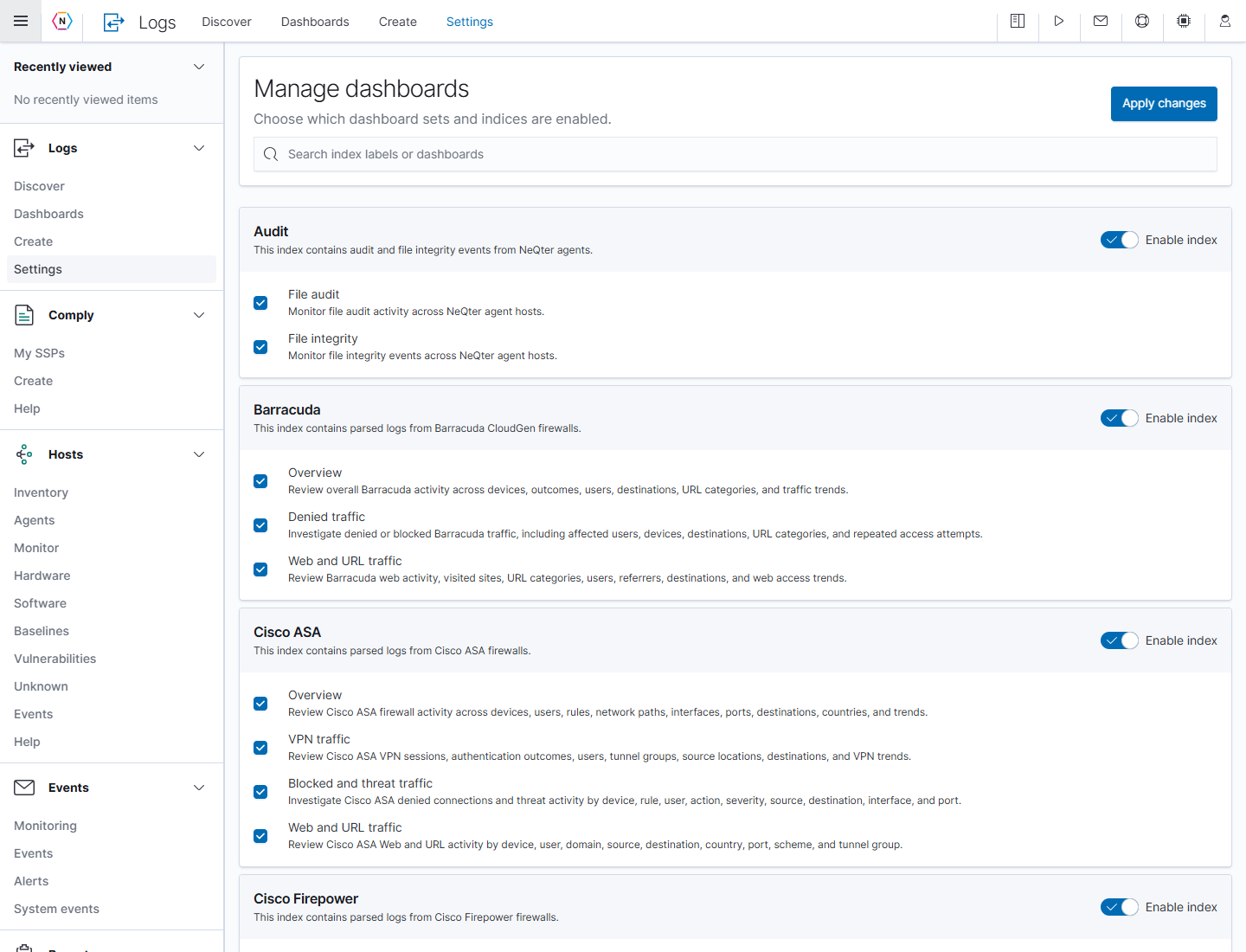
- Open Logs → Settings.
- In Search index labels or dashboards, enter a source such as
Windows,Packets, orMicrosoft Office 365. The cards narrow as you type. You can also search by a dashboard name. - Find the required source card and turn on Enable index if it is off.
- Select the checkboxes for the dashboards your team needs. Read the description beneath each name to choose the appropriate view.
- Clear the search to review any other source selections, then select Apply changes at the top.
- Return to Dashboards, search for the source, and open its dashboard title. Confirm data arrival separately in Discover.
Searching only changes the visible cards. It does not enable an index or apply configuration changes. Enable index controls the source’s availability in Logs; the individual checkboxes select its managed dashboards. Input and agent configuration are separate from these choices.
Choose a source-specific view
The list uses a source prefix, such as Windows - Active Directory or Packets - Packet HTTP and TLS. Search by the prefix when you want to see all the views for one source. General firewall views use Overview; specialized views have names such as VPN traffic, Blocked and threat traffic, or Web and URL traffic.
| Source card | Views to look for | Typical use |
|---|---|---|
| Windows | Active Directory, File Auditing, Event Logs, Veeam Backup Jobs | Review authentication and directory changes, Windows file auditing, general Windows events, or backup-job activity. |
| Packets | Packet overview, Packet HTTP and TLS, Packet DNS and DHCP | Investigate captured network transactions. See the Packetbeat Guide. |
| Microsoft Office 365 | Overview, Entra ID, Exchange, SharePoint, DLP, General | Start with all collected Management Activity API events or narrow to a workload. SharePoint includes OneDrive audit activity. |
| Google Workspace | Admin activity, Drive activity, Login activity, Users activity | Review administrative changes, document activity, logins, and collected user activity. |
| NeQter events | Overview | Review generated events by severity, type, active status, host, and user. |
| Network monitor | Overview | Review network-monitor check results. |
Review Windows and Veeam activity
Veeam Backup & Replication events belong to the Windows source. Look for Veeam Backup Jobs inside that card when enabling the dashboard.
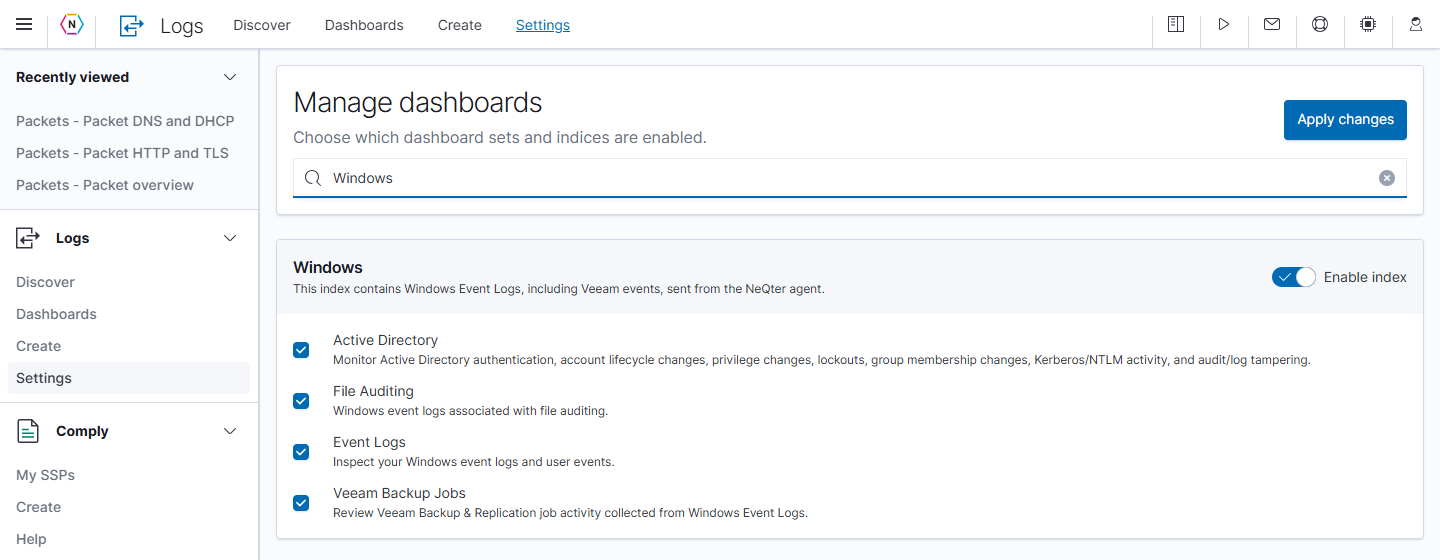
- Confirm the NeQter agent is collecting the required Windows Event Logs from the relevant server.
- Enable the Windows index and the required dashboard in Logs → Settings, then select Apply changes.
- Open Dashboards and search for
Windows. - For authentication, lockouts, account changes, group membership, or audit/log tampering, open Windows - Active Directory. For Veeam job activity, open Windows - Veeam Backup Jobs.
- Set the time range to cover the activity you expect. For a scheduled backup, include its expected start and completion times.
- Check the query and filter pills before comparing results. Use Add filter to narrow the view to fields present in the events.
- Open Discover, choose the Windows source, and use the same time range and conditions to read the complete event records.
An empty Veeam or Active Directory view can mean that the required event types were not collected, even when other Windows events are arriving. Check the relevant server and log channel as well as the dashboard filters.
Run your first dashboard review
- Open Dashboards and search for the data source you want to review.
- Select a dashboard title. This example uses Duo Security - Overview.
- Open the calendar menu and choose Last 24 hours.
- Check the query box and filter pills. Remove any conditions that do not belong to this review.
- Select Refresh and wait for the charts and tables to update.
- Read the dashboard description, then compare the action table, event outcomes, actions, and provider charts.
- To investigate denied authentication, select Add filter, choose event.outcome, set Operator to is, enter denied, and select Save.
- Review the filtered charts. Select the filter pill’s × when you want to return to the broader view.
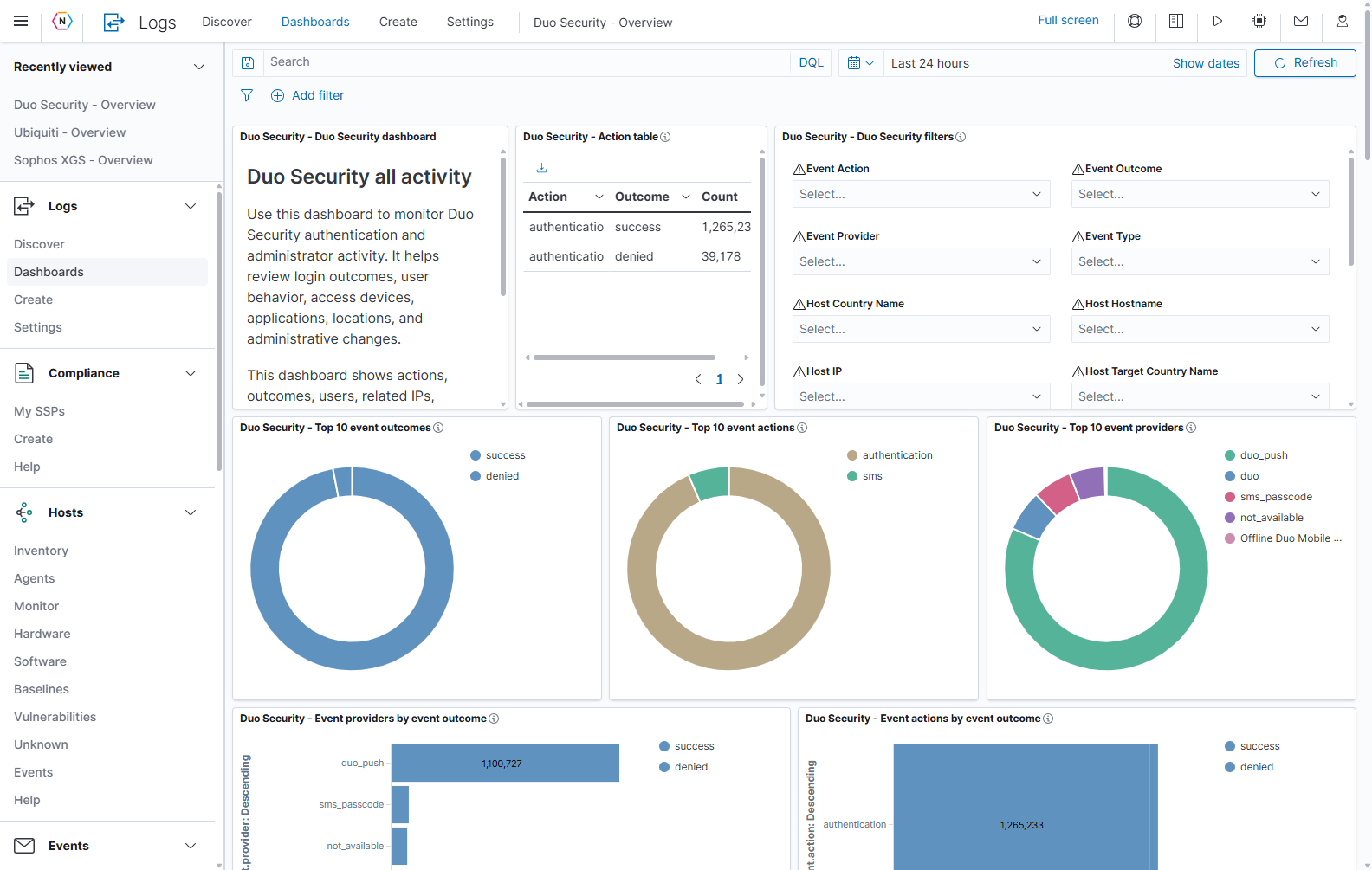
The screenshots show example results, not target counts. A dashboard’s saved panels determine which data sources and calculations it uses. The applied query, enabled filters, and time range narrow those results. A panel may also contain its own saved conditions.
Identify the controls above the dashboard
| Control | What it does |
|---|---|
| Search | Applies a text query to compatible panels on the dashboard. |
| Save icon at the left of Search | Opens Saved Queries, which can reuse query text and optional filters or time settings. This is separate from saving a dashboard’s layout. See Saved Queries in Discover. |
| DQL / Lucene | Shows the active query language and opens its syntax options. Enter a query using the selected language. |
| Calendar icon and down arrow | Opens quick time ranges and automatic refresh settings. |
| Displayed time range | Shows the interval used for time-based panels. |
| Show dates | Reveals the range’s start and end values so you can inspect or edit them. |
| Refresh | Fetches current results again using the applied query, filters, and time range. |
| Update, when a query or time change is pending | Applies that pending change. |
| Add filter | Opens a field/operator/value filter editor. |
| Funnel icon beside the filter pills | Opens Change all filters to manage the current filters together. |
| Full screen | Gives the dashboard more screen space by hiding surrounding application navigation. |
| Share | Opens dashboard permalinks and embed-code options. See Share a dashboard link. |
The managed dashboard shown above opens for viewing and filtering. Available editing controls differ on custom dashboards and with your permissions.
Set the time range and refresh
Always check the time range before interpreting an empty chart. Last 24 hours is a rolling interval relative to the current time. A fixed start and end time is better for reviewing a specific incident.
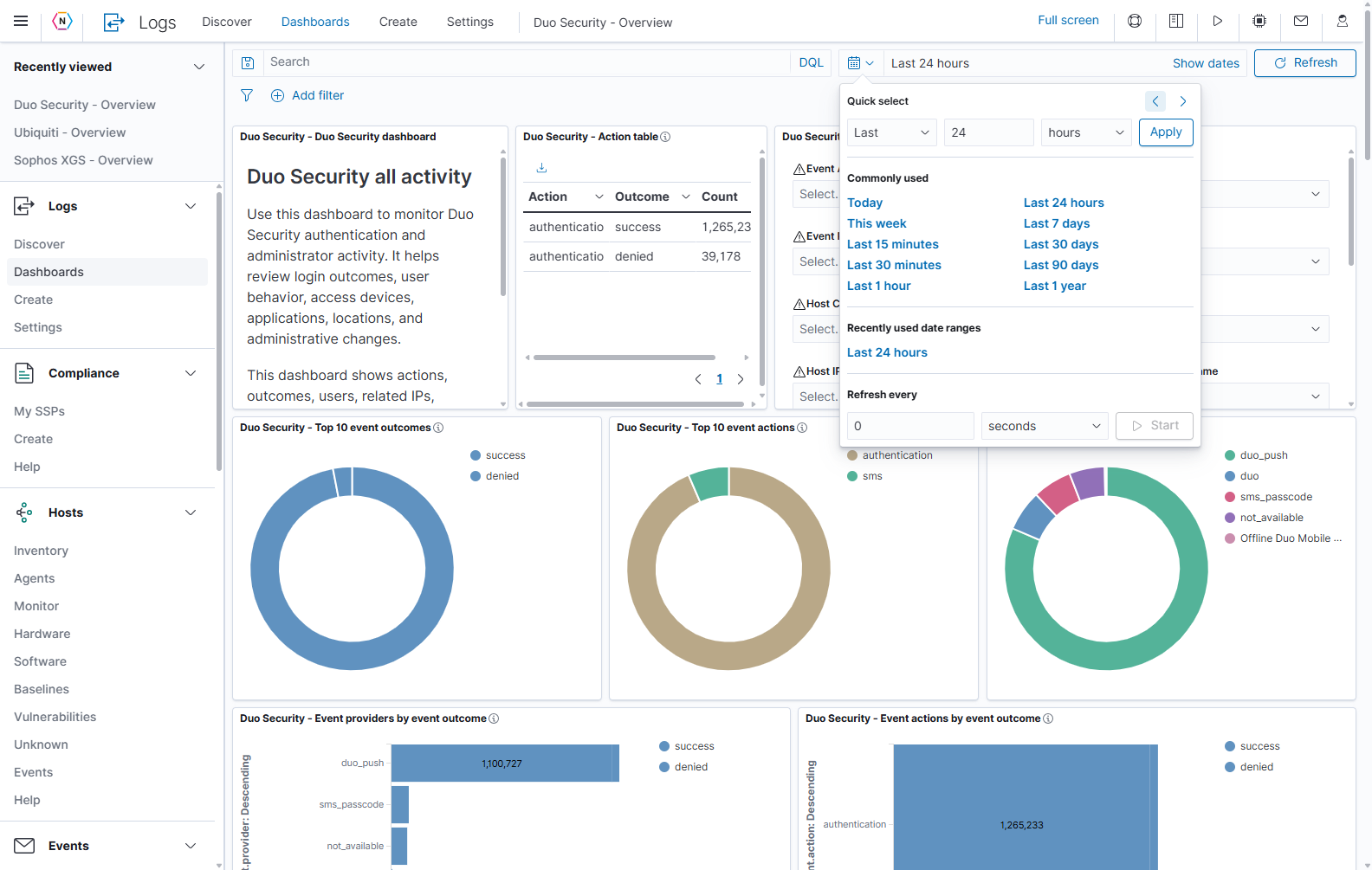
| Control | How to use it |
|---|---|
| Last / Next, amount, and unit | Build a relative interval, such as Last 2 hours, then select Apply. |
| Apply in Quick select | Applies the interval entered in the quick-select controls. |
| Previous/next time-window arrows | Move the selected window backward or forward. Review the displayed dates afterward. |
| Commonly used | Select a preset such as Today, Last 15 minutes, Last 24 hours, or Last 7 days. |
| Recently used date ranges | Reapply a range used earlier in the session. |
| Refresh every | Enter a positive amount and choose an interval unit. |
| Start / Stop | Start or stop automatic refresh using that interval. |
| Main Refresh | Rerun the dashboard immediately. |
For a specific incident, select Show dates, edit the start and end values using Absolute, and apply the change with Update. Relative sets an endpoint a chosen amount before or after now; Now makes the endpoint the current time. See time-range examples in Discover for the endpoint editors.
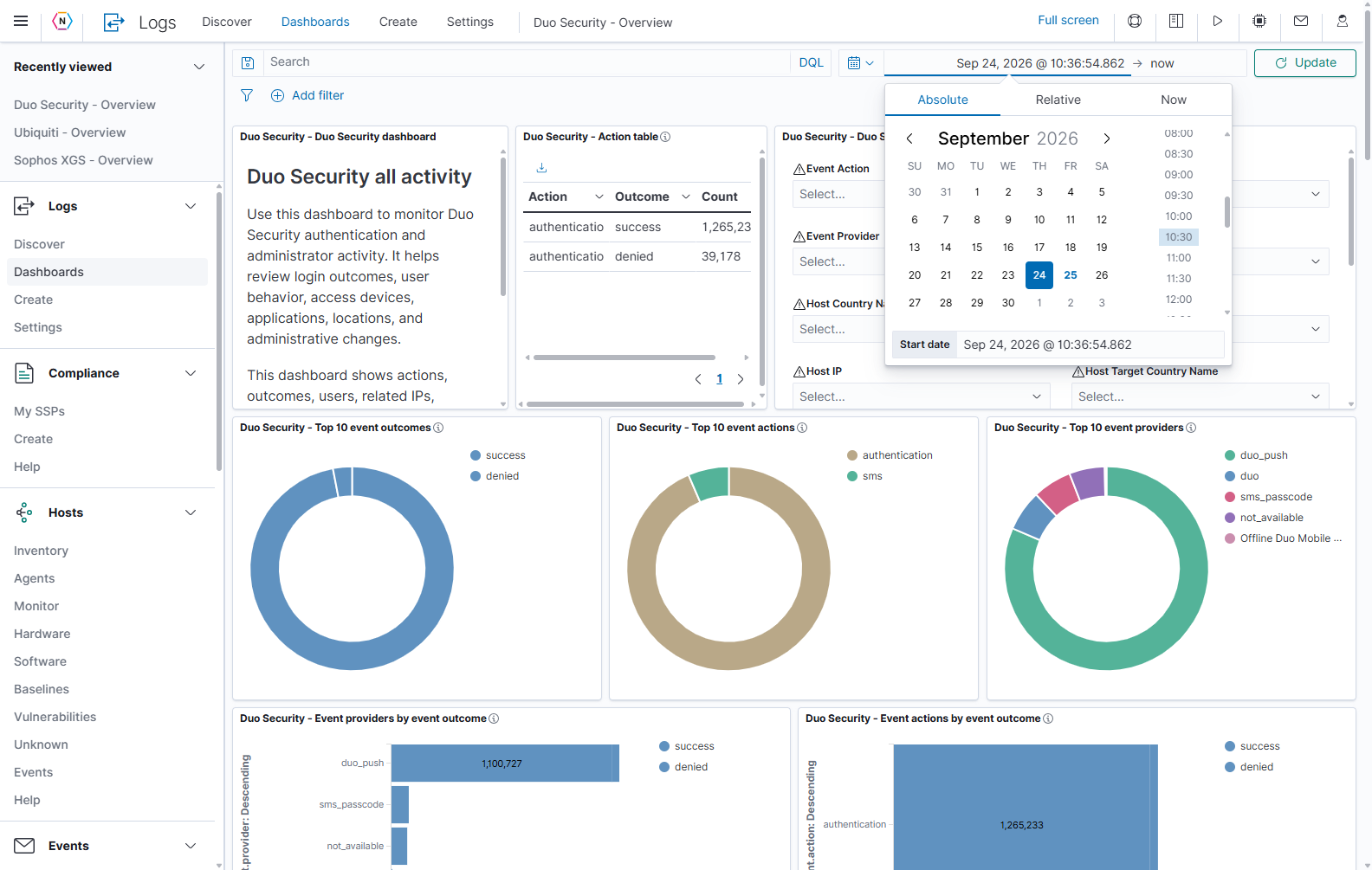
Use a rolling range with automatic refresh to watch incoming activity. Refreshing a fixed range rechecks that same interval; it does not advance the range. Check the display timezone when comparing events with another system.
Search the dashboard
Type in the main Search box, then press Enter or select Update. The charts can still show the previous results until you apply your change. Clear the query text and apply the change to remove the text condition; existing filter pills and the time range still apply.
With DQL selected, these examples narrow Duo authentication activity:
| DQL example | Meaning |
|---|---|
event.outcome: "denied" | Include events whose outcome matches denied. |
event.outcome: ("denied" OR "success") | Include either of the listed outcomes. |
event.action: "authentication" AND event.outcome: "denied" | Require both authentication activity and a denied outcome. |
NOT event.outcome: "denied" | Exclude events matching that outcome. |
event.provider: * | Require a value in the event provider field. |
Use fields available in the dashboard’s data source. A field absent from that source can produce empty results. DQL and Lucene use different syntax; changing the language does not rewrite the query. For more examples, see Search text and query language in Discover.
Reuse a saved query
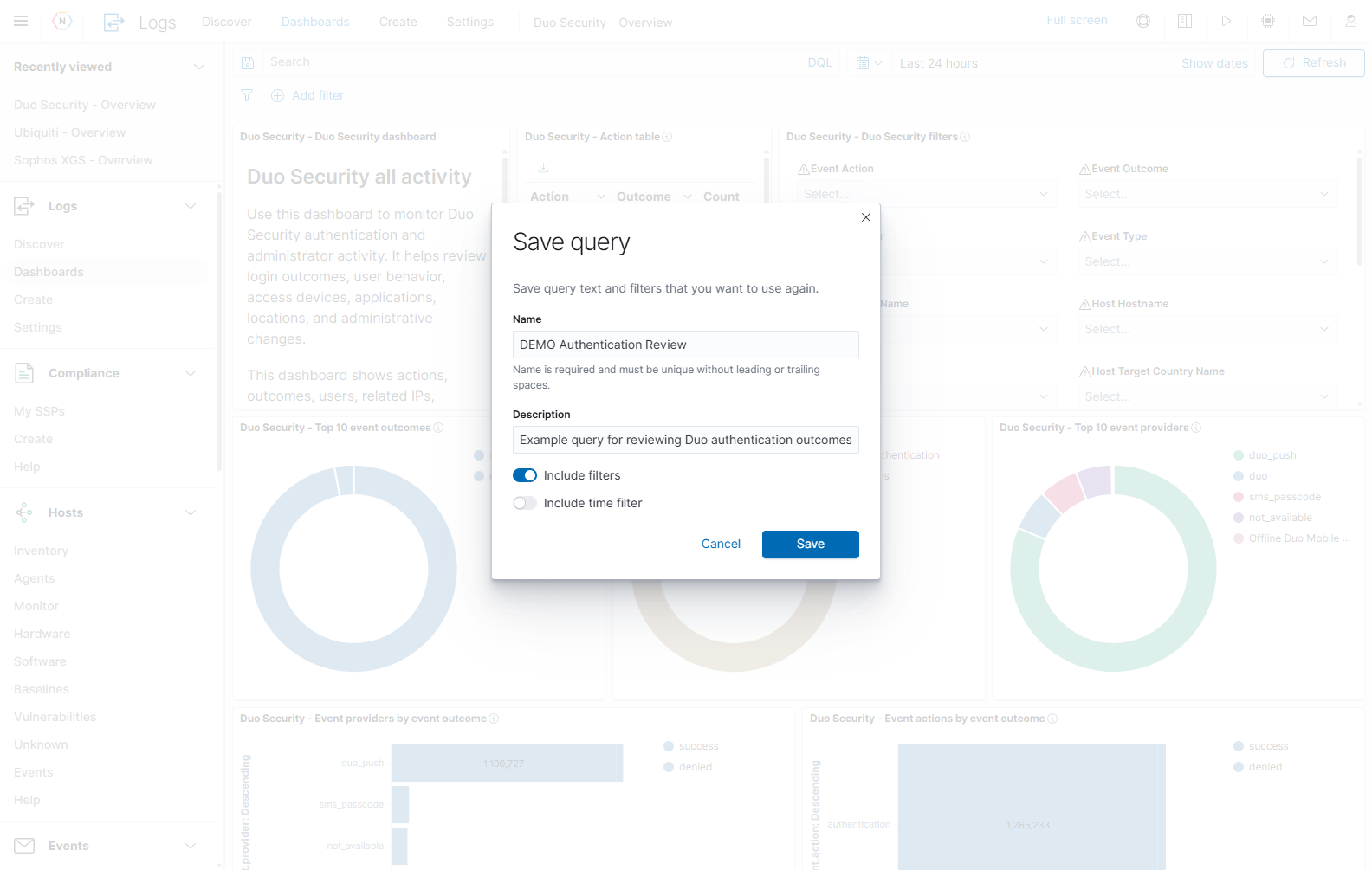
Select the save icon to the left of Search to open Saved Queries. Select an existing query to reuse its conditions, then check the query text, filter pills, and time range before interpreting the charts. Use Save current query to name and save reusable conditions; review any options to include filters or time settings. This saves search conditions separately from the dashboard and its panels.
Add and manage filter pills
Filter pills make individual conditions visible below the query box. Multiple enabled pills narrow the results together. An excluded filter removes matching events, and a disabled filter remains visible without affecting the results.
Add a condition
- Select Add filter. The popover is titled Edit filter.
- Choose Field. Type to locate the field if necessary.
- Choose Operator, such as is.
- Enter or select Value.
- Optionally turn on Create custom label? and enter a recognizable label.
- Select Save to add the condition, or Cancel to close without applying it.
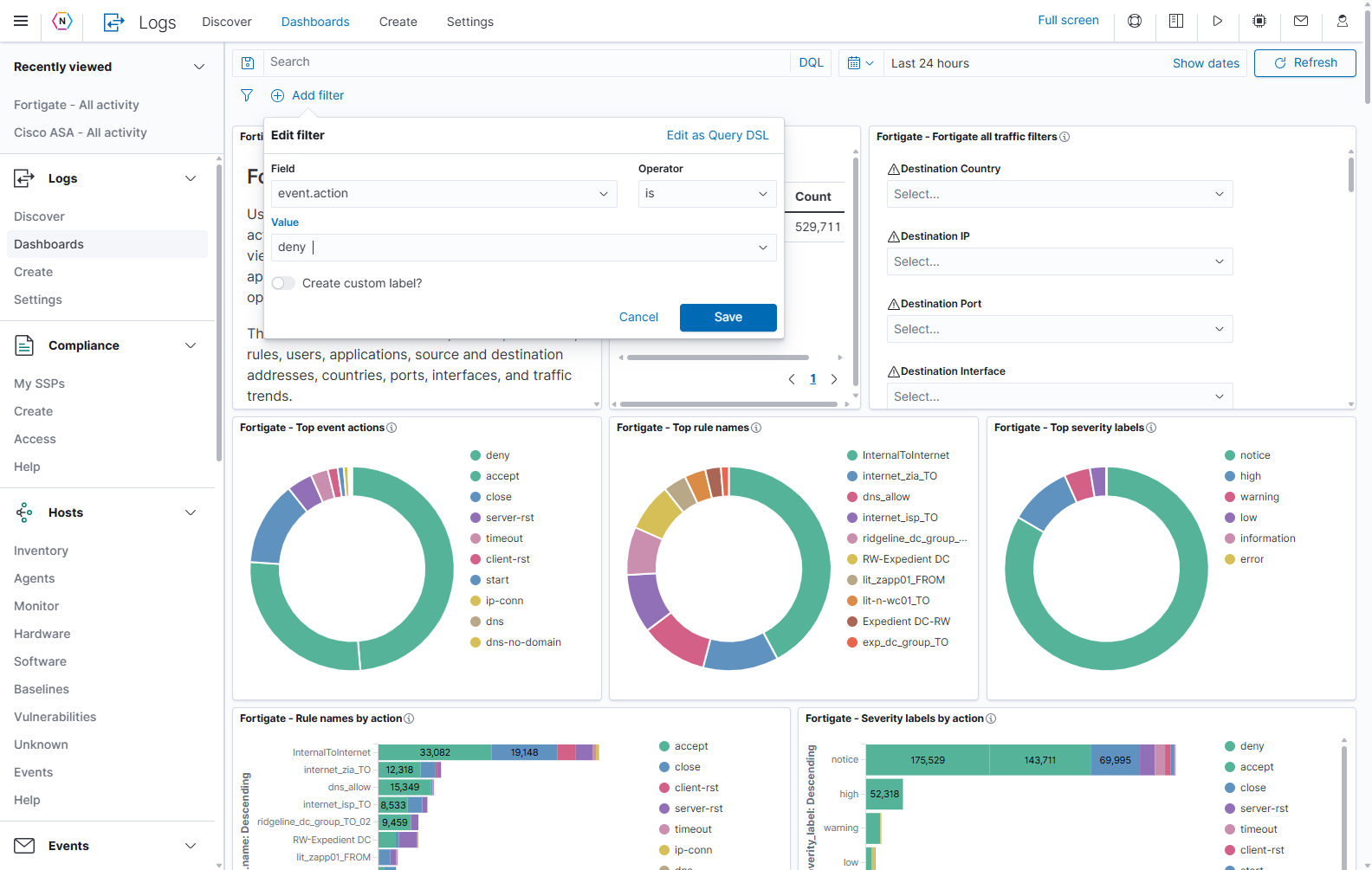
Save here saves the filter into the current dashboard view. It does not save a new dashboard or change log records.
| Editor control | Purpose |
|---|---|
| Field | Selects the event field to test. |
| Operator | Chooses the relationship, such as matching a value, excluding a value, or requiring a populated field. Available operators depend on the field. |
| Value | Provides the value or values for the selected operator. Existence checks do not need a value. |
| Create custom label? | Gives the filter a readable label without changing its condition. |
| Edit as Query DSL | Opens the filter’s advanced JSON query representation. This is different from typing DQL into the main search box. |
| Cancel / Save | Discard the editor changes or apply the condition. |
Change or remove a condition
Select a filter pill to open its menu. The screenshot shows an inclusion filter for event.outcome: denied.
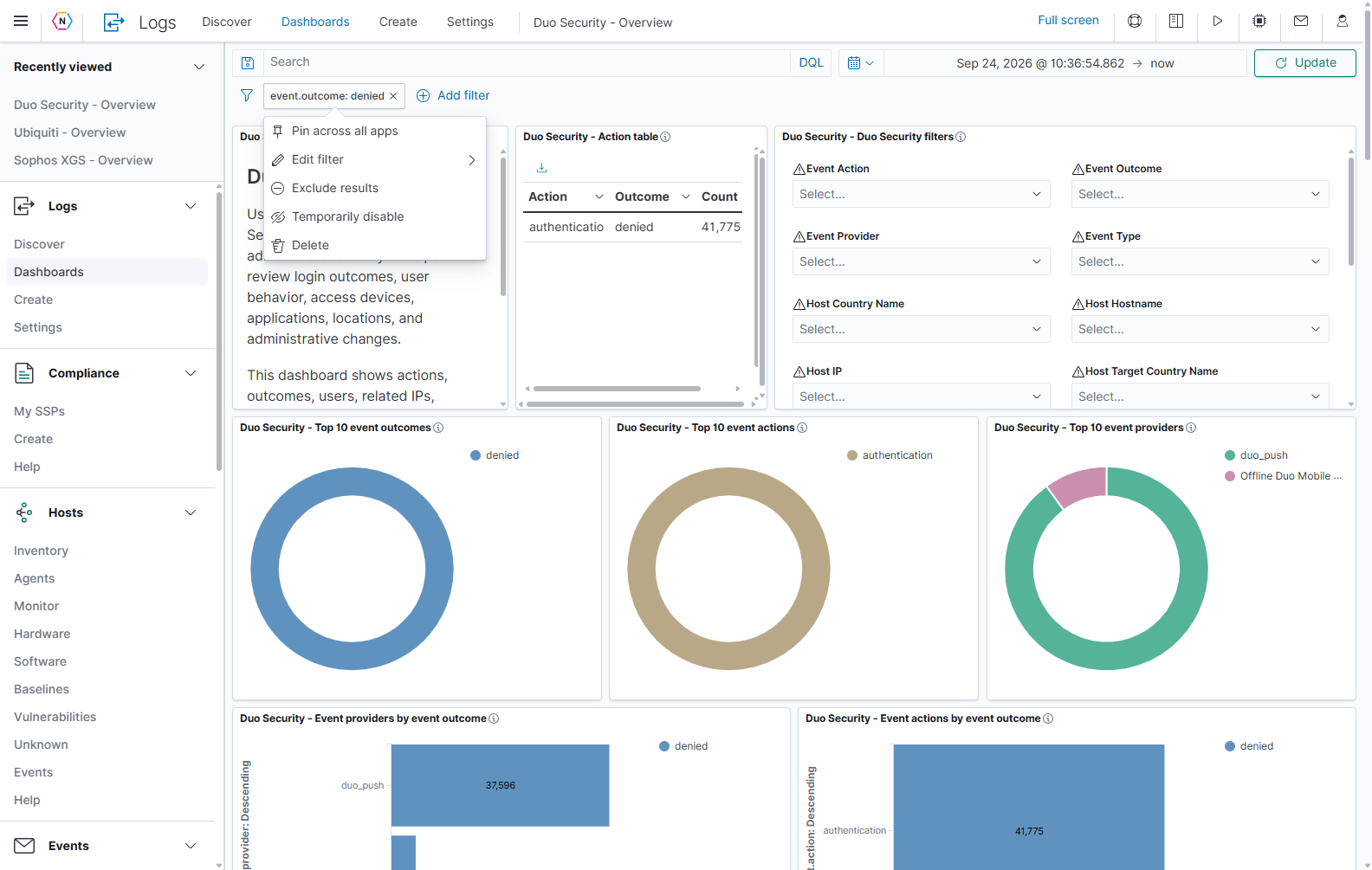
| Action | Result |
|---|---|
| Pin across all apps | Carries the filter into other compatible application views. Use the corresponding unpin action to make it local again. Check pinned filters when moving between dashboards or opening Discover. |
| Edit filter | Changes the field, operator, value, or label. |
| Exclude results | Reverses an inclusion filter so matching events are excluded. The corresponding include action reverses it again. |
| Temporarily disable | Stops applying the condition while keeping the pill available. Use its enable action to resume applying it. |
| Delete | Removes the filter from the view. It does not delete events. |
| × on the pill | Removes that filter directly. |
The funnel button opens Change all filters. Its actions manage the current filters as a group, including enabling, disabling, pinning, unpinning, and removal. Review the remaining pills afterward so a pinned or excluded condition does not unintentionally narrow the next investigation.
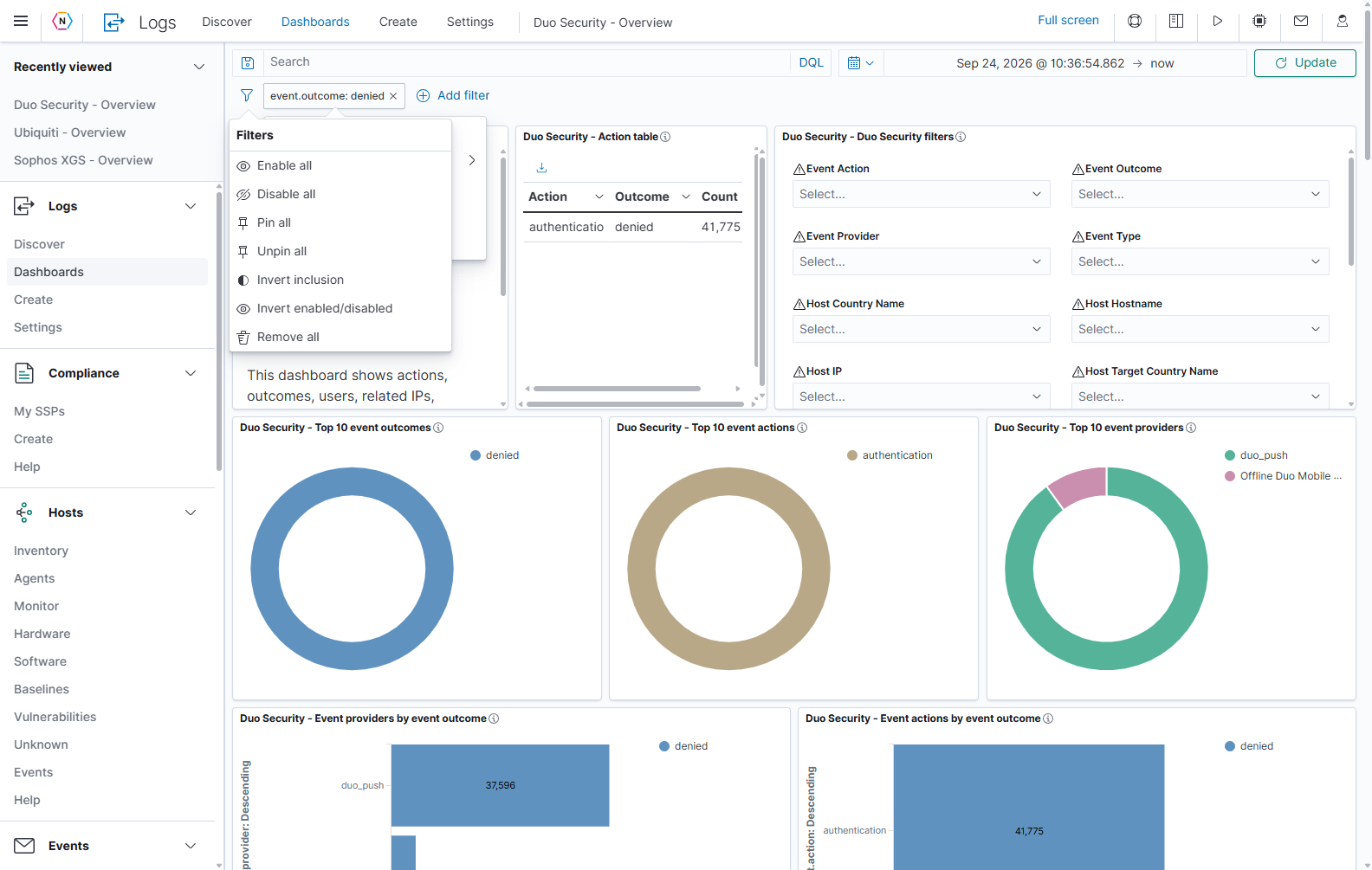
| Group action | Result |
|---|---|
| Enable all / Disable all | Apply every filter, or temporarily stop applying them. |
| Pin all / Unpin all | Make all current filters global, or return them to the current application. |
| Invert inclusion | Swap include and exclude for the current filters. |
| Invert enabled/disabled | Enable disabled filters and disable enabled filters. |
| Remove all | Remove the current filter pills. The query text and time range remain separate controls. |
Use a dashboard’s filter controls
Some managed dashboards include a dedicated panel of drop-down filters. In the separate Fortigate example, Fortigate - Fortigate all traffic filters lets you choose addresses, countries, actions, rules, and other values without typing a query.
The controls panel can have its own scrollbar. Open its three-dot menu and select Maximize panel to see more controls at once.
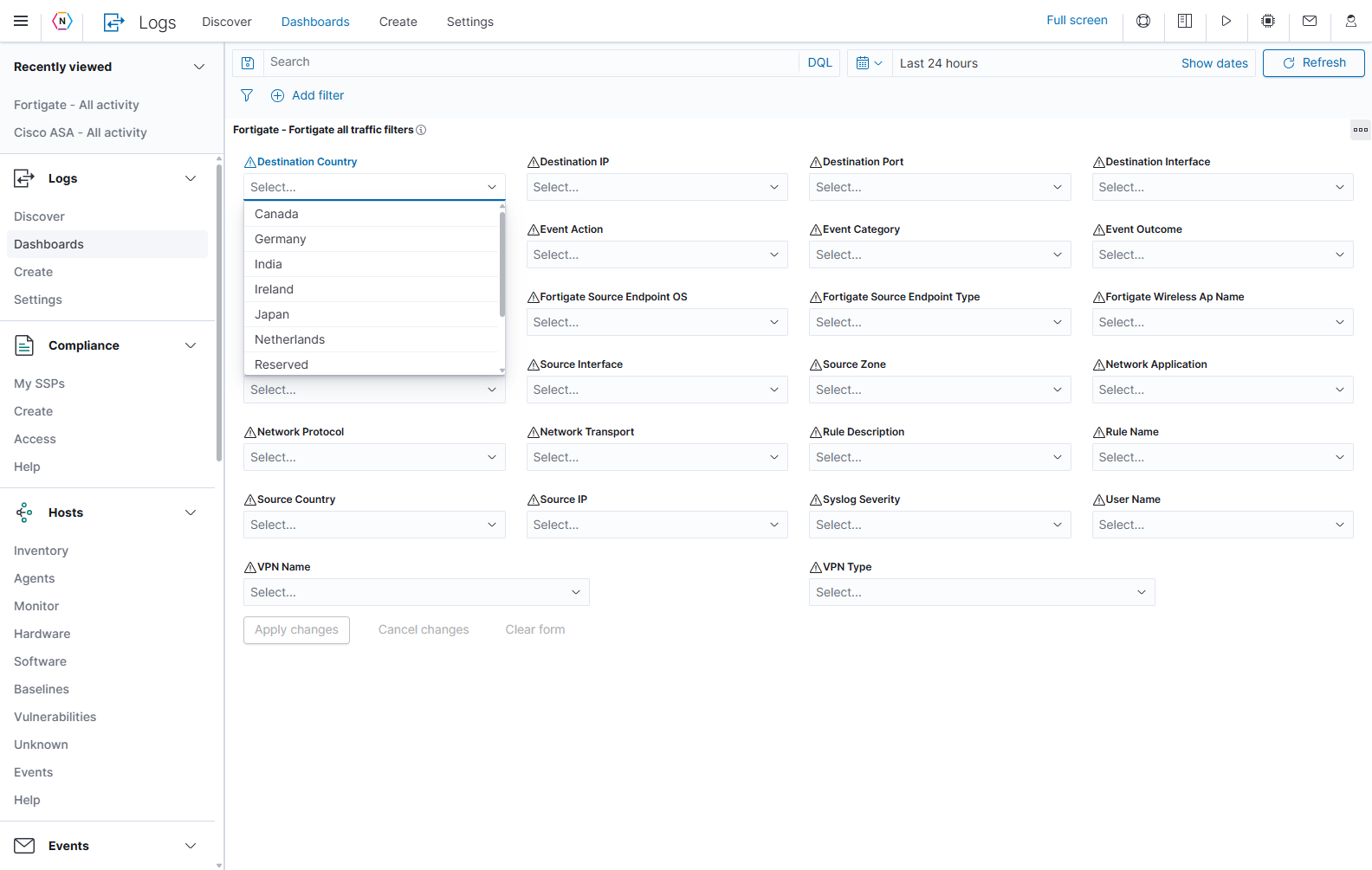
- Open a Select… drop-down, such as Destination Country.
- Choose the value you want to investigate. You can type to narrow the available choices when the selector allows it.
- Repeat for additional controls if needed.
- Select Apply changes at the bottom of the panel.
- Check the active filter pills and updated charts to confirm the conditions you intended.
- To restore the normal dashboard layout, open the panel menu and select Minimize.
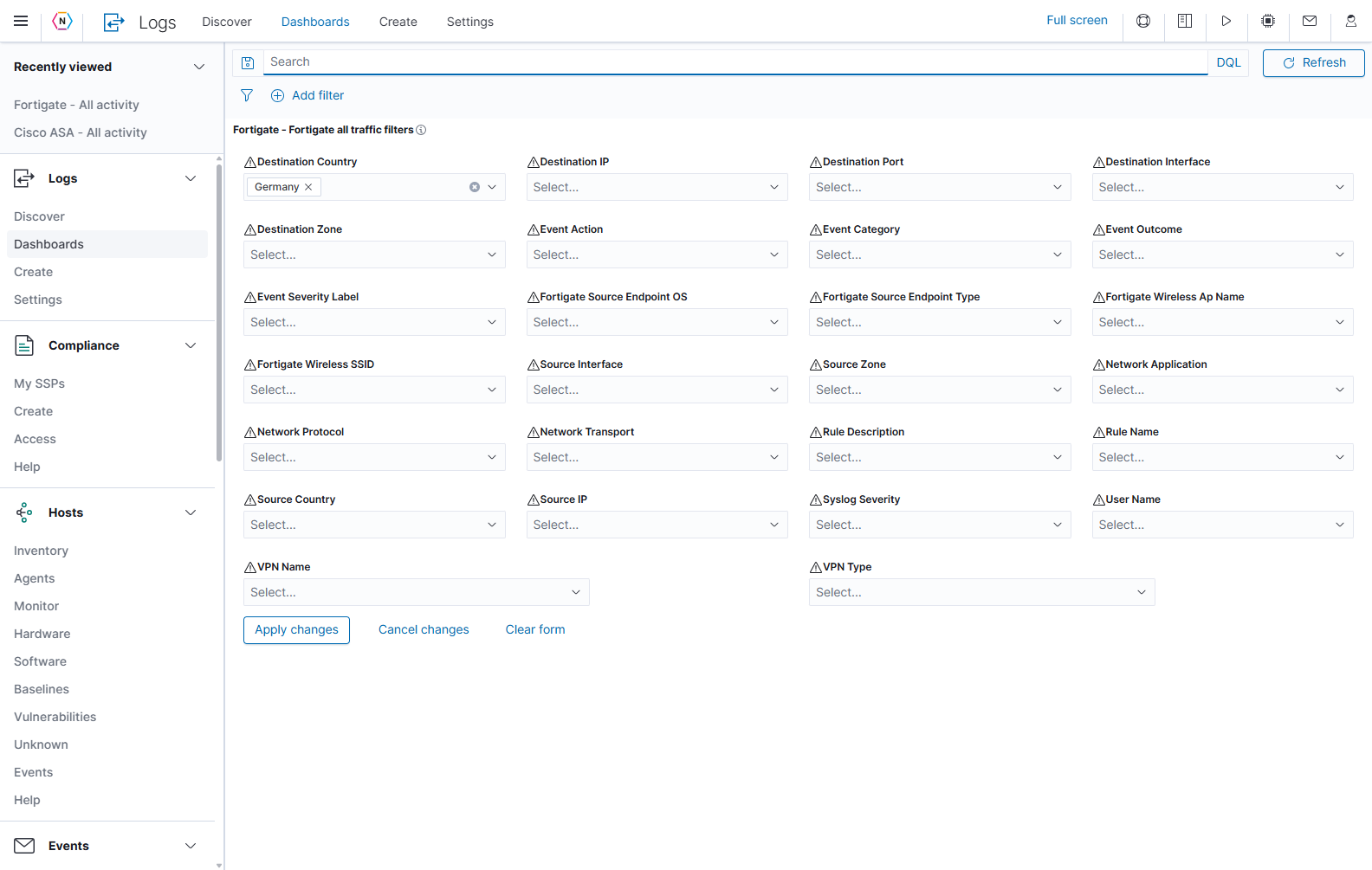
| Control | What it does |
|---|---|
| Drop-down arrow | Opens the field’s available choices. |
| Selected value chip | Shows a choice currently present in that control. |
| × beside a selected value | Removes that value from the control. Apply the change to update the dashboard. |
| Clear icon at the right of a populated selector | Clears that selector’s selected values. |
| Apply changes | Applies the pending control selections to the dashboard. |
| Cancel changes | Discards pending edits to the controls and returns to their applied state. |
| Clear form | Clears the control selections. Check the resulting filter pills and apply any pending change. This does not clear the main search text or unrelated filters. |
| Warning triangle beside a control | Provides a warning for that control. Hover it to read the explanation. A populated drop-down can still show a warning; verify that the filter you apply produces the intended results. |
The control names describe which part of an event you are filtering:
| Control names in this example | What they describe |
|---|---|
| Source IP / Destination IP | The event’s originating and receiving network addresses. |
| Source Country / Destination Country | Geographic enrichment associated with those addresses. Private addresses or missing enrichment may have no useful country value. |
| Destination Port | The receiving service’s port number. |
| Source Interface / Destination Interface | Interfaces identified for each side of the recorded traffic. |
| Source Zone / Destination Zone | Firewall zones associated with the traffic. |
| Event Action | The action recorded by the source, such as deny, accept, or close. |
| Event Category | The event’s broad category. |
| Event Outcome | The outcome recorded in the event. |
| Event Severity Label / Syslog Severity | Severity values supplied or parsed from the event. These are separate fields and may use different labels or scales. |
| Fortigate Source Endpoint OS / Fortigate Source Endpoint Type | The source endpoint information identified by the firewall. |
| Fortigate Wireless AP Name / Fortigate Wireless SSID | The wireless access point and network name, when present. |
| Network Application / Network Protocol / Network Transport | The recorded application, protocol, and transport values. |
| Rule Description / Rule Name | The firewall rule associated with the event. |
| User Name | The user value attached to the event. |
| VPN Name / VPN Type | The VPN connection’s name and type, where present. |
The available values depend on the indexed events and the control configuration. A field with no choices may simply be absent from the selected data. Each dashboard can provide a different set of controls.
Read the panels
Each bordered area is a panel. Start with its title, then read its labels, units, and any description before comparing the numbers.
| Panel type | How to read it |
|---|---|
| Description panel | Explains what the dashboard covers and how to interpret it. Scroll inside the panel to read the remaining text. |
| Device or summary table | Groups results into rows. In the example, Device, Device IP, and Count identify a reporting device and its matching event count. |
| Pie or donut chart | Shows the relative size of categories such as event actions or severity labels. Read the legend to associate each color with a value. |
| Stacked bar chart | Compares categories while dividing each bar into another set of values. Read both the axis labels and the legend. |
| Time chart | Shows how activity or a measurement changes through the selected interval. The vertical axis may be a count, rate, percentage, or another measure. |
| Metric card | Displays a calculated value. The panel title and units explain what is being counted or measured. |
| Saved-search panel | Shows individual records from a saved Discover search. A record table and a grouped count table serve different purposes. |
Top or Top 10 panels show a ranked subset. Their visible categories do not necessarily account for every event. Different panels can also use different fields or calculations, so their totals do not always match.
| Small panel control | Purpose |
|---|---|
| Information i beside a title | Shows the panel’s description when one is provided. |
| Three dots at the upper right | Opens that panel’s available actions. Hover the panel header if the button is not visible. |
| Internal scrollbars | Move through content inside that panel. Scrolling a panel is separate from scrolling the whole dashboard. |
| Table column heading or arrow | Changes the table’s sort when supported. Check the heading and sort direction afterward. |
| Table page number and previous/next arrows | Moves through the panel’s result pages. |
| Table download icon, when shown | Opens that table’s available download control. For a chart’s values, use Inspect → Download CSV as described below. |
Interact with a chart and its legend
Hover over a bar, slice, or point to see its details. On charts that support filtering, selecting a data value can create a filter. Read any filter-selection dialog before applying it, then verify the new pill above the dashboard.
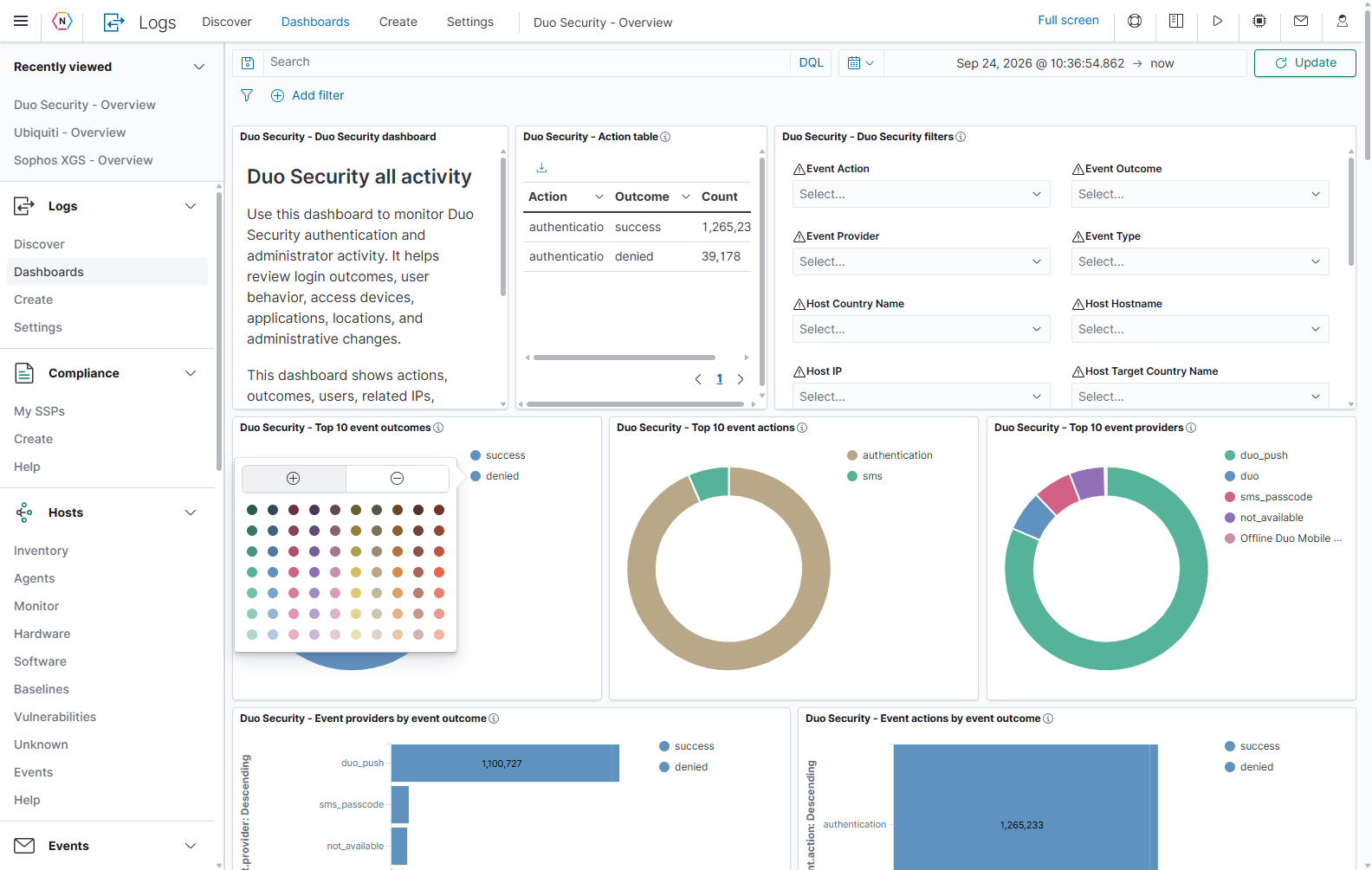
| Interaction or control | What it does |
|---|---|
| Hover a chart value | Shows its label and measured value where tooltips are supported. |
| Hover a legend value | Highlights the corresponding series or category. |
| Select a legend value | Opens that value’s available options. Select it again or click outside to close the popover. |
| + in the legend popover | Filter for value includes the selected category. |
| − in the legend popover | Filter out value excludes the selected category. |
| Color swatch | Changes the displayed color for that legend value. It changes appearance, not the condition used to retrieve events. |
| Small legend toggle on the chart | Shows or hides the legend to adjust the space available to the chart. |
| Drag across a supported time chart | Selects an interval. When the selected field is the dashboard’s time field, the global time range changes. Check the range afterward. |
For example, select denied in Duo Security - Top 10 event outcomes, then select +. The resulting condition narrows compatible panels to denied activity. Remove the generated filter pill when you finish that comparison.
Colors distinguish values within a chart. Do not treat a color alone as a severity definition; use the label. Filtering actions are available only where the chart can turn the selected value into a field condition.
Open a panel’s menu
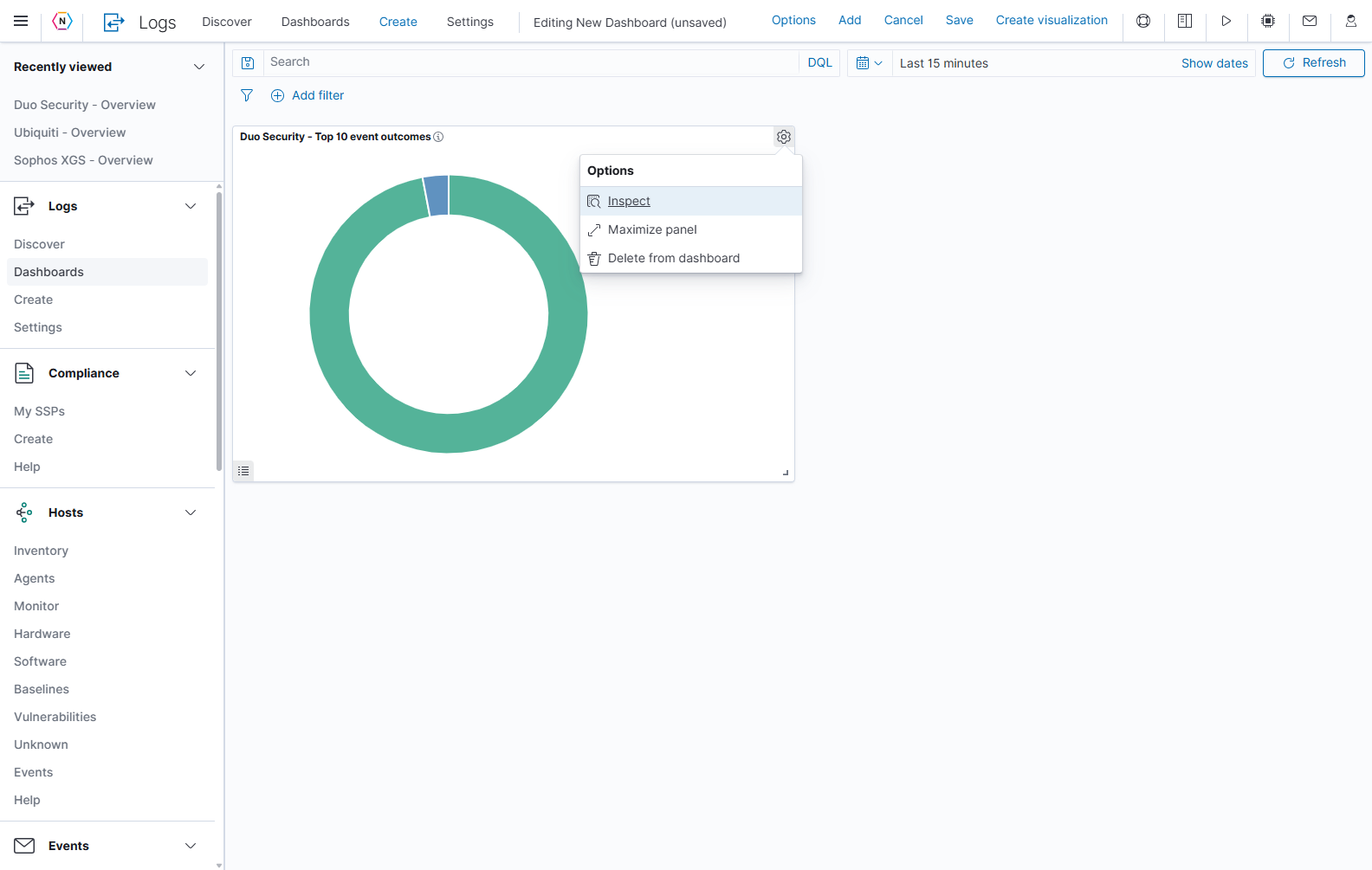
Move the pointer over a panel’s header and select its three-dot button. The managed chart shown here offers Inspect and Maximize panel.
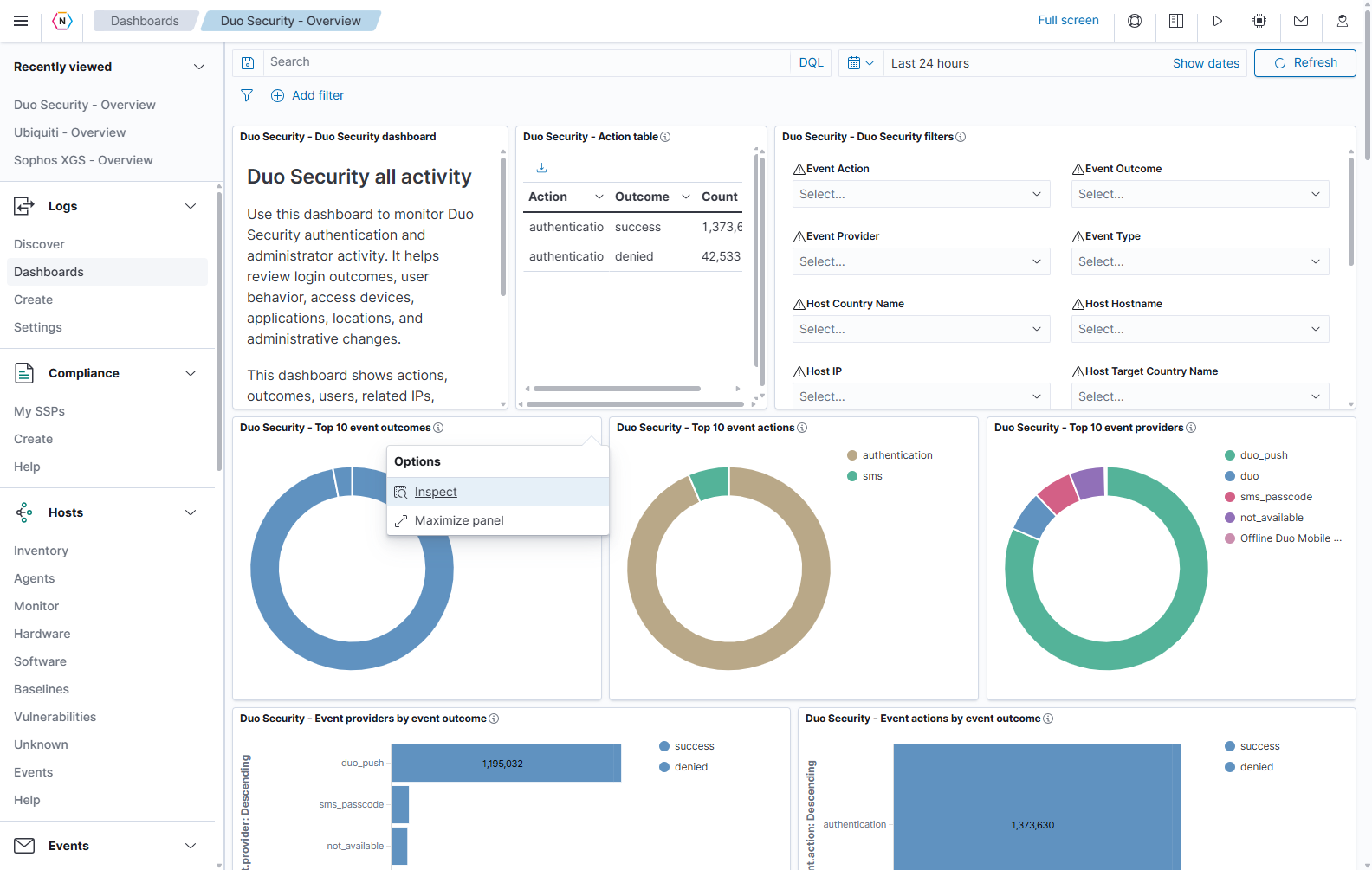
| Action | Result |
|---|---|
| Inspect | Opens the panel’s supporting data or request details, when available. |
| Maximize panel | Enlarges this panel within the dashboard and temporarily hides the other panels. Useful for a wide table, a dense chart, or a controls panel. |
| Minimize, after maximizing | Restores the normal dashboard layout. |
Different panel types can have different menus. A description panel may not have inspectable data. Custom dashboard edit mode can provide additional layout actions.
Inspect a chart and download its values
Use Inspect when you need the numbers behind a chart or want to understand how it obtained its results.
- Set the dashboard query, filters, and time range you want to examine.
- Open the chart’s three-dot menu and select Inspect.
- Check the inspector title to confirm you opened the correct panel.
- Use View: Data to read the chart’s result table.
- Select Download CSV, then choose Formatted CSV or Raw CSV.
- Close the inspector with the × at its upper right.
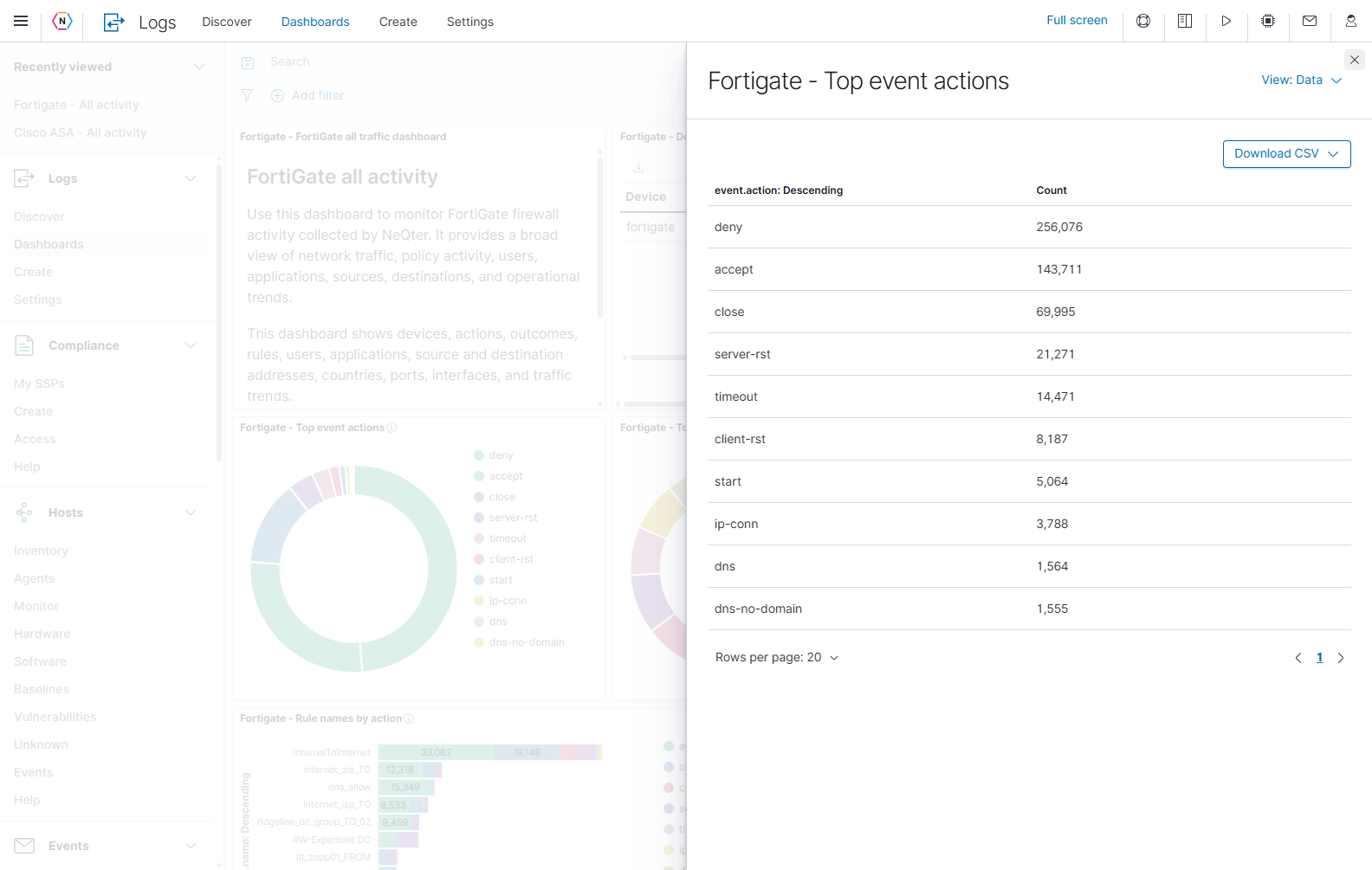
| Inspector control | Purpose |
|---|---|
| View: Data | Shows the table used by the panel. |
| View: Requests, when available | Shows the requests that collected the data. Use Statistics for request measurements, Request for the submitted query, and Response for the returned result. |
| Rows per page | Changes how many inspected table rows are shown on each page. |
| Previous/next arrows and page number | Move between pages of inspected results. |
| Download CSV | Opens the available export formats for the inspected table. |
| × at the upper right | Closes Inspect and returns to the dashboard. |
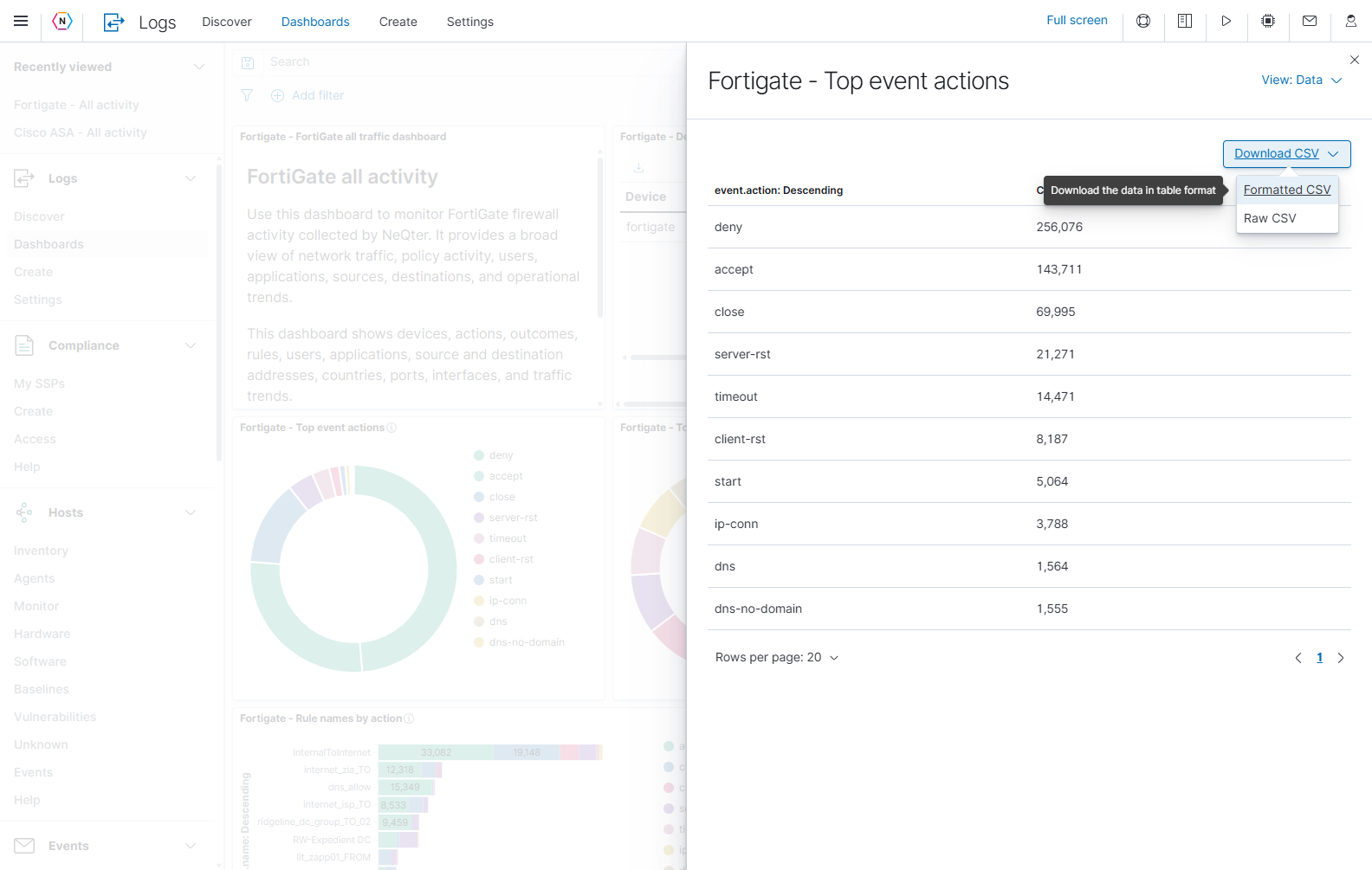
| Export format | What the file contains |
|---|---|
| Formatted CSV | Values formatted as they appear in the table. Use this when you want readable labels and display values. |
| Raw CSV | Underlying values before display formatting, such as timestamps instead of formatted dates. Use this when another tool needs the original value representation. |
For this chart, the CSV contains event-action categories and their counts. A chart-data CSV is an export of the panel’s result table. To review or export individual log events, use Discover with the corresponding source, time range, query, and filters.
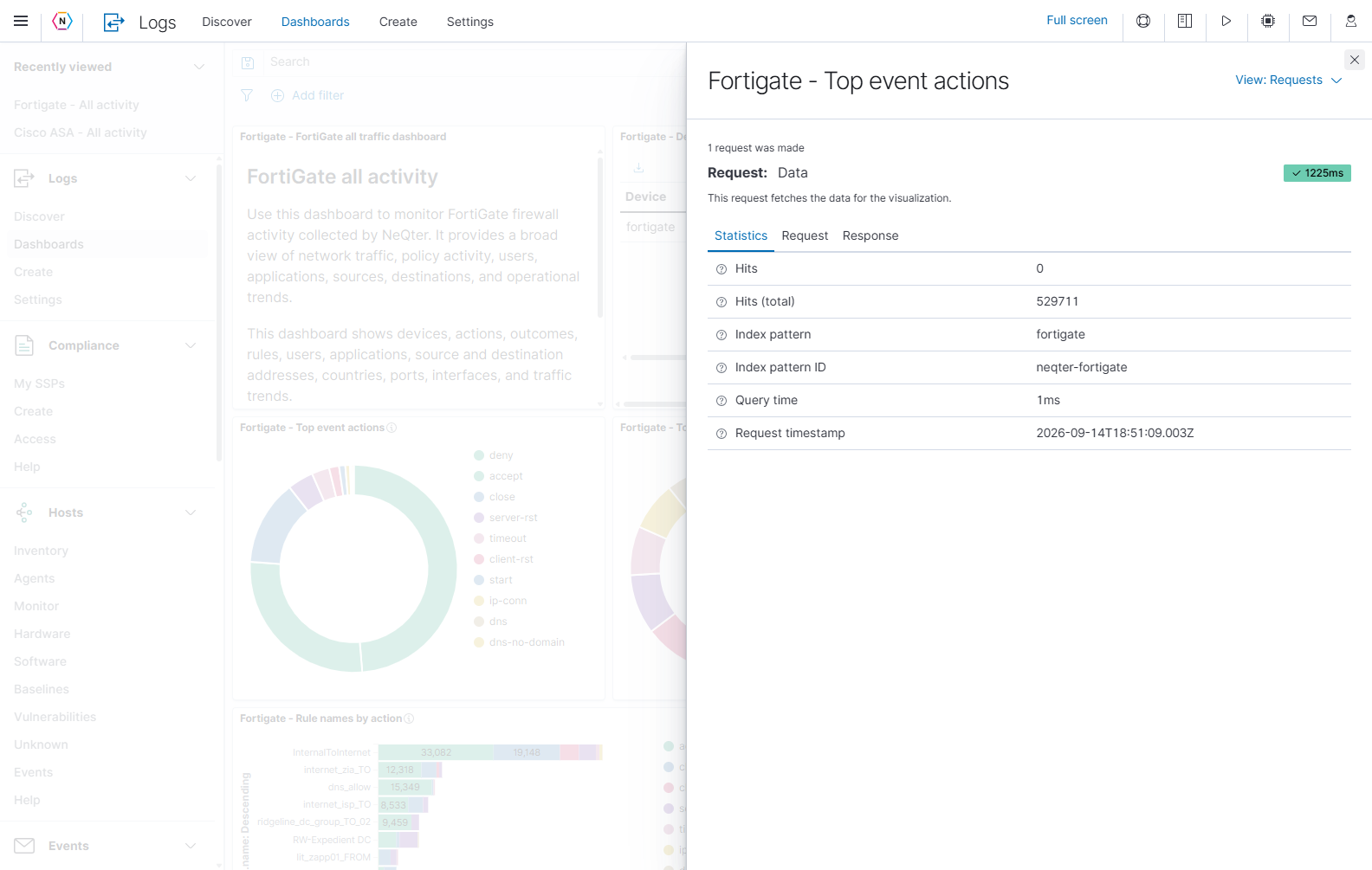
Statistics includes the index pattern, query time, request timestamp, and hit information. Use these details to check which source was queried and when. Request shows what the panel asked for; Response shows what the search service returned. These are useful when troubleshooting a particular panel.
Read individual events inside a dashboard
A saved-search panel displays individual events. In the Fortigate example, scroll down to Fortigate - Fortigate all activity. Open its panel menu and choose Maximize panel to make the wide table easier to read.
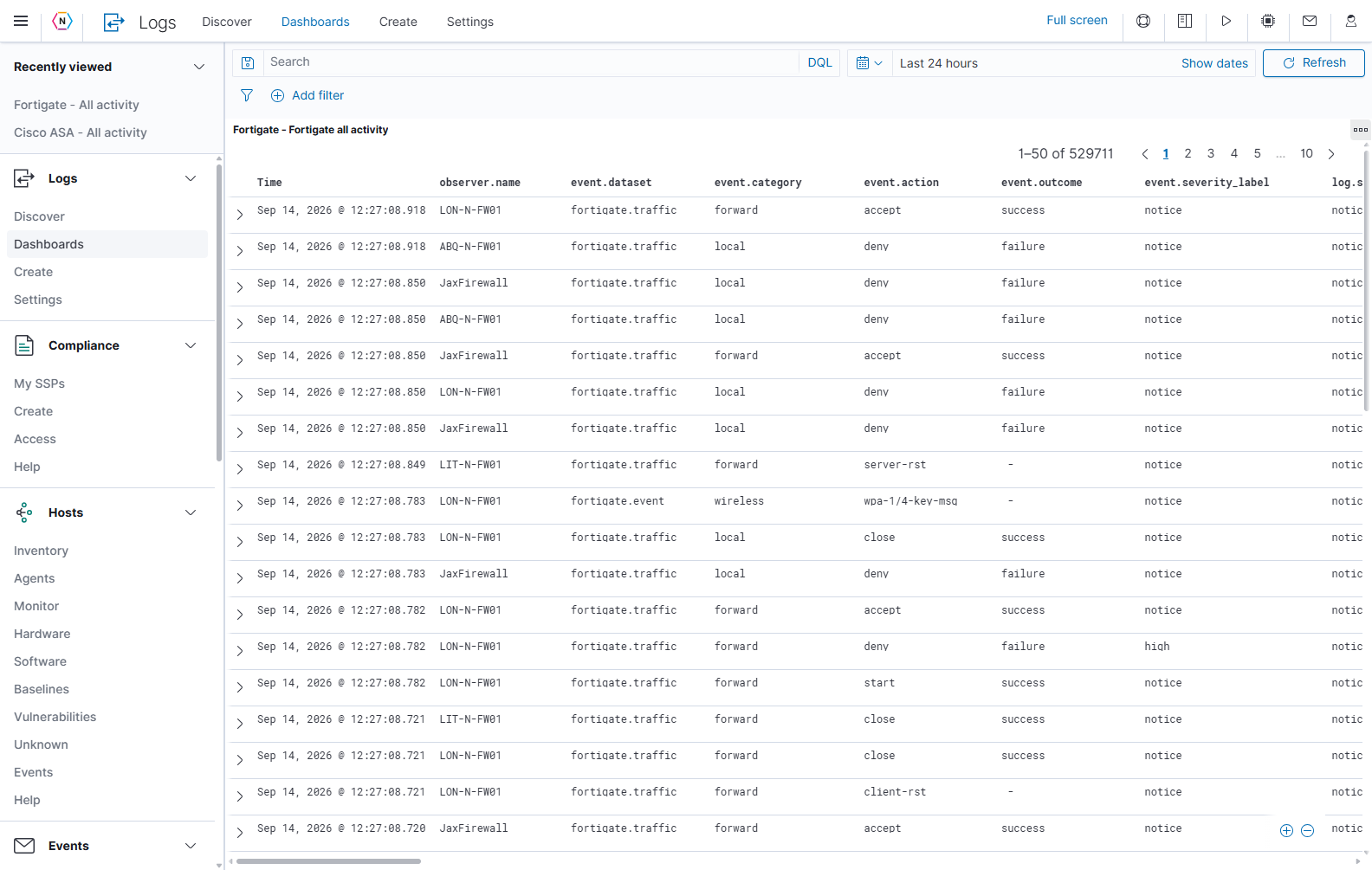
| Control | How to use it |
|---|---|
| Chevron at the left of a row | Expand that event’s details. Select it again to collapse the event. |
| Time | Read the event’s dashboard time field. Other fields can contain different source timestamps. |
| Column sort arrow | Sort using that field when supported. Hover a heading to expose its controls. |
| Column left/right arrows | Move a displayed column left or right when available. |
| Remove-column control | Remove a column from the current table display. It does not remove the field from the event. |
| + / − beside a field value | Include or exclude that value using a dashboard filter. Hover over the value to expose these buttons. |
| Page numbers and previous/next arrows | Browse the table’s available pages. The total matching count can exceed the records available through the displayed pages; narrow the search to find a particular event. |
| Horizontal scrollbar | Read columns beyond the right edge of the panel. |
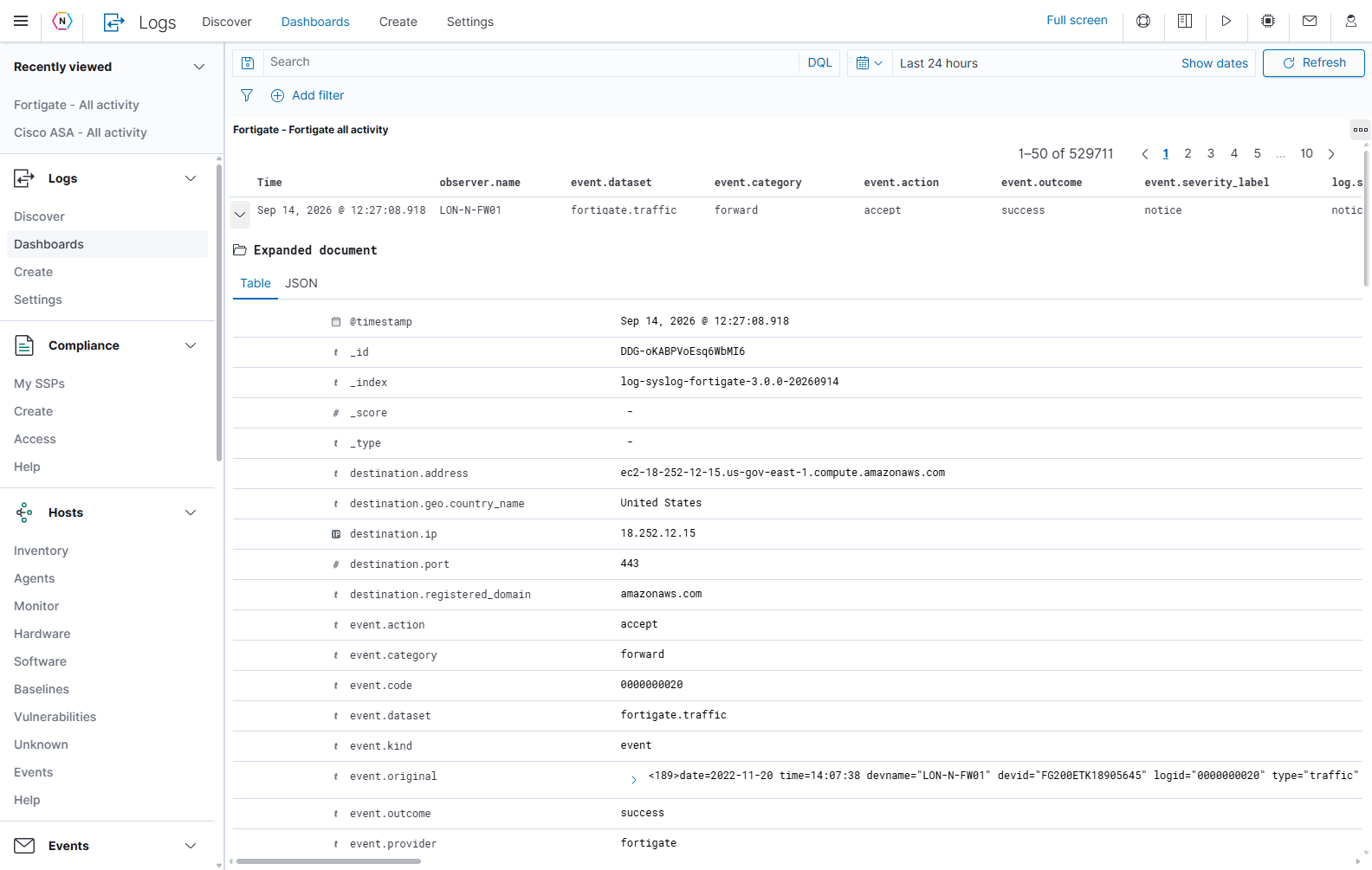
In an expanded record, Table displays field names and values. JSON displays the document’s structured representation and provides a copy control. Field controls can filter for a value, filter out a value, require the field to be present, and toggle whether a field is a table column. Expand long values to read the complete content.
View single document opens that record in a new tab. View surrounding documents opens nearby events for time-based data, which helps reconstruct a sequence. Review the filters in the new view: context browsing handles filters differently from the dashboard. See the Discover guide for detailed record and context controls.
Use Full screen or maximize a panel
Select Full screen at the top of an opened dashboard to give its panels more room. Select Exit full screen at the lower left, or press Esc, to restore the surrounding application navigation.
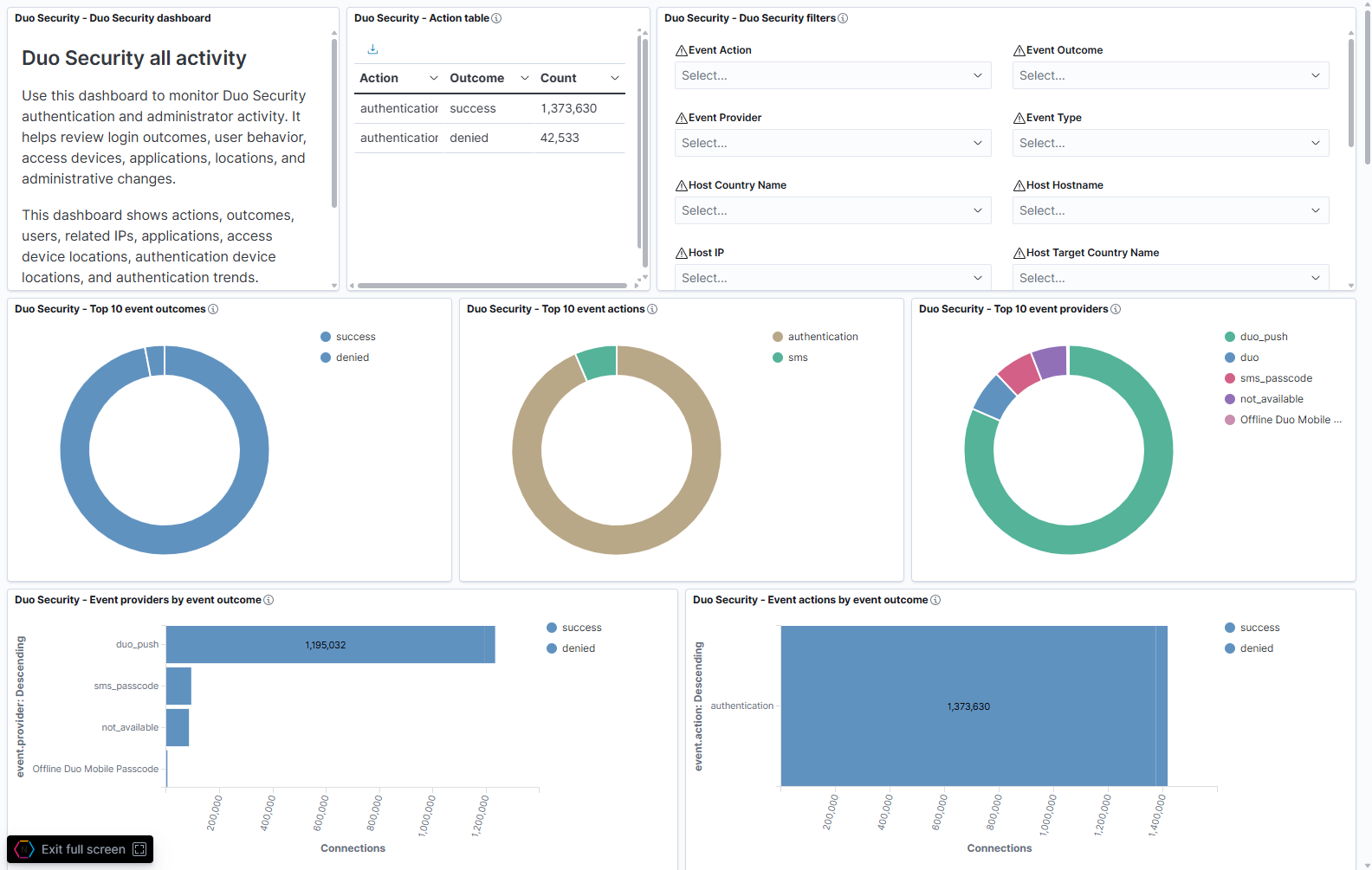
To focus on one chart or table, use its three-dot menu and select Maximize panel. Open that panel’s menu again and select Minimize to return to the complete dashboard. Enlarging the view does not change the query, time range, or underlying records.
Create your own dashboard
Use a custom dashboard to collect the charts and saved searches you need for a recurring review. From the Dashboards list, select Create Dashboard, or select Create in the Logs navigation.
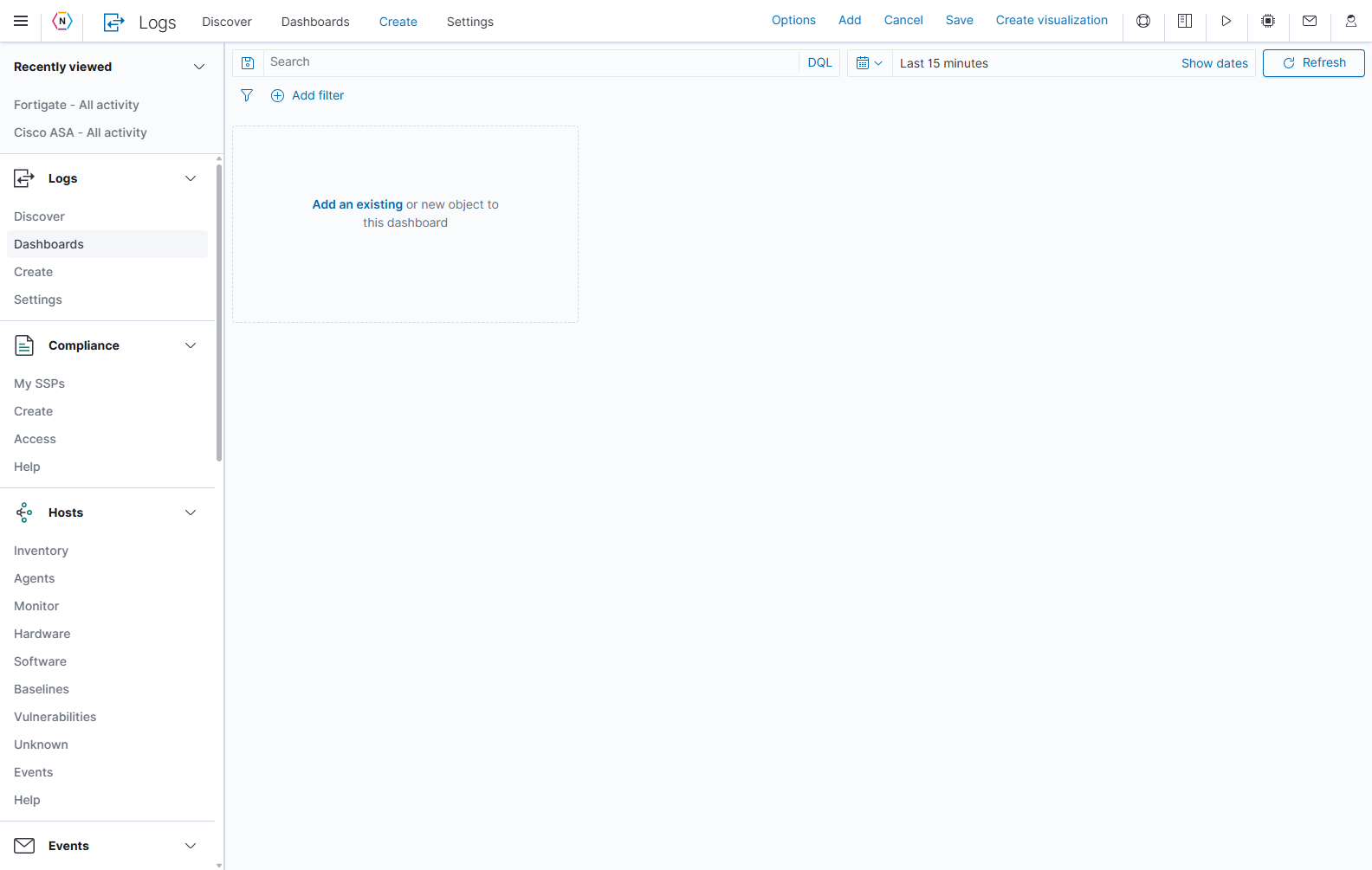
| Creation or editing control | Purpose |
|---|---|
| Add | Find existing visualizations and saved searches to place on the dashboard. |
| Create visualization | Build a new saved visualization from an index pattern or saved search. |
| Options | Set spacing between panels and whether their titles appear. |
| Save | Open the dashboard save dialog. |
| Cancel | Leave editing; if there are unsaved changes, choose whether to discard them or continue editing. |
| Edit, on an editable saved custom dashboard | Enter the mode for changing its panels and layout. Managed dashboards have different available controls. |
Add existing panels
- Select Add to open Add panels.
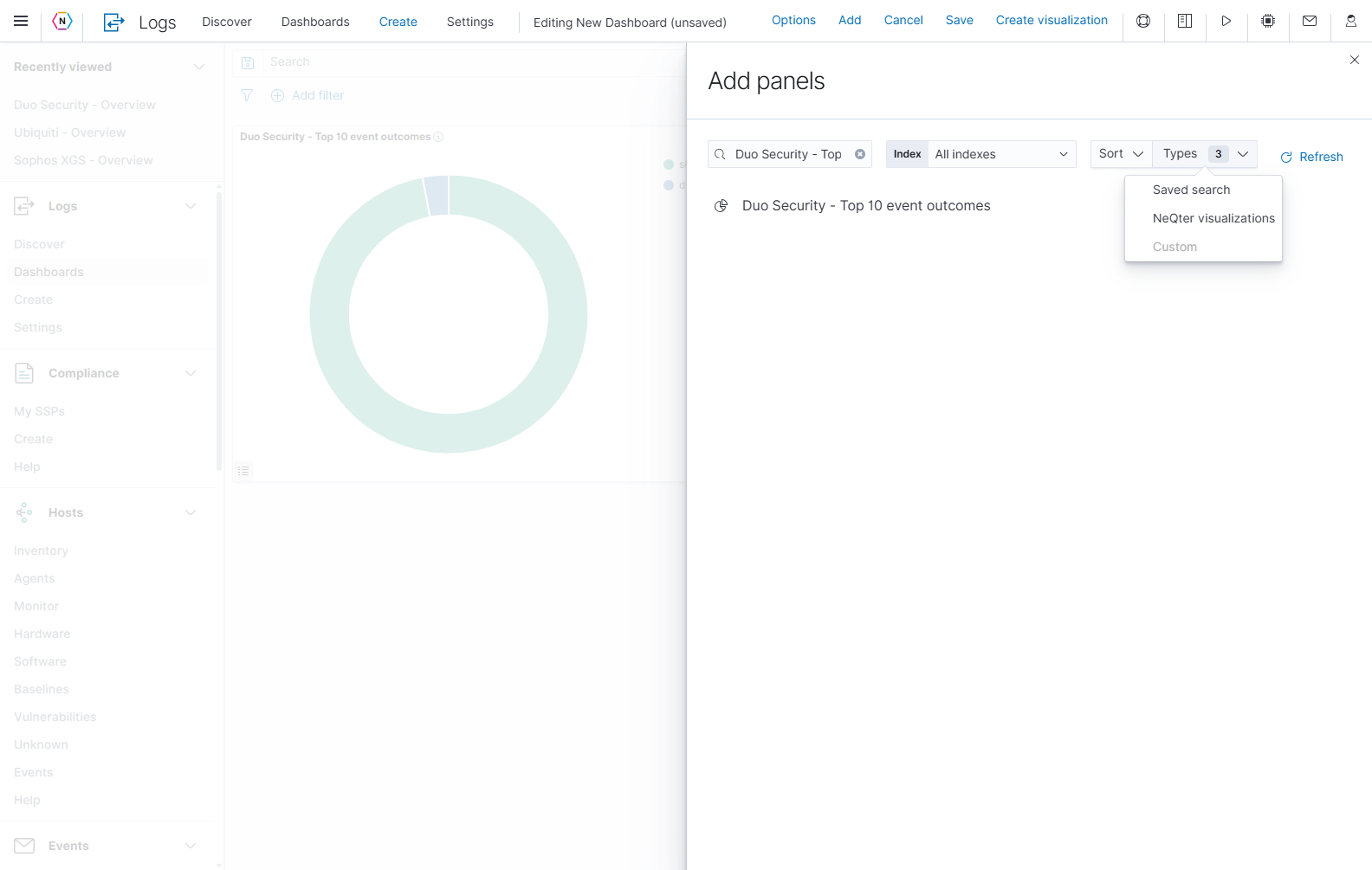
- Enter part of a panel title in Search…, such as
Duo Security - Top 10 event outcomes. - Use Index, Types, and Sort to narrow or reorder the results.
- Select the + beside the desired panel. A confirmation appears and the panel is added to the canvas.
- Add any other panels you need, then close the flyout with its upper-right ×.
- Set the dashboard time range and confirm that the panels show the expected data.
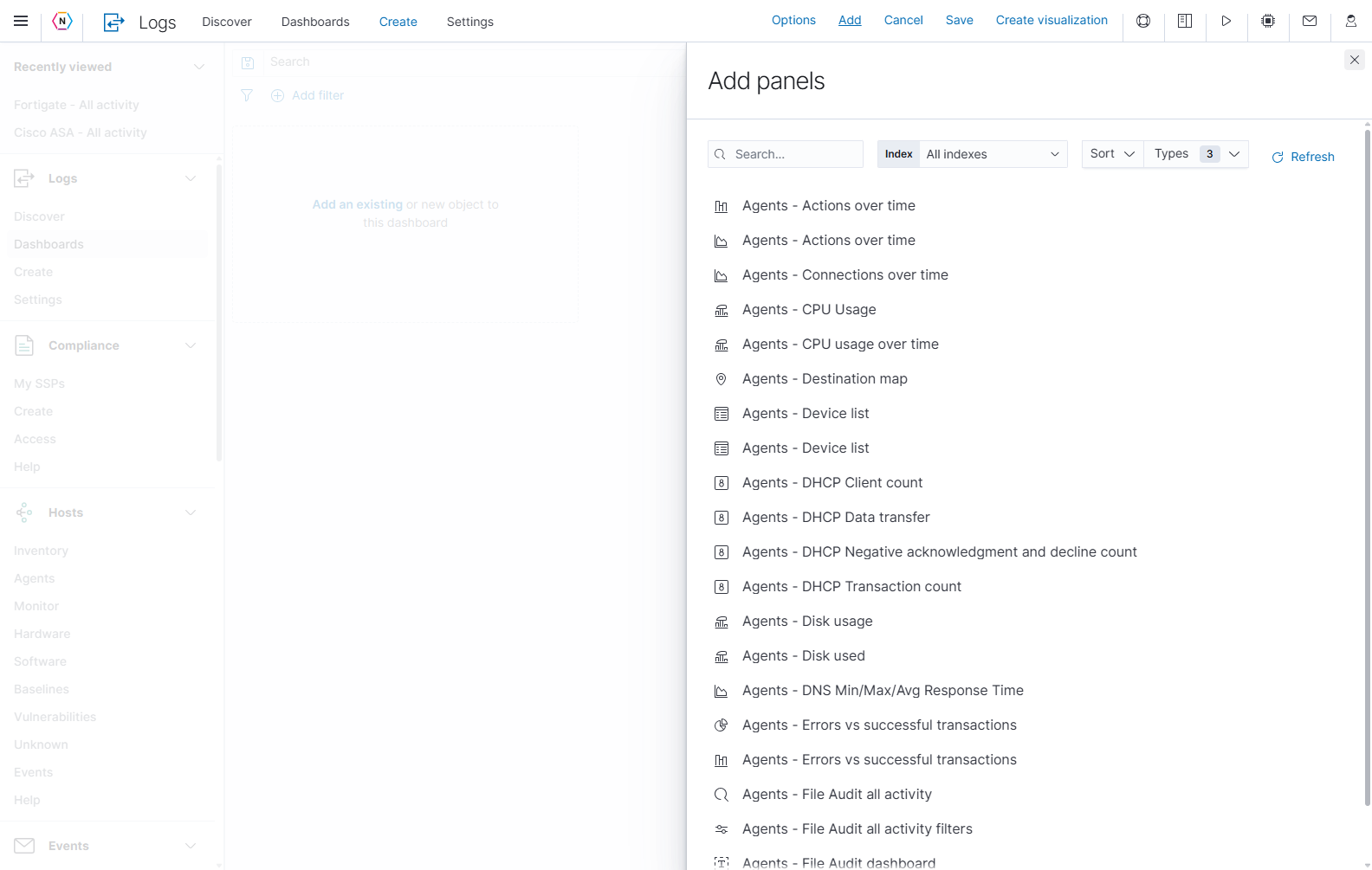
| Add panels control | What it does |
|---|---|
| Search… | Filters available panel titles as you type. |
| Index / All indexes | Limits the list to the chosen source or shows all sources. This chooses which panels are listed; it does not change the source of a panel already on the dashboard. |
| Sort | Orders titles ascending or descending. |
| Types | Filters the list to Saved search, NeQter visualizations, or Custom. Unavailable choices can be gray. |
| Refresh | Reloads the available panel list, useful after creating a visualization. |
| + beside a panel | Adds that item to the current dashboard layout. |
| Rows per page, numbers, and arrows | Control the number of listed items and browse result pages. |
| Upper-right × | Closes the panel picker. Panels you added remain on the unsaved canvas. |
Arrange panels and set display options
In edit mode, drag a panel by its header to reposition it. Drag its resize handle at the lower-right corner to change its size. Give wide activity tables enough space to read their columns, and group related charts together.
Select Options to change the dashboard’s display settings.
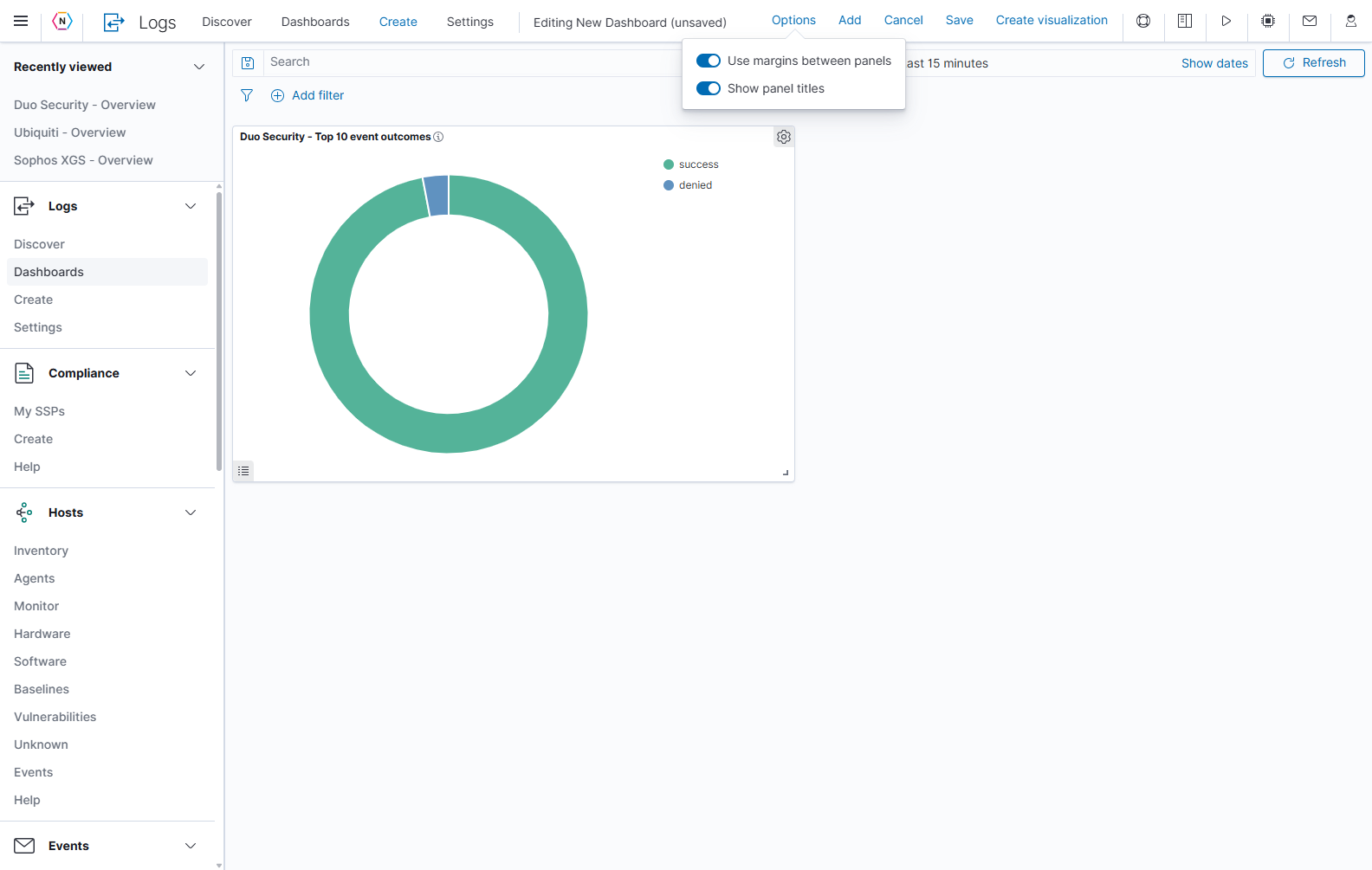
| Option | Effect |
|---|---|
| Use margins between panels | Adds or removes the spacing between neighboring panels. |
| Show panel titles | Shows or hides panel title bars. Keeping titles visible helps readers understand each chart. |
The panel menu also changes in edit mode. Delete from dashboard removes that panel from this layout. The saved visualization or search remains available to add again, and its underlying events remain intact. Save the dashboard to retain the layout change.
Create a visualization
Select Create visualization to open the builder. It provides a preview so you can check your choice of source, chart type, and fields before creating the saved item.
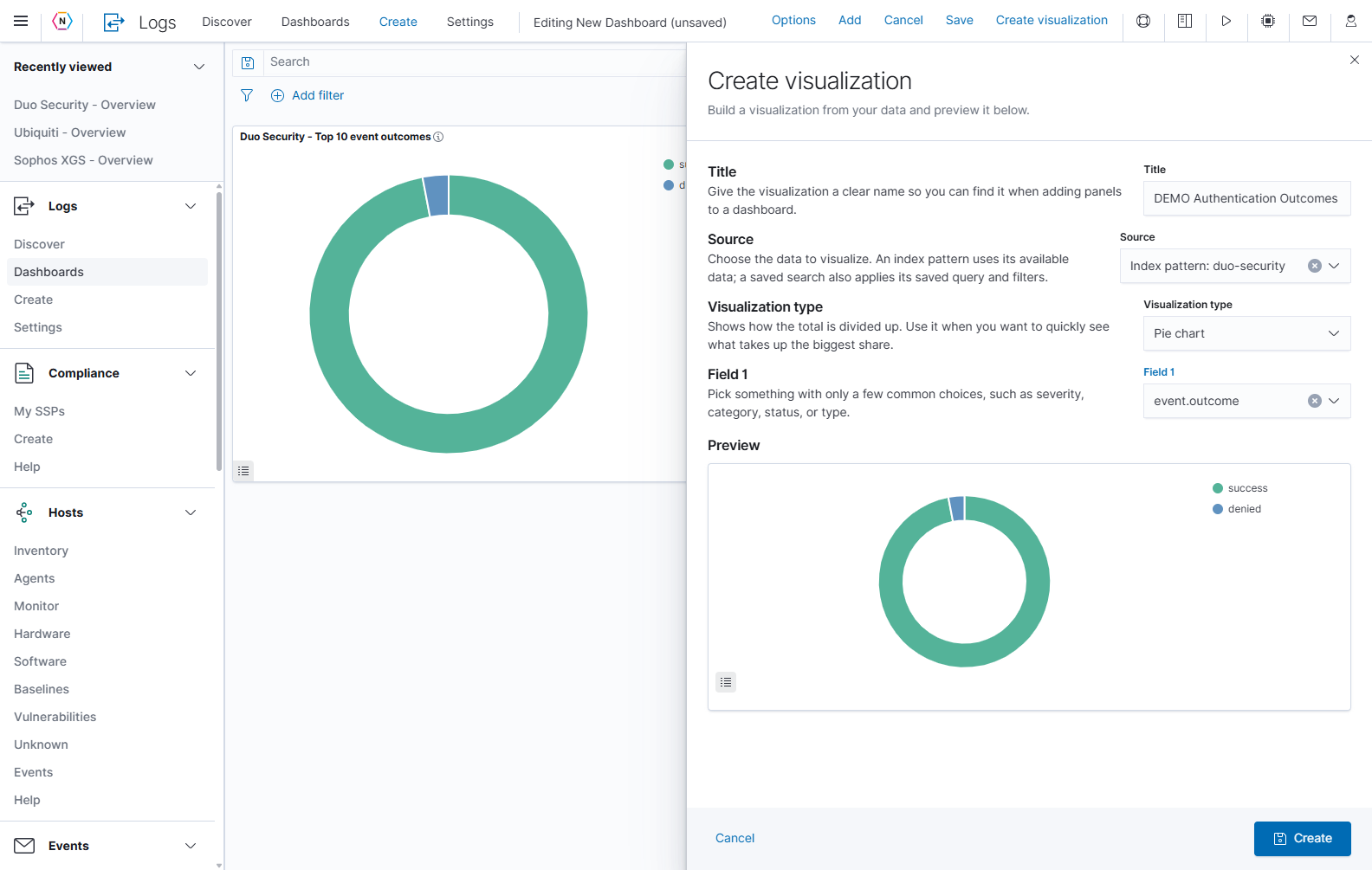
- Enter a descriptive Title, such as
DEMO Authentication Outcomes. - Choose Source. An Index pattern selects a data source; a Saved search also supplies its saved query and filters.
- Choose Visualization type using the table below.
- Choose Field 1 and, for Bar split, Field 2. Search the selectors to find the fields.
- Review Preview to confirm the categories and values make sense.
- Select Create to save the visualization, or Cancel to leave the builder without creating it.
- Use Add to find the saved visualization and add it to your dashboard. Refresh the panel list if necessary.
| Visualization type | What to use it for | Fields |
|---|---|---|
| Bar histogram | See activity over time, grouped by a selected field. | Choose one field to group the events. |
| Bar split | Compare groups and divide each group into a second category. | Choose a first grouping field and a second split field. |
| Count table | Read categories and their event counts as rows. | Choose one grouping field. |
| Pie chart | Compare the share of events in each category. | Choose one field with a manageable number of categories. |
| Overlapping area | Compare changing activity across categories over time. | Choose one grouping field. |
The builder offers fields that can be used for these calculations. A field visible in an individual event may not be available for grouping. For example, a long free-text message is often less useful than an action, severity, or device-name field.
The builder previews the last 24 hours. After adding the visualization, check it again using the dashboard’s selected time range. Bar histogram and Overlapping area use @timestamp for the time axis; Field 1 groups the events.
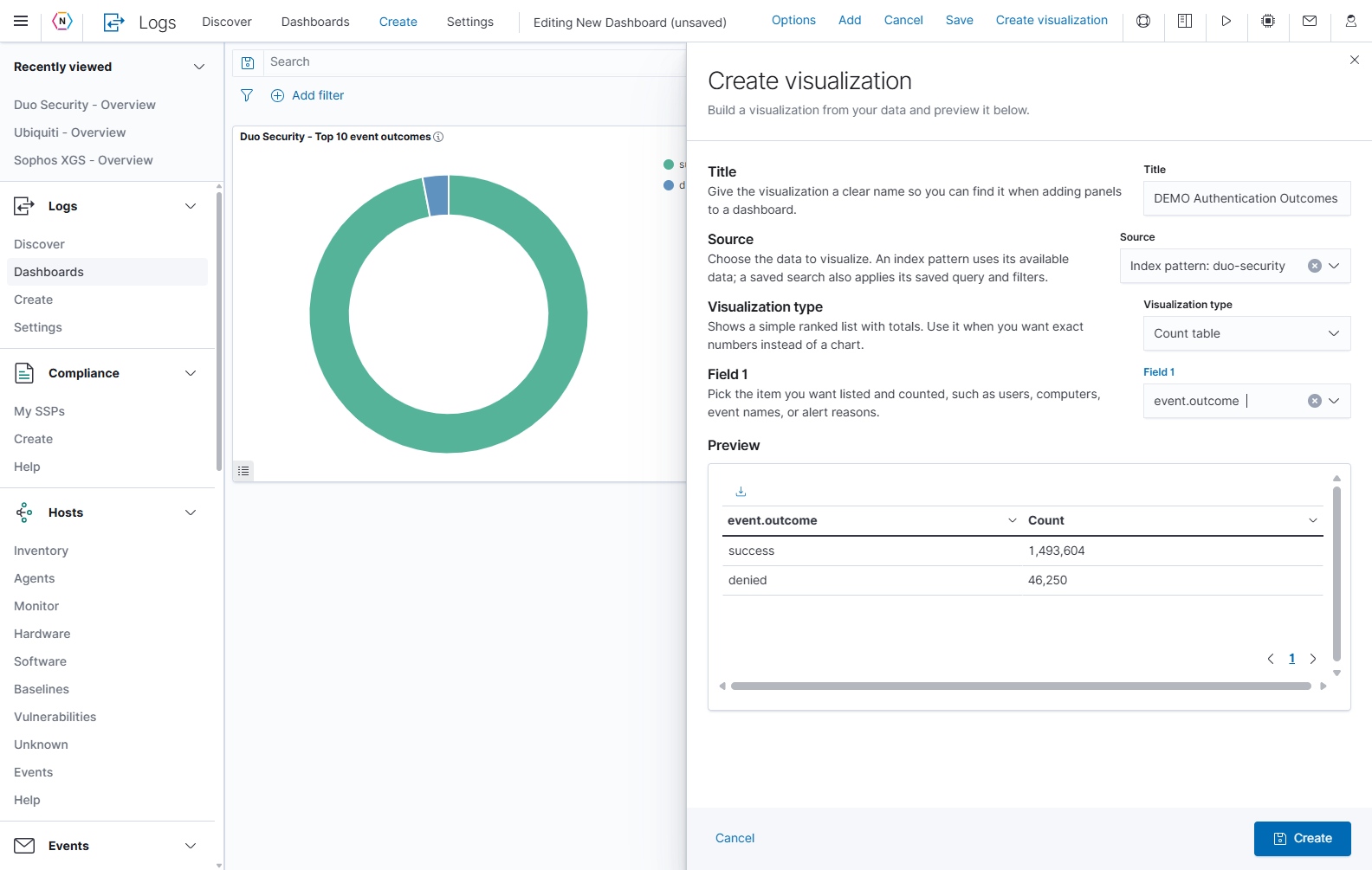
Creating a visualization saves an item that can be reused in dashboards. Saving the dashboard is a separate step that retains the selection and arrangement of its panels.
Save, reopen, or discard a dashboard
Select Save in the top toolbar after adding and arranging your panels.
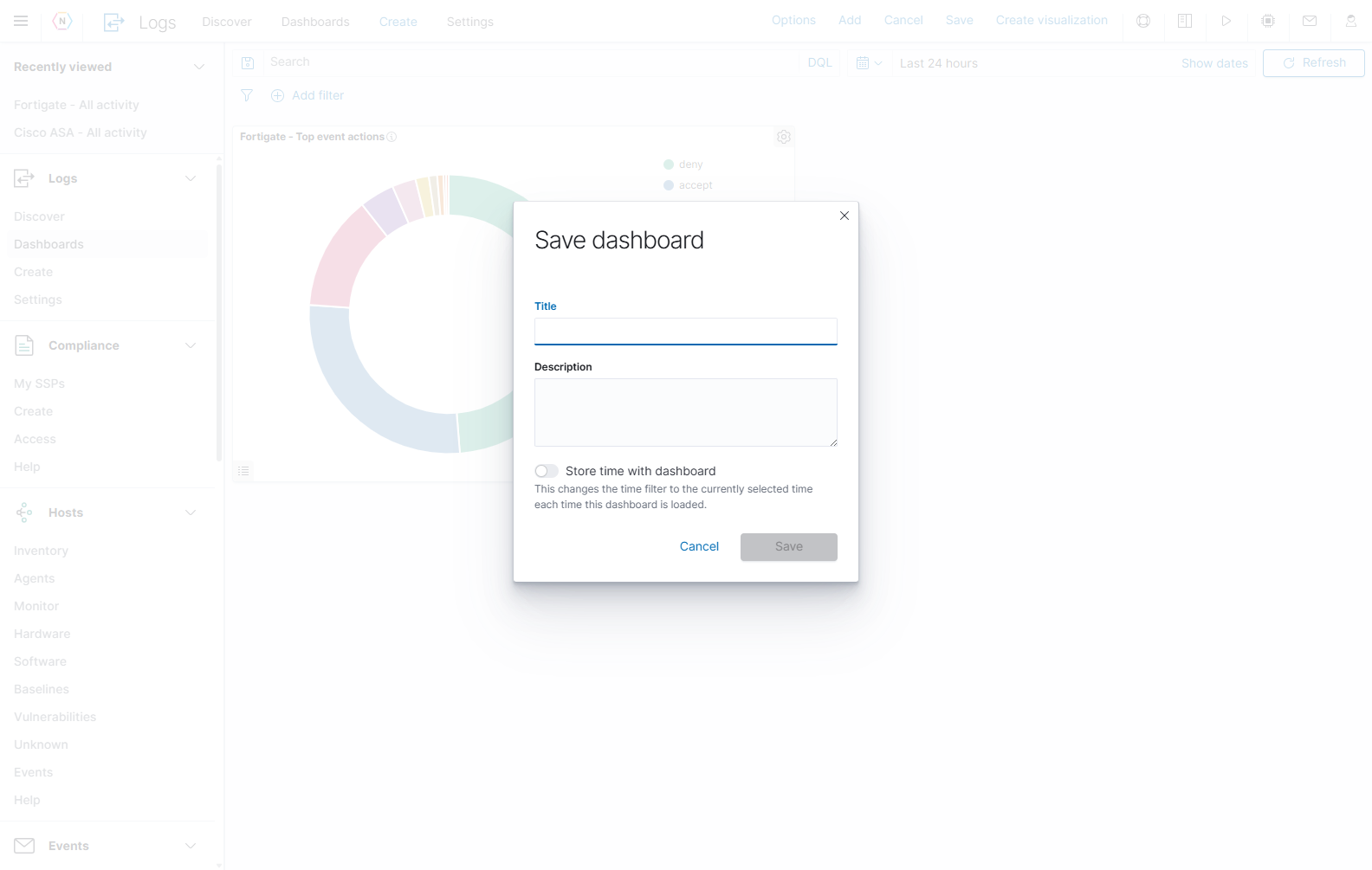
| Save dialog control | How to use it |
|---|---|
| Title | Enter the name that will appear in the Dashboards list. It is required. |
| Description | Explain what the dashboard covers and when to use it. |
| Store time with dashboard | Save the current time range and refresh settings so they are restored when the dashboard is opened. A relative range remains relative; use fixed dates for a fixed incident interval. |
| Save as new dashboard, when saving an existing custom dashboard | Save a separate dashboard instead of replacing the opened definition. Give the copy a distinct title. |
| Save | Persist the dashboard’s title, description, panels, layout, query, and dashboard filters. Pinned filters are not stored as dashboard filters. |
| Cancel in the save dialog | Close the dialog and return to the current editing session. |
To use a saved dashboard later, return to Dashboards, search for its title, and open it. Check the time range and filters when reopening it, especially if you saved a fixed incident range. For an editable custom dashboard, select Edit, make the change, and save again.
If you select the toolbar’s Cancel while there are unsaved changes, the confirmation offers two choices.
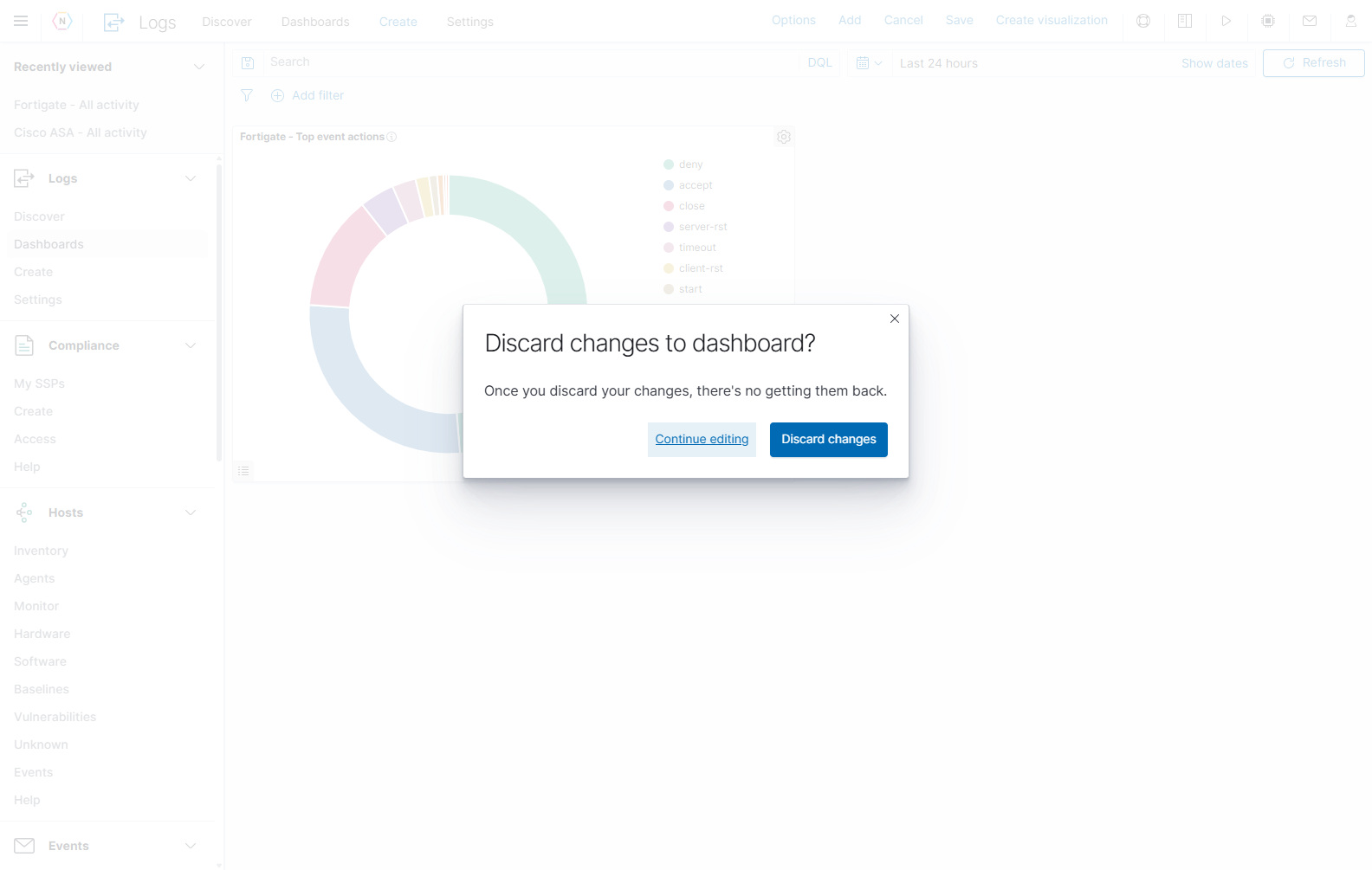
Continue editing returns to the unsaved dashboard. Discard changes abandons those edits. Closing the visualization builder with Cancel, canceling the save dialog, and discarding dashboard changes act on different parts of the workflow.
To remove a saved custom dashboard, select its eligible checkbox in the Dashboards list, use the deletion action, and review the confirmation before completing it. Managed NeQter dashboards have disabled selection checkboxes. Dashboard deletion removes the saved dashboard definition; it does not erase indexed logs.
Share a dashboard link
Use Share in the dashboard toolbar to open Share this dashboard, then select Permalinks.
- Set the query, filters, and time range you want the recipient to review.
- Select Share → Permalinks.
- Under Generate the link as, choose Snapshot to encode the current dashboard state in the URL, or Saved object to link to the saved dashboard.
- Select Copy link and use the copied link where needed.
A Snapshot link preserves the dashboard state in the URL, so later edits to the saved dashboard are not reflected in it. It does not freeze the underlying log data; use an absolute time range for a specific investigation. A Saved object link opens the saved dashboard. The recipient still needs access to the NeQter appliance and the relevant data. Embed code provides a separate option for embedding the dashboard.
Access reports from Dashboards
The play-shaped Reports button in the top-right application header opens On demand report. This is the system’s report chooser. Read each report’s description and select the report that answers your question.
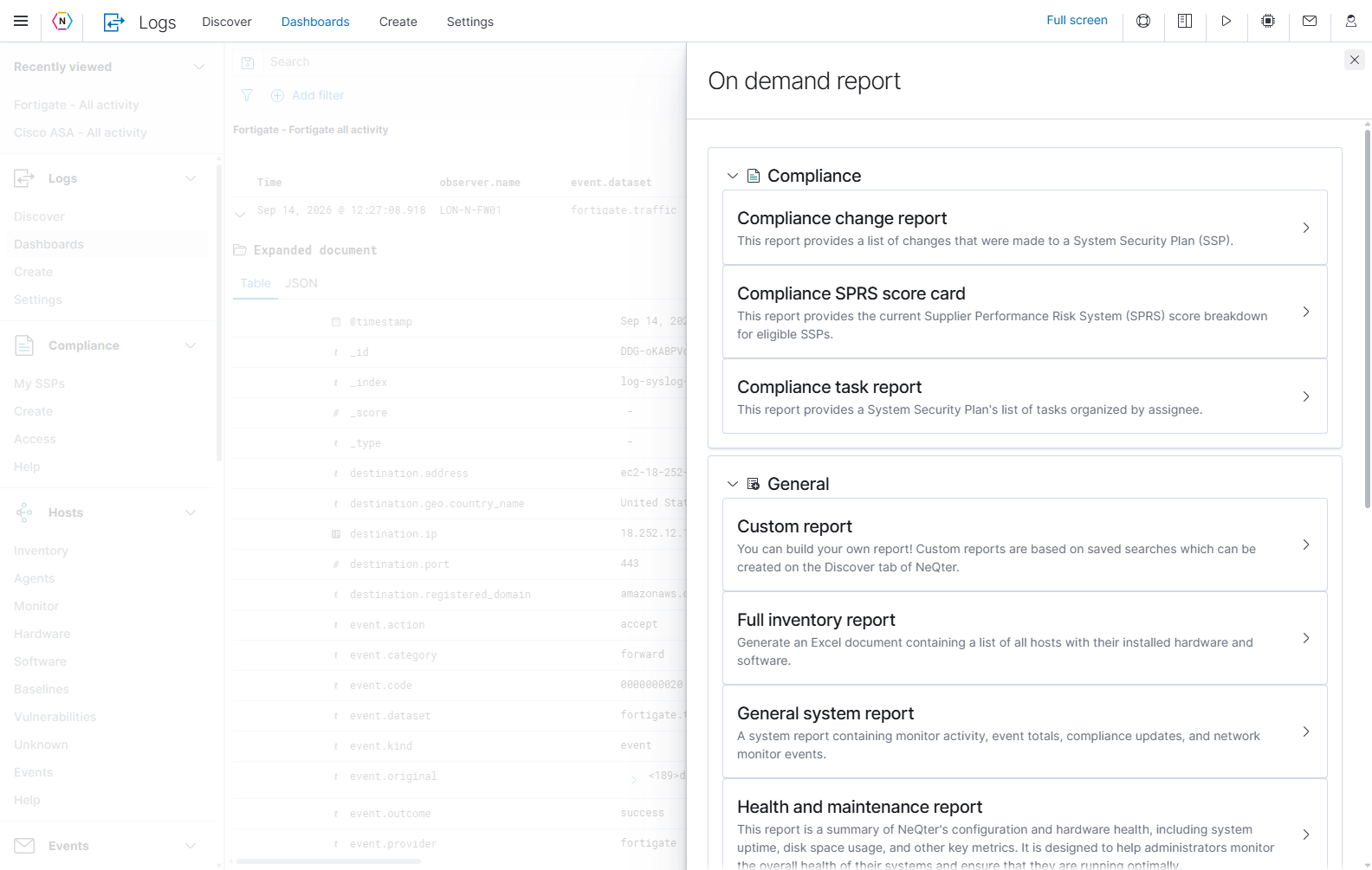
For a report based on selected log records, prepare and save the search in Discover, then use Custom report. Unique value report groups saved-search results by a chosen field and exports counts. The report chooser also includes inventory, system, compliance, and vulnerability reports according to availability. Use the upper-right × to close it.
For values from a single chart, use that panel’s Inspect → Download CSV. For a dashboard presentation on screen, use Full screen.
Troubleshooting
| What you see | What to check |
|---|---|
| A dashboard is missing from the list | Clear the list search. Confirm permissions, then check both Enable index and the dashboard’s checkbox in Logs → Settings. Select Apply changes after changing the choices. |
| Every data panel is empty | Check the time range, query, active filter pills, pinned filters, and applied control selections. Confirm the source is collecting events in Discover. |
| Only one panel is empty | Check its title and purpose. It may need fields or event types that are absent from the selected data, even while other panels contain results. |
| The result still looks like the previous search | Apply pending changes with Update or the controls panel’s Apply changes, then use Refresh. |
| A controls drop-down has no choices | Check the selected source’s data, time range, and other filters. The field may not occur in the matching events. Hover any warning icon for its explanation. |
| A filter control warns that its terms list may be incomplete | The list request may have taken too long. Narrow the time range and retry, or use Add filter with a known field value. Do not treat an incomplete list as proof that the value has no events. |
| A chart shows one category after a click | Look for a newly added filter pill. Remove it or temporarily disable it to compare the broader result. |
| Counts differ from Discover | Match the source, time range, query, and filters. Check whether the panel uses a saved condition, counts a particular field, or displays only its top categories. Refresh both views. |
| A chart changes color | A legend color may have been selected. Read the labels and values; a color change does not change the matching events. |
| Only one large panel is visible | Open its menu and select Minimize. |
| Navigation is hidden | Leave Full screen to restore the normal application layout. |
| The list’s Last updated timestamp is recent but charts are empty | Last updated describes the dashboard definition. Verify recent log arrival separately in Discover. |
| A country value is missing or unexpected | Country fields depend on address enrichment. Private addresses, proxies, VPNs, and missing enrichment can limit geographic results. |
For more detail on network-agent dashboards, see the Packetbeat Dashboard Guide.