
Network Configuration
Open Settings > Network to review the appliance’s domain and detected network interfaces. Interface names depend on the appliance; the example system uses ens18. Use the addressing assigned to your appliance, not the values in the screenshots.
Changing network settings
Have the intended IP address, CIDR prefix, gateway, and DNS server addresses ready before editing. A change to the interface used for your browser connection can interrupt access, so retain console access while changing management addressing.
- Select the tab for the interface you want to configure.
- Review or enter the fields described below.
- Select Apply changes at the bottom of the interface panel.
- Follow the redirect prompt if the management address changes, then confirm that you can sign in at the new address.
Changes remain pending until you apply them. Moving to another interface or Settings page discards unapplied edits. Network equipment may take up to a minute to recognize an address change.
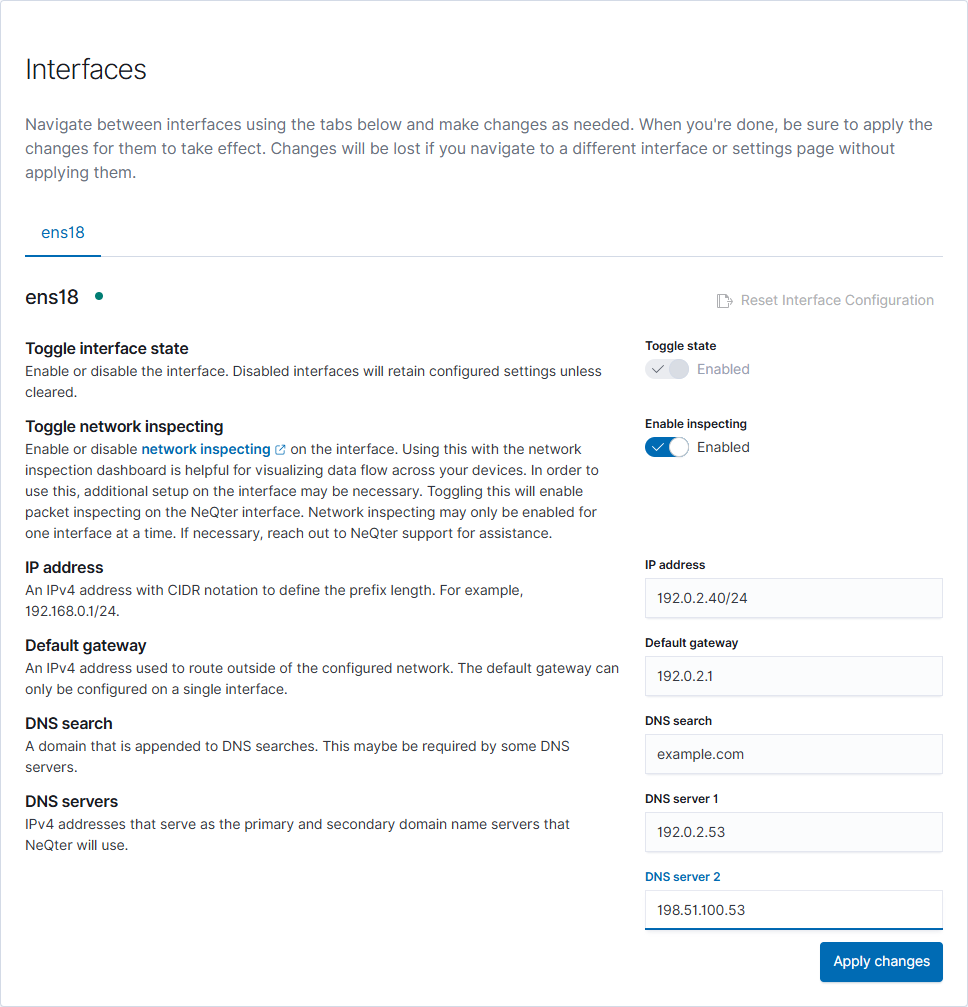
| Field or control | Purpose |
|---|---|
| IP address | Static IPv4 address with a CIDR prefix, such as 192.168.10.20/24. |
| Default gateway | IPv4 address used to reach other networks. Only one interface can have a default gateway. |
| DNS search | Optional suffix appended to DNS searches. |
| DNS server 1 / DNS server 2 | Primary and secondary DNS server IPv4 addresses. |
| Toggle state | Enables or disables the selected interface when applied. The current management interface cannot be disabled here. |
| Enable inspecting | Enables packet inspection when applied. Only one enabled interface can inspect at a time; additional network configuration may be needed. |
| Apply changes | Validates and applies the selected interface’s pending configuration. |
| Reset Interface Configuration | Immediately clears and disables an eligible interface. It is unavailable for the interface currently used to access NeQter. |
If another interface already has the default gateway, remove that gateway and apply the change before assigning a gateway to the new interface. Packet inspection is optional and is separate from receiving logs through configured inputs.
Configure the domain name
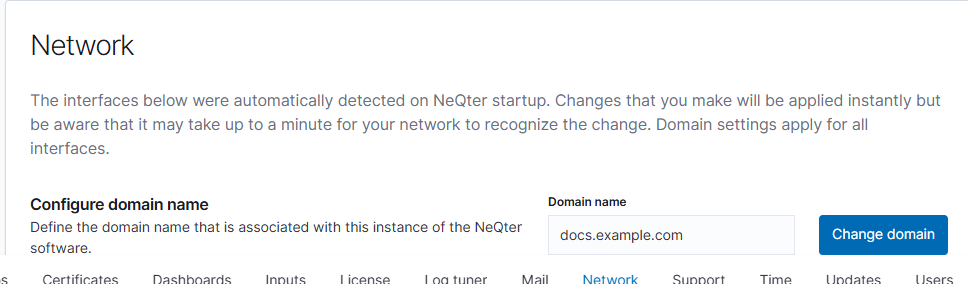
In Configure domain name, enter the appliance’s domain and select Change domain. This setting applies to all interfaces and is separate from an interface’s DNS search suffix. The button becomes available after you change the domain to a valid value.
After setup, confirm browser access and that the configured log sources can reach the appliance. Continue with Backups or see the Network settings reference for more detail.