
Alert and Template Guide
A monitor evaluates a saved search and creates an event when its condition matches. An alert configuration chooses which events to deliver and their email or webhook destinations. This guide covers both steps, including starting a monitor from a template.
The screenshots show example draft values. Replace fictional names, recipients, and endpoints with values for your environment. For a monitor built from your own saved search, follow the Create a Monitor Guide.
Start from a monitor template
- Open Events → Monitoring.
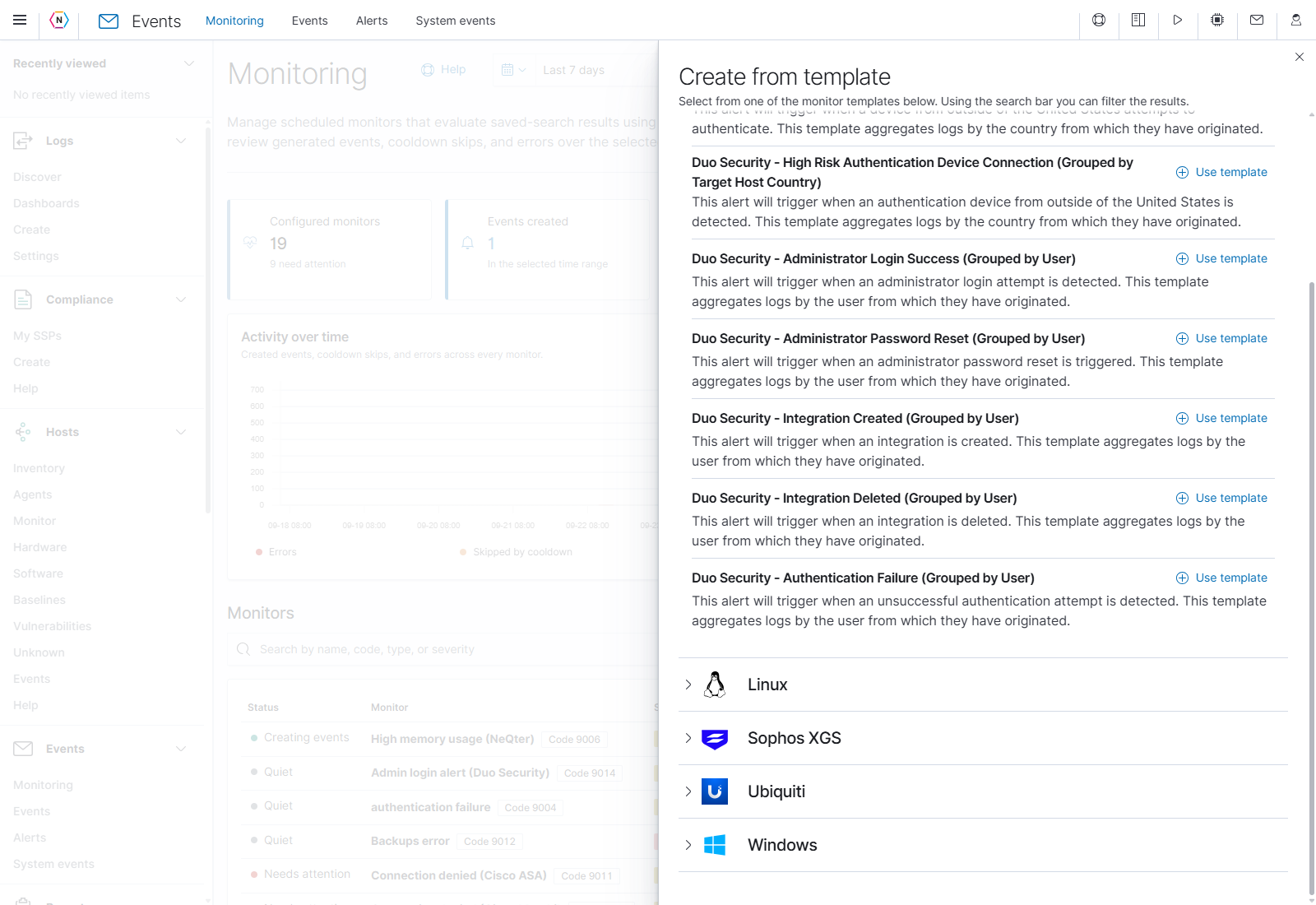
- Select Start from a template. The Create from template panel groups available templates by data source.
- Expand a source, read a template’s description, and select its Use template button. The example below uses Duo Security - Authentication Failure (Grouped by User).
- Review the New monitor draft. Set a recognizable Name and Description, then check Severity and Time window. The time window is the lookback evaluated on each run.
- Under Matching, confirm the Saved search exists and selects the intended records. A template can open with No saved search; choose an available saved search before continuing. For the failure template, the corresponding search is Duo Security - Duo Security Failed Authentication.
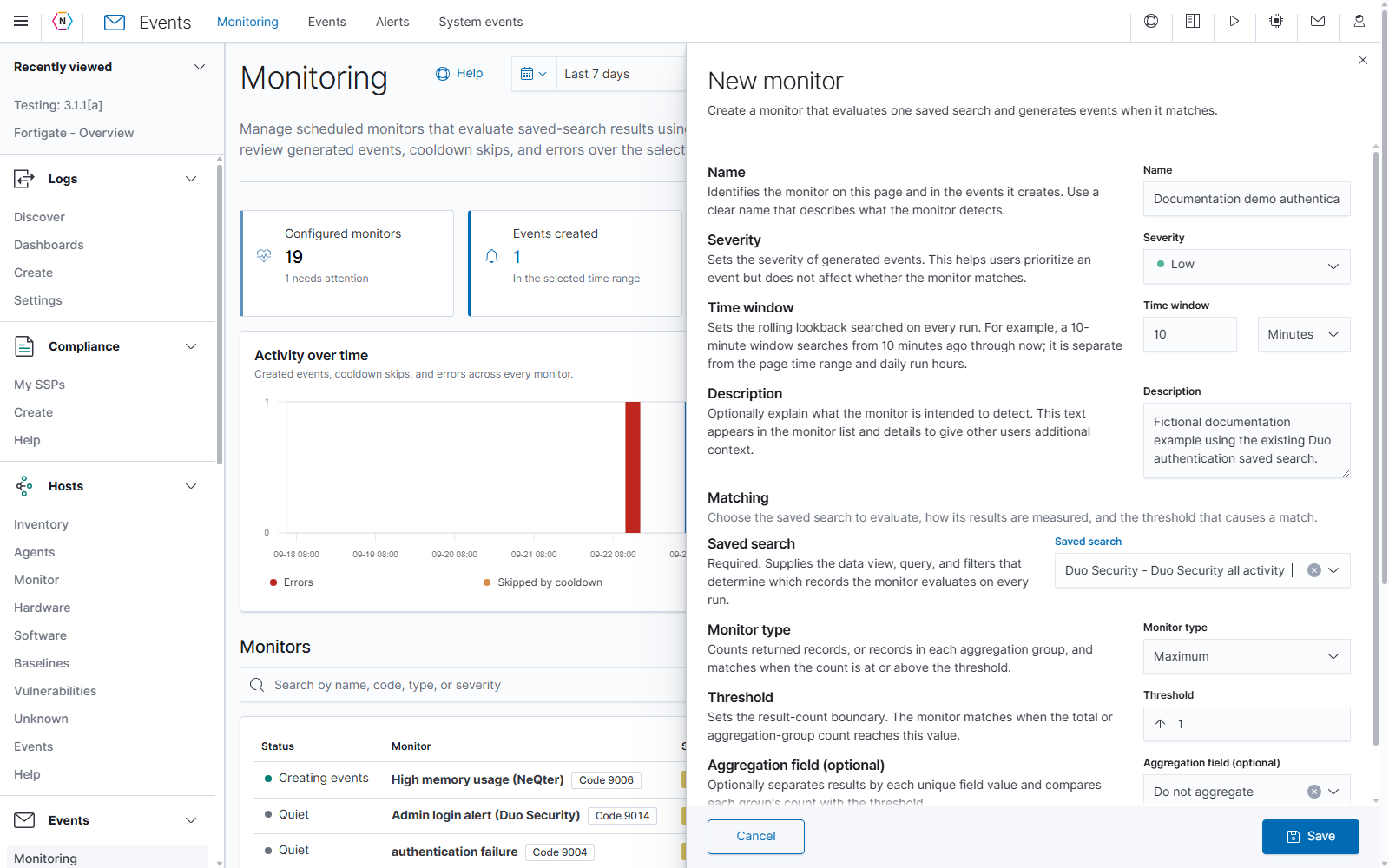
- Review Monitor type, Threshold, and Aggregation field. To evaluate failed attempts separately for each user, choose an available user field, such as
user.name. Set Max count to suit the expected number of groups. - Expand Advanced and review Frequency, daily Time range, Active days, and event timing. Monitor scheduling explains these controls.
- Select Save to create the monitor. Return to its row and note the assigned event code. Cancel discards the draft.
If the saved search is missing, open it in Discover and confirm its data view is available. If the selector contains only No saved search even though searches exist, resolve the unavailable search or data view before saving the monitor.
Create the delivery rule
Open Events → Alerts, then select Create alert configuration. Creating a monitor and choosing recipients are separate steps.
Matching by Event Code(s)
Use this method to deliver events with specific event codes, such as the code assigned to a monitor. Select one or more codes to include the events you want this rule to deliver.
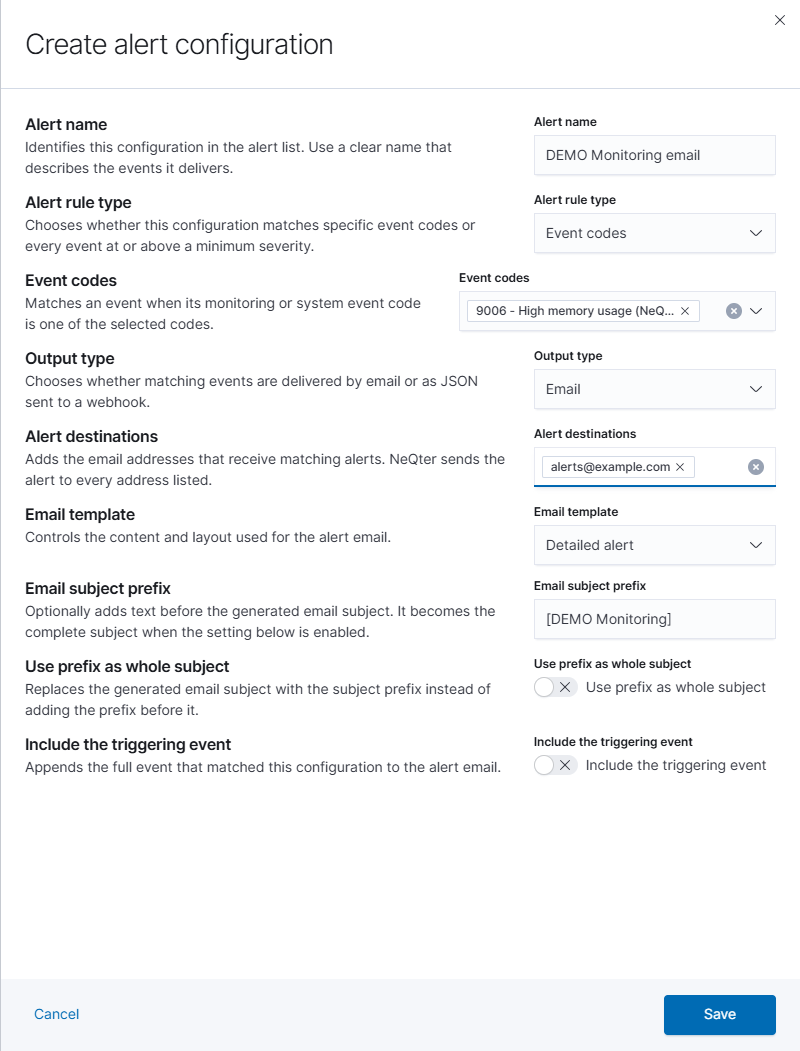
- Enter an Alert name, such as
DEMO Monitoring email. - Set Alert rule type to Event codes. Select the code assigned to the monitor or monitors you would like to receive an alert for; you can select more than one code and the alert will trigger when any of the selected monitors has created an event.
- Set Output type to Email.
- In Alert destinations, type a recipient and press Enter to add it. Repeat for additional recipients. Each accepted address appears as a removable item in the field.
- Choose Email template. The example appliance provides Detailed alert.
- Review the subject and event-content options, then select Save to retain the delivery rule. Cancel discards the draft.
| Email option | What it controls |
|---|---|
| Email subject prefix | Adds text before the generated subject. |
| Use prefix as whole subject | Uses the prefix as the complete subject. Enter the desired subject before enabling this option. |
| Include the triggering event | Appends the full event that matched the delivery rule. |
Email delivery uses the appliance’s Mail settings. Confirm outbound mail is configured before relying on email notifications.
Matching by Severity
Use this method to deliver events at or above a minimum severity, including events from multiple monitors and system event types.
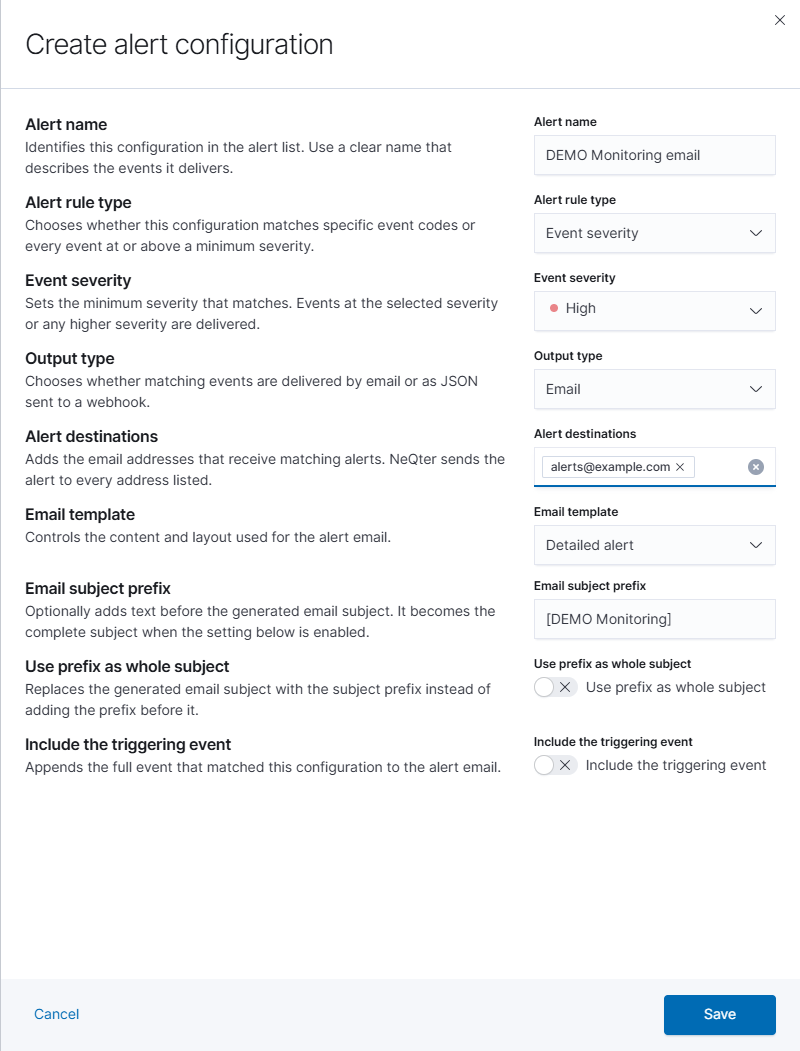
- Enter an Alert name, such as
DEMO High severity email. - Set Alert rule type to Event severity. Select the minimum severity you would like to receive an alert for. For example, High matches High and Critical events; events below High do not match this rule. The alert triggers when an event meets or exceeds the selected severity, regardless of which monitor created it.
- Set Output type to Email.
- In Alert destinations, type a recipient and press Enter to add it. Repeat for additional recipients. Each accepted address appears as a removable item in the field.
- Choose Email template. The example appliance provides Detailed alert.
- Review the subject and event-content options, then select Save to retain the delivery rule. Cancel discards the draft.
Deliver to a webhook
Choose Webhook as Output type. Enter a destination in Webhook destinations and press Enter to add it. Matching events are sent as JSON to configured endpoints. Use the destination’s × to remove it from the draft.
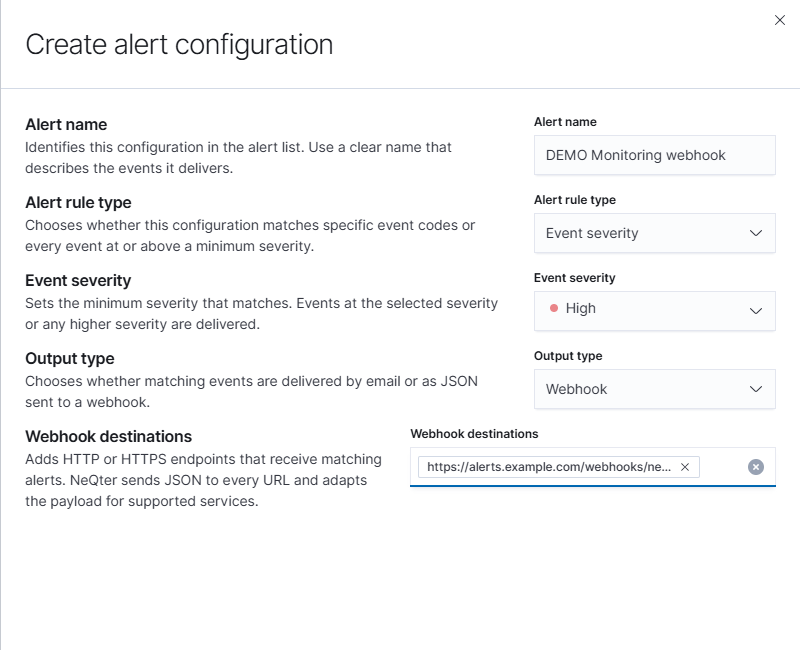
Review destinations after changing output type. Email recipients and webhook endpoints have their own fields.
Verify the complete workflow
After saving a monitor, use its View action in Monitoring to review Status and results, Recent runs, and Monitor errors. In Events → Events, confirm a generated event’s code and severity. Those values must match the alert configuration.
If an event exists but no notification arrives, check the rule’s match fields, output type, and destination. Look for 1904: Alert delivery failed in Events and review its details. Creating a delivery configuration does not itself create a monitor event.
For field-by-field instructions, see Monitoring and Alerts in the Events manual.