
Compliance
Comply, the compliance tool in NeQter, organizes a System Security Plan (SSP), its implementation responses, supporting files, assignments, and follow-up work. Start with the system’s identification and environment, work through its requirements, and use revisions and exports to share saved documentation.
On this pageCollapse sections
- Compliance
- Page map
- My SSPs
- Create a System Security Plan
- Copy and convert SSPs
- SSP overview
- System identification and environment
- System environment
- Requirements and controls
- Rapid entry
- SPRS scoring and implementation
- Manage supporting evidence with Artifacts
- Track work in the POAM
- Preserve an SSP revision
- Export a draft or saved revision
- Change SSP settings and requirement display preferences
- Grant access to an SSP
- Help and reference material
- A repeatable Compliance workflow
Page map
Open Comply → My SSPs from the main navigation. The Comply toolbar across the top provides the following destinations. Access appears in that toolbar for accounts allowed to manage SSP access.
| Destination | Use it to |
|---|---|
| My SSPs | Find and open a plan, or start a create, copy, or convert workflow. |
| Create | Create an SSP using the supported framework choices or an exported template. |
| Access | Review or manage users’ access to individual SSPs. |
| Help | Open framework references and SSP templates. |
After opening an SSP, select the blue nine-dot Open additional menu options button beside the plan name. This opens the SSP navigation shown below. References to the SSP sidebar or menu in this guide use these destinations; they are separate from the main appliance navigation.
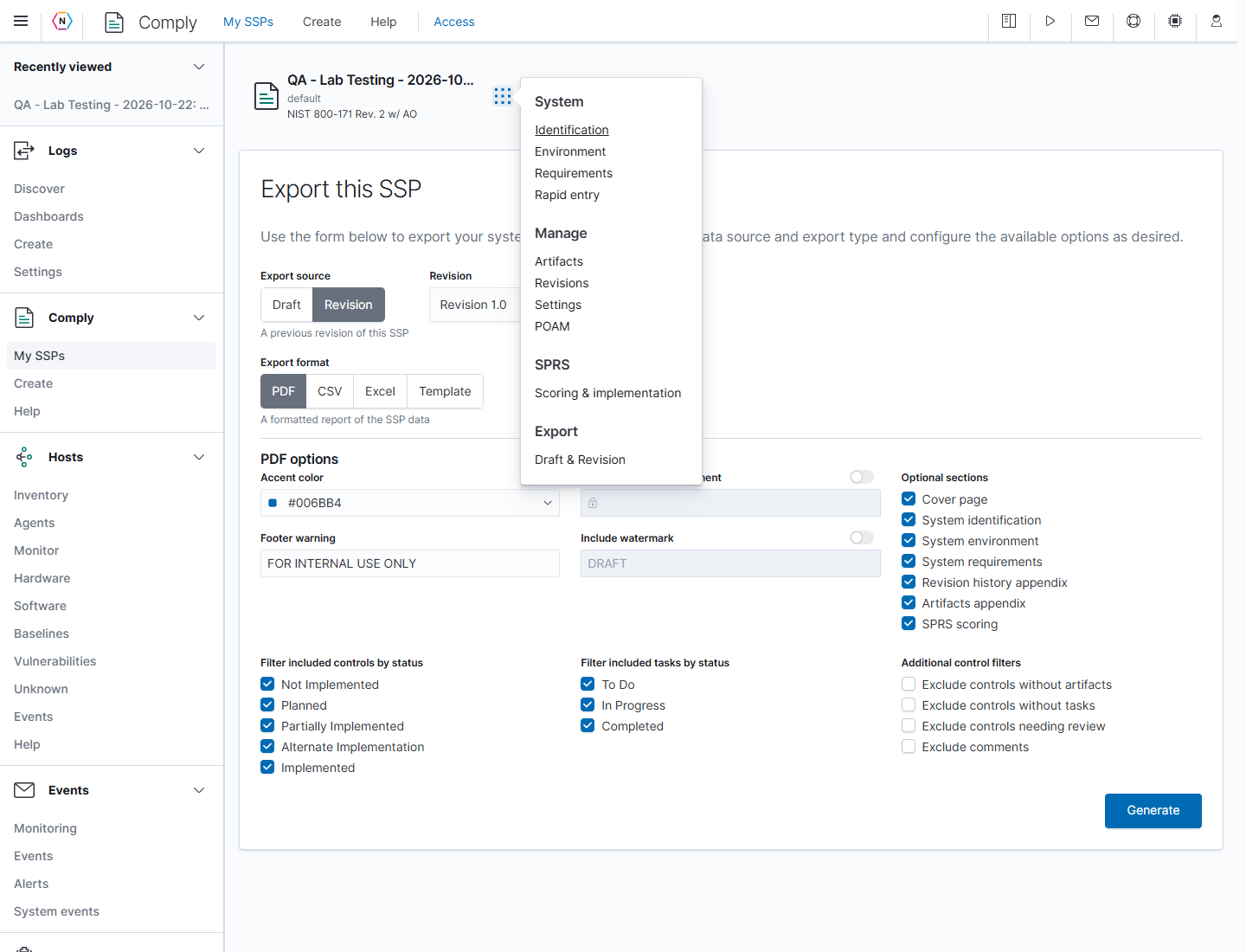
| SSP destination | What it contains |
|---|---|
| SSP name | The overview of this plan, its progress, recent activity, and dates. |
| Identification | System details, responsible organization, stakeholders, user roles, and information types. |
| Environment | Sections describing the system’s topology, facilities, hardware, software, and other relevant context. |
| Requirements | A searchable table of controls and assessment objectives. |
| Rapid entry | An expanded workspace for reviewing and editing multiple objectives. |
| Artifacts | Files held in the SSP and their attachments to controls or environment sections. |
| Revisions | Saved historical snapshots of the SSP. |
| Settings | SSP name and owner, personal section display preferences, and available management actions. |
| POAM | Tasks used to track work and remediation. The application uses this label for its plan of action and milestones workspace. |
| Scoring & implementation | The SPRS calculation and objective breakdown, when supported by the framework. |
| Draft & Revision | Generate an export from the latest saved draft or an existing revision. |
For a first pass through an existing plan:
- Open it from My SSPs and check its framework and owner.
- Complete Identification and Environment, saving each edited section.
- Open Requirements, select a control, and enter its implementation response.
- Set the control’s implementation status, owner, due date, and review state as needed. Attach evidence and add tasks for remaining work.
- Use Rapid entry for batches of edits, then review and save its queued changes.
- Review the overview, tasks, and any applicable score before creating a revision or generating an export.
My SSPs
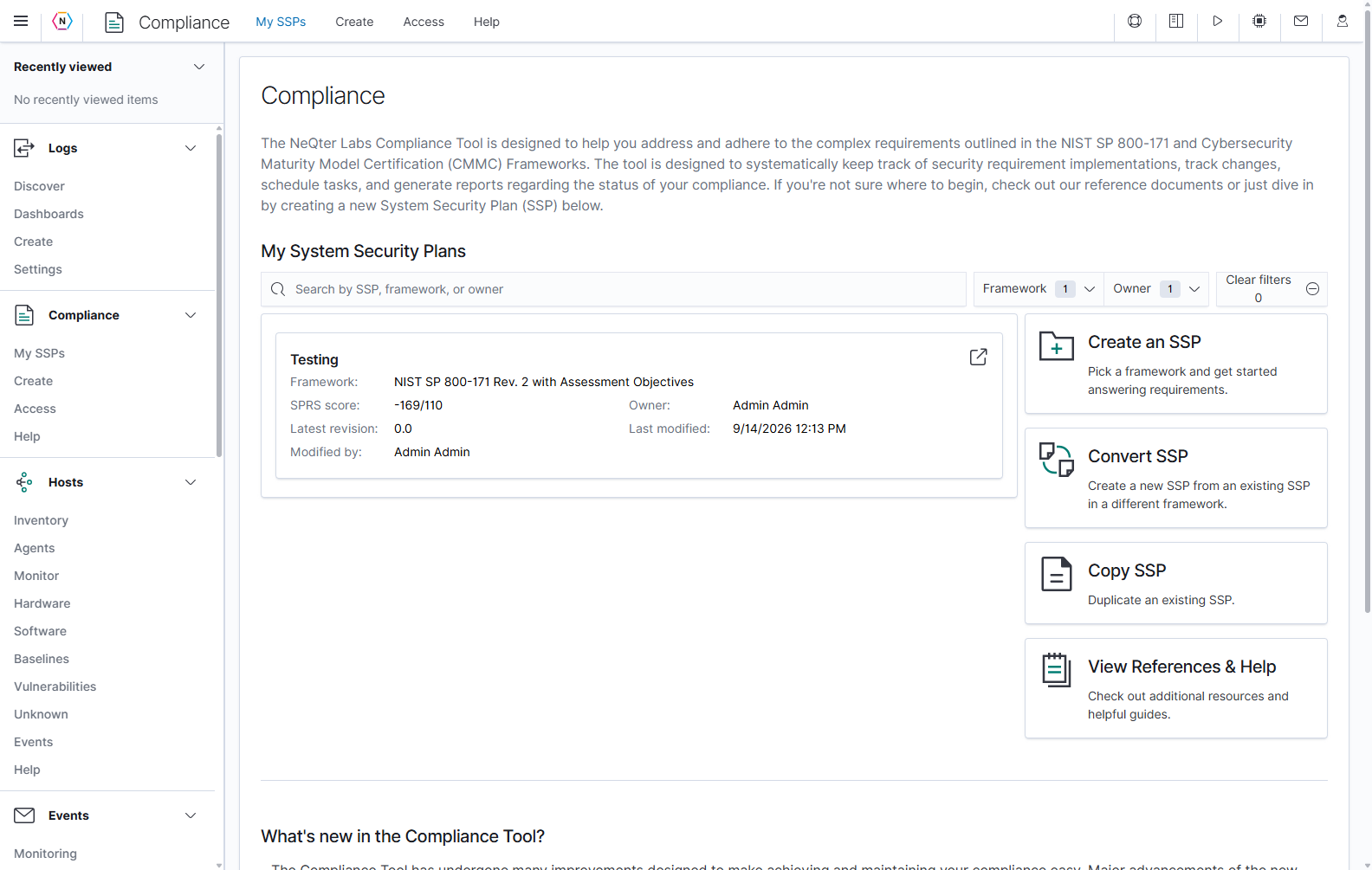
My System Security Plans lists the plans available to the signed-in user. Use the search field to find a plan by SSP name, framework, or owner. Organization names also participate in the search. Framework and Owner narrow the list; an Organization filter can appear when plans belong to multiple organizations. Clear filters clears the search and filter selections.
Each SSP card shows its name, framework, owner, latest revision label, last modification information, and an SPRS score when applicable. Click the plan card’s open control to enter it. Use the actual Revisions list to check whether a saved snapshot exists; a card displaying 0.0 can still have no revisions.
| Home action | Result |
|---|---|
| Create an SSP | Opens the new-plan form. |
| Convert SSP | Starts a new SSP in a different supported framework using an existing plan as the source. |
| Copy SSP | Starts a separate copy of an existing SSP. |
| View References & Help | Opens the framework reference and guidance page. |
Create a System Security Plan
Select Comply → Create, or Create an SSP on My SSPs. Creating a plan requires manager access to its organization. A System Security Plan (SSP) groups the system description, requirements, implementation responses, evidence, tasks, and revision history for one system.
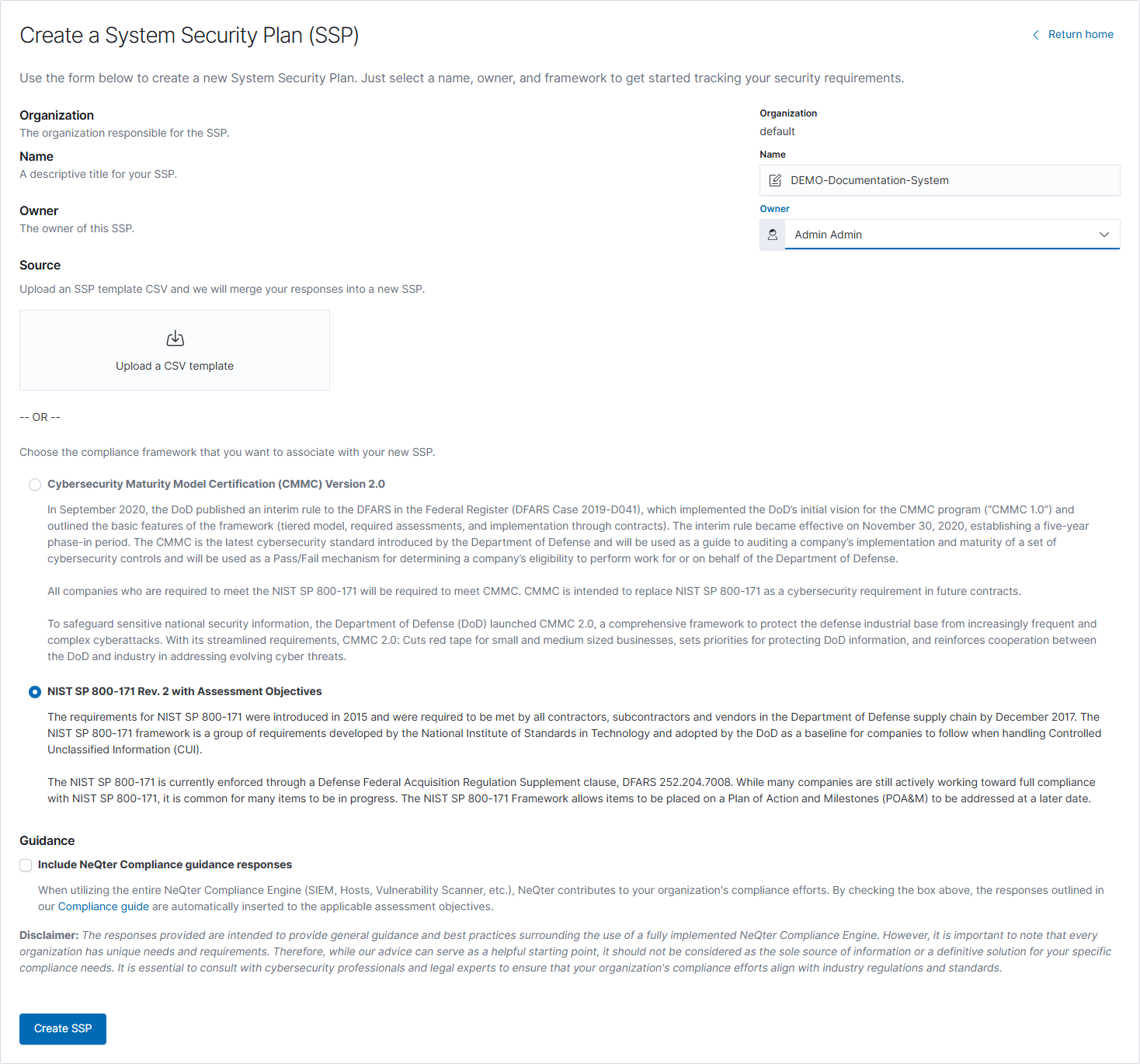
| Field or button | How to use it |
|---|---|
| Return home | Leaves the creation form and returns to My SSPs. |
| Name | Enter a descriptive plan name that distinguishes the system or scope. |
| Organization, when available | Choose the organization that will contain the new SSP. In a single-organization setup, the application supplies this context. |
| Owner | Choose a user from the destination organization to take responsibility for the SSP. |
| Upload a CSV template | Select a compatible SSP template to initialize responses in a new plan. Selecting this template parses the file; the plan is created only when you choose Create SSP. |
| Framework radio buttons | Choose Cybersecurity Maturity Model Certification (CMMC) Version 2.0 or NIST SP 800-171 Rev. 2 with Assessment Objectives. |
| CMMC maturity level | For CMMC 2.0, select Level 1 or Level 2 before creating the plan. |
| Include NeQter Compliance guidance responses | Inserts available NeQter guidance into applicable implementation responses. Review and adapt the inserted text to describe the system you actually operate. |
| Create SSP | Saves a new SSP and takes you to its access settings. Review the name, owner, framework, and CMMC level before selecting it. |
- Enter the name and select the owner and organization, if shown.
- Choose the framework and, for CMMC, the level. Alternatively, select a compatible template CSV.
- Decide whether to include the offered NeQter guidance. This option is disabled when a template supplies the responses.
- Select Create SSP.
- Review who has access, then open the SSP and complete Identification and Environment before working through its requirements.
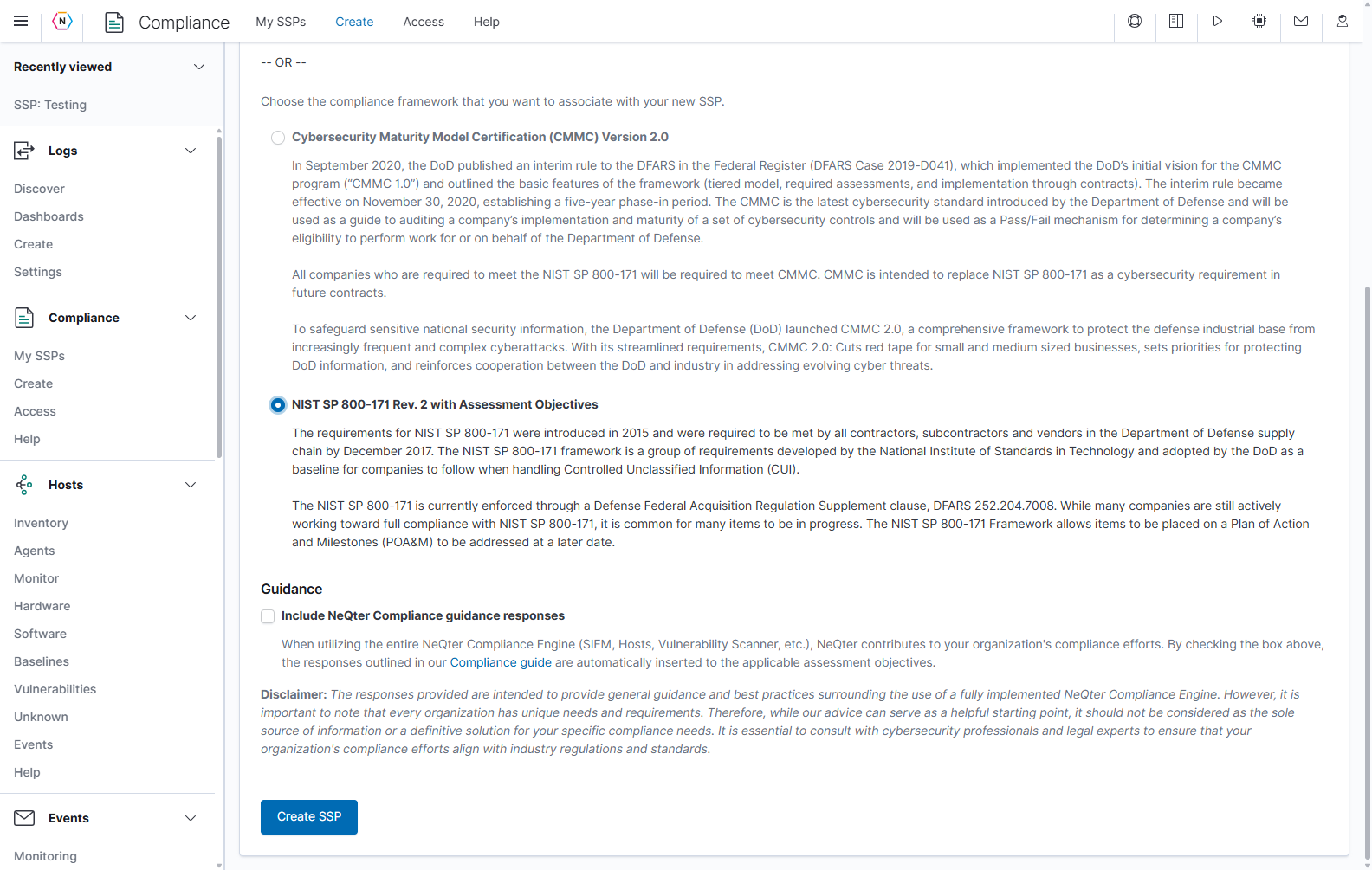
The framework names above are the choices supplied by this version of the application. Creating the SSP prepares a workspace for the chosen controls; it does not assess the system or certify its implementation.
Start from a template
Use Export → Draft & Revision → Template in an existing SSP, or System Security Plan (SSP) Templates under Comply → Help, to obtain the expected CSV format. The separate CUI SSP Template resource is a document template, not a CSV import file. A compatible CSV contains the columns Title, Status, Response, and Notes, followed by the framework identifier. Keep the header, control identifiers, CSV quoting, and final framework row intact when editing it.
A valid template determines the framework and locks its selection in the Create form. Template import starts a new SSP; it is not an in-place import into the currently open plan. A response template is also not a complete backup of artifacts, tasks, access permissions, and revision history.
Copy and convert SSPs
Use Copy SSP when you need a separate plan with the same framework. Use Convert SSP when you need a new plan in another supported framework or CMMC level. Both workflows create a separate SSP when confirmed, and both require manager access.
Copy an SSP
- Open My SSPs → Copy SSP.
- Choose the Existing SSP. Review the suggested Name and give the copy a distinct title.
- Choose the destination organization if the form offers one, then choose an Owner from that organization.
- Select Copy to open the review screen.
- Check the source, framework, new name, owner, and any organization-transfer notice. Select Back to correct the form or Cancel to leave it.
- Select Continue to create the copy. Review access for the newly created SSP.
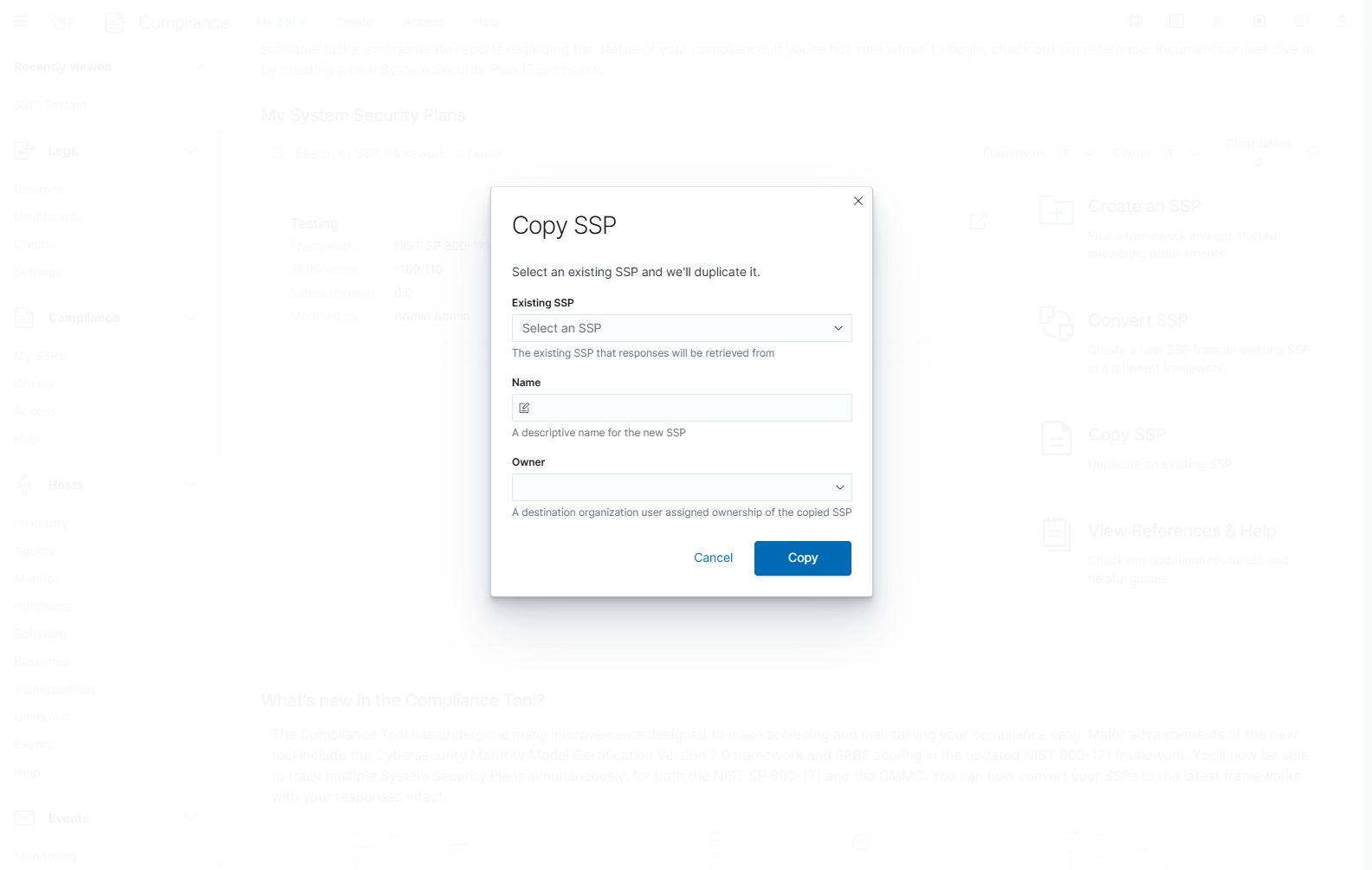
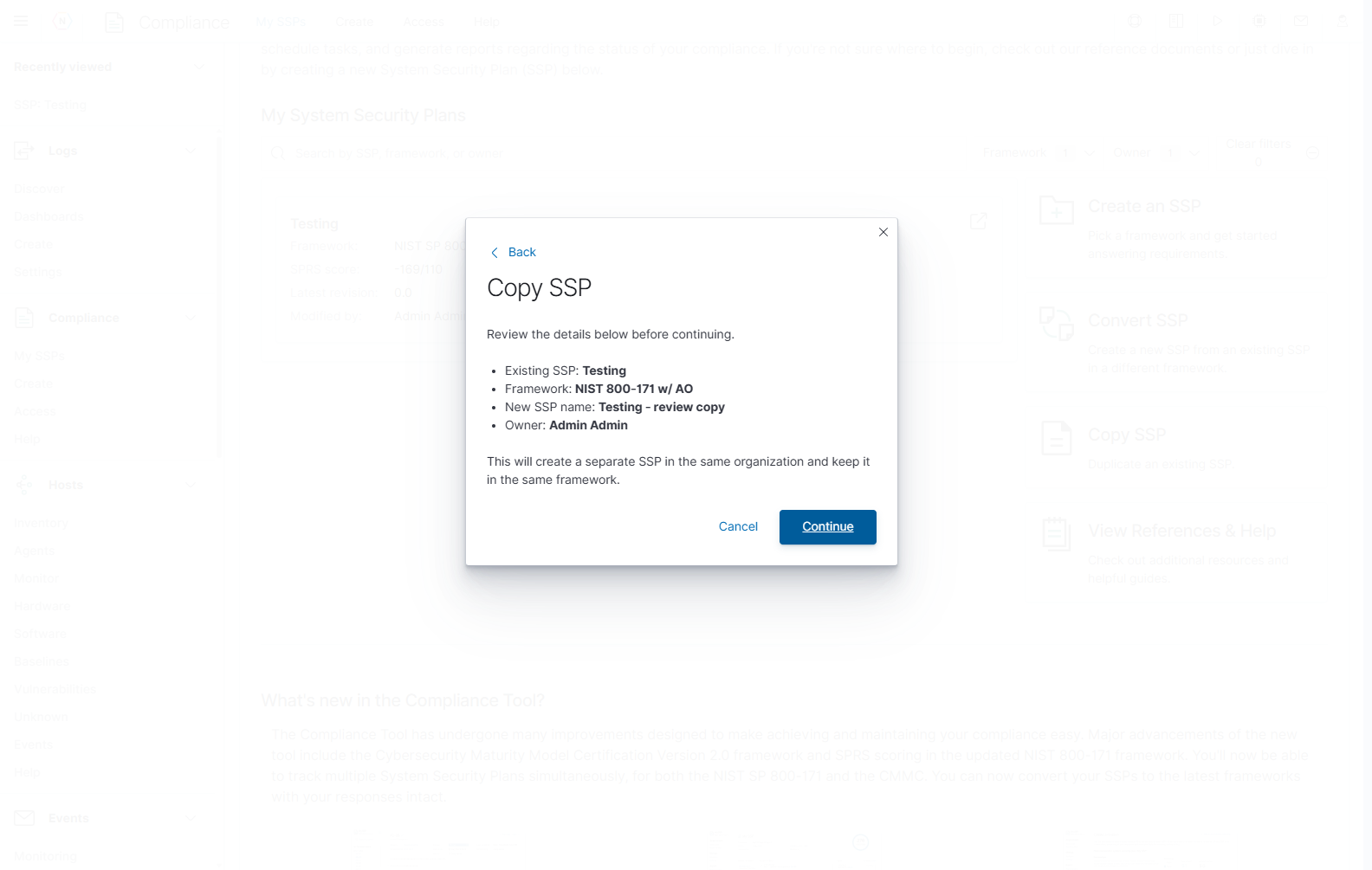
A copy within the same organization keeps the framework. When copying to another organization, read the transfer notice carefully: assignments, explicit access, comments, tasks, or user-related artifact metadata that cannot be carried into the destination may be cleared or omitted. Check the new plan before using it for ongoing work.
Convert an SSP
- Open My SSPs → Convert SSP.
- Choose the Existing SSP, enter the new Name, and select the Owner.
- Choose the destination Framework and CMMC level, when shown. The available choices depend on the source framework.
- Select Convert to open the review screen.
- Check the source and target frameworks and read the response-mapping notice. Back returns to the form; Cancel leaves without creating a plan.
- Select Continue to create the converted SSP, then review its access and every transferred response.
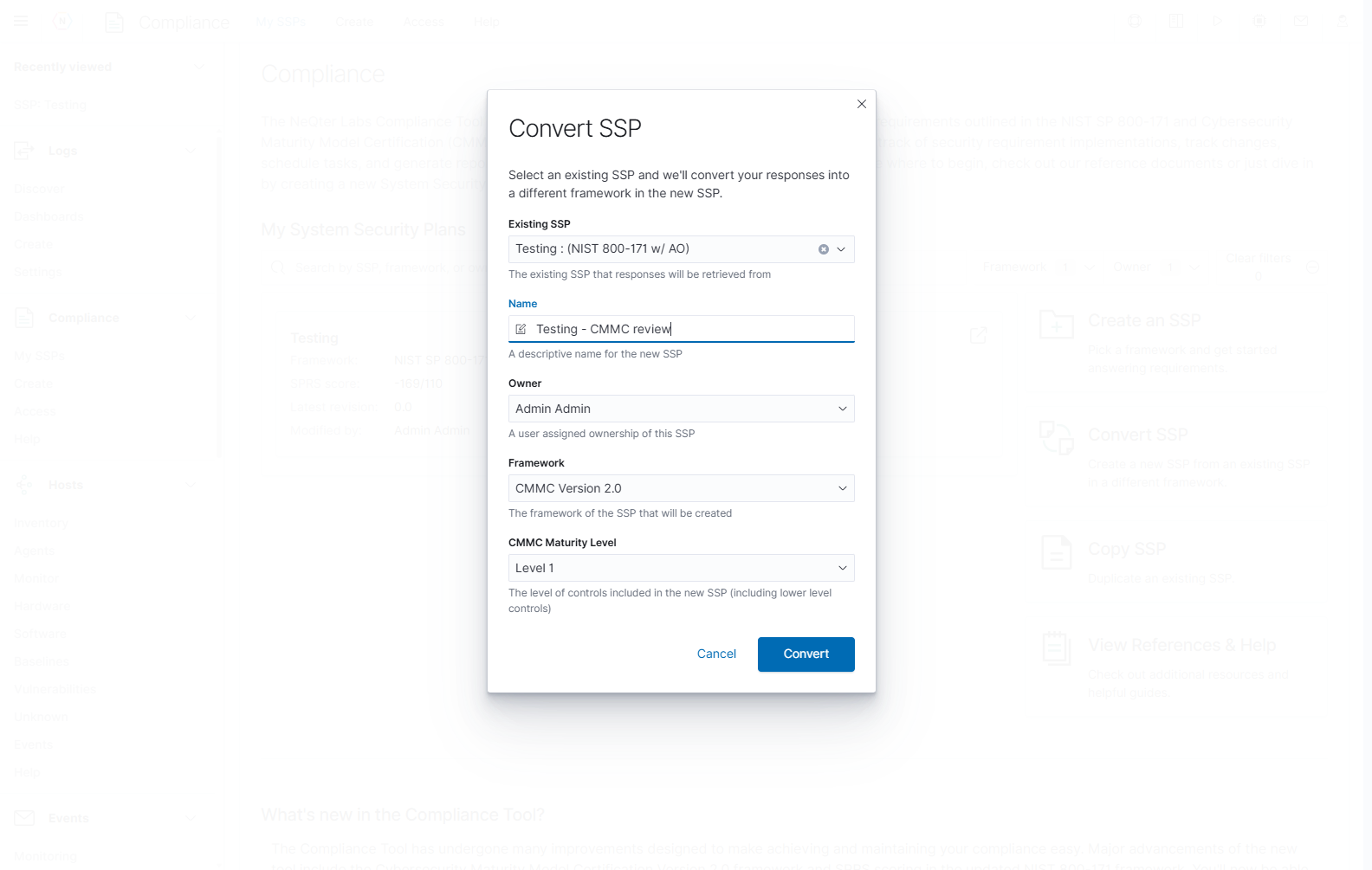
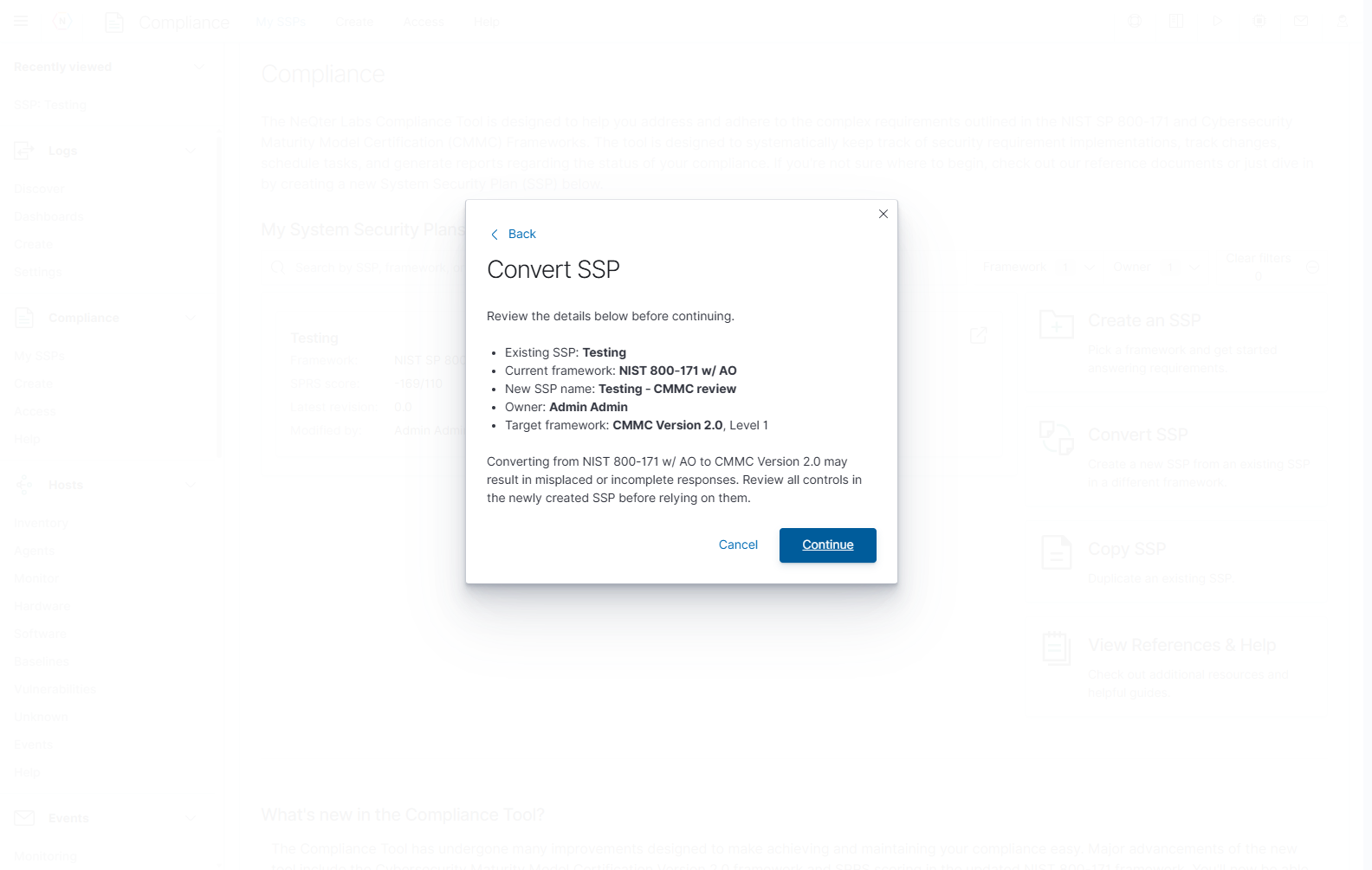
Requirements do not always map directly between frameworks. Conversion can leave responses incomplete or under a different control. Review the control text, implementation status, response, evidence, and work still required in the new SSP.
SSP overview
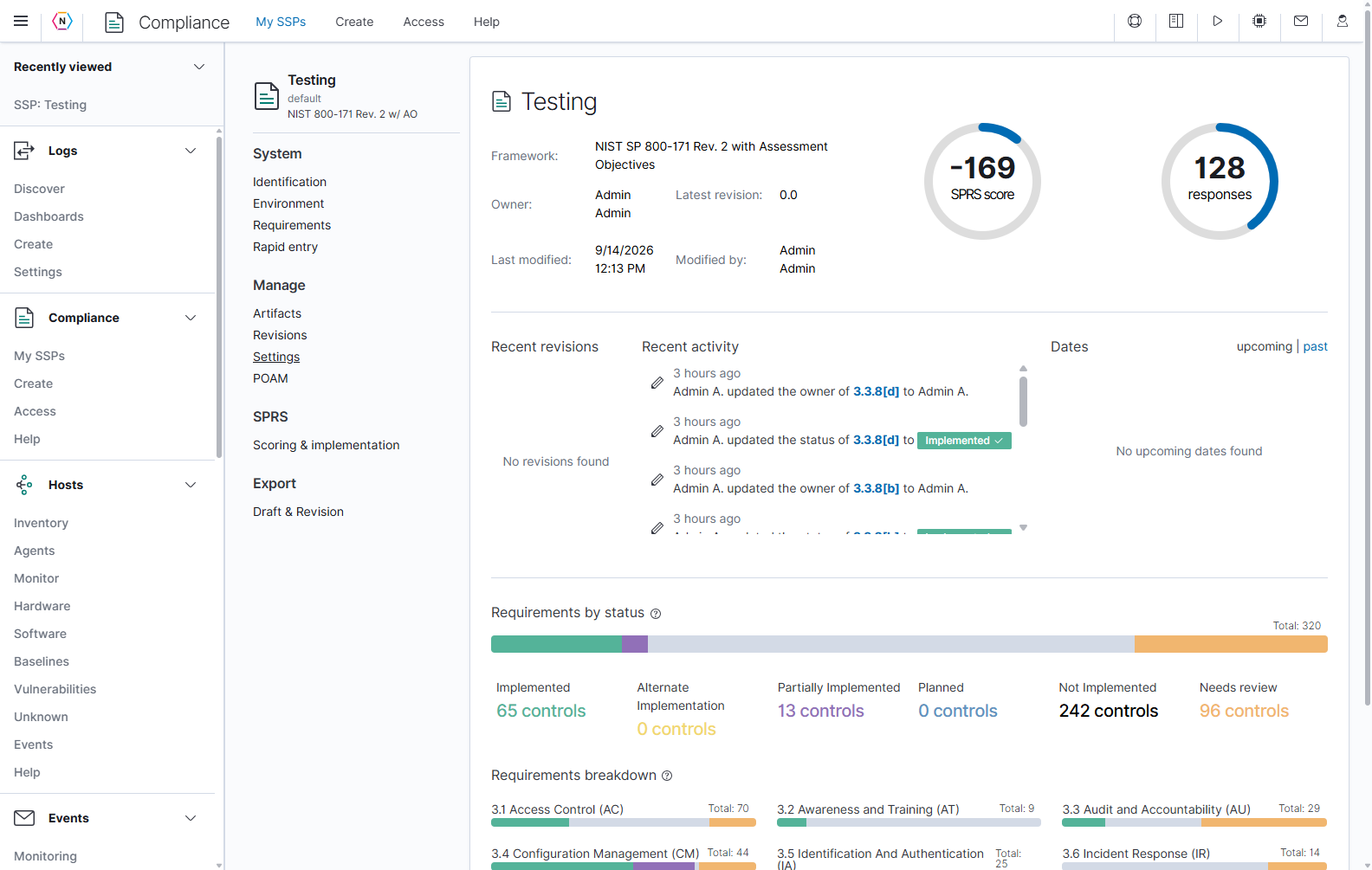
The overview brings the plan’s identity, progress, and recent changes together. Check Framework, Owner, Latest revision, Last modified, and Modified by before working in the plan.
| Overview area | How to read or use it |
|---|---|
| SPRS score | The application’s current score for the saved implementation states, when this framework supports scoring. Open Scoring & implementation for the breakdown. |
| Responses | The count of controls with implementation response content. A response can exist while the control is still Not Implemented or Needs review. |
| Recent revisions | Existing snapshots of this SSP. No revisions found means no snapshot is available in that list. |
| Recent activity | Recent changes, the user responsible, and links to the affected controls. |
| Dates: upcoming / past | Switch between upcoming and past control due dates. Task due dates are managed separately in POAM. |
| Requirements by status | The counts for each implementation status. Click a status to open the corresponding filtered Rapid entry view. |
| Needs review | A separate review flag. These controls are also included in their implementation-status counts. |
| Requirements breakdown | Progress by domain. Click a domain’s progress area to open its filtered Rapid entry view. |
The example totals 320 controls/assessment objectives, while the framework’s parent-requirement filter contains 110 requirements. These figures refer to different levels of the framework. Do not add the Needs review count to the implementation-status totals.
System identification and environment
Use Identification to describe the system and the people and information associated with it. Use Environment for the sections and files that explain how the system is arranged. Both become part of the SSP’s saved documentation.
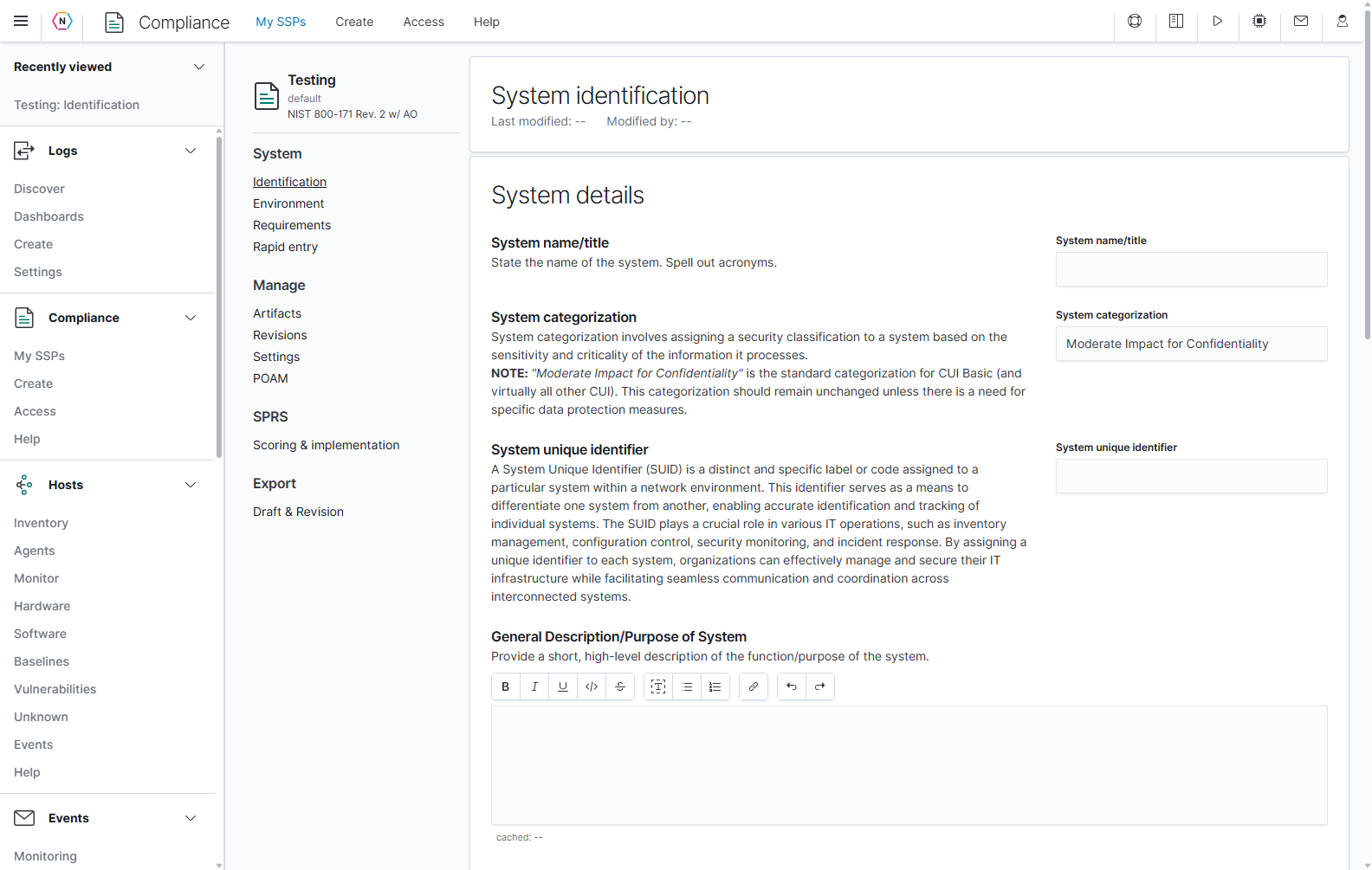
Enter system details
- Open Identification.
- Complete the four fields under System details.
- After a change, use the section’s Save button to store the changes, or Cancel to discard the unsaved edits.
| Field | What to enter |
|---|---|
| System name/title | The system’s full name, spelling out acronyms. This is a field within the SSP’s identification content. |
| System categorization | The categorization applicable to the documented system. Review the displayed value against your system’s requirements. |
| System unique identifier | Your identifier for this system. The field accepts letters, numbers, underscores, and hyphens. |
| General Description/Purpose of System | A brief explanation of the system’s purpose and function. |
These fields share one save operation. Last modified and Modified by identify saved identification changes. The cached label under a rich-text field refers to a draft in the current browser session; use Save to store the response in the SSP.
Use the text editor
The same editor appears in descriptions and implementation responses. Select text before applying a character style, or place the cursor in a paragraph before applying a block style.
| Toolbar control | Action |
|---|---|
| Bold, Italic, Underline | Apply or remove the selected text style. Shortcuts: Ctrl+B, Ctrl+I, and Ctrl+U. |
| Monospace | Format selected text in a fixed-width style. |
| Strikethrough | Cross out selected text. |
| Block Quote | Format the current paragraph as a quotation. |
| Unordered List, Ordered List | Create bullet points or numbered steps. |
| Insert Link | Add a link to the selected text. |
| Undo, Redo | Reverse or reapply editor changes. Shortcuts: Ctrl+Z and Ctrl+Y. |
| Save, Cancel | Save the edited section to the SSP, or discard its unsaved text. These controls belong to the section being edited. |
Organizations
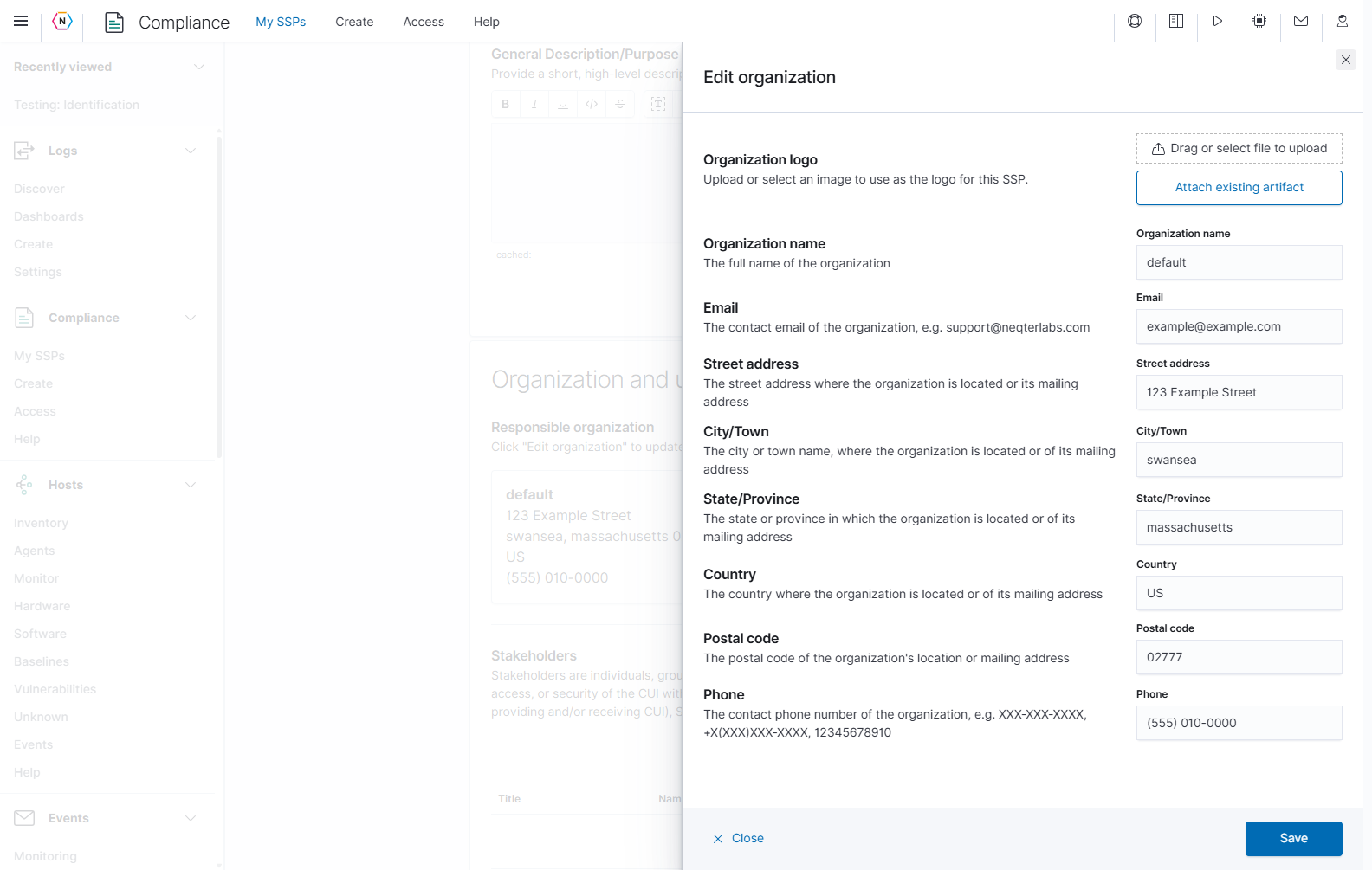
Under Organization and users, Responsible organization contains the organization profile used by this SSP. Click Edit organization to update that profile.
| Organization control or field | What it does |
|---|---|
| Organization name | Sets the organization’s full name in this SSP’s identification content. |
| Email, Phone | Records the organization’s contact details. |
| Street address, City/Town, State/Province, Country, Postal code | Records its location or mailing address. |
| Drag or select file to upload | Uploads an image and attaches it as this SSP’s organization logo. Selecting or dropping the file starts the upload immediately. |
| Attach existing artifact | Opens a chooser for an image already held in the SSP; the chooser’s Attach action applies that attachment. |
| Save | Saves the organization name, contact, and address fields for this SSP. |
| Close or the top-right X | Closes the form without saving unsaved contact-field edits. Already completed logo upload or attachment actions remain separate from that form save. |
The responsible-organization editor changes this SSP’s identification profile. Organization membership and manager roles are maintained separately from this profile and from the SSP’s Access page. In deployments that expose the separate Organizations registry, use that registry for organization administration; it is not shown in the source system’s navigation here.
Add stakeholders
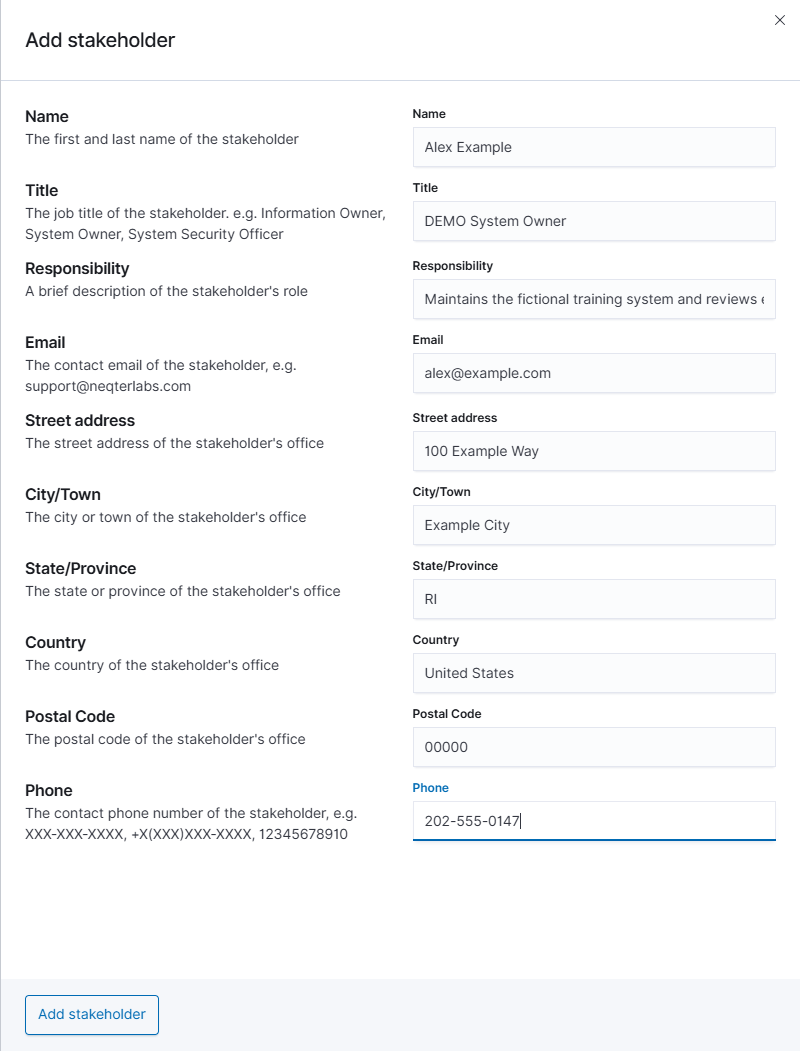
Use Stakeholders for people responsible for the system or its information, such as an information owner, system owner, or security officer.
- Click Add stakeholder.
- Enter Name, Title, and Responsibility to identify the person and their role.
- Enter Email, Phone, and the office address fields: Street address, City/Town, State/Province, Country, and Postal Code.
- Click the flyout’s Add stakeholder button to save the row. Close with X to leave the new row unsaved.
The table shows Title, Name, Email, Phone, and Actions. Use Columns to choose the visible table fields and a row’s additional-details control to see its responsibility and address. Existing rows offer edit and delete actions. Save an edited row with the form’s Edit stakeholder button; deletion requires confirmation.
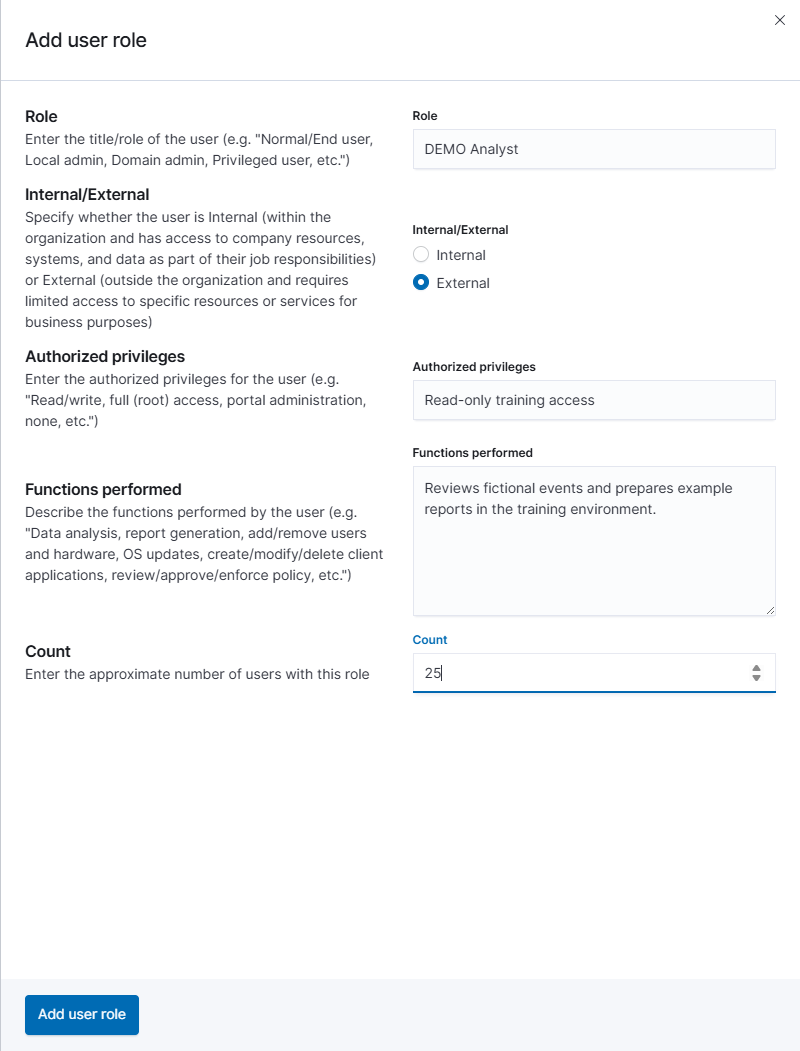
Document user roles and counts
Number of end users and privileged users records the kinds of users of the documented system. These entries describe users and do not create NeQter login accounts.
- Click Add user role.
- Complete the role information below.
- Click Add user role in the flyout to save it, or close the flyout to discard the draft.
| Field | What to enter |
|---|---|
| Role | The role being counted, such as an end user or administrator role. |
| Internal/External | Whether these users are within or outside the organization. |
| Authorized privileges | The access these users are authorized to have. |
| Functions performed | The work performed by this role. |
| Count | The approximate number of users in the role; the form accepts 0 through 5,000. |
The table displays the role, internal/external classification, privileges, and count. Columns adjusts the visible fields; the additional-details control reveals functions performed. Use the row’s edit action and Edit user role to save changes. Delete opens a confirmation.
Describe the information in the system
Under Data, enter a Data summary explaining how the relevant information is stored, protected, and shared through the system. This rich-text field has its own Save and Cancel, separate from the system-details fields above it.
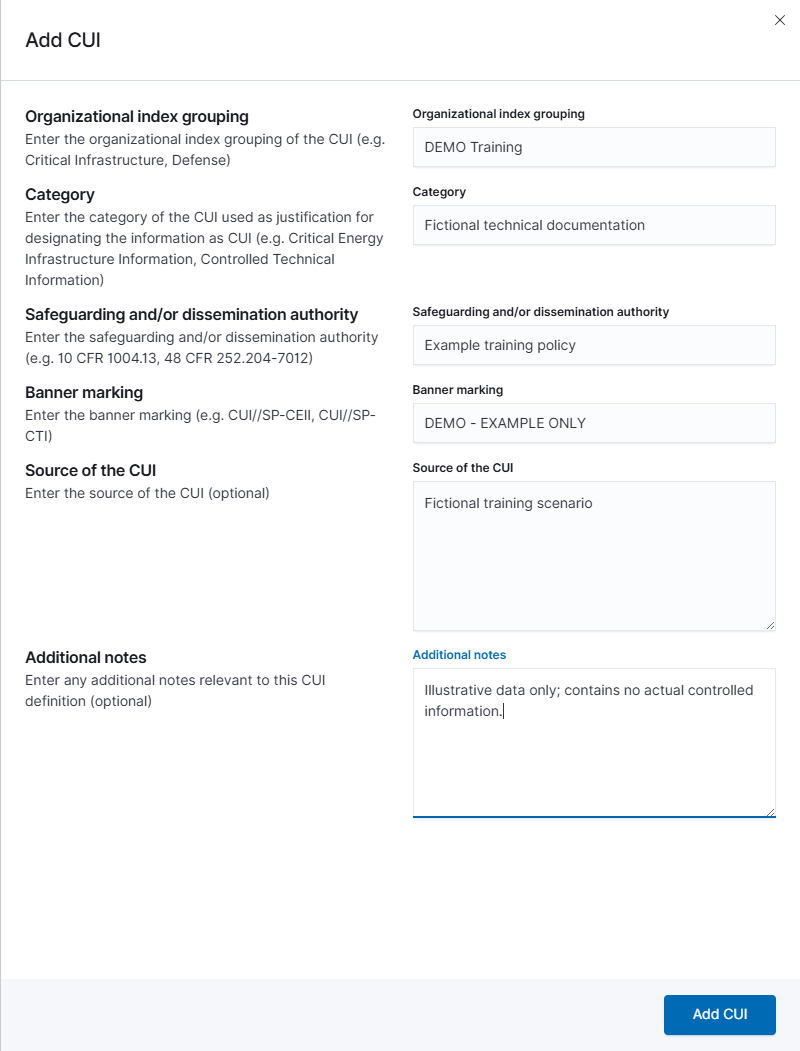
Use General description of information to maintain individual CUI information types:
- Click Add CUI.
- Complete the required identifying fields: Organizational index grouping, Category, Safeguarding and/or dissemination authority, and Banner marking.
- Optionally enter Source of the CUI and Additional notes.
- Click Add CUI to save the entry. For an existing entry, use its edit action and the form’s Edit CUI button. Delete requires confirmation.
Enter the information types and markings that apply to your system. The form’s examples explain its fields; they do not select a category for you. The application prevents duplicate entries with the same grouping, category, authority, and banner marking.
System environment
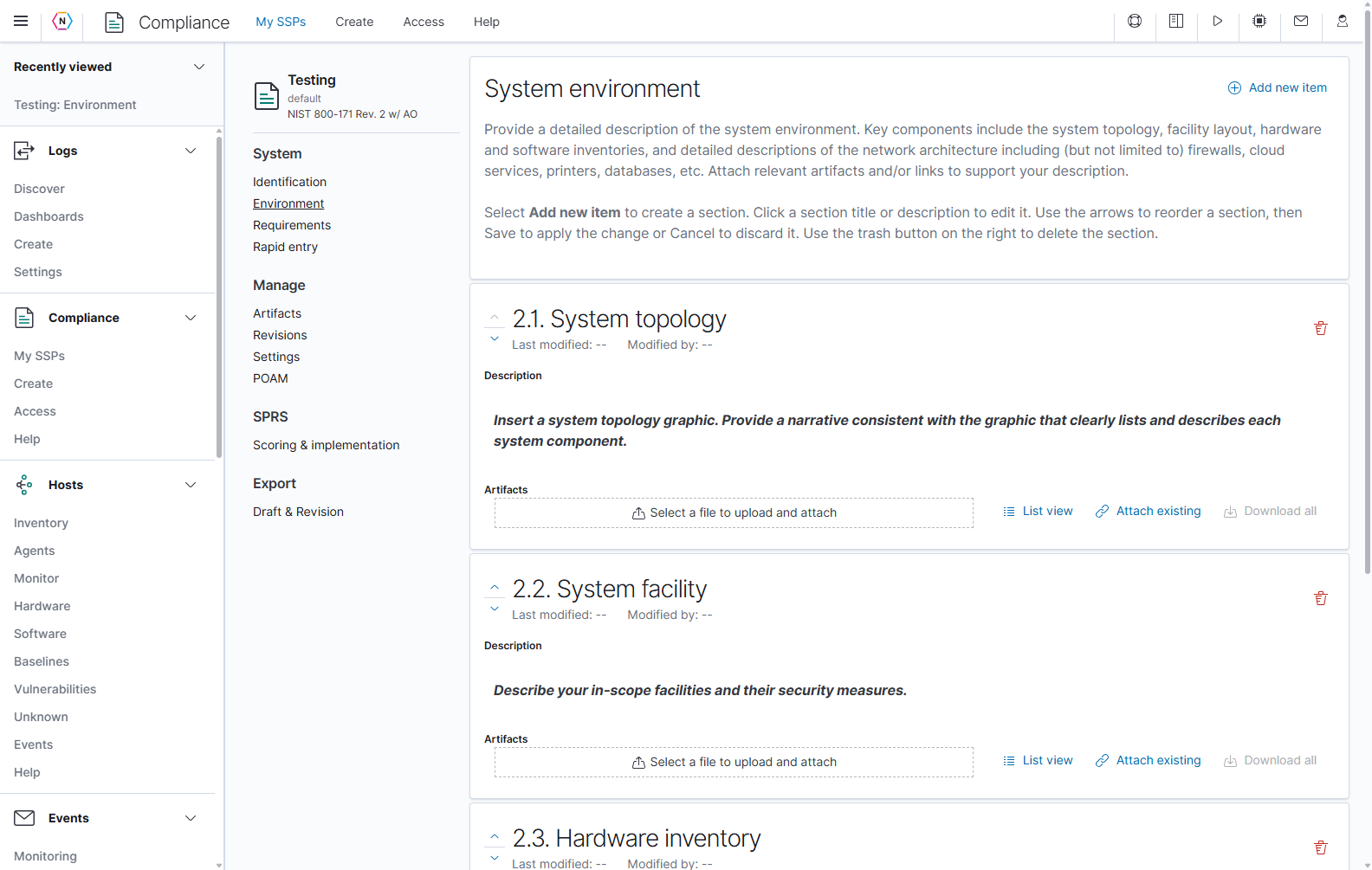
Open Environment to maintain titled sections with formatted descriptions and supporting artifacts. The sample SSP starts with System topology, System facility, Hardware inventory, and Software inventory. Replace the template prompts with descriptions, references, or attached files for your system.
| Control | Action |
|---|---|
| Add new item | Adds an unsaved section and opens its editor. |
| Section title or description | Opens that section for editing. |
| Up / down arrows | Changes the section’s order in the local draft. Use Save to apply the order, or Cancel to reset it. |
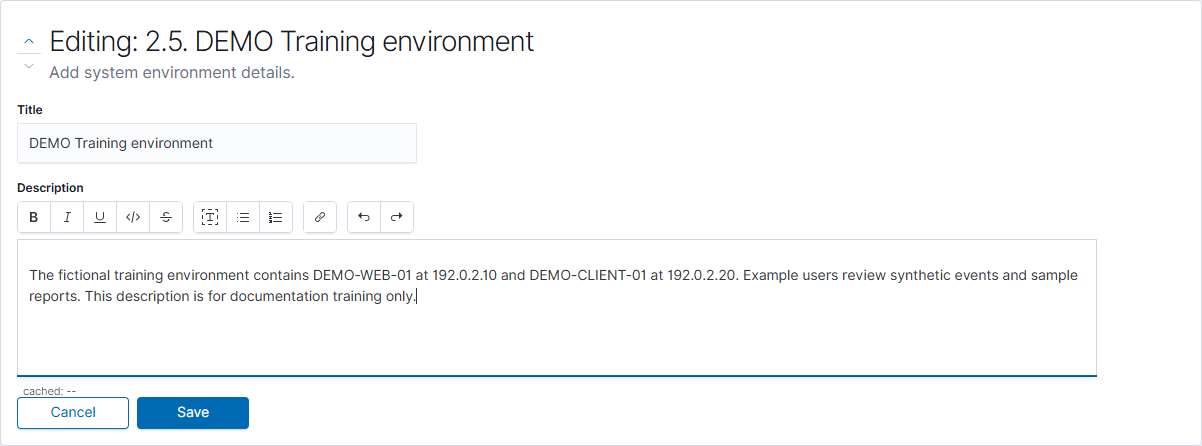
| Title | Names the section. A title is required and must be unique within the environment. |
| Description | Holds the section’s formatted text. |
| Save, Cancel | Saves the new or edited section and its order, or discards those draft changes. Only one section is edited at a time. |
| Trash icon | Opens a delete confirmation. Confirming removes the section and its artifact attachments; the files remain in the SSP’s artifact collection. |
| Last modified / Modified by | Shows when the section was last saved and by whom. |
To add a section:
- Click Add new item.
- Replace New section with a meaningful Title and enter its Description.
- Use the up/down arrows if it belongs elsewhere in the document.
- Click Save, or Cancel to discard the new section.
- Attach supporting files to the saved section as needed.
The Artifacts area beneath a section provides Select a file to upload and attach, List view or thumbnail view, Attach existing, and Download all. Selecting a new file uploads and attaches it immediately; the attachment chooser saves when you click its Attach button. These file actions are independent of the description’s Save or Cancel. Download all is unavailable when the section has no attachments.
Requirements and controls
Open Requirements to work from a table of the SSP’s controls or assessment objectives. Use this view to find missing responses, identify work assigned to a person, or open one control in detail.
Find requirements
| Search or filter | What it narrows |
|---|---|
| Search by control | Control or requirement text/identifiers, such as the examples shown in the search field. |
| Domain | A framework domain, such as Access Control. |
| Requirement | A parent requirement and its associated objectives. |
| Status | Implementation status. |
| Owner | Assigned control owner. |
| Modified by | The user who last modified the control. |
| Response: Yes / No | Whether an implementation response exists. |
| Review: Yes / No | Whether the control needs review. |
| Artifacts: Yes / No | Whether supporting files are attached. |
| Tasks: Yes / No | Whether the control has tasks. |
| Clear filters | Clears the current search and filtering. It does not change control content. |
The table and Rapid entry share this SSP’s filter state. If controls appear to be missing after changing views, check the active filters.
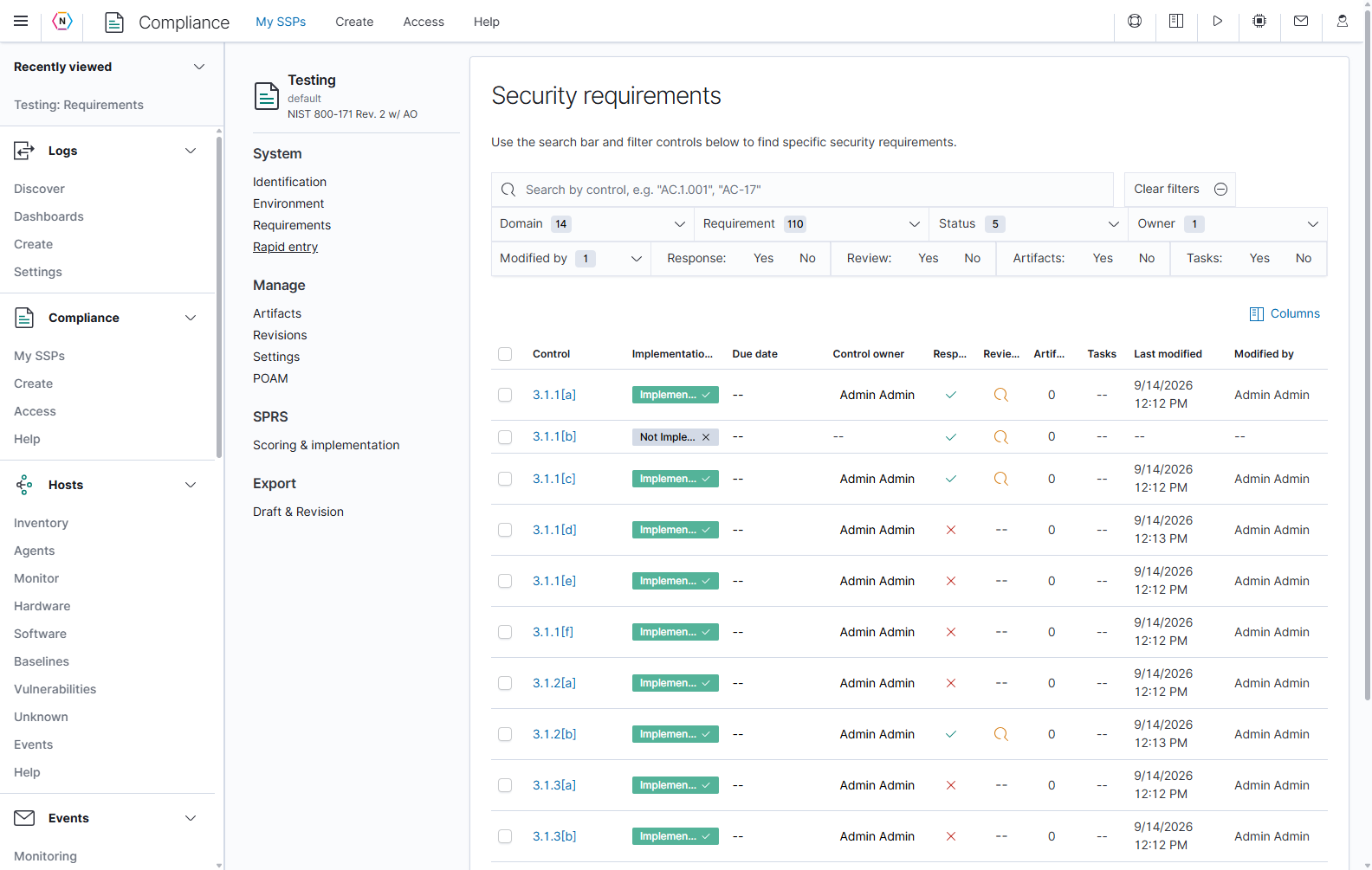
Open a filter and select the values to include. For example, choose Domain > 3.1 Access Control, then Response > No to concentrate on Access Control objectives that still need a response. Use Clear filters to return to the full list.
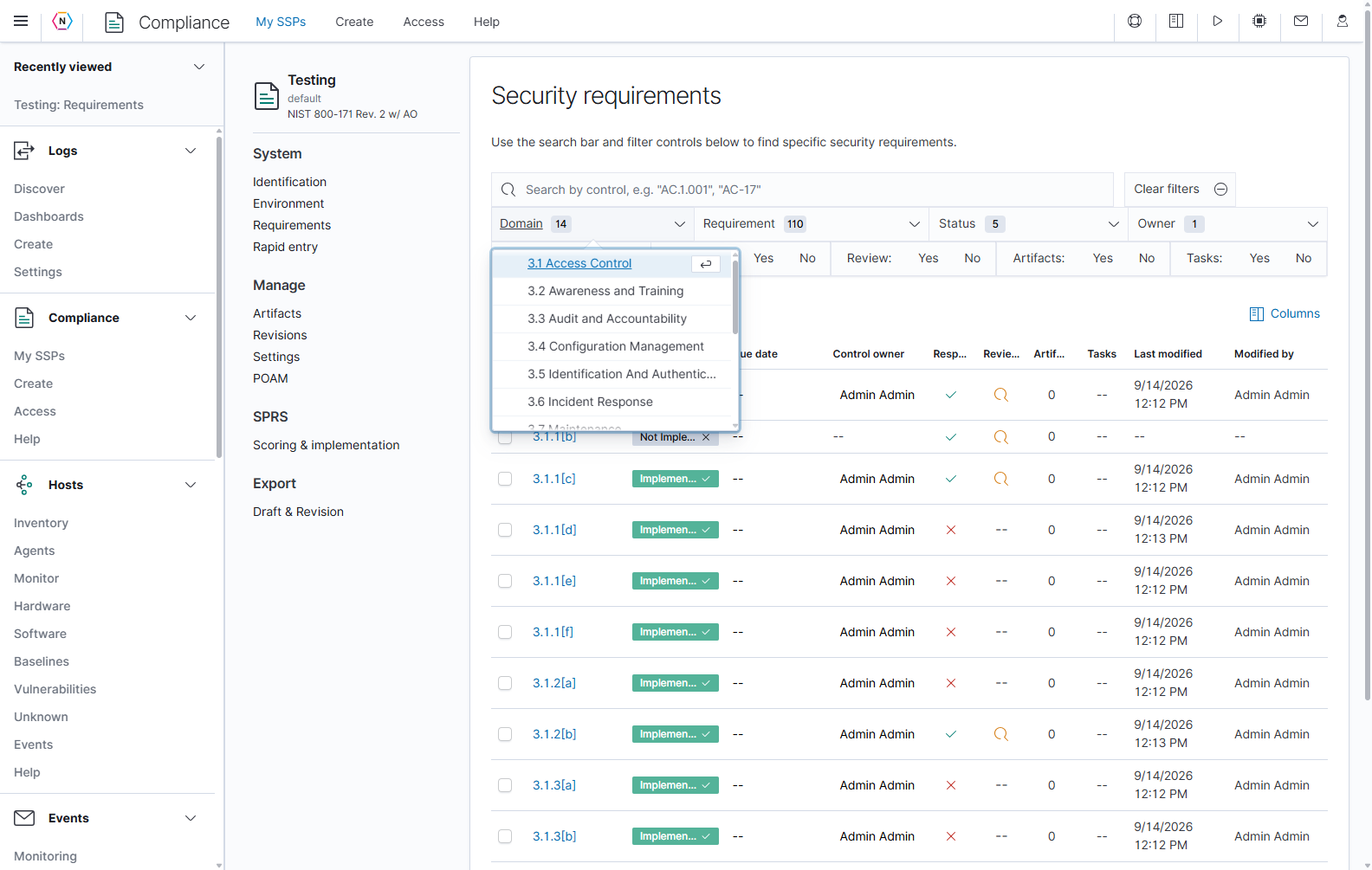
Read and adjust the table
| Column or control | Meaning |
|---|---|
| Control | The identifier; click it to open the control or objective. |
| Implementation status | Its saved state, such as Implemented or Not Implemented. |
| Due date, Control owner | The date and person assigned to the control. |
| Response | A check indicates that response text exists; an X indicates it is missing. |
| Review | Marks controls that need review. This is independent of implementation status. |
| Artifacts | The number of attached supporting files. |
| Tasks | Task information associated with the control. |
| Last modified, Modified by | When and by whom the record was last changed. |
| Columns | Chooses which fields are visible in the table. |
| Row checkboxes / header checkbox | Selects controls for the table’s bulk-modification action. Check the selected count before proceeding. |
| Total found | The number of matching records across all result pages. |
| Rows per page, page numbers, previous/next arrows | Adjust the displayed page size and move through results. |
Selecting rows reveals Modify N selected control(s). Click it to open a draft form for Status, Owner, Due date, and Review. Leave a field Unchanged to preserve existing values; Owner > None removes assignments, and a blank due date preserves existing dates. The form’s Save applies this batch to the selected controls immediately. This table workflow has its own save and does not use the Rapid entry queue.
Open a control
Click a Control identifier. The detail page places the framework navigation on the left and the selected control’s content on the right.
| Detail-page control | How to use it |
|---|---|
| Search by control in the left panel | Find an entry in the framework navigation. |
| Nine-dot Open additional menu options | Opens the SSP navigation menu, including Identification, Environment, Requirements, Rapid entry, management pages, and export. |
| Domain and requirement chevrons | Expand or collapse the navigation tree, then select an objective. |
| Copy link beside the control ID | Copies a link to this control to the clipboard. Recipients still need access to the SSP. |
| Previous / Next | Moves between controls when a preceding or following entry is available. |
| Domain / Requirements links | Opens the corresponding filtered Rapid entry view. |
| Status / Date due / Owner / Review status | Shows the saved control properties. Use Edit to change them. |
| Description of Implementation | Holds the response describing how the system meets the objective. Expand or collapse it using its heading. |
| Additional Information | Holds discussion, assessment, scoring, and NeQter guidance tabs where available. |
| Artifacts, Activity, Comments | Holds evidence, tasks/history, and conversation for this control. |
Read the parent requirement and the selected assessment objective together. In the example, 3.1.1[a] is one assessment objective under a broader requirement; each objective has its own response and saved properties.
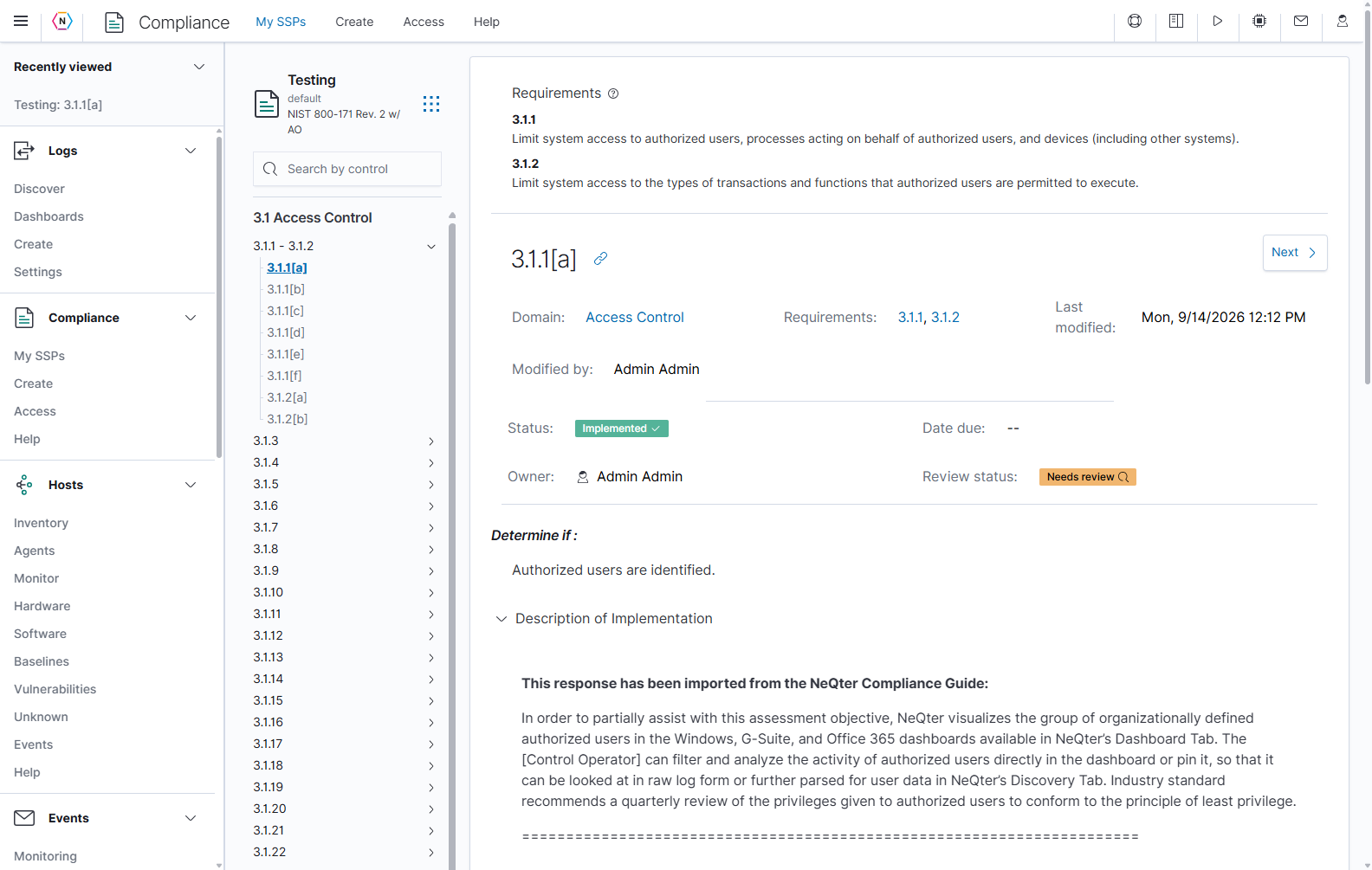
Edit status, owner, due date, and review
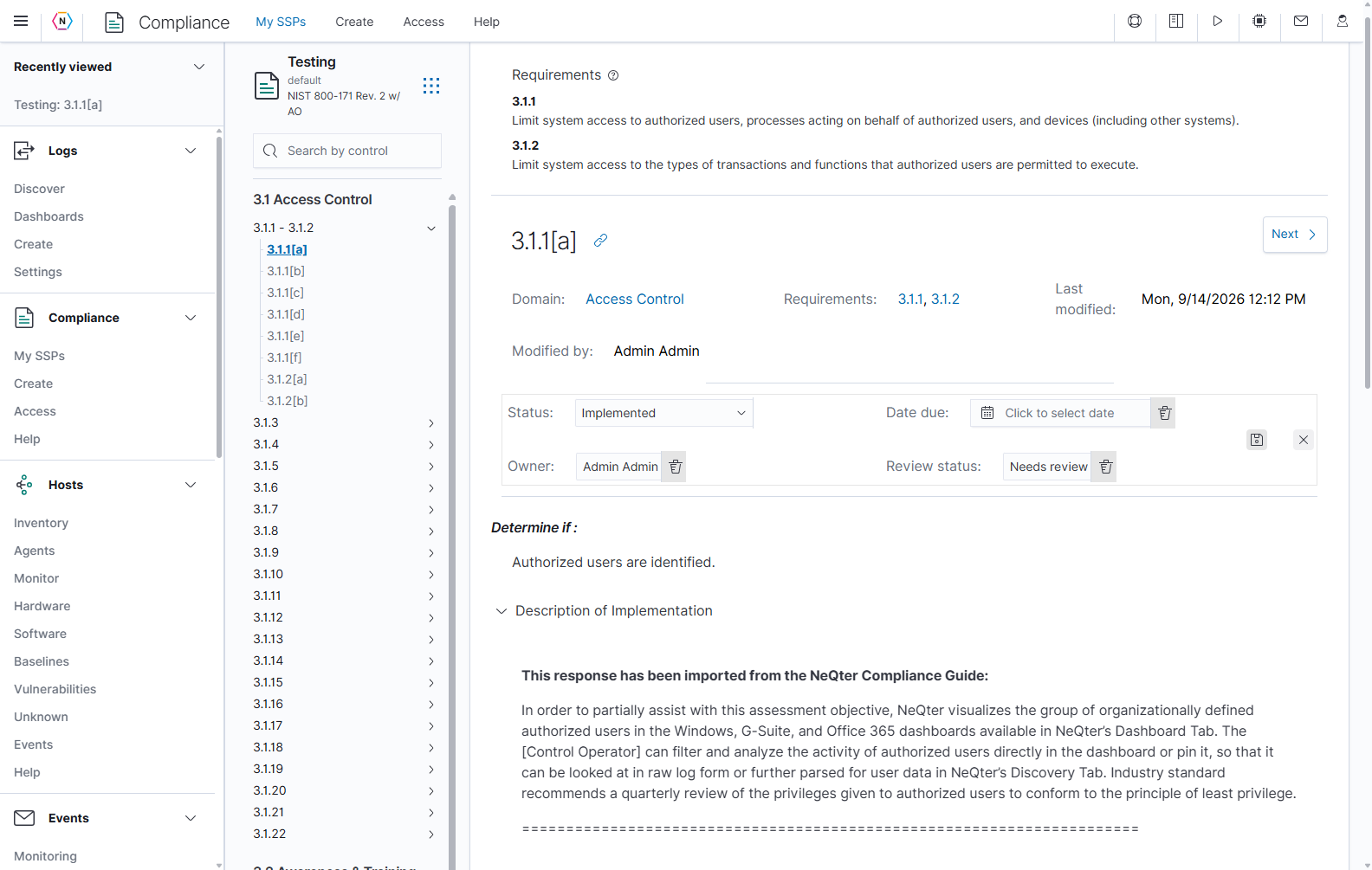
- Click Edit in the control’s properties panel.
- Choose the Status and, if needed, a Date due, Owner, and Review status.
- Click the disk-shaped Save control to commit the edited properties together. Use Cancel to leave the unsaved edits unapplied.
| Property or control | Available behavior |
|---|---|
| Status | Choose Not Implemented, Planned, Partially Implemented, Alternate Implementation, or Implemented. |
| Date due | Open the calendar and select the control’s target date. |
| Owner | Choose a user from the available owner list. This assignment is separate from granting access to the SSP. |
| Review status | Choose Reviewed or Needs review. |
| Clear trash beside date, owner, or review | Removes the saved value immediately. This action is separate from the panel’s Save and cannot be undone by canceling the remaining draft edits. |
| Save / Cancel | Saves or discards the other properties being edited. |
Implementation status and review state describe different things: an Implemented control can still be marked Needs review. The normal view displays – when the control is not flagged Needs review; that display alone does not document an approval. Entering a due date or adding response text does not automatically mark a control Implemented. If you set Implemented while unfinished tasks remain, the application asks you to confirm with Yes, update status before applying it.
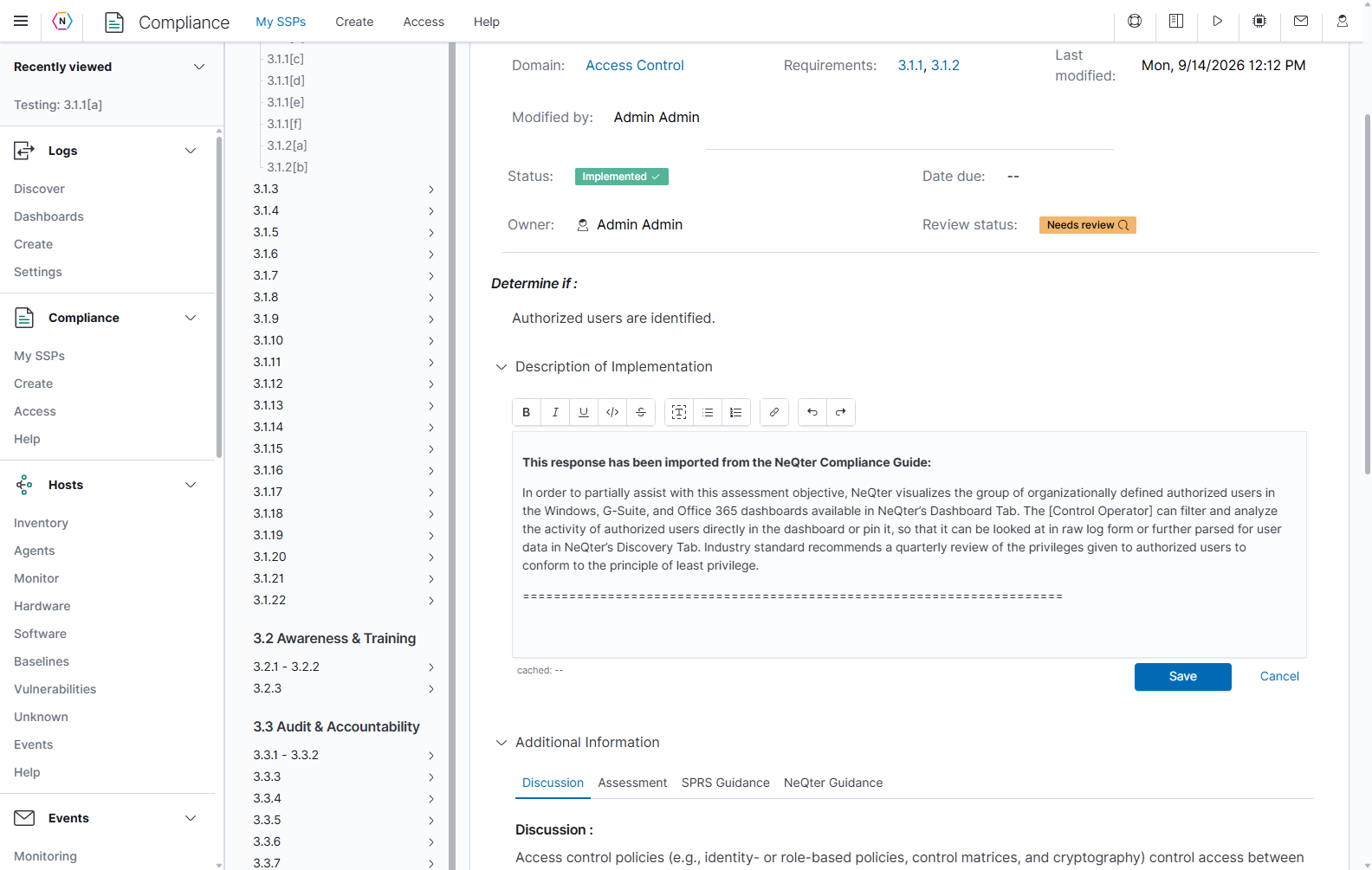
Write an implementation response
- Expand Description of Implementation and use Click to edit on the response.
- Describe how the objective is addressed in this system. Identify the relevant process, responsible role, and supporting evidence.
- Use the text toolbar for paragraphs, lists, emphasis, and links.
- Click Save beneath the editor to store the response, or Cancel to discard the unsaved edit.
The cached timestamp is a browser-session draft indicator, not confirmation that the SSP has been saved. Save before moving to a revision or export. If the application reports that someone else changed the same content, review the existing and attempted values before choosing whether to cancel or explicitly overwrite them.
Some responses may initially contain imported NeQter guidance, as shown below. Replace or adapt that starting text to describe the actual system and remove any unresolved placeholders. A prefilled response is still a response for you to review.
Read the guidance tabs
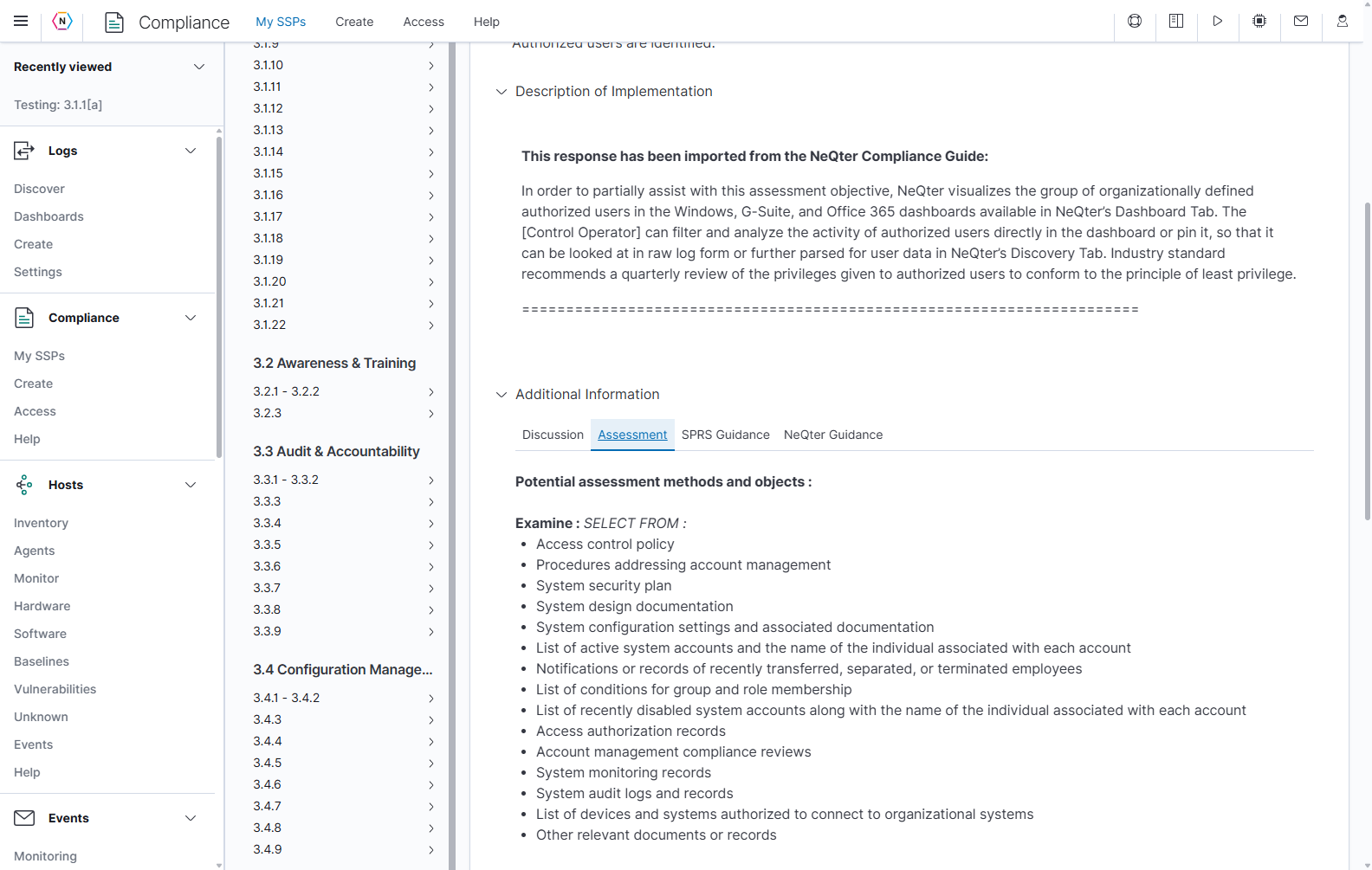
Expand Additional Information and select the relevant tab. The tabs provide reference material for the selected requirement or objective; editing the implementation response remains a separate action.
| Tab or button | What it provides |
|---|---|
| Discussion | Explanatory framework text for the requirement. |
| Assessment | Potential assessment methods and objects, such as material to examine or people to interview. |
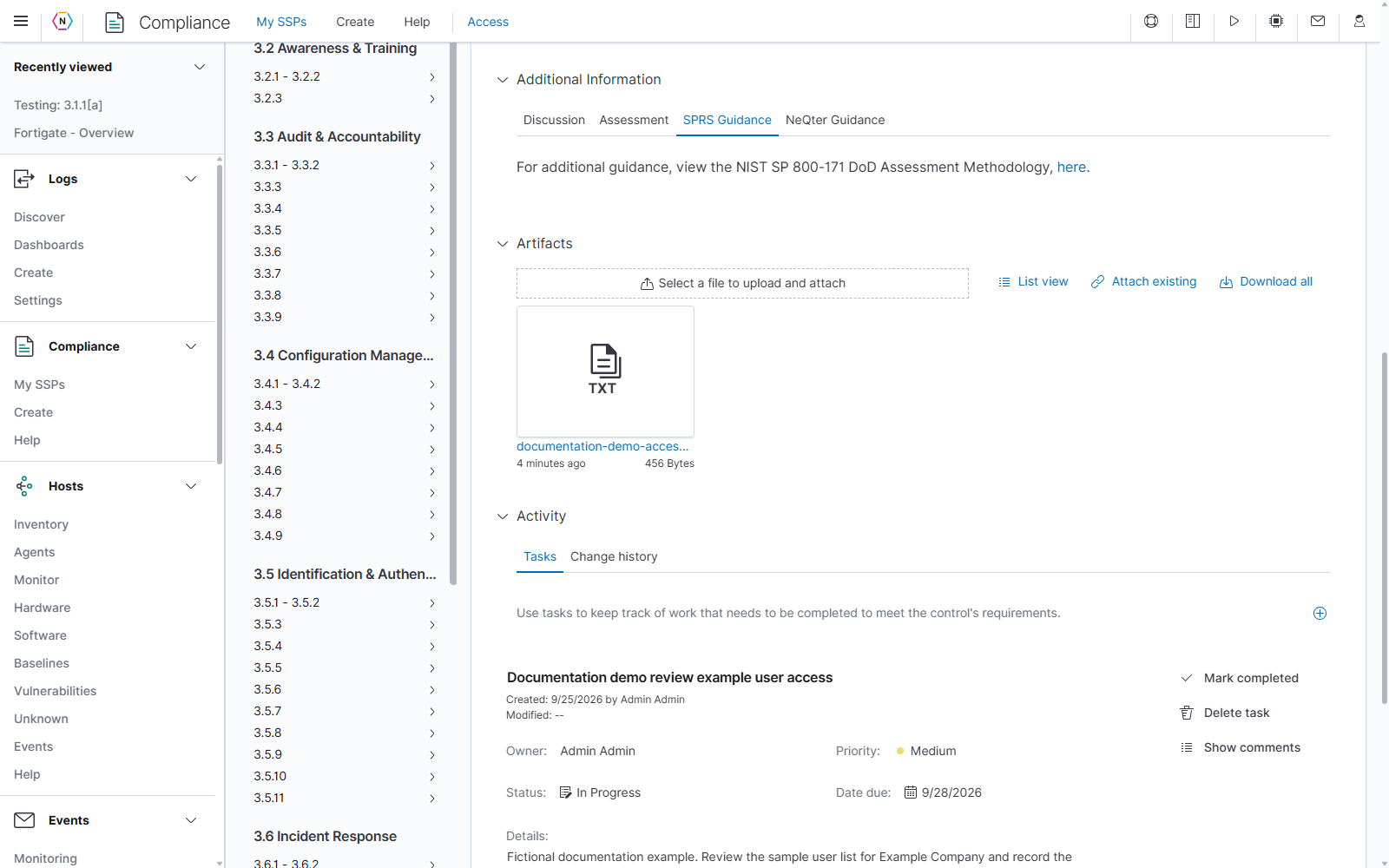
| SPRS Guidance | A link to assessment-methodology guidance where available. |
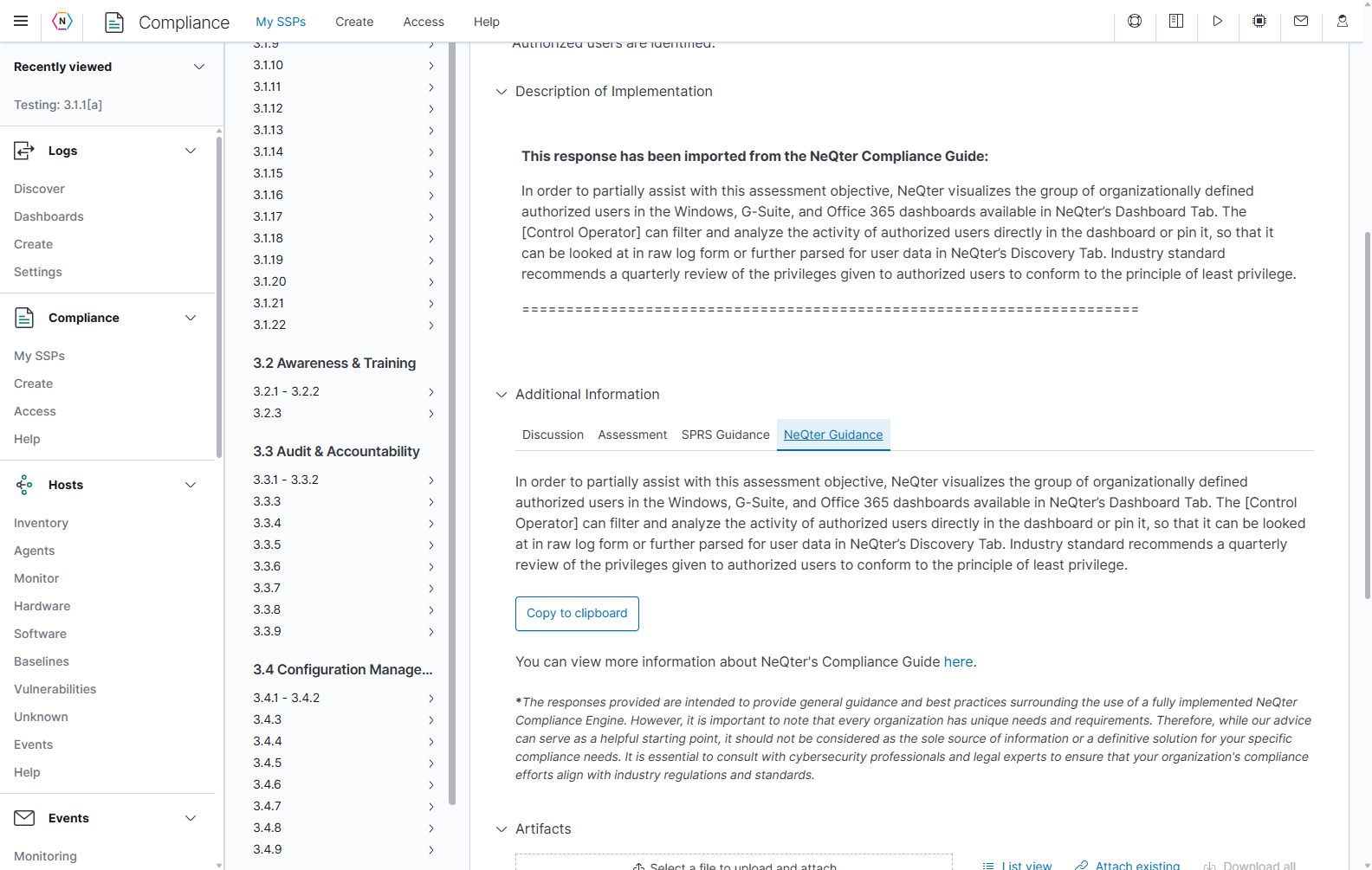
| NeQter Guidance | Suggested ways NeQter features can support the objective. Review applicability to the actual system. |
| Copy to clipboard | Copies the NeQter guidance text. It does not save that text as the implementation response. |
| NeQter Compliance Guide link | Opens the separate guide with more NeQter-specific compliance information. |
Keep evidence and follow-up work with the control
Use Artifacts to upload and attach evidence, attach an existing SSP file, switch its display with List view, or Download all attachments for this control. Selecting a file starts upload and attachment immediately.
Under Activity, Tasks lists work for this control and Add task opens a task form. Change history shows recorded changes. Under Comments, enter a nonempty comment of up to 1,000 characters, then click Add comment to post it. These actions have their own saves and are independent of the implementation response editor.
Rapid entry
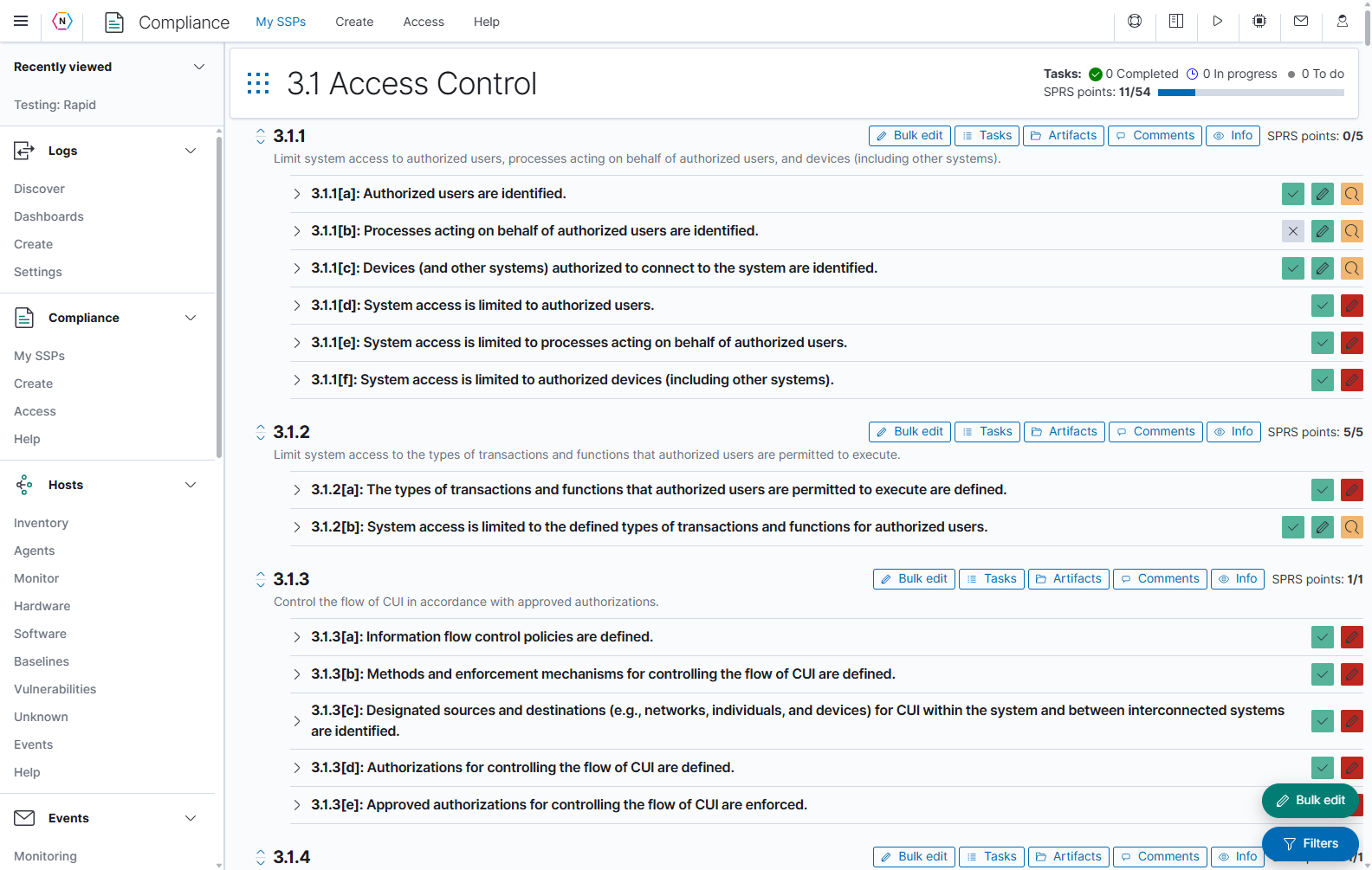
Rapid entry displays requirements and their assessment objectives together so you can review and update related work without repeatedly opening separate control pages. Changes to responses and control properties are queued here until you save the queue.
At the top of a domain, the page shows task counts for Completed, In progress, and To do, plus applicable SPRS points. Each requirement has its own description, objectives, and action buttons.
| Rapid control | What it does |
|---|---|
| Objective chevron | Expands or collapses an objective so you can review and edit its response and properties. |
| Nine-dot Open additional menu options | Opens the SSP navigation menu to move to the overview or other SSP pages. |
| Requirement expand/collapse arrows | Opens or closes the objectives in that requirement group. |
| Bulk edit beside a requirement | Opens bulk editing for the requirement’s objectives. Check the selected objective list before queuing changes. |
| Tasks, Artifacts, Comments | Opens the corresponding work or evidence panel for that requirement context. These operations save independently of the Rapid queue. |
| Info | Opens the requirement’s supporting information. |
| Floating Bulk edit | Opens the objective selector and shared metadata controls for batch edits. |
| Floating Filters | Opens search and filtering for the Rapid workspace. |
| Review changes | Opens the list of queued edits before saving. |
Badges at the right of each collapsed objective summarize its saved state. Hover over a badge for its label. A gray X means Not Implemented, blue calendar Planned, purple partial icon Partially Implemented, yellow alternate icon Alternate Implementation, and green check Implemented. The pencil is green when a response exists and red when one is missing. The orange review badge means Needs review. Check the queue to review unsaved changes; these badges describe the saved record.
Filter the Rapid workspace
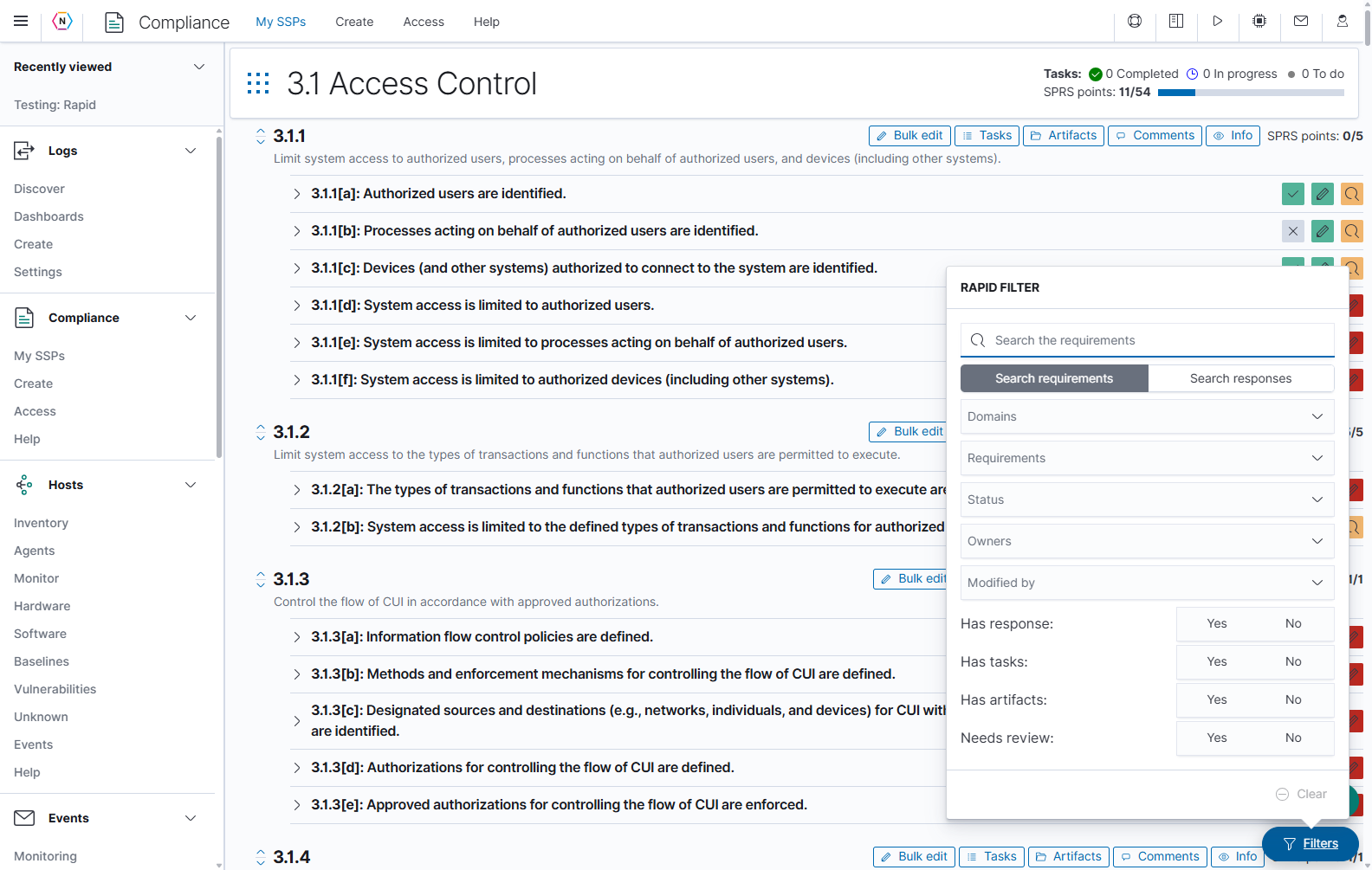
Click Filters in the lower-right corner. Enter search text and choose Search requirements or Search responses according to the content you want to find.
The panel also provides Domains, Requirements, Status, Owners, and Modified by, plus Yes/No choices for Has response, Has tasks, Has artifacts, and Needs review. Click Clear to remove the search and filter restrictions. Filtering does not change saved responses.
Queue a batch of changes
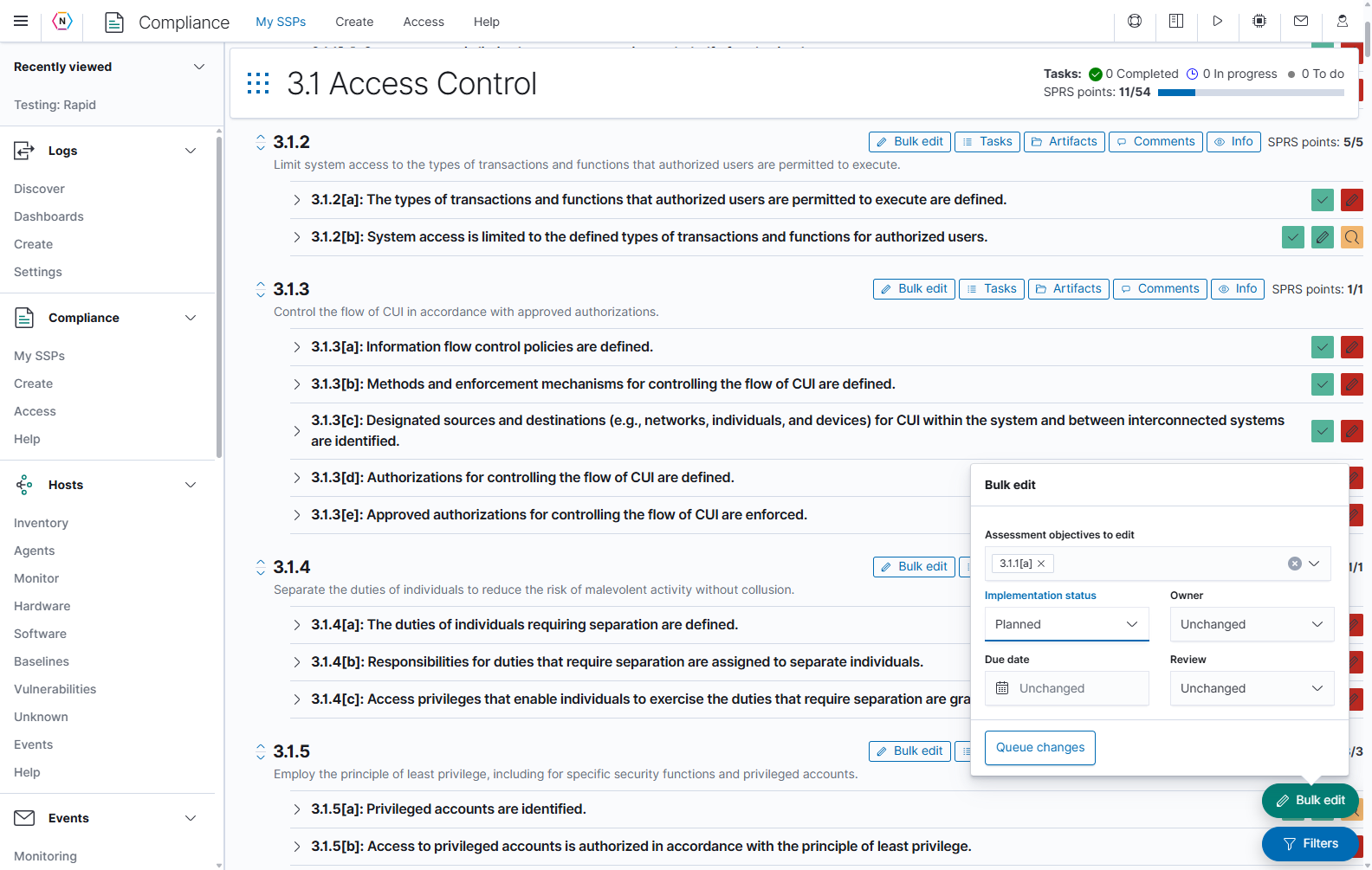
- Click Bulk edit.
- In Assessment objectives to edit, select the exact objective IDs to update. Remove an unwanted selected chip using its X.
- Set only the fields you intend to change. Leave the others Unchanged.
- Click Queue changes. The edits enter the local Rapid queue; this button does not save them to the SSP.
- Open Review changes, inspect the affected IDs and values, then click Save changes when they are correct.
| Bulk-edit field | How it applies |
|---|---|
| Assessment objectives to edit | Defines the records receiving this batch. Verify it rather than relying on the current scroll position or visible list. |
| Implementation status | Applies the selected status to the chosen objectives; Unchanged preserves each existing value. |
| Owner | Assigns the selected owner; None removes the owner; Unchanged preserves it. |
| Due date | Queues the selected date. Leaving it blank preserves existing dates. |
| Review | Applies Needs review or Reviewed, or preserves the state with Unchanged. |
| Queue changes | Adds the selected metadata changes to the unsaved queue. |
Review, save, or discard queued edits
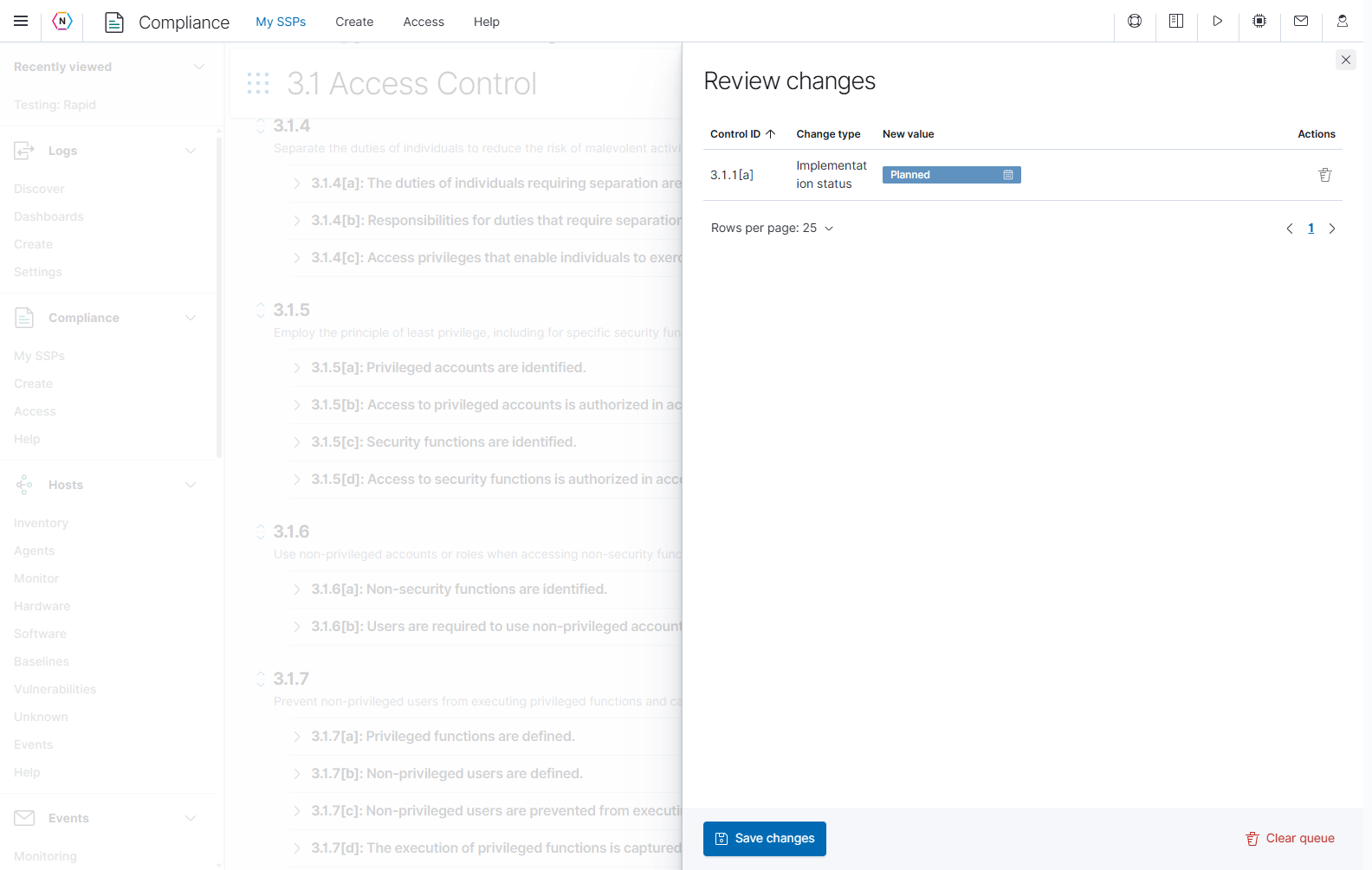
The Review changes flyout lists Control ID, Change type, New value, and Actions. Check every affected control and field. Use its pagination controls for a larger queue.
| Review control | Result |
|---|---|
| Row trash | Removes that proposed change from the queue. |
| Save changes | Writes the queued edits to the SSP. Wait for completion and resolve any reported failures; failed controls remain queued. |
| Clear queue | Discards the queued edits. |
| Top-right X | Closes the review flyout so you can return to the workspace. |
The example below proposes changing 3.1.1[a] to Planned. The queue was cleared after capture, so the example did not change the saved control status.
Clearing or canceling Rapid edits does not undo a task, posted comment, uploaded file, or attachment action completed through its separate panel. Save the queue before relying on these edits in a revision or export.
SPRS scoring and implementation
When available for the plan’s framework, open Scoring & implementation from the SSP navigation. The flyout shows the application’s score and a requirement-level breakdown. The application calculates this view from recorded implementation states; opening it does not submit a score to an external service.
| Column or control | What it shows |
|---|---|
| Score | The application’s calculated total, displayed against 110 for this example framework. |
| Control | The parent requirement being summarized. |
| Implementation status | Its aggregate implementation state. |
| Objectives completed | The completed objective count compared with the total for that requirement. |
| Points lost | The deduction compared with that requirement’s maximum points. |
| Row chevron | Expands or collapses the assessment-objective breakdown. |
| Rows per page, page numbers, arrows | Moves through the requirement list. |
| Close or X | Closes the flyout and returns to the underlying SSP page. |
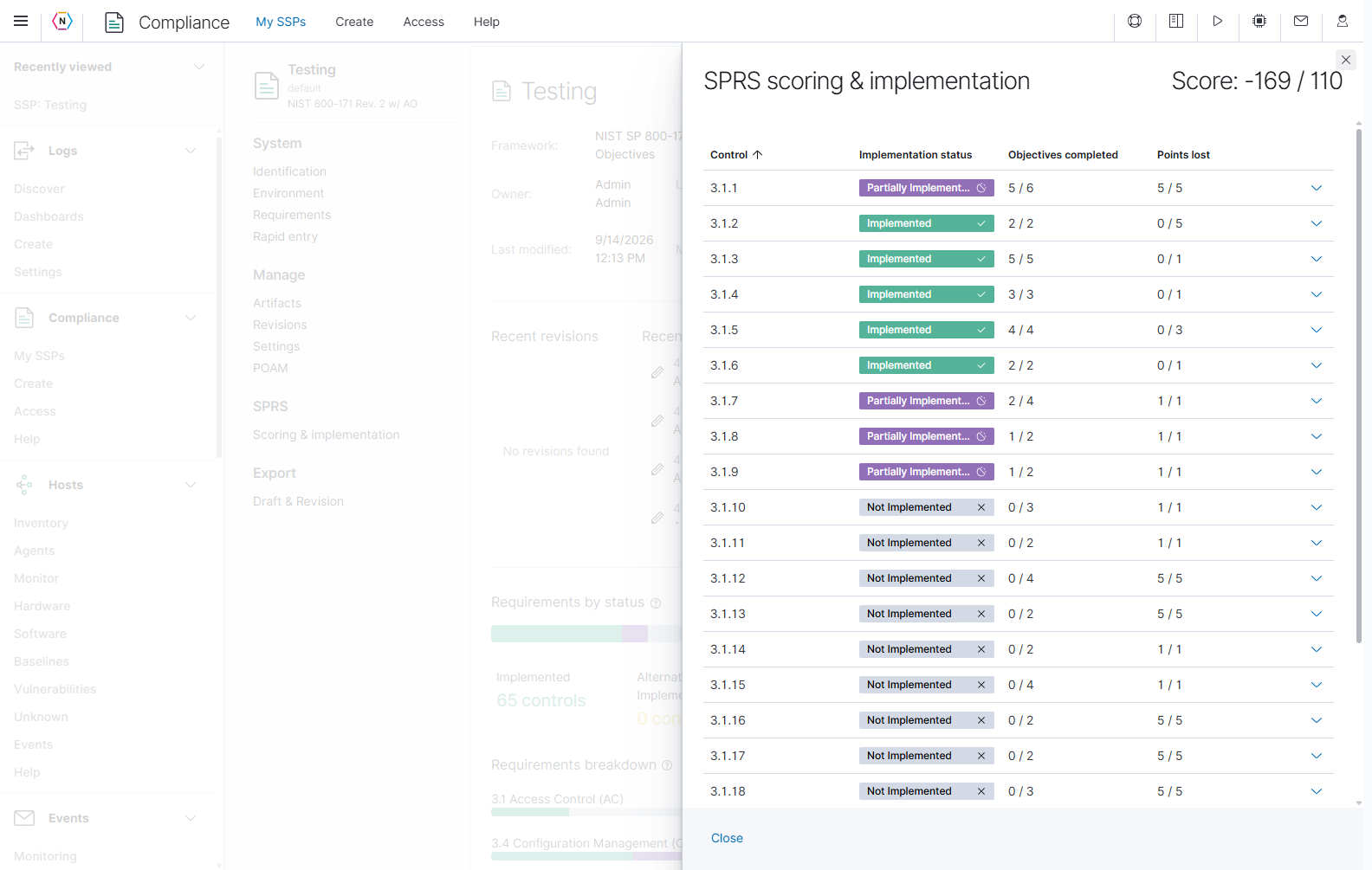
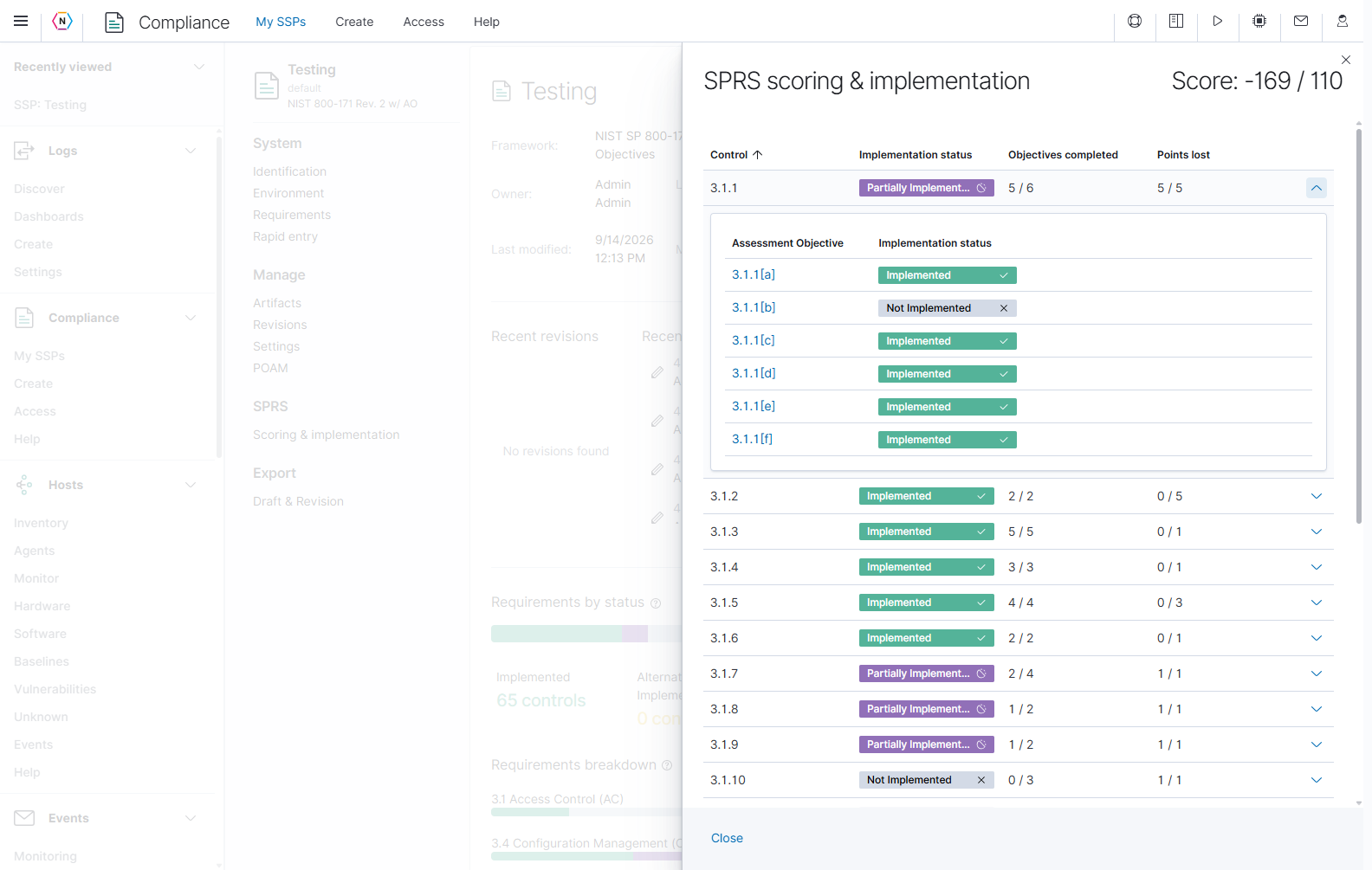
Expand a row to identify the objectives behind its result. In this example, 3.1.1 has 5 of 6 objectives completed, while 3.1.1[b] is Not Implemented. Its displayed deduction is still 5 of 5 points. Use the objective link to review the saved record and its evidence; do not assume that completing five out of six objectives produces a proportional point reduction.
Manage supporting evidence with Artifacts
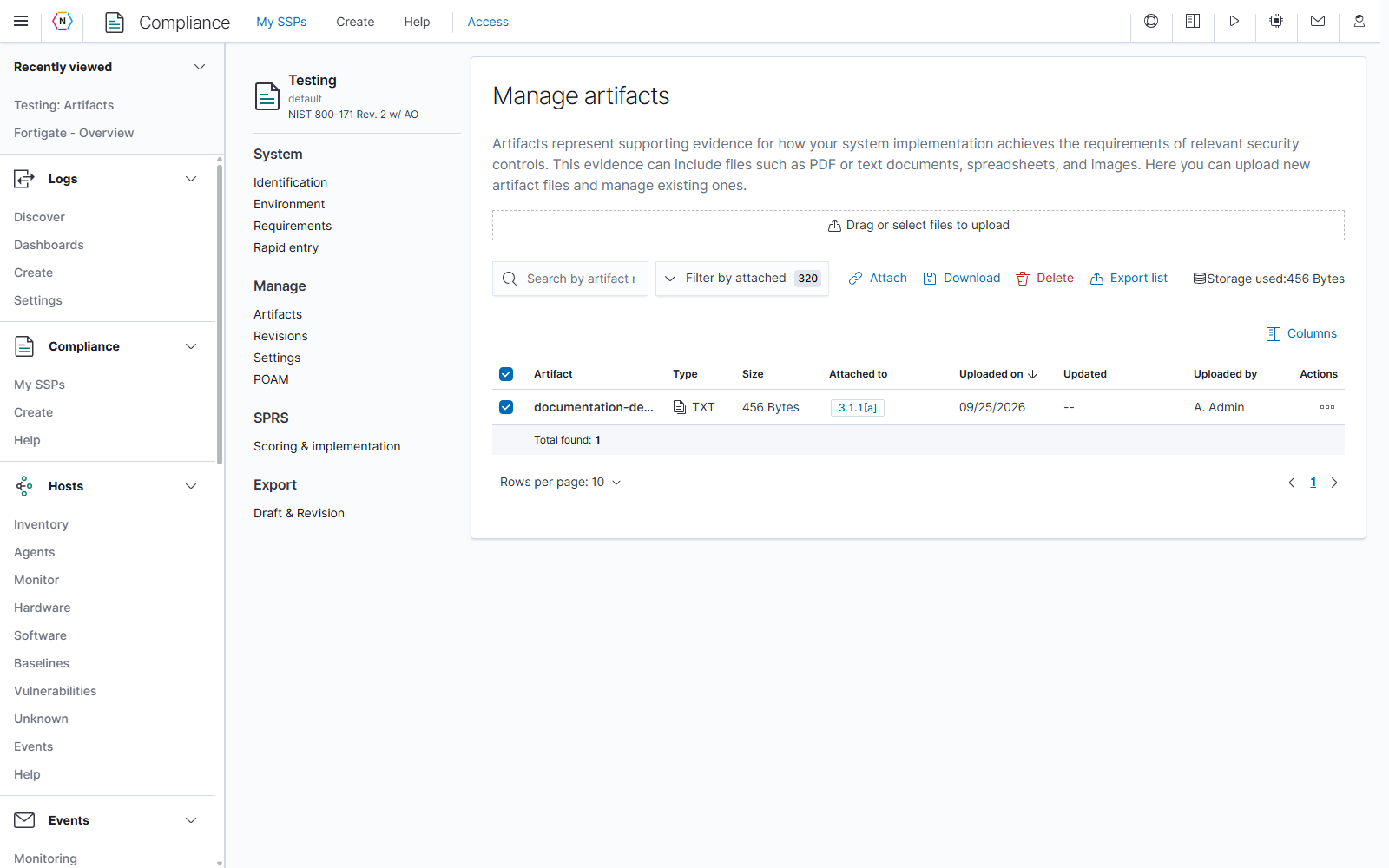
Open an SSP, then select Manage → Artifacts in its sidebar. An artifact is an uploaded evidence file, such as a policy document, screenshot, spreadsheet, or configuration record. Attaching it to a control records which requirement that evidence supports.
The example SSP contains a fictional documentation evidence file attached to control 3.1.1[a]. Selection actions become available when rows are selected.
| Control or area | What it does | How to use it |
|---|---|---|
| Drag or select files to upload | Adds evidence files to this SSP. | Drop files into the area or select files from your computer. Choosing or dropping a file starts its upload immediately. |
| Search by artifact name | Narrows the evidence list by file name. | Enter part of the name; clear the text to remove the search. |
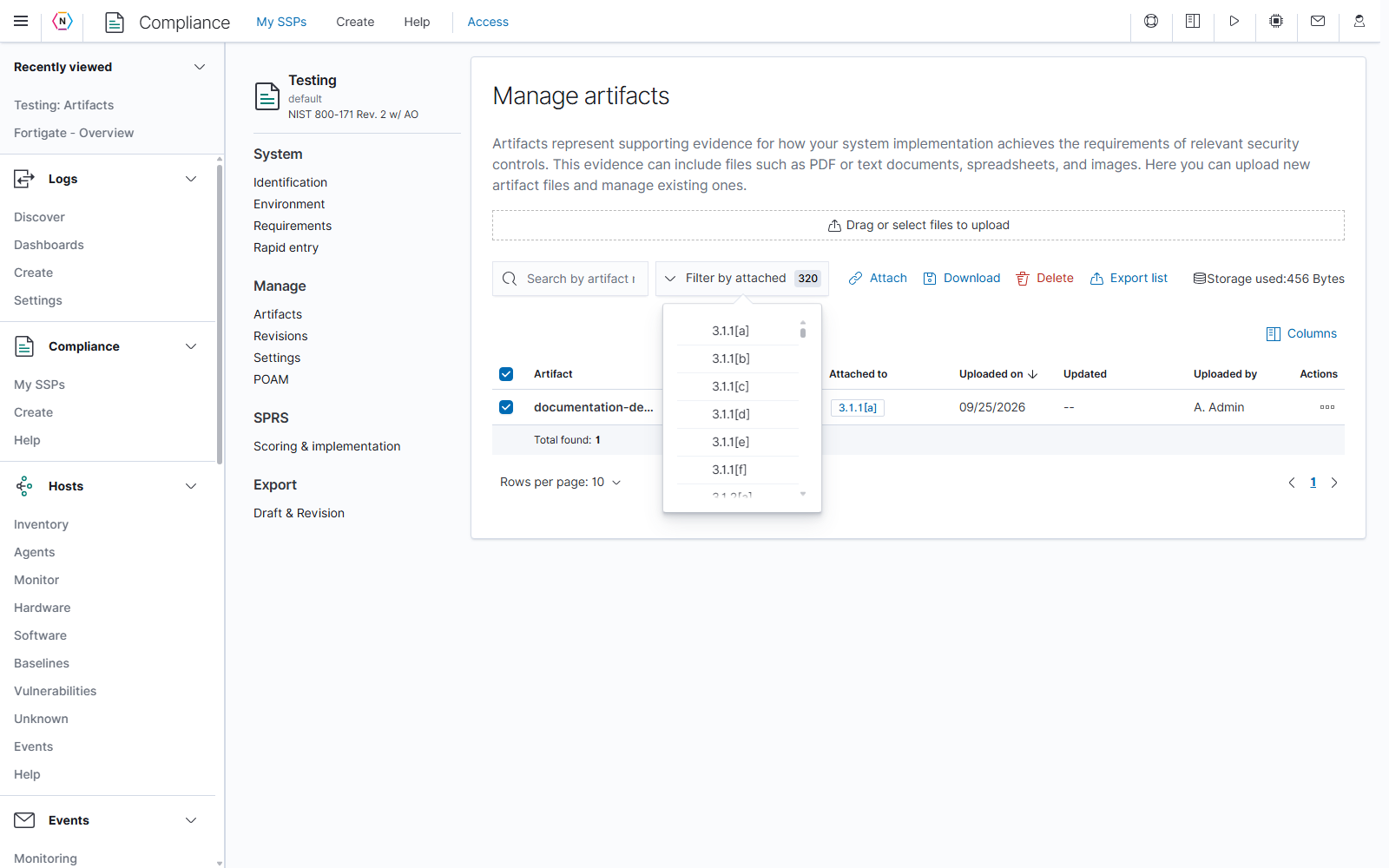
| Filter by attached | Limits the list to artifacts attached to selected controls. | Open the menu and select the relevant requirement or assessment objective. |
| Row checkboxes and heading checkbox | Select files for a bulk action. | Check the required rows before using Attach, Download, or Delete. Uncheck rows to clear a selection. |
| Attach | Opens the control-assignment chooser for selected files. | Choose the controls that the evidence supports, then use the chooser’s attachment action. |
| Download | Downloads the selected evidence files. | Select the files you need before using this button. |
| Delete | Removes selected artifacts after confirmation. | Review the selection and confirmation before deleting evidence. |
| Export list | Downloads the SSP’s full artifact list as ssp_export_artifacts.csv. | This export is not limited by the current search, filter, or selection. Use Download when you need the evidence files themselves. |
| Storage used | Shows the storage consumed by this SSP’s artifacts. | Read this alongside file sizes when reviewing uploads. |
| Columns | Chooses which table fields are visible. | Show the metadata needed for your review. |
| Sortable column headings | Change the order of files. | Select a heading such as Artifact, Size, or Uploaded on to sort by that value. |
| Total found and table paging | Show the result count and provide access to additional rows. | Check the result count after filtering; use the paging controls when more rows are available. |
Upload and attach evidence
- Prepare the evidence file with a recognizable name. The upload limit is 100 MB per file, and artifact names are limited to 255 characters.
- Select or drop the file in Drag or select files to upload. Wait for the upload to finish before attaching it.
- Select the uploaded file’s checkbox and choose Attach.
- Select the requirement or assessment objective that the file supports, then apply the attachment action.
- Check Attached to in the table to confirm the intended association. An uploaded file can exist before it is attached to a control.
The attachment chooser’s Attach and Detach actions save their changes when used. On a control’s artifact card, the unlink/Detach action removes that association immediately. Detaching an association and deleting the uploaded artifact have different effects: the former removes the control link; the latter removes the evidence file from the SSP.
Read and maintain the evidence table
The Artifact column identifies the file. Type and Size describe it; Attached to shows the associated controls; Uploaded on, Updated, and Uploaded by record upload and maintenance information. Actions contains the operations available for each file. The Artifact column remains visible when other columns are hidden.
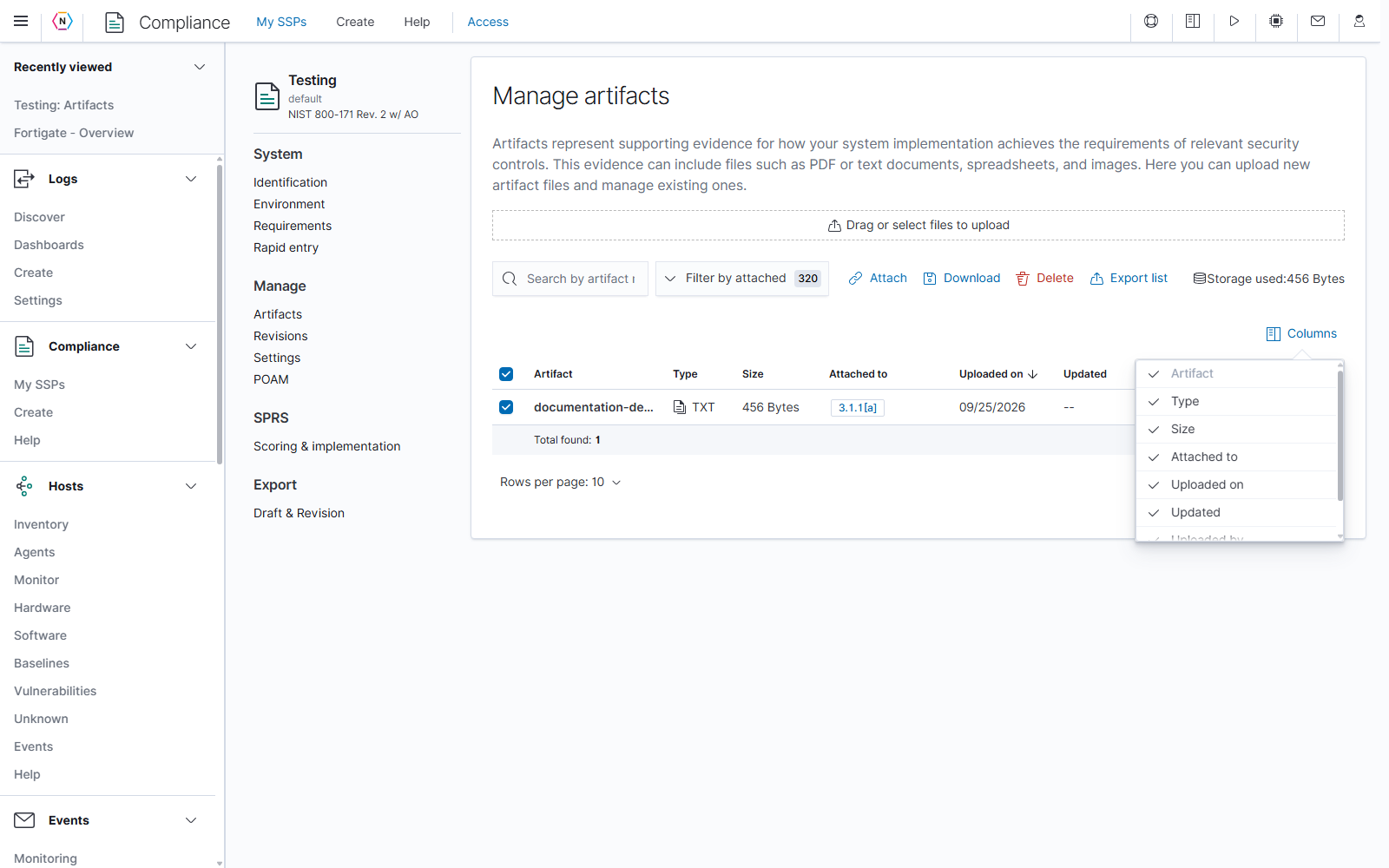
Once files exist, use an artifact’s edit action to open its details and attachment editor. Name changes the artifact name while retaining its file extension; Attached to specifies its associated controls; Description accepts up to 500 characters of context. Review the changes and choose Save to update the artifact; cancel or close the editor to abandon a draft. Supported PDF, GIF, JPEG, and PNG files can be previewed in the application. Download other file types to open them in an appropriate local application.
Track work in the POAM
Select Manage → POAM to open Manage plan of action and milestones. A task records work needed to meet a control’s requirements. Each task belongs to a control and can have an owner, priority, status, details, and due date.
The example SSP contains a fictional documentation task for reviewing example user access. The screenshots show its populated task list and the completed form before the task was saved.
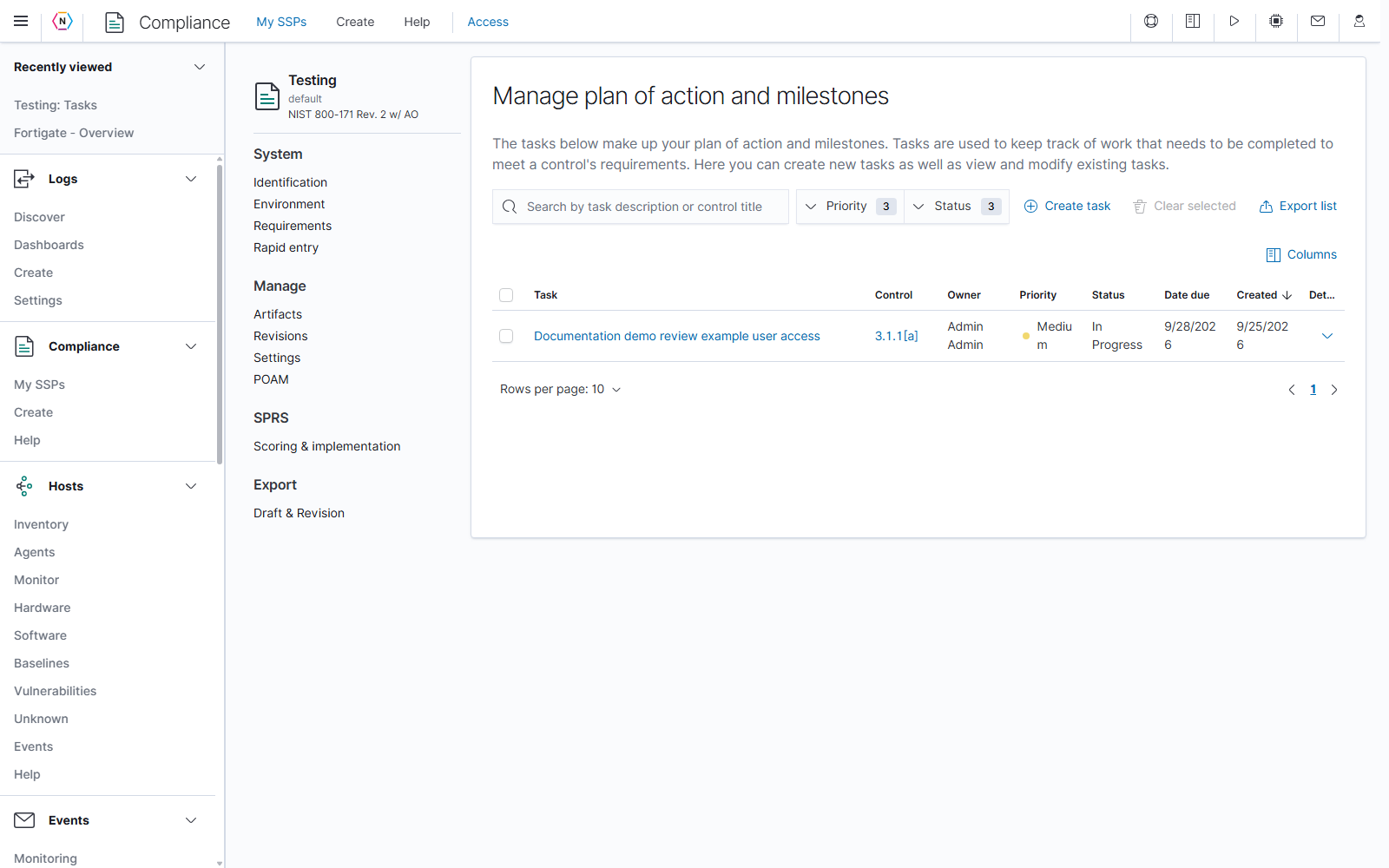
| Control or area | What it does | How to use it |
|---|---|---|
| Search by task description or control title | Finds tasks by their description or associated control. | Type a useful word or control title, then clear the search to broaden the list. |
| Priority | Filters tasks by Low, Medium, or High priority. | Select the priorities you want included. |
| Status | Filters tasks by To Do, In Progress, or Completed. | Select the work states relevant to your review. |
| Create task | Opens the Add task form. | Complete the required fields, then save the task. |
| Row checkboxes | Select tasks for the bulk removal action. | Check only the tasks you intend to remove. Uncheck them to clear the selection. |
| Clear selected | Deletes the selected tasks after a confirmation. | Treat this as task removal; it does not merely deselect the checkboxes. |
| Export list | Downloads the SSP’s full task list as ssp_export_tasks.csv. | This export is not limited by the current search, filters, or selection. |
| Columns | Shows or hides task fields. | Include the columns needed for assignment, progress, or due-date review. |
| Sortable headings and paging | Change ordering and move through longer task lists. | Sort by the relevant field and use the available page controls. |
Create a task
- Select Create task.
- Choose the Control that the work supports.
- Enter a concise Description of the work to complete.
- Optionally assign an Owner, enter Details, and set a Date due.
- Choose a Priority and Status.
- Select Save to create the task. Cancel or the close button abandons the form.
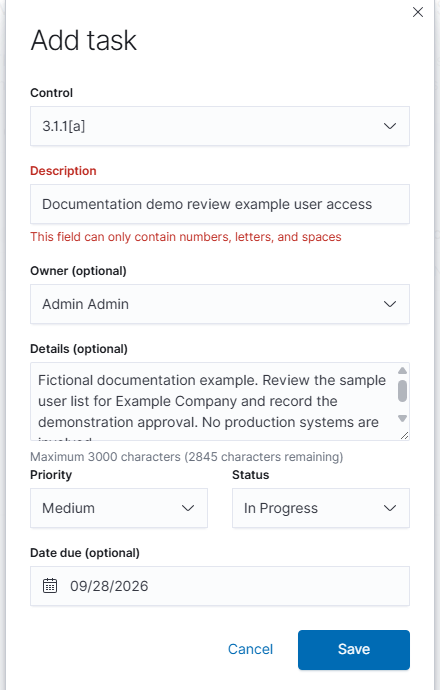
| Task field | Meaning |
|---|---|
| Control | The requirement or assessment objective the task supports. Select the most appropriate control. |
| Description | The task’s short, recognizable work statement, up to 255 characters. |
| Owner (optional) | The user responsible for the task. |
| Details (optional) | Additional instructions, context, or completion criteria, up to 3,000 characters. |
| Priority | The task’s relative urgency: Low, Medium, or High. New tasks initially show Low. |
| Status | To Do for work not started, In Progress for active work, or Completed for finished work. |
| Date due (optional) | The intended completion date, selected with the date control. The earliest date offered for a new task is tomorrow. |
Filter and update task progress
Use Priority to focus the list on work of a particular urgency. Combine it with the text search and Status to narrow a large POAM.
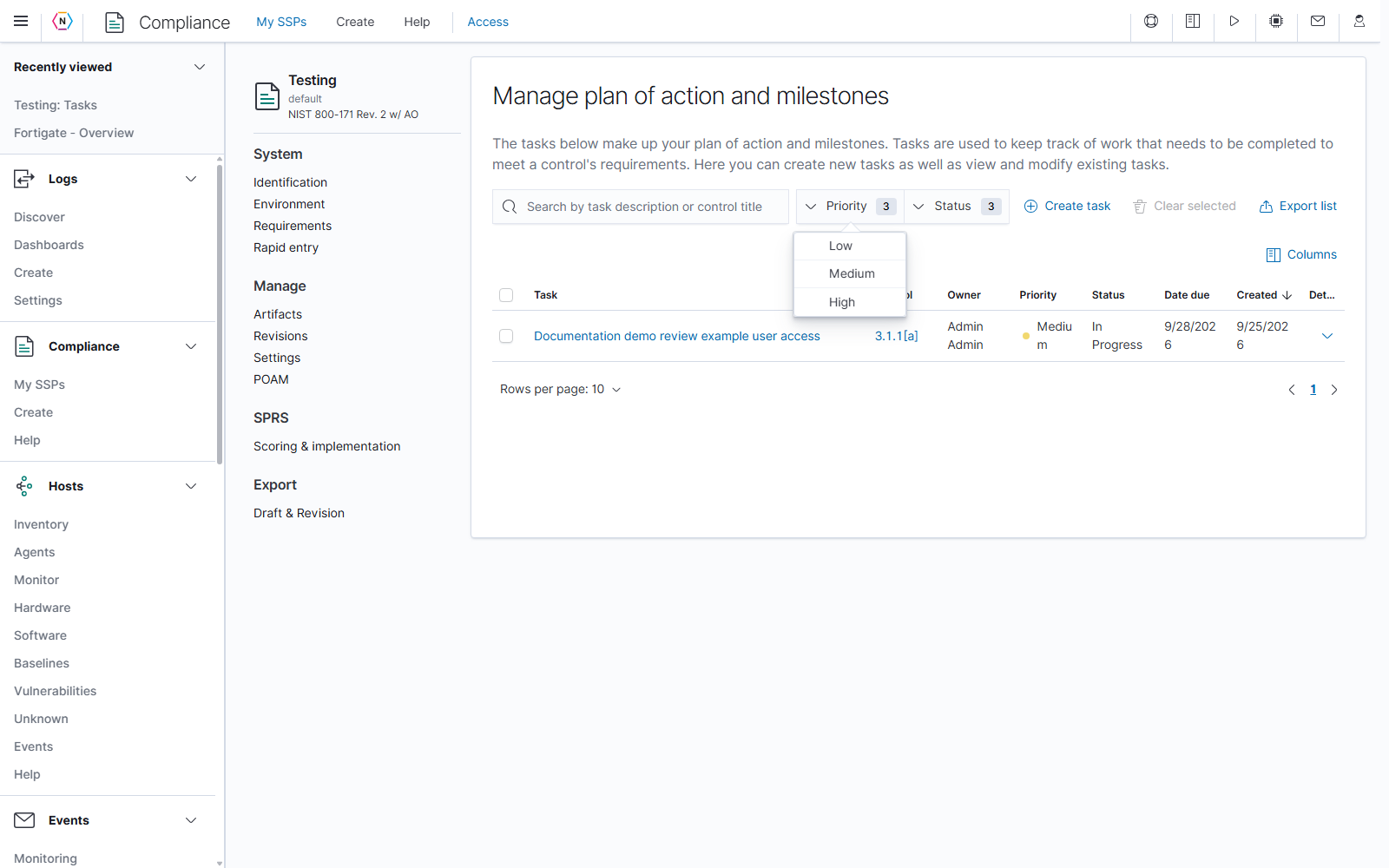
Use Status to distinguish work waiting to begin, work underway, and completed tasks. A task’s status describes that task; it is separate from the implementation status recorded on the control.
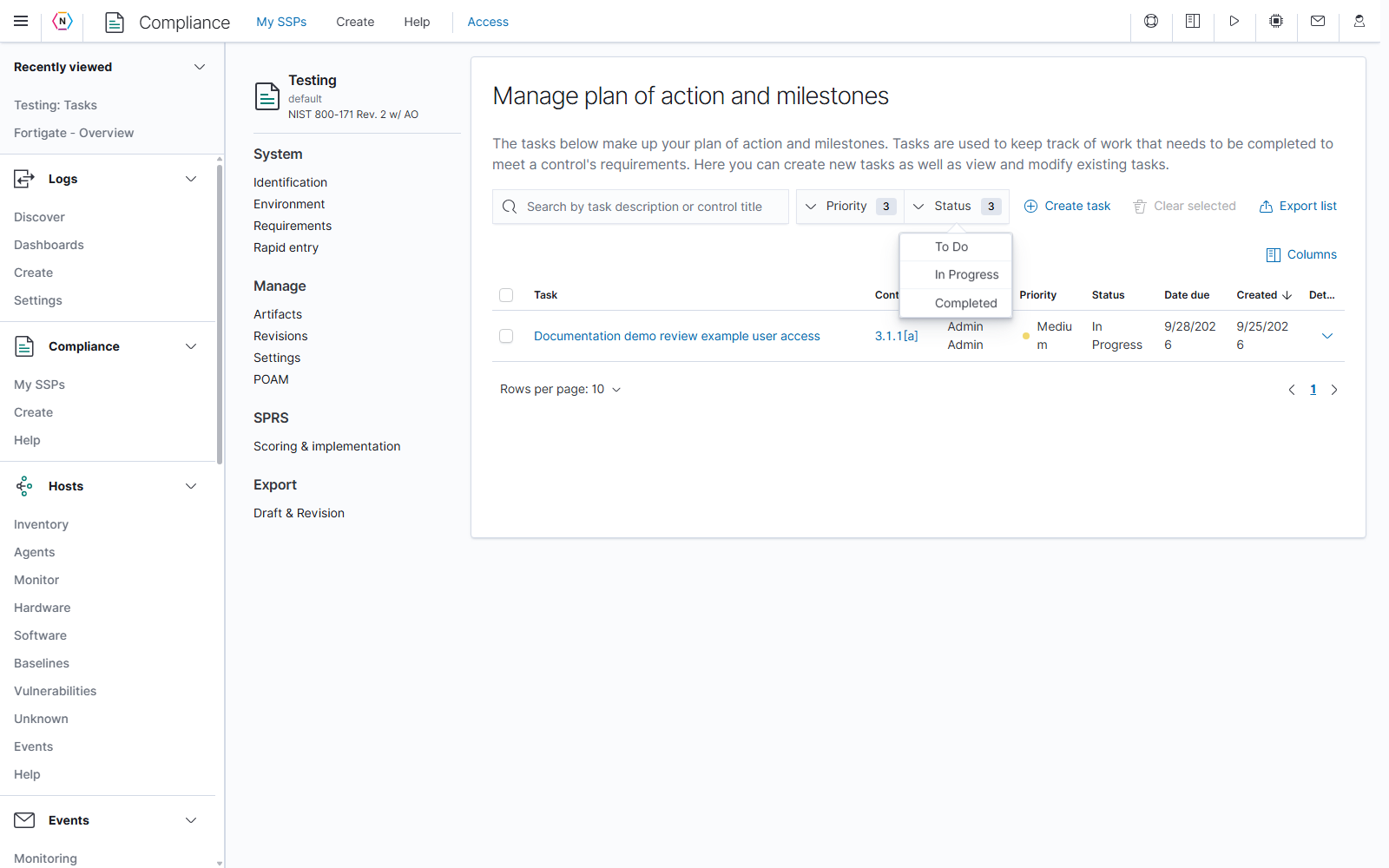
Once tasks exist, open a task to review its details and comments. Editable fields use individual save and cancel controls: finish a field edit with the disk/Save icon, or use Cancel to discard it. Clicking outside an inline field editor cancels its draft. The trash/Clear action beside an optional owner or date removes that value immediately.
Existing tasks also offer Mark completed, which immediately sets the task’s status to Completed, and Delete task, which immediately removes the task for users with management permission. The individual Delete task action does not show the bulk removal confirmation described above.
Use Show comments and Hide comments to expand or collapse a task’s discussion. Enter up to 1,000 characters and select Add comment to post an update. Merely typing a comment does not post it. A comment’s Delete action removes it immediately; the action is available for your own comments and to users with the relevant management permission.
Preserve an SSP revision
Select Manage → Revisions to view the SSP’s saved revisions. The working Draft contains the most recently saved SSP data. A Revision preserves a numbered snapshot so you can refer to or export that version after the working draft changes.
The example SSP has no revisions, so the overview offers Create first revision. Revision creation requires the appropriate management permission.
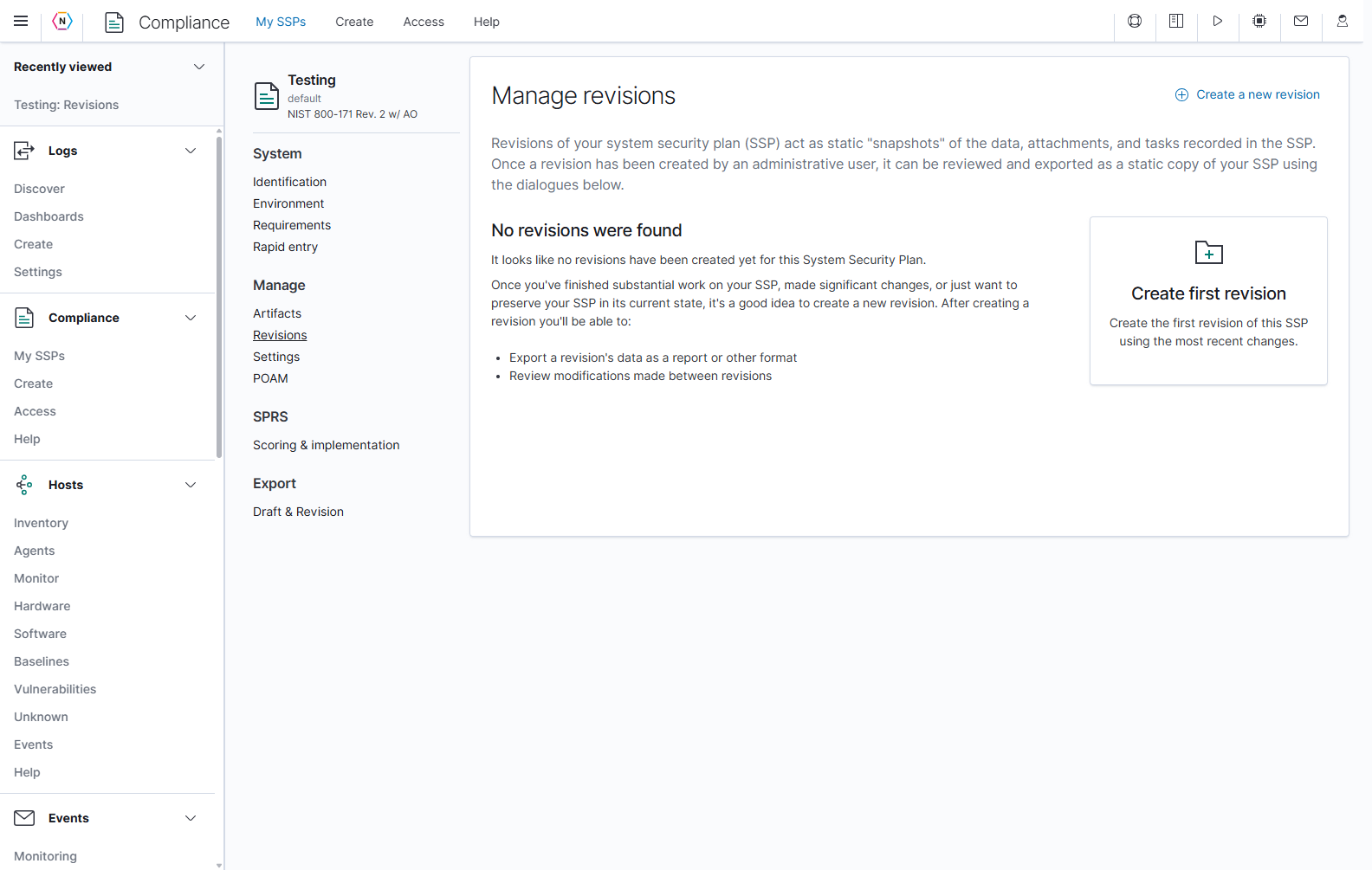
Create and describe a revision
- Save the SSP edits that should be included in the snapshot.
- Open Revisions, then choose Create a new revision or the initial Create first revision tile.
- Choose Major or Minor and check the proposed revision number.
- Optionally enter a Description of revision, up to 1,000 characters.
- Review the listed modifications since the previous revision and describe them where needed. A first revision has no previous revision to compare against.
- Select Create new revision to open the confirmation.
- Confirm only when the proposed snapshot is ready to keep.
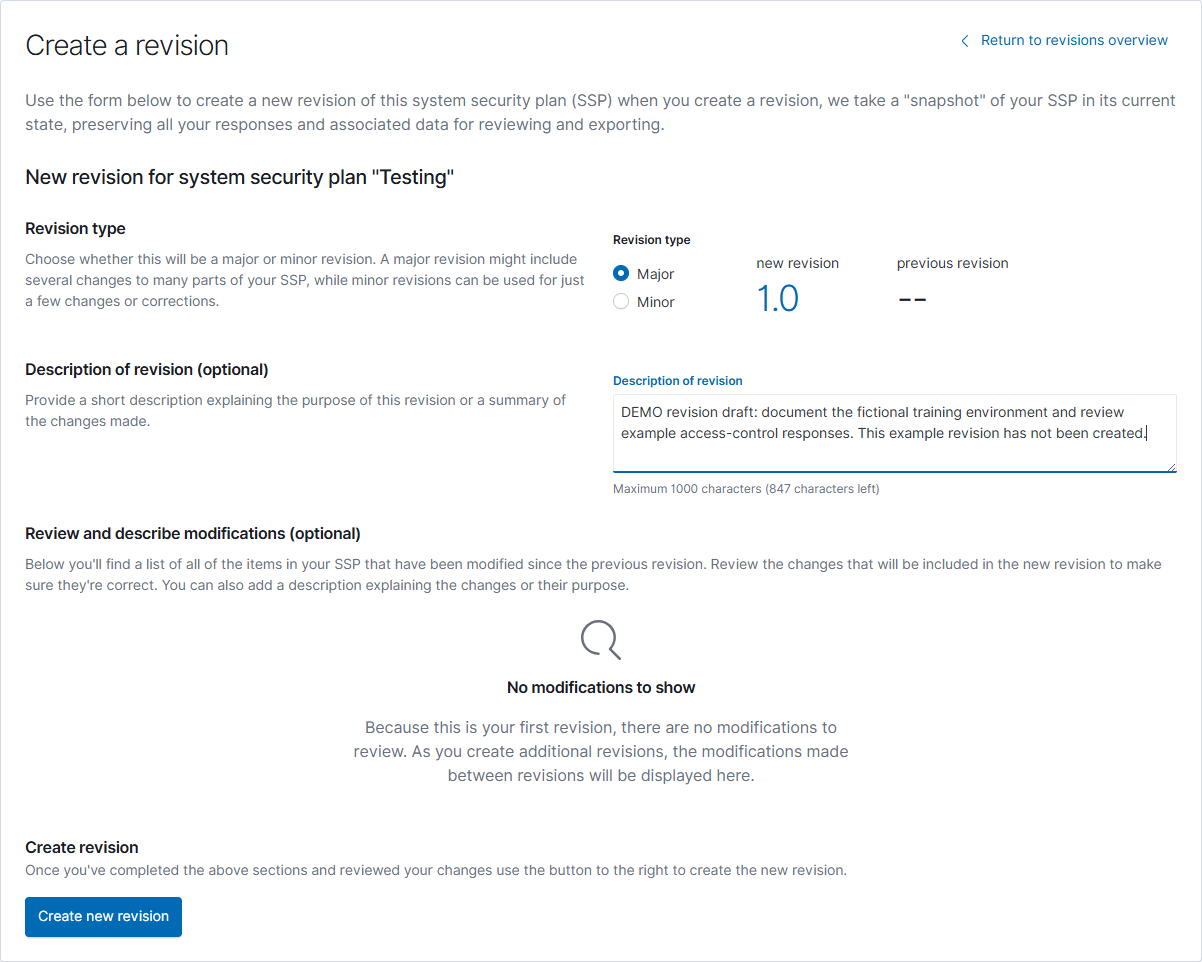
| Control or area | What it does |
|---|---|
| Return to revisions overview | Leaves the creation form and returns to the list. |
| Major / Minor | Major changes an existing x.y revision to (x+1).0; Minor changes it to x.(y+1). Read the proposed number before continuing. |
| Revision number and previous revision | Identify the proposed snapshot and its predecessor, if one exists. |
| Description of revision (optional) | Records why the snapshot was made or what it contains. |
| Review and describe modifications (optional) | Shows changes since the previous snapshot and lets you describe those changes. |
| Create new revision | Opens the final creation confirmation. |
| Yes, create revision | Creates the permanent snapshot. |
| No, cancel | Closes the confirmation without creating a revision. |
A revision cannot be deleted once it has been created. The confirmation makes that consequence explicit. In the example below, the confirmation was canceled and revision 1.0 was not created.
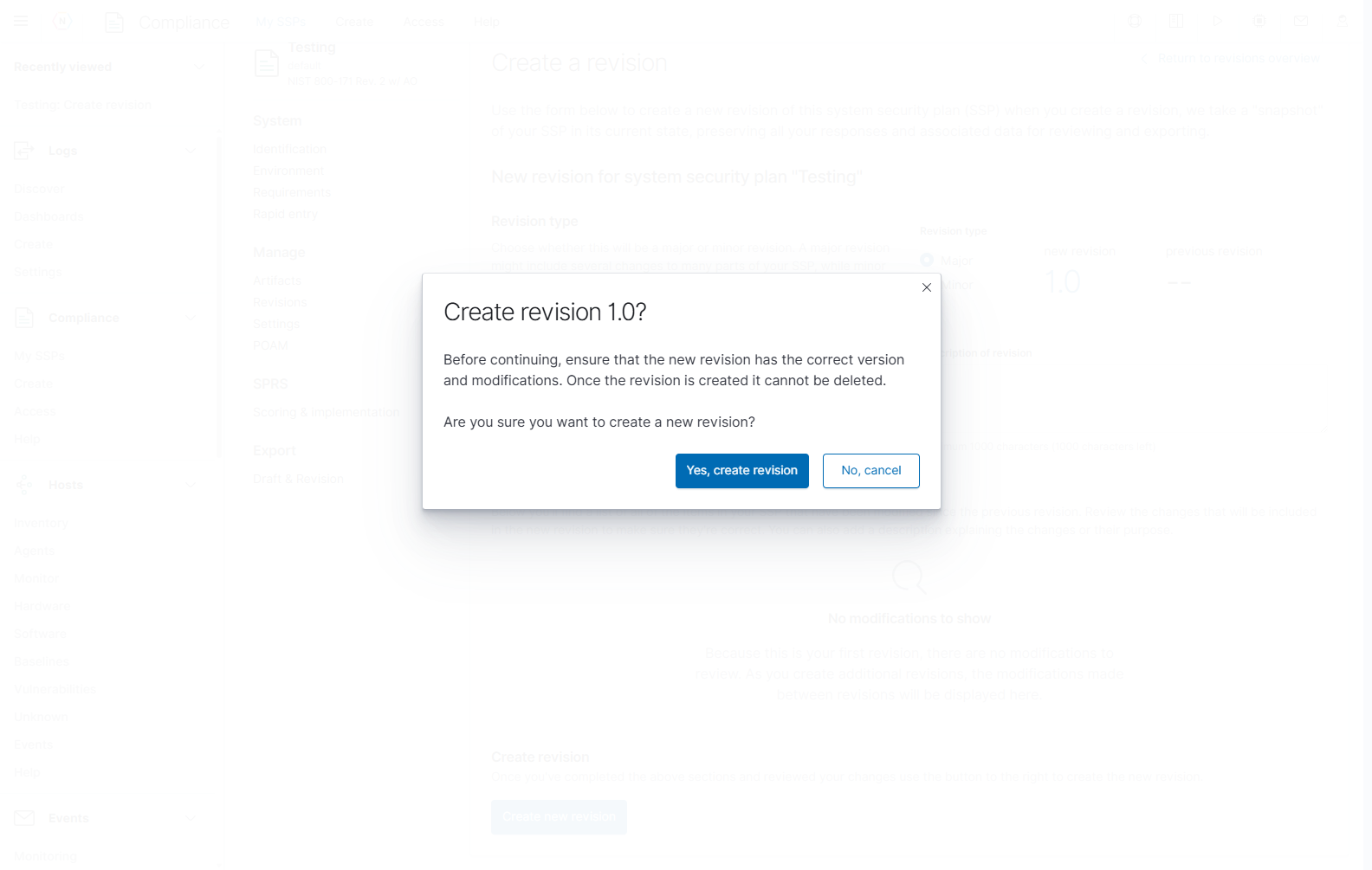
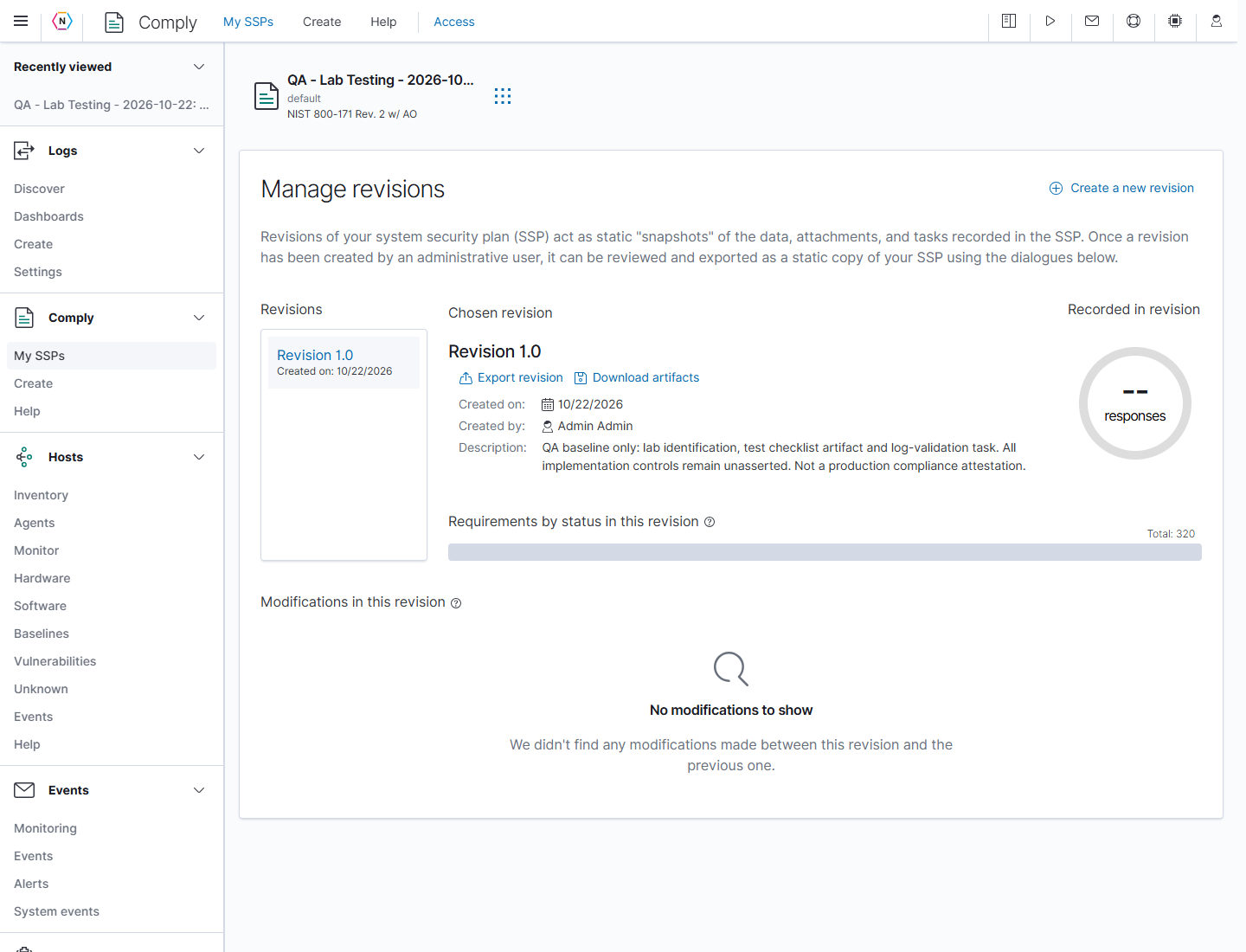
After revisions exist, select one in the overview to inspect its creation date, creator, description, implementation progress, and modification history relative to the previous revision. Export revision opens the export workflow for that snapshot; Download artifacts downloads its artifacts. You can also open Export → Draft & Revision, select Revision, and choose the required version. Later draft edits are separate from that saved snapshot.
Review an existing revision
- Open the SSP’s nine-dot menu and choose Manage → Revisions.
- Select a revision in the left-hand Revisions list. Confirm its number under Chosen revision, then review Created on, Created by, and Description.
- Review Requirements by status in this revision and Modifications in this revision. The modification panel compares that snapshot with the previous revision; it does not compare it with today’s working draft. No modifications to show means the panel found no changes for that comparison.
- Select Export revision to prepare a report from the selected snapshot, or Download artifacts when you need its evidence files.
Export a draft or saved revision
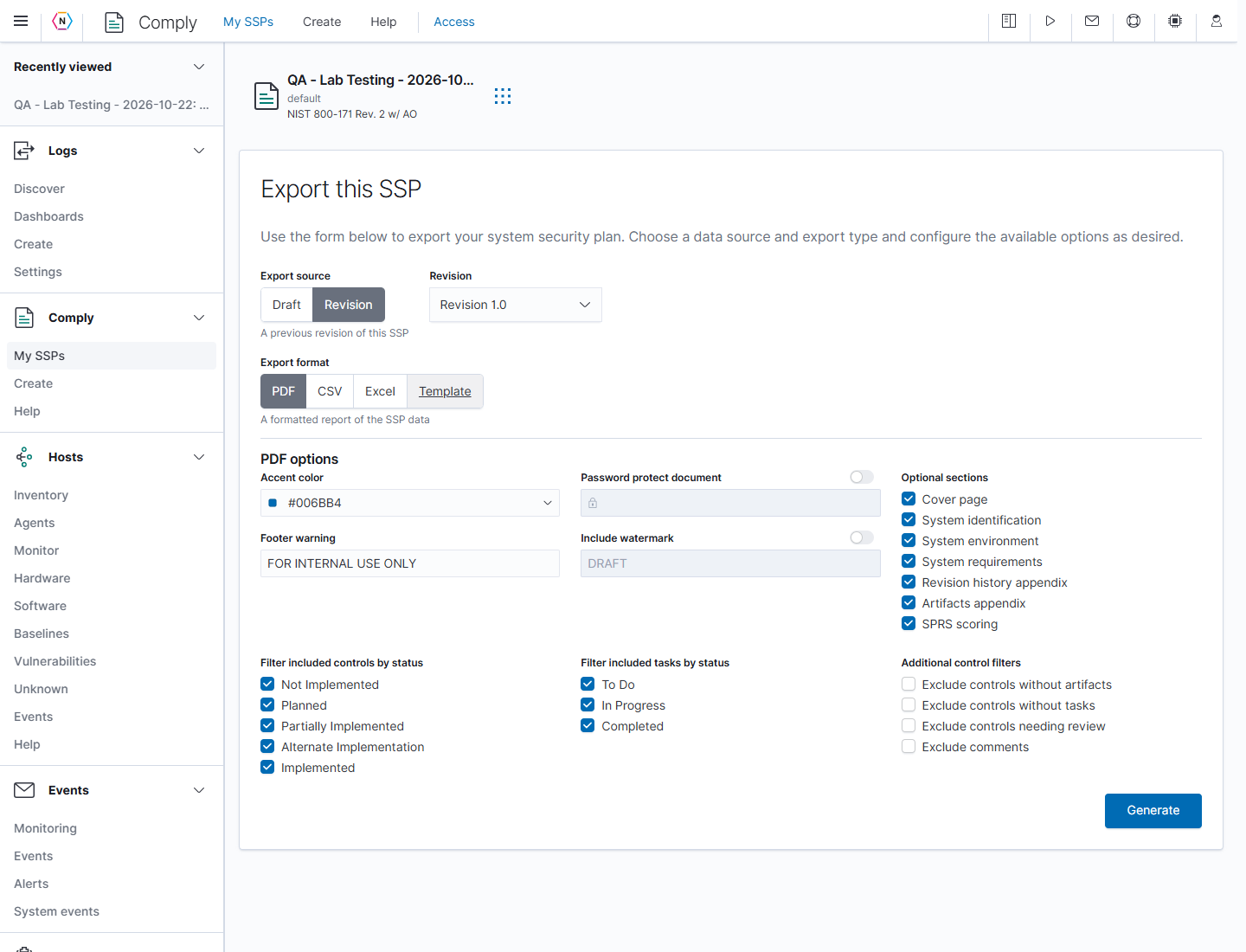
Select Export → Draft & Revision in the SSP sidebar. Choose the data source first, then the format and its options. Select Generate to create the selected export.
| Export source | What is included |
|---|---|
| Draft | The most recent data saved to the SSP. Save outstanding field and form edits before generating the report. |
| Revision | The selected saved snapshot. This option is unavailable until the SSP has at least one revision. |
To export a saved version, select Revision, then choose its number in the Revision dropdown. Opening Export revision from the revision review selects that snapshot for you. Confirm the source and revision number before choosing the format and selecting Generate. Export controls prepare a report; changing their options does not edit the SSP’s control responses.
PDF report
Choose PDF for a formatted report. Configure its appearance, sections, and filters before selecting Generate.
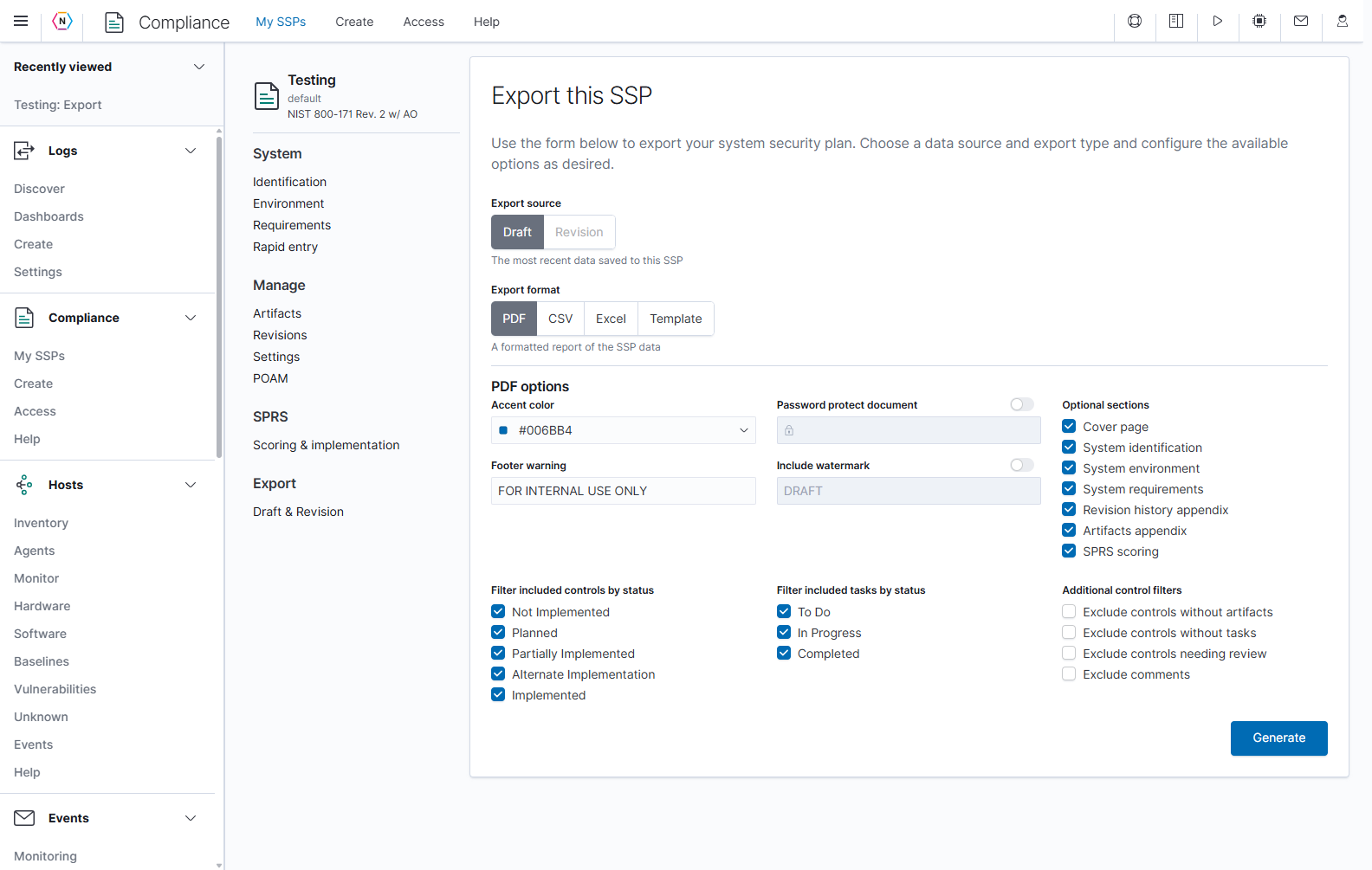
| PDF option | How to use it |
|---|---|
| Accent color | Choose the color used for the report’s accent styling. |
| Footer warning | Set the footer text, initially FOR INTERNAL USE ONLY. |
| Password protect document | Enable the switch and enter a password to protect the generated PDF. |
| Include watermark | Enable the switch and set the watermark text, initially DRAFT. |
| Cover page | Include the report’s cover. |
| System identification / System environment | Include the SSP’s identification and environment sections. |
| System requirements | Include the requirement responses. |
| Revision history appendix | Include the revision-history appendix. |
| Artifacts appendix | Include the artifacts appendix. |
| SPRS scoring | Include the available scoring section. |
| Filter included controls by status | Choose which implementation statuses to include: Not Implemented, Planned, Partially Implemented, Alternate Implementation, or Implemented. |
| Filter included tasks by status | Include tasks in To Do, In Progress, and/or Completed states. |
| Exclude controls without artifacts | Omit controls that have no attached artifacts. |
| Exclude controls without tasks | Omit controls that have no associated tasks. |
| Exclude controls needing review | Omit controls marked as needing review. |
| Exclude comments | Leave comments out of the report. |
| Generate | Builds the PDF using the selected source and options. |
Filters affect the generated report. For example, excluding controls without artifacts can remove much of a new SSP whose evidence has not yet been attached. Review the selected options before sharing an export.
CSV spreadsheet
Choose CSV for a delimited spreadsheet of the SSP data. Select the fields you need, choose the separator and date format, then select Generate.
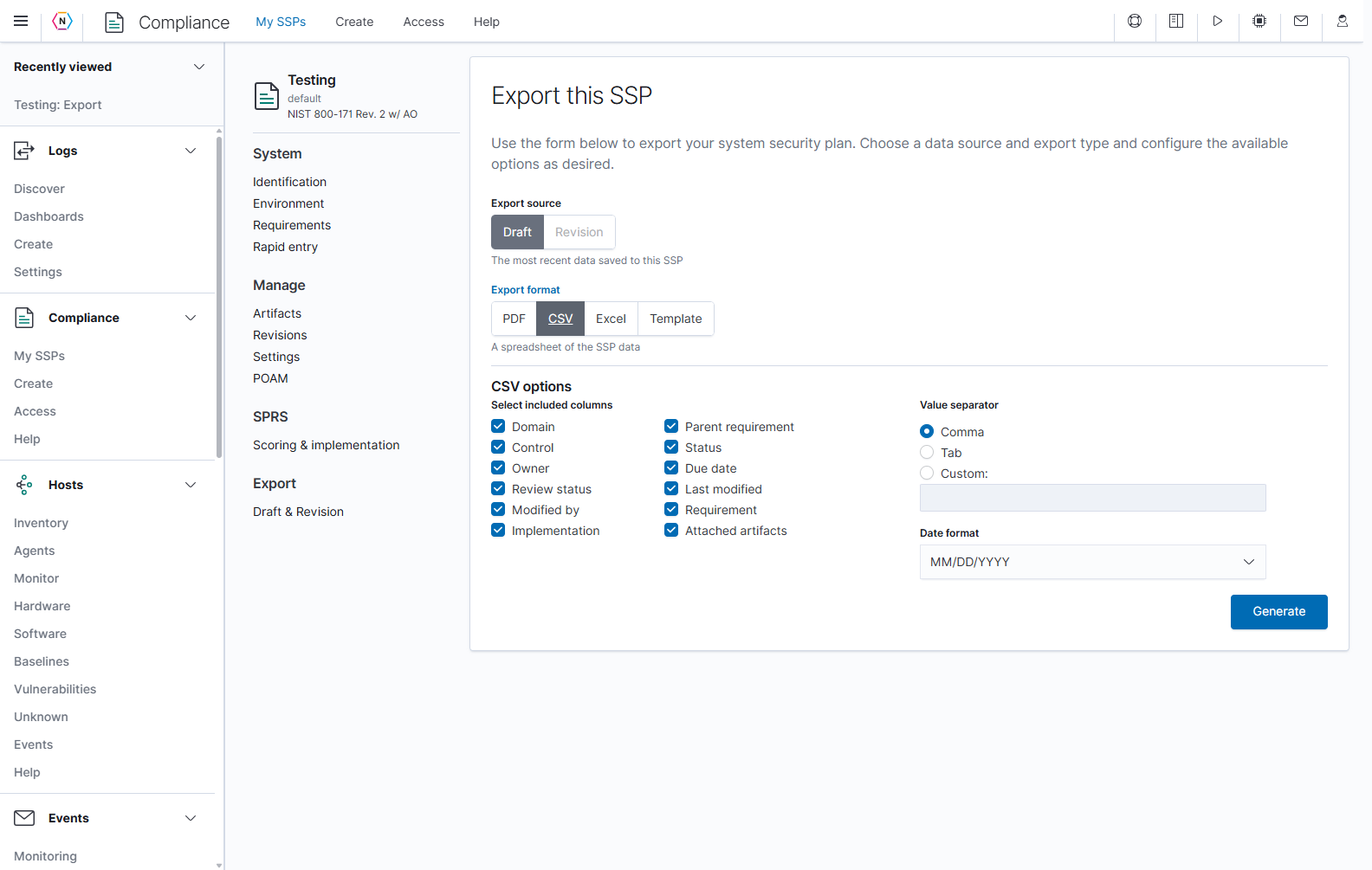
| CSV option | What it controls |
|---|---|
| Domain, Parent requirement, Control | The framework hierarchy and control identifier. |
| Status, Owner, Due date, Review status | The control’s recorded implementation and assignment metadata. |
| Last modified, Modified by | The most recent modification information. |
| Requirement, Implementation, Attached artifacts | The requirement text, implementation response, and associated evidence information. |
| Value separator | Use Comma, Tab, or Custom. Enter the required delimiter when Custom is selected. |
| Date format | Choose the numeric, named-month, or ISO 8601 date representation required by the receiving workflow. |
Excel workbook
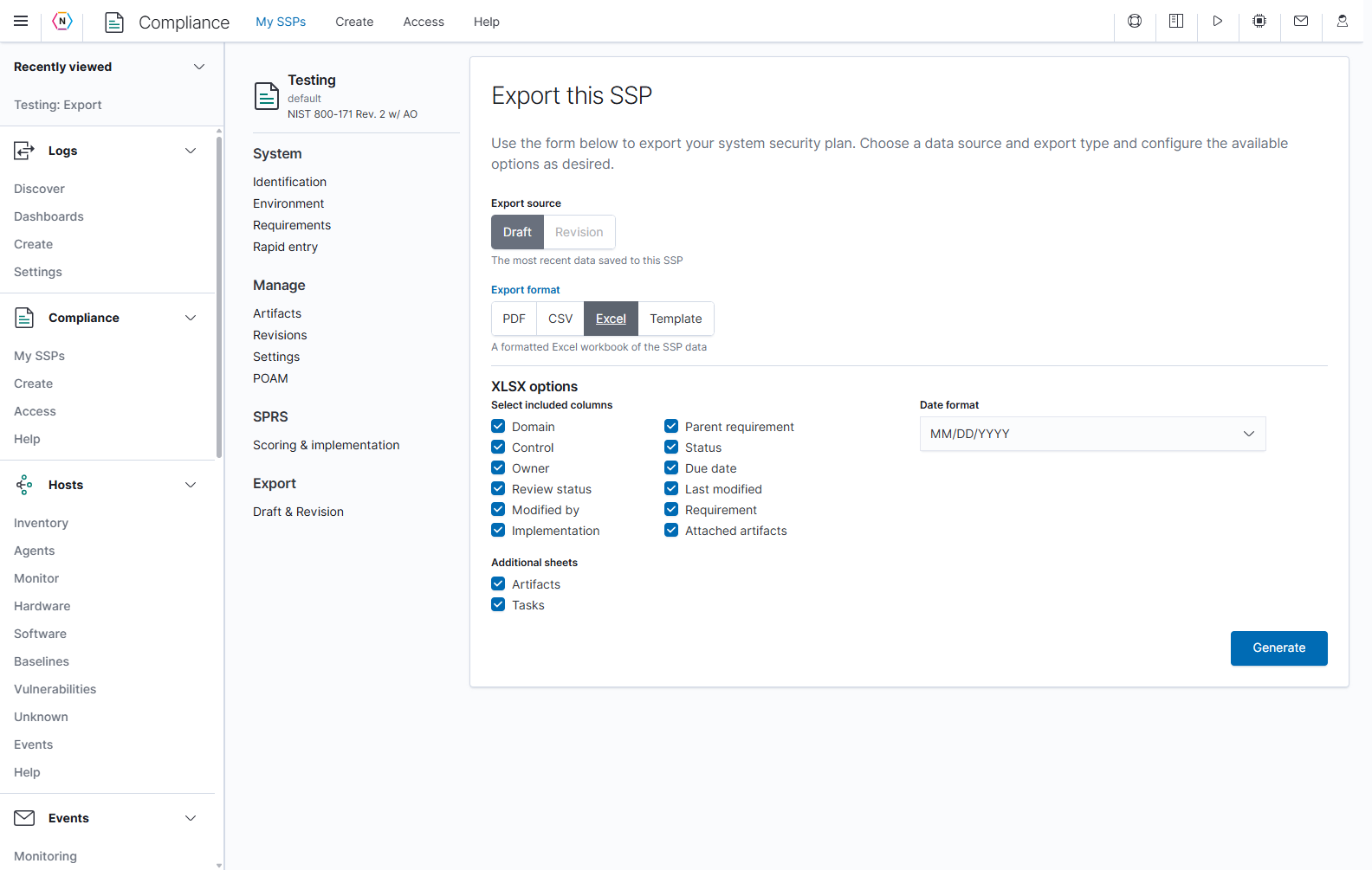
Choose Excel to generate an XLSX workbook. It provides the same control-column choices as CSV and can include separate Artifacts and Tasks sheets. Choose the Date format, then select Generate.
Reusable SSP template
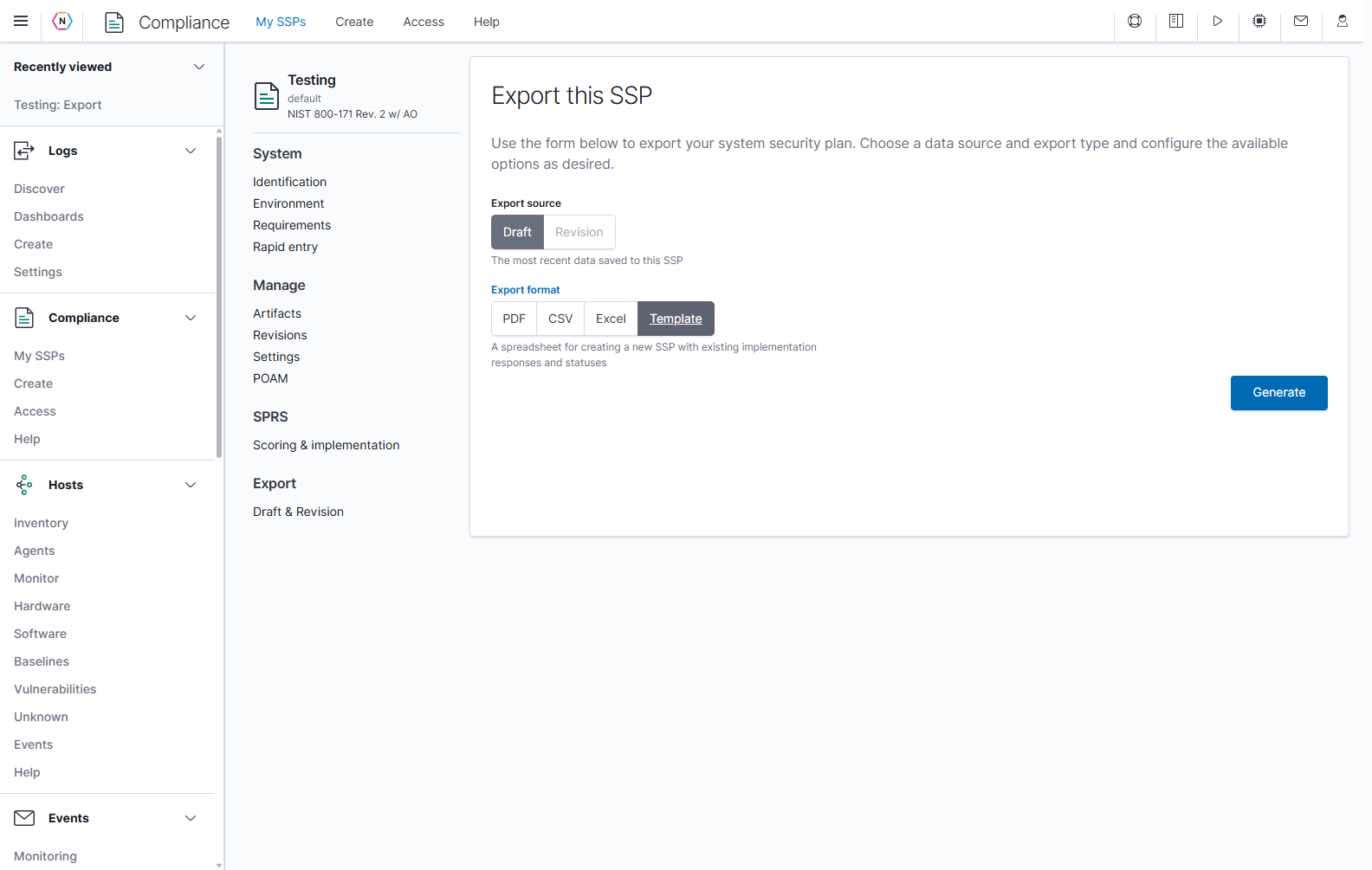
Choose Template to generate a spreadsheet for creating another SSP with existing implementation responses and statuses. This format has no extra options in the export form. Select the source and choose Generate; use the resulting template in the SSP creation workflow.
Change SSP settings and requirement display preferences
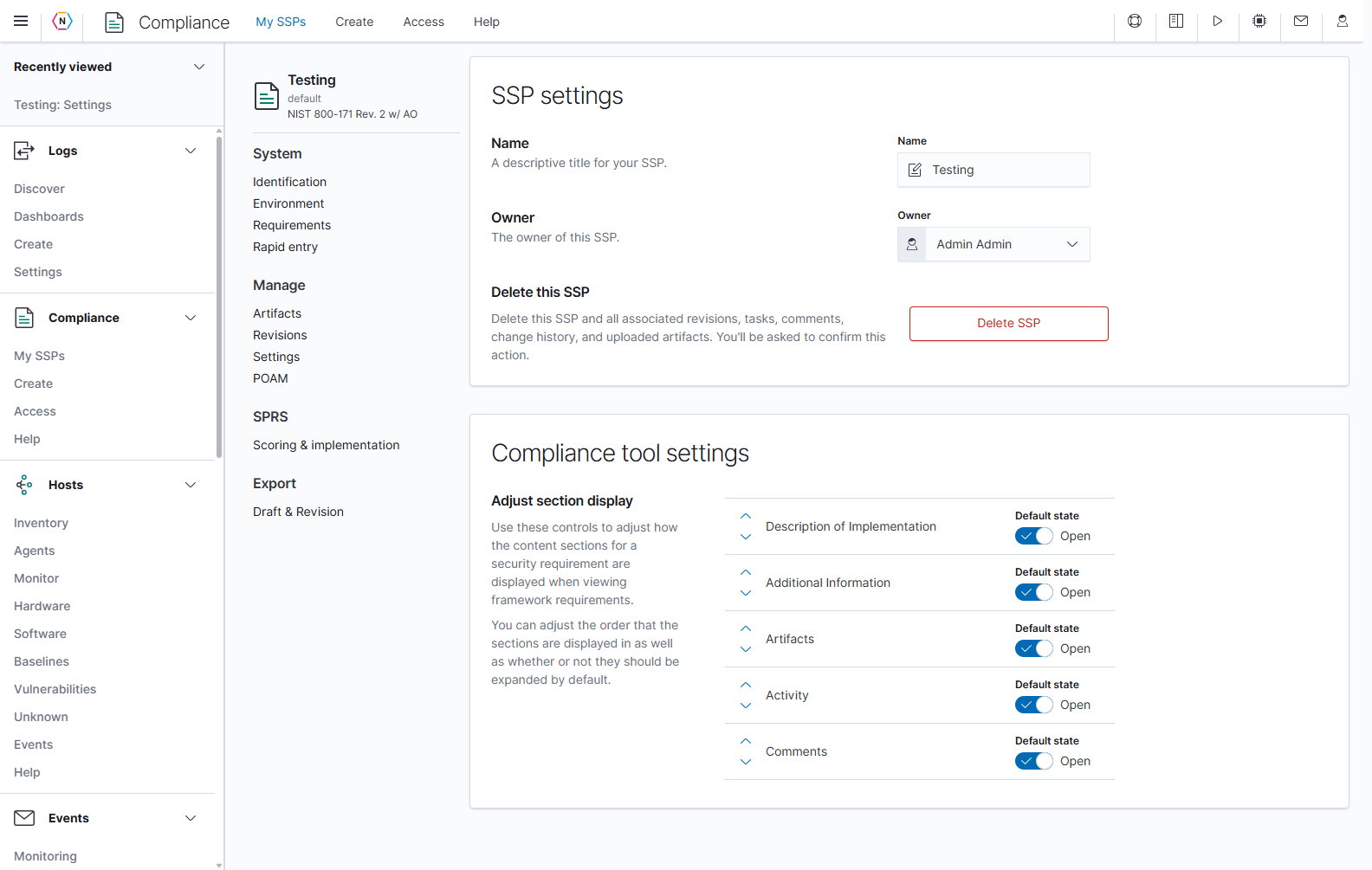
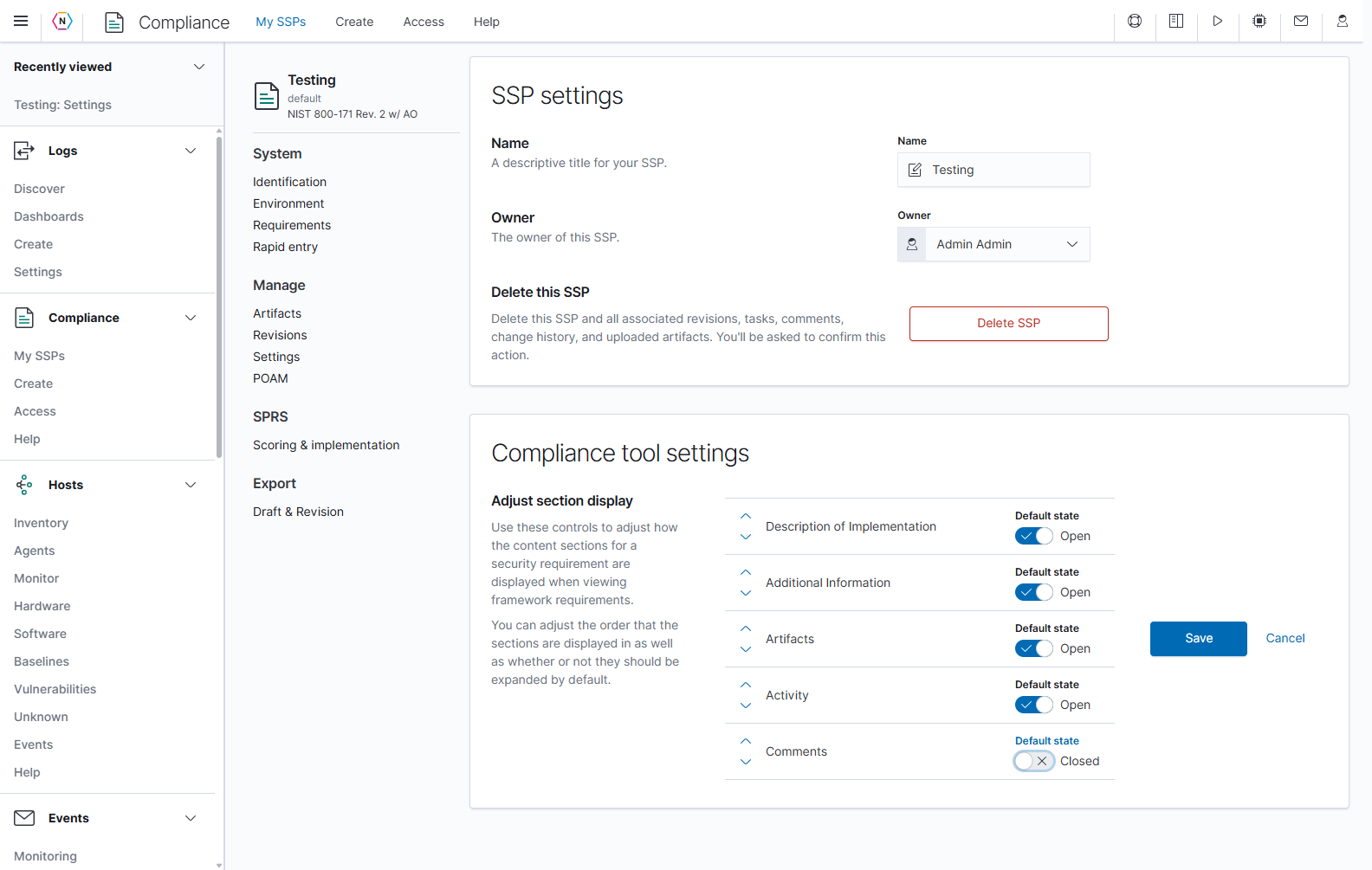
Select Manage → Settings in the SSP sidebar. The upper panel contains settings for this SSP. The lower Compliance tool settings panel controls how requirement sections appear in your browser.
| Setting or control | What it does | How to use it |
|---|---|---|
| Name | Changes this SSP’s descriptive title. | Edit the text, then select the field’s Save button. Cancel restores the saved name. |
| Owner | Changes the SSP’s owner. | Select the intended user, then save that field. Cancel to discard the selection. |
| Delete SSP | Opens a confirmation to remove the SSP and its associated data. | Review the confirmation, which requires typing uppercase DELETE. Deletion includes revisions, tasks, comments, change history, and uploaded artifacts. |
| Move section up / Move section down arrows | Change the order of content sections on a requirement. | Move the section to the position you prefer. |
| Default state: Open / Closed switches | Set whether each requirement section starts expanded. | Choose the default for each section, then save the display settings. |
| Display settings Save / Cancel | Keep or discard changes to section order and default states. | Save the arrangement when ready; Cancel restores the previous arrangement. |
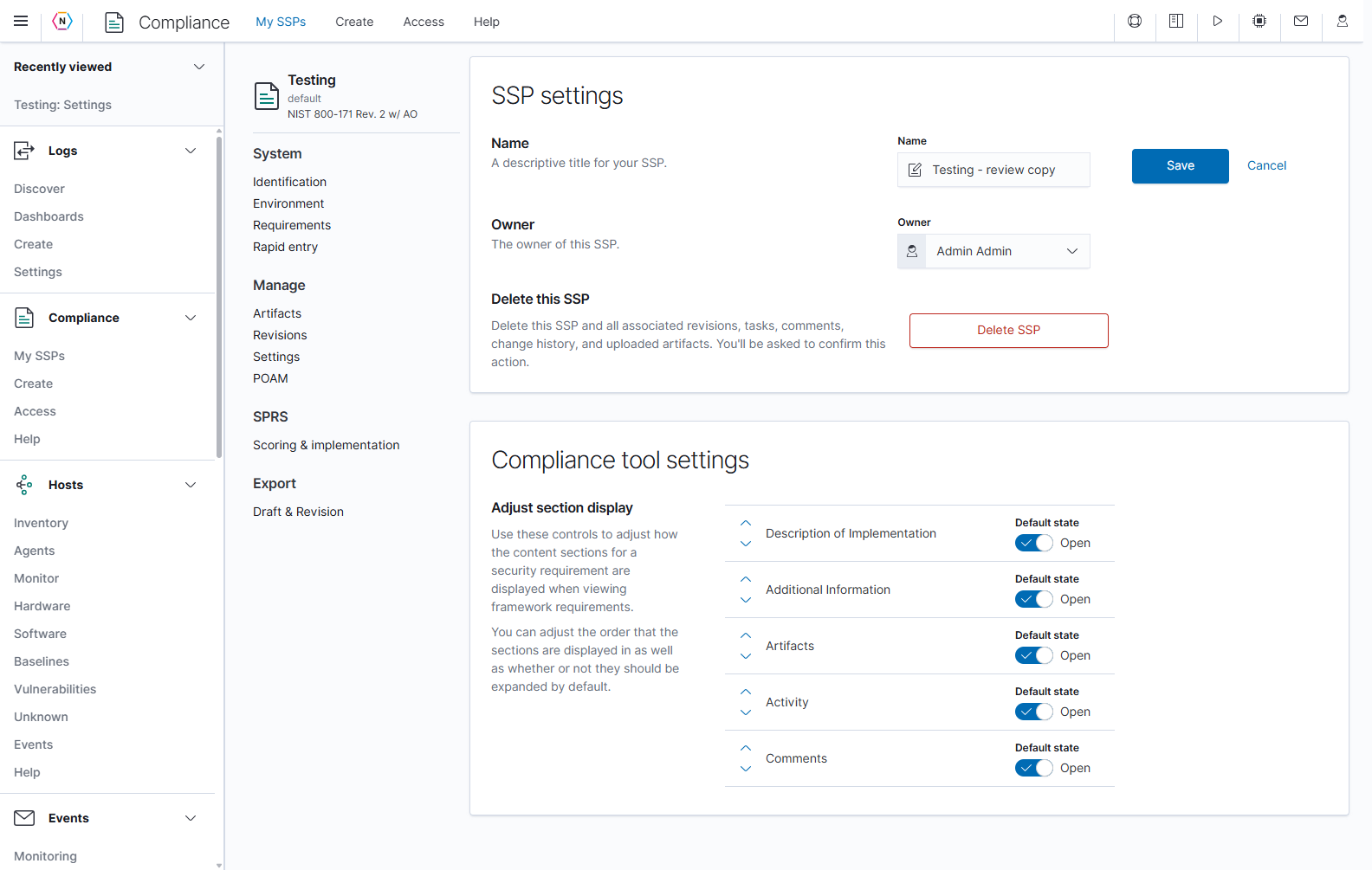
Changing the SSP name or owner requires management permission. Each field is saved separately. The screenshot below shows an unsaved name edit so the Save and Cancel controls are visible; the SSP’s saved name remains Testing.
Arrange the requirement sections
Under Adjust section display, use the arrows to arrange Description of Implementation, Additional Information, Artifacts, Activity, and Comments. Set each section’s Default state to Open or Closed and select Save when finished.
These display preferences are stored in the current browser. They change the way requirement content is presented; the controls’ responses, evidence, and comments remain available. Closed means collapsed by default.
Grant access to an SSP
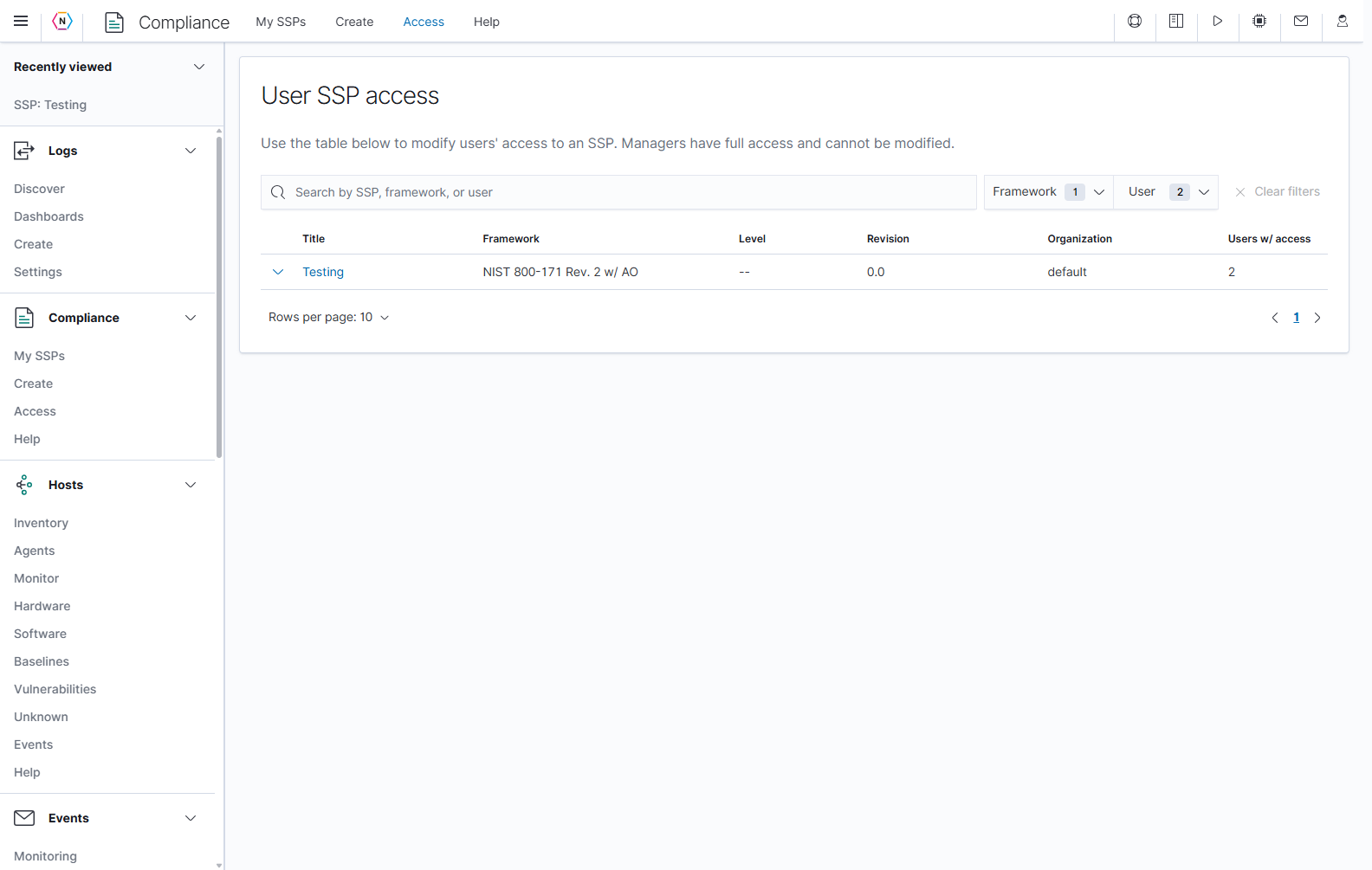
Open Comply → Access to view User SSP access. Access applies to each SSP. A user may be able to open the Compliance tool without being able to open every plan in it.
| Control | What it does |
|---|---|
| Search | Finds SSPs by plan name, framework, CMMC level, organization, or a user with access. User matching includes name, email, and identifier. Clear the text to remove the search. |
| Framework | Limits the table to selected frameworks. |
| User | Shows plans where any selected user is an organization manager or has an explicit SSP access entry. |
| Organization, when shown | Limits the table to the selected organization context. |
| Clear filters | Resets the search and filter selections. |
| Expand arrow at the left of a row | Opens the plan’s user-access table when you have management access. Select it again to collapse the details. |
| Title, Framework, Level, Revision, Organization | Identify the SSP to which the access settings apply. A dash in Level is expected for a framework without a CMMC level. |
| Users w/ access | Counts organization members who are managers or have an explicit SSP access entry. It is not a count of every administrator who could access the plan. |
| Sortable headings and paging | Reorder the list or move through additional plans. |
- Find the SSP and expand its row.
- Review each user’s First name, Last name, User Type, and SSP Access.
- Select Modify access.
- Choose None, Read only, or Read/Write for each regular user that needs a change.
- Select Confirm to save the changes, or Cancel to discard them.
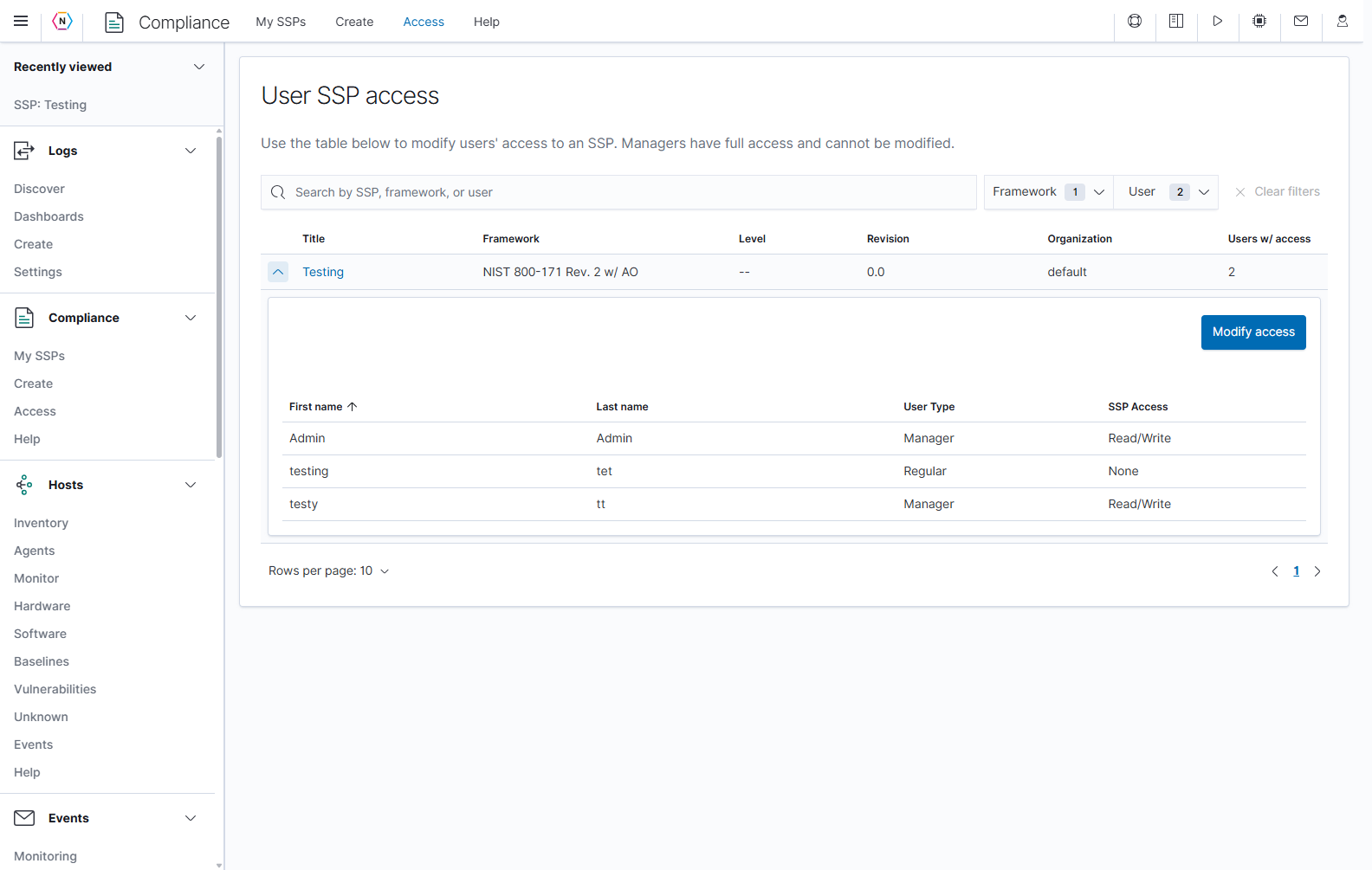
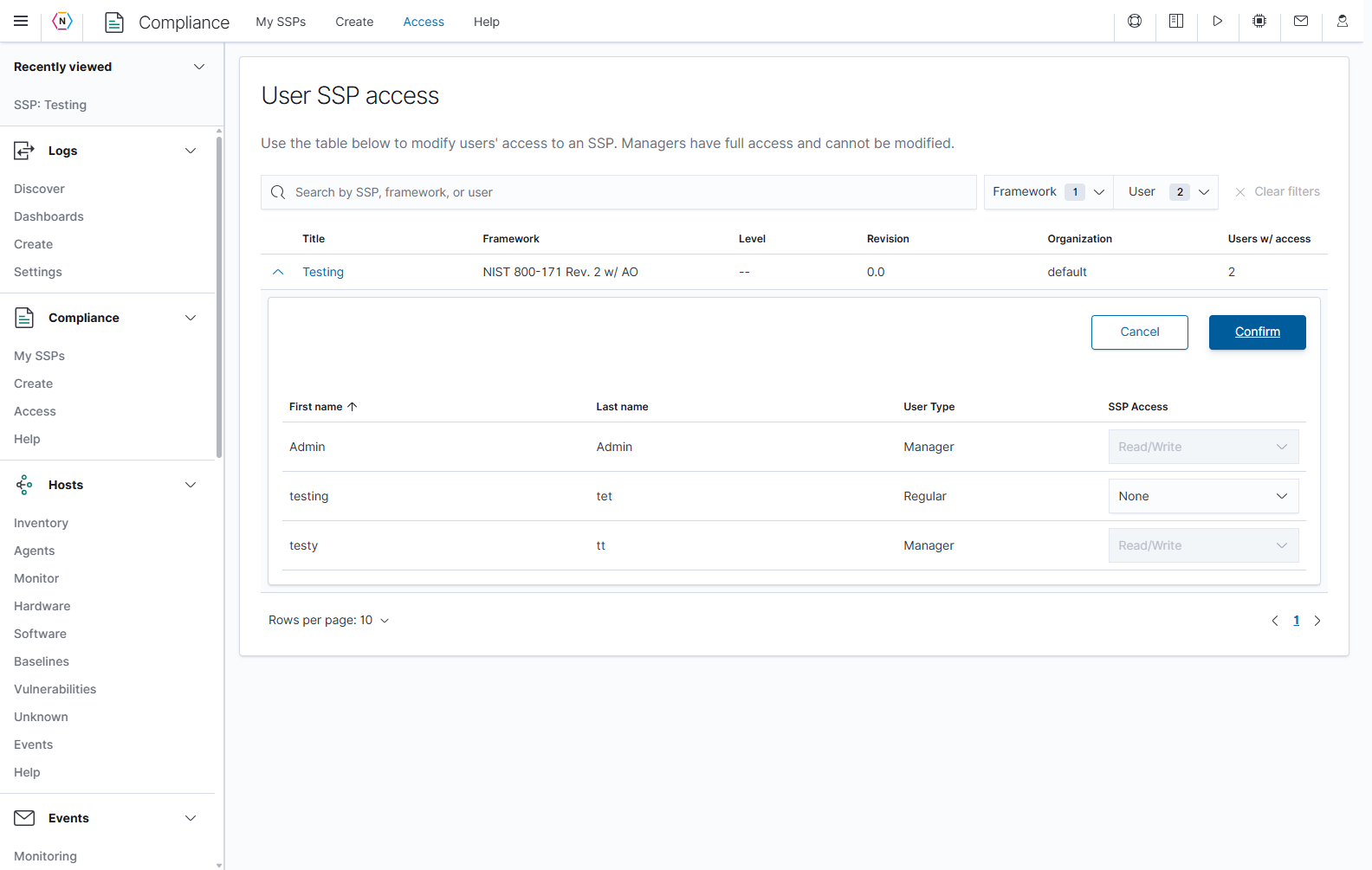
Organization managers already have full access to their organization’s SSPs. Their access selectors are disabled here. Changing a plan’s owner is separate from granting or removing access; manage those permissions on this Access page.
Compliance permission summary
Controls can be hidden or disabled when the account lacks the required access. Global administrators retain administrative access; organization managers have management access to their organization’s plans.
| Access | Typical available actions |
|---|---|
| None | No explicit access to the SSP. A manager or administrator may still have access through their role. |
| Read only | View the SSP, supporting information, revisions, and exports. Readers can also post comments and adjust their personal section display preferences. |
| Read/Write | Read access plus editing system details, control responses and metadata, tasks, uploads, and artifact associations. |
| Manager | Full SSP management, including access settings, creating/copying/converting plans, revisions, SSP name/owner changes, artifact deletion, clearing tasks, and SSP deletion. |
User membership and application permissions also affect what appears. If a user is absent from the access table, review that user’s organization membership in the applicable user or organization settings.
Help and reference material
Open Comply → Help, or View References & Help on My SSPs. Return home goes back to the plan list.
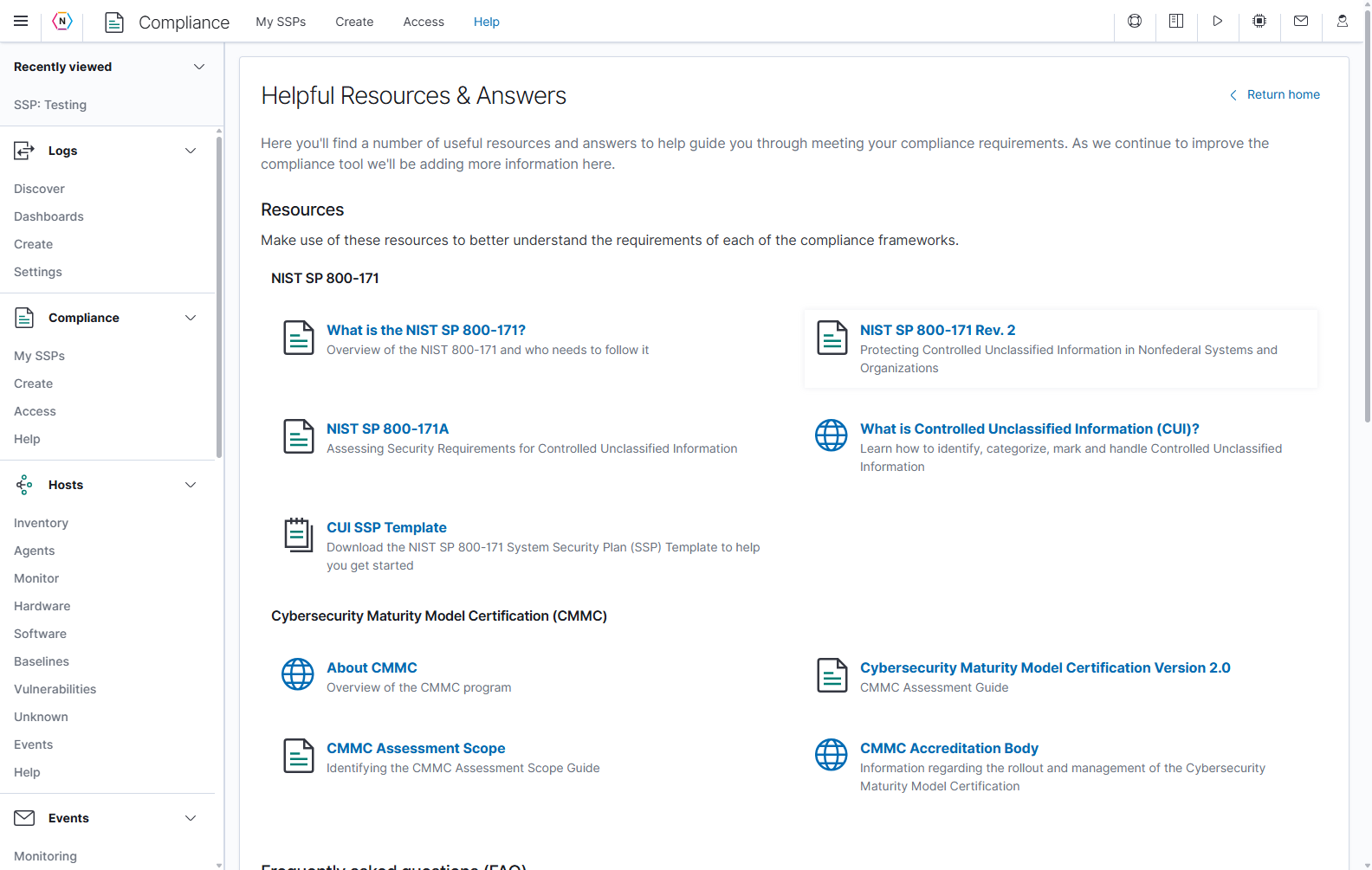
| Section | What you will find |
|---|---|
| Resources → NIST SP 800-171 | Links about the framework, the revision and assessment publications referenced by the app, CUI, and an SSP document template. |
| Resources → Cybersecurity Maturity Model Certification (CMMC) | Links to the CMMC program, assessment guide, assessment scope, and accreditation information. |
| Frequently asked questions (FAQ) | NIST SP 800-171 and CMMC FAQ links. |
| Guides | Assessment guidance, the SPRS scoring methodology referenced by the app, and CMMC process and scoping guides. |
| System Security Plan (SSP) Templates | Downloadable templates intended for the Create form’s CSV workflow. |
Select the resource title to open its linked page or document. These resources are separate from the SSP’s implementation responses. The Discussion, Assessment, SPRS Guidance, and NeQter Guidance tabs inside a control provide context while you work on that specific requirement.
A repeatable Compliance workflow
- Create, copy, or convert the SSP, then confirm the appropriate users can access it.
- Describe the system boundary, organization, stakeholders, user roles, information, and environment.
- Review each requirement. Assign an owner and due date, write the implementation response, and set an accurate status and review state.
- Attach supporting evidence and create POA&M tasks for remaining work.
- Use the requirement filters, overview, scoring details, and task dates to find work that needs attention.
- Review and save queued Rapid entry changes before moving to another workflow.
- Create a revision when you need a fixed record of the current plan, and export the appropriate draft or revision for review.
Common questions while working
| What you see | What to check |
|---|---|
| An SSP is missing | Clear My SSPs filters and check the account’s SSP access and organization membership. |
| No Save button beside system details | The section may have no unsaved edits, or the account may not have write access. Save and Cancel appear when editable content changes. |
| A response says cached | The editor has a browser-session draft. Select its Save action to write the response to the SSP. |
| Rapid entry changes have not appeared elsewhere | Open Review changes and finish Save changes. Queue changes prepares edits for review. |
| An artifact does not appear under a control | Check the artifact’s Attached to field and the control’s attachment list. Uploading to the general artifact library does not identify every control it supports. |
| Artifact, POA&M, or revision tables are empty | These tables remain empty until evidence, tasks, or revisions have been created for the selected SSP. |
| A manager’s access cannot be changed | Managers have full access through their organization role; the regular-user access selector cannot remove it. |
| An export lacks recent work | Save the relevant editors and Rapid queue, then check whether the export uses the draft or a historical revision. |
| A score and the number of implemented objectives seem different | Open SPRS → Scoring & implementation and expand the requirement. Objective completion and requirement point deductions are different measures. |