
Discover Search Guide
A saved Discover search lets you reopen a data source, query, filters, and table columns. You can also select it when creating a monitor.
Create a saved search
-
Open Logs > Discover and choose the data source you want to search.
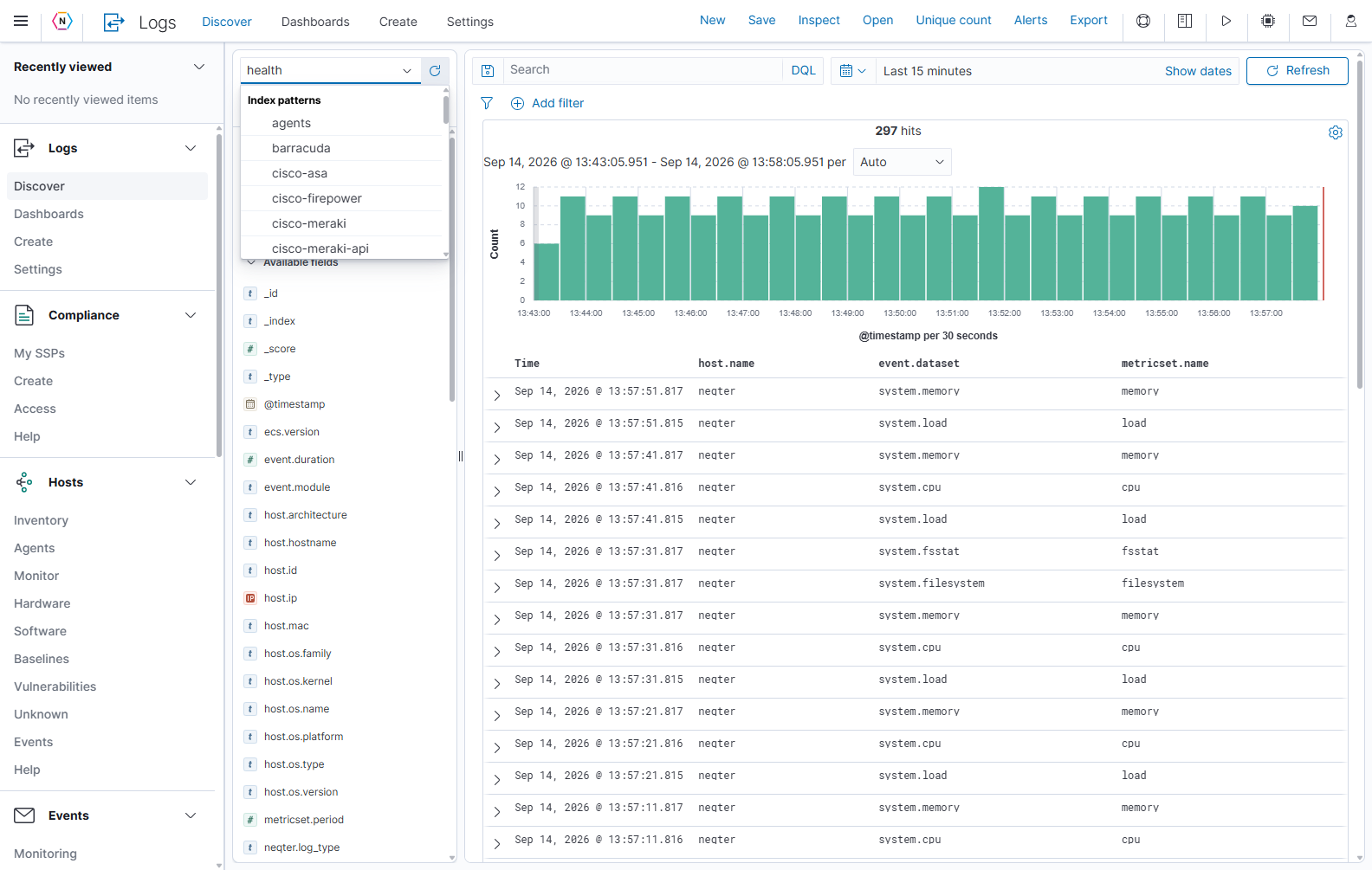
Select the data source from the dropdown above the field list on the left side of Discover.
- Select a time range containing events from that source.
- Add the query and field filters you need. Select Update after changing the query; Refresh reruns an unchanged search.
- Add useful fields to the results table and confirm that the returned events match your intended conditions.
For example, the screenshot uses the duo-security source, the DQL query event.action: authentication, and an enabled filter for event.outcome is denied. Only the event action and outcome are displayed alongside the timestamp. Choose fields and values that exist in your own data source.
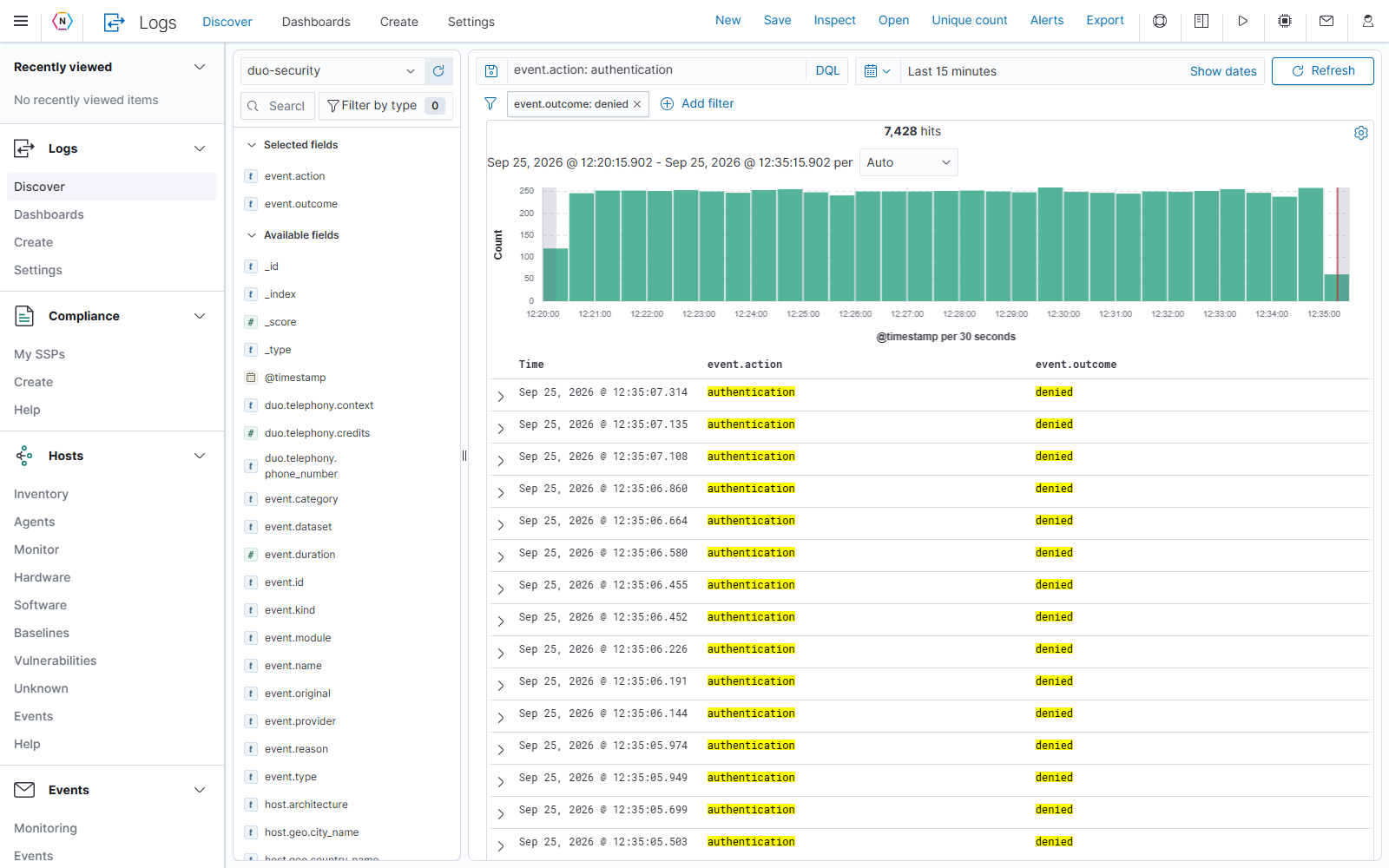
- Select Save in the top toolbar to open Save search.
- Enter a descriptive Title, such as
Documentation demo - denied sign-ins. - Select Save. Use Cancel to discard the draft.
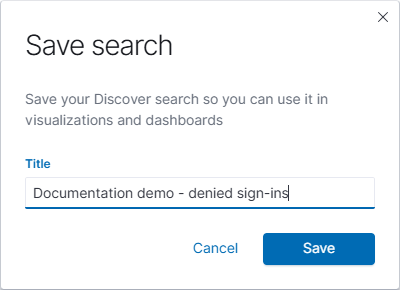
The toolbar’s Save stores a Discover search. The small save icon inside the query bar opens Saved Queries, a separate feature for reusing query text and optional filters. Use the toolbar control for the saved search you will select in a monitor.
Open and manage a saved search
- Select Open in the Discover toolbar.
- Enter a title or part of a title in the search bar to filter the list.
- Click Title at the top of the list to sort saved searches in ascending or descending order.
- Select a saved search from the list to apply it to the Discover view.
- To update a search, make your changes and select Save. Review the save dialog before replacing an existing search or saving a copy.
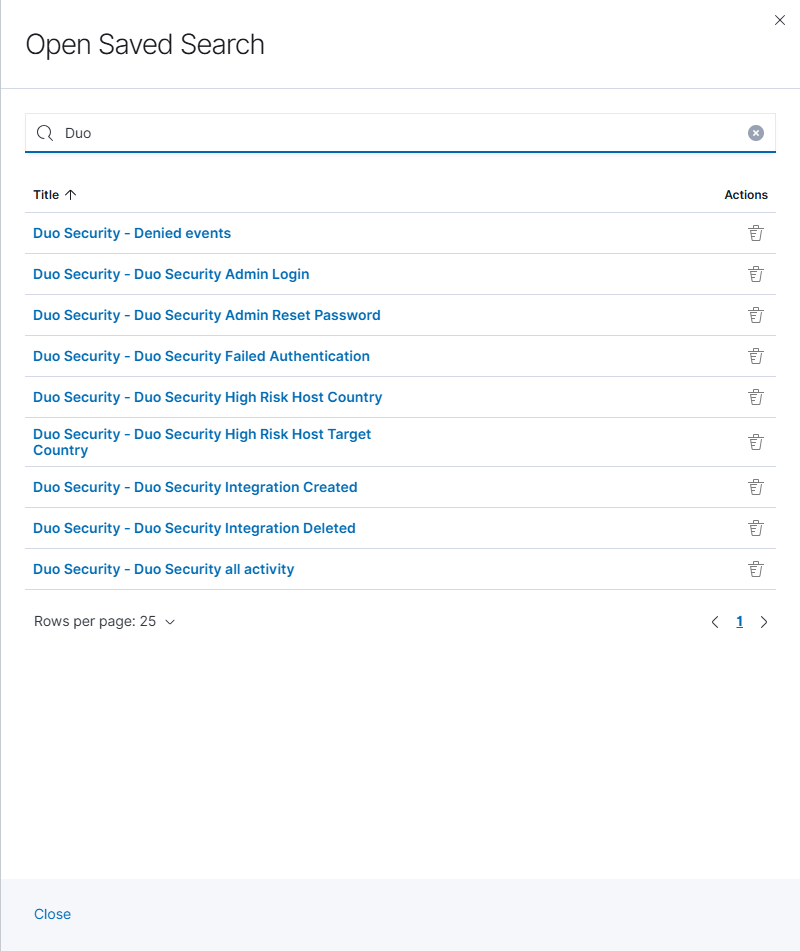
The interface includes a Delete action for each saved search. Before removing one, check whether a monitor, dashboard, or report uses it. Closing the Open panel does not delete anything.
Use the search in a monitor
Select Alerts in the Discover toolbar to open Events > Monitoring. Select Create monitor, then choose the saved search in the monitor editor. Set the monitor’s evaluation window and trigger conditions before saving it.
Follow the Create a Monitor Guide for the full workflow. To start with a built-in template or configure notifications, use the Alert and Template Guide.
Additional information
- Keep queries and filters specific enough to identify the events you want the monitor to evaluate. Table columns control what Discover displays; adding a column does not create a filter.
- Check the source and time range when Discover returns no events. The source must still exist when the saved search is opened or selected in a monitor.
- If a monitor’s saved-search selector does not load, check for saved searches whose data sources have been removed and contact your administrator. A blank selector is not evidence that your Discover search was never saved.
- Review the query language, field filters, and table fields sections for more detailed examples.