
Reports
Reports turns the information collected by NeQter into files you can review, download, or deliver by email. Use it to summarize system activity, export inventory, review compliance work, and report on vulnerability scans. You can generate a report when needed or save a schedule for recurring delivery.
On this pageCollapse sections
Page map
Expand Reports in the navigation, or use the tabs across the top of the Reports application.
| Page | Use it to |
|---|---|
| Past reports | Find previously generated output, open or download files, and remove stored reports you no longer need. |
| Run | Choose a report type, configure its content and output format, and generate it immediately. |
| Schedules | Save recurring reports, configure delivery days and times, and enable, edit, or remove schedules. |
Report choices depend on access to the tools supplying their data. For example, a Full inventory report uses Hosts, while a General system report also uses Events and Compliance. Managing schedules and deleting stored reports require write access to the tools used by those reports. If an action or report is missing, check the account’s access with your administrator.
For a first report, open Run, select the report that matches your question, review its name and content options, choose a format, and set a historical range if offered. Check the optional email recipients before selecting Run report. The result opens in a preview or downloads according to the chosen format.
Past reports
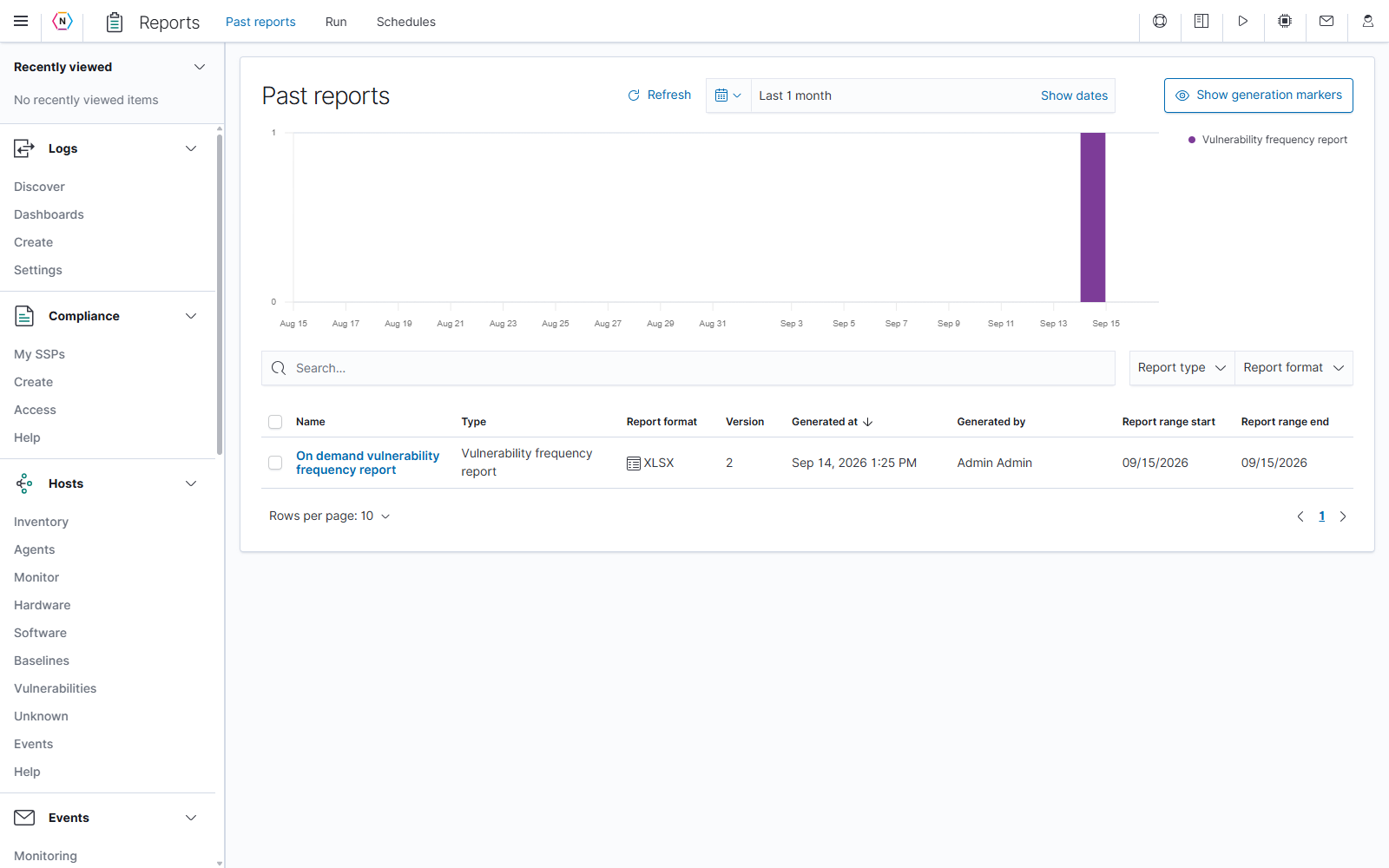
Past reports is the history of generated report output. The date control at the top selects when reports were generated. The table’s Report range start and Report range end describe the data period recorded with each report.
Read the report table
| Column or control | Meaning and use |
|---|---|
| Name | The user-defined report name. Select it to retrieve the stored output. |
| Type | The report template used to produce the file. |
| Report format | HTML, PDF, JSON, or XLSX. This determines whether the result previews or downloads. |
| Version | The version value stored with that report output. |
| Generated at | When NeQter generated the report. The table initially sorts newest first. |
| Generated by | The user who generated an on-demand report, or Schedule for a scheduled generation. |
| Report range start / end | The data-range values recorded with the output. Hover over a date to inspect its fuller timestamp. |
| Row checkbox | Selects a report for a batch action. |
| Header checkbox | Selects or clears the table’s available rows for batch actions. Review the selected rows before acting. |
| Sortable column heading | Changes the sort field and direction; the arrow marks the current ordering. |
| Rows per page, page numbers, and arrows | Change how many rows are visible and move through a longer result list. |
The screenshot contains one previously generated XLSX report. Report rows represent stored output; task statuses such as To Do belong to the content of a Compliance task report.
Choose the generation-date range
The page starts with Last 1 month. Select the calendar/quick-select button to choose another period. Enter a quick range and select Apply, or choose a commonly used period such as Today, This week, or This month. Recently used date ranges are also available. The small previous/next time-window arrows move the current window backward or forward.
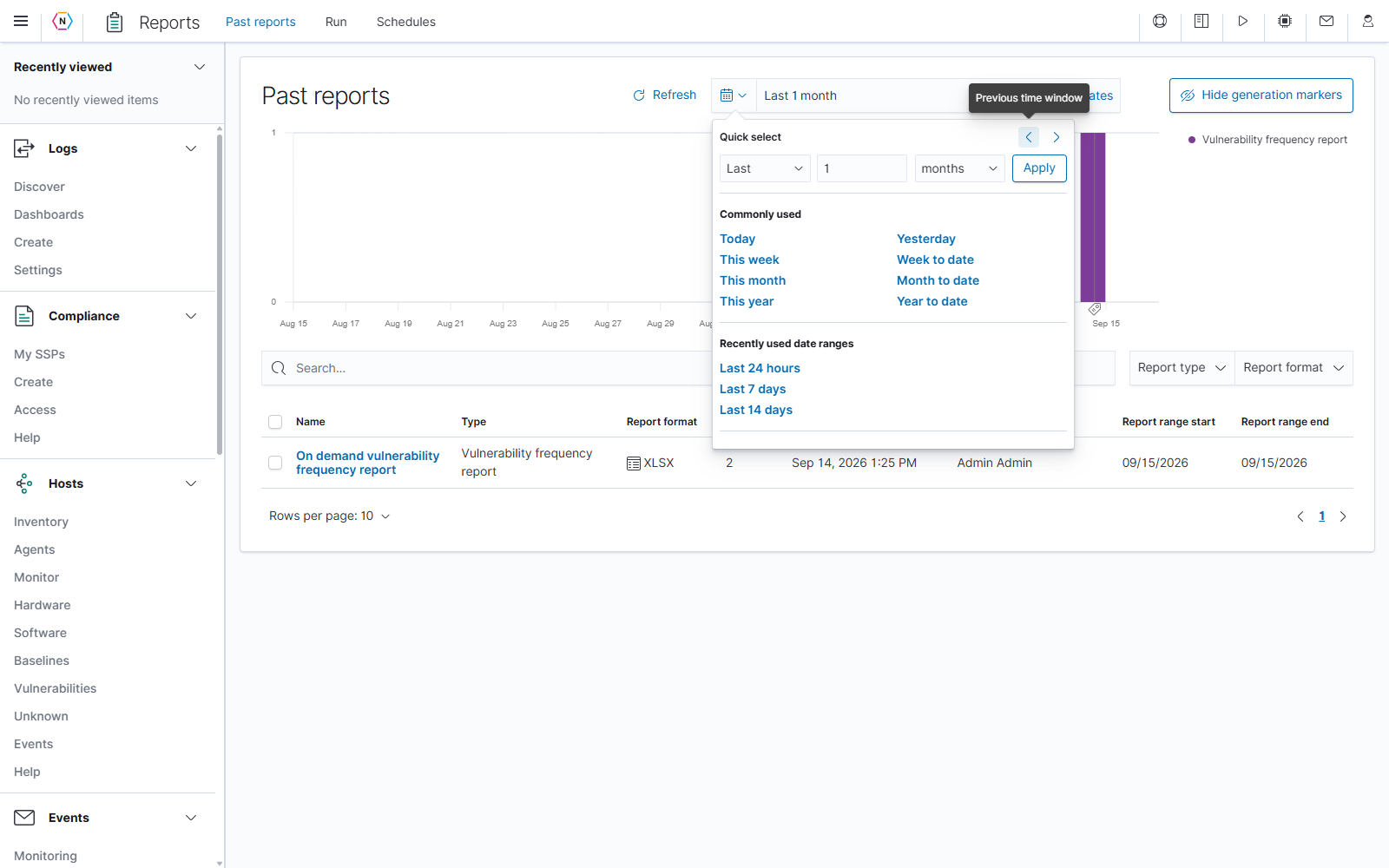
Select Show dates to expose the range endpoints when you need to inspect or adjust them directly. Use Refresh to reload the report history for the current window.
The page retrieves up to the newest 500 reports in the selected generation window. To find an older report in a busy system, choose a narrower date range around its generation date. If the table is empty, check the date window and clear any table filters before assuming that no reports exist.
Use the generation chart
The chart shows how many reports were generated over time, with colors identifying report types. Hover over a bar to inspect it. Select a bar to focus on its report type and time bucket. Drag across a time span to focus on that period. Choosing a different date range clears the type selection made from a bar.
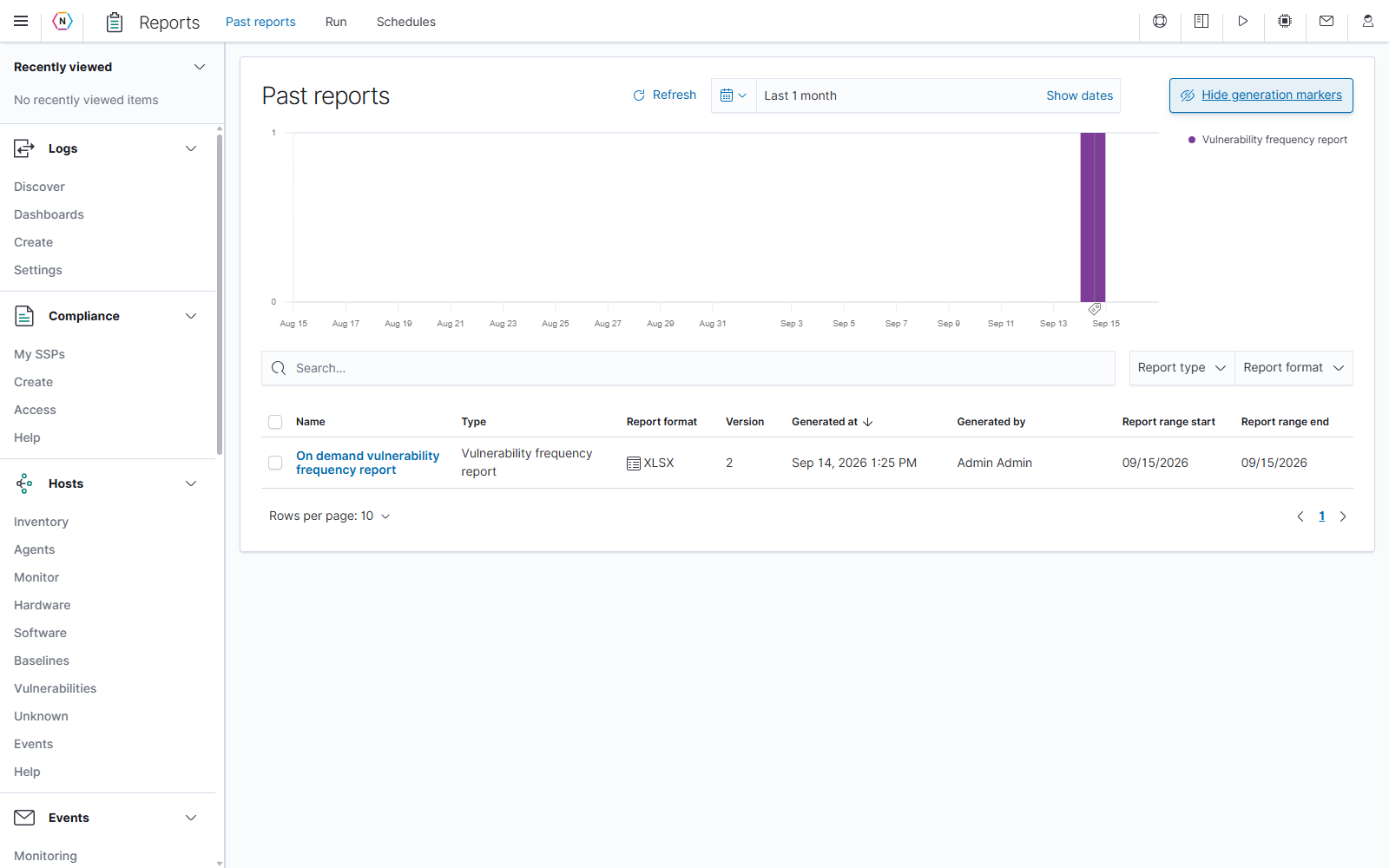
Select Show generation markers to add markers for individual reports; the button changes to Hide generation markers. The marker display is limited to the eight newest reports in the loaded results. Hovering over a report row also highlights that report’s generation time on the chart.
Search and filter the table
Type in Search… to narrow the loaded table rows as you type. Use a distinctive report name or other identifying text, then clear the search text to restore the rows.
Open Report type to choose one or more templates. Selecting several types includes rows matching any of those selected types. Select an already selected option again to remove it.
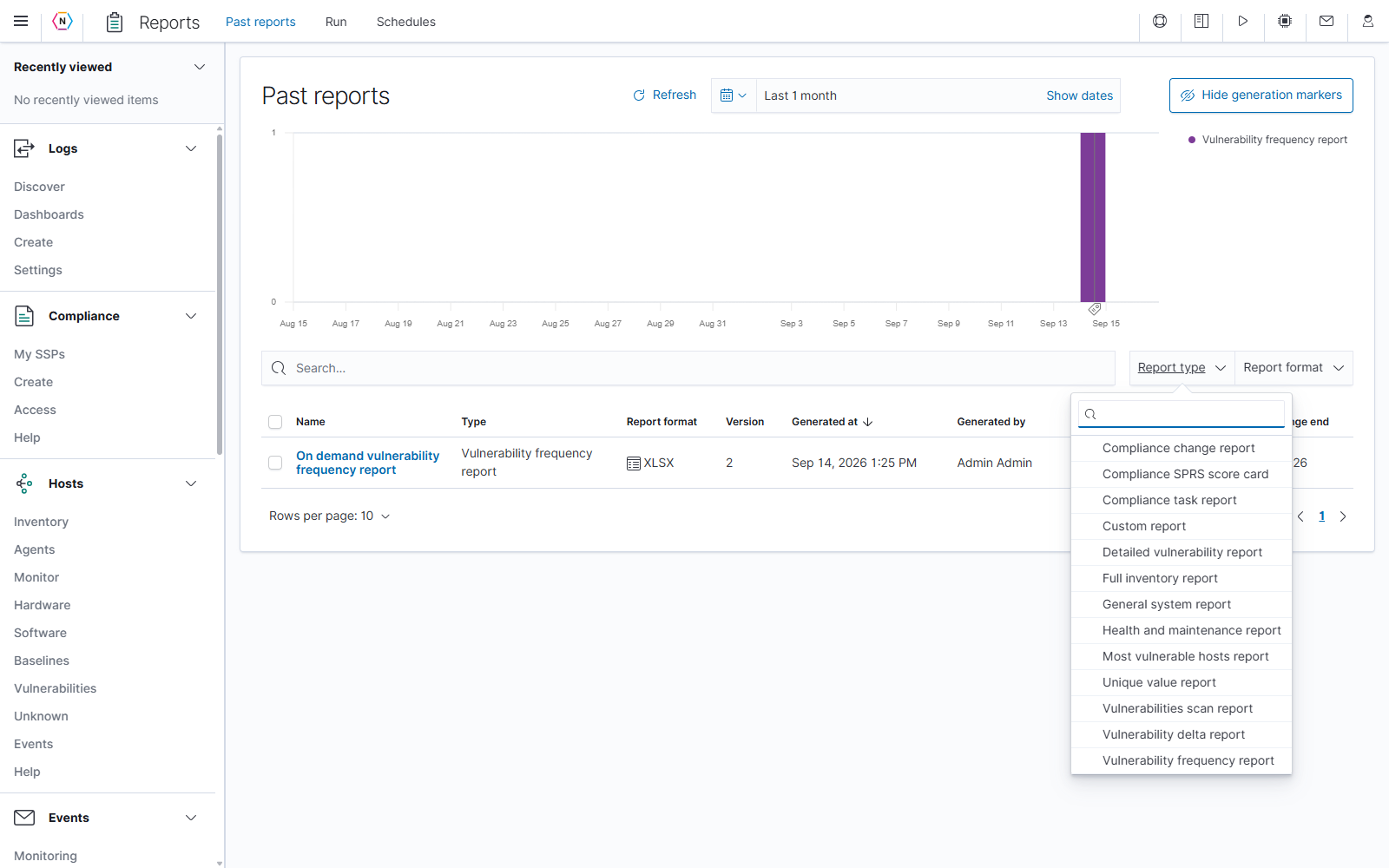
Open Report format to select HTML, JSON, PDF, or XLSX. You can combine this with a report-type filter, for example to find PDF Compliance change reports.
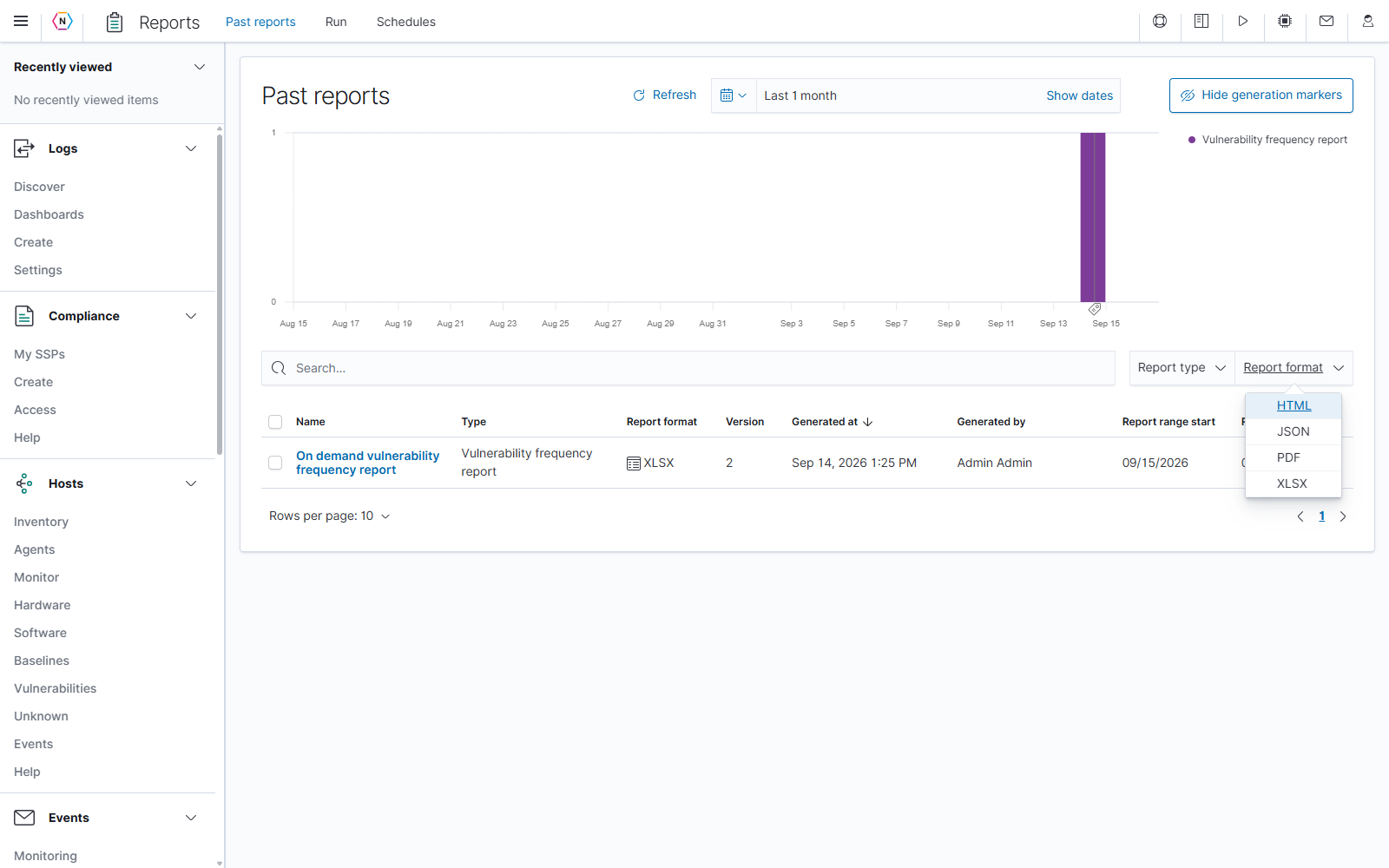
The search and these two filter menus narrow the table. The chart continues to show the history loaded for the page’s date range and any chart-selected type. A chart can therefore still show report activity when the table search returns no matching rows.
Open or download a report
Select the report’s Name to retrieve its stored output. The result depends on its format:
| Format | What happens when opened |
|---|---|
| HTML | Opens a report preview. Use Download to save the HTML file or Close preview to return to the page. |
| Opens a document preview. Use its document controls to view or save the file. | |
| JSON | Downloads the structured-data file. |
| XLSX | Downloads an Excel workbook. Open it in a compatible spreadsheet application to review its worksheets. |
To download several stored reports, select their row checkboxes and use Download selected reports, shown above the table after selection. The browser downloads the returned file or package. Check the browser’s downloads if no preview appears.
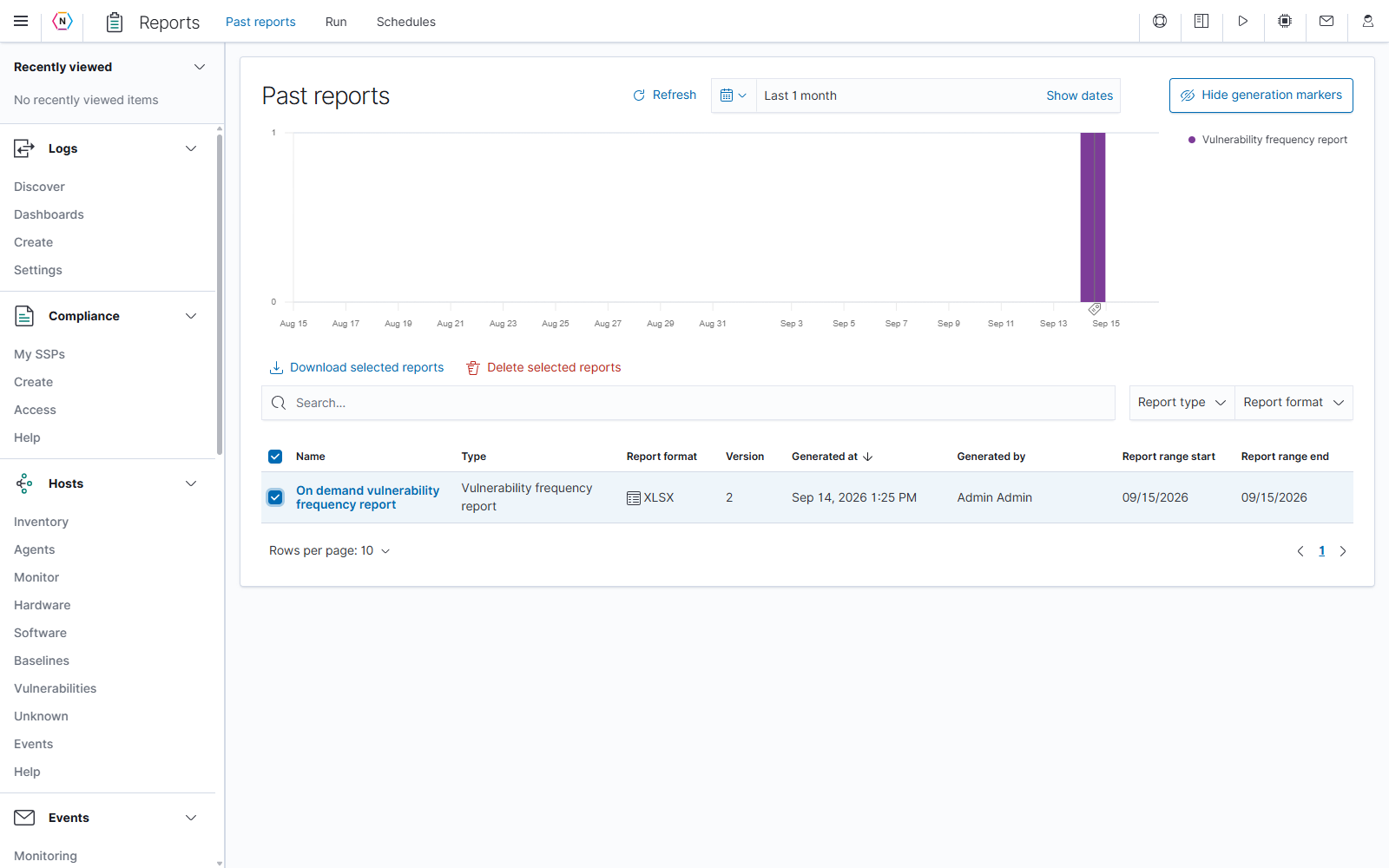
Preview a stored HTML report
If an older report is missing from the list, expand the time range. In this example, Last 1 year reveals additional reports generated in July, including HTML reports that were outside the initial month-long view.
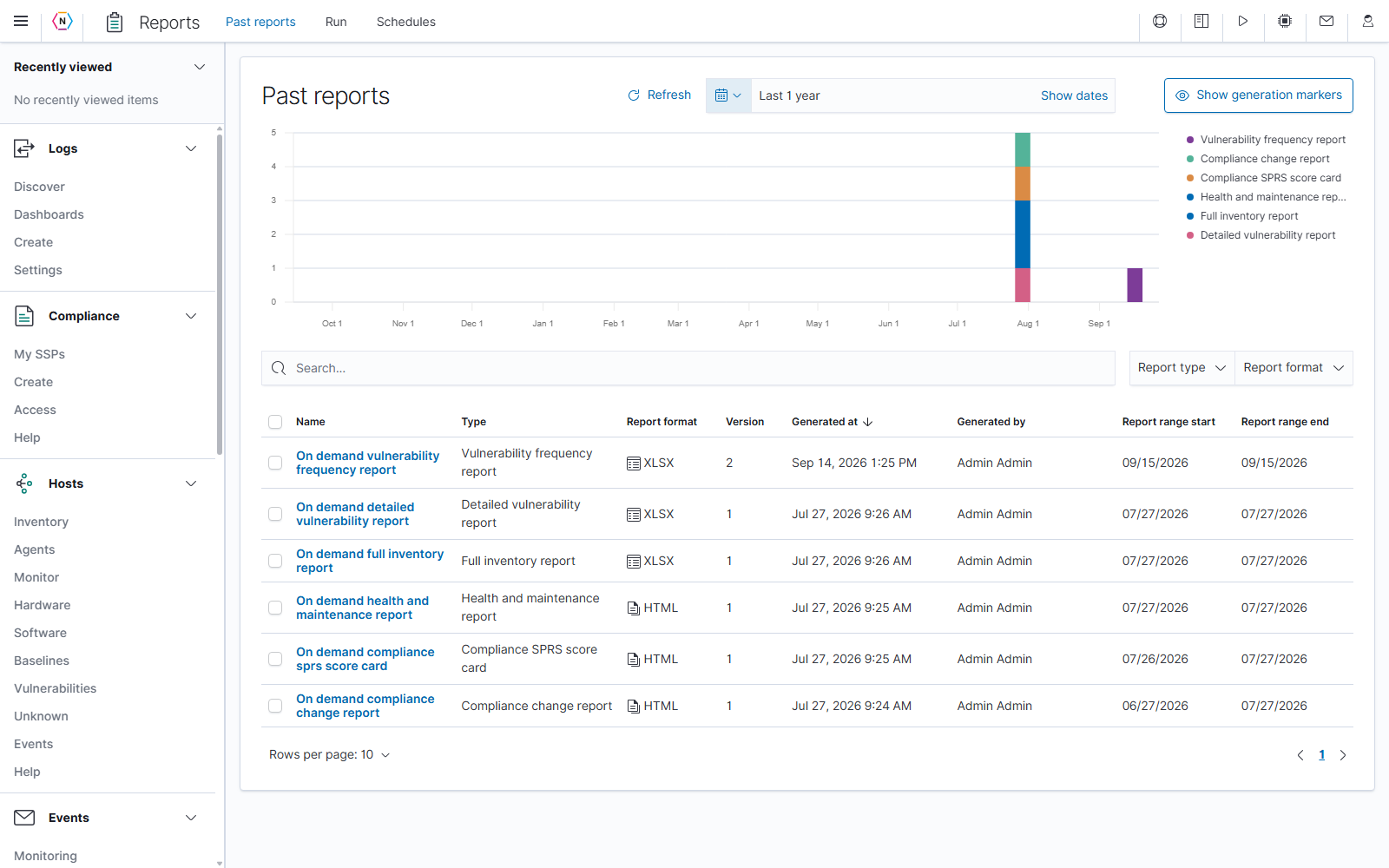
Select an HTML report’s blue Name to open its preview. This opens the stored output without running the report again. Use the report’s table-of-contents links and vertical scrollbar to navigate; a horizontal scrollbar is available when the report is wider than the preview area.
Select Download in the preview toolbar to save the report file. Select Close preview (X) to return to Past reports. Read Generated at within the report or in the list to identify when its data was captured.
Delete stored reports
- Select the checkbox beside each report to remove.
- Select Delete selected reports.
- Review the Delete reports confirmation.
- Select Delete to remove the selected stored output, or Cancel or the dialog close X to keep it.
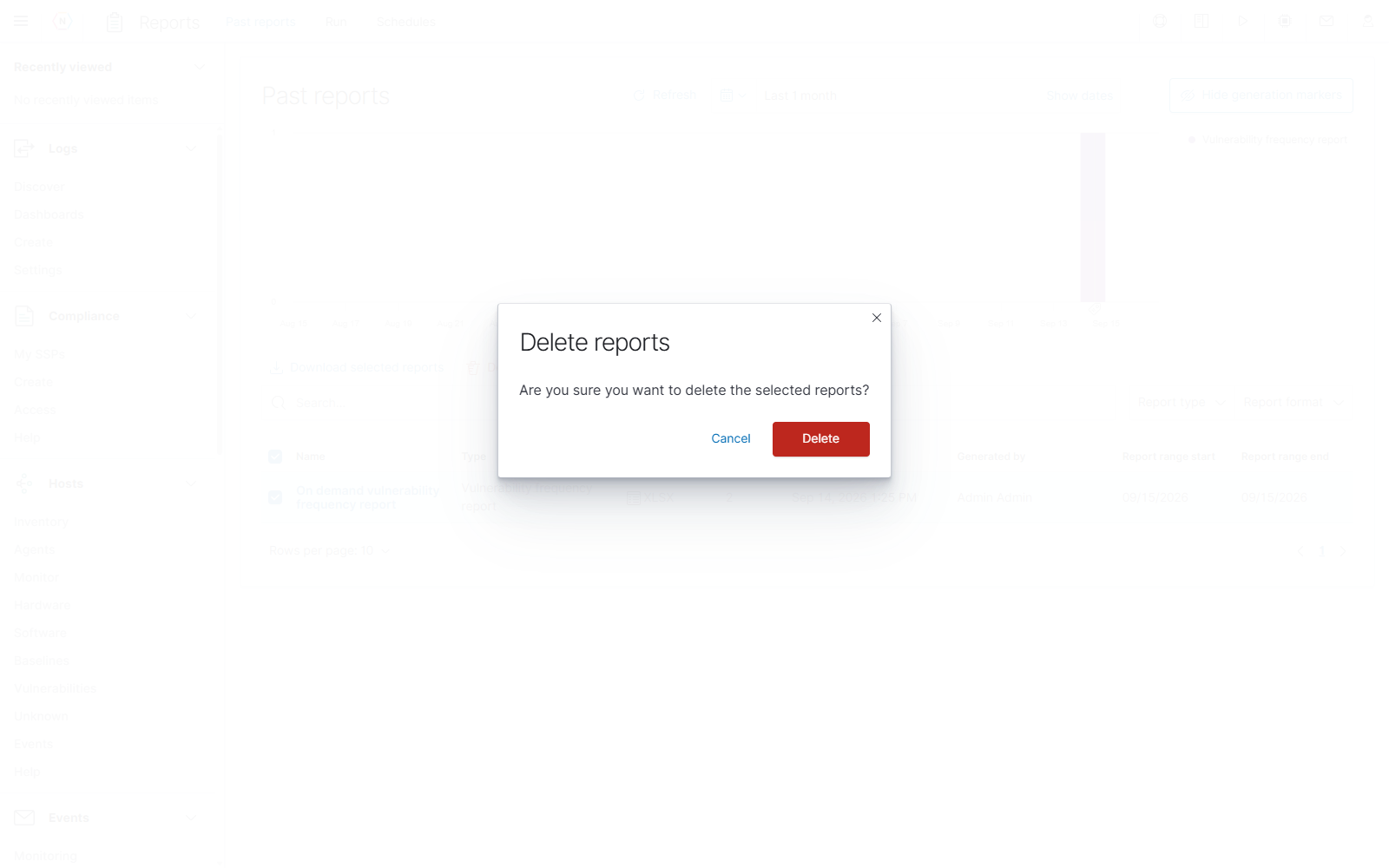
Deleting report output is separate from editing its source information in Hosts, Compliance, Discover, or Vulnerabilities. Use Schedules to manage whether future reports run automatically.
Generate a report
Open Reports → Run. The On demand report page groups the available templates under Compliance, General, and Vulnerability. Expand or collapse a category with its heading, then select a report name/card to open its form.
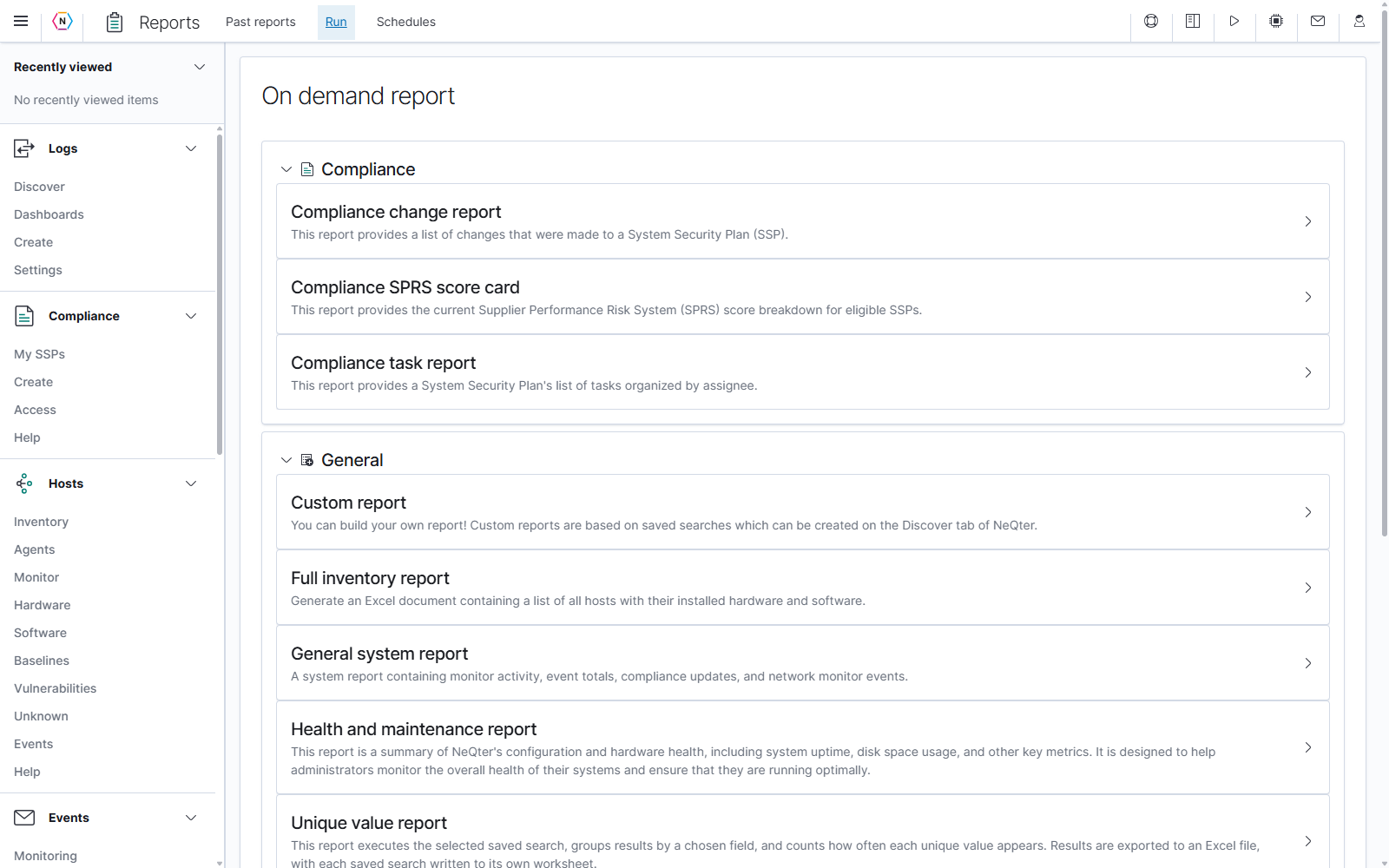
Selecting a template opens its settings. You can review and change this draft before running it.
Common report controls
| Control | How to use it |
|---|---|
| Back | Returns to the template chooser. Selecting a report there initializes that type’s settings. |
| User defined name | Enter a descriptive name, up to 255 characters, so the output is easy to identify in history and downloads. |
| Report format | Choose one of the formats supported by the selected report. A disabled selector means only one format is available. |
| Report-specific fields | Choose the data source and content, such as an SSP, saved search, scanner report, sections, or severity categories. |
| Deliver reports to | Optionally enter email recipients. Type a valid address and press Enter to add its recipient chip. Repeat for additional addresses. |
| Recipient chip X | Removes that recipient from the draft. The field’s clear control clears the recipient list. |
| Last | Where offered, choose a positive whole number and Day, Week, or Month for the report’s historical lookback. |
| Run report | Immediately generates the report using the displayed settings and delivers it to any entered recipients. |
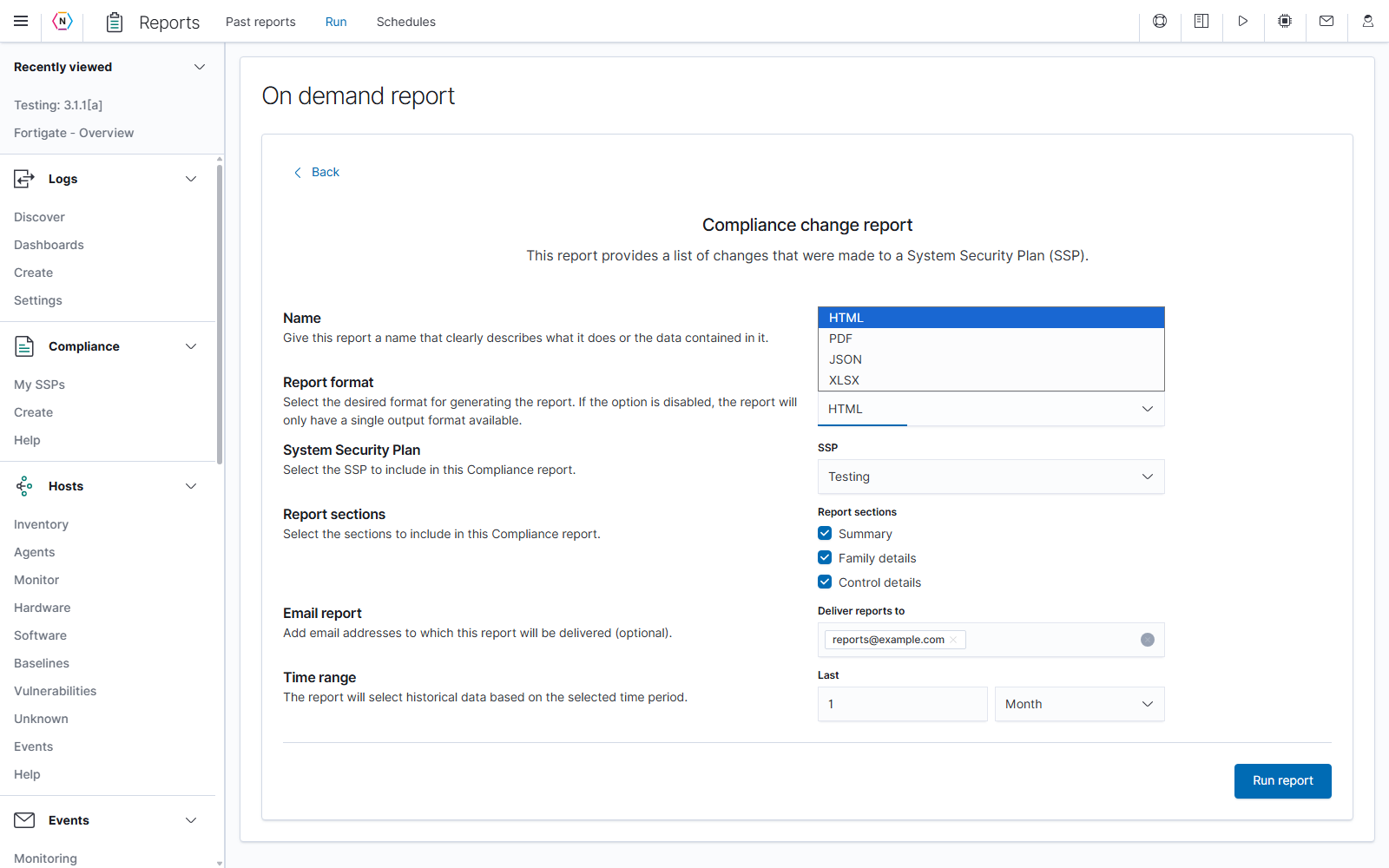
Run report is an immediate action. There is no separate confirmation before generation or email delivery. Check the content, format, and recipient chips first. Leave Deliver reports to empty when you only want the result returned in your browser.
An address must appear as a recipient chip to be included. Duplicate addresses are prevented, and invalid email text must be corrected or cleared. If you use Back and select another report type, the recipient list is retained while most other settings are reinitialized; review the recipients again.
Set a historical lookback
The Last field appears on General system, Custom, Unique value, and Compliance change reports. For example, Last 1 Week requests a week of historical data when the report is generated. The form accepts whole numbers starting at 1, with input limits of 366 days, 52 weeks, or 12 months, and also validates that the duration does not exceed one year.
Other report types use their selected inventory, SSP, or scan data and do not show this control. The generation-date picker on Past reports is used separately to find stored output.
Finish and retrieve the output
After completing the required fields, select Run report once and wait for generation to finish. Correct any validation message before trying again. A disabled button can indicate that a required SSP, saved search, scan, or content selection is missing or still loading.
HTML opens a preview, PDF opens a document preview, and JSON/XLSX download. If recipients are entered, the same generation also requests email delivery. Return to Past reports and select Refresh when you need to locate generated output later.
Report types
Choose a template based on the question you need the report to answer. Available formats and content controls vary by type.
| Category | Report | Purpose | Formats |
|---|---|---|---|
| General | Custom report | Export the events matched by a Discover saved search, with optional columns and grouping. | JSON, XLSX, HTML |
| General | Full inventory report | Export hosts with their installed hardware and software. | XLSX |
| General | General system report | Summarize monitor activity, events, compliance updates, and network-monitor events. | HTML |
| General | Health and maintenance report | Review NeQter configuration and appliance health. | HTML |
| General | Unique value report | Count occurrences of field values in selected saved searches. | XLSX |
| Compliance | Compliance change report | Review changes made to a selected System Security Plan. | HTML, PDF, JSON, XLSX |
| Compliance | Compliance SPRS score card | Review the current SPRS score breakdown for an eligible SSP. | HTML, PDF, JSON, XLSX |
| Compliance | Compliance task report | Review an SSP’s tasks, organized by assignee and filtered by task attributes. | HTML, PDF, JSON, XLSX |
| Vulnerability | Detailed vulnerability report | Combine selected vulnerability datasets and severity categories in a workbook. | XLSX |
| Vulnerability | Most vulnerable hosts report | Rank hosts by vulnerability score. | XLSX |
| Vulnerability | Vulnerabilities scan report | Present a selected scan report with summary information and detailed host results. | HTML, PDF |
| Vulnerability | Vulnerability delta report | Compare scans for new, unchanged, and mitigated vulnerabilities. | XLSX |
| Vulnerability | Vulnerability frequency report | List vulnerabilities and the hosts on which they were detected. | XLSX |
General reports
General system report
Use General system report for a periodic activity summary. The output format is HTML.
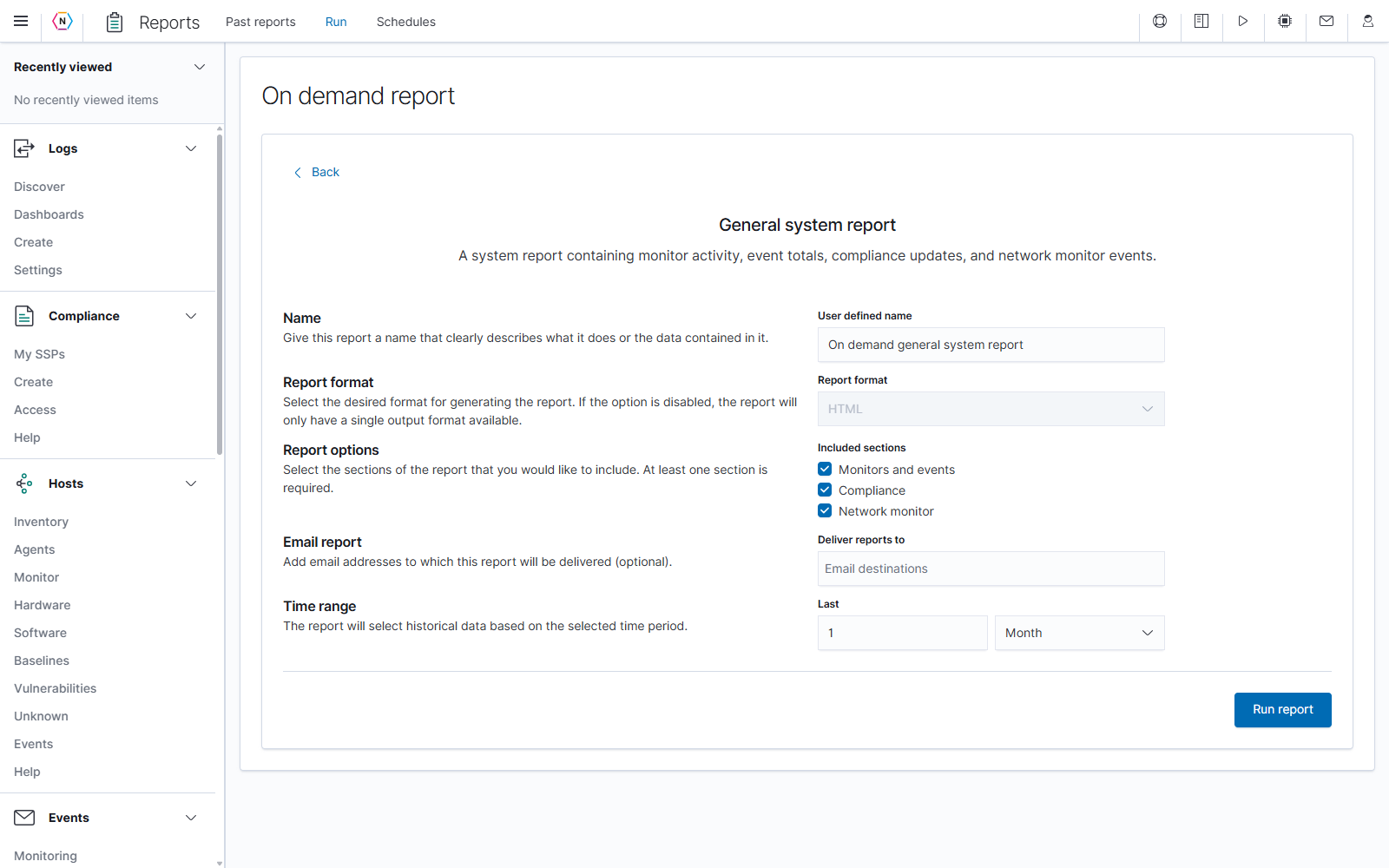
- Enter a descriptive User defined name.
- Under Included sections, select Monitors and events, Compliance, and/or Network monitor. All three start selected; at least one must remain selected.
- Set Last to the history you want summarized. The initial selection is 1 Month.
- Optionally add recipients, then select Run report.
Monitors and events includes monitor activity and event information. Compliance includes compliance updates. Network monitor includes network-monitor events. Clearing every section makes the form invalid until a section is selected again.
Health and maintenance report
Use Health and maintenance report to review appliance health and configuration, including information such as uptime and disk space. The output format is HTML.
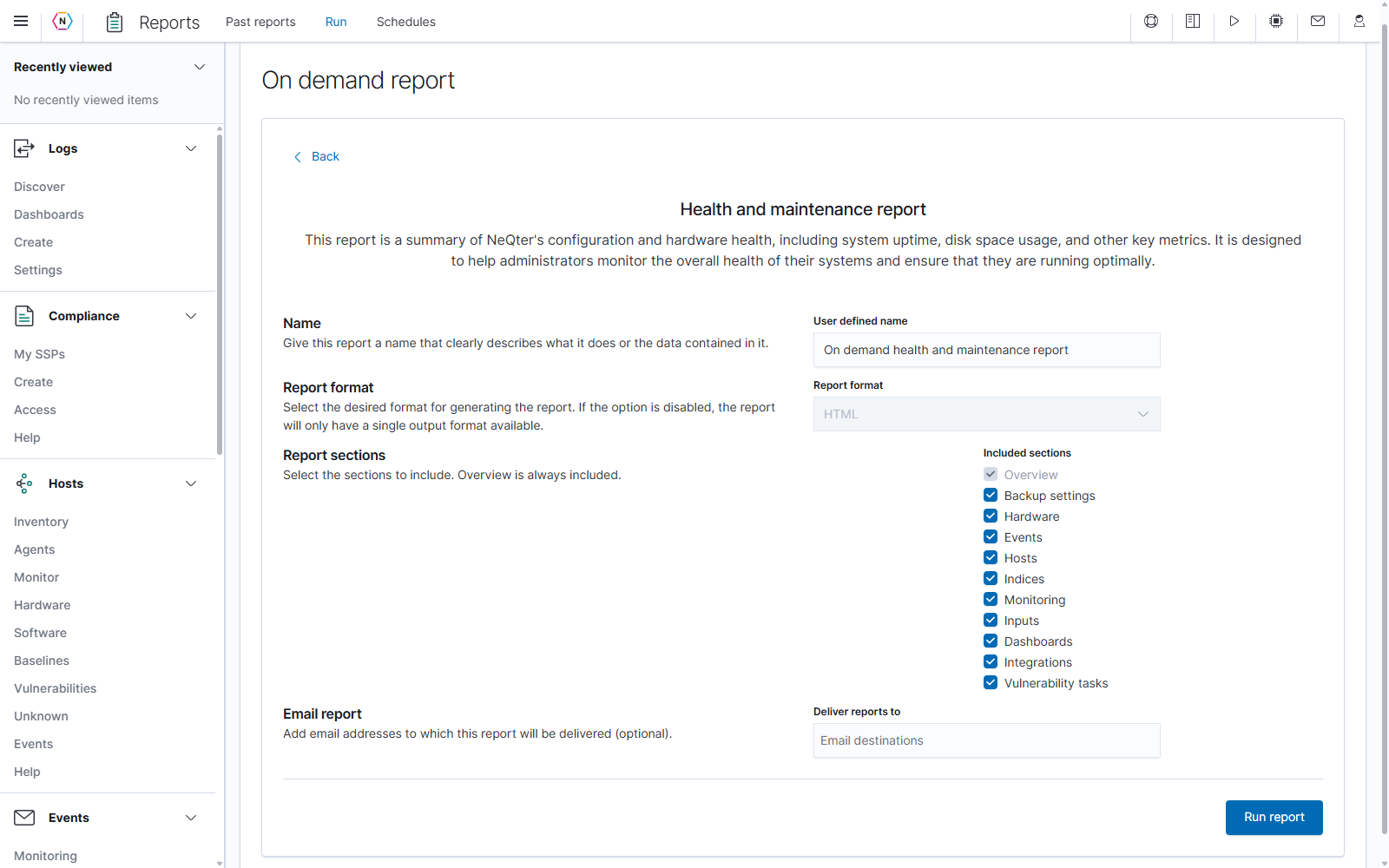
The Included sections checklist contains Overview, Backup settings, Hardware, Events, Hosts, Indices, Monitoring, Inputs, Dashboards, Integrations, and Vulnerability tasks. All are selected initially. Clear sections you do not need; Overview is always included and its checkbox is locked.
Review the name and optional recipients, then select Run report. This template has no historical Last field.
Full inventory report
Use Full inventory report to download an Excel document containing the host inventory and associated installed hardware and software.
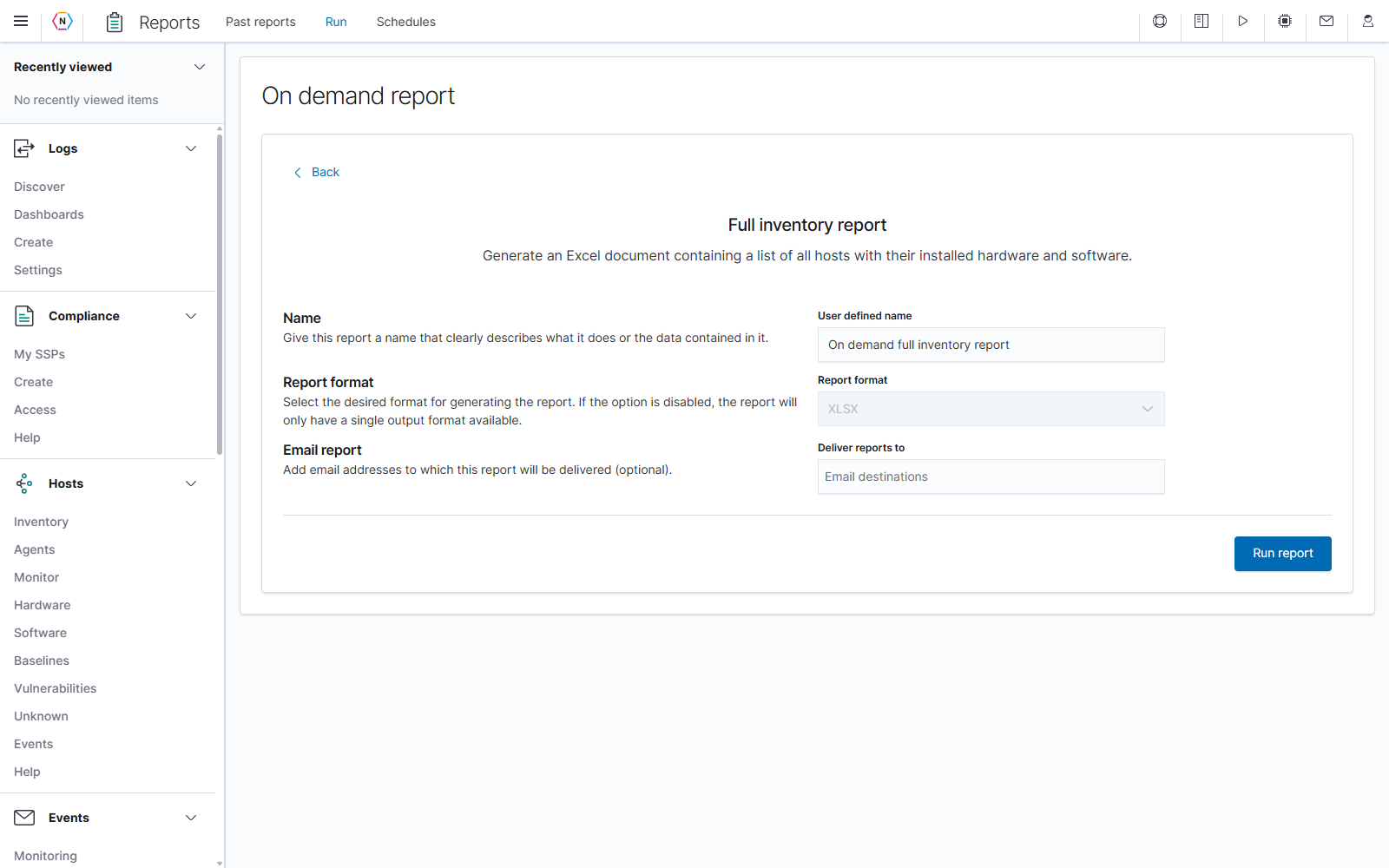
Enter the report name, optionally add email recipients, and select Run report. XLSX is fixed. This form does not offer a host-selection list, extra section controls, or a historical lookback. Review the source inventory in Hosts when you need to check what NeQter has collected.
Custom report
Use Custom report to export events matched by a Discover saved search. Prepare and save the search in Discover first, including its query, filters, and any columns you want to use in the report.
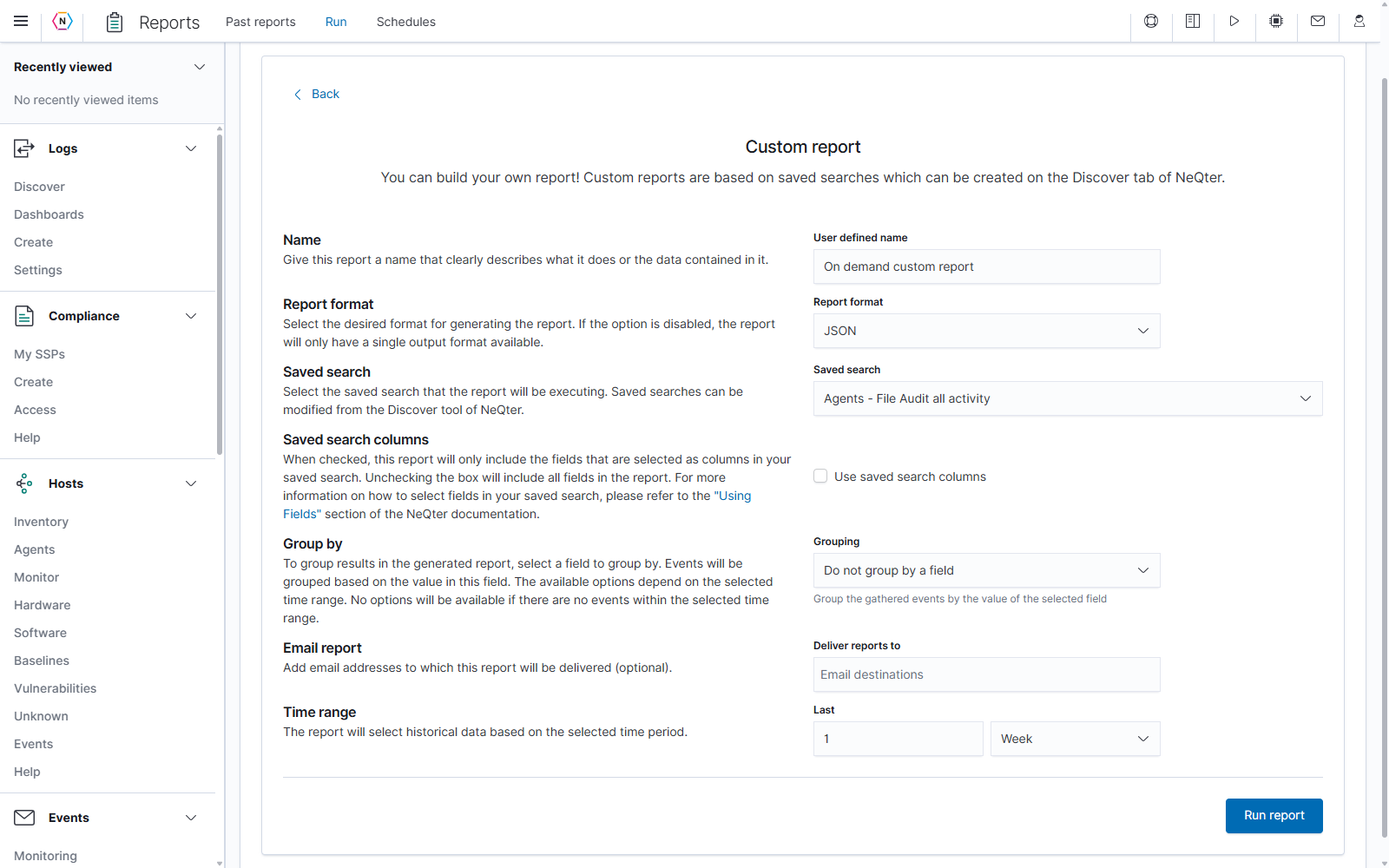
- Select Custom report and enter a useful name.
- Choose JSON, XLSX, or HTML in Report format. JSON is initially selected.
- Open Saved search, type to find the saved search, and select it. The displayed title identifies the search that will be executed.
- Decide whether to use its saved columns and whether to group the results.
- Set Last, review optional recipients, and select Run report.
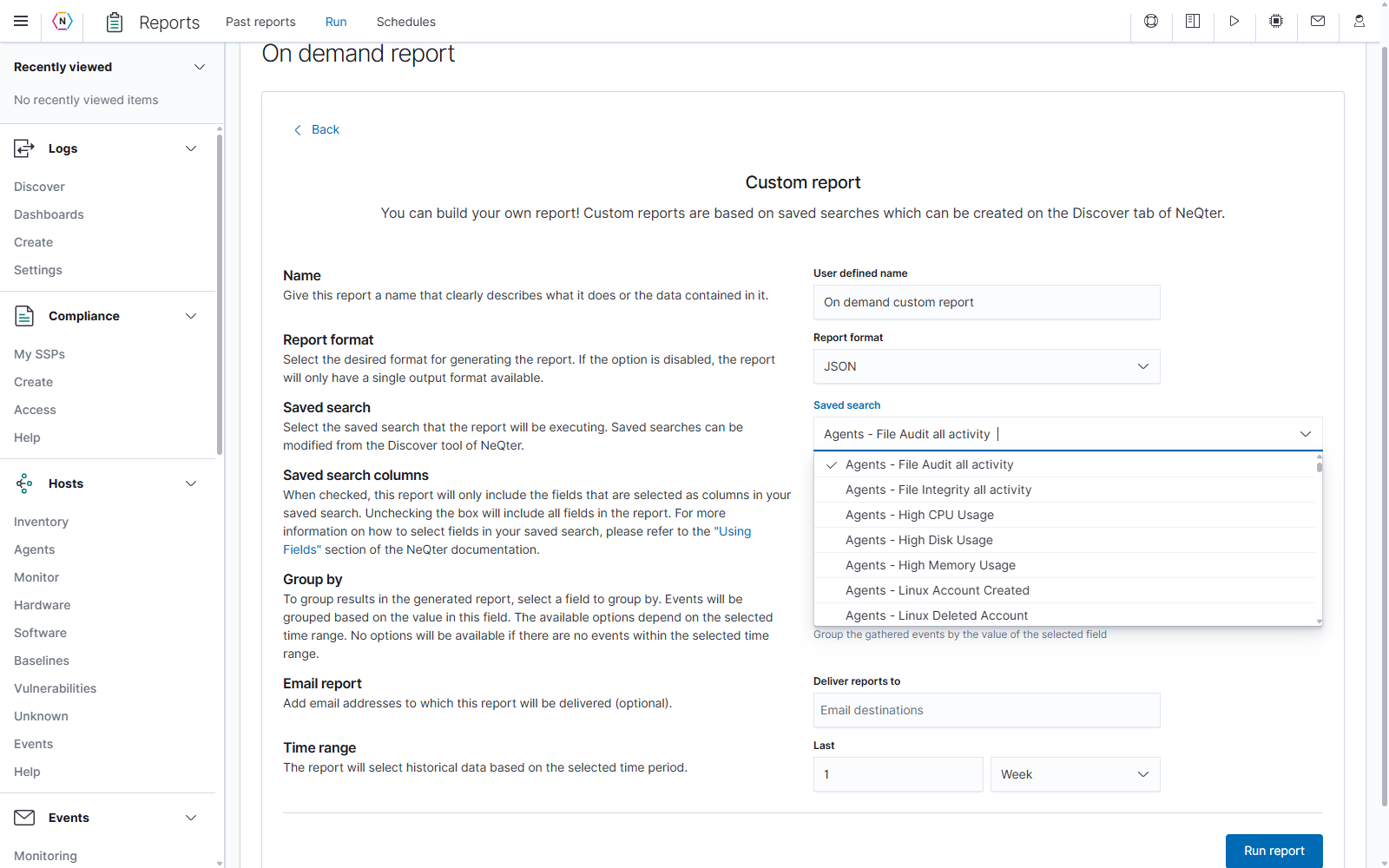
Use saved search columns controls which fields are included. Check it to use the columns selected in the saved search. Leave it unchecked to include all fields. To change those columns, edit the saved search in Discover; see Fields and columns.
Grouping controls how matching events are organized. Keep Do not group by a field for ungrouped output, or select a field to organize events by its values. For example, grouping by a host-name field can organize matching activity by host. Available fields depend on the selected search and its underlying data; an absent field cannot be chosen from this list.
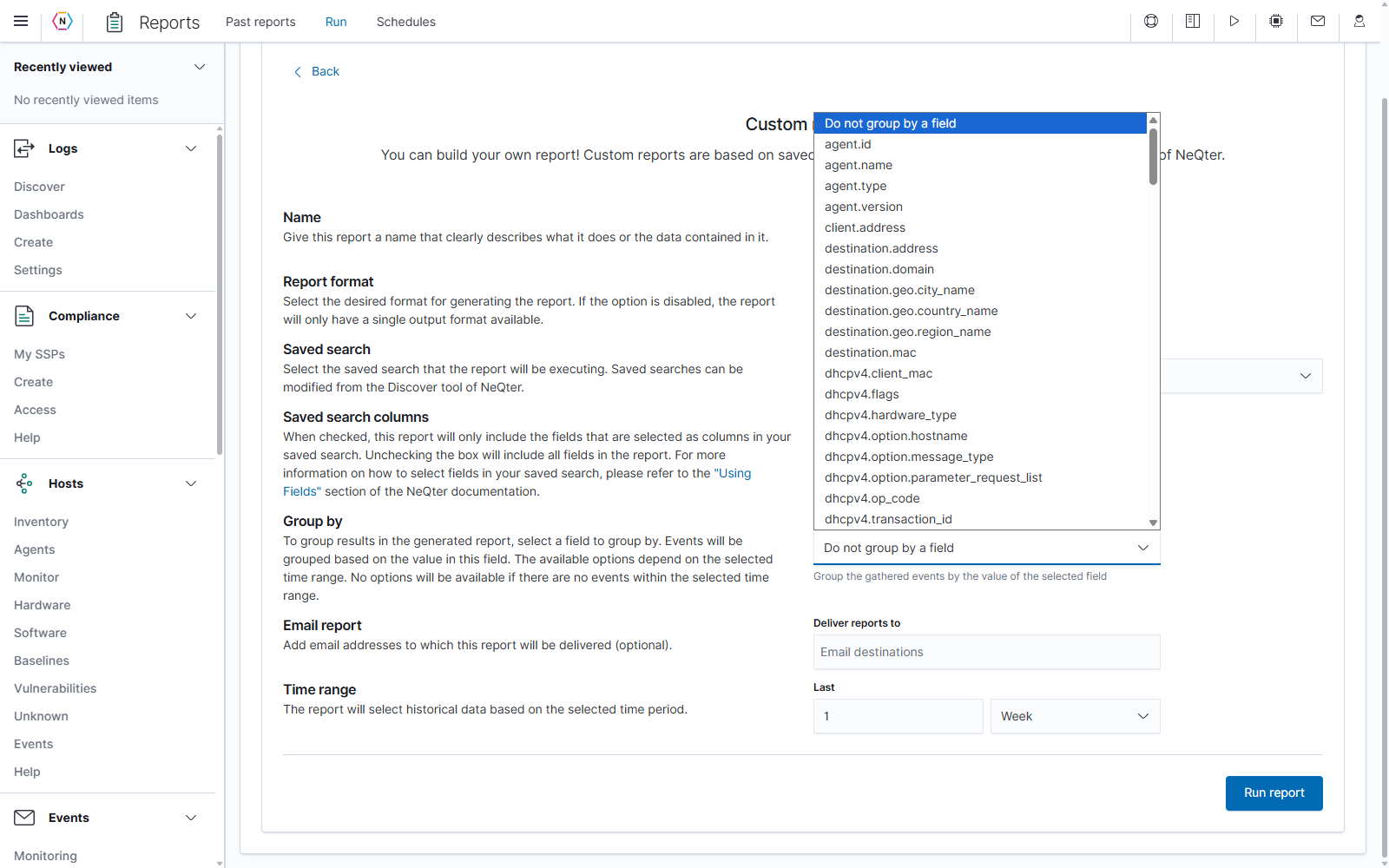
If the saved search is unavailable or its data cannot be loaded, check the search and its index pattern in Discover. Selecting a search or grouping field changes this report draft; it does not edit the saved search.
Unique value report
Use Unique value report to count how often values appear in saved-search results. For example, group matching events by host.name to count occurrences for each host. The output is an XLSX workbook, with a worksheet for each saved-search/grouping entry you include.
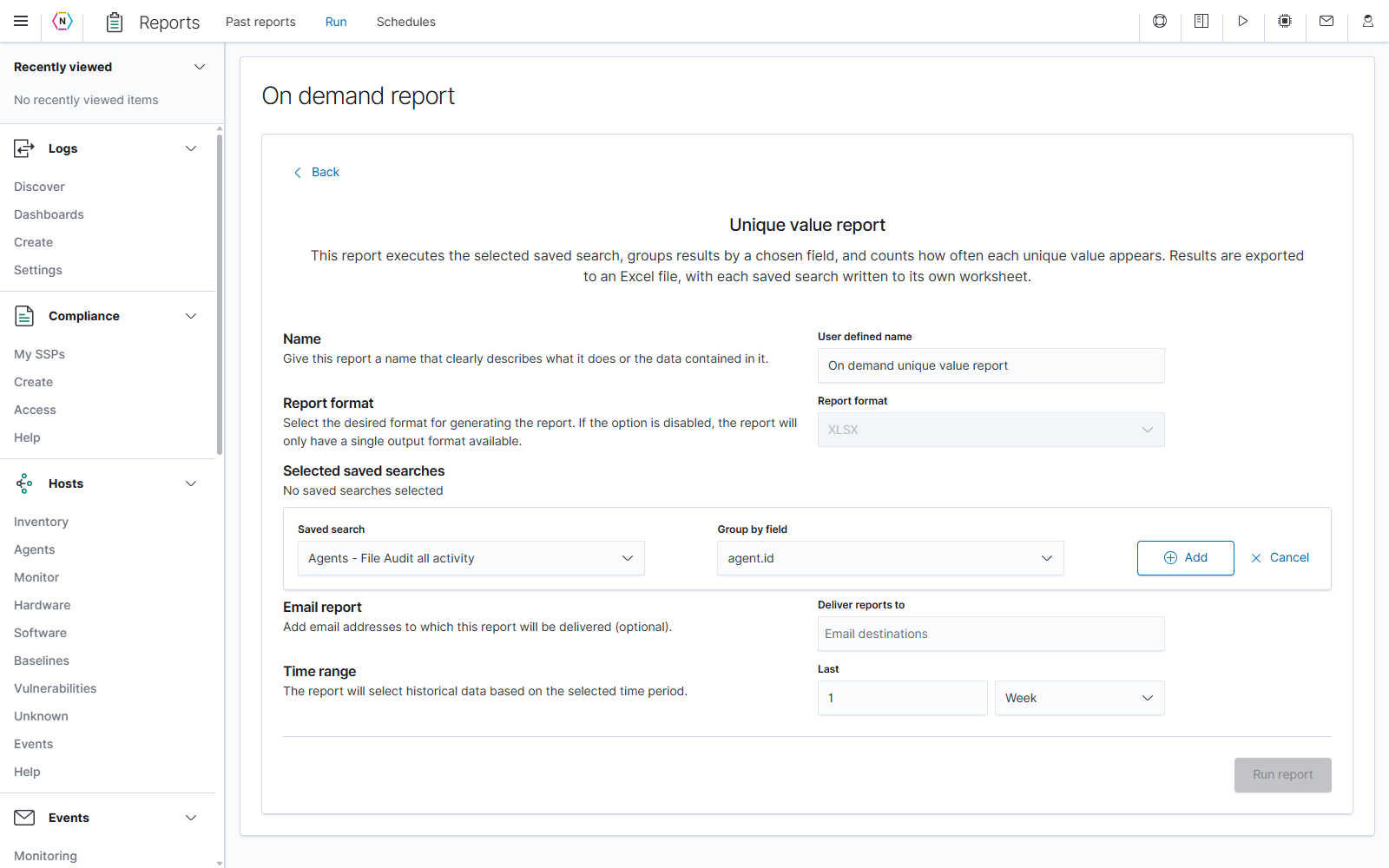
- Enter the report name.
- Select a Saved search.
- Choose its Group by field. The list can include supported text, IP, and numeric fields.
- Select Add. The pair appears under Selected saved searches.
- Use Add a saved search to report to include another pair if needed.
- Set Last, review optional email recipients, and select Run report.
At least one entry must be added before running. Merely selecting a search and field in the entry form does not add them to the report. Cancel in that entry form closes the unfinished addition.
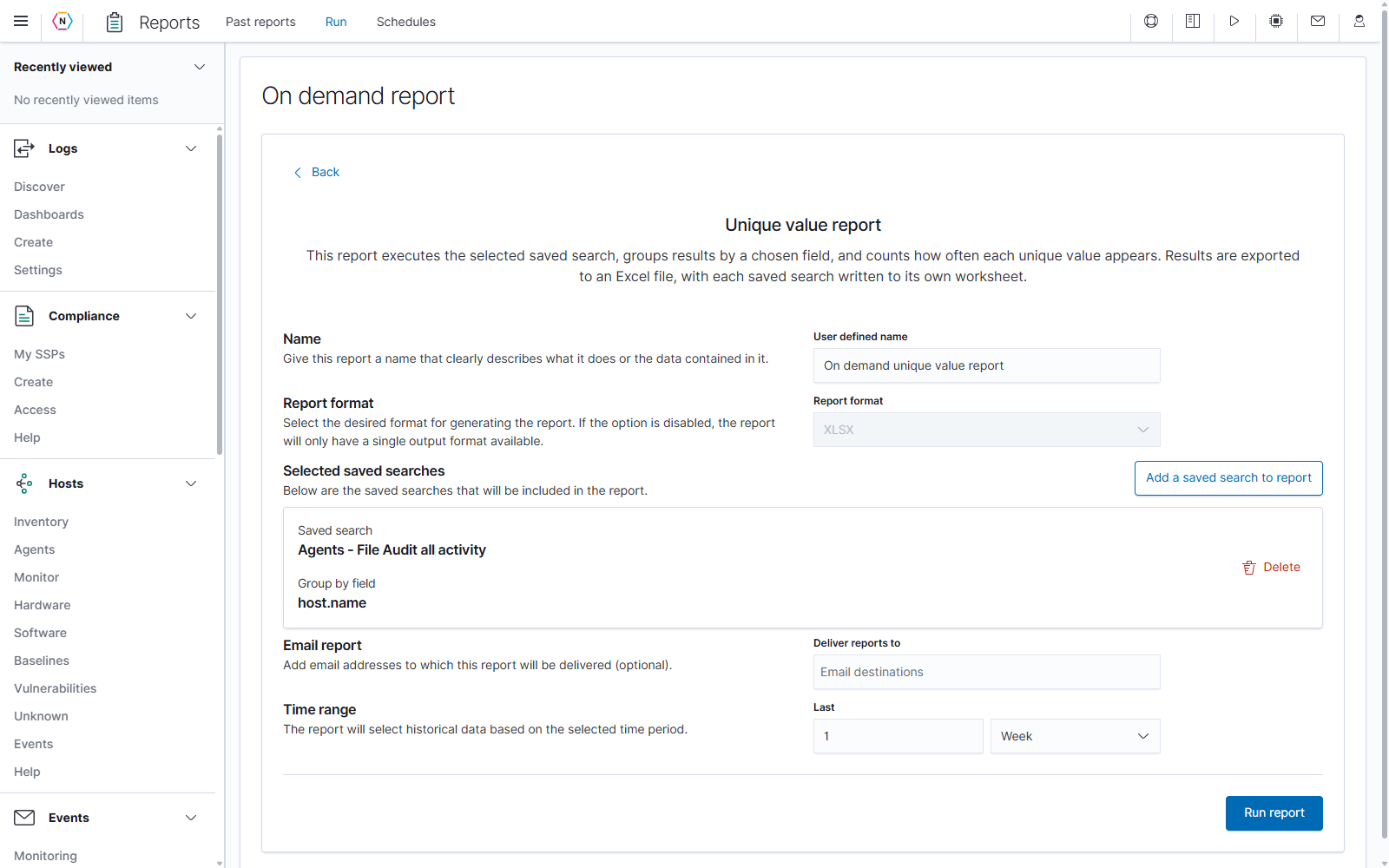
The Delete button on a selected-search card removes that pair from this report draft. The Discover saved search remains available. To change an entry, remove it and add the desired pair. You can include the same search with different grouping fields, but an identical search/field pair cannot be added twice.
Compliance reports
Compliance reports use an existing System Security Plan (SSP). Select the SSP whose information you need. If more than one eligible organization is available, an Organization selector appears before the SSP selector. Changing the organization selects an SSP from that organization; check the resulting selection before running.
All three Compliance templates support HTML, PDF, JSON, and XLSX. Report sections checkboxes appear for HTML and PDF output. If you clear every section, Summary is restored so the document retains content. JSON and XLSX use their structured output without this document-section checklist.
Compliance change report
Use Compliance change report to review changes made to an SSP during a selected historical period.
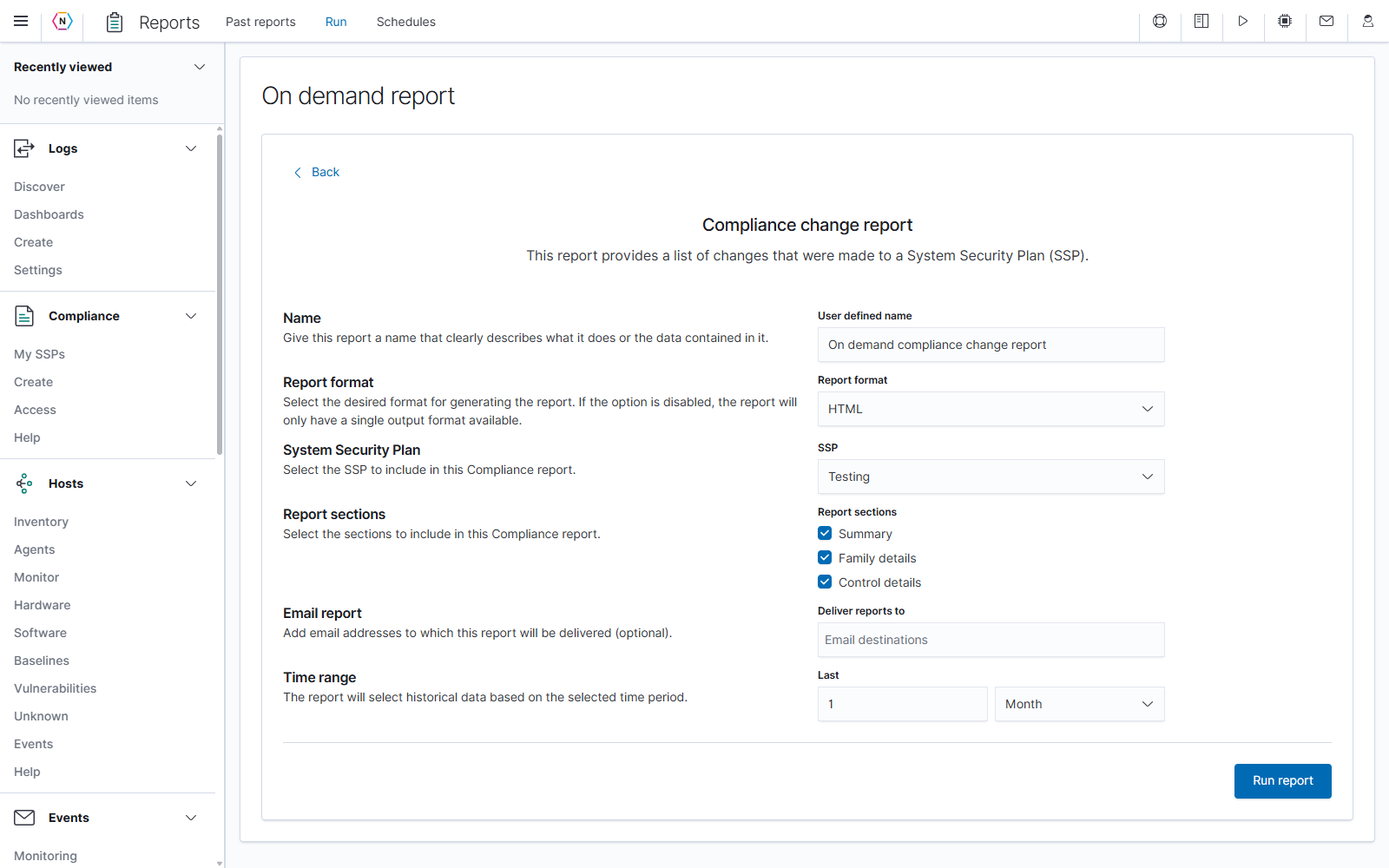
- Select the desired output format.
- Choose the SSP, such as Testing in this example.
- For HTML/PDF, select Summary, Family details, and/or Control details. All start selected.
- Set Last to the period of changes you want included; the initial value is 1 Month.
- Review the name and optional recipients, then select Run report.
Use Summary for an overview, Family details to include the control-family breakdown, and Control details for individual control information.
Compliance task report
Use Compliance task report to review an SSP’s tasks organized by assignee. Choose the SSP and output format, then narrow the tasks with the available filters.
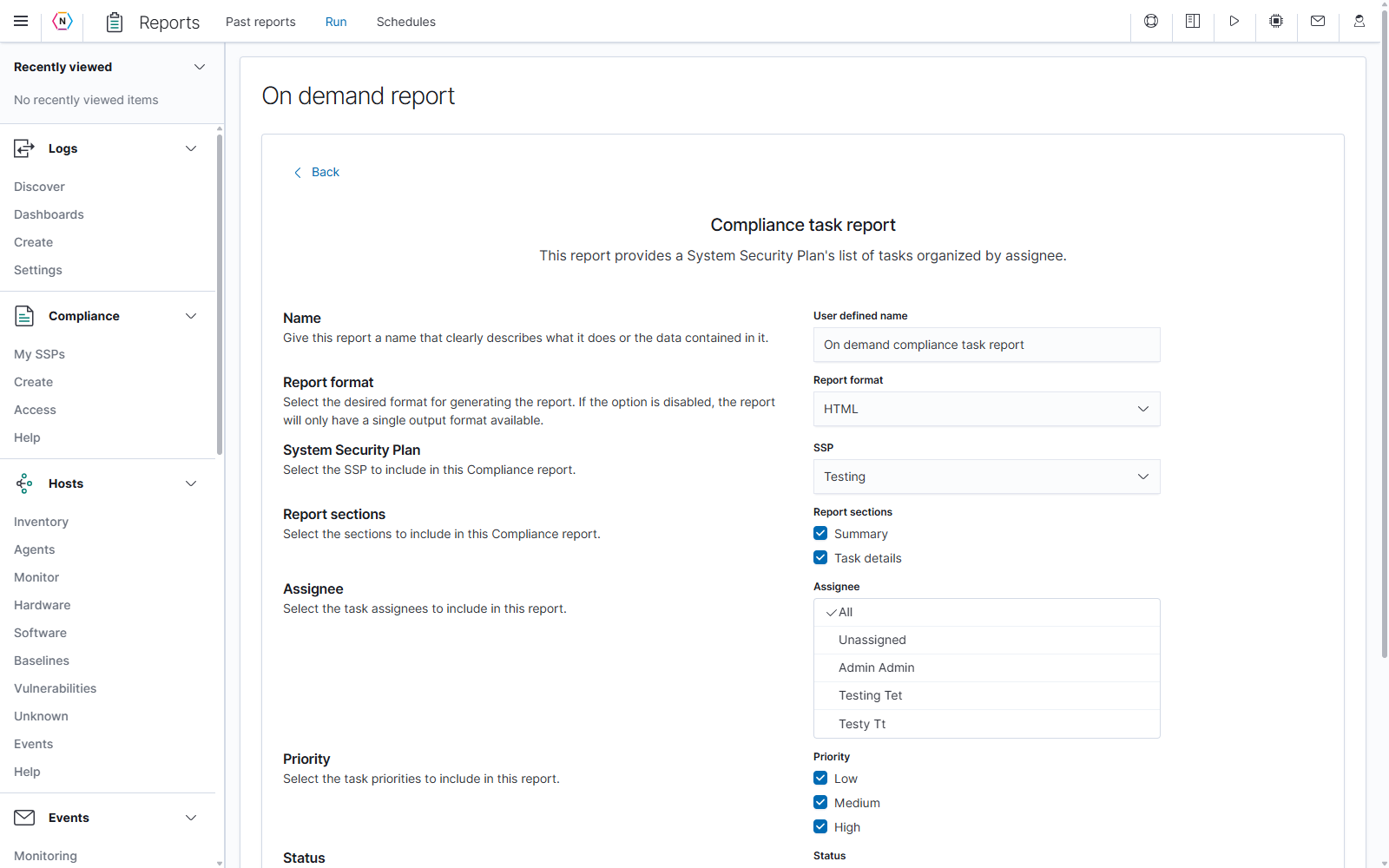
| Option | How it changes the report |
|---|---|
| Summary | Includes the task summary in HTML/PDF output. |
| Task details | Includes detailed task information in HTML/PDF output. |
| Assignee: All | Includes tasks regardless of assignee. This is the initial selection. |
| Assignee: Unassigned | Includes tasks without an assigned user. |
| Named assignees | Selects tasks belonging to those users. You can select several users. |
| Priority | Includes the selected Low, Medium, and/or High priorities. All start selected. |
| Status | Includes selected To Do, In Progress, and/or Completed tasks. All start selected. |
Selecting All clears individual assignee choices. If the assignee selection becomes empty, the form returns to All. Changing Organization, when available, also resets assignee selection to All; review it again for the new organization.
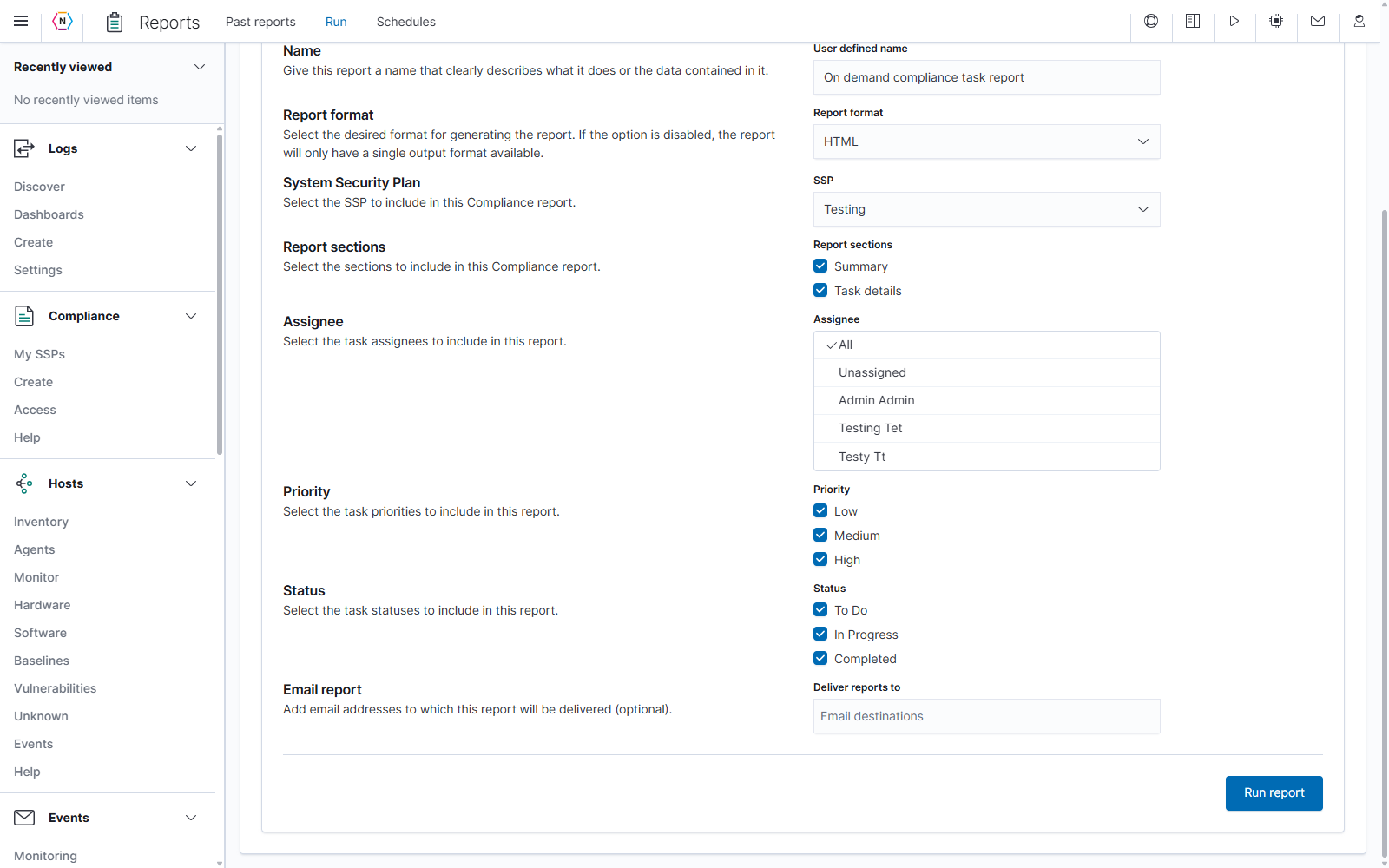
For an example of outstanding high-priority work, select High, keep To Do and In Progress, and clear Completed. Review the assignee selection and recipients, then select Run report. This report has no historical Last field; the filters select from the SSP’s task information.
Compliance SPRS score card
Use Compliance SPRS score card to review the current Supplier Performance Risk System score breakdown recorded for an eligible SSP. The selector supports the NIST SP 800-171 assessment-objective and applicable CMMC 2.0 SSPs; CMMC Level 1 SSPs are excluded.
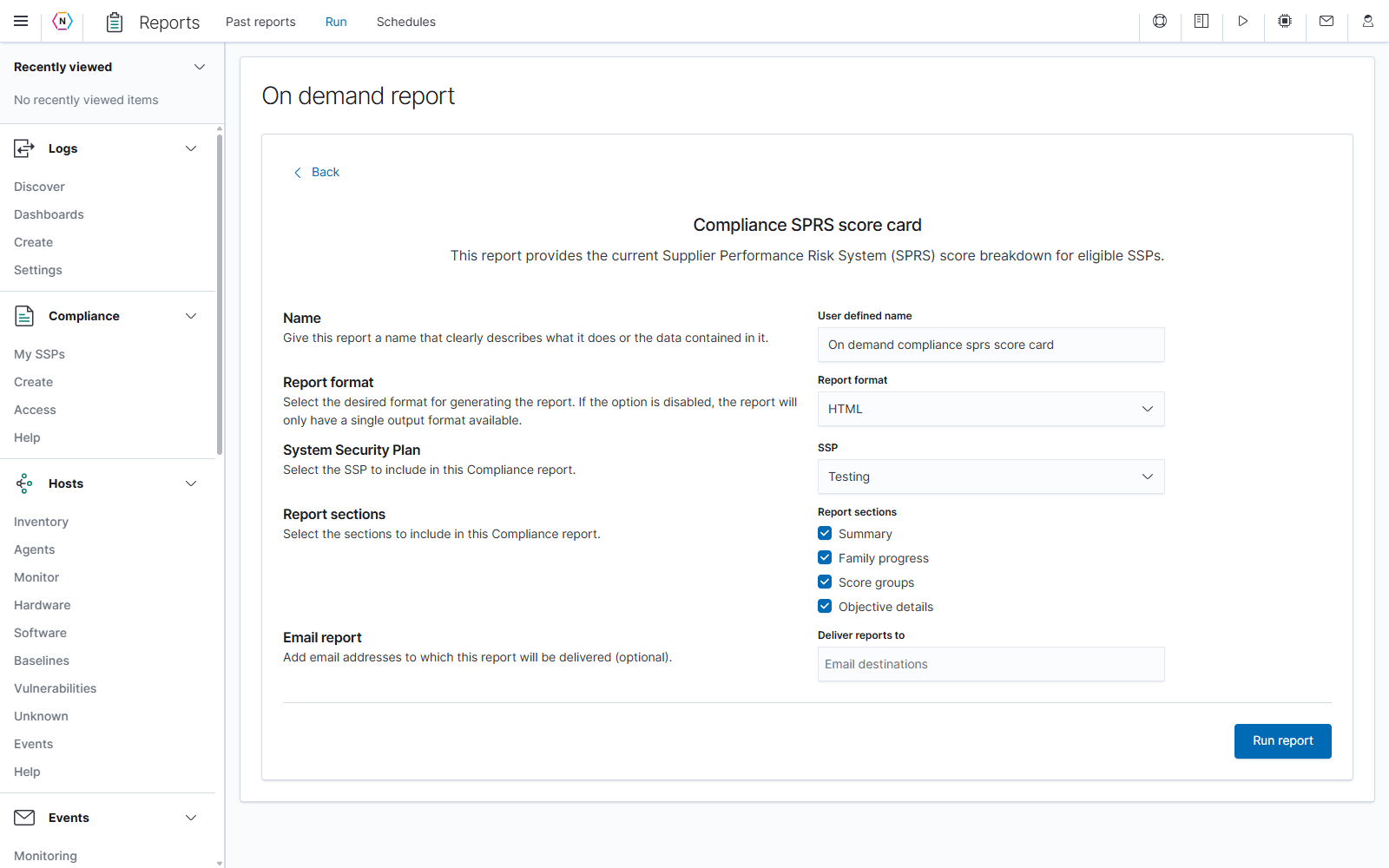
Choose the SSP and output format. For HTML/PDF, use the section checklist to include Summary, Family progress, Score groups, and Objective details. These provide progressively more detail about the recorded score and its contributing requirements. All sections start selected.
Review the name and optional recipients, then select Run report. This template reports the current score breakdown and has no historical Last field. If no eligible SSP can be selected, review the SSP’s framework and your access in Compliance.
Vulnerability reports
Detailed vulnerability report
Use this XLSX report to combine several vulnerability datasets into one workbook. It uses the latest available report data for tasks run within the last year.
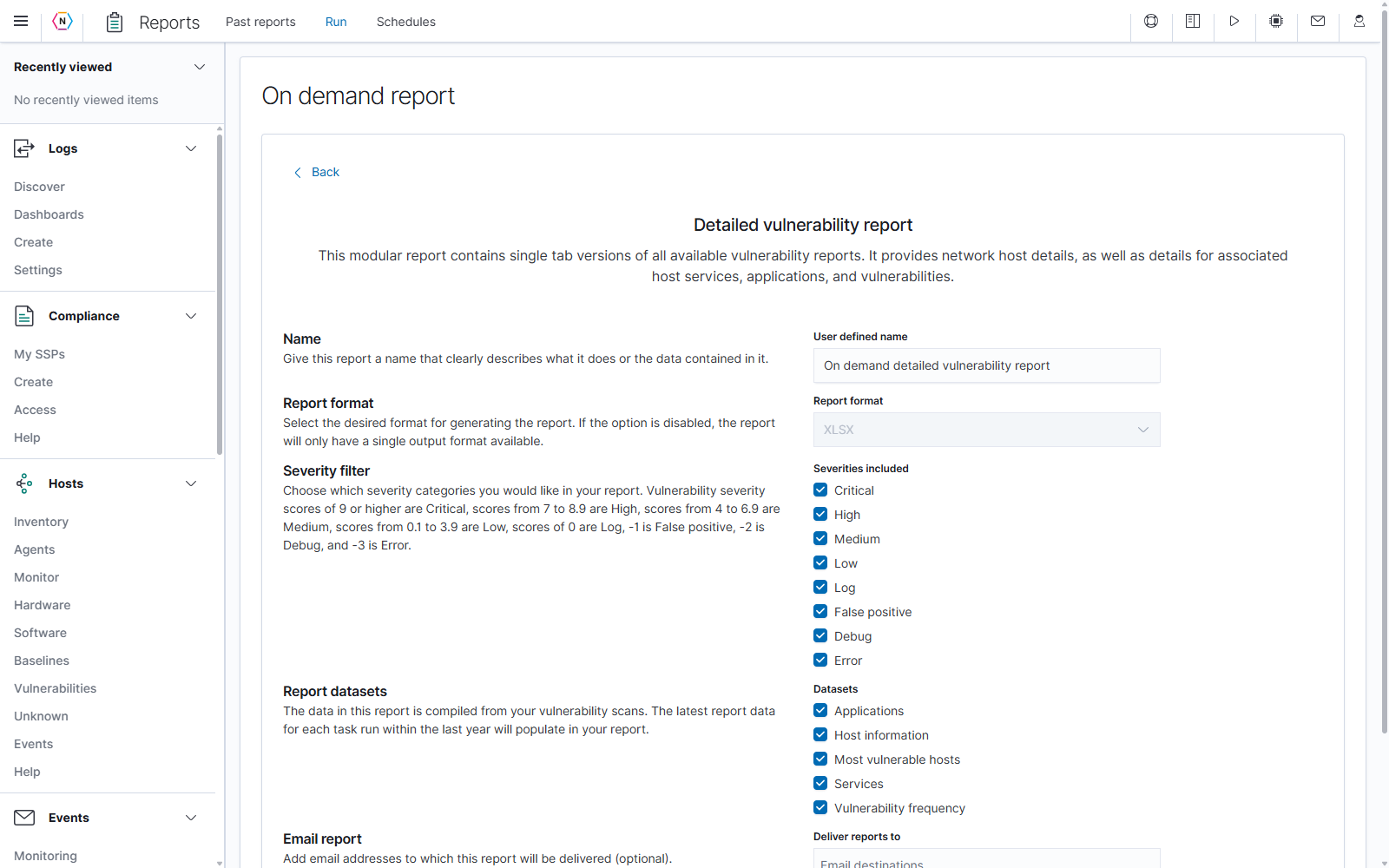
- Choose Detailed vulnerability report from the Vulnerability category.
- Enter the User defined name. The format is fixed to XLSX.
- Check the Severities included that you want. All are initially selected; keep at least one.
- Select one or more Datasets.
- Review any email destinations, then select Run report when ready to generate the file.
| Severity category | Scores described by the form |
|---|---|
| Critical | 9 or higher |
| High | 7 through 8.9 |
| Medium | 4 through 6.9 |
| Low | 0.1 through 3.9 |
| Log | 0 |
| False positive | -1 |
| Debug | -2 |
| Error | -3 |
These are vulnerability-result categories. They are separate from the event severities documented in the Events guide.
| Dataset | What it contributes |
|---|---|
| Applications | Application information associated with the scan results. |
| Host information | Details about the scanned hosts. |
| Most vulnerable hosts | A ranking of hosts by vulnerability score. |
| Services | Services associated with the scanned hosts. |
| Vulnerability frequency | Vulnerability counts and the hosts on which they were detected. |
This form has no task picker, minimum QoD field, or Last time-range control. Use the other vulnerability report types below when you need their task, scan, or detection-confidence filters.
Most vulnerable hosts report
Use Most vulnerable hosts report to produce an XLSX ranking from the highest to the lowest host vulnerability score.
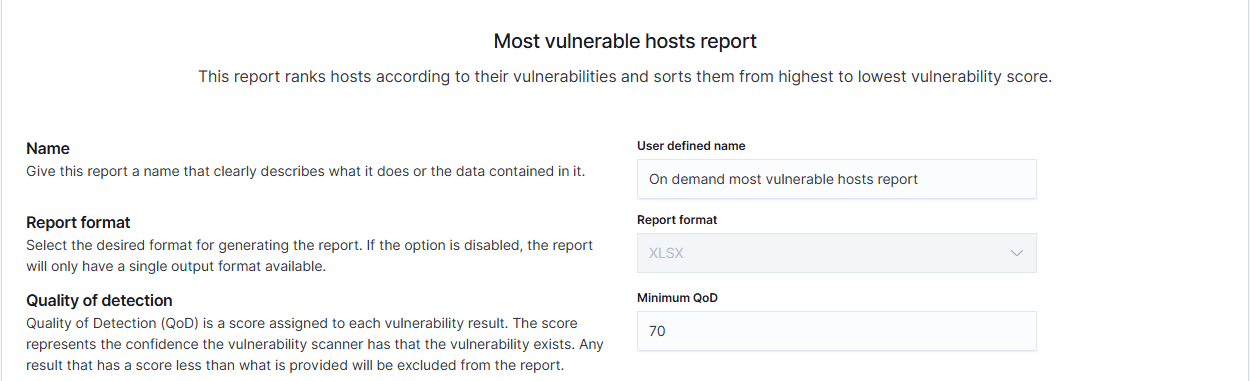
Set Minimum QoD, choose the Tasks, and review Scans before generating the report. The shared controls work as described below.
Vulnerability frequency report
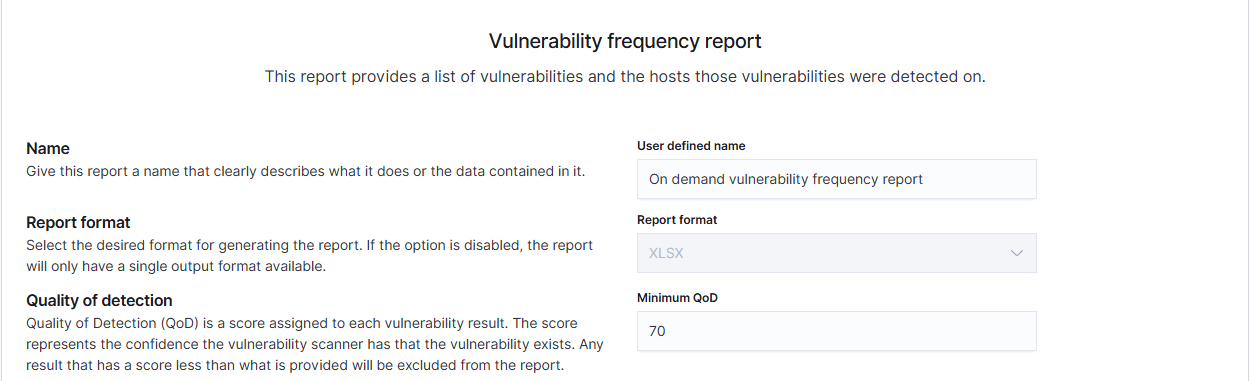
Use Vulnerability frequency report to list vulnerabilities and the hosts on which they were found. The output is XLSX. It has the same QoD, task, and scan controls as Most vulnerable hosts report.
| Control | How to use it |
|---|---|
| Minimum QoD | Sets the minimum Quality of Detection, a measure of confidence in a vulnerability finding. Results below this value are excluded. The default is 70; use a value from 0 to 100. |
| Tasks: All | Includes the available tasks and uses their latest scan output. |
| Individual task names | Select one or more tasks. Choosing a named task replaces All. Clear a selected task by selecting it again. |
| Scans: Latest | Uses the latest output for the selected task or tasks. All or multiple-task selection keeps the selector on Latest. |
| A dated Scans entry | Available when exactly one named task is selected. Choose it to use that particular stored scan for an on-demand report. |
QoD describes confidence in the finding; it does not represent the severity of the vulnerability. For example, increasing QoD excludes less certain findings even when their severity is high.

To report on a particular scan, select one task, open Scans, and choose the desired date. Changing the task selection resets Scans to Latest, so check it again before running. For a recurring schedule intended to follow new scans, leave it on Latest.
The task selector omits tasks outside its one-year availability window. Percentages beside dated scans describe the source scan’s completion; they are not progress indicators for the document you are preparing.
Vulnerability delta report
Use Vulnerability delta report to compare scans from the same task and produce an XLSX workbook of new, unchanged, and mitigated vulnerabilities. A task needs at least two reports to support a comparison.
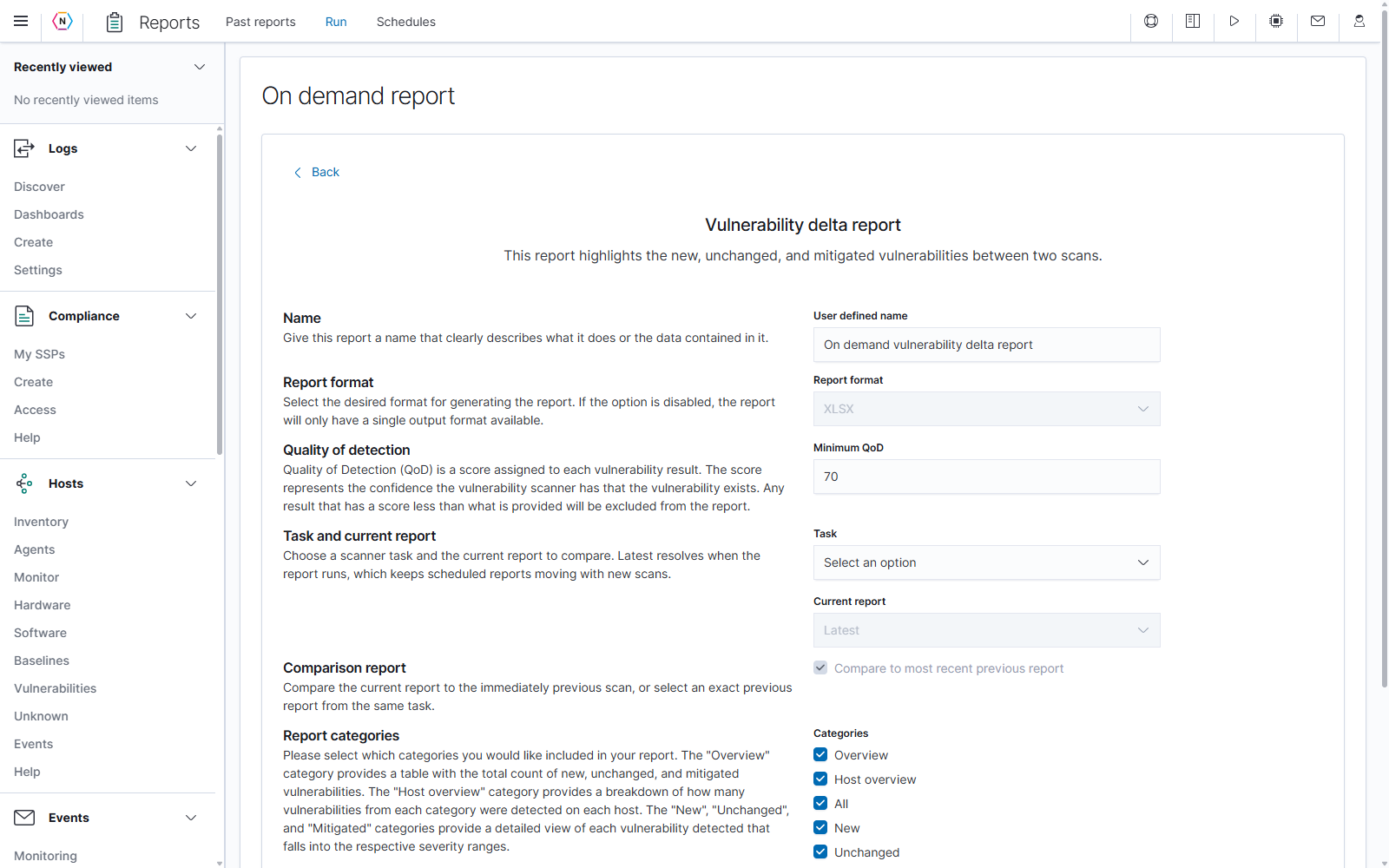
- Enter the report name and set Minimum QoD.
- Choose Task. The list contains tasks with enough reports to compare.
- Choose Current report: Latest or a specific dated scan.
- Keep Compare to most recent previous report checked to compare against the immediately preceding scan. Alternatively, clear it and select a specific Previous report.
- Choose the Categories you want to include.
- Review email recipients, then select Run report when ready.
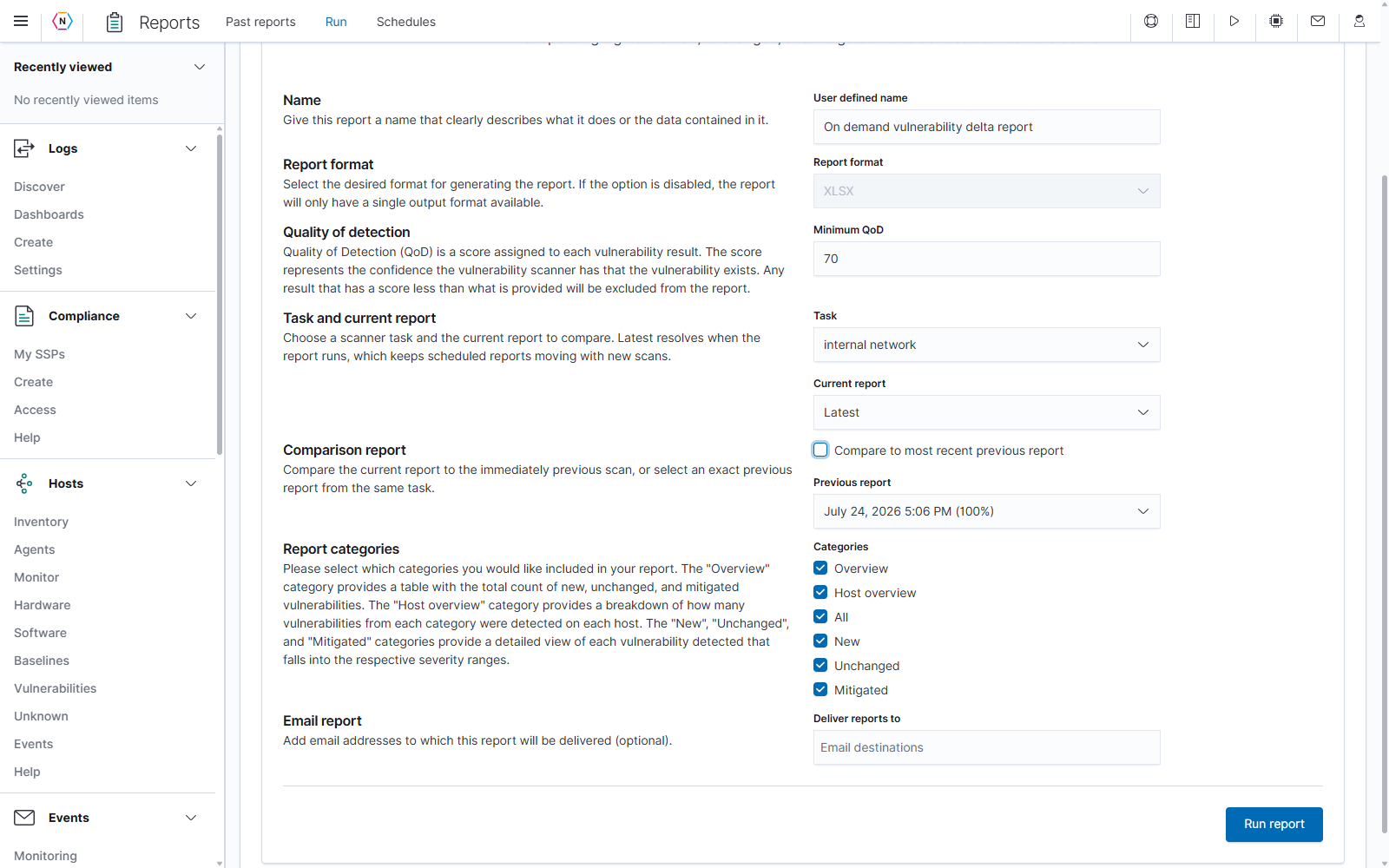
Latest is resolved when the report runs. This lets a recurring delta schedule follow newly completed scans. An explicitly selected previous report stays fixed, making it useful for a comparison against a chosen baseline. The previous-report list only offers scans older than the current one. Changing Task resets the current selection to Latest and restores the automatic previous-report option.
| Category | What it includes |
|---|---|
| Overview | Total counts of new, unchanged, and mitigated vulnerabilities. |
| Host overview | Those counts broken down by host. |
| All | The combined vulnerability detail category. |
| New | Details for findings present in the current scan but absent from the comparison scan. |
| Unchanged | Details for findings present in both scans. |
| Mitigated | Details for findings present in the comparison scan but absent from the current scan. |
Keep at least one category selected. Run report remains unavailable when a valid comparison cannot be formed, such as when there is no earlier report for the selected current scan.
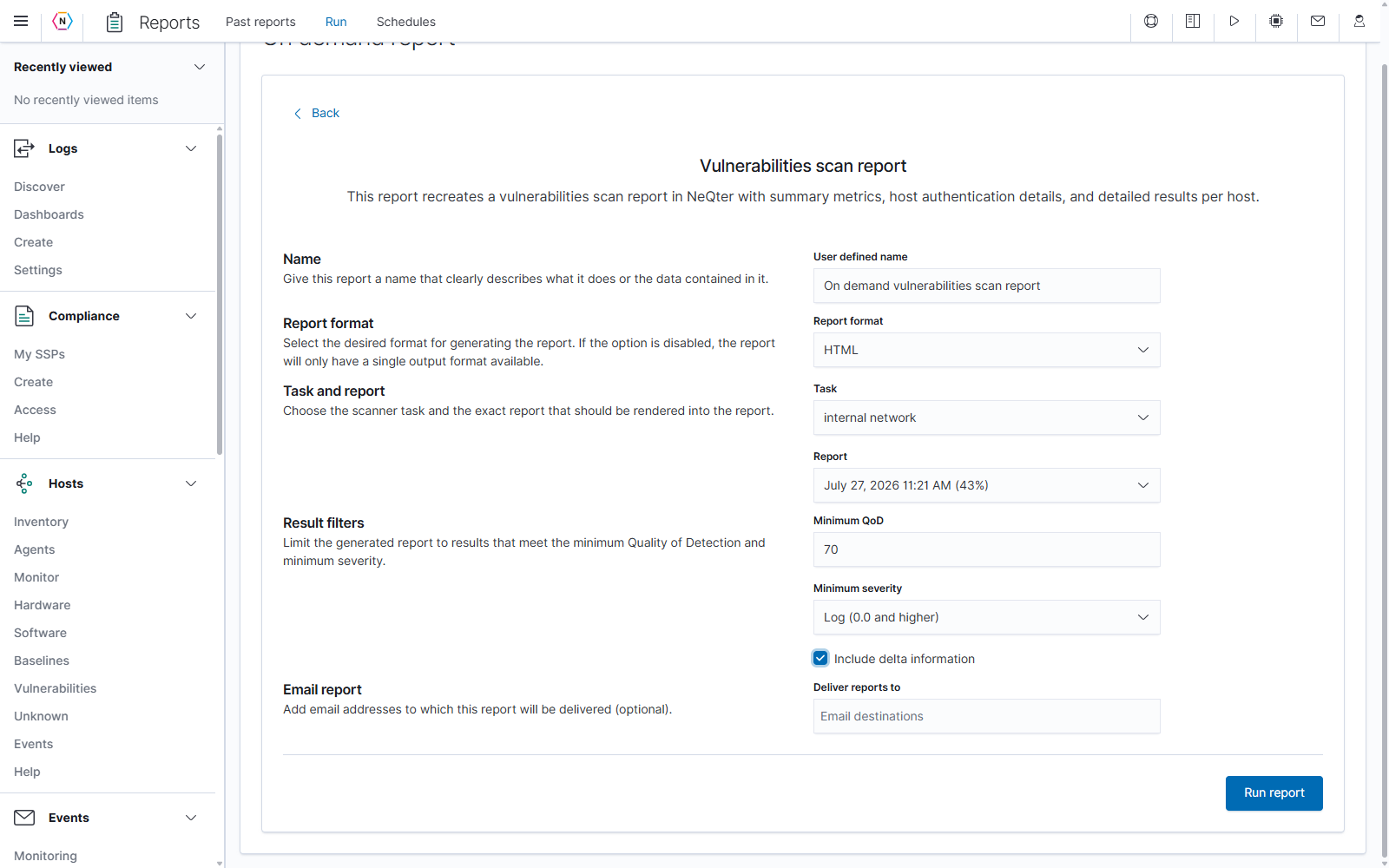
Vulnerabilities scan report
Use Vulnerabilities scan report to create an HTML or PDF document with scan-summary metrics, host authentication details, and detailed results per host.
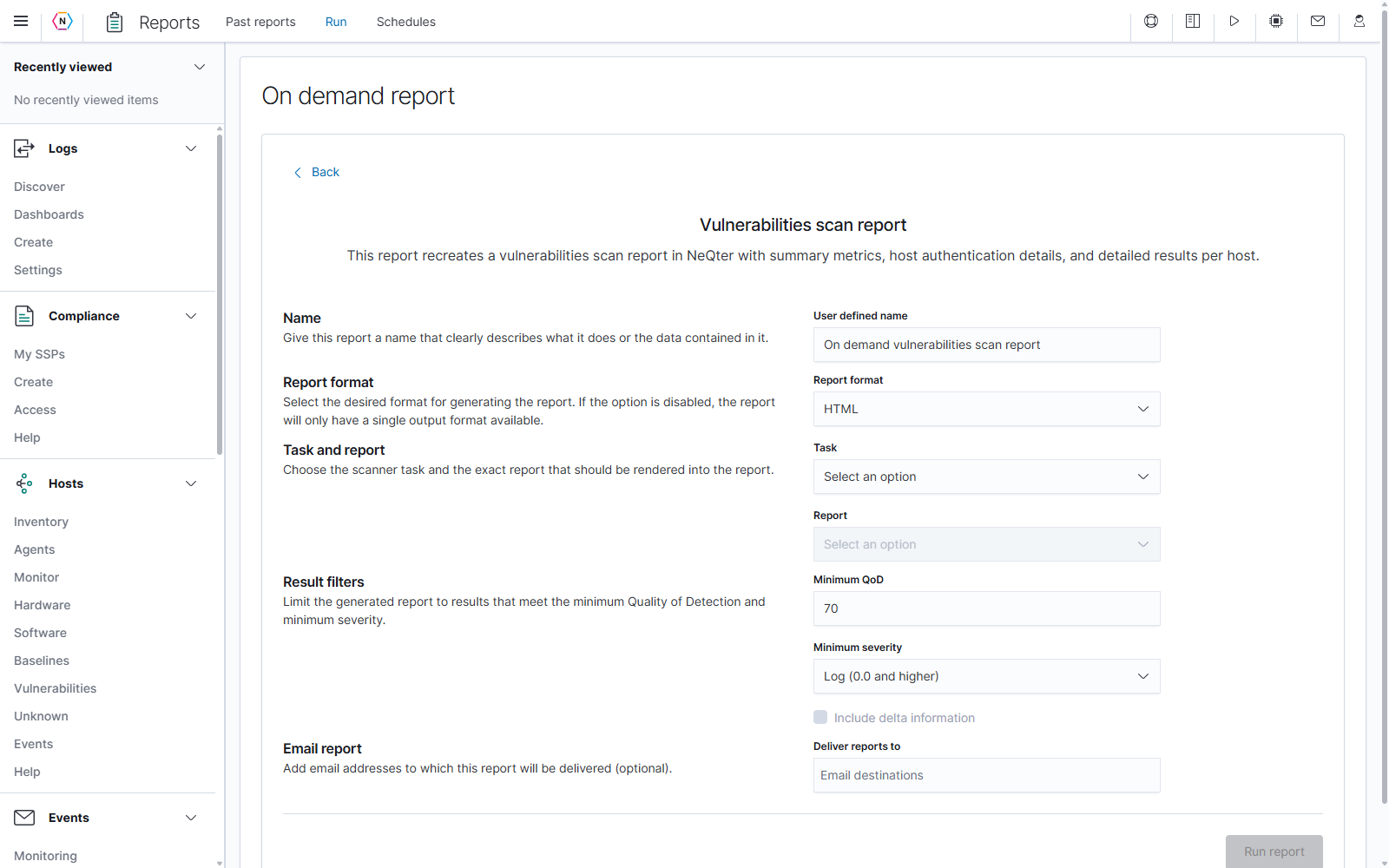
- Choose HTML or PDF in Report format.
- Choose Task. Tasks without report data are excluded.
- Select the exact dated Report to use. Review the automatically selected report after choosing a task.
- Set Minimum QoD and Minimum severity.
- Optionally check Include delta information when available.
- Review the name and recipients, then select Run report when ready.
This report uses an exact scan selection. It has no Latest option or Last lookback control.
| Minimum severity | Included result scores |
|---|---|
| Error and higher | -3 and higher |
| Debug and higher | -2 and higher |
| False positive and higher | -1 and higher |
| Log (0.0 and higher) | 0 and higher; the default selection |
| Low (0.1 and higher) | 0.1 and higher |
| Medium (4.0 and higher) | 4 and higher |
| High (7.0 and higher) | 7 and higher |
| Critical (9.0 and higher) | 9 and higher |
The QoD and severity filters apply together. Include delta information is available only when the selected task has more than one report. It becomes unavailable and clears if you change to a task without enough reports.
Schedules
Open Reports → Schedules to create recurring reports and manage when they run. A schedule stores the report type, its content options, any email recipients, and the days and time for automatic generation.
Available schedules and management controls depend on write access to the tools used by each report. Accounts with read-only or narrower permissions can see fewer controls.
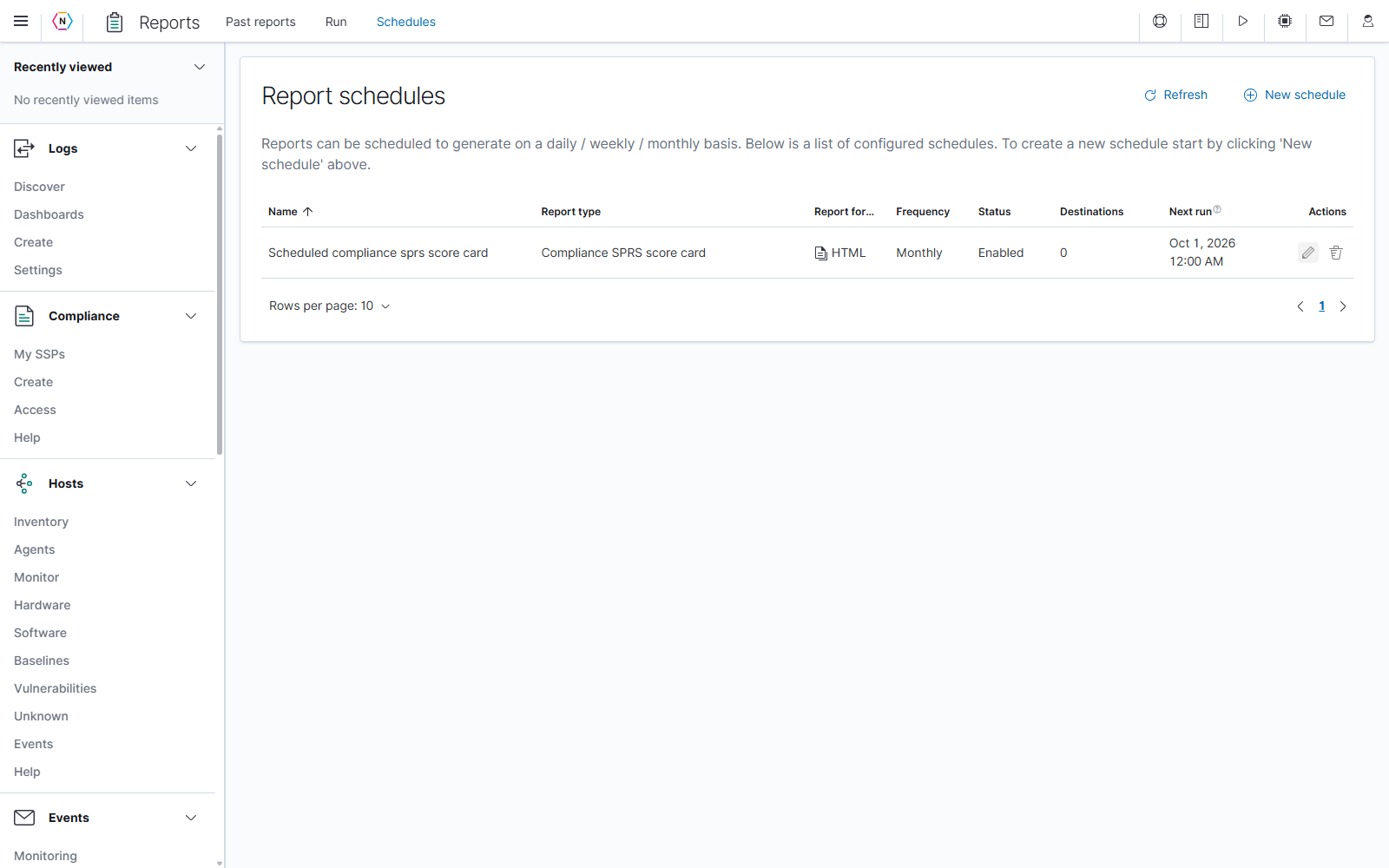
Read the schedule list
| Column or control | Meaning and use |
|---|---|
| Refresh | Reloads the saved schedules and their next-run information. |
| New schedule | Opens the report-type chooser for a new schedule. |
| Name | The user-defined name identifying the schedule. |
| Report type | The kind of report generated, such as General system report or Compliance SPRS score card. |
| Report format | The configured output format. Available formats depend on the report type. |
| Frequency | Daily, Weekly, or Monthly. Open Edit to inspect the specific days and time. |
| Status | Whether automatic generation is enabled. A disabled schedule can show a reason in place of the general Disabled label. |
| Destinations | The number of configured email recipients. Zero means the schedule has no email destinations. |
| Next run | The next scheduled generation time in the appliance’s system time zone. Disabled schedules show --. |
| Pencil/Edit | Opens the saved settings as an editable draft. |
| Trash/Delete | Opens the schedule-deletion confirmation. |
| Sortable column headings | Change the ordering of the list. The arrow identifies the current sort direction. |
| Rows per page, page numbers, and arrows | Control paging through a longer list of schedules. |
Create a schedule
- Select New schedule.
- Expand a report category if needed and select the report you want to schedule.
- Enter a descriptive User defined name and select the available Report format.
- Complete the report-specific content options described earlier in this guide, such as the SSP, saved searches, sections, or vulnerability data to include.
- Optionally enter email recipients in Deliver reports to.
- Set the historical Time range if this report type offers it.
- Choose Report frequency, its run-day options, and Run time.
- Set Schedule enabled as intended, then select the form’s Save button.
- Return to the list and review Status, Destinations, and Next run.
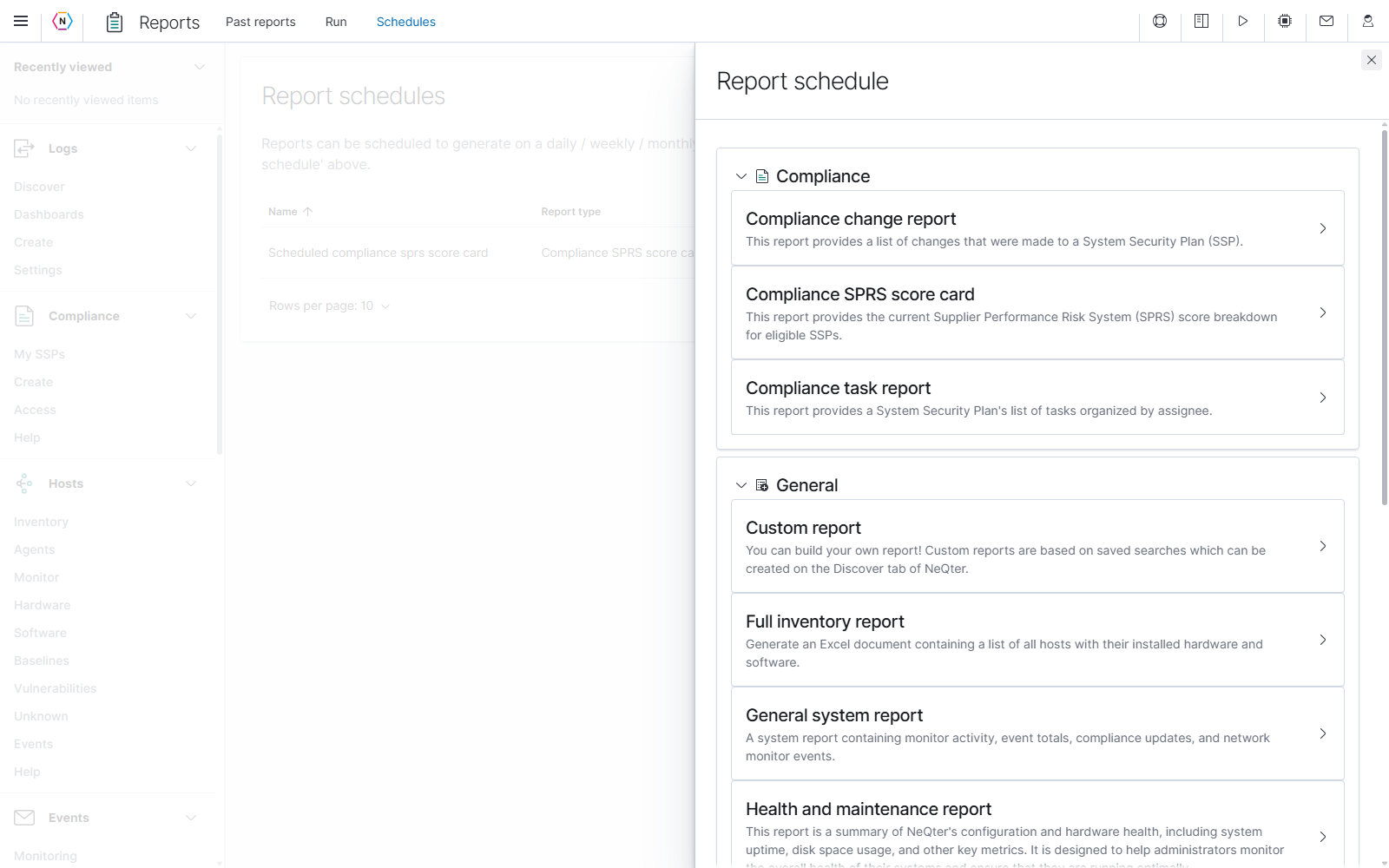
The examples below are unsaved General system report drafts. Example names, weekdays, and the recipient reports@example.com demonstrate the controls; no schedule or email delivery was created from these forms.
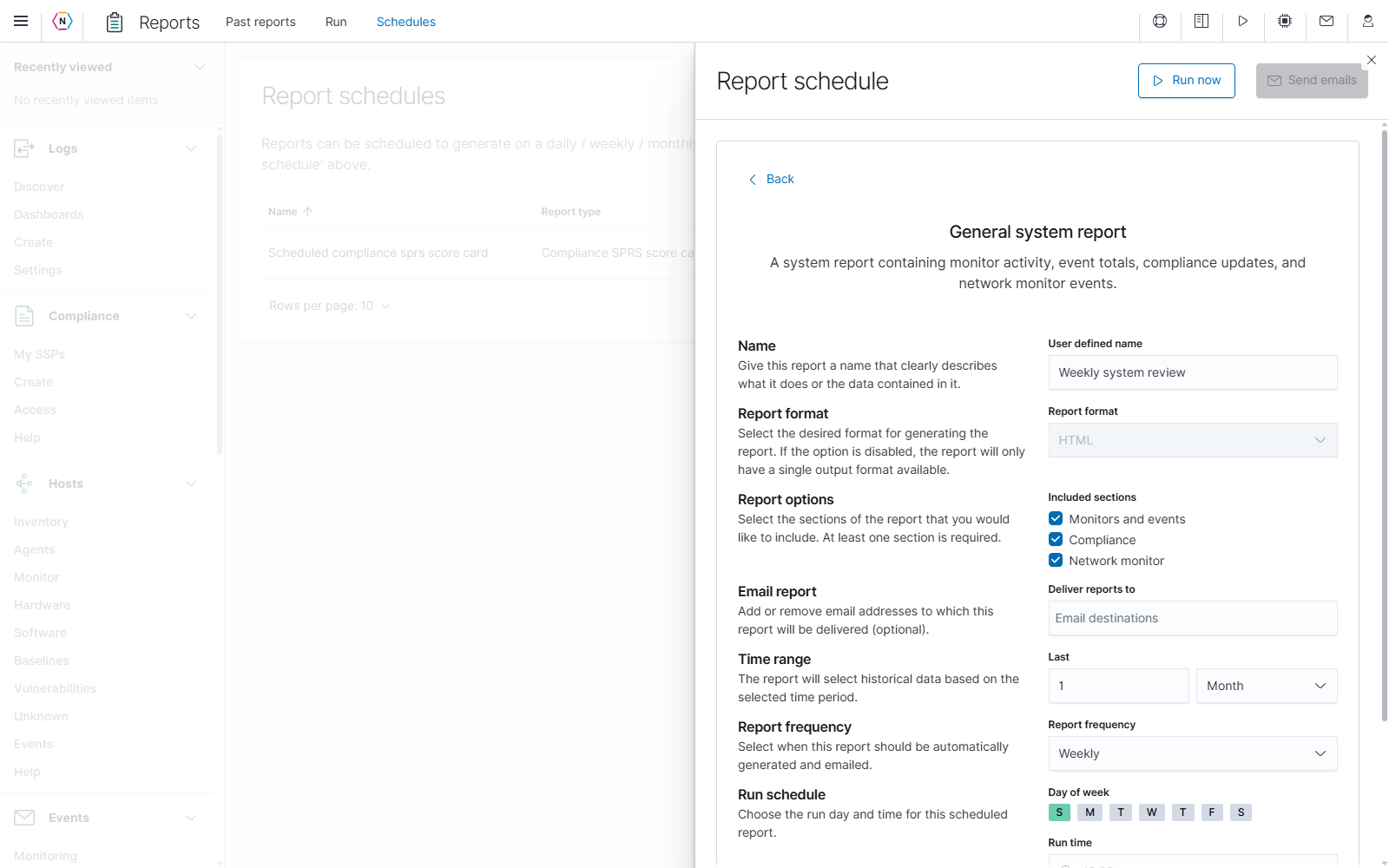
| Common setting | How to use it |
|---|---|
| User defined name | Give the schedule a name that explains its purpose or intended audience. |
| Report format | Select the output format. A disabled selector indicates that only one format is available for this report. |
| Report-specific options | Choose the source and content required by that report type. For example, the General system report offers Monitors and events, Compliance, and Network monitor sections. |
| Deliver reports to | Type a valid email address and press Enter to add it as a recipient chip. Repeat for additional recipients. |
| Recipient chip X | Removes that address from the draft. |
| Recipient field’s clear control | Clears the selected recipient list in the draft. |
| Time range: Last | Sets how much historical data a time-based report should request when it is generated. |
| Report frequency | Selects Daily, Weekly, or Monthly and exposes the corresponding run-day controls. |
| Run time | Chooses the time of day for the automatic run. |
| Schedule enabled | Controls whether the saved schedule runs automatically. A new draft starts enabled. |
Email recipients are optional when saving a schedule. Duplicate addresses are prevented, and an address must be committed as a chip to become part of the destination list. Adding or removing recipients changes the draft; Save applies the revised list to future scheduled runs.
Choose the report’s historical time range
Time range and Report frequency serve different purposes. The time range determines the historical data requested by each report. The frequency and run-day controls determine when that report is generated.
For example, a report that runs every Monday can use Last 1 Month of data. Each weekly report requests a month of history, so its coverage can overlap the previous report.
The Last control is available for General system report, Custom report, Unique value report, and Compliance change report. Choose a positive whole number and Day, Week, or Month. The inputs allow up to 366 days, 52 weeks, or 12 months, and the form also checks that the requested duration does not exceed one year. Other report types use their own selected SSP, inventory, or scan data instead of this historical-range control.
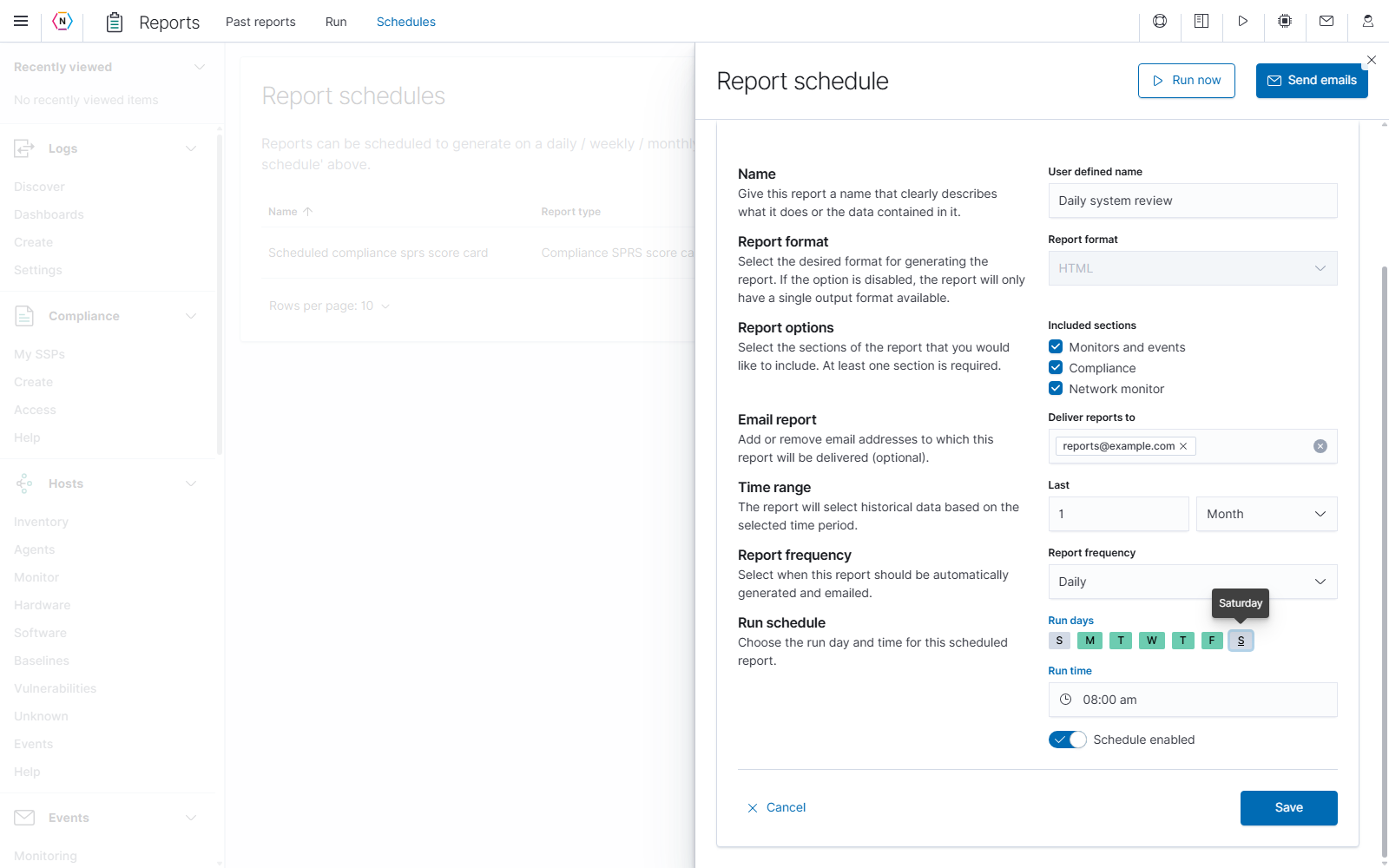
Run daily on selected days
Choose Daily to expose Run days. The day badges run from Sunday through Saturday: S, M, T, W, T, F, S. Select the days on which the report should run. Green badges are selected; gray badges are unselected. Hover over a badge to confirm its full day name.
All seven days are selected when switching to Daily. To run on weekdays only, deselect the first S (Sunday) and the last S (Saturday), leave Monday through Friday selected, then choose Run time.
Run once a week
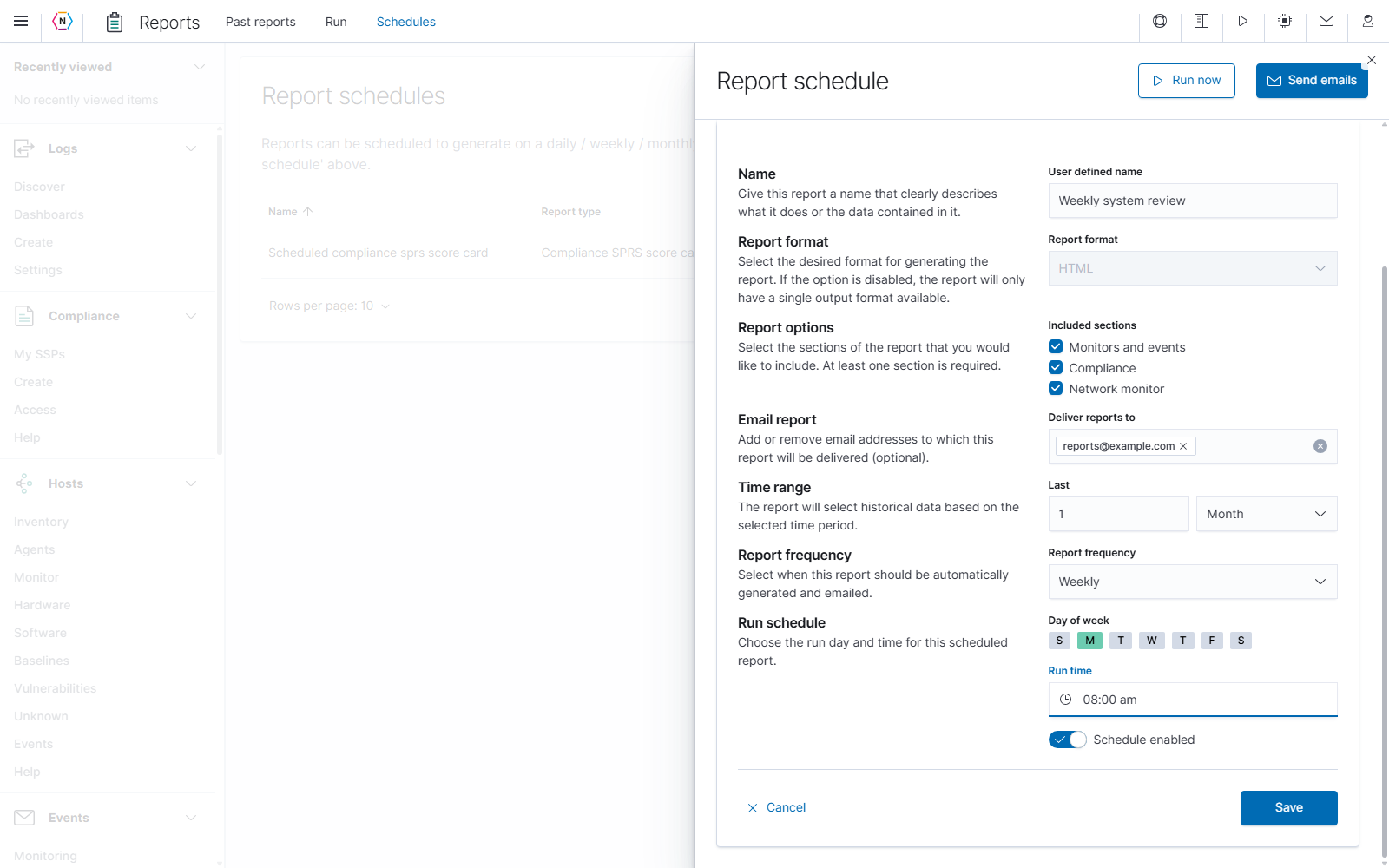
Choose Weekly, select one Day of week, and choose Run time. The highlighted day is the selected weekly run day. Changing the frequency to Weekly resets the day selection to Sunday, so select the intended day before saving.
Run once a month
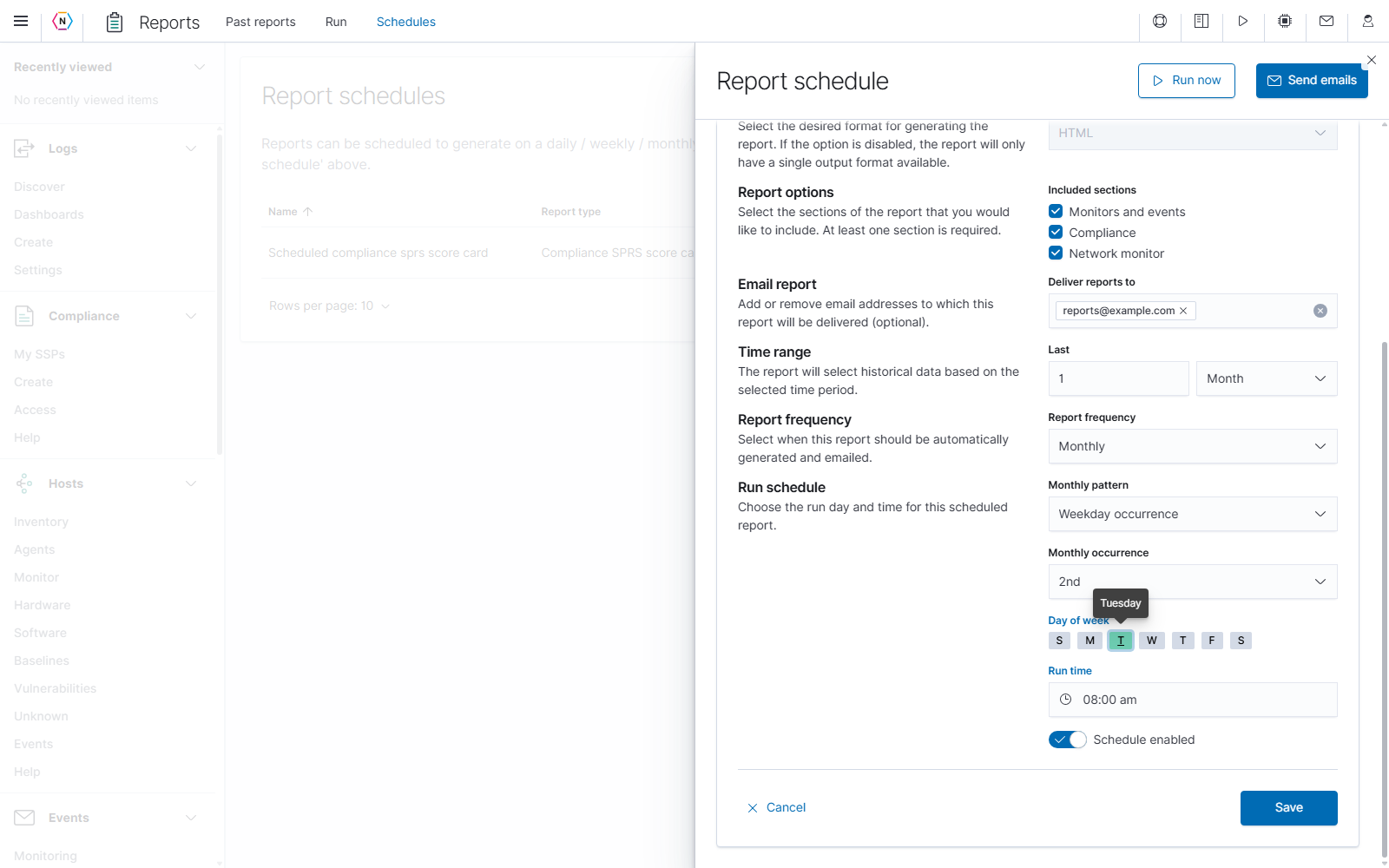
Choose Monthly, then select a Monthly pattern:
| Monthly pattern | Remaining choices | Example |
|---|---|---|
| Weekday occurrence | Monthly occurrence (1st, 2nd, 3rd, or 4th), one Day of week, and Run time. | The second Tuesday of every month at 08:00 am. |
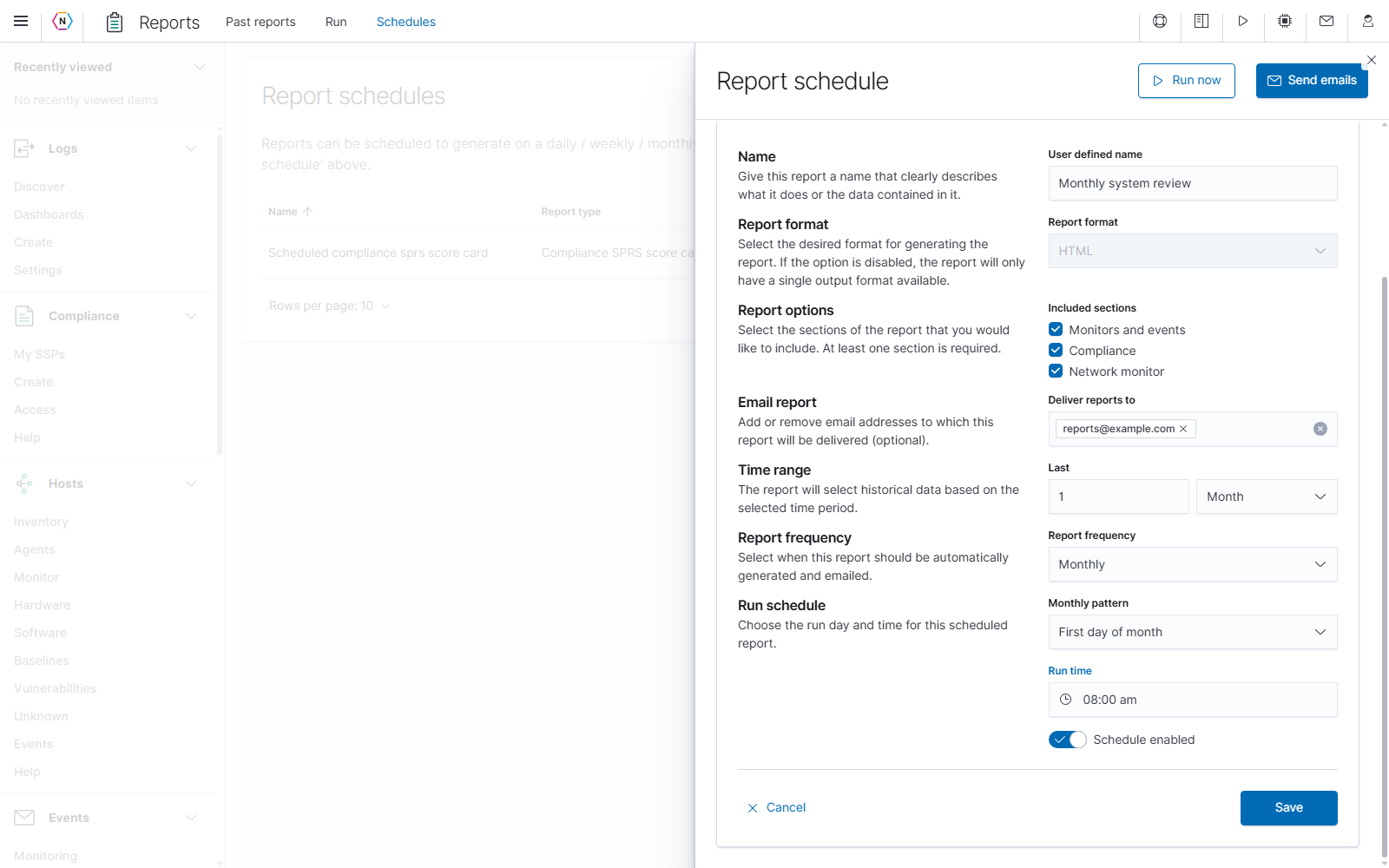
| First day of month | Run time. | The first calendar day of every month at 08:00 am. |
Changing the frequency resets the weekday selection to Sunday. Check the monthly pattern, occurrence, and day after switching frequencies. The occurrence selector provides 1st through 4th; there is no fifth or last-weekday option in this form.
First day of month uses the first calendar day regardless of its weekday, so the occurrence and weekday selectors disappear.
Set the run time and check the time zone
Open Run time and choose a time from the list. The picker offers whole-hour choices from 12:00 am through 11:00 pm. Midnight is 12:00 am; noon is 12:00 pm.
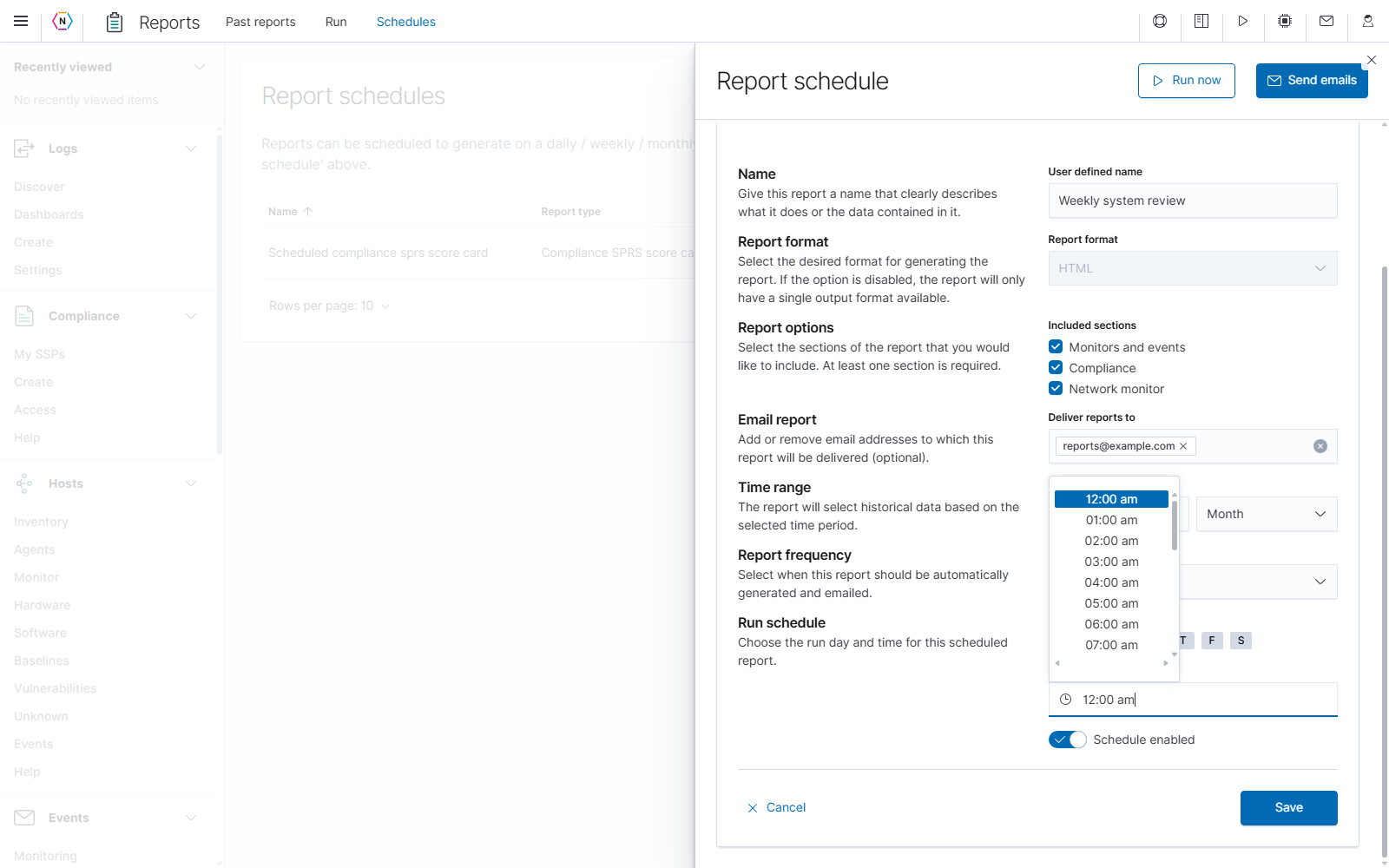
Scheduled runs use the NeQter appliance’s system time zone. If your browser’s time zone differs, the Schedules page displays a notice explaining the difference. Check Next run in the schedule list after saving so the resulting date and time match your intended schedule.
Schedule actions
The editor has separate controls for saving a recurring schedule and generating a report immediately.
| Action | What happens |
|---|---|
| Form Save | Saves the schedule, including report options, recipients, frequency, run days, run time, and enabled state. |
| Form Cancel or flyout close X | Closes the editor without saving draft changes. |
| Back | Returns to the report-type chooser. Choosing a different report type resets most draft settings, including content options and schedule defaults; review them again. The email recipient list is retained. |
| Header Run now | Generates the report immediately from the displayed draft and previews or downloads the result according to its format. It does not save the schedule or send its emails. |
| Header Send emails | Generates and sends the report immediately to the draft’s recipients. It does not save the schedule. The button is unavailable when there are no recipients. |
| List pencil/Edit | Opens an existing schedule so its settings can be reviewed or changed. |
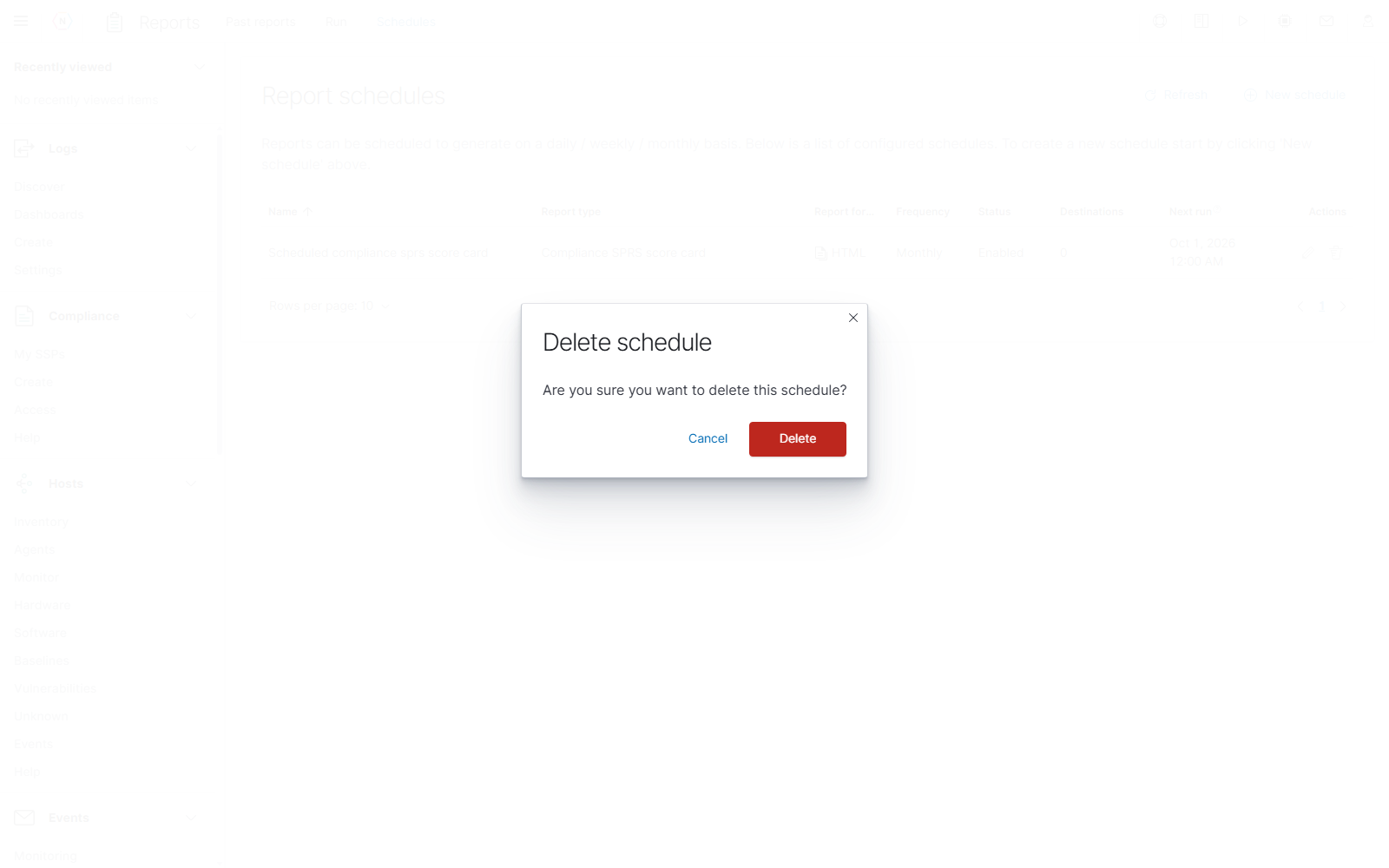
| List trash/Delete | Opens a confirmation to remove the schedule. Only the final Delete commits the removal. |
Run now and Send emails are immediate actions. Use Save when your intention is to store a recurring schedule. Canceling a draft afterward does not reverse a report that has already been generated or an email already sent.
To change an existing schedule:
- Select its pencil/Edit action.
- Review the selected report source, content, format, and recipients.
- Adjust the frequency, days, or time as needed.
- Set Schedule enabled on or off. The switch remains a draft change until saved.
- Select Save, then review the list’s Status and Next run. Select Cancel if you only wanted to inspect the settings.
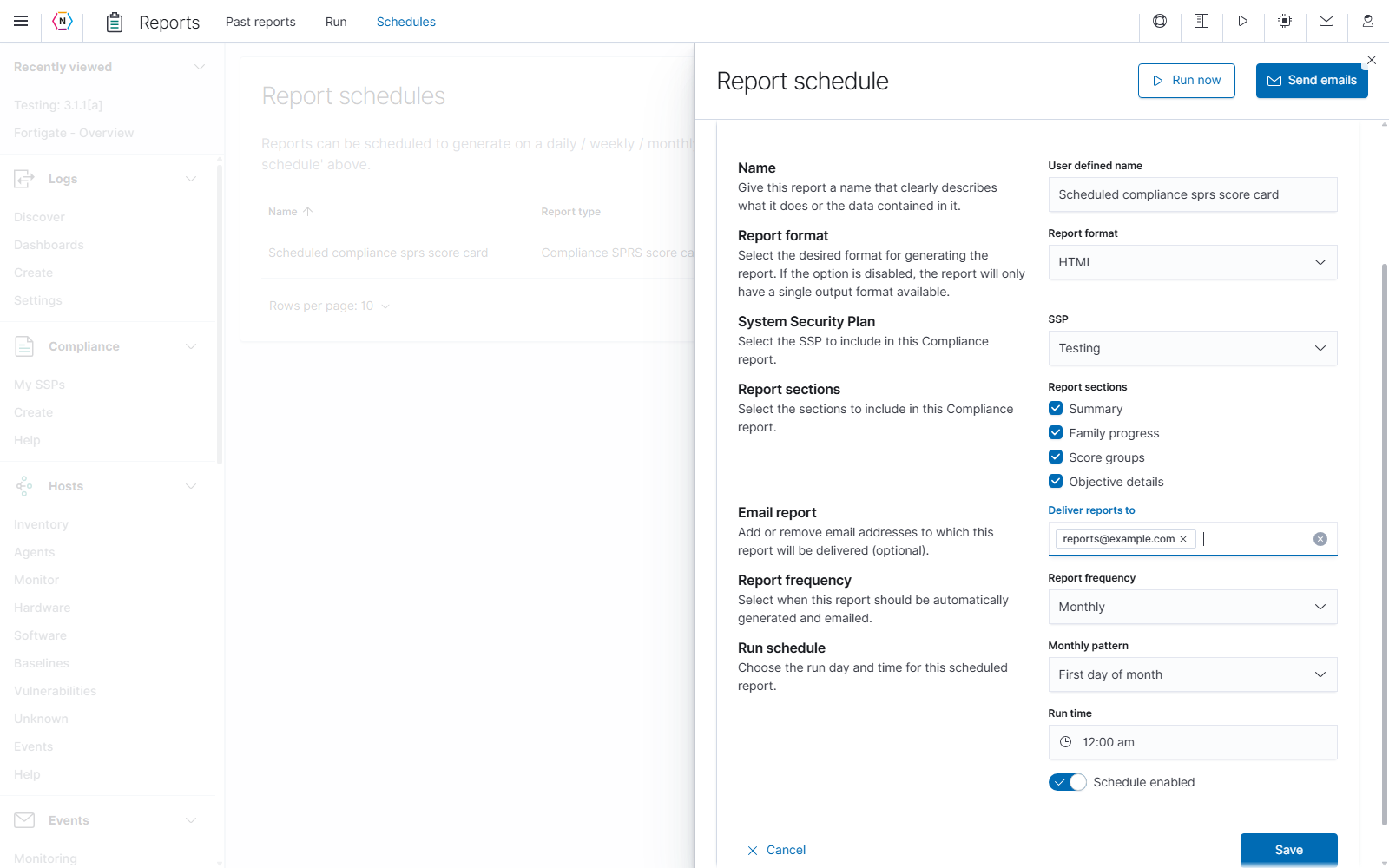
To stop automatic runs while keeping the configuration, edit the schedule, turn Schedule enabled off, and save. To remove the schedule, use its trash icon and confirm Delete. Use Cancel or the dialog’s close button to leave it in place. Manage stored report output separately through Past reports and its Delete selected reports action.
Report files and delivery
For a report you want to keep, use its preview’s Download control or the Past reports selection and download controls. Choose a name that identifies its purpose and keep track of the selected source, filters, and scan or historical range when comparing outputs.
Email delivery uses the appliance’s outgoing mail configuration. If a report downloads successfully but its email does not arrive, check the recipient chips and the configuration under Settings → Mail. For unexpected scheduled run times, check the appliance time zone under Settings → Time and the schedule’s Next run value.
If a report is missing from Past reports, check the generation-date range and clear the table’s text, type, and format filters. Narrow a large date range to find older output within the page’s 500-record retrieval limit. Report availability also depends on access to its source tools. If generation fails, read the error shown by the application, verify the required SSP, saved search, or scan still exists, and review the selected options before trying again.
Events documentation has moved: