
First Scan Task Guide
Create a target, select it in a task, then start a scan and review its report. The screenshots show demonstration devices or fictional form examples.
A target defines which hosts and ports to examine. A scan config defines the tests. A task combines those choices with a scanner and optional schedule or alerts. A report records one run. For all available settings, see the Vulnerability Scanner manual.
Before creating the task, confirm the hosts and scan window with the system owner. Review the available configurations under Vulnerabilities → Configuration → Scan configs. When creating the task, select the appropriate configuration in the Scan Config field. Vulnerabilities → Administration → Feed status shows the status of scanner reference-data updates. Scans can generate traffic and load; choose a scan window appropriate for the systems and their expected load.
Creating a Target
- Open Vulnerabilities → Configuration → Targets and select Create target.
- Enter a descriptive Name and optional Comment.
- Enter the approved Hosts. Separate entries with commas, semicolons, or new lines. Use Exclude hosts for addresses within that scope that must be left out.
- Select the Port list and Alive test. Review any saved SSH, SMB, or ESXi credentials needed for authenticated checks. A credential selection of
--leaves that credential unassigned. - Review the scope, then select Create. Cancel or X closes the draft without creating a target.
| Host expression | Example for documentation |
|---|---|
| One host | 192.0.2.10 |
| Several hosts | 192.0.2.10, 192.0.2.20 |
| Address range | 192.0.2.10-192.0.2.20 |
| CIDR network | 192.0.2.0/24 |
These addresses are examples. Replace them with the assigned addresses of the hosts you intend to scan. The screenshot excludes 192.0.2.20, leaving 192.0.2.10 in its example scope.
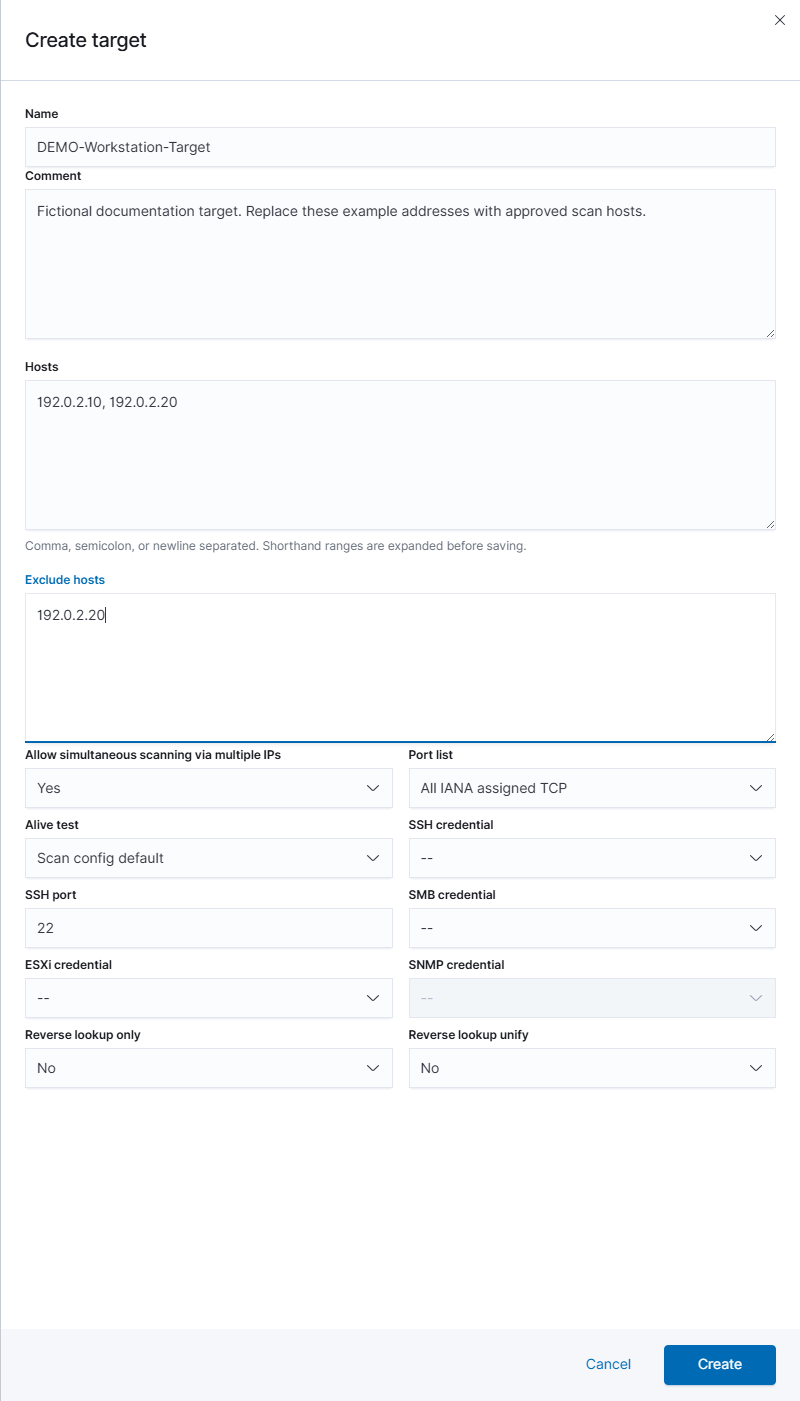
The target is a separate saved object. Return to Scans → Tasks after creating it; the task’s Scan target selector chooses from existing targets. For additional options, see Targets, ports, and credentials.
Creating a Schedule
A schedule is optional. For a first manual scan, leave the task’s Schedule at -- and continue to the next section.
To prepare recurring scans:
- Open Vulnerabilities → Configuration → Schedules and select Create schedule.
- Enter a Name, an optional Comment, the Start Date, Start Time, and Timezone. Confirm the time in the selected timezone.
- Review Open End. When it is off, set the end date and time; the displayed duration summarizes the selected window.
- Choose Recurrence: Once, Hourly, Daily, Weekly, Monthly, Yearly, or Custom. Custom exposes Every and Unit. Check the resulting calendar pattern rather than assuming monthly recurrence means the same weekday.
- Select Create to save the schedule. Then assign it through the task’s Schedule selector. Saving the schedule itself does not select a task for it.
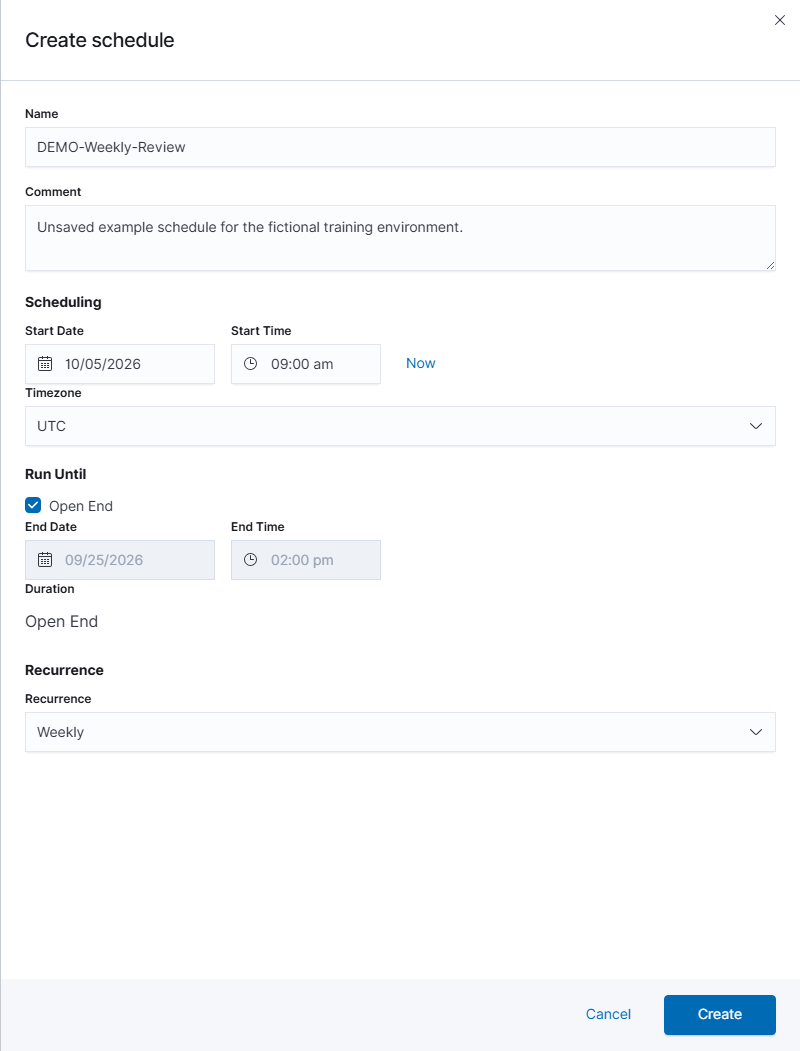
Review recurring assignments when copying or replacing a task so that two jobs do not run the same scan unintentionally. See Scanner schedules for the timing controls.
Creating a scan task
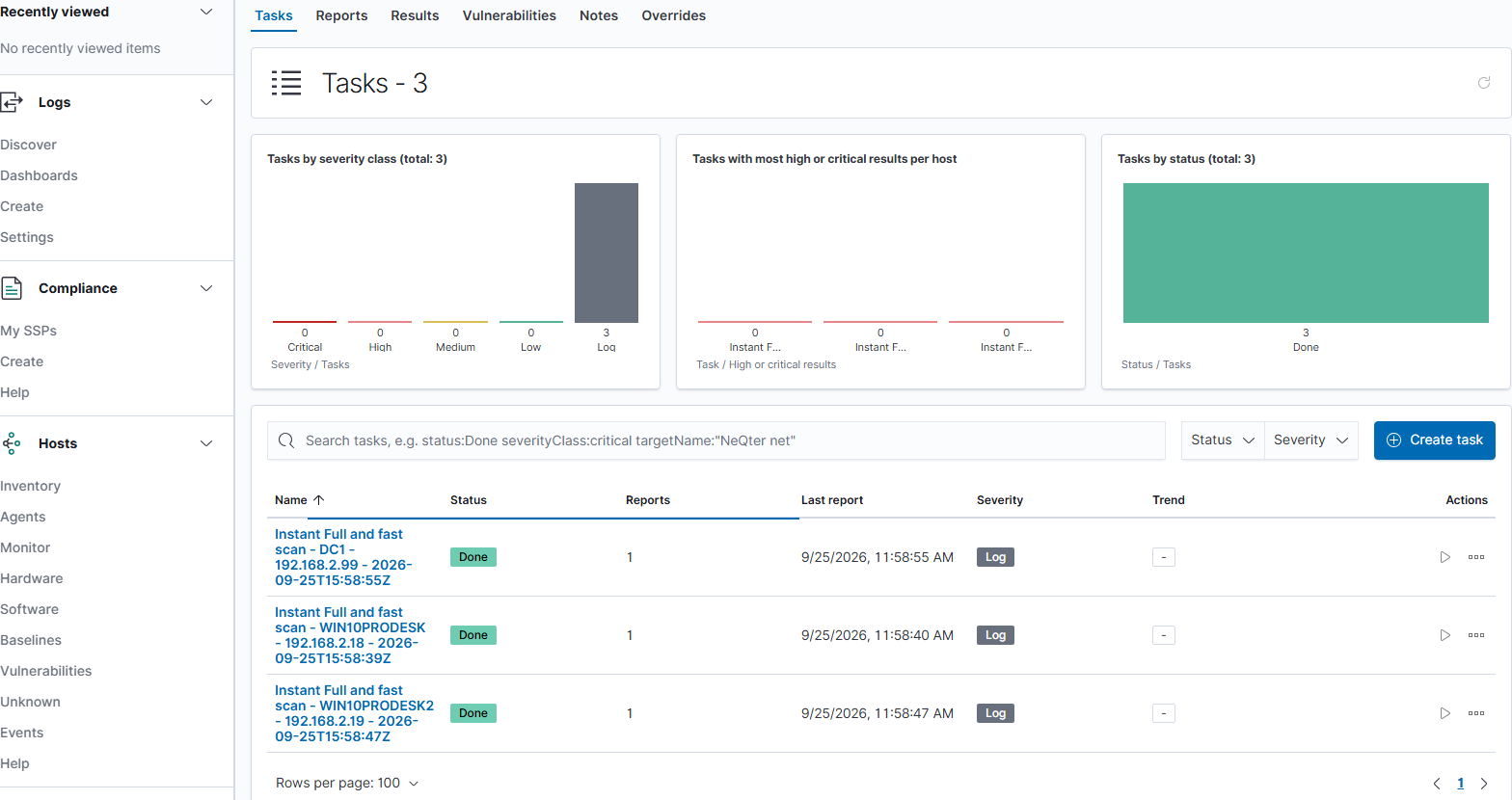
- Open Vulnerabilities → Scans → Tasks and select Create task. The flyout is titled New Task.
- Enter Name and Comment. Select the target you prepared under Scan target.
- Select the Scanner and Scan Config. The demonstration form uses OpenVAS Default and Full and fast; review the configuration’s test scope before using it on your systems.
- Leave Alerts unassigned if no notification is needed. Leave Schedule at
--for a manual first run, or select the schedule you prepared. Review Once if a selected schedule should execute only once. - Review Add results to Assets, Apply Overrides, Min QoD, report retention, and concurrency limits. The task field reference explains these controls.
- Select Save to create the task. A task with an assigned schedule can run according to that schedule. Cancel or X abandons an unsaved draft.
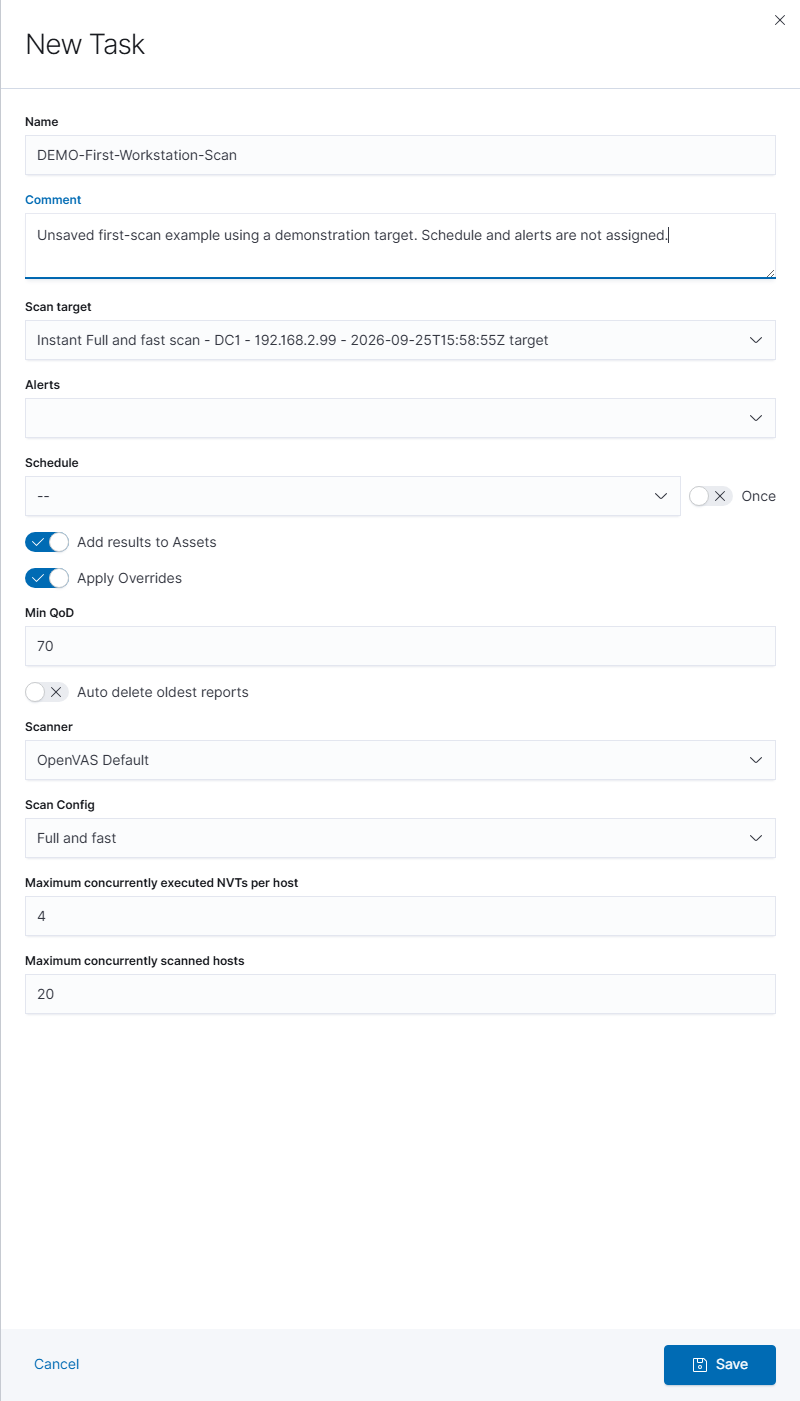
To update a saved job, use All actions → Edit task as described in Altering Vulnerability Scans.
Start the scan and review its report
For a manual run, find the saved task and select its play icon or All actions → Start new scan. This requests the run immediately. Wait for the status to update rather than repeatedly selecting Start. Requested/Queued means waiting, Running means active, and Done means the run ended. Eligible interrupted jobs offer Resume task; active jobs offer Stop task.
Open All actions → View reports for that task, or go to Scans → Reports and choose the relevant date range. Open a report and review:
| Report area | What to check |
|---|---|
| Information | The task, start/end times, host count, result count, and reported severity. |
| Results | The findings and their evidence, affected host, location, severity, and Quality of Detection. |
| Hosts | Whether the expected devices appear in the run. |
| Error messages | Scanner messages that help explain missing or incomplete evidence. |
| Download | Export options for the selected report, including HTML, PDF, CSV Results, and XML. |
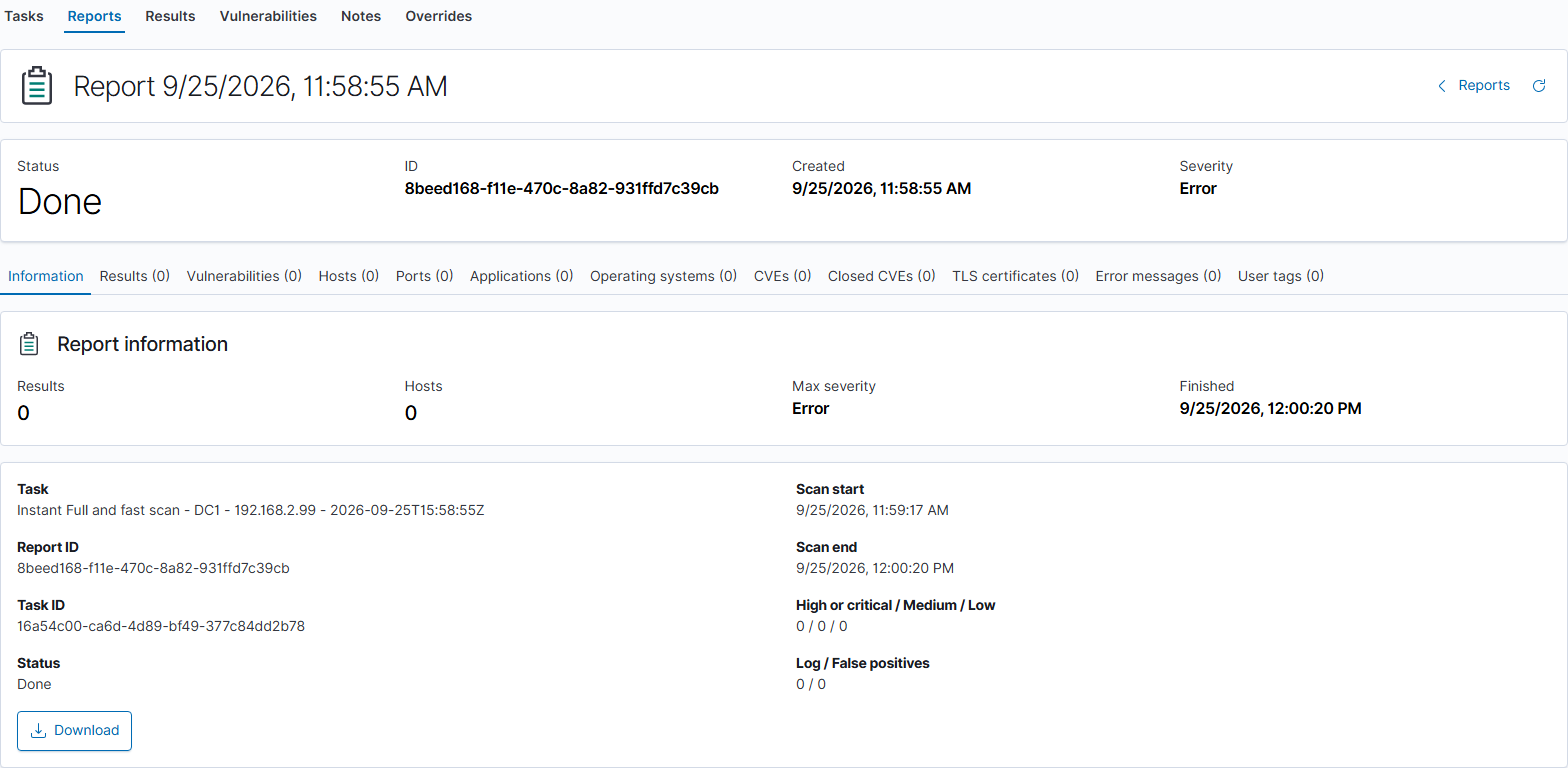
Done is not the same as a successful clean scan. The demonstration report above has Error severity, zero hosts, and zero results. An empty error-message tab does not make that evidence complete.
Vulnerability Scanner manual · Return to How to Guides