

Certificate Configuration
Open Settings > Certificates. The SSL Certificate page manages the certificate used for HTTPS access to the appliance. You can generate a self-signed certificate or import a certificate and its matching private key.
Generate a certificate
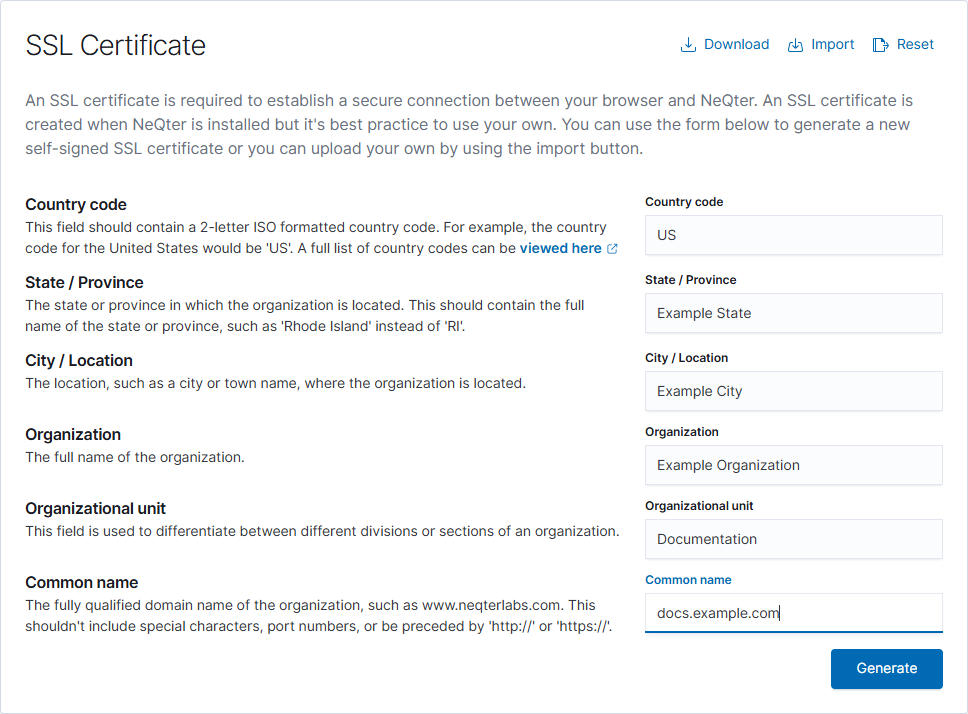
Enter the certificate subject details, then select Generate to apply the certificate. The application reloads after the change. A self-signed certificate may still require trust configuration in your browser or organization.
| Field | What to enter |
|---|---|
| Country code | A two-letter country code, such as US. |
| State / Province | The full state or province name. |
| City / Location | The city or location of the organization. |
| Organization | The organization name. |
| Organizational unit | The department or unit. |
| Common name | The fully qualified hostname used for the appliance, without https:// or a port number. |
Import an existing certificate
- Obtain the certificate and its corresponding private key from your certificate administrator.
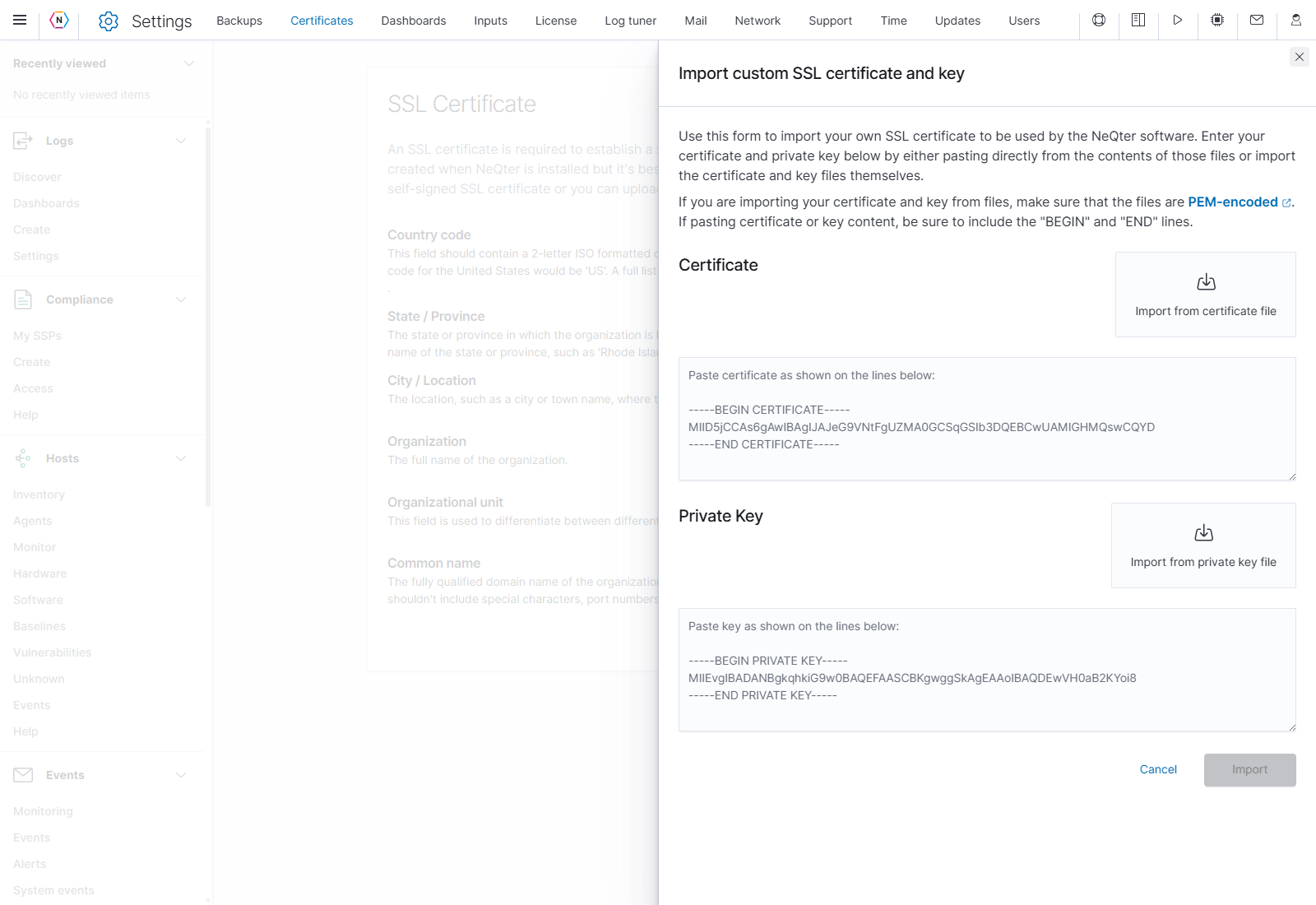
- Select Import at the top of the page.
- Paste the PEM certificate into Certificate and the PEM key into Private key, or use the separate file pickers.
- Keep each file’s original BEGIN and END lines intact. The certificate and private key have different PEM labels; do not replace the key’s labels with certificate labels.
- Select Import in the flyout to install the pair. The application reloads. Cancel or X closes the draft.
Selecting a file only fills the form. The final Import button installs it. Use a certificate issued for the hostname or IP address that users will enter in their browsers, with the appropriate trust chain for your environment.
Other certificate actions
| Button | Result |
|---|---|
| Download | Downloads the public certificate as neqter.crt. |
| Reset | Immediately restores NeQter’s default certificate and reloads the page. There is no separate confirmation. |
After applying a certificate, reconnect using the intended appliance address and confirm that the browser presents the expected certificate. For the complete control reference, see Certificates in NeQter Settings.