
Altering Vulnerability Scans Guide
Use Vulnerabilities → Scans → Tasks to change a saved scan task or create a separate copy. A task stores the target, scanner, scan configuration, schedule, and other settings. Each run produces a report; changing the task does not rerun a completed scan.
Its screenshots use demonstration devices and unsaved example edits. For a new task, start with the First Scan Task Guide.
Edit an existing task
- Open Vulnerabilities → Scans → Tasks and locate the task. Check its status and report count so you are editing the intended job.
- Open the row’s All actions ellipsis and select Edit task.
- Review Name, Comment, Scan target, Scanner, and Scan Config. Confirm the selected target’s hosts, exclusions, port list, and credentials under Configuration → Targets when changing scan scope.
- Review Alerts and Schedule. Leave Schedule at
--when the task should only be started manually. Once limits an assigned schedule to one execution. - Select Save to apply the edit. Cancel or the top-right X discards the draft. Read any validation or scanner error before retrying.
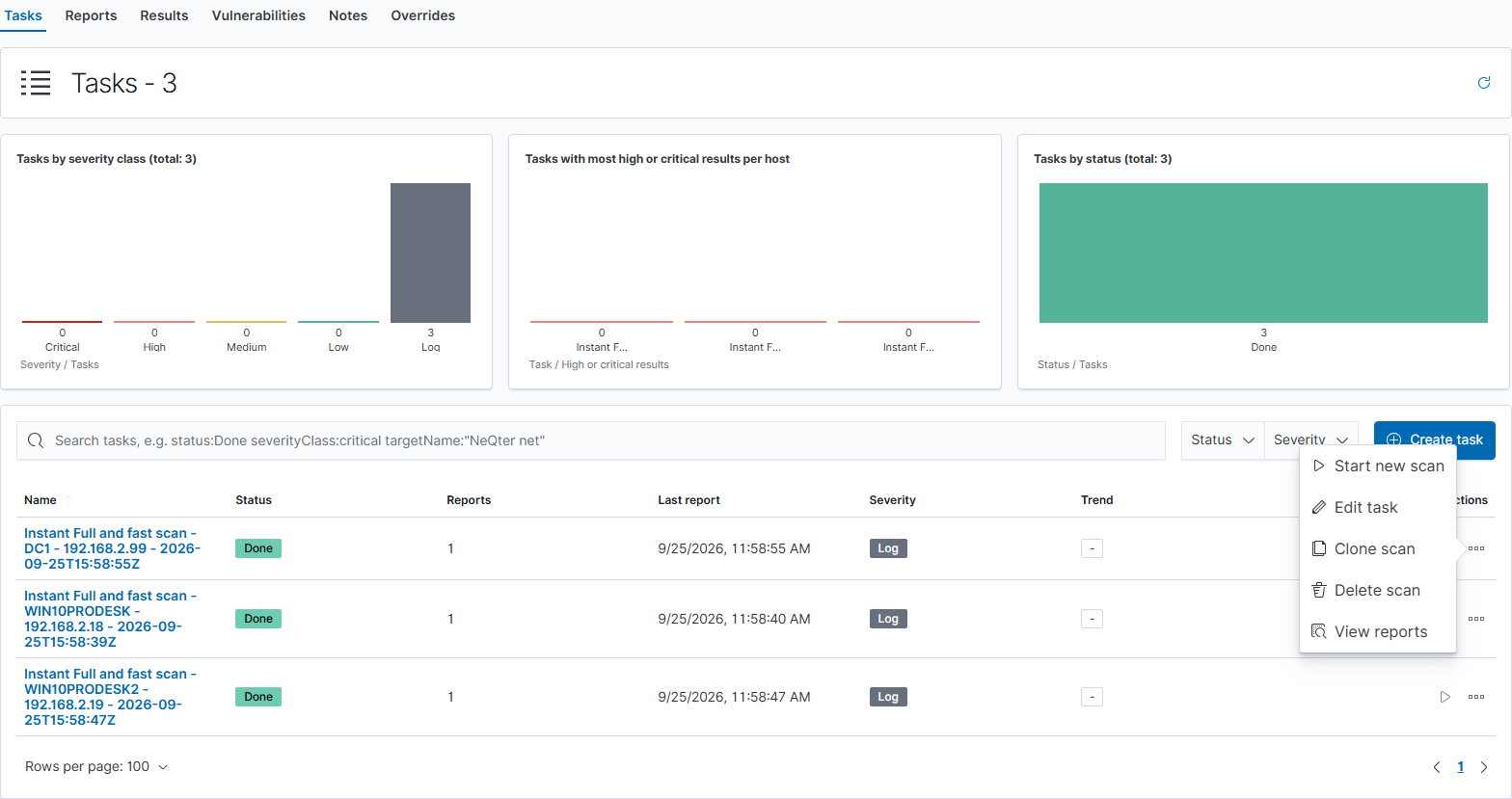
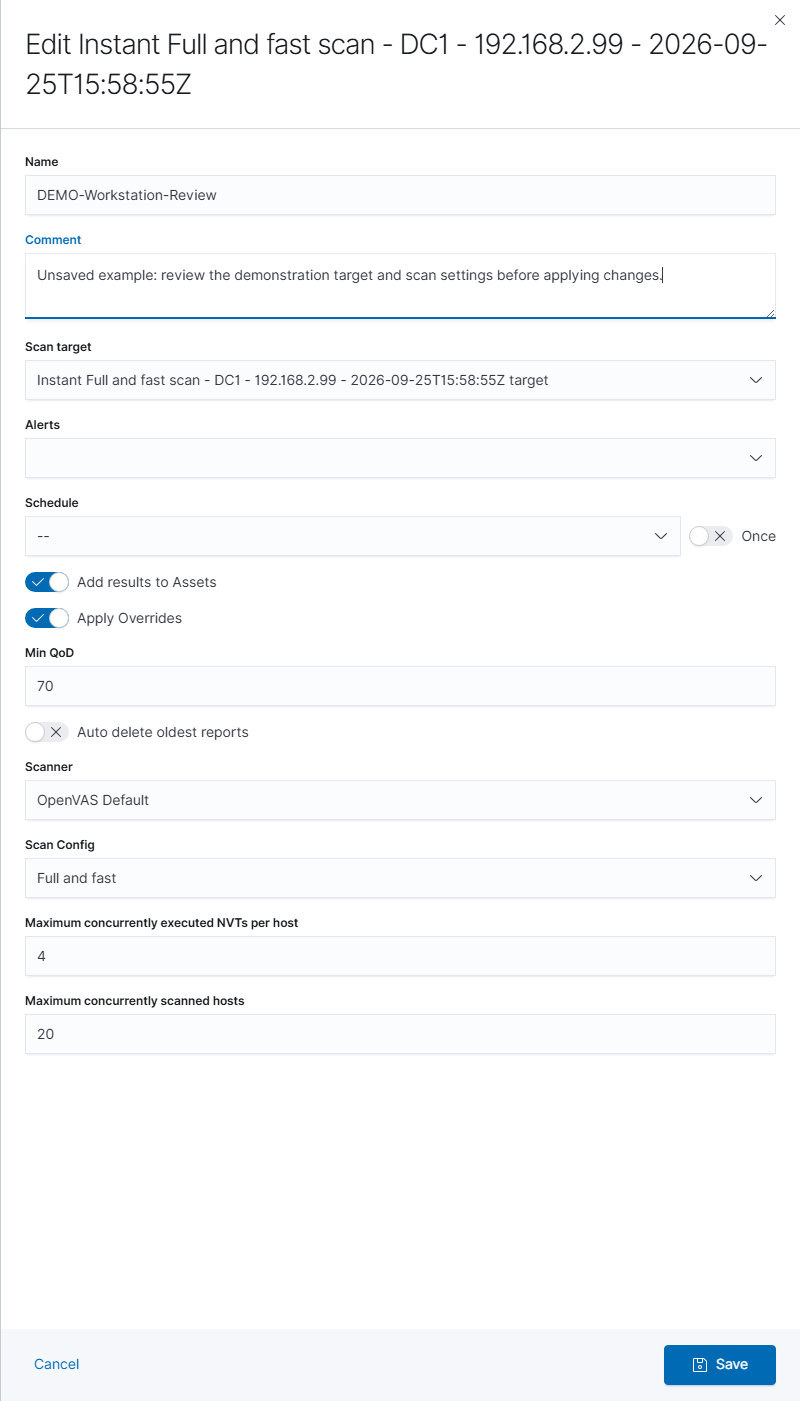
NeQter automatically requests that tasks be alterable, so you do not need to enable an Alterable Task checkbox. This allows changes to the task’s target, scanner, and scan configuration after reports have been created. Select Save to apply changes; editing a task does not rerun a completed scan.
Changing a target or scan configuration that is shared by several tasks can affect those other tasks. To keep a different scope or test selection, create a separate target or configuration and select it in the task you intend to change. See Targets and Scan configs.
Clone a task when you need a separate job
Clone scan creates a saved copy immediately. The menu sends the clone request without first opening an editable draft or confirmation. Use it when you intend to create another task, not to preview the edit form.
- Review the original task, including its schedule, before cloning.
- Open All actions → Clone scan and wait for the task list to refresh. If the application reports an error, read it before trying again.
- Locate the new copy, select Edit task, and give it a distinct name. Review its target, scan configuration, alerts, schedule, and retention settings instead of assuming which values were copied.
- Save the intended settings. Keep only the intended task assigned to a recurring schedule; use Schedule →
--and save when removing an assignment.
If you need to prepare a job without immediately copying a scheduled task, use Create task and leave Schedule unassigned until its settings are ready. Cloning a task and manually starting a scan are separate actions.
Run and review the changed task
For a manual run, select Start new scan only after the saved target, settings, and timing are ready. This action requests a scan immediately. Use View reports for the task’s runs, or expand its name and select View latest report when available.
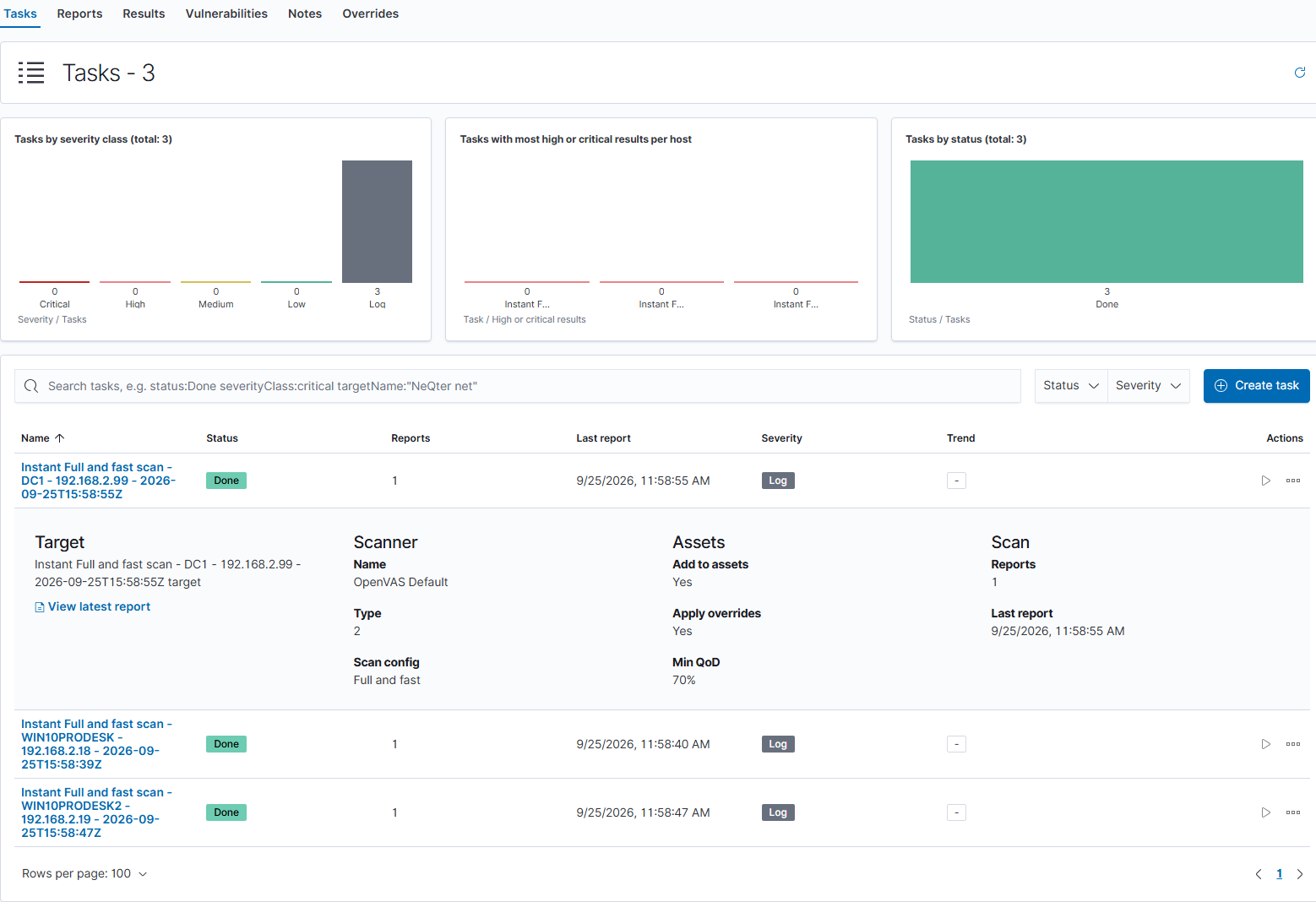
Check the report’s host coverage, results, and error information. Done means the run ended; it does not establish that the expected hosts were scanned successfully or that they have no vulnerabilities. Keep earlier reports when you need a record of the previous scan settings and results. Delete scan opens a separate confirmation and is not required merely to edit a task or remove its schedule.
Vulnerability Scanner manual · Return to How to Guides