
Sophos XG / XGS
Configure the source in NeQter before enabling its syslog sender. The screenshots below use fictional examples; replace the example address with the actual sender address that reaches your appliance.
Step 1: NeQter Input Setup
- Open Settings → Inputs → Syslog and select Add input.
- Enter a descriptive Label and the sending device’s IP address. Account for any relay or source address translation. This field identifies the sender, not the NeQter destination.
- Select Sophos XGS under Manufacturer. Review the optional DNS resolution, tags, and dashboard choice.
- Select Save to create the input. Cancel closes an unsaved draft.
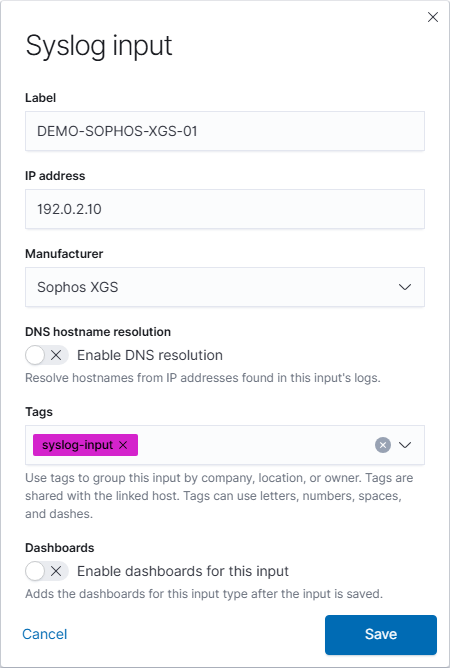
NeQter drops syslog messages that do not match a configured input. See Syslog setup for source matching and reception checks.
Step 2: NeQter Dashboard Setup
- Open Settings → Dashboards and find Sophos XGS.
- Turn on Enable index if needed, then select the supplied dashboard checkboxes you want.
- Select Apply changes at the top of the page to save the pending selections.
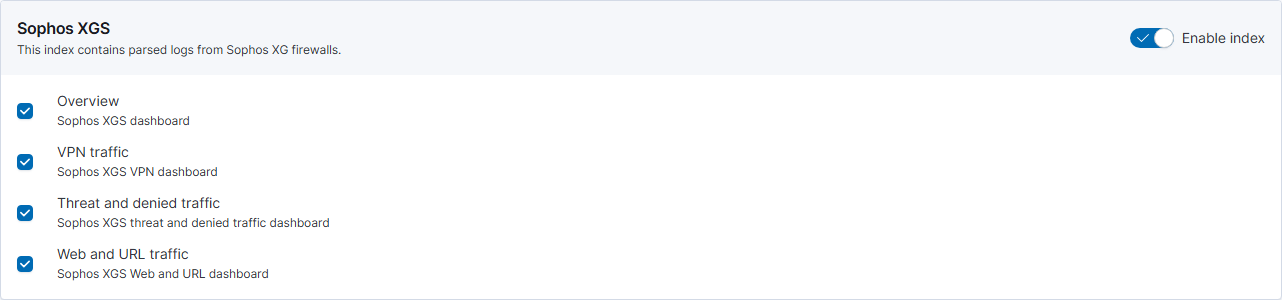
Open enabled dashboards through Logs → Dashboards. Selecting dashboards does not configure the sender or establish that logs are arriving.
Step 3: Sophos XGS Syslog Forwarding Setup
1. Log in to your Sophos XG/XGS device and navigate to System Services > Log Settings.
2. Click Add on the top right to add a new Syslog Forwarder.
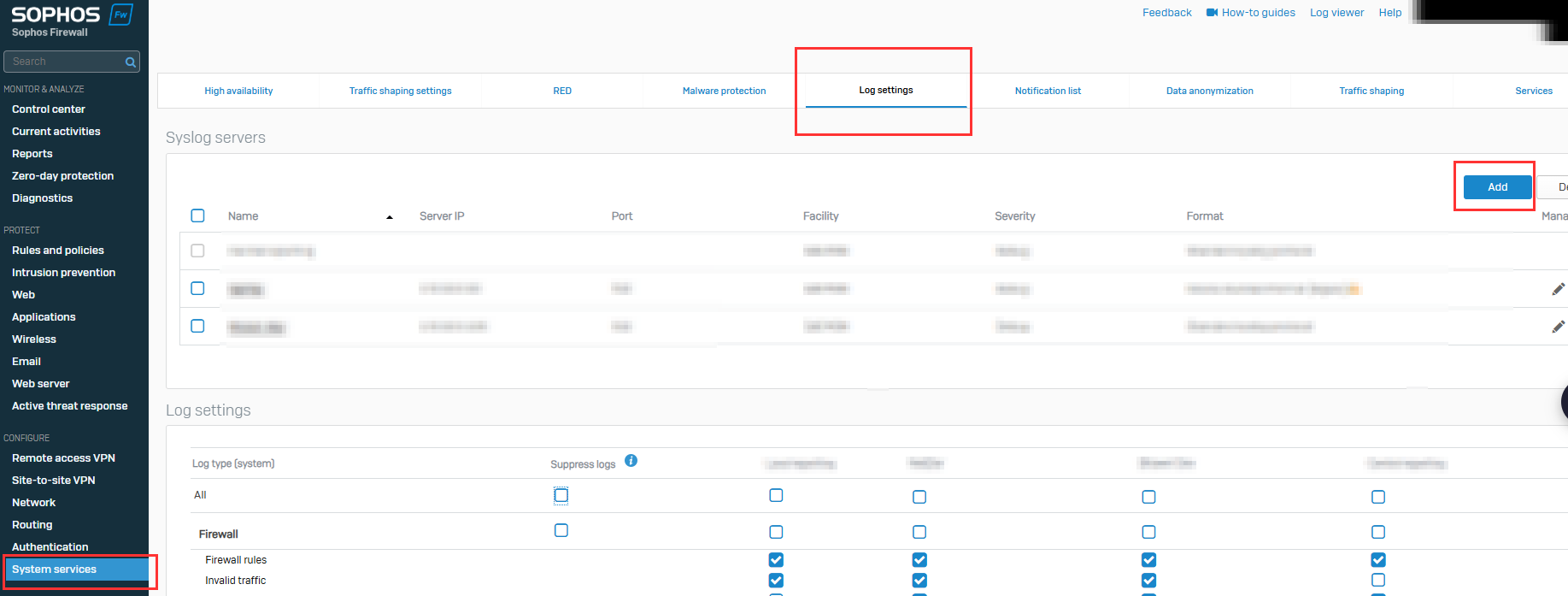
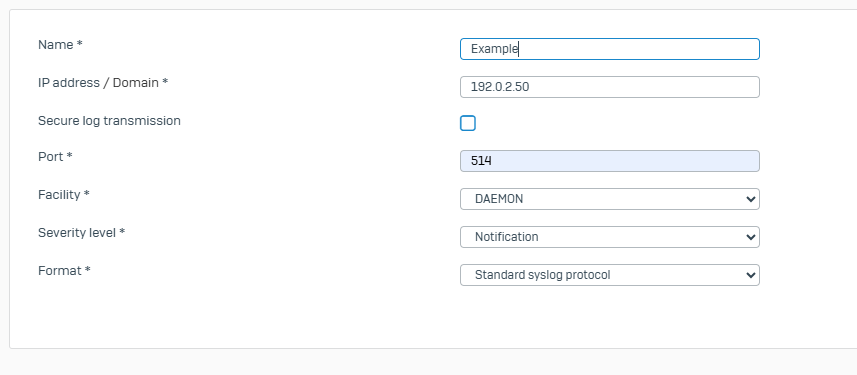
3. Enter the following data on this page:
- Name for the new Syslog Forwarder (can technically be anything) in the Name field.
- The IP Address of the NeQter Appliance in the IP Address field.
- The Port of 514 (or 6514 for secure TCP) in the Port field.
- Select the desired notification level. (We recommend the Notification level. Note: the Debug level has very high data output and can become noisy).
4. Click Save on the bottom left of the page.
Step 4: Sophos XGS Logging Settings
1. On the Sophos XG/XGS device, go to the Log Settings > Log Settings section.
2. Select the logs you’d like sent from Sophos to your NeQter appliance and click Save.
Barring misconfigurations, traffic should be showing up in NeQter within an hour. To create a ticket for assistance, click here.