NeQter Labs How to Guides
PfSense
Step 1: NeQter Input Setup
1. Log in to NeQter and go to the NeQter Settings → Inputs.
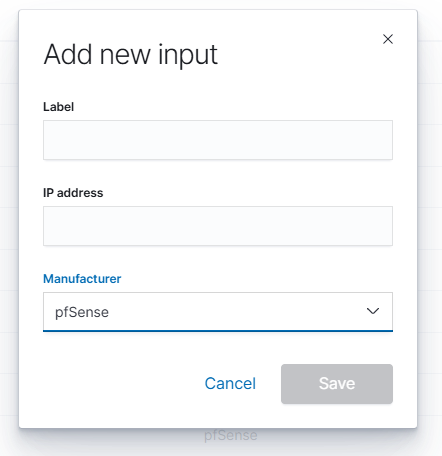
2. Click Add input on the top right corner and fill in the following information:
- Name: Any descriptive name (e.g., PfSense-FW).
- IP Address: IP of your PfSense firewall.
- Manufacturer: Select PfSense.
3. Click Save.
Step 2: NeQter Dashboard Setup
1. Go to NeQter Settings → Dashboards.
2. Expand the PfSense section.
3. Toggle PfSense to Enabled.
4. Click Apply changes.

Step 3: PfSense Configuration
1. Login to PfSense Web Interface.
2. Navigate to System → System Logs → Settings.

3. Under the section Remote Logging Options put the IP of the NeQter Device and for port put the port in following the ip as shown in the example below:
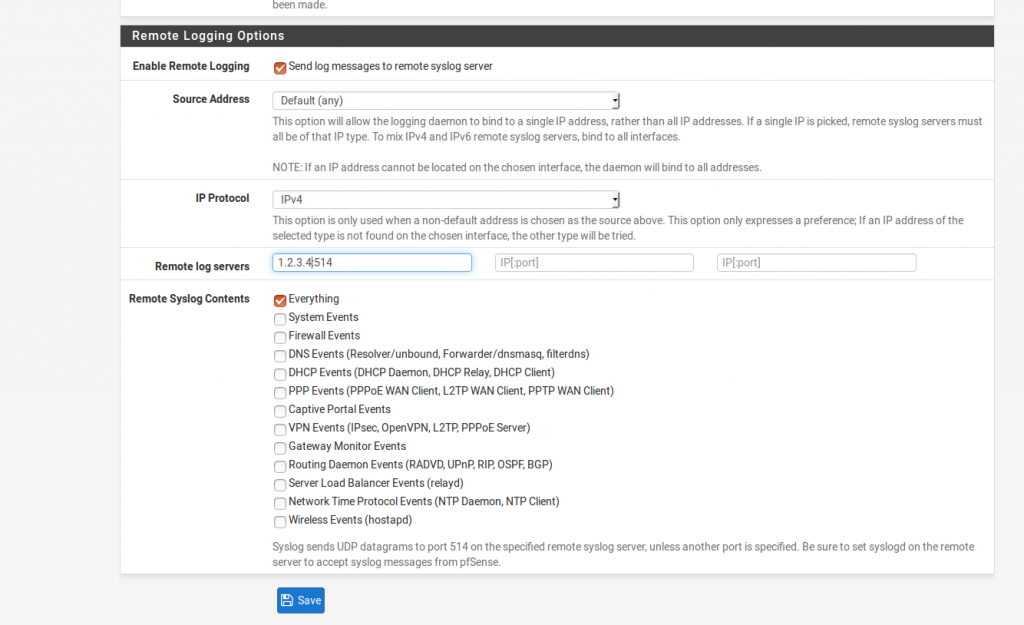
4. If only specific logs are to be sent to the NeQter, select them under Remote Syslog Contents, otherwise select Everything to collect all logs.
5. Click Save to save settings and to have the PfSense start sending syslog to NeQter.
Barring misconfigurations, traffic should be see on the NeQter within an hour. If no new traffic is seen after following the above steps, contact support here for further assistance.