
Vulnerability Scanner
Use Vulnerabilities to configure network scans, review findings, and investigate affected devices. A task is the saved scan job; each run produces a report. Reports contain individual results, which the Vulnerabilities views group by scanner check.
On this pageCollapse sections
- Vulnerability Scanner
- Navigation and permissions
- Recommended scan workflow
- Search, dates, and shared table controls
- Overview
- Tasks
- Reports
- Results
- Vulnerabilities
- Notes and overrides
- Hosts
- SecInfo
- Configuration
- Administration
- Legacy interface
- Help
- Interpreting findings
- Troubleshooting
Navigation and permissions
Expand Vulnerabilities in the left navigation. The same destinations appear across the top of the scanner app.
| Destination | What it contains | Use it to |
|---|---|---|
| Overview | Overview cards, charts, recent scans, remediation queue, and feed status. | Decide what needs attention first. |
| Scans → Tasks | Saved scan jobs and their start, resume, stop, and edit controls. | Set up and run scans. |
| Scans → Reports | One entry per scan run. | Review or download a specific scan. |
| Scans → Results | Individual findings across the selected period. | Read the evidence for a host and location. |
| Scans → Vulnerabilities | Findings grouped by check. | Find weaknesses repeated across devices. |
| Scans → Notes / Overrides | Existing scanner annotations and severity adjustments. | Review annotation status and scope. |
| Assets | Scanner host inventory and host investigation panels. | Investigate one device across reports. |
| SecInfo | NVT, CVE, and CPE reference catalogs. | Research checks and referenced products. |
| Configuration | Targets, port lists, credentials, scan configs, alerts, schedules, and tags. | Define how scans run. |
| Administration | Feed status and feed synchronization. | Check scanner updates. |
| Help | Built-in scanner help. | Look up terms, workflow, and search examples. |
| Legacy | Original Greenbone Security Assistant interface. | Access scanner functions available there. |
Your Vulnerabilities permission in Settings → Users controls which sections and actions appear. Read only permits investigation. Read / write also permits task operations and Configuration. Admin adds administrative operations, deletion, and Legacy access. An account without scanner access does not receive these capabilities. The user-permissions editor is covered in NeQter Settings.
The navigation menu button collapses or expands the left panel. Undock navigation lets the panel close when you leave it. Within the scanner, tabs switch between related views. The circular-arrow Refresh scanner data button reloads scanner information; it does not start a scan.
Recommended scan workflow
- Check Administration → Feed status so you know whether the scanner’s reference data is current.
- In Configuration, prepare a port list and any credentials needed for authenticated checks.
- Create a Target containing the hosts or networks to scan, exclusions, port list, and credentials.
- Choose a Scan config. Create a Schedule or Alert if the task needs recurring runs or notifications.
- Open Scans → Tasks → Create task. Give it a recognizable name, select its target, scanner, scan config, and optional schedule and alerts, then save.
- Use Start new scan when ready to run it. Watch the task’s status and progress.
- Open View latest report after results become available. Check Error messages as well as findings so you can spot incomplete checks or authentication failures.
- Investigate high-priority results, follow the relevant remediation instructions on the affected device, and run the task again to check the outcome.
Search, dates, and shared table controls
Search applies to the table you are viewing. Start with a word, name, IP address, or CVE. For more precise searches, use a field shown in that table’s example text, followed by a colon and value. Put quotes around multiword values. Numeric fields support comparisons such as severity>=7.
| View | Example | Meaning |
|---|---|---|
| Tasks | name:"Monthly Workstations" | Find a named scan task. |
| Tasks | status:Done | Show completed tasks. |
| Reports | taskName:"Monthly Workstations" status:Done | Find completed reports for that task. |
| Results | host:192.0.2.100 severity>=4 qod>=70 | Find medium-or-higher findings for a host with QoD of at least 70. |
| Results | family:"SSL and TLS" location:636/tcp | Find SSL/TLS findings at a particular location. |
| Vulnerabilities | name:ssh severity>=4 | Find grouped SSH findings at medium severity or higher. |
| Assets | osName:ubuntu severityClass:critical | Find matching hosts and their recorded severity. |
| SecInfo | severity>8.9 | Find critical reference entries. |
Use Critical, High, Medium, Low, and Log to add or remove severity filters. Some views also have Status, Task, Host, Location, Family, or Type dropdowns. Clear the selected filters and search text to broaden the view again. A Type value may appear as the scanner’s numeric code; it is not a severity score.
QoD means Quality of Detection: confidence in the evidence supporting a finding. The range has a minimum and maximum percentage. The initial range is 70–100 where the control is shown. Raising the minimum can hide findings; it does not fix or remove them. Severity and QoD answer different questions: seriousness and confidence.
Reports, Results, Vulnerabilities, and Assets have a date picker. The example starts with Last 7 days. Click the calendar arrow to choose a relative range and Apply, a commonly used period, or a recently used range. The small left/right arrows move to the previous or next time window. Show dates exposes the endpoints; click an endpoint to select an absolute, relative, or current-time value, then use the date control’s Update/Refresh action as shown. Refresh repeats the query for the chosen period.
The dashboard, task setup, and reference catalogs do not have this same date filter. A report detail page is scoped to the report you opened. An older host asset can remain listed even when there are no report findings for it in your selected period.
Sortable column headings show an arrow; click again to reverse the order. Rows per page changes the number of rows displayed. Numbered pages and the previous/next arrows move through the results. A dash or No data means that value was not supplied, rather than a confirmed zero. Wait for loading to finish before comparing counts or opening a new view’s rows.
Overview
Open Vulnerabilities → Overview. This destination was labeled Dashboards in earlier screenshots. Read the small explanation beneath each card along with its value.
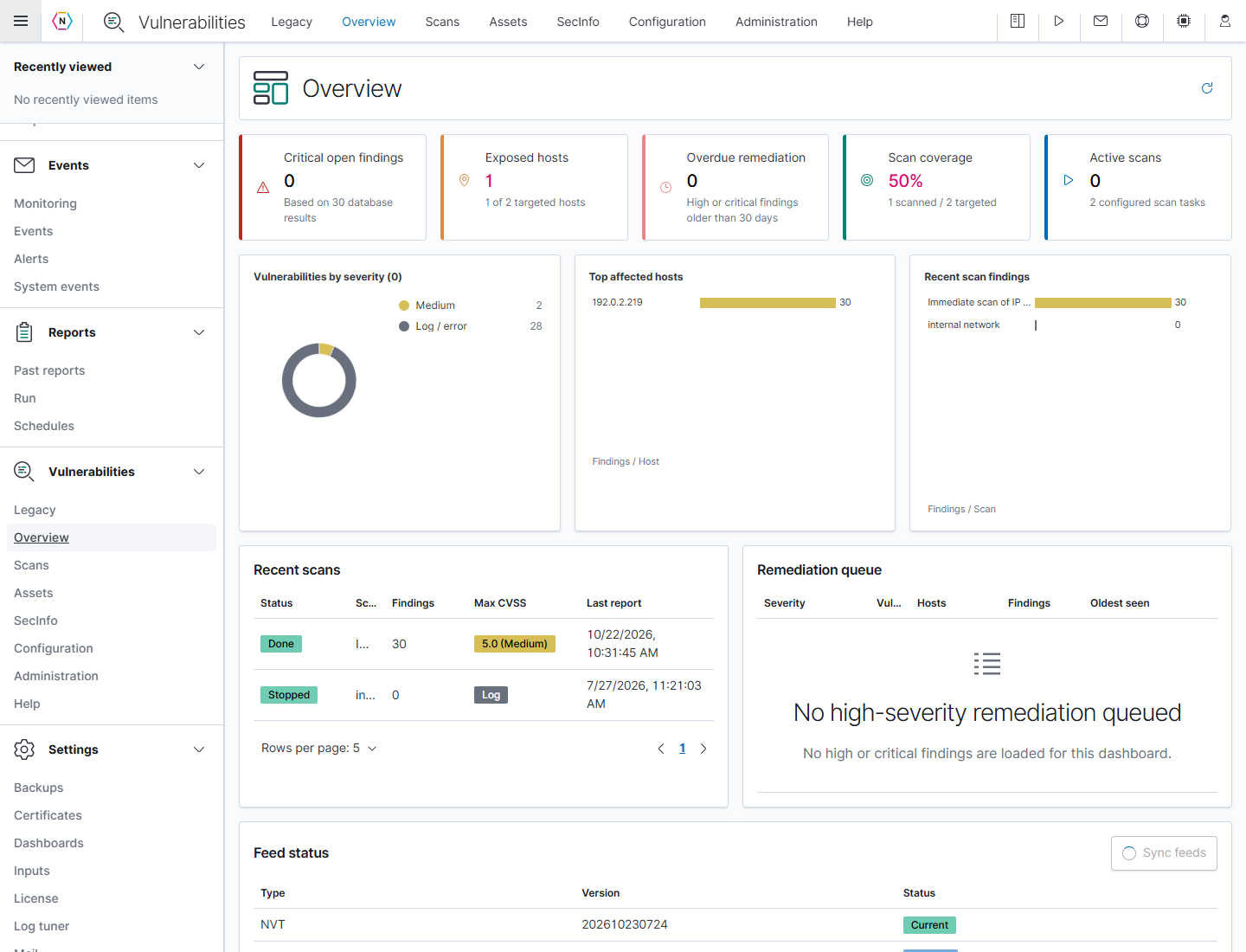
Review scan coverage and priorities
- Check Active scans to see whether work is in progress. Use the circular refresh icon to reload the displayed scanner information.
- Read the counts beneath Scan coverage. In this example, one of two targeted hosts has scan evidence. Open Scans → Tasks and check the relevant task status and latest report before treating an unscanned host as covered.
- Compare Critical open findings, Overdue remediation, and Remediation queue to decide which findings need attention first.
- Review Recent scans, including status, finding count, maximum CVSS, and last-report time. A stopped scan with zero findings does not establish that the target is free of vulnerabilities.
- Open Scans → Reports for the run you need to investigate. Review its results and error messages, then check Assets for the affected host’s history.
- Review Feed status at the bottom of Overview or under Administration. A feed marked Syncing is still being updated; refresh later to check its resulting status.
An empty high-severity remediation queue can coexist with medium or informational findings. In this example, the legend shows medium and log/error results even though no high-severity remediation is queued.
| Card or panel | What it means |
|---|---|
| Critical open findings | Individual critical findings in the dashboard data. The subtitle identifies whether the values came from database results or a sample. |
| Exposed hosts | Hosts represented in the scanner data, alongside the configured target count. Review the affected devices to determine their actual exposure. |
| Overdue remediation | High or critical findings older than 30 days. |
| Scan coverage | Scanned-host count compared with target count, capped at 100%. Check the counts beneath it; it is not a guarantee that every current target completed every check. |
| Active scans | Tasks currently active, with the total configured task count beneath. |
| Vulnerabilities by severity | Distribution of the dashboard findings. Read the legend values. |
| Top affected hosts | Hosts with the most findings, including informational findings. |
| Recent scan findings | Finding counts for recent task reports. |
| Recent scans | Task status, scan name, findings, maximum CVSS, and latest report time. |
| Remediation queue | Grouped high-priority issues, affected-host count, finding count, and oldest observation. |
Compare the dashboard totals with their detailed rows and underlying reports. Historical scanned-host counts, configured targets, and findings describe different parts of the scanner data; none of these counts alone establishes successful coverage of the current targets.
Click a blue host count in the remediation queue to open its affected-host list, then a host address to investigate that device. Rows per page and page arrows operate separately for each dashboard table. Scroll down to Feed status for feed type, version, and status. Sync feeds starts an update and is explained under Administration; it is different from refreshing the display.
Tasks
Open Vulnerabilities → Scans → Tasks. The three charts summarize severity classes, high/critical results per host, and task status. The table lists task name, status, report count, last report, severity, trend, and actions.
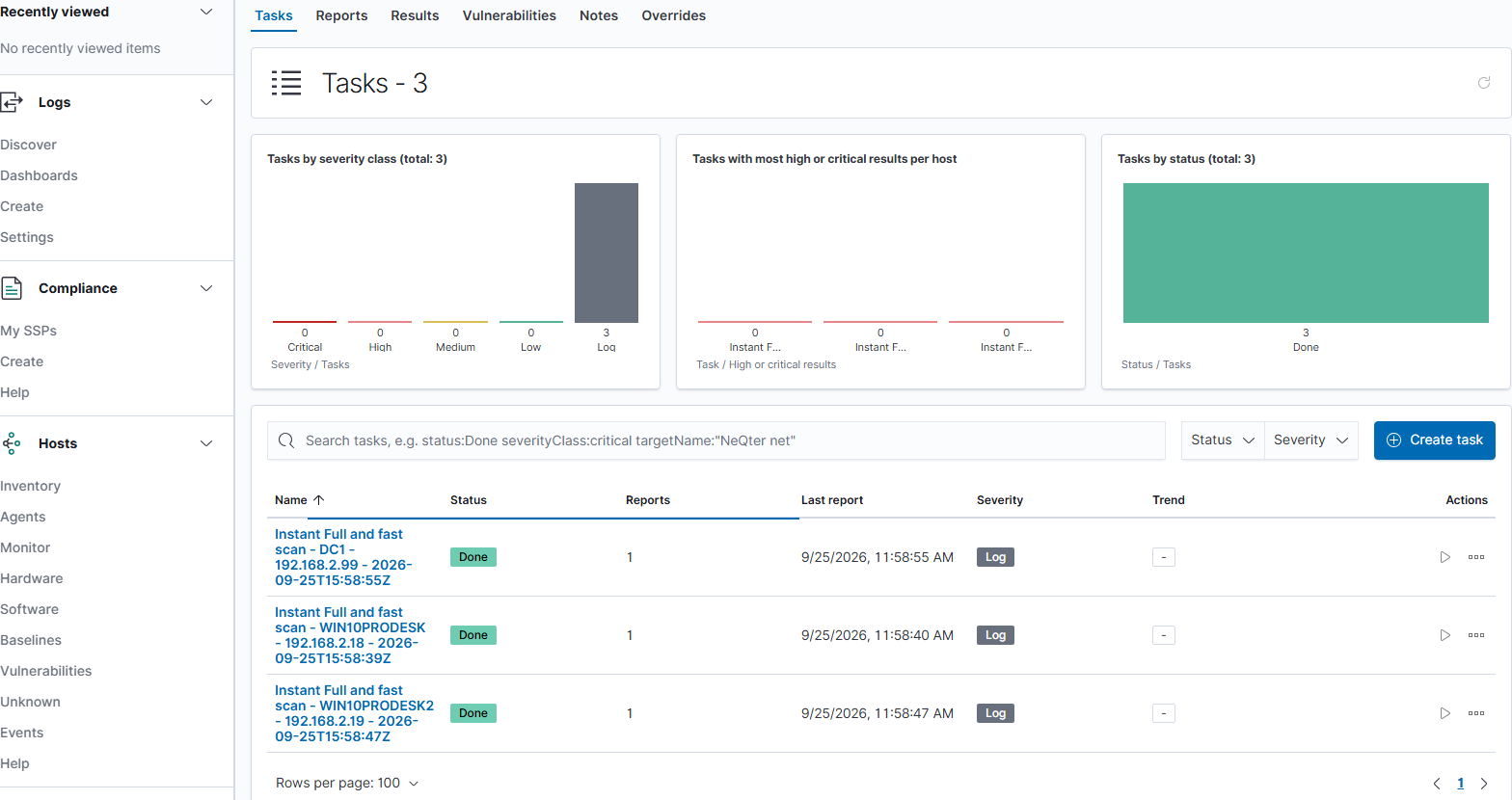
New means a task has not yet run. Requested/Queued means it is waiting to run; Running means scanning is underway. Done means the run finished. Stopped or Interrupted indicates an incomplete run that may be resumable. A task with no report can show Log or No data; that is not evidence of a clean scan. Hover over a trend icon to read its label; a dash means no trend was supplied.
Create a task
- Click Create task.
- Enter a Name and optional Comment.
- Select the Scan target, Scanner, and Scan Config. Prepare missing choices under Configuration.
- Select any Alerts and Schedule. Review the asset, QoD, retention, and concurrency settings.
- Click Save to create the job, or Cancel / the top-right X to discard the draft. Saving a scheduled task can enable its future scheduled runs; saving alone is not the row’s manual Start action.
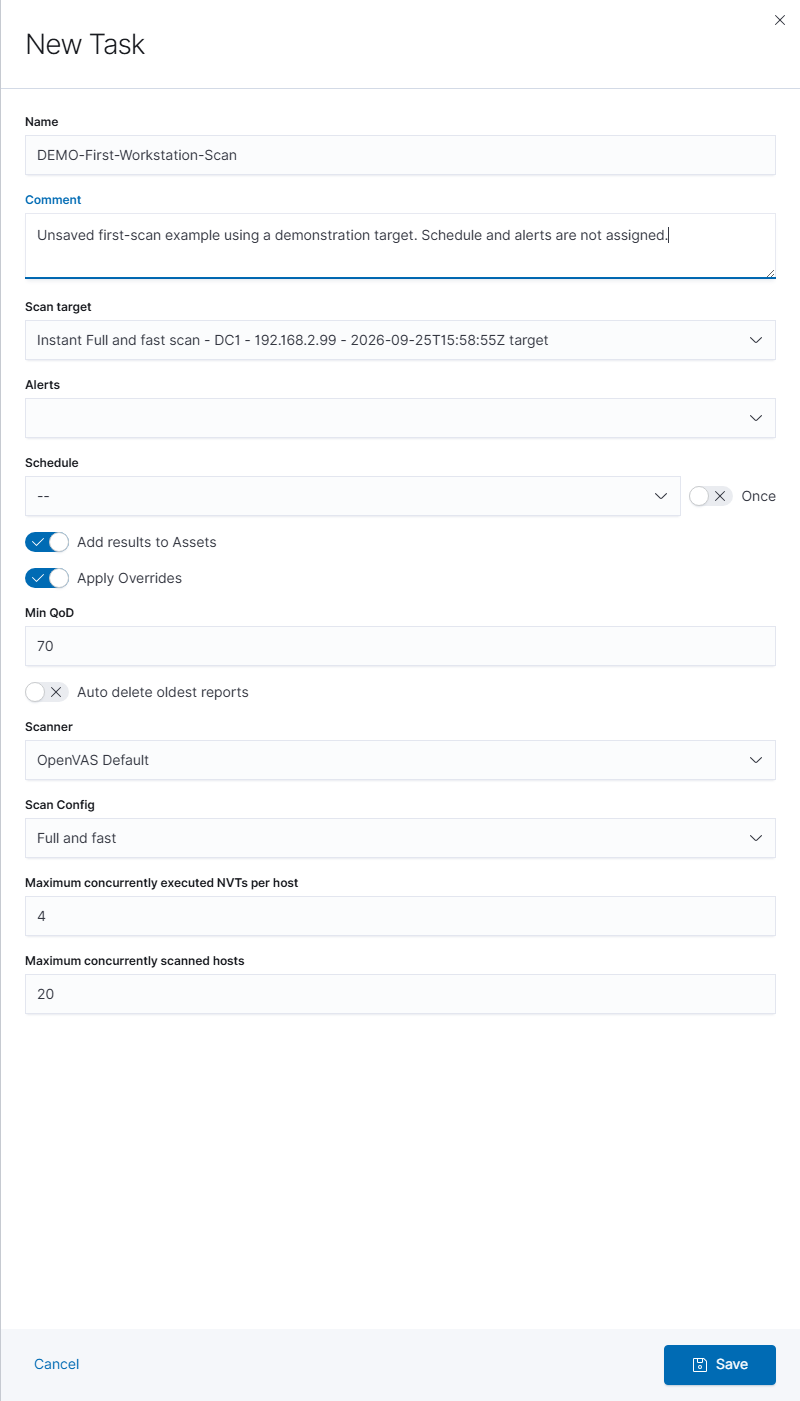
The flyout is titled New Task. NeQter automatically requests that tasks be alterable; no Alterable Task checkbox is needed. Targets, schedules, and alerts are separate saved objects selected in this form; prepare missing choices under Configuration. For a complete walkthrough, see the First Scan Task Guide.
| Field or switch | How to use it |
|---|---|
| Name | Give the scan a name that identifies its scope and purpose. |
| Comment | Add context for other operators. |
| Scan target | Choose the saved hosts, exclusions, port list, and login credentials to use. |
| Alerts | Choose saved scanner alerts to associate with the task. |
| Schedule | Choose a saved schedule, or leave -- for no schedule. |
| Once | Limit the selected schedule to one execution instead of continuing its recurrence. |
| Add results to Assets | Add the scan’s host information to the scanner asset inventory. |
| Apply Overrides | Apply applicable overrides when importing results into Assets. This option is switched off and disabled when Add results to Assets is off. |
| Min QoD | Set the task’s minimum Quality of Detection percentage; the shown default is 70. |
| Auto delete oldest reports | Enable task-report retention, then enter Reports to keep. Old reports become eligible for deletion according to this setting. |
| Scanner | Choose the scanner that performs the task, such as OpenVAS Default. Available scan settings depend on the scanner type. |
| Scan Config | Choose the checks and scan preferences, such as Full and fast or Host Discovery. |
| Maximum concurrently executed NVTs per host | Limit checks that run at the same time against one host. The shown default is 4. |
| Maximum concurrently scanned hosts | Limit hosts scanned in parallel. The shown default is 20. |
| Save | Submit the new or edited task. If an error appears, correct the indicated field and retry. |
| Cancel / X | Close without saving the draft. |
Inspect and edit a task
Click the task name to expand its details below the row. Review the target, scanner and type, scan config, asset and override settings, minimum QoD, report count, and last report. View latest report opens the newest available report for that task. If an expanded row remains open, switch to another Scans tab and return to Tasks to reset the view.
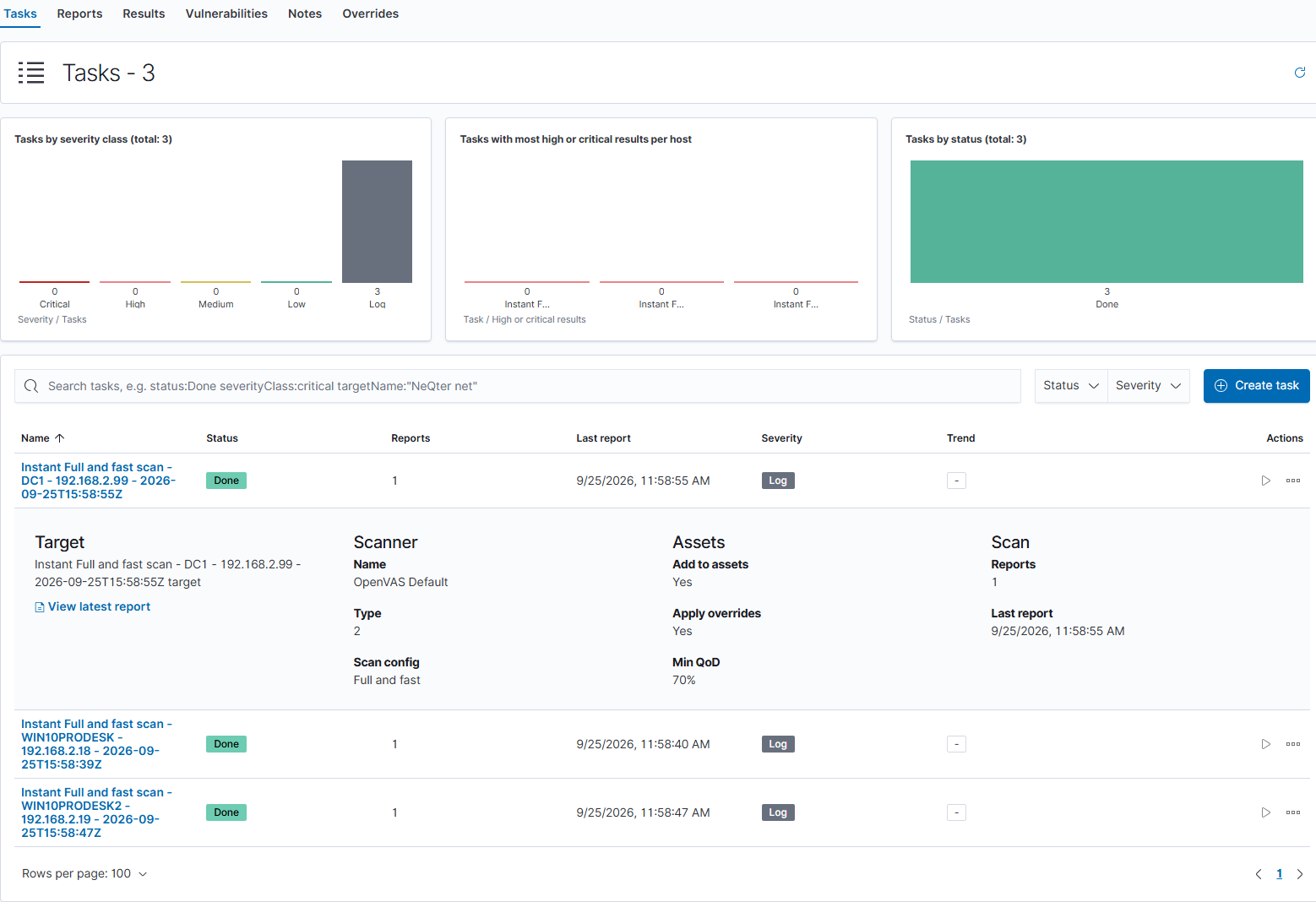
Use All actions → Edit task to open the saved task settings. Review the target, scanner, scan configuration, alerts, and schedule before selecting Save. Cancel or X discards the draft. NeQter automatically requests that tasks be alterable, allowing changes to the target, scanner, and scan configuration after reports have been created without enabling an Alterable Task checkbox. Editing a completed task does not start a new run.
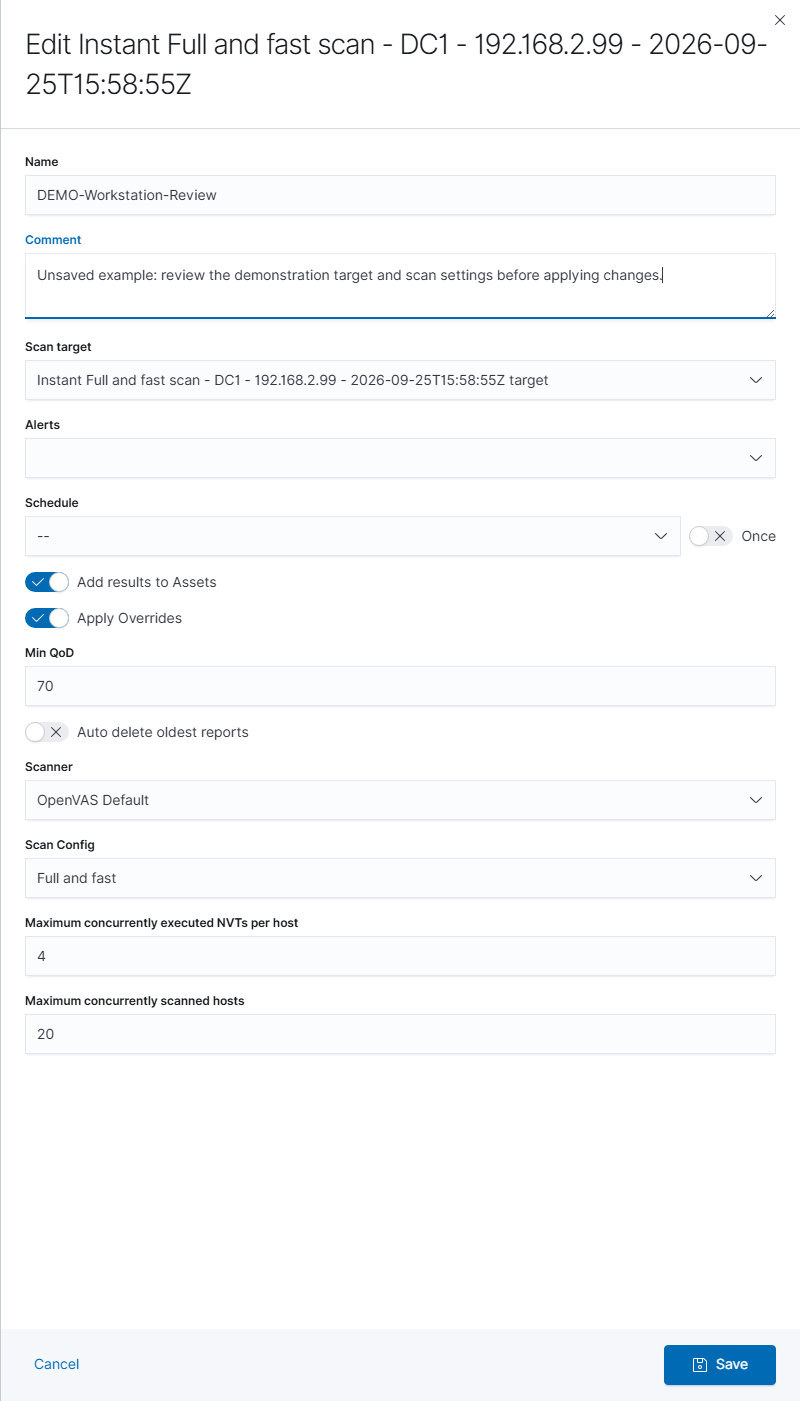
For the editing and copying workflow, see Altering Vulnerability Scans.
Task actions
The play icon and All actions ellipsis appear at the right of each row. Some icons become clearer when you hover over the row. Available actions depend on the task’s status and your permissions.
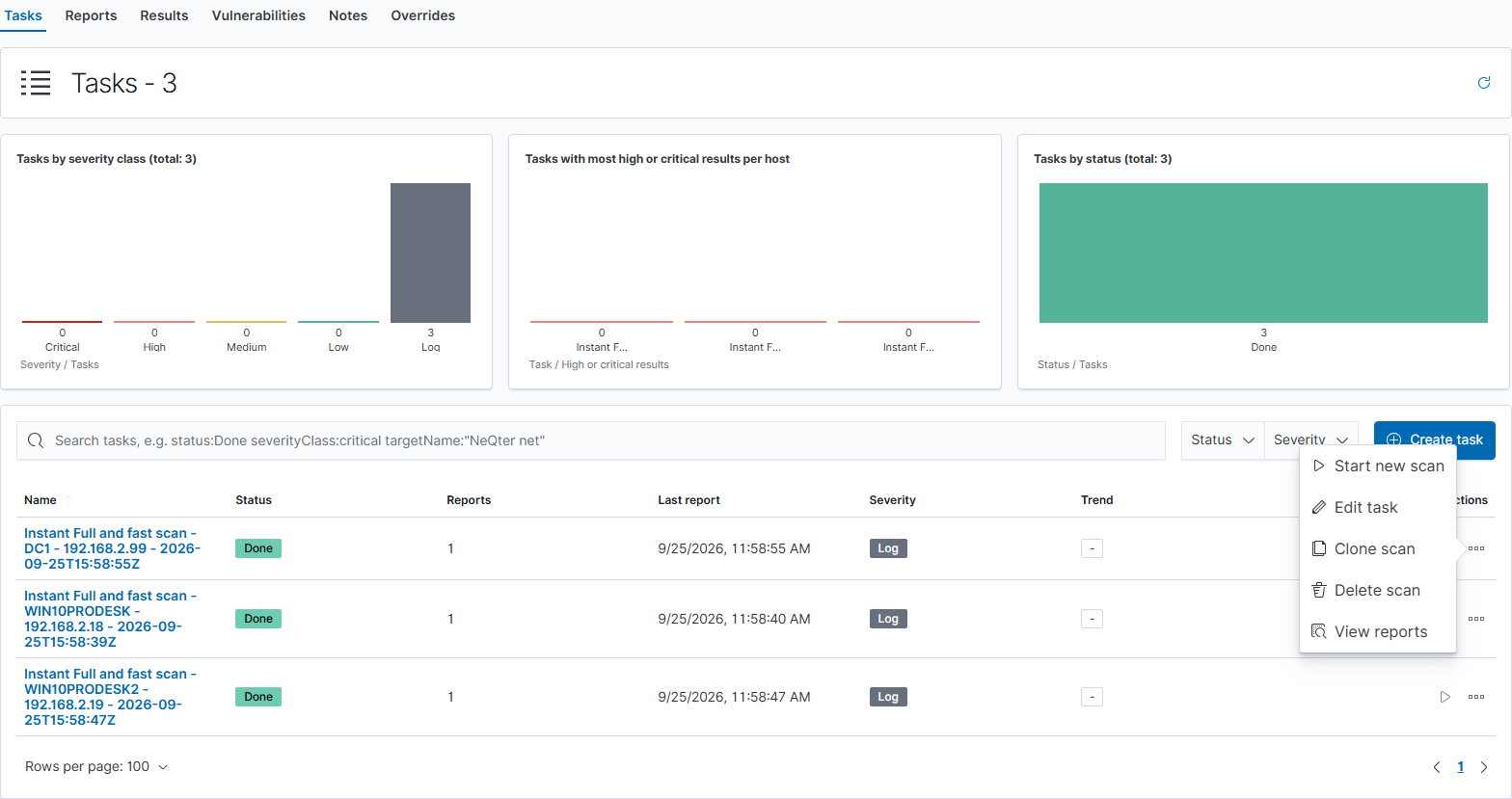
| Action | Effect |
|---|---|
| Start new scan | Immediately request a new run of this saved task. It is available when the task is not already active. |
| Resume task | Resume a stopped or interrupted task. |
| Stop task | Request that a running, requested, or queued task stop. Allow its status to update after the request. |
| Edit task | Open the saved settings in a form. Change the needed values and click Save, or Cancel to discard. |
| Clone scan | Immediately request a saved copy of the task. No draft or confirmation opens first. Review the copy’s name, target, scan configuration, alerts, and schedule before using it. |
| Delete scan | Open the deletion confirmation. Cancel keeps the task; confirm only when you intend to remove it. Removing a schedule assignment does not require deleting the task. |
| View reports | Open reports associated with the task. The scoped banner offers Show all reports to clear the task restriction. Check the date range if an older run is missing. |
Review schedule assignments before cloning a recurring job so that only the intended task keeps the recurring scan. Clone scan and Start new scan are separate immediate actions.
Reports
Open Scans → Reports for the output from individual scan runs. These are scanner reports; the separate main-menu Reports section produces NeQter’s scheduled and on-demand documents, described in the Reports guide.
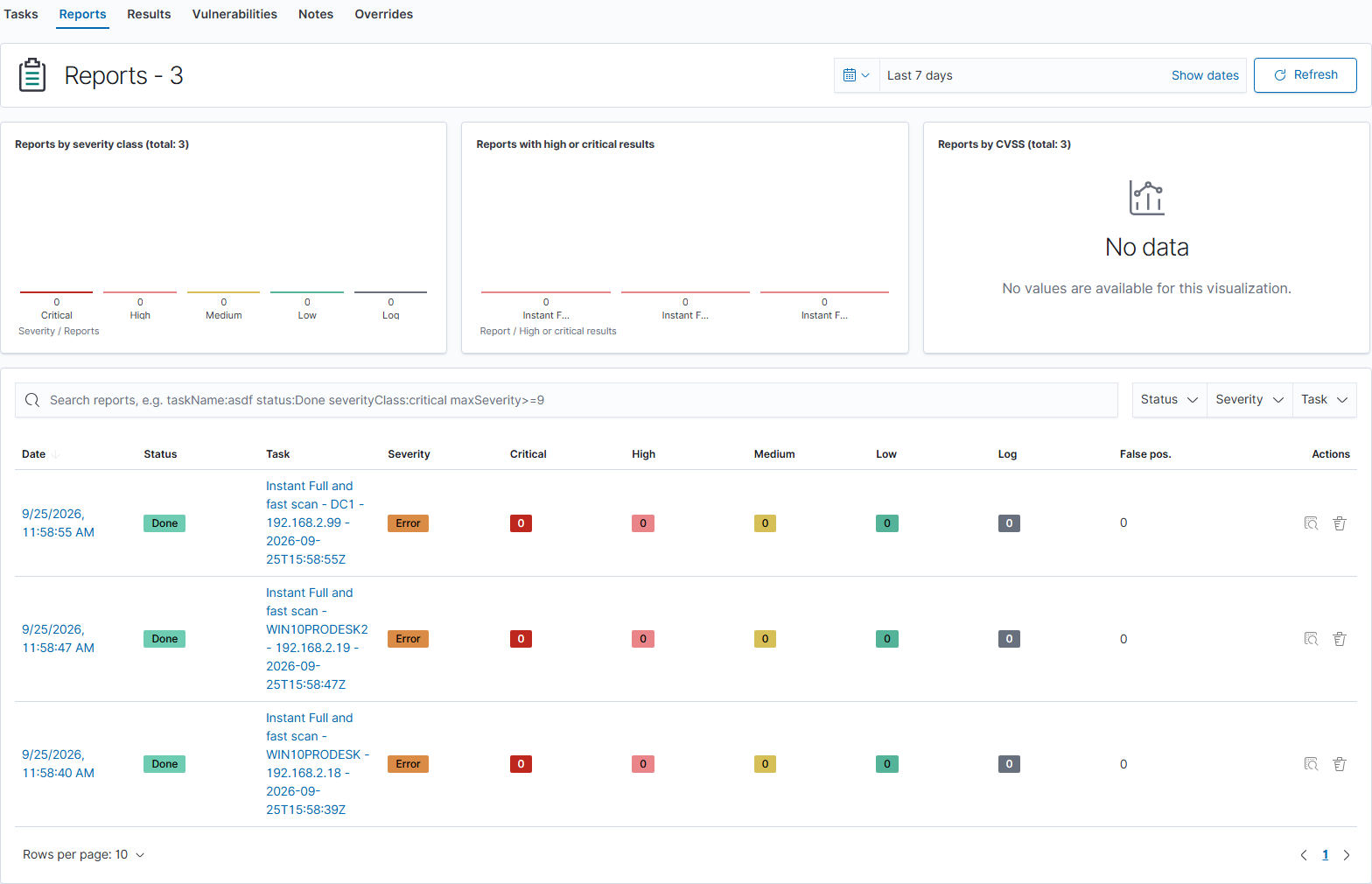
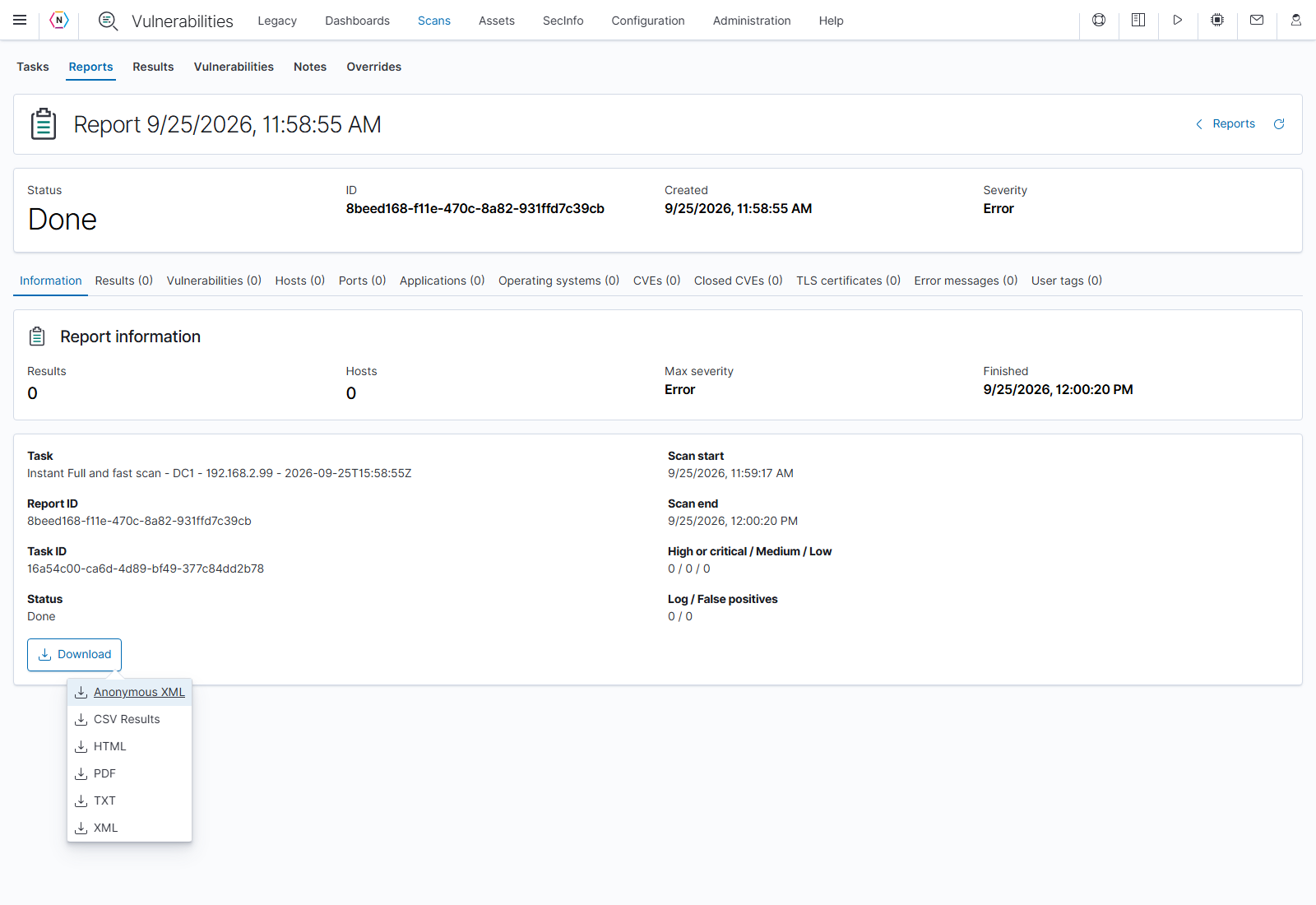
Done records that the run ended. The current demonstration reports show Error severity with zero findings; this does not establish a clean scan. Open the report and verify the host coverage, result count, and available error information before interpreting the outcome.
Use the date range to include the desired run. Search by task name or use Task, Status, and severity filters. Compare Date, Status, Task, maximum Severity, and counts for Critical, High, Medium, Low, Log, and False pos. The charts summarize report severity, high/critical findings, and report CVSS values.
Report actions
Click a report row or its Open icon to open that run. The Delete trash icon is an administrator action: it opens a confirmation and removes the selected report when confirmed. Cancel the dialog to keep it. Deleting a report does not remediate its findings on the scanned machines.
Within a report, Reports at the top-right returns to the list and the circular arrow refreshes the selected report. The summary strip shows status, report ID, creation time, and severity. Running reports can change as results arrive. The horizontal tab bar scrolls sideways if later tabs are off screen.
Information and downloads
Information shows result and host counts, maximum severity, finish time, task and report IDs, start/end times, and counts by severity. Keep the report ID when discussing a particular scan with support.
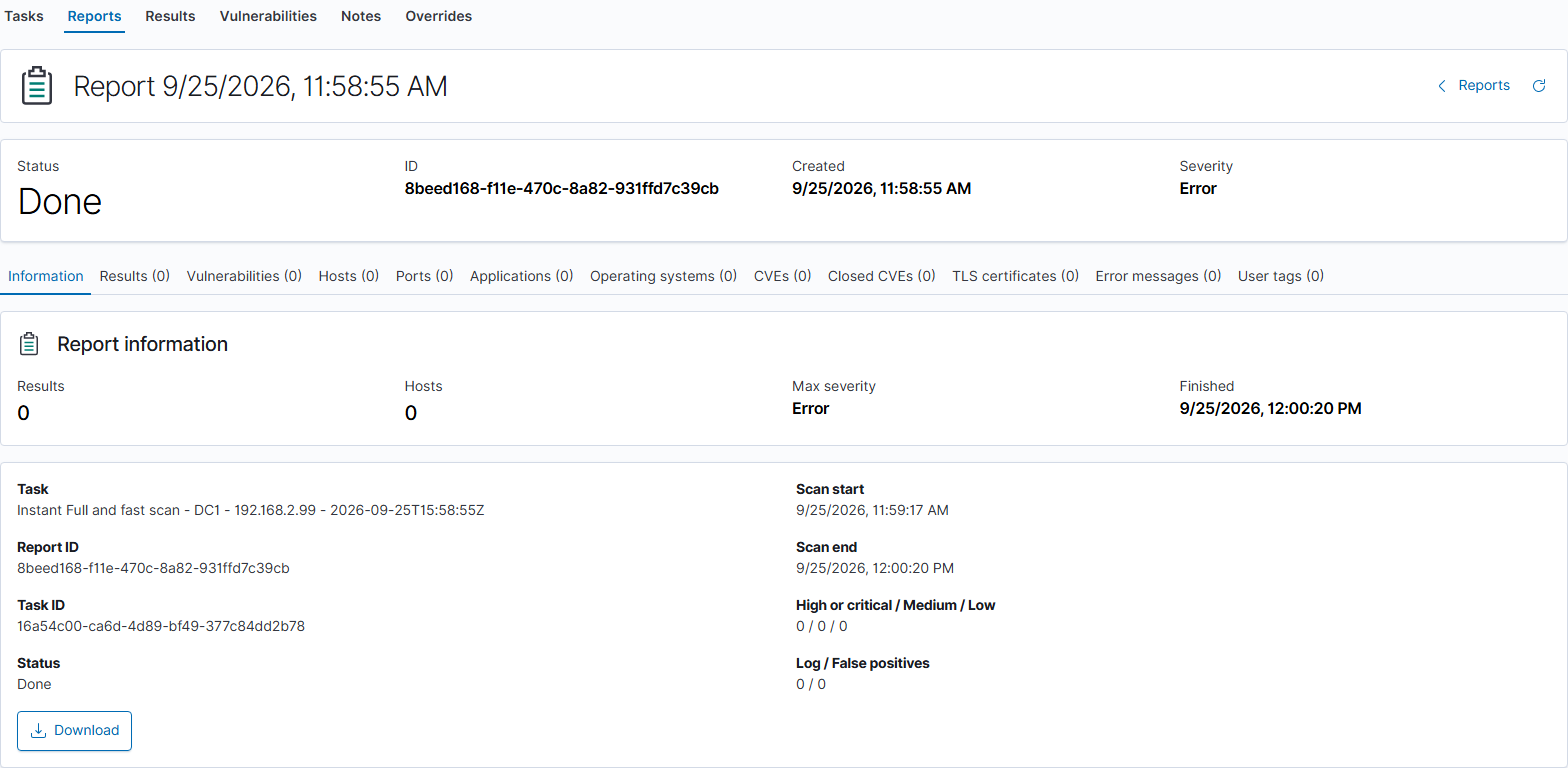
Click Download, then select the format. Anonymous XML is the scanner’s anonymized XML export option; CSV Results is suitable for rows in a spreadsheet; HTML, PDF, and TXT are readable report formats; XML preserves structured scanner data. The file is downloaded through your browser. If a format fails, check its error and the scanner’s available report formats.
Report Results
This tab lists each finding in the selected report. The columns show Vulnerability, detection Detail, Severity, QoD, Host, Location, and Family. Use the search, Host/Location/Family dropdowns, severity buttons, and QoD range to narrow it. Click a finding name for its full evidence and solution, or a host address for that device.
Report Vulnerabilities
This tab groups the report’s findings by check. Hosts counts affected devices; Results counts individual findings. QoD, Type, and Newest provide confidence, scanner classification, and most recent evidence. A weakness can have more results than hosts when it occurs on several ports. Click its name to see the description, recommended solution, and affected hosts.
Report Hosts
Use Hosts to see the devices represented in this report. The table includes address, name, severity, vulnerability and result counts, port count, and latest result. Search for an address or name, then click the address to open the host panel.
Report Ports
Ports groups locations and detected services. The cards show unique ports, hosts with ports, and the leading service. Charts summarize protocol and common ports. The table connects Port, Protocol, Service, Hosts, Results, Vulnerabilities, Severity, and Families. Search with examples such as protocol:tcp or service:HTTPS and use severity buttons. Entries such as general/tcp represent general findings rather than a numbered listening port.
Report Applications
Applications shows software and service evidence from this scan. Read Application CPE or service, Type, Hosts, Occurrences, Ports, Severity, and Evidence together. The charts distinguish service observations from CPE matches and show severity distribution. Search by application name or type; an observation is scanner evidence, not a complete installed-software inventory.
Report Operating systems
This tab groups operating-system evidence by name, CPE, family, affected hosts, and severity. Evidence identifies the check that supplied the classification. Search by family or CPE and use severity buttons. Review the evidence when an item appears under Other or has an unexpected product classification.
Report CVEs
CVEs connects public vulnerability IDs to checks in the report. Cards count unique CVEs, NVT groups, and occurrences. Rows show the CVE, NVT, hosts, occurrences, locations, solution type, and severity. Use the search and severity buttons. A CVE link with the external-link icon opens its reference in another browser tab.
Report Closed CVEs
Closed CVEs lists entries marked closed by the scanner data, with host, hostname, NVT, port, status, and severity. Search by host or CVE. Read closure in the context of that scan and its evidence; this table has no button that marks an issue fixed on a device.
Report TLS certificates
Use TLS certificates to review certificate-related findings by subject, serial number, activation/expiration time, IP, hostname, port, and status. Search by IP, port, or status. The summary separates certificate entries, expired entries, and Downloadable PEMs. The row’s Download certificate action is available when an actual PEM is present. A certificate-related result may have incomplete certificate fields and no downloadable PEM; No data does not establish that a certificate is valid.
Report Error messages
Read Error messages before treating a report as complete coverage. It lists scanner messages with host, hostname, NVT, port, and creation time, plus charts by host and check. Search for an address, port, or message text. Authentication failures, timeouts, and checks that could not complete can explain missing findings. Review the actual message: this view can include diagnostic result text as well as failures.
Report User tags
User tags shows the report’s scanner labels: name, value, resource, active state, owner, modification date, and comment. Search by tag or owner. No user tags found means no matching labels were returned. Manage tags under Configuration → Tags; this tab is a report view.
Results
Open Scans → Results to investigate individual findings across the selected time period. Unlike a report’s Results tab, this list is not limited to one run. Its columns include finding name, severity, QoD, host, location, evidence text, family, and creation time.
- Choose the date range.
- Filter by host, severity, QoD, location, or family.
- Click a finding name to open its detail panel.
- Read Summary and Detection result to understand what was observed.
- Review Detection method, Insight, and Solution where supplied. Follow the recommendation on the affected system, then rescan to verify.
Scroll within the panel for Details: check OID, family, QoD, CVSS score/vector, NVT version, creation time, and references. The result and report IDs identify the evidence precisely. Close or the X returns to the list. External references open their linked pages; reading a solution here does not apply it to the host.
Vulnerabilities
Open Scans → Vulnerabilities to group findings by scanner check across the chosen date range. This helps identify one issue that affects several hosts. Use the search, severity buttons, Type, and QoD range, then compare Hosts, Results, and Newest.
Click a vulnerability name to open its summary, solution, check identifiers, references, and affected-host table. Click a host address to investigate the device. The panel can label this table Hosts in this report even when opened from the grouped page; keep the opening view and date range in mind when interpreting the scope. Close or X returns to the list.
Notes and overrides
Scans → Notes lists existing annotations with text, active/inactive status, NVT, task, and modification time. Search the annotations, sort columns, and change pages. Notes add context; they do not change the affected system.
Scans → Overrides lists existing adjustments to result severity. It includes New severity in addition to text, status, NVT, task, and modification time. An override changes how matching scanner findings are treated; it does not remediate them. A dash means no usable value was displayed.
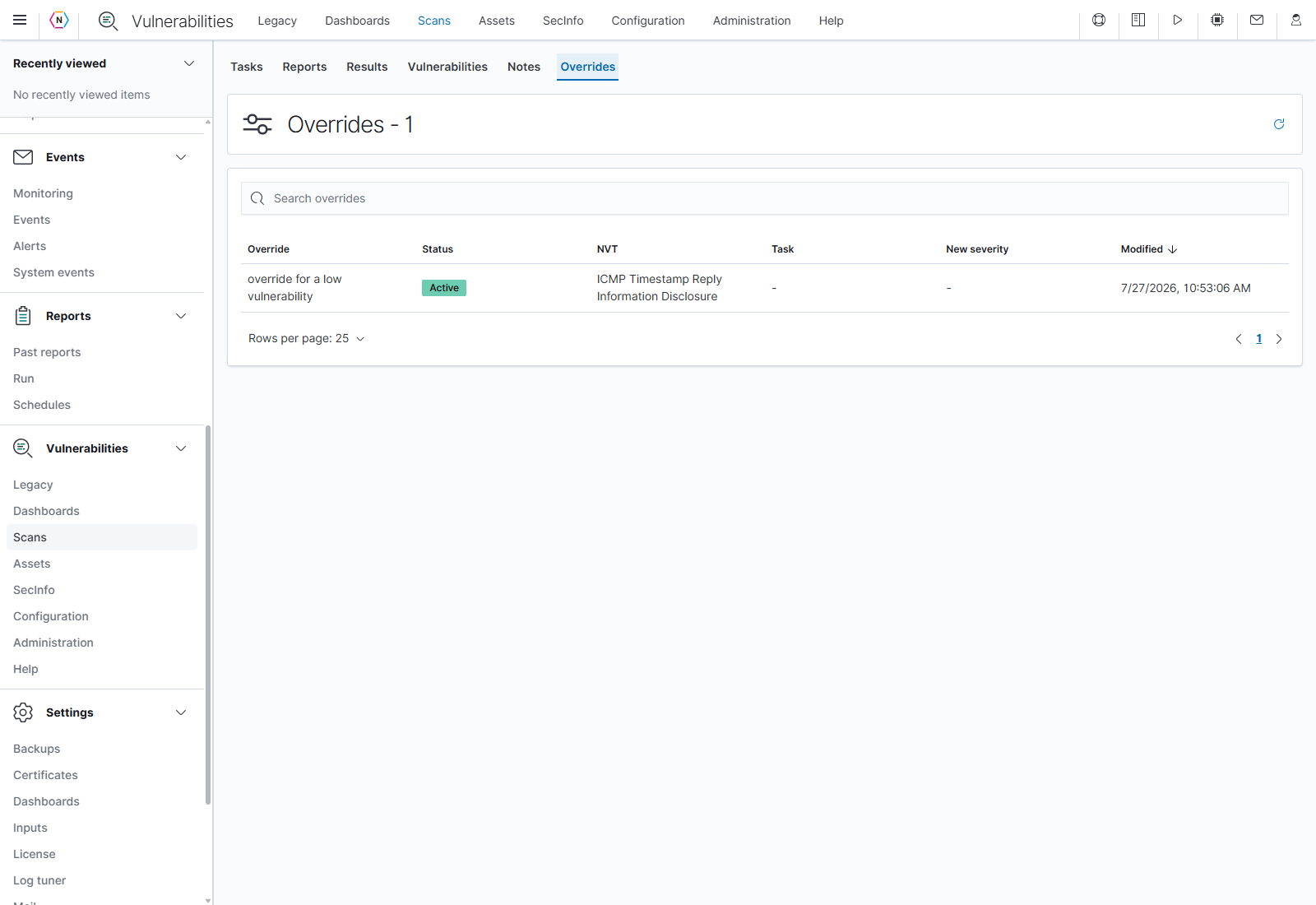
The native Notes and Overrides tables provide search, sorting, pagination, and refresh. They do not show Create, Edit, or Delete actions. Use the Legacy scanner interface with the appropriate administrator access to manage annotations. The task’s Apply Overrides option controls whether applicable overrides are used for that task.
Hosts
Open Vulnerabilities → Assets to view hosts known to the scanner. This inventory is separate from the main Hosts guide. Charts summarize severity, OS family, and OS/version. The table contains address, name, severity, operating system, vulnerability/result/task counts, and latest result time.
Choose a date range, search by address, name, or operating system, and optionally apply a severity filter. Click a host address to open the investigation panel. An old asset can retain its historical severity while displaying zero report counts in the selected period. Expand the date range to look for the reports behind it.
Host overview and report source
The host panel combines its identity with summary counts: Unique vulnerabilities, Merged findings, Applications, Open ports, Report sources, and Last seen. Unique vulnerabilities count an issue once; merged findings include its matching evidence records. Wait for the loading indicator to finish before comparing these with list counts.
Use Report source to select All reports in time range, Latest report per task, or one specific report. This determines the evidence used in the panel. Overview lists asset ID, owner, operating system, traceroute, detected applications/ports, and creation time. Close or X leaves the panel.
Host trend
Open Trend, then select a Task. Comparisons use reports for that same task so changes in scan scope are easier to distinguish.
After selecting the task, review current vulnerability count, net change, findings added/resolved in the latest run, count-over-time and severity charts, and the per-report comparison table. Scroll down for the latest added/resolved lists. Baseline means there is no earlier comparable report in this view; a single baseline does not establish that issues were newly introduced or fixed.
Host applications
Applications lists product, vendor, version, title, severity, path/evidence, CPE, and source. Search using the visible example, such as product:openssl version:1.1. Multiple rows can represent different evidence for the same product. Use the source and path to understand where the observation came from.
Host open ports
Open ports lists port, transport, protocol, service/evidence, CPEs, and source. Search by port:22, protocol:ssh, or transport:tcp. Entries with missing transport or service fields can coexist with more detailed records for the same port; read the evidence and source before counting unique services.
Host vulnerabilities
Vulnerabilities groups the host’s findings. Read severity, number of findings, locations, scans, report count, family, and newest observation. Click a vulnerability name for more detail. Use pagination to reach the remaining checks.
Host details and identifiers
Host details lists scanner facts as Name, Value, and Source. For example, best_os_txt is the OS description, best_os_cpe is its product identifier, and traceroute records the observed route. Multiple report sources can produce repeated facts.
Identifiers shows identifying values such as IP address and hostname, the source that supplied them, and modification time. Use it to reconcile names and addresses across observations.
SecInfo
SecInfo contains the scanner’s reference catalogs. An entry in a catalog does not by itself mean one of your devices is affected. Use Results and Reports for actual detected findings.
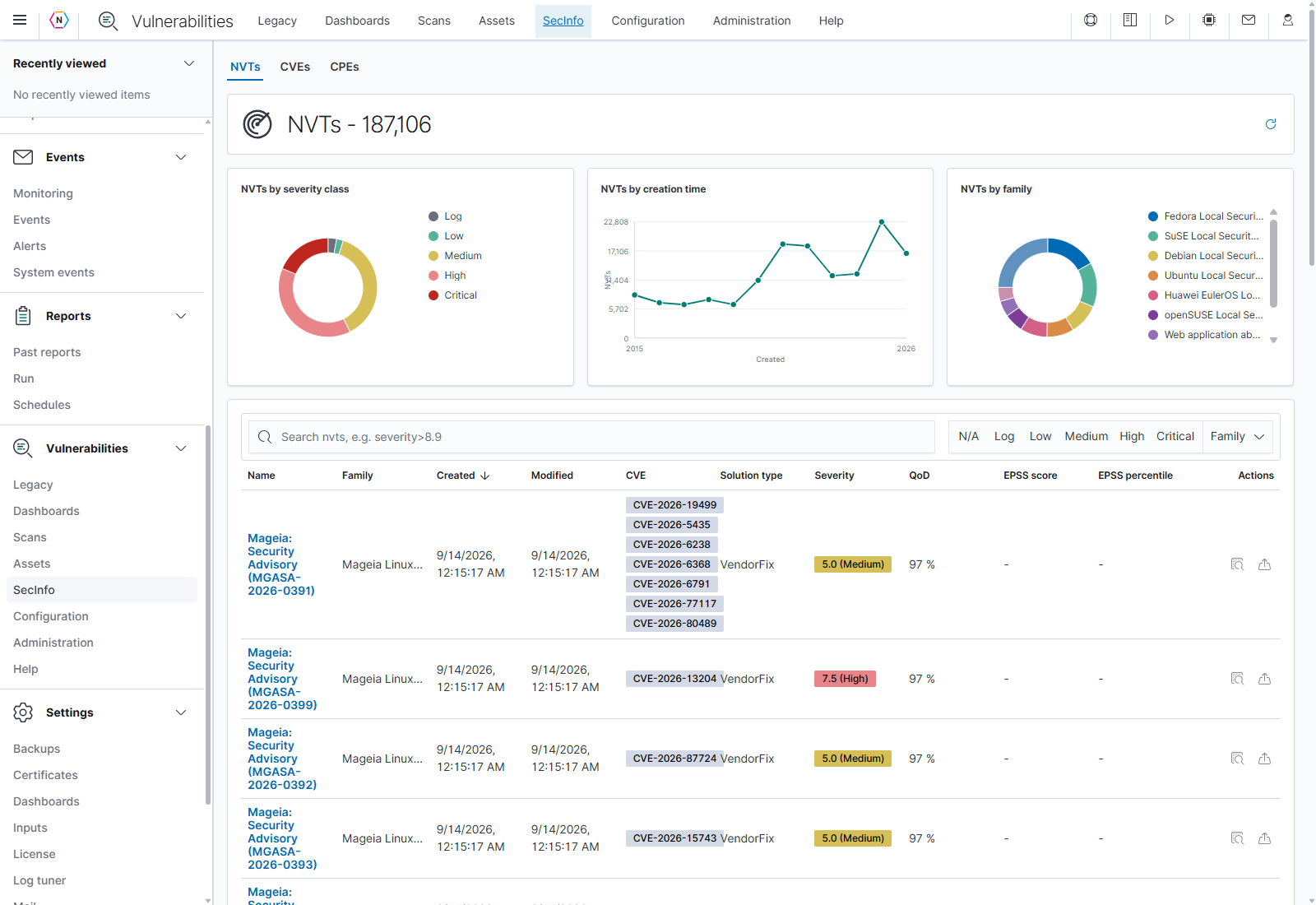
The three tabs share search, severity filters, sortable columns, pagination, refresh, Inspect, and Export XML. Click a blue entry name or its Inspect icon to open the details panel. Export XML downloads that reference entry. Close or X closes the panel; external references open their linked pages. Blank EPSS score/percentile cells mean those values were not supplied.
NVTs
An NVT is a Network Vulnerability Test: one of the scanner’s checks. Charts summarize the available checks by severity, creation time, and family. Use Family to narrow the catalog to a class of checks. The table includes name, family, creation/modification dates, associated CVEs, solution type, severity, QoD, and any EPSS values supplied by the feed.
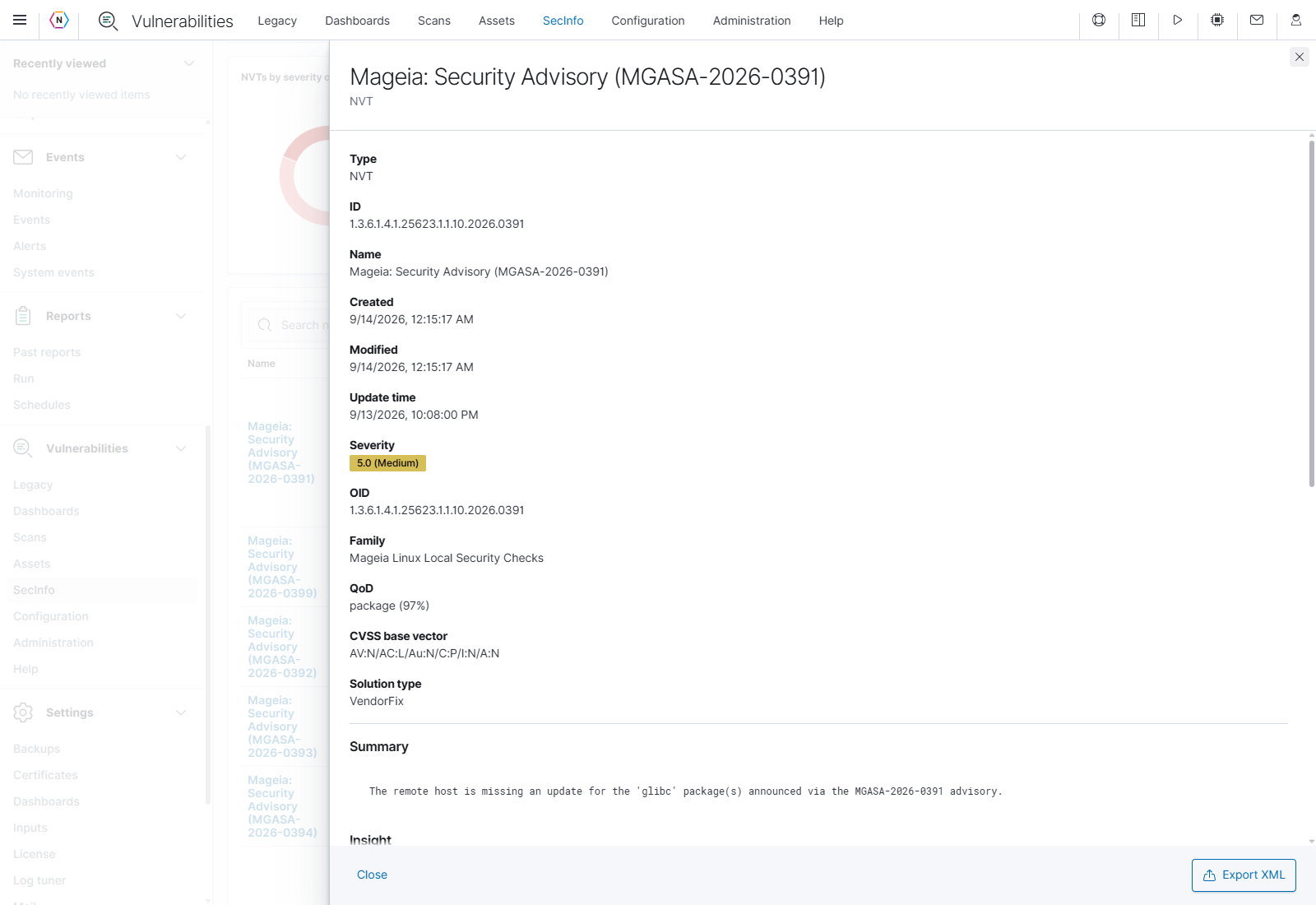
Inspect a check to read its OID, timestamps, family, confidence method/QoD, CVSS vector, solution type, summary, affected software, detection method, solution, and references. These describe what the check tests for; the actual host-specific evidence is in a scan result.
CVEs
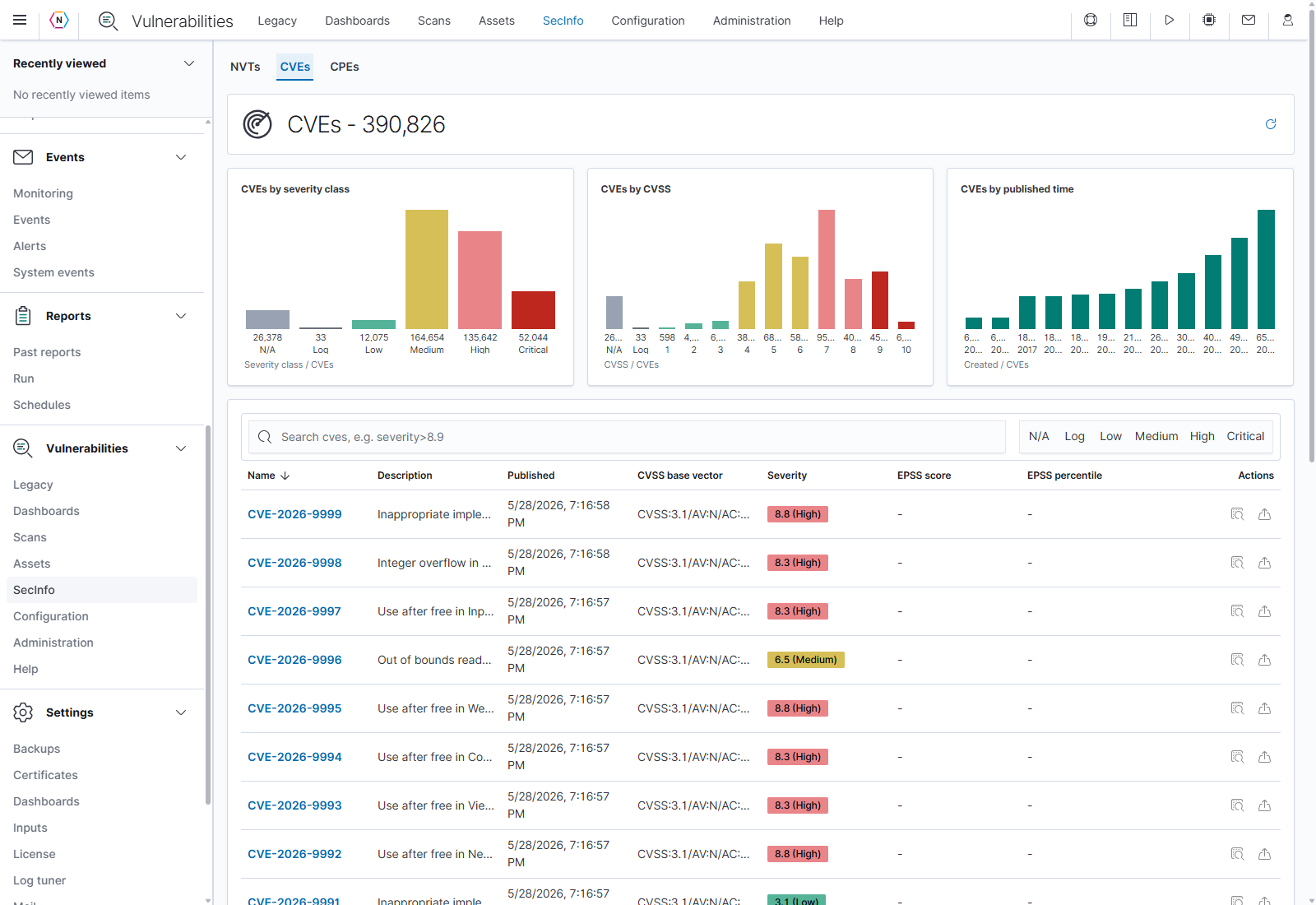
A CVE is a public vulnerability identifier. The catalog shows its description, publication date, CVSS base vector, severity, and available EPSS fields. Charts group entries by severity, score, and publication time. Search for a CVE ID, product term, or severity comparison, then inspect the entry.
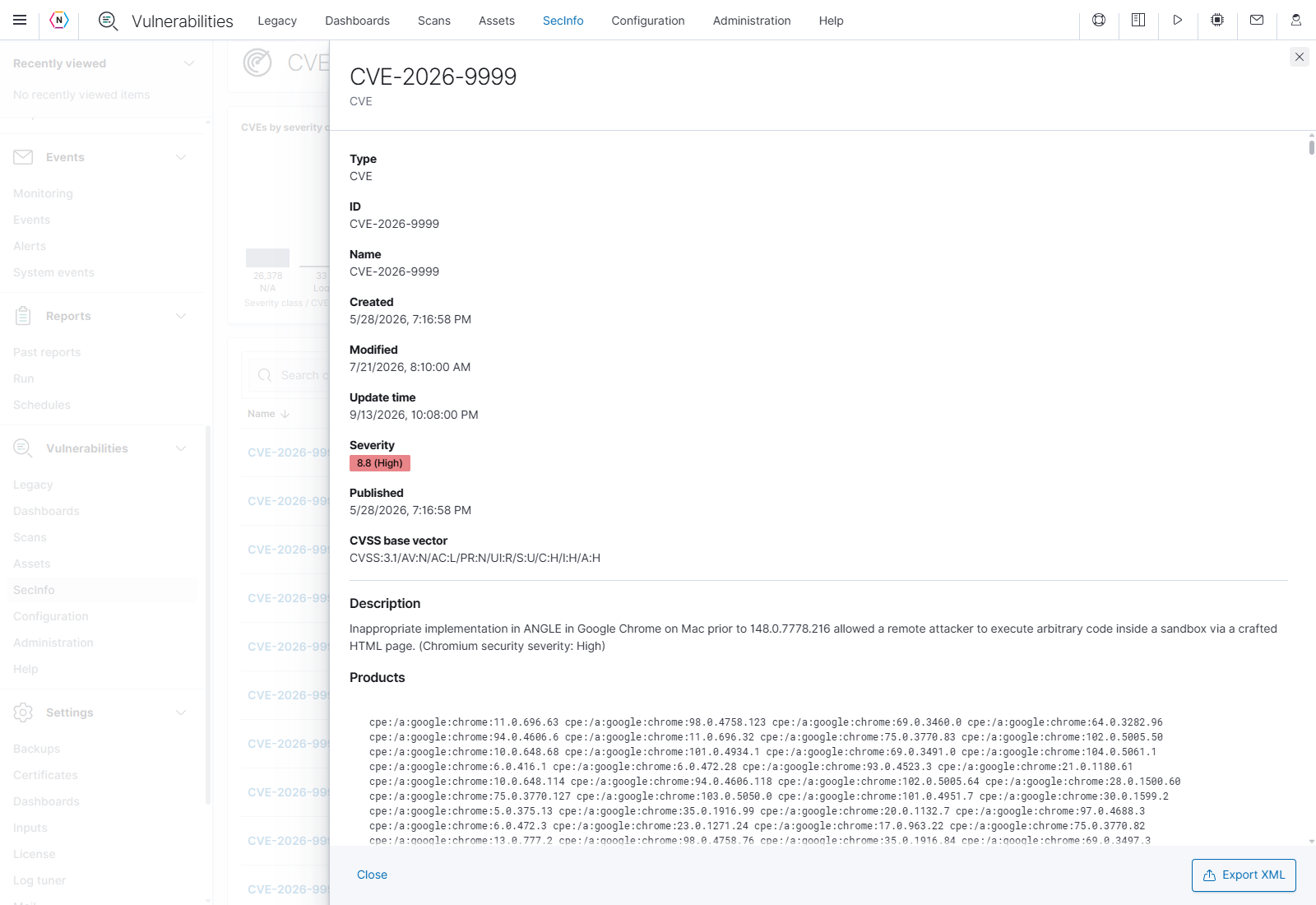
The detail panel includes description, affected-product information, timestamps, score/vector, and references. EPSS, when supplied, is an exploitation-probability estimate; its percentile compares that estimate with other entries. It serves a different purpose from CVSS severity.
CPEs
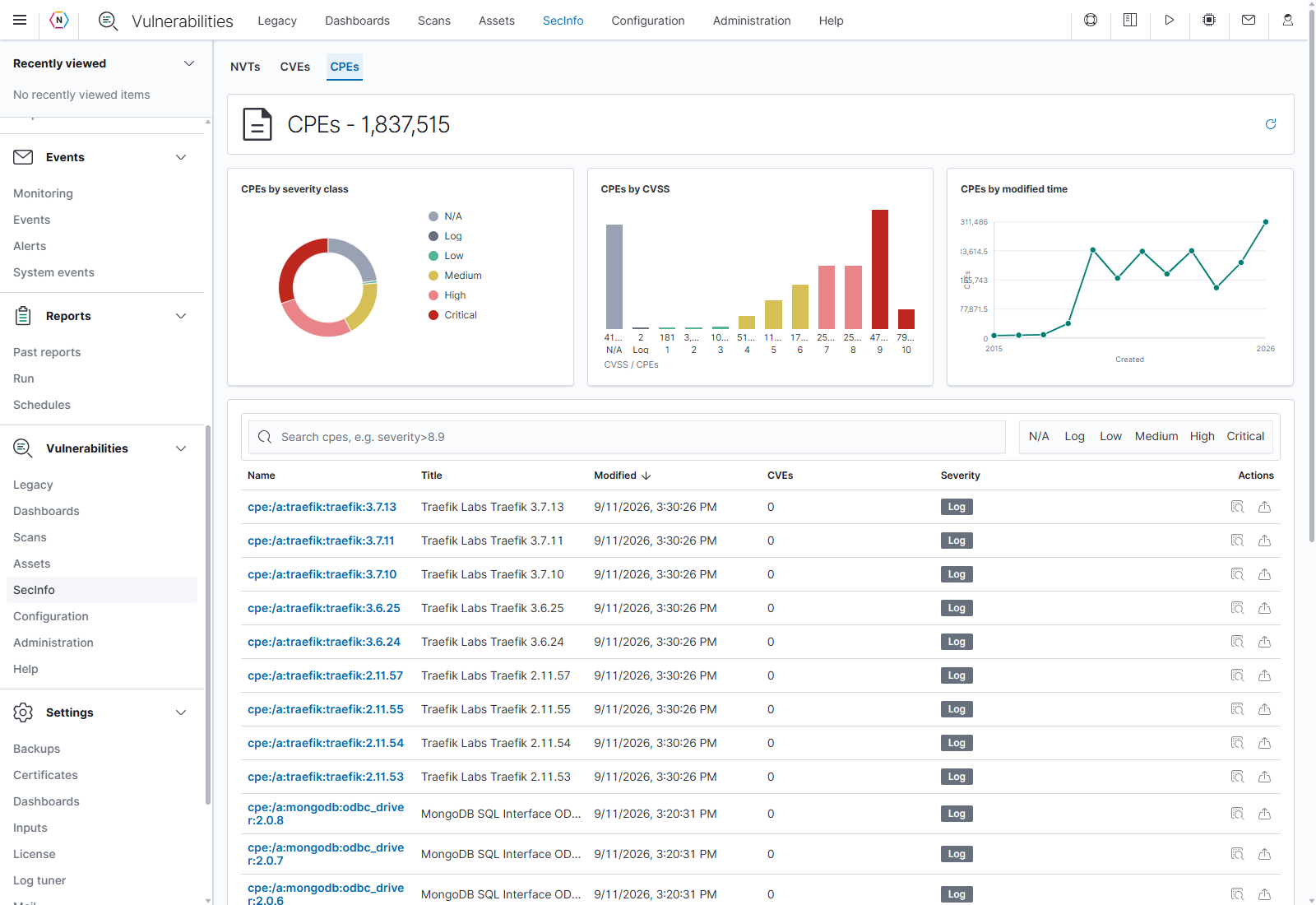
A CPE is a standardized product identifier for software, operating systems, or hardware. Search by vendor, product, version, or the CPE string. The table shows name, readable title, modification time, associated CVE count, and severity. Its charts summarize reference entries rather than your installed inventory.
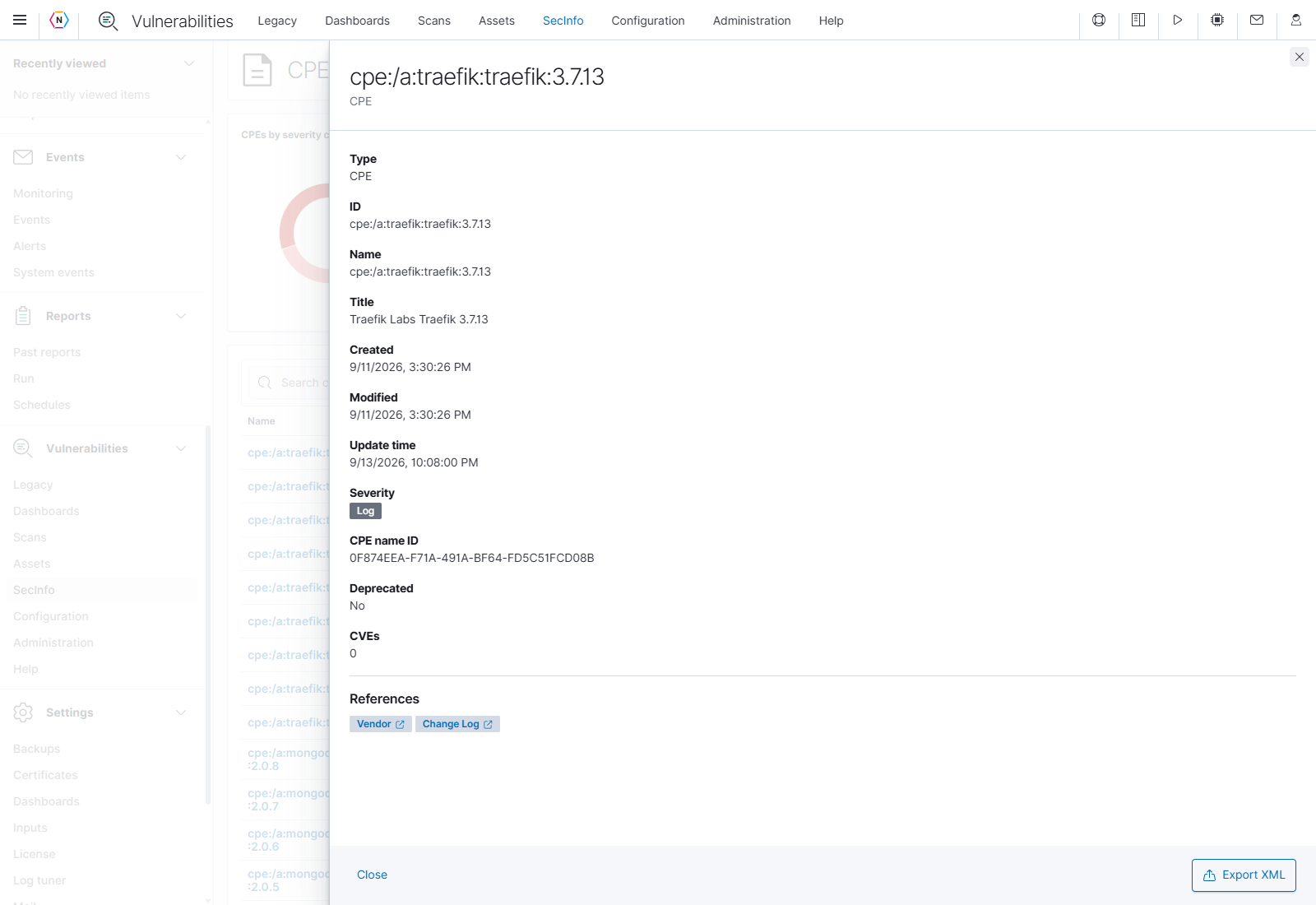
Inspect a CPE to see its full ID and title, timestamps, CPE name ID, deprecated state, CVE count, and references such as a vendor page or change log. Deprecated identifies a catalog entry’s status; it does not state whether your appliance has removed that product.
Configuration
Open Vulnerabilities → Configuration to prepare the objects used by scan tasks: targets, port lists, credentials, scan configs, alerts, schedules, and tags. Configuration requires Read / Write or Admin access to Vulnerabilities. Deletion and credential exports require Admin access to Vulnerabilities.
A target defines where to scan. Its port list defines which ports to examine, and its credentials provide authenticated access. A scan config defines which tests to run. Choose these objects when creating or editing a task under Scans; saving a configuration object does not itself start that task.
Configuration tables and actions
The page heading shows the current object count. Use its circular Refresh icon to reload scanner data. Each table has a search box, sortable column headings where offered, a Rows per page selector, and page arrows. Clear the search text to return to the full list. The search placeholders show examples of named fields, such as name:"Full and fast" or timezone:UTC.
On most configuration tables, the row’s … / All actions button opens its action menu. Targets instead provide a clickable name and separate pencil and trash icons.
| Action | What it does |
|---|---|
| Create… | Opens a new object’s form. Complete the fields, then use the form’s final Create button to save it. |
| Inspect | Opens details of the selected object, including related resources where available. Close or × returns to the table. |
| Edit / pencil | Opens the existing object’s settings. Save applies the changes; Cancel or × discards changes still in that form. |
| Export | Downloads that object’s scanner XML. Availability depends on access; exporting credentials requires Vulnerabilities Admin access. |
| Clone | Immediately creates a copy of the selected object and refreshes the table. This menu action does not open an unsaved copy form first. |
| Delete / trash | Opens a confirmation naming the object. Delete in that confirmation moves it to the scanner’s trashcan; Cancel leaves it in place. Some protected or referenced objects cannot be deleted. |
Additional actions specific to credentials, alerts, and tags are described below. Save family in a scan config has its own save boundary, explained under Edit a scan config.
Targets
Use Targets to define the hosts a scan task can examine. The table shows the target’s name, comment, host addresses, IP count, selected port list, alive test, task count, and modification time. Click a target name to inspect its saved details.
Targets combines the host scope and connection settings that a scan task will use. The numbers and names in these screenshots are examples from the test appliance.
Create a target
- Click Create target.
- Enter a Name and the Hosts to include. Add an optional Comment explaining the scope.
- Enter any Exclude hosts, then choose the Port list and Alive test.
- Choose credentials for the relevant protocols if the scan needs authenticated access.
- Review the complete host scope and connection options, then click Create. Select the saved target in a scan task when ready to use it.
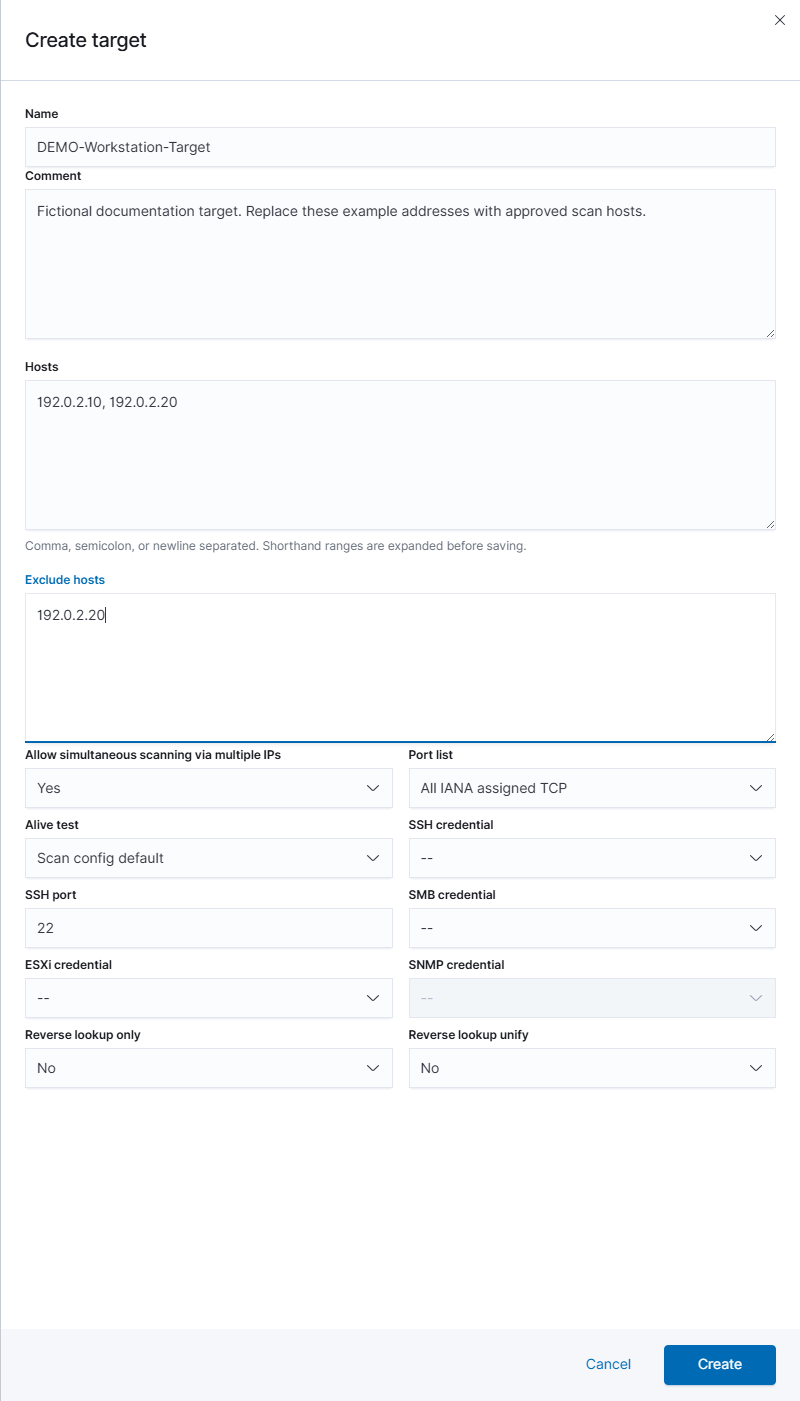
Start with the host scope. The form accepts comma, semicolon, or newline separated entries and expands shorthand address ranges before saving.
| Field | How to use it |
|---|---|
| Name | Required label used when selecting the target in a task. |
| Comment | Optional explanation of the target’s purpose. |
| Hosts | Required addresses or host expressions to scan. Separate entries with commas, semicolons, or new lines. For example, the shorthand 192.0.2.10-20 becomes 192.0.2.10-192.0.2.20. |
| Exclude hosts | Addresses or host expressions to omit from the included scope. |
| Allow simultaneous scanning via multiple IPs | Allows parallel scanning through multiple addresses of the same system. The create form uses Yes / No; the edit form uses a switch. |
| Port list | Required list of TCP/UDP ports to scan. Maintain these under Port lists. |
| Alive test | Chooses how the scanner determines whether a target is reachable. Options include Scan config default, ICMP, TCP-ACK, TCP-SYN, ARP, the listed combinations, and Consider alive. The last option treats the target as alive without requiring a successful discovery probe. |
| SSH credential | A saved username/password or SSH-key credential for authenticated SSH checks. – leaves it unassigned. |
| SSH port | SSH service port; the form initially shows 22. |
| SSH elevate credential | Appears after selecting an SSH credential. Select a different eligible credential if privilege elevation is needed. |
| SMB credential | Saved username/password credential for Windows SMB authentication. |
| ESXi credential | Saved username/password credential for ESXi authentication. |
| SNMP credential | Saved SNMP credential. The selector is disabled if no eligible credential exists. |
| Reverse lookup only | Restricts scanning to IP addresses that resolve to DNS names. |
| Reverse lookup unify | Avoids scanning the same resolved DNS name repeatedly when multiple target addresses resolve to it. |
The reverse-lookup options use the scanner’s DNS behavior. See the Greenbone explanation of target settings for background on these options.
Scroll down before saving a target. Credential selectors contain only eligible saved credentials; an unassigned protocol displays –.
Edit a target
Click the target’s pencil icon. The edit flyout groups the settings into Details, Hosts, Scan behavior, and Credentials. Update the relevant fields and click Save, or use Cancel to leave the saved target unchanged. Changing a target can affect tasks that reference it.
The edit form organizes the same target settings into sections. Its footer Save applies the edited target.
Port lists
A port list specifies TCP and UDP ports to probe. The table shows Predefined or Custom status, TCP/UDP/total port counts, associated target count, comment, owner, and modification time.
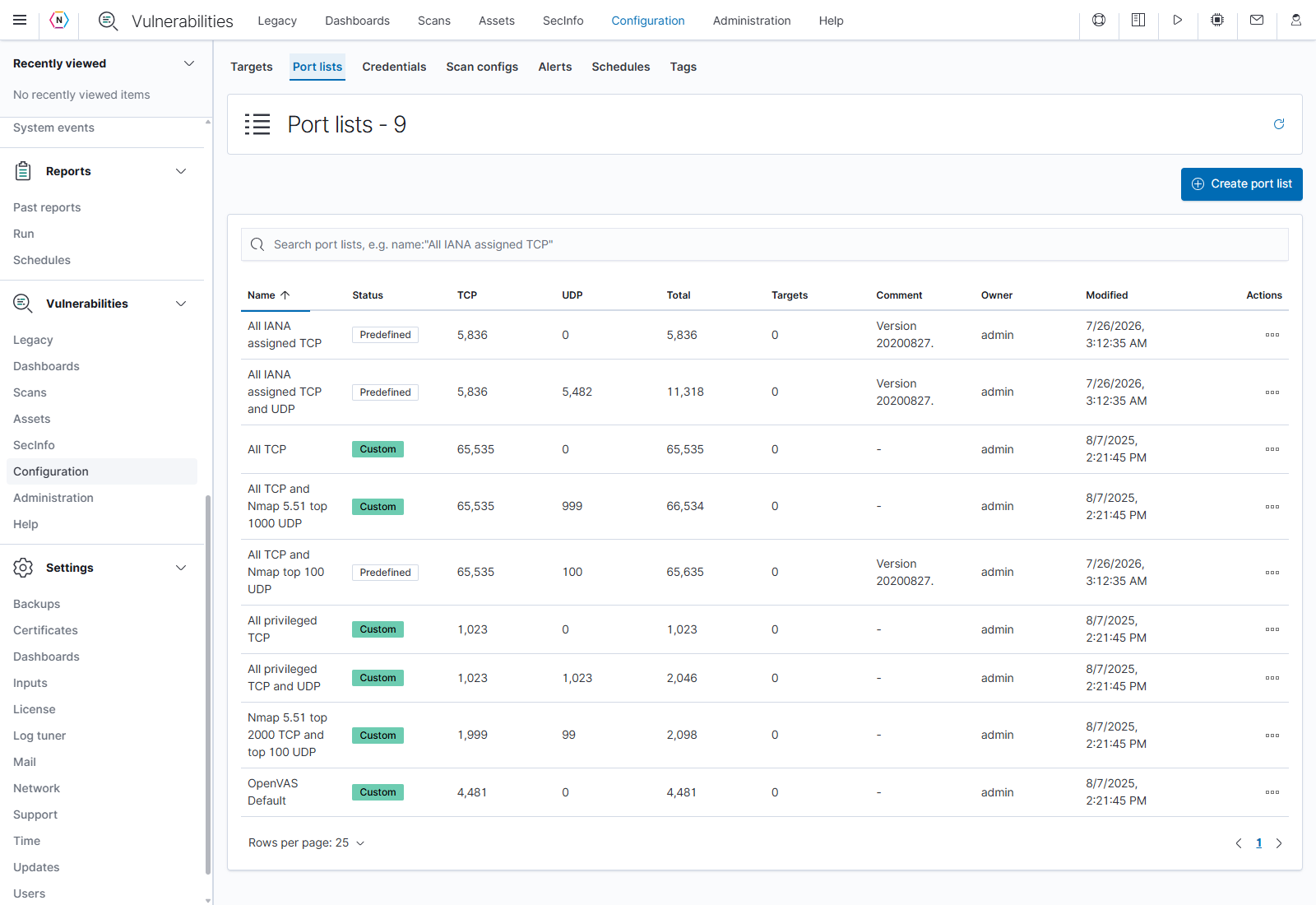
Choose a port list by its actual range and protocols. Its name alone may not describe every included port.
Create or edit a port list
- Click Create port list and enter a Name and optional Comment.
- Review the initial range. The captured form starts with TCP 1–65535.
- Set each row’s Protocol, Start, and End. Use the + beside Port ranges to add a row; use the row’s Remove / × action to remove a draft range.
- Check the Total ports, TCP ports, and UDP ports summaries, then click Create.
For a single port, enter the same number in Start and End. Port values must be whole numbers from 1 to 65535, and Start cannot exceed End. At least one valid range and a name are needed.
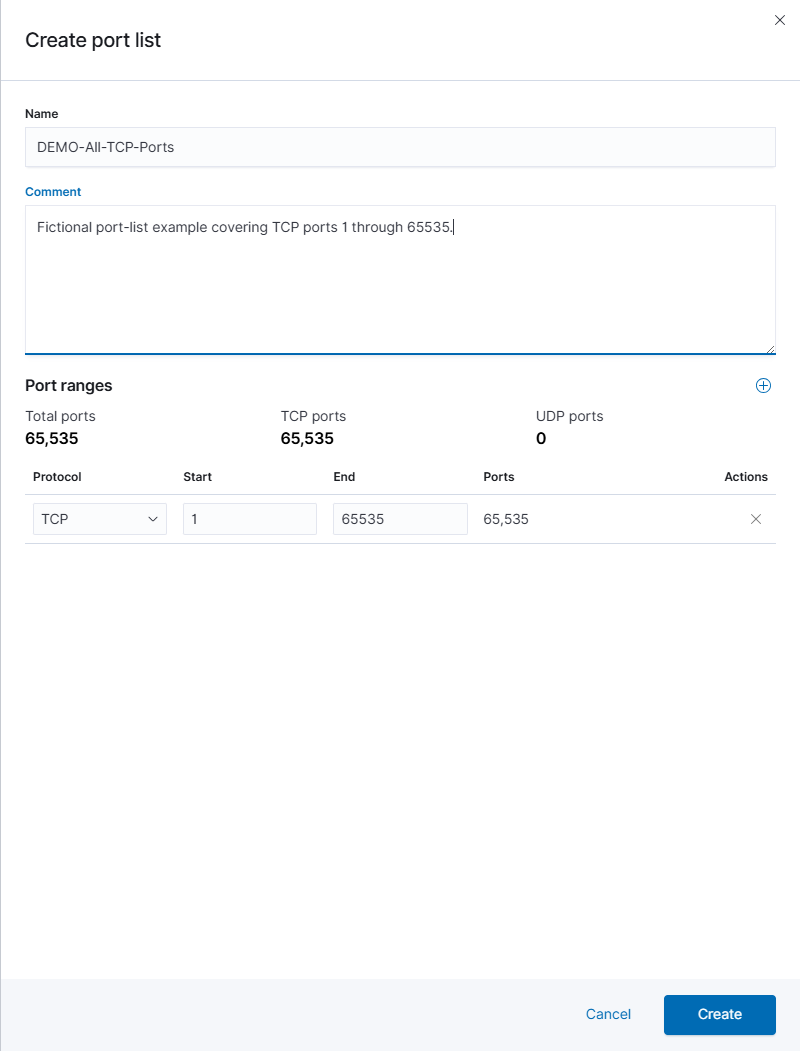
Each row describes an inclusive range. The summaries recalculate as the draft ranges change.
Use … → Inspect to review an existing list’s port ranges and related targets. … → Edit is available for custom lists. The editor’s Save applies the name, comment, and range changes together; Cancel discards the draft.
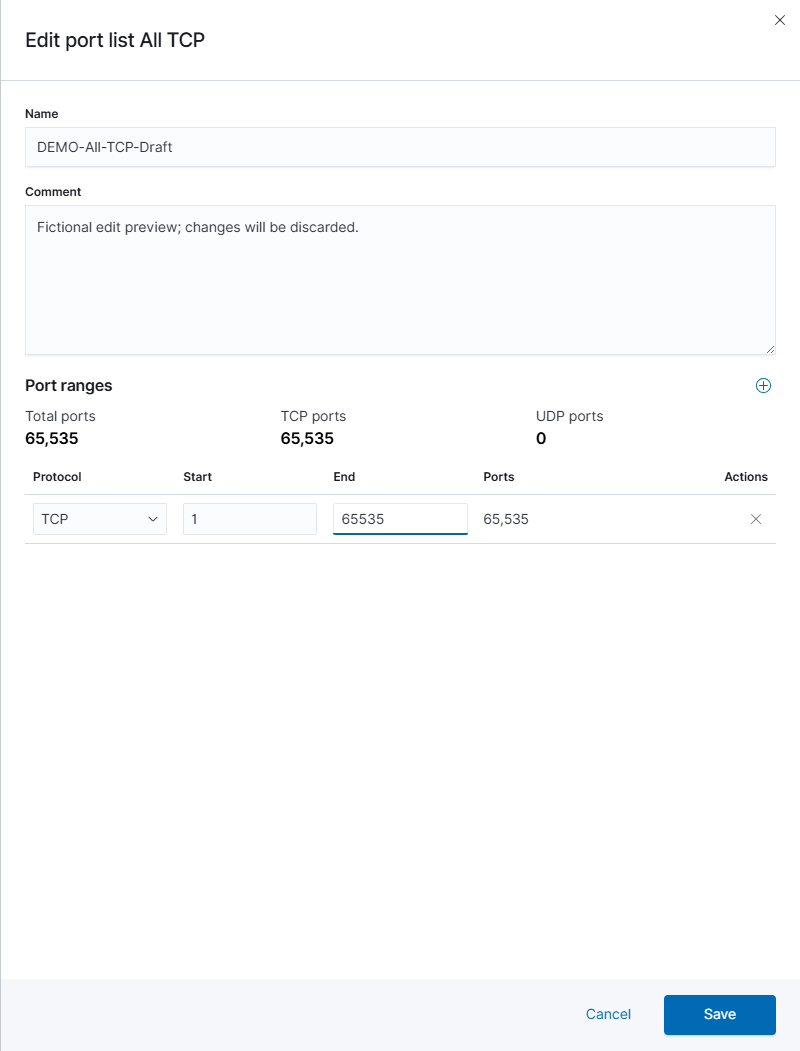
Check the saved ranges before editing. The screenshot shows an unsaved example range entered in the editor. On the demonstration appliance, the All TCP table reports 65,535 ports while its edit flyout initially opens without range rows. A blank edit table does not establish that the saved list is empty. Cancel and inspect the list before deciding what to change.
Predefined lists omit Edit and Delete from their action menu. Clone creates a separate copy immediately, which can then be reviewed and edited where permitted.
Credentials
Credentials provide the scanner with access to a target’s operating system or service. The table shows the credential’s Name, Username, Type, and Modified time; it does not display the saved password or private key.
Create the credential here, then select it in the target’s protocol-specific credential field. Creating a credential alone does not authenticate to or scan a host.
Create a credential
- Click Create credential.
- Enter a Name and optional Comment, then choose Type.
- Complete the fields for that type. For file fields, select the requested key or certificate file.
- Click Create to save the credential, or Cancel to discard the form.
Type determines the fields below it. Password fields have an eye button that switches between masked and visible text while entering a value.
| Type | Fields and controls |
|---|---|
| Username + Password | Username and Password. Auto-generate → Yes lets the scanner generate the secret and disables manual secret entry; No lets you provide it. |
| Username + SSH Key | Username, Private SSH Key file picker, and Passphrase for Private SSH Key. Auto-generate is also offered for this type. |
| SNMP | SNMP Community, Username, Password, Auth Algorithm (MD5 / SHA1), and Privacy Algorithm (AES / DES / None). Privacy Password appears when a privacy algorithm is selected. |
| S/MIME Certificate | S/MIME Certificate file picker. |
| PGP Encryption Key | Public PGP Key file picker. |
| Password only | A Password field without a username. |
| Client Certificate | Client Certificate and Client Private Key file pickers, plus Passphrase for Client Private Key. |
SSH-key credentials accept a private key file and its passphrase. No key was selected for this documentation example.
Match the SNMP authentication and privacy settings to the target device. Selecting None for privacy removes the privacy-password field.
Client Certificate uses separate certificate and private-key files. The private-key passphrase has its own field.
Inspect, change, or download a credential
Use … → Inspect to review the credential’s metadata and related targets. Edit opens the existing credential with its Type fixed. Secret-entry fields start blank; the password replacement field is labeled New password. The editor does not reveal the existing secret.
With Vulnerabilities Admin access, the menu can also provide Export and type-specific downloads:
| Download action | Appears for |
|---|---|
| Download RPM / Download DEB | Username + SSH Key credentials; downloads the corresponding installation package. |
| Download public key | Username + SSH Key credentials. |
| Download certificate | Client Certificate credentials. |
| Download EXE | Username + Password credentials; downloads the Windows package. |
Keep exported credentials and installation packages with the same care as other authentication material. Clone and Delete follow the configuration action behavior described above.
Scan configs
A scan config selects the Network Vulnerability Tests (NVTs) used by a task. The table shows each configuration’s NVT count, family count, task count, In use status, and modification time. An Active badge in the In use column refers to use of the configuration; it is not a task’s current running status.
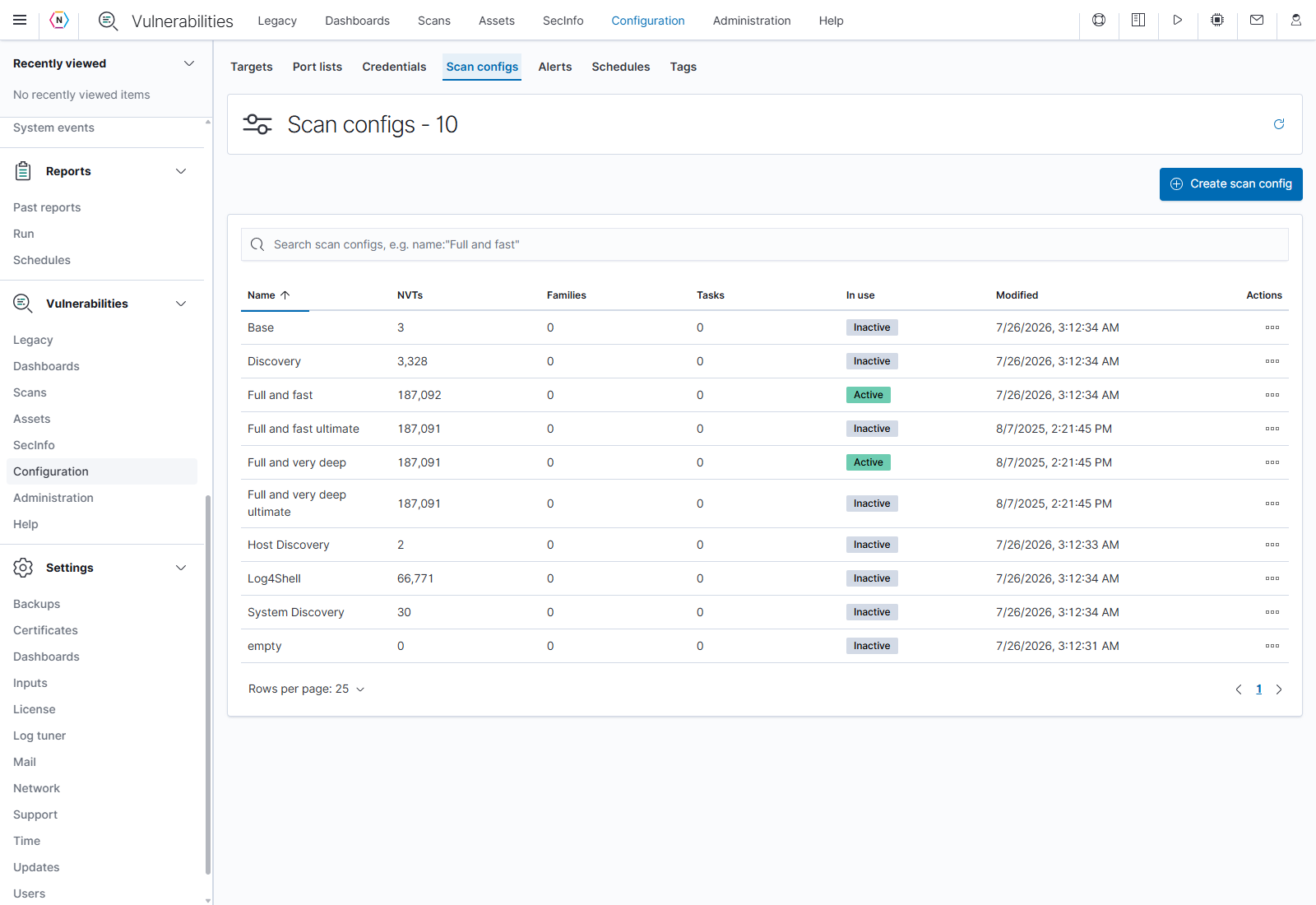
Review a scan config before assigning it to a task. Different configurations can use very different test sets.
Create or inspect a scan config
Click Create scan config. With Create manually, enter Name, optional Comment, and select the existing configuration under Copy from. Create saves the new configuration. Alternatively, Import XML changes the form to accept a configuration XML file; the final Import button performs the import. Cancel abandons either form.
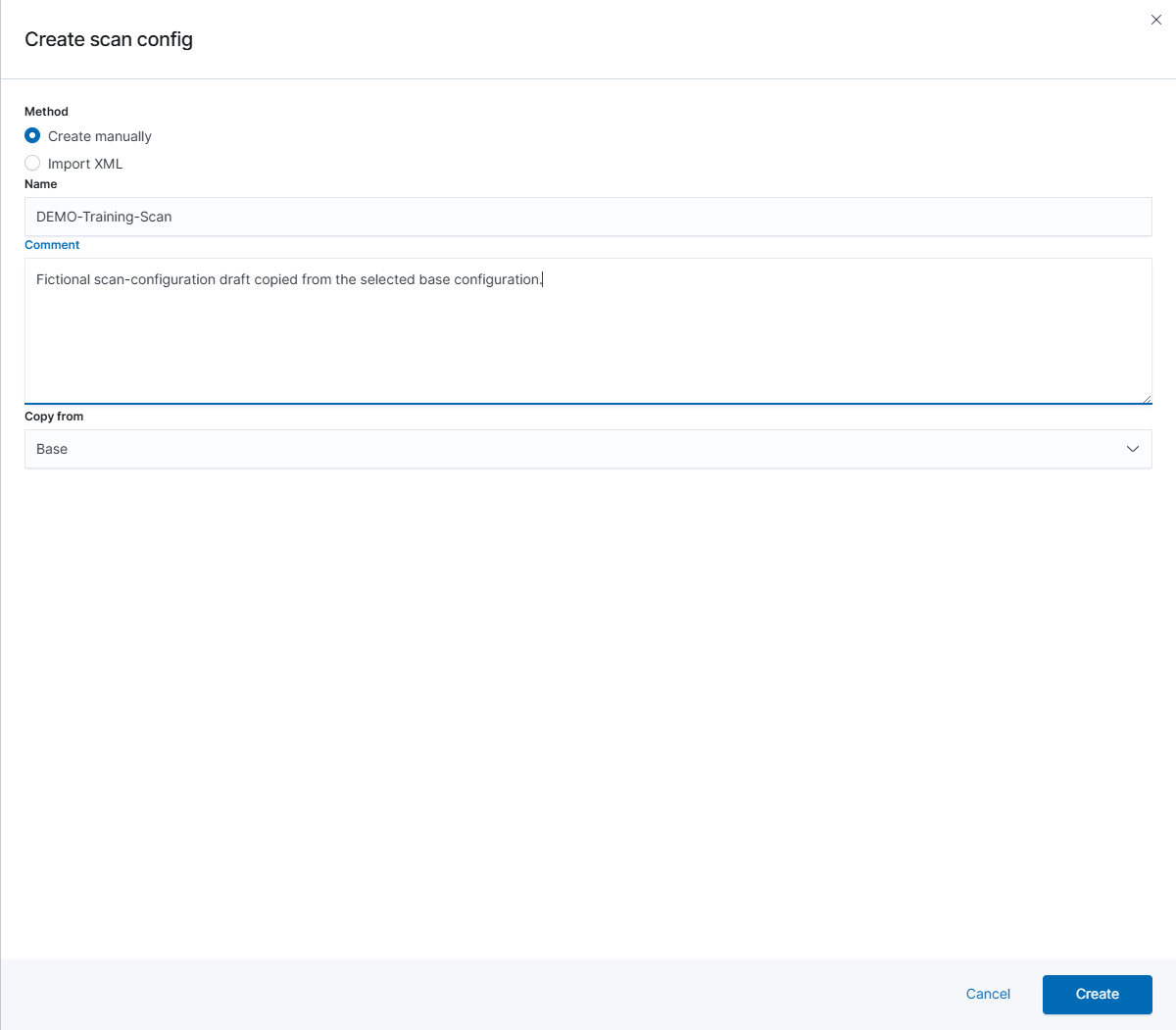
Create manually starts from an existing configuration. Review the Copy from selection before creating the new object.
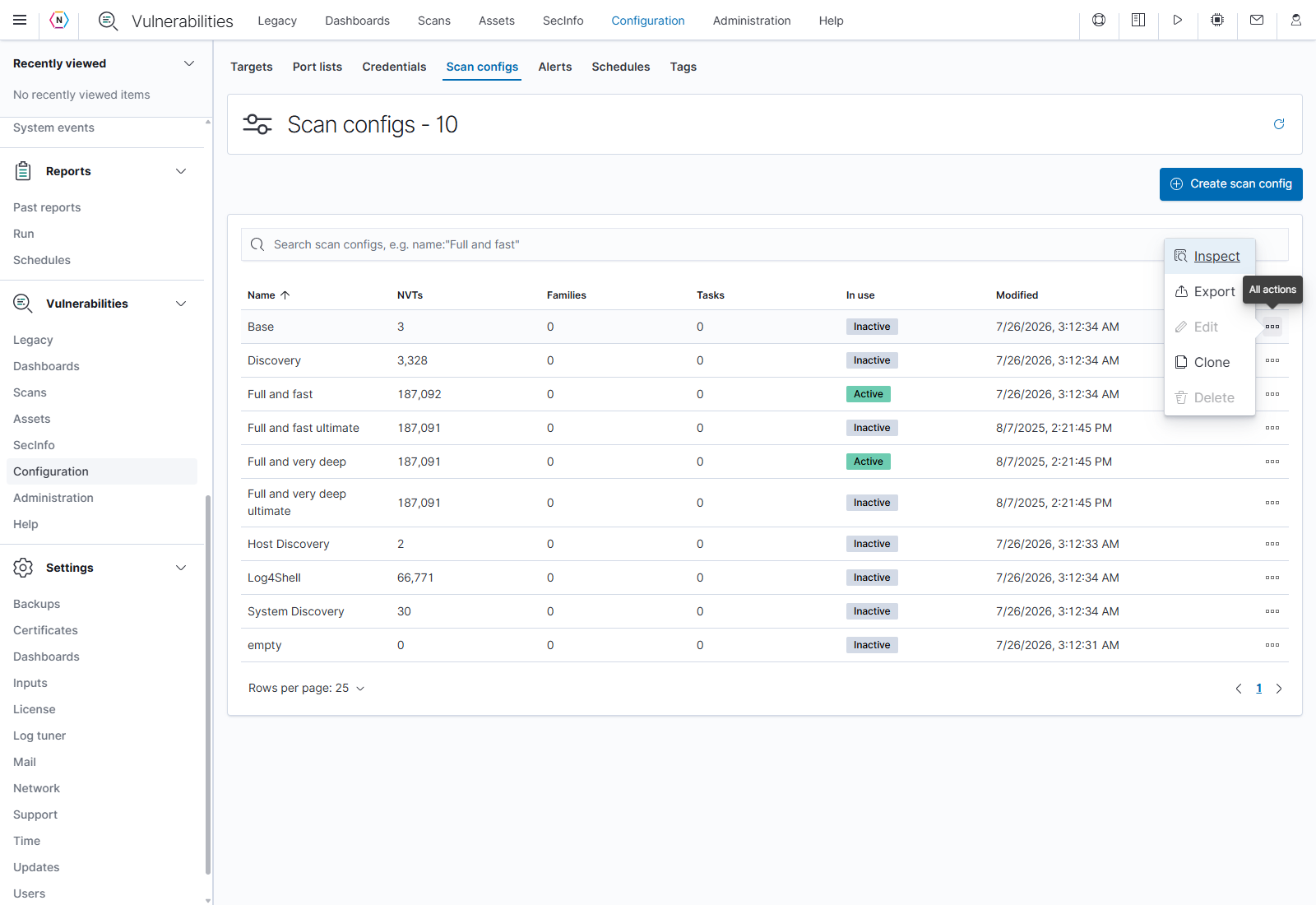
Available actions reflect the selected configuration. In this example, the predefined Base configuration can be inspected, exported, or cloned, while Edit and Delete are disabled.
Choose … → Inspect to see its comment, NVT/family/task counts, owner, timestamps, NVT families, and tasks using the configuration. Family rows show Selected NVTs, Available NVTs, and Trend. Use Close or × to return.
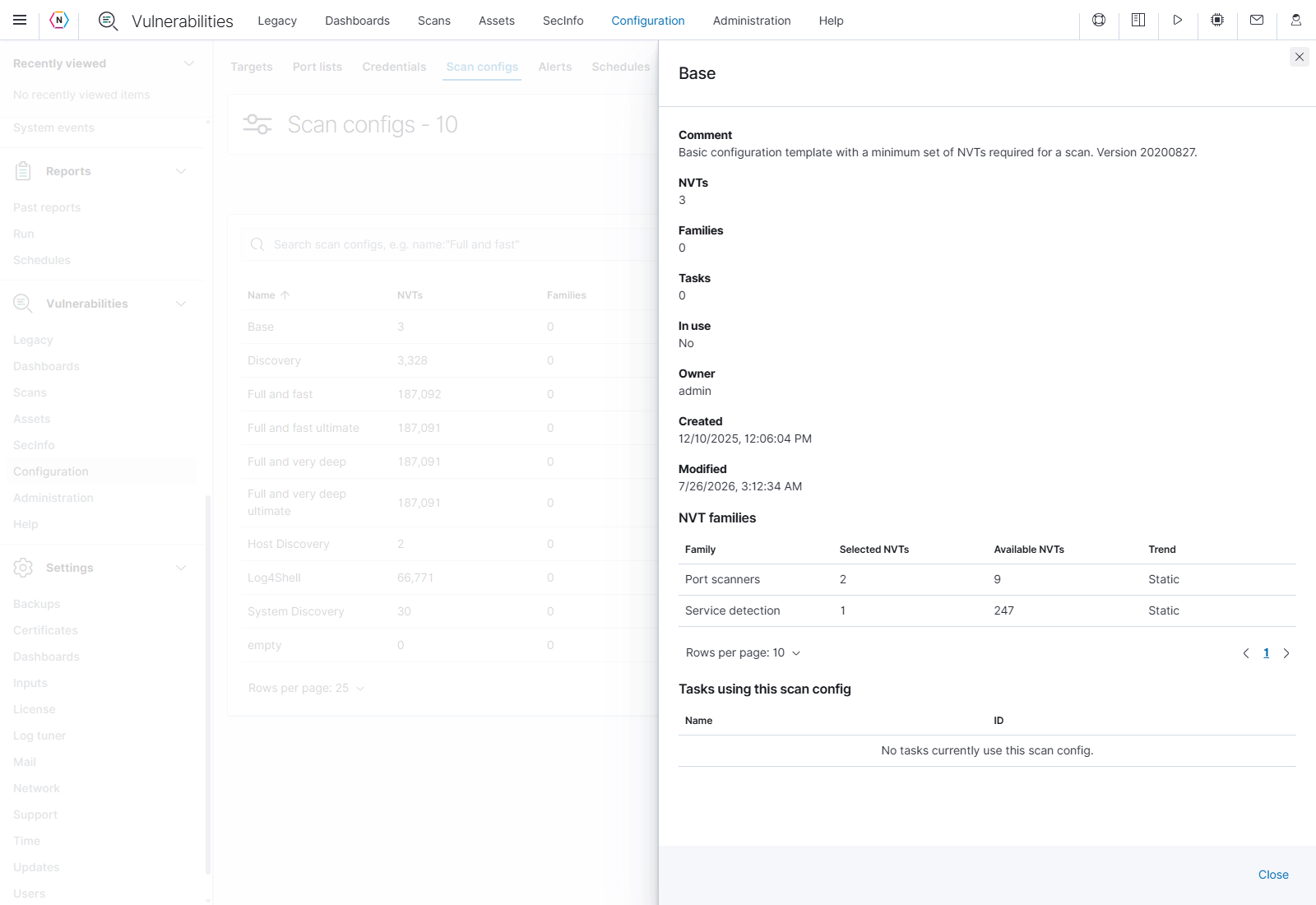
Inspect separates the test-family details from the table’s summary counts. The example includes a list of tasks using the selected configuration.
Edit a scan config
For a writable custom configuration, choose … → Edit. Edit Name or Comment at the top. For a configuration that is not in use, the Network Vulnerability Test Families table lets you search families, change Trend, and select a whole family with Select all NVTs.
Dynamic includes new tests added to that family through later feed updates. Static keeps the selected test set from automatically growing with the feed. These are Greenbone scan configuration concepts.
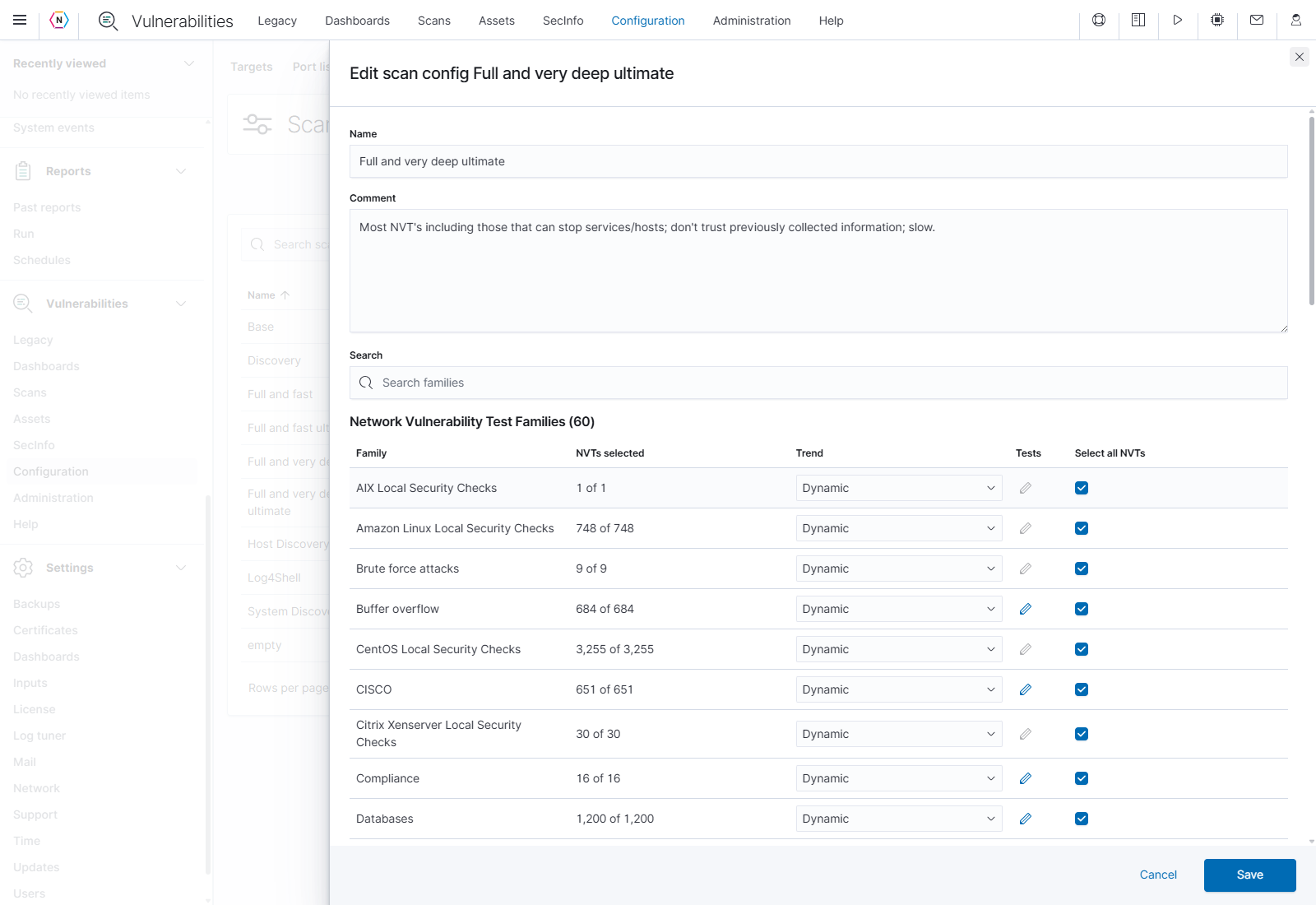
The outer Save button applies the name, comment, and drafted family-level changes. Family selection controls are restricted when the configuration is in use.
To choose individual tests, click the pencil in a family’s Tests column. Some families must be selected as a whole, so their pencil is disabled.
| Individual test control | What it does |
|---|---|
| Search tests | Filters by name, OID, severity, or timeout. |
| Selected checkbox | Includes or excludes that test in the family draft. |
| Select visible / Clear visible | Selects or clears all tests matching the current search, including matches on other table pages. |
| Name / OID / Severity / Timeout / Prefs | Identifies the test, its scanner identifier, severity, timeout, and number of preferences. |
| Rows per page / page buttons | Browses the matching tests. |
| Save family | Immediately saves this family’s test selections to the configuration. It is independent of the outer scan-config Save. |
| Cancel / × | Closes the family editor without saving its current draft. |
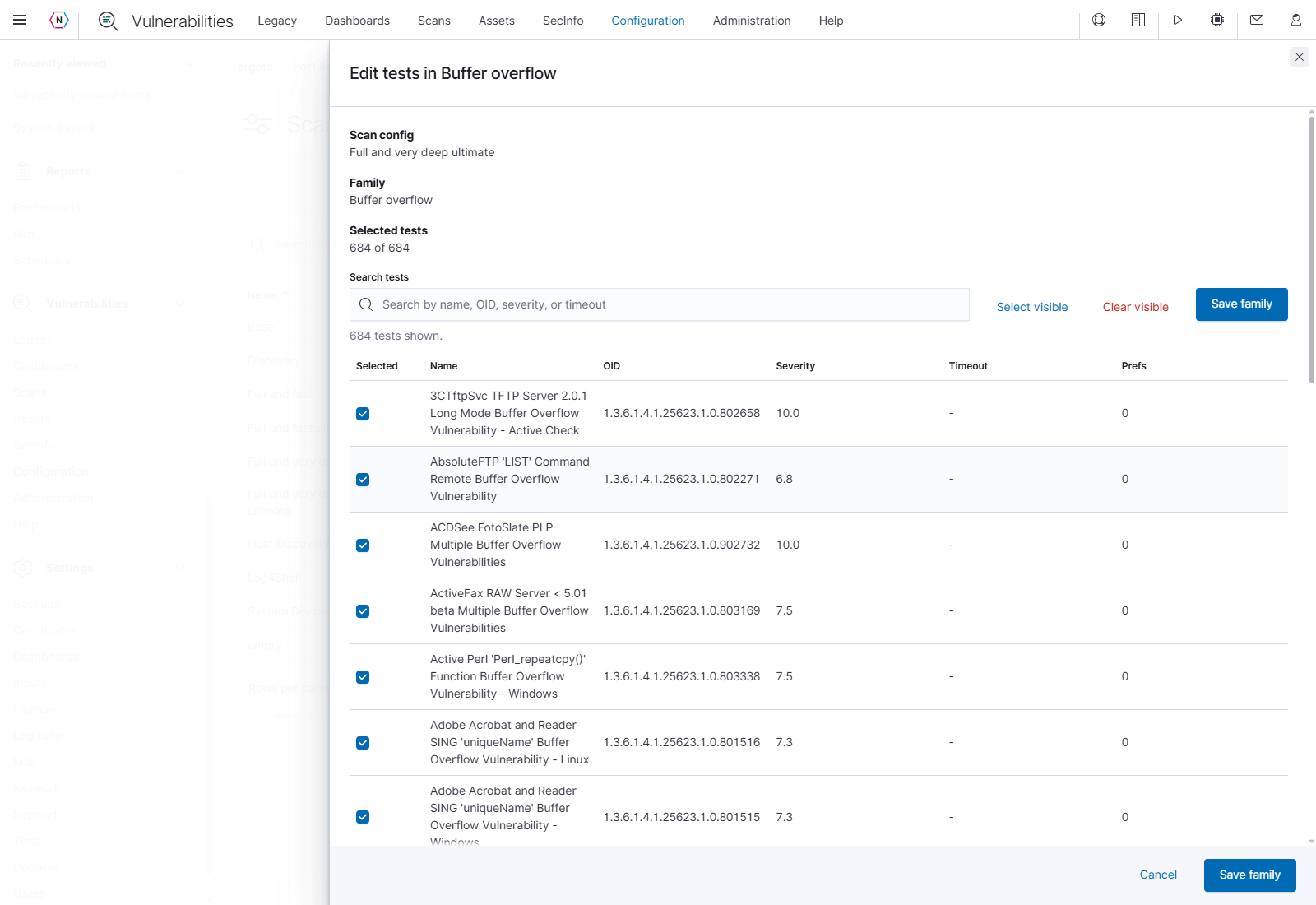
Save family takes effect immediately. Canceling the outer configuration afterward does not undo a family save already completed.
Read the configuration’s comment before using it. For example, the captured Full and very deep ultimate description explicitly includes tests that can stop services or hosts. Choose the test scope suitable for the systems and scan window.
Scanner alerts
Configuration → Alerts defines scanner-triggered actions. These alerts belong to Vulnerabilities and are separate from the Events → Alerts page. The table shows each alert’s Status, Event, Condition, Method, and modification time.
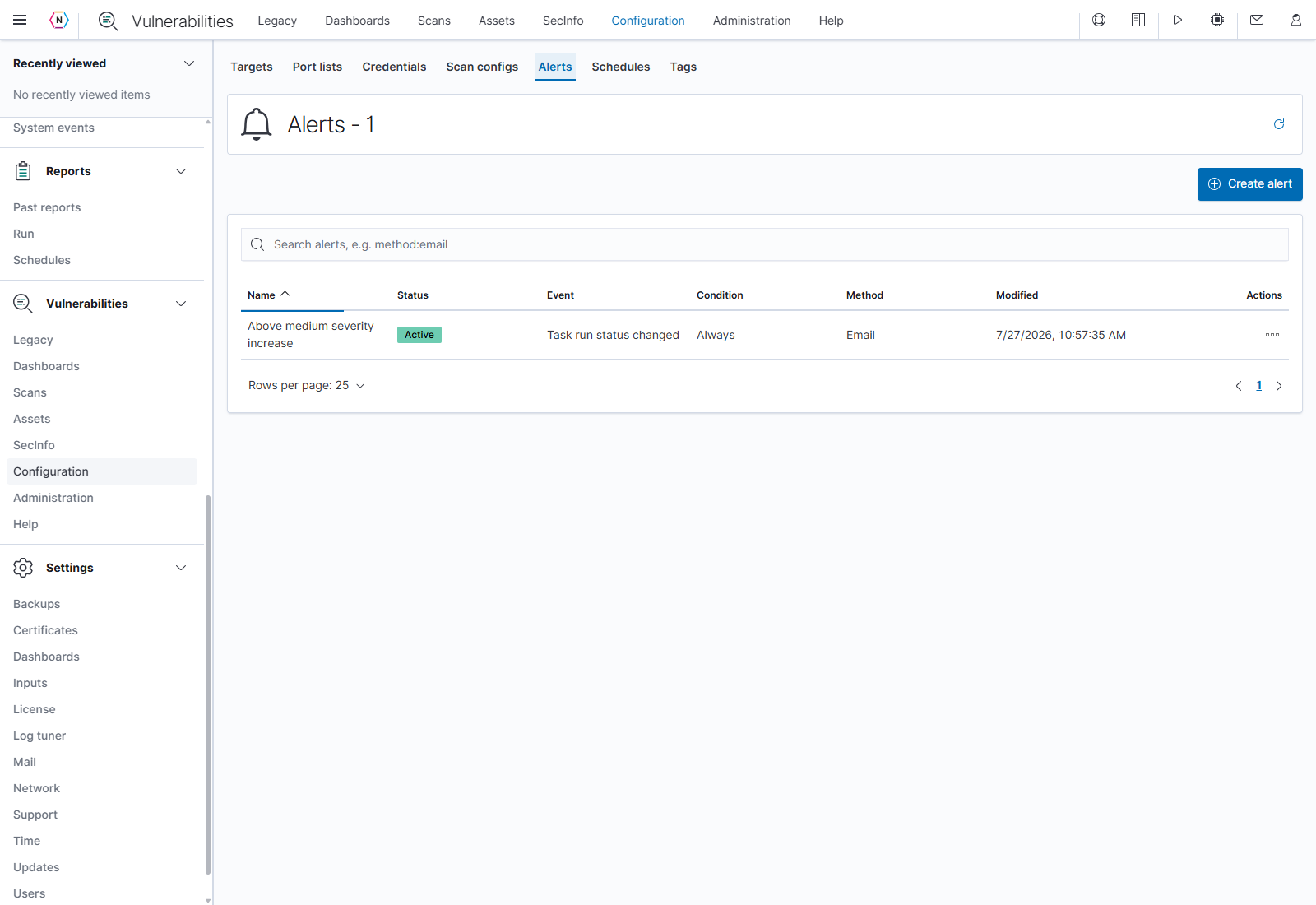
An alert combines a triggering event, a condition, and a delivery method. Its name is descriptive; inspect the actual settings to understand what it does.
Create a scanner alert
- Click Create alert and enter its Name and Comment.
- Choose the Event. For a task event, select the status it must change to; for a SecInfo event, select new or updated information and its type.
- Choose the Condition and fill in its threshold or filter fields.
- For task alerts, review Report Content and Delta Report.
- Choose Method, fill in its delivery fields, and set Active.
- Click Create to save the alert. Choose the alert in a task’s configuration when configuring a task-triggered notification.
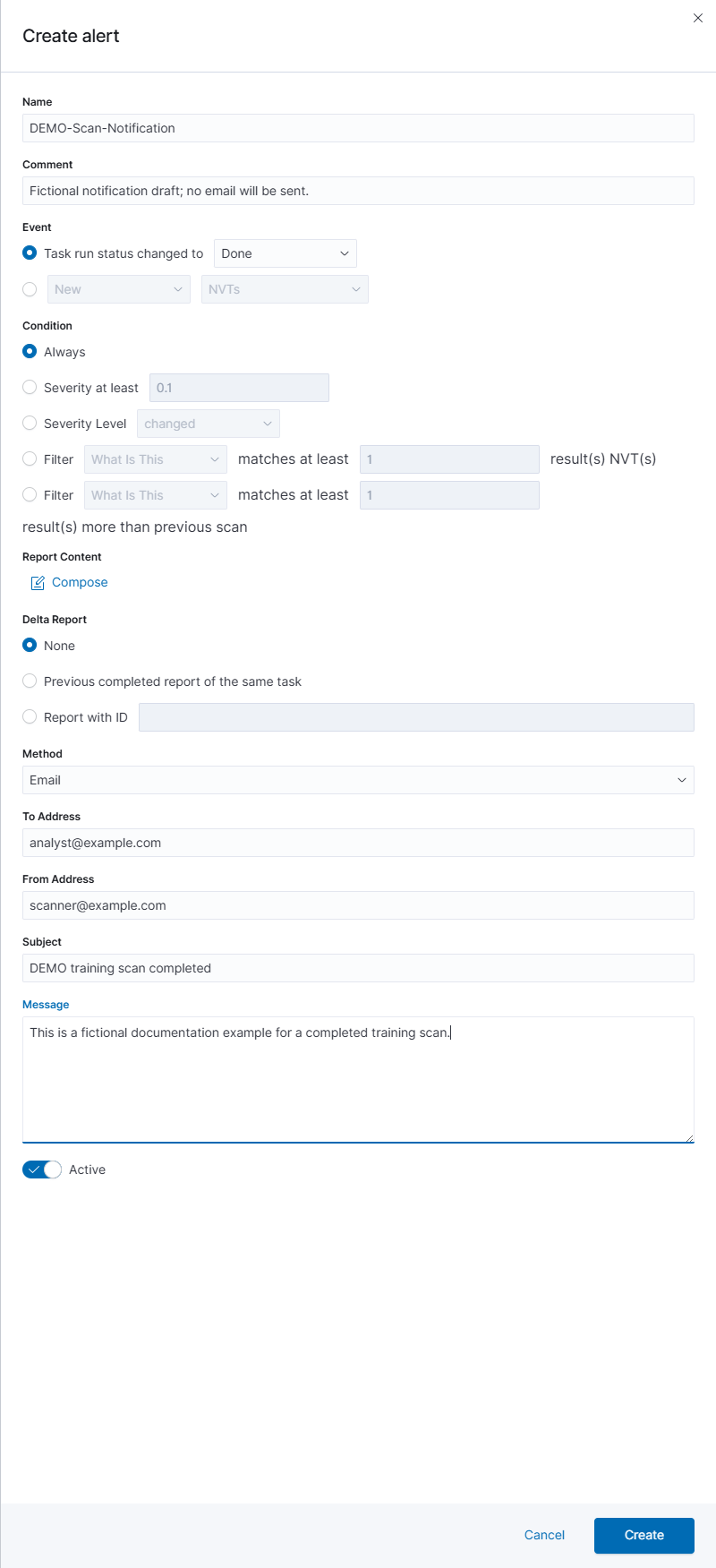
The radio buttons select the event and condition to use. Controls belonging to other choices remain disabled until selected.
| Event or condition | Meaning |
|---|---|
| Task run status changed to | Select Done, New, Requested, Running, Stop Requested, or Stopped. |
| New / Updated SecInfo | Select NVTs, CVEs, CPEs, CERT-Bund advisories, or DFN-CERT advisories. |
| Always | Apply the alert whenever the chosen event occurs. |
| Severity at least | For task events, enter the minimum severity that must be met. |
| Severity Level changed / increased / decreased | For task events, choose how severity must change. |
| Filter matches at least… | Select a saved filter and the minimum matching item count. |
| Filter matches at least… more than previous scan | For task events, compare the filtered result count with the previous scan. |
Report content and delta reports
Click Compose to open Compose Content for Scan Report. Select a Report Result Filter, choose whether to include Notes and Overrides, and set Ignore Pagination to include matching results beyond the filter’s page limits. TLS Certificates is checked and disabled in this version. OK returns these choices to the alert draft; Cancel closes the composer without applying its draft.
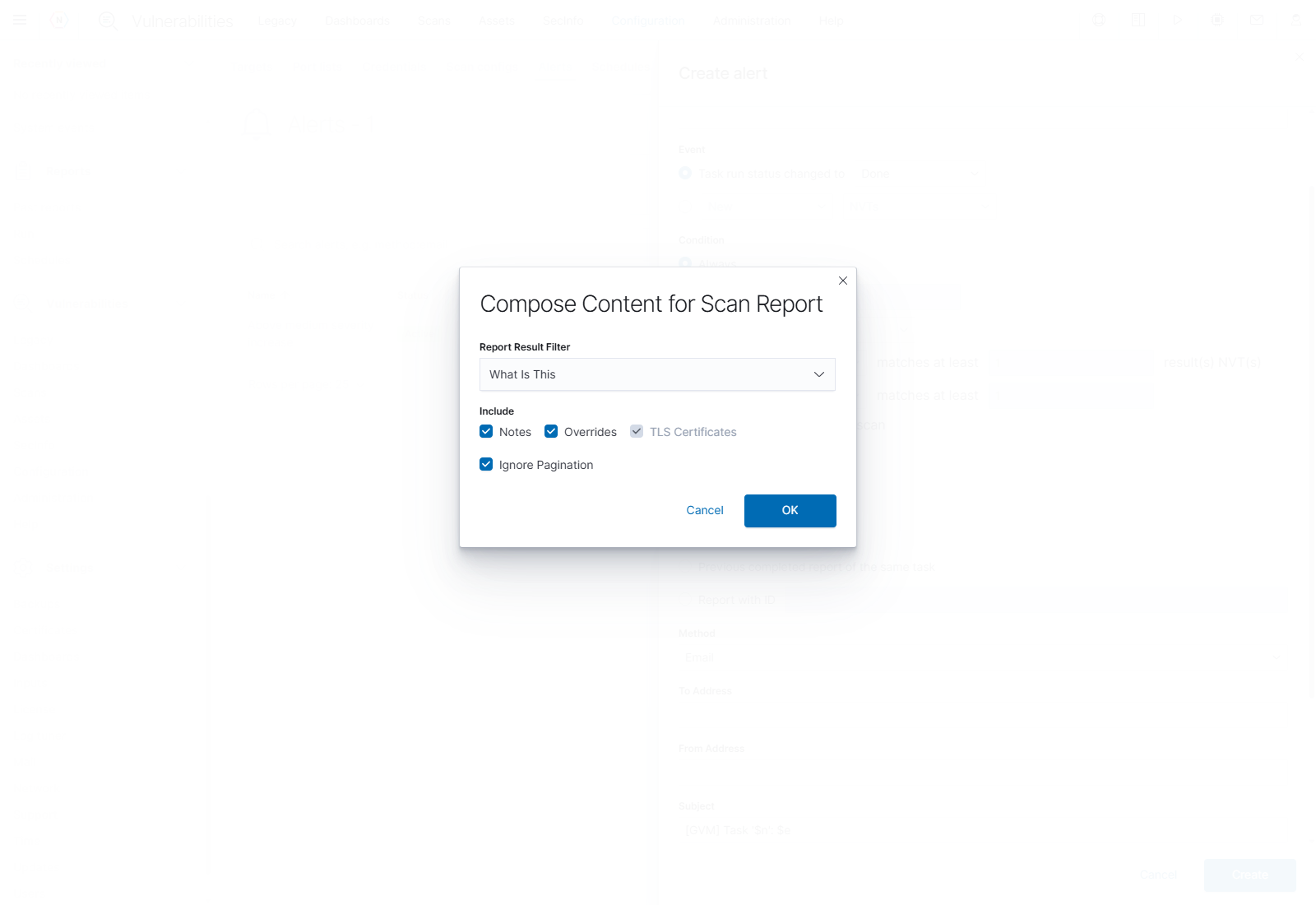
The composer’s OK button updates the alert form. The alert still needs its final Create or Save to persist those settings.
For Delta Report, select None, Previous completed report of the same task, or Report with ID. The last choice enables a field for the comparison report’s ID.
Delivery methods
Choose Method and complete the corresponding fields. Task events offer the methods below; SecInfo events offer Email and HTTP Get. Active controls whether the saved alert is enabled.
| Method | Fields and purpose |
|---|---|
| To Address, From Address, Subject, and Message. | |
| HTTP Get | HTTP Get URL to request when triggered. |
| SCP | SCP host, SCP port, and SCP path for delivery. |
| Send | Send host and Send port. |
| SMB | SMB share path and SMB file path. |
| SNMP | SNMP community, SNMP agent, and SNMP message. |
| Sourcefire connector | Defense Center IP and Port. |
| Start task | Task ID to start. This action can start another scanner task. |
| Syslog | Selects syslog delivery; this native form adds no method-specific fields. |
| TippingPoint SMS | TippingPoint SMS hostname. |
| verinice connector | verinice server URL. |
| Alemba vFire | Report format IDs and Alemba vFire base URL. |
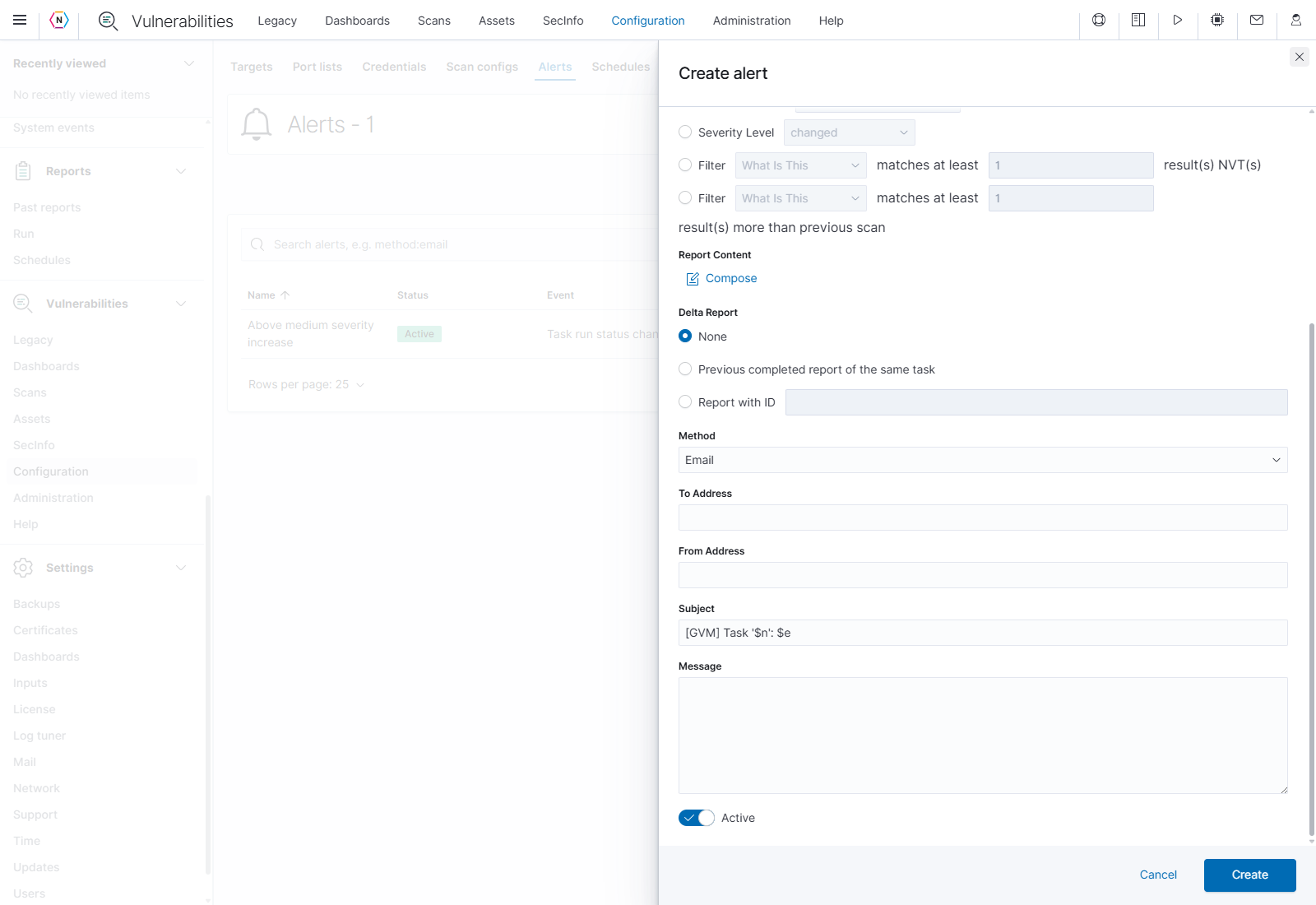
Email delivery has separate recipient, sender, subject, and message fields. The form supplies a subject template; keep or edit it for the intended alert.
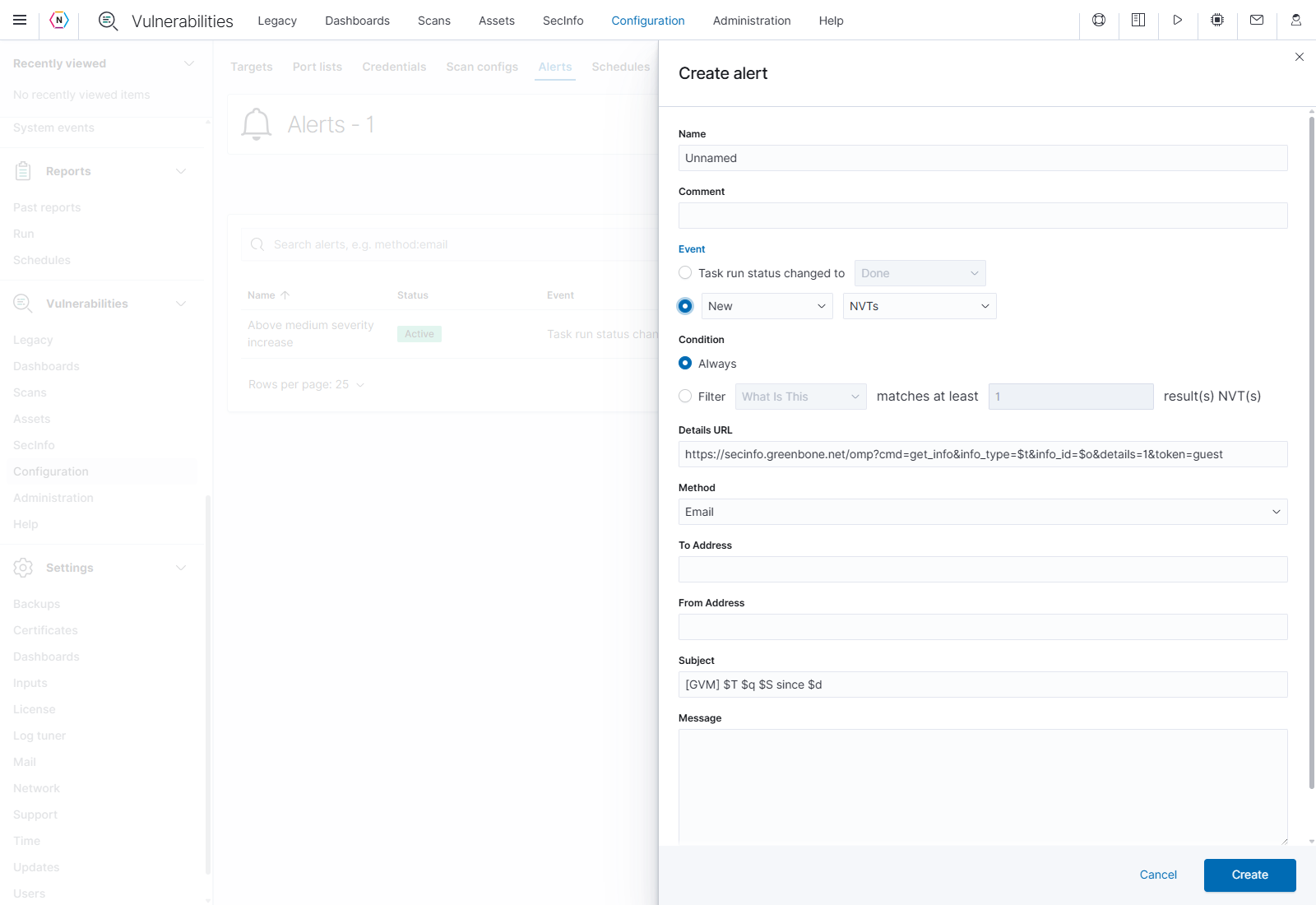
SecInfo events add a Details URL and simplify the condition and delivery choices. The displayed URL is a scanner-supplied information-link template.
Use … → Edit to revise a saved alert. … → Test immediately invokes its delivery action; use it only when ready for the configured notification or action to occur. Inspect, Export, Clone, and Delete are available according to access.
Scan schedules
Configuration → Schedules stores schedules that can be assigned to scanner tasks. The table shows Timezone, Next run, associated Tasks, and Modified time. A No data next-run value means the scanner did not supply a next run for that entry.
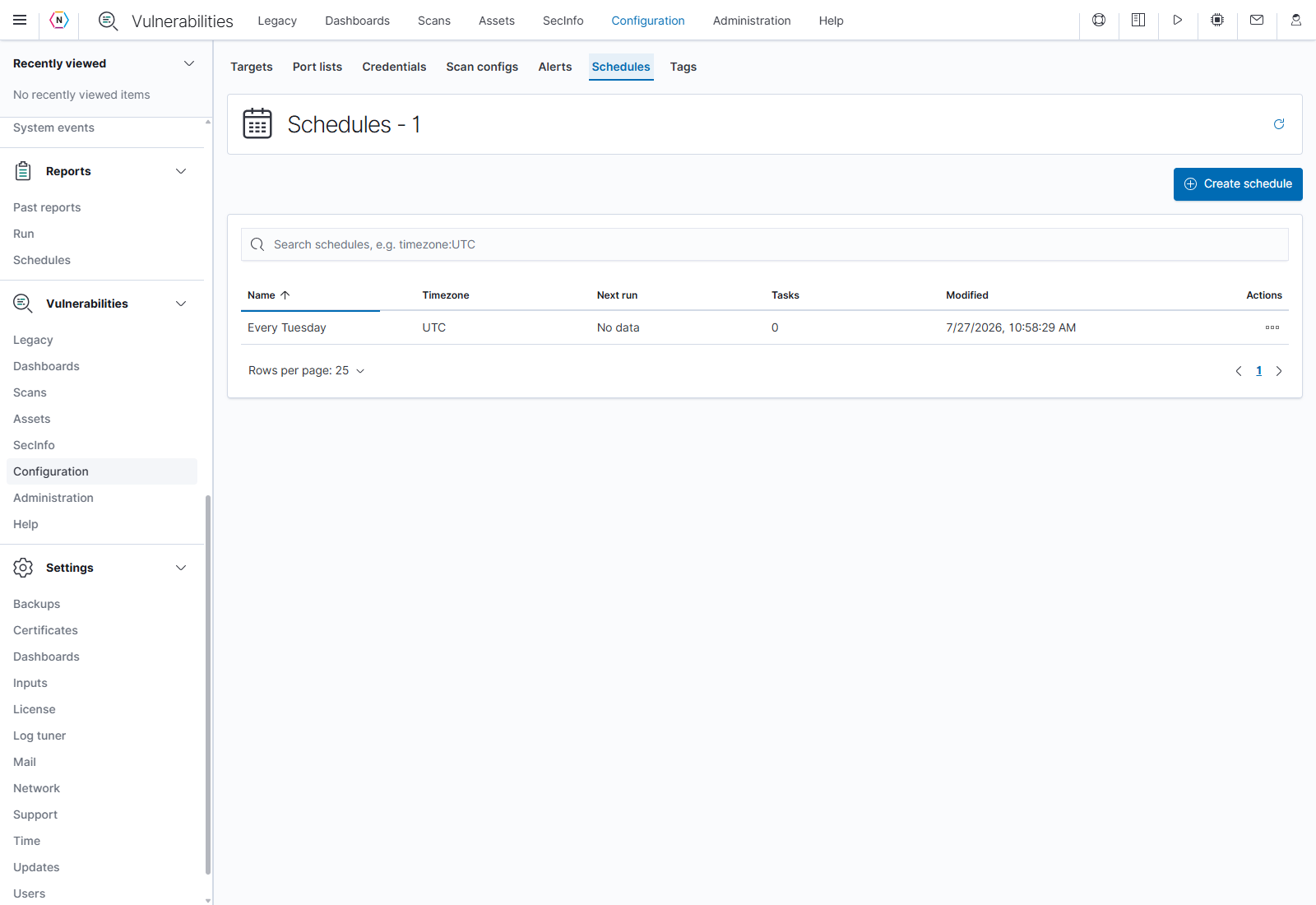
A saved schedule is reusable task configuration. Review which tasks reference it before editing its timing.
Create or edit a scan schedule
- Click Create schedule, then enter Name and optional Comment.
- Set Start Date, Start Time, and Timezone. Now fills the start controls with the current time.
- Under Run Until, leave Open End checked for an unrestricted run duration, or clear it and set End Date and End Time. The Duration display summarizes the start-to-end interval.
- Choose the Recurrence, then click Create.
- Assign the schedule in the task’s settings when that task should run on this timing.
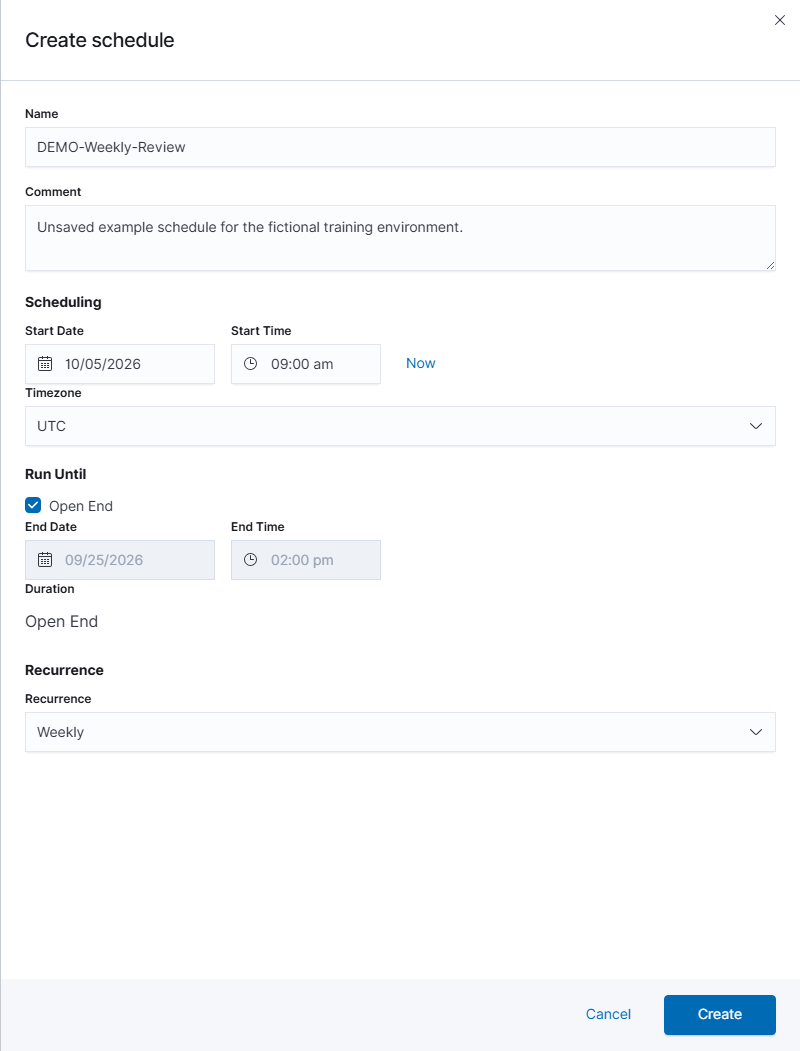
Start timing, run duration, and recurrence are separate choices. Open End disables the end-date and end-time controls.
| Recurrence | How to use it |
|---|---|
| Once | A single scheduled occurrence. |
| Hourly / Daily / Weekly / Monthly / Yearly | Repeats at the selected interval. |
| Custom | Enter Every and select Unit: Hour, Day, Week, Month, or Year. |
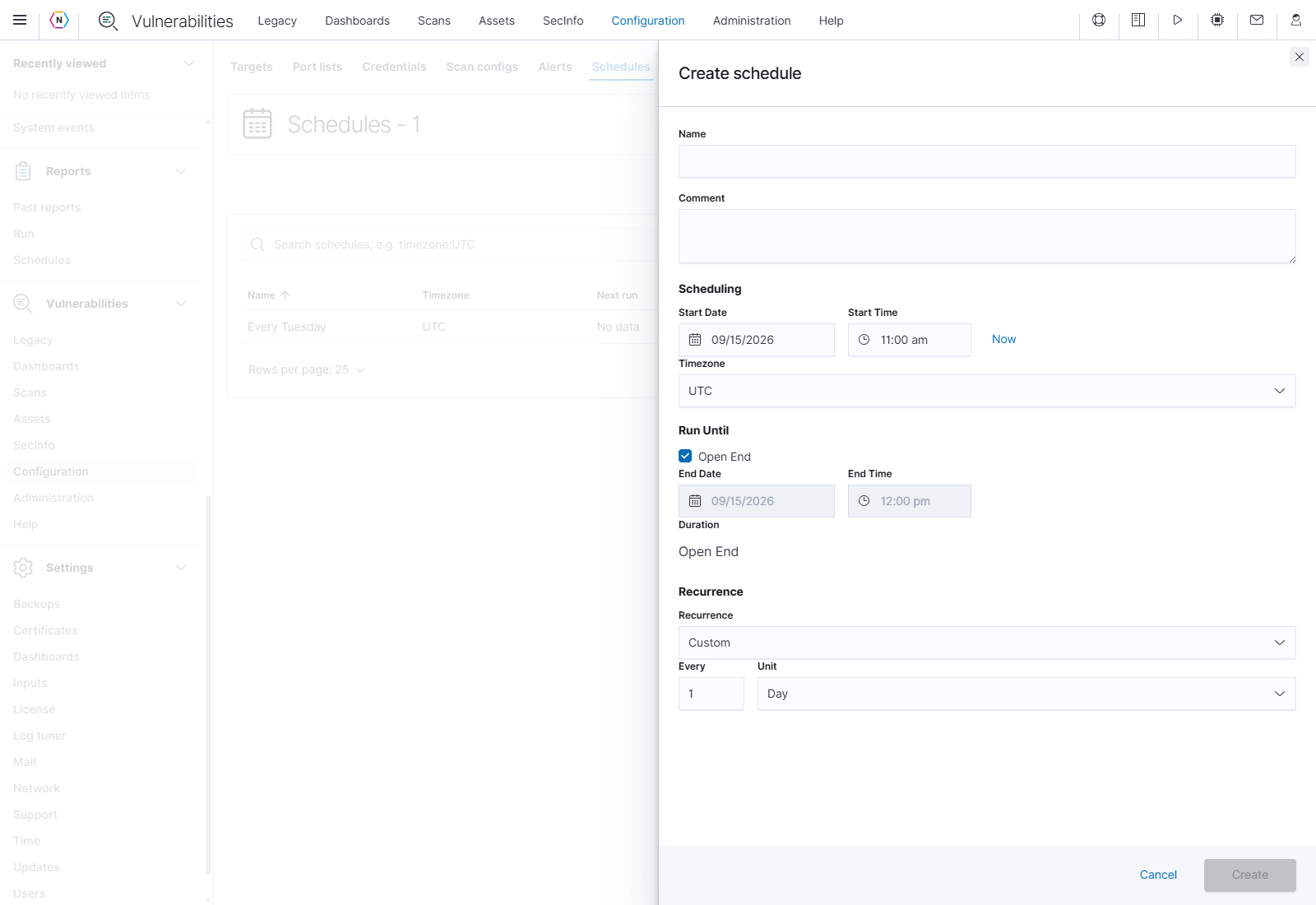
Custom recurrence makes the interval explicit, such as every 2 weeks. The screenshot is an unsaved example.
Use … → Inspect to review a schedule and its linked tasks. … → Edit opens its timing fields; Save applies the changes and Cancel discards the draft. Export, Clone, and Delete use the standard configuration action behavior.
Scanner tags
Tags label scanner resources with a name and optional value. The table shows Name, Value, Resource type, number of Resources, Status, and Modified time.
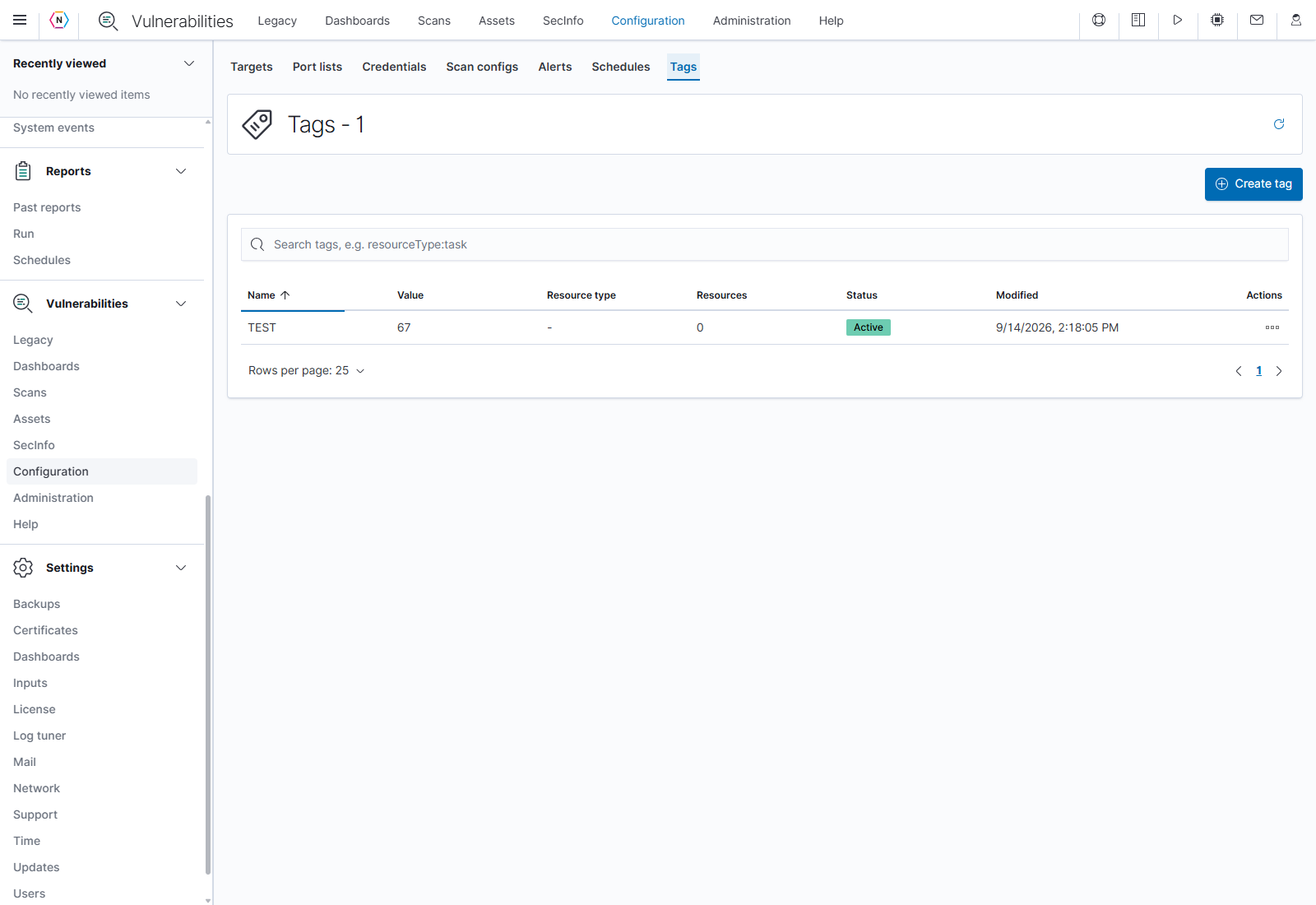
Scanner tags refer to scanner resources. Use the resource type and ID to associate a tag with the intended object.
Click Create tag, then complete the following fields:
| Field | How to use it |
|---|---|
| Name | Required tag name, up to 255 characters. |
| Comment | Optional explanation, up to 4,000 characters. |
| Value | Optional tag value, up to 512 characters. |
| Resource type | Select the scanner object category, such as Task, Target, Host, Report, Result, NVT, or Credential. The dropdown contains all supported categories. |
| Resource ID | Optional identifier of the resource to associate. Enter the ID, not its display name. It accepts letters, numbers, dots, underscores, colons, and hyphens, up to 128 characters. |
| Status | Active or Inactive. |
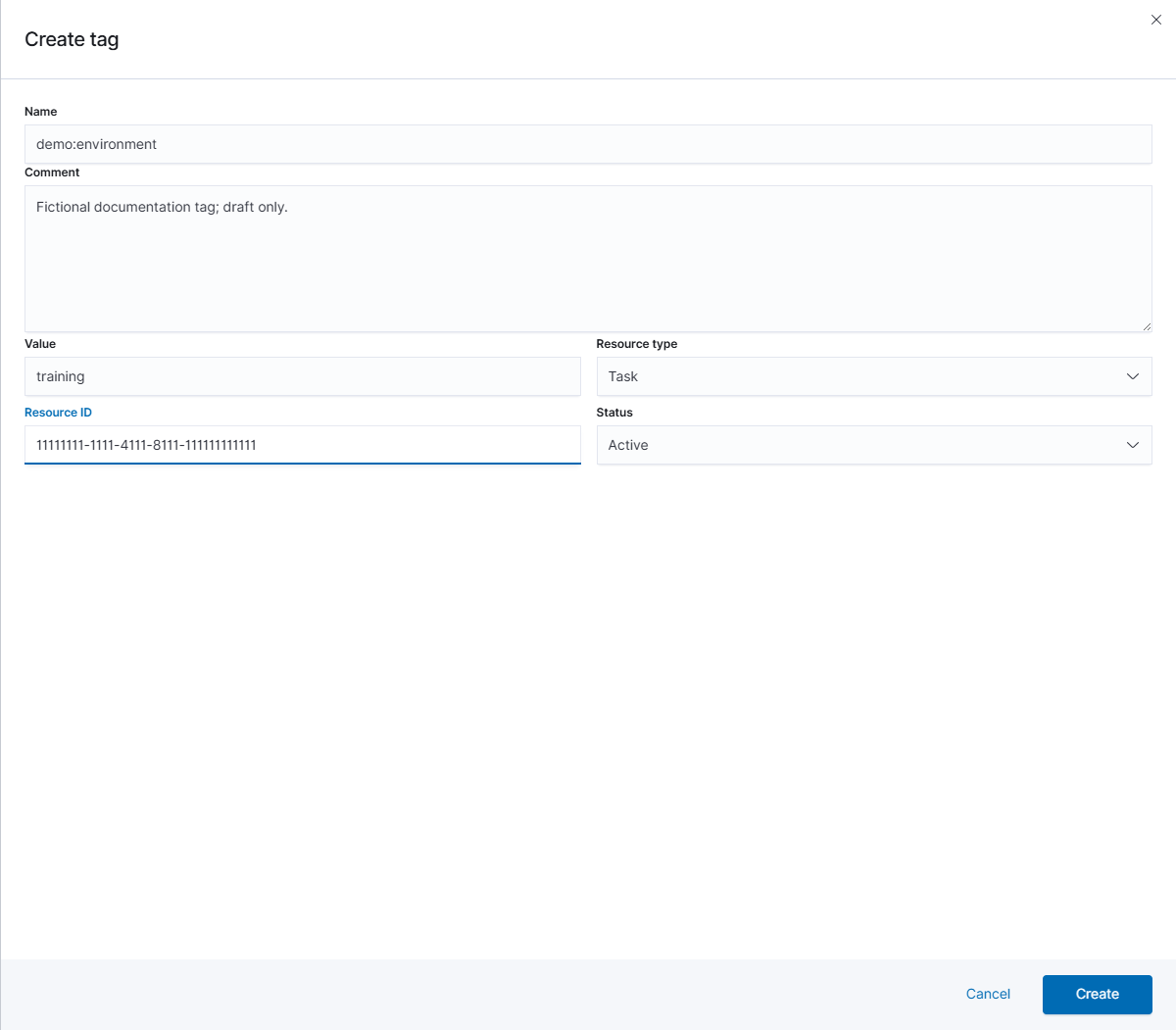
Create saves the tag and its entered association. Cancel closes this unsaved form.
Use Inspect to review tag details. Edit → Save changes the tag. The row’s Enable or Disable action changes its active state immediately. Clone immediately creates a copy; Delete asks for confirmation.
Administration
Open Vulnerabilities → Administration to view Feed status. This section requires Admin access to Vulnerabilities.
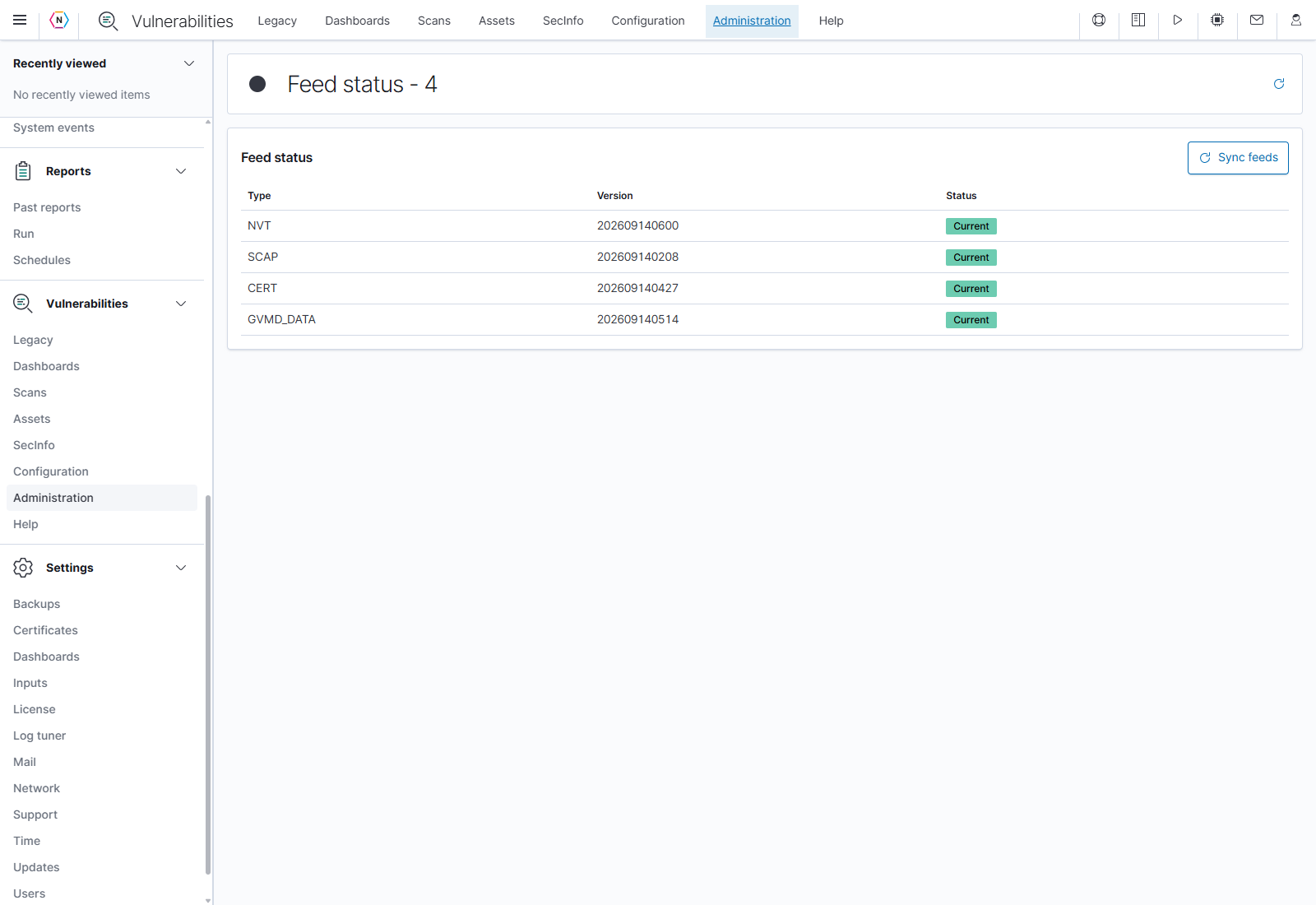
Feed status reports the scanner’s installed feed versions. The captured appliance reported all four feeds as Current at the time of documentation.
| Control or column | What it means |
|---|---|
| Type | The scanner feed: NVT for vulnerability tests, SCAP for security-content data, CERT for advisory data, and GVMD_DATA for scanner-manager data objects. |
| Version | Version supplied by that feed. |
| Status | Status returned by the scanner, such as Current. |
| Refresh icon in the page heading | Reloads the displayed scanner data. |
| Sync feeds | Immediately requests a feed synchronization. A Feed sync started. message confirms that the request started; it does not mean the synchronization has finished. |
If synchronization reports an error, read the message and refresh the status after resolving the underlying problem. Feed synchronization updates scanner content; review the resulting versions and status when it completes.
Legacy interface
Click Legacy in the Vulnerabilities navigation to open the embedded legacy scanner interface. This entrypoint requires Admin access to Vulnerabilities. It loads the scanner’s separate interface inside NeQter, with its own navigation for Dashboards, Scans, Assets, Security Information, Configuration, Administration, and Help.
Legacy has an inner scanner navigation beneath NeQter’s main navigation. Use the outer Overview, Scans, Configuration, or other NeQter tab to return to the native pages.
Use the legacy interface’s Help for its own controls. Actions there operate on the scanner’s real objects and tasks, so changes can also appear in the native Vulnerabilities pages after refreshing.
Help
Open Vulnerabilities → Help for the built-in scanner guide. It explains page purposes, the scan workflow, terms, search syntax, tasks and reports, host panels, configuration, and feed synchronization. Scroll down for troubleshooting and search examples.
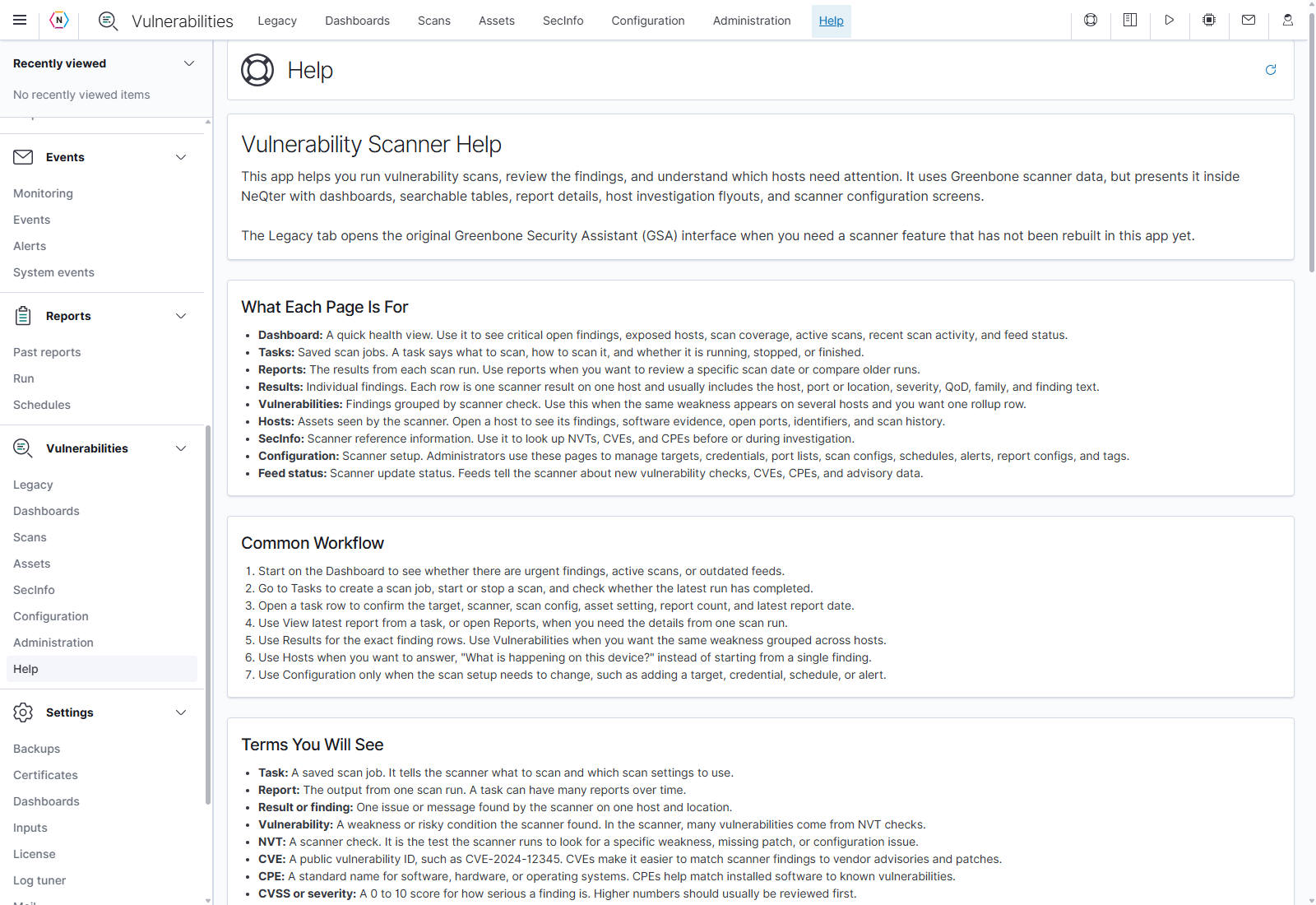
Some built-in help describes scanner features accessed through Legacy, such as report configs. The native Configuration tabs in this version are Targets, Port lists, Credentials, Scan configs, Alerts, Schedules, and Tags. Use Legacy’s own Help for its additional controls.
Interpreting findings
| Term | Meaning |
|---|---|
| Critical: 9.0–10.0 | Highest scanner severity class. |
| High: 7.0–8.9 | High severity. |
| Medium: 4.0–6.9 | Medium severity. |
| Low: 0.1–3.9 | Low severity. |
| Log: 0.0 | Informational or detection output. It can still contain useful context. |
| Error / N/A / No data | Missing, unavailable, or error information. Read the surrounding status or message. |
| CVSS vector | The scoring factors recorded for the vulnerability. The vector format identifies the scoring version where supplied. |
| QoD | Confidence in the detection evidence, expressed as a percentage. |
| NVT / OID | The scanner check and its unique identifier. |
| Family | The category of scanner checks, such as SSL and TLS or Windows. |
| Result | One finding or message at a host and location. |
| Vulnerability group | Findings combined under a scanner check, potentially across hosts or ports. |
| Solution type | The kind of response supplied with a check, such as VendorFix or Mitigation. Read the recommendation for the actual action. |
Review the host, port, evidence, confidence, and solution together. Check whether the finding comes from an authenticated check, a detected package version, or a network observation. After remediation, compare another run of the same task with a similar scope. A lower count after narrowing the date range, raising QoD, or changing a scan config does not by itself demonstrate that the underlying issue was resolved.
Troubleshooting
| What you see | What to check |
|---|---|
| An expected report is missing | Widen the Reports date range and clear task, status, and severity filters. Open the task and check its report count. |
| Results disappear after a filter change | Clear search/filter selections and review both ends of the QoD range. The default minimum can hide lower-confidence findings. |
| A task is New with zero reports | It has no completed scan evidence. Review its target, scanner, and scan config before starting it. |
| Requested or queued persists | Check active tasks and scanner availability. Refresh rather than repeatedly requesting new scans. |
| A scan is Stopped or Interrupted | Review its partial report and error messages. Resume is offered for eligible tasks; Start new scan requests a new run. |
| Counts differ between dashboard, host list, and report | Check the period, report source, QoD, running status, and whether you are counting individual results or grouped vulnerabilities. Historical assets and dashboard totals can cover a broader scope. |
| A host has a severity but no report sources | Broaden the date range and confirm that the host appears in report results. Its older asset record alone may not provide report evidence for the current period. |
| Host Trend shows Choose a task | Select the task whose reports should be compared. If only one report is available, the view establishes a baseline. |
| Authentication or timeout messages | Review target credentials, the relevant service/port, scanner reachability, and the message from the failed check. |
| No feed status found on Dashboard | Open Administration → Feed status and refresh. On the captured appliance, Administration returned feed versions even when the dashboard panel had no feed data. |
| Create or edit fails | Read the displayed error. Check required fields, eligible credentials, selected scanner/config, valid ports, and whether the object is protected or in use. |
| A control is missing or disabled | Check your Vulnerabilities permission and the selected object’s state. Native Notes/Overrides are read-only, and some additional functions are in Legacy. |
| A certificate download icon is disabled | The result may contain certificate-related text without an actual PEM file. Check Downloadable PEMs and the original result evidence. |
| Catalog rows look like the previous tab | Wait for the new catalog query to finish. Counts, charts, and rows can load at different times. |
For support, record the task/report ID, affected host, finding name or OID, selected date range, and exact error text. This gives the investigation a specific scan and result to follow.