

Duo Log Sync — Linux Setup Guide
Duo Log Sync retrieves Duo audit activity and forwards it to NeQter. This example uses a Debian/Ubuntu Linux collector and the configuration format in Duo’s official repository. Install it on a separate collector host with access to the Duo API and the appliance’s syslog listener.
Step 1: Prepare Duo and NeQter
Create a Duo Admin API application with Grant read log permission. Record its integration key, secret key, and API hostname securely. Use a supported Python version from Duo’s compatibility list; the commands below assume a compatible python3 such as Python 3.10 or 3.11. Set the collector’s timezone to UTC/GMT, as required by Duo Log Sync.
In NeQter, open Settings → Inputs → Syslog → Add input. Enter a Label, the collector’s source IP address, and Duo Security as Manufacturer, then Save. Use the address NeQter sees after any relay or translation. This is the collector address, not the Duo API address or NeQter’s destination address.
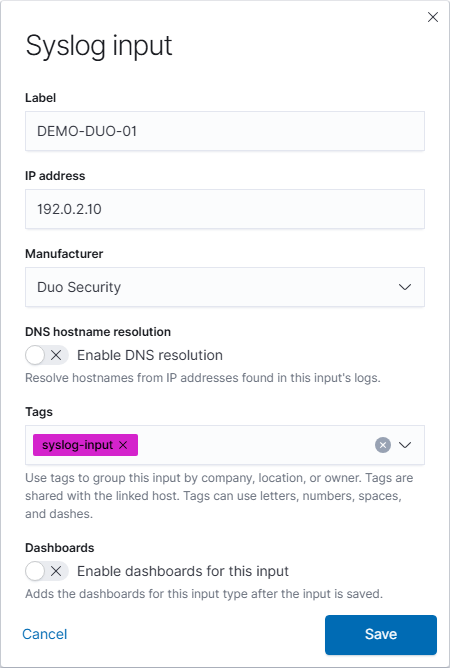
Confirm the receiving port and transport with the deployment administrator before using them below.
Step 2: Install in a virtual environment
On a new collector, install the operating-system prerequisites:
sudo apt update
sudo apt install python3 python3-venv git
python3 --version
sudo install -d -m 755 /opt/duologsync
sudo git clone https://github.com/duosecurity/duo_log_sync.git /opt/duologsync/src
sudo python3 -m venv /opt/duologsync/venv
sudo /opt/duologsync/venv/bin/python -m pip install --upgrade pip setuptools wheel
sudo /opt/duologsync/venv/bin/python -m pip install /opt/duologsync/src
/opt/duologsync/venv/bin/duologsync --help
The final installation command installs the tool and its declared dependencies. A Python virtual environment keeps these packages separate from the operating system’s Python; pip supports installing a local project directory. Use the environment’s full executable paths throughout.
Step 3: Create the service account and configuration
Create a dedicated account for a new installation. If an account with this name already exists, verify its ownership and purpose before reusing it.
sudo useradd --system --home-dir /var/lib/duologsync --shell /usr/sbin/nologin duologsync
sudo install -d -o duologsync -g duologsync -m 750 /var/lib/duologsync /var/log/duologsync
sudo install -d -o root -g duologsync -m 750 /etc/duologsync
sudo install -o root -g duologsync -m 640 /opt/duologsync/src/example_config.yml /etc/duologsync/config.yml
sudoedit /etc/duologsync/config.yml
Replace the file contents with an adapted configuration such as the following. 192.0.2.50 is a documentation address: replace it with the appliance’s reachable destination. Replace all three Duo credential placeholders, and confirm the port and transport. This example uses a one-day initial lookback and authentication/activity logs.
version: '1.0.0'
dls_settings:
  log_filepath: '/var/log/duologsync/duologsync.log'
  log_format: 'JSON'
  api:
    offset: 1
    timeout: 120
  checkpointing:
    enabled: true
    directory: '/var/lib/duologsync'
servers:
  - id: 'neqter'
    hostname: '192.0.2.50'
    port: 514
    protocol: 'UDP'
account:
  ikey: 'YOUR_INTEGRATION_KEY'
  skey: 'YOUR_SECRET_KEY'
  hostname: 'api-XXXXXXXX.duosecurity.com'
  endpoint_server_mappings:
    - endpoints: ['auth', 'activity']
      server: 'neqter'
  is_msp: false
Keep the nesting and case shown in Duo’s configuration template. For encrypted transport, follow its TCPSSL and certificate instructions. Restrict access to the configuration because it contains the API secret; the service account needs write access to its log and checkpoint directories.
Step 4: Run and verify
Run the collector in the foreground as its service account:
sudo -u duologsync /opt/duologsync/venv/bin/duologsync /etc/duologsync/config.yml
The configuration filename is a positional argument; the tool does not provide the previously documented --config or --test options. Its command-line implementation reads this path when starting collection.
Generate an appropriate Duo event, allow for its API availability and polling interval, then open Discover in NeQter and select the Duo data source and matching time range. Inspect /var/log/duologsync/duologsync.log for program errors. This file records collector diagnostics, not a local archive of retrieved Duo events. Stop the foreground process with Ctrl+C before starting a service.
Step 5: Run continuously
Create /etc/systemd/system/duologsync.service with:
[Unit]
Description=Duo Log Sync
Wants=network-online.target
After=network-online.target

[Service]
Type=simple
User=duologsync
Group=duologsync
ExecStart=/opt/duologsync/venv/bin/duologsync /etc/duologsync/config.yml
Restart=on-failure
RestartSec=10
UMask=0027

[Install]
WantedBy=multi-user.target
Enable and inspect the service:
sudo systemctl daemon-reload
sudo systemctl enable --now duologsync
sudo systemctl status duologsync
sudo journalctl -u duologsync -n 50 --no-pager
Step 6: Enable the dashboard
Open Settings → Dashboards → Duo Security, enable the index if needed, select Overview, and select Apply changes at the top. Open it through Logs → Dashboards.

Troubleshooting
| Symptom | Check |
|---|---|
| API access is denied | Admin API credentials, Grant read log permission, and any API network restrictions. |
| Configuration validation fails | Required fields, indentation, uppercase protocol/format values, and endpoint names in the upstream template. |
| Permission error | The service user’s access to the configuration and its log/checkpoint directories. |
| Executable not found | The virtual environment was created and the project installation completed. |
| No events in NeQter | Collector status, API delay, source input matching, listener address/port/transport, and Discover time range. |