SentinelOne
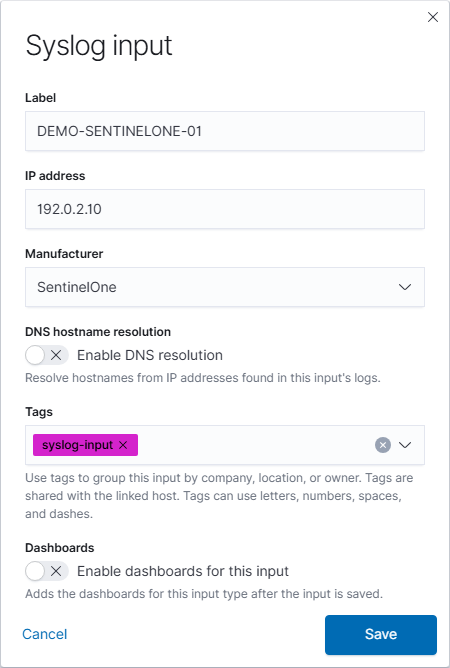
Configure the source in NeQter before enabling its syslog sender. The screenshots below use fictional examples; replace the example address with the actual sender address that reaches your appliance.
Step 1: NeQter Input Setup
For a cloud sender, obtain the current syslog egress addresses for your SentinelOne tenant or region from SentinelOne. Create an input for each address that can send to this appliance.
- Open Settings → Inputs → Syslog and select Add input.
- Enter a descriptive Label and the sending device’s IP address. Account for any relay or source address translation. This field identifies the sender, not the NeQter destination.
- Select SentinelOne under Manufacturer. Review the optional DNS resolution, tags, and dashboard choice.
- Select Save to create the input. Cancel closes an unsaved draft.
NeQter drops syslog messages that do not match a configured input. See Syslog setup for source matching and reception checks.
Step 2: NeQter Dashboard Setup
- Open Settings → Dashboards and find SentinelOne.
- Turn on Enable index if needed, then select the supplied dashboard checkboxes you want.
- Select Apply changes at the top of the page to save the pending selections.

Open enabled dashboards through Logs → Dashboards. Selecting dashboards does not configure the sender or establish that logs are arriving.
Step 3: Firewall Configuration
On the Firewall / Router, setup a Dynamic NAT rule to have port 6514 traffic from the current SentinelOne egress addresses identified under Step 1 pointed to NeQter’s ip address. Keep source ip and port the same.
NOTE: This process will be different depending on the Firewall, if assistance is needed please contact support@neqterlabs.com
Step 4: SentinelOne Configuration
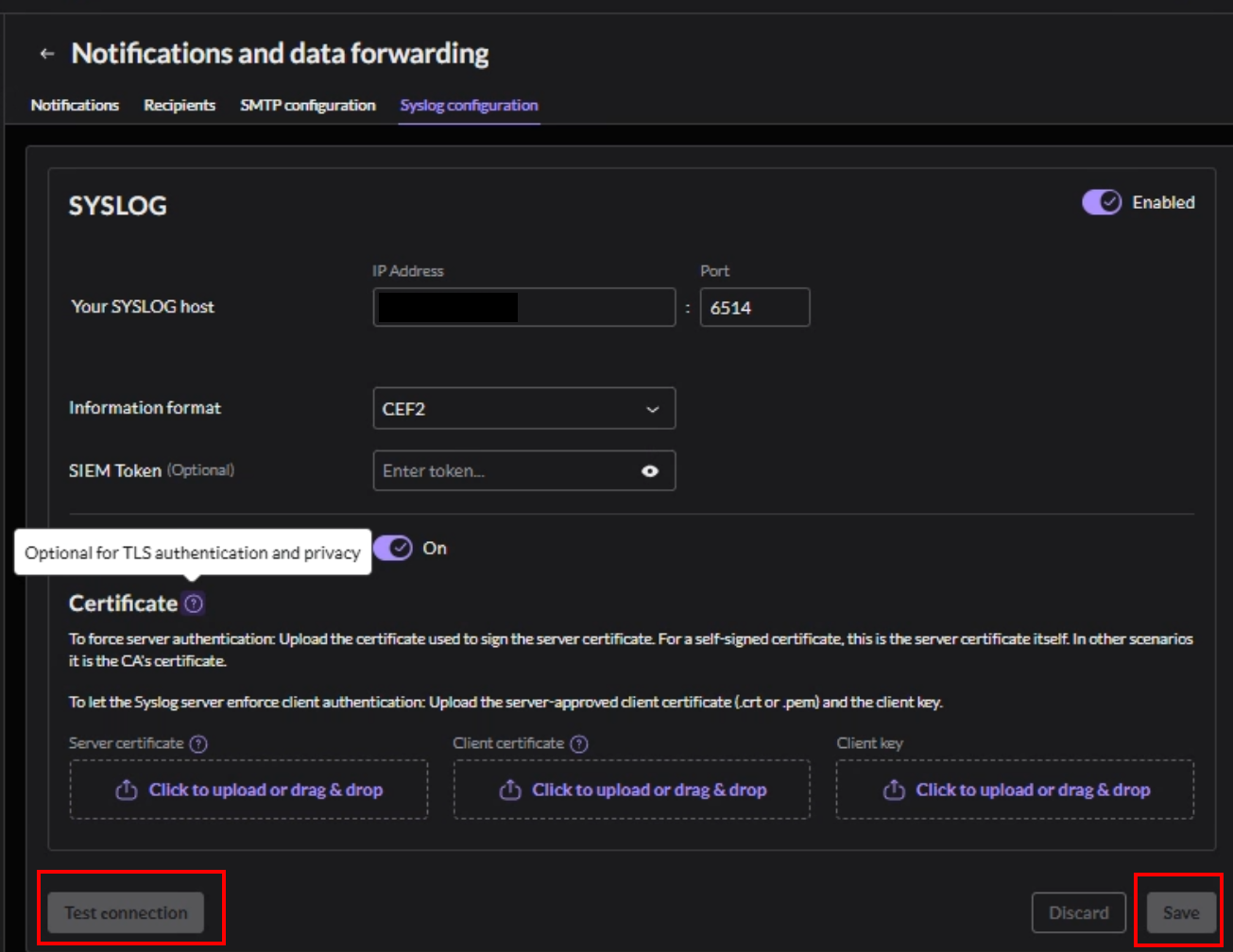
1. Logon to the SentinelOne WebUI and go to INTEGRATIONS > Notifications and Data Forwarding.
2. Go to the Syslog Configuration Tab.
3. Enable syslog and fill in the following fields:
- Put in the WAN IP Address of your network for the Yours Syslog Host field.
- For the port enter 6514.
- Change the Information Format to CEF2.
4. Enable TLS and then press Test Connection (Certificates are not required).
5. Within a few minutes a log should be seen on NeQter. If none is found within a 5-10 minute timeframe, check the steps above and verify nothing was misconfigured. If issues are still occurring, please create a ticket here with NeQter for further assistance. If a Test Log is seen under Discover on the NeQter Appliance then that means SentinelOne is configured and working.