

Backups
Open Settings from the left navigation, then select Backups across the top. Use this page to choose what NeQter backs up, how long it keeps data, where backup files are stored, and whether new backup files require a password.
Backups contains several kinds of data:
| Data | Purpose |
|---|---|
| Searchable logs | Logs available in NeQter dashboards and searches right now. They are convenient to search, but use more disk space than log archives. |
| Log archives | Compressed backup files for older logs. Archives can be kept on the NeQter system or on a remote file share. Archived logs are not searchable until they are restored. |
| Settings backups | Saved copies of NeQter configuration that can be restored if settings are changed by mistake or the system needs to be rebuilt. |
| Past reports | Generated reports kept in NeQter. Report retention controls how long these reports remain available. |
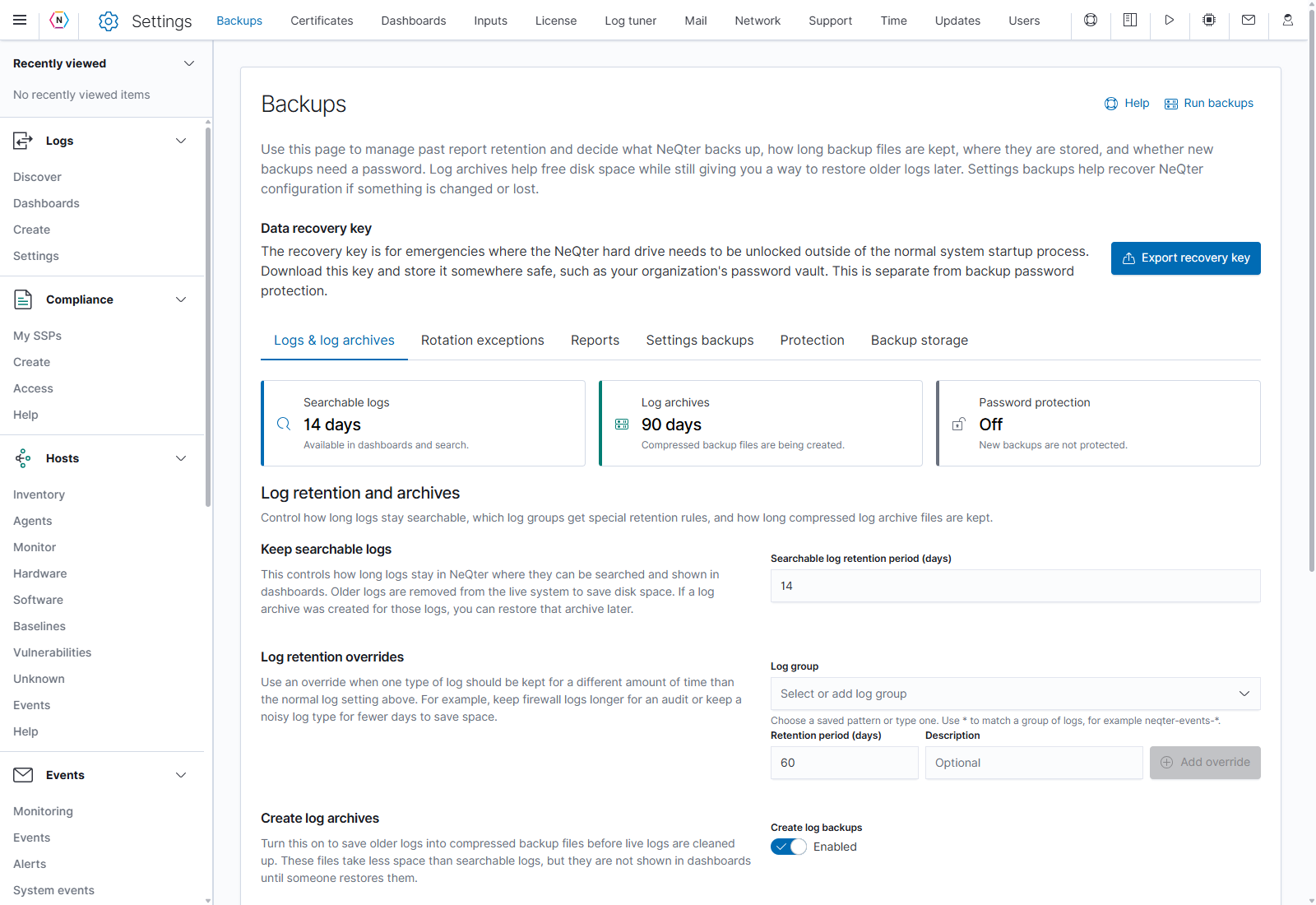
Set up backups
- Export and store the recovery key from the Data recovery key section at the top of the page.
- Choose backup storage. Select local storage or configure a remote SMB file share, then save that section.
- Configure log retention and archives. Choose how long logs stay searchable and how long archive files are kept.
- Enable settings backups and choose their retention period.
- If required, configure password protection before creating new backup files.
- Review the saved settings. Click Run backups when you want to start a backup immediately, then check the archive and settings-backup tables after it finishes.
Each configuration section has its own Save settings button. Changing a switch or field does not apply that section until it is saved. Values in these screenshots belong to the reference appliance; choose retention periods that fit your organization’s requirements and storage capacity.
Find the right tab
| Tab or page action | What it does |
|---|---|
| Logs & log archives | Sets searchable-log retention, optional retention overrides, and archive creation and retention. Its table lets you export, upload, restore, or delete archives. |
| Rotation exceptions | Keeps selected live log indices from ordinary retention cleanup until a chosen removal date. |
| Reports | Sets automatic cleanup of files on Past reports. |
| Settings backups | Enables daily configuration backups, sets their retention, and lists existing files. |
| Protection | Sets the password requirement for newly created log archives and settings backups. |
| Backup storage | Chooses the local appliance or a remote SMB/Samba share for backup files. |
| Export recovery key | Downloads the key used to unlock the appliance drive outside normal startup. |
| Help | Opens the built-in explanation of backup types and operation. |
| Run backups | Starts a backup immediately using the saved configuration. |
The built-in Help identifies 1 a.m. as the daily automatic backup time. Run backups provides an additional manual run; it does not open a configuration wizard.
During a backup, restore, or transfer, the page shows progress and disables conflicting actions. A vulnerability scan can also prevent starting a backup or restore. Follow the displayed status before starting another operation.
Detailed walkthrough
Continue with the setup pages above, or open the Backups section of the User Manual for the complete control reference and additional screenshots.