
Dashboard Configuration
Open Settings > Dashboards to choose the supplied dashboard sets and index patterns available on the appliance. Configure the relevant devices and inputs first so those dashboards have data to display.
Setting up dashboards
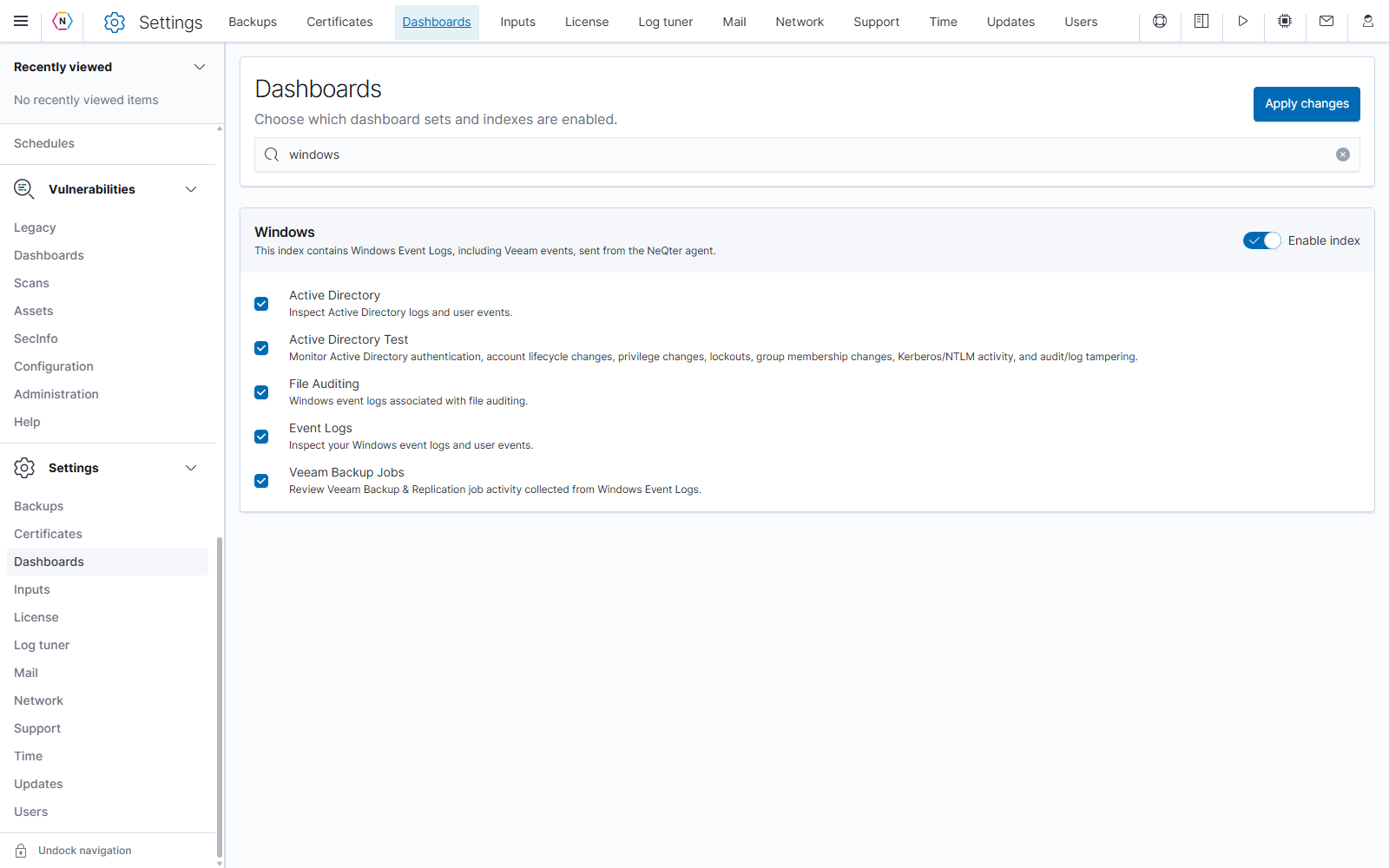
- Use Search index labels or dashboards to find a source or dashboard, such as Windows.
- Find the source group and turn on Enable index, if the switch is available.
- Select the checkboxes for the supplied dashboards you want to use.
- Select Apply changes at the top of the page and wait for completion.
- Open Logs > Dashboards from the primary navigation and select a configured dashboard.
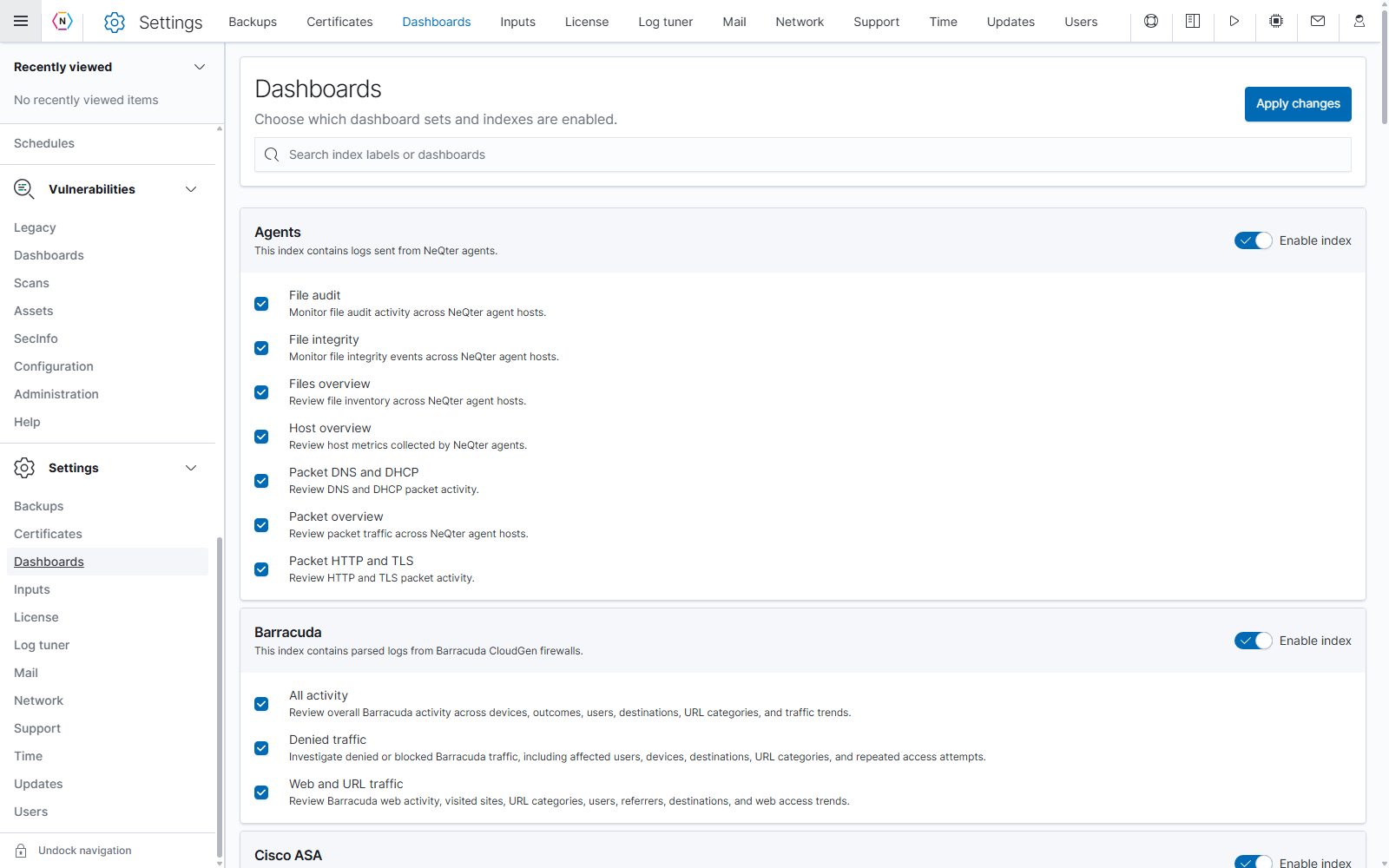
| Control | What it does |
|---|---|
| Search index labels or dashboards | Filters the displayed groups and dashboard choices. Clear it to show the full list. |
| Source heading and description | Identify the log source associated with a group. |
| Enable index | Includes the group’s index pattern. Turning it off clears its pending dashboard selections and hides its choices. Some automatically supplied patterns have a disabled switch. |
| Dashboard checkbox | Includes or excludes that supplied dashboard from the pending configuration. |
| Apply changes | Saves the pending index and dashboard selections. Reloading before applying retrieves the saved configuration. |
Check that data appears
Enabling a dashboard does not configure a sender or start a cloud collector. Open the dashboard, choose a time range that includes recent activity, and review its filters. If it is empty, check the source configuration and look for recent records in Discover. Confirm that the selected index pattern matches the data source.
For dashboard navigation, filters, time controls, saving, and editing, see the Dashboards user guide. For the complete configuration reference, see Dashboards in NeQter Settings.