
Firewall Setup
To collect firewall logs in NeQter, configure both the appliance input and the firewall’s remote logging destination. Menu names vary by firmware and product family; the vendor links below describe those settings for the listed products.
Prepare the NeQter input
- Identify the firewall’s source address as it will reach the appliance. Check any relay, NAT, dedicated management interface, or HA configuration that changes that address.
- In Settings → Inputs → Syslog, select Add input. Enter the source address and choose the matching Manufacturer. Save the input before sending logs; unmatched logs are dropped.
- Confirm the appliance’s receiving address, port, and transport with your deployment administrator. Enter those values in the firewall’s syslog destination. A vendor’s default port does not prove that the appliance is listening there.
- Select the log format appropriate for the NeQter parser and enable the event categories or firewall rules you need.
- Save the firewall configuration and check Discover for new logs from the firewall. To verify delivery, perform an action on the firewall that is logged by an enabled category, such as an administrator sign-in, then find that log in Discover. Creating a NeQter input does not generate a firewall event.
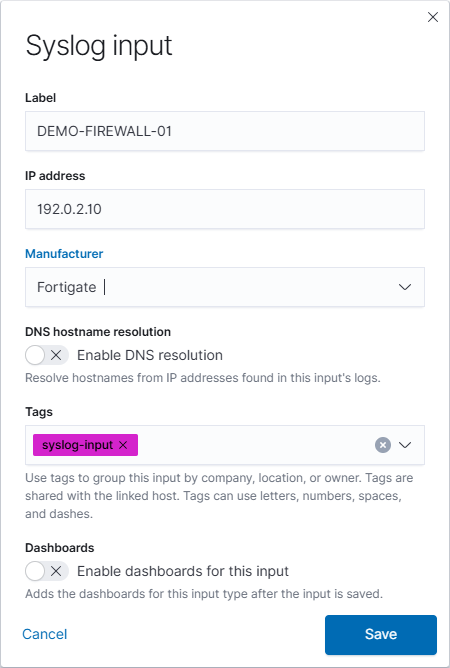
Use the Syslog setup guide for all input fields. Keep the chosen transport and log format consistent with the appliance receiver and parser; enabling TLS only on the sender does not configure TLS reception in NeQter.
Sophos Configuration
For Sophos Firewall, open System services → Log settings and add a syslog server. Enter the appliance destination, port, facility, severity threshold, and appropriate format. Save it, then select the log types to send to that server. Traffic logging also depends on the relevant firewall-rule logging settings. See Sophos’ syslog server setup and log settings.
NeQter has separate Sophos UTM and Sophos XGS manufacturer choices. Match the parser to the product family; the Sophos Firewall instructions above do not describe the UTM interface. Confirm an unfamiliar format with NeQter Support before broad deployment.
FortiGate Setup
For FortiGate, review Log & Report → Log Settings and the remote syslog configuration for your FortiOS version. Fortinet documents the destination under config log syslogd setting, with separate log filters controlling the events sent. Check source-interface and VDOM scope when applicable. See FortiOS log settings and targets.
The FortiOS 7.6.4 reference lists UDP and port 514 as defaults and provides selectable format, facility, and source-address settings. Use the values that match your NeQter deployment, rather than copying defaults without checking. See FortiOS syslog settings.
Barracuda Configuration
For Barracuda CloudGen Firewall, configure Syslog Streaming, its log-data filters, a logstream destination pointing to NeQter, and the streams that connect those filters to the destination. Apply the settings using the firmware’s Send Changes and Activate workflow. See Barracuda’s Configure Syslog Streaming guide.
Use the destination port and transport confirmed for NeQter. Barracuda Control Center defaults such as 5143/5144 are not NeQter receiver settings. This procedure is for CloudGen Firewall; other Barracuda product families have different logging configuration.
WatchGuard Configuration
For a locally managed Firebox, open System → Logging → Syslog Server, enable sending to syslog servers, and add the appliance address and port. Select Syslog as the log format, review the timestamp and serial-number options, and configure facilities for the event types you want. Save the configuration. WatchGuard’s syslog server guide documents the controls.
Also check logging on the individual policies and features; adding a destination does not turn on every event source. See where Firebox sends log messages.
SonicWall Configuration
For SonicOS, add a syslog server under the device’s logging settings. Select or create the address object for the NeQter destination as required by your firmware, choose Syslog Server, and review port, format, facility, and event settings. SonicOS 7.1 includes Enhanced Syslog among its formats; confirm the appropriate format for the NeQter SonicWall parser. See the SonicOS 7.1 Device Log guide.
Older SonicOS versions use different menu paths. Follow the guide for the installed release instead of assuming the older Manage → Log Settings path exists.
Synology Configuration
Synology NAS is a storage device, but its system logs can use the same syslog collection workflow. In Log Center → Log Sending, enable sending to a syslog server and enter the appliance destination. Choose the receiving port, matching UDP or TCP transport, and supported log format. Send a test log, then apply the configuration. See Synology’s Log Sending instructions and use the documentation version that matches the installed DSM release.
Do not enable a secure transport or change the message format without confirming receiver and parser compatibility.
Confirm logs arrive
In Settings → Inputs → Syslog, find the source and check Status. Receiving means logs arrived within the past minute. Use the three-dot menu’s Show details to inspect activity and Last seen, then find your test event in Discover with the matching time range and data view.
If no event appears, check the source address, destination, port, transport, routing rules, enabled logging categories, and selected parser. For unsupported products or unclear parsing, contact NeQter Support with the product, firmware version, and a sanitized sample log.