

Data Management
Open Settings > Backups > Logs & log archives to configure log retention in NeQter. Set retention periods that meet your organization’s needs and fit the available storage. The values shown below are examples from the reference appliance.
Log types
Searchable logs are live logs that appear in Discover and dashboards. Log archives are compressed backup files kept in the selected backup storage location. An archive must be restored before its logs can be searched again. Keeping an archive longer does not extend the searchable period of the live logs.
Backup services
When Create log backups is enabled and saved, NeQter creates compressed archives before older live logs are cleaned up. Searchable logs and archive files have separate retention settings. The built-in Help describes the automatic daily backup run as 1 a.m.
Run backups starts a backup immediately with the saved configuration. While a backup, restore, or transfer is active, NeQter shows its status and disables conflicting actions. A vulnerability scan can also prevent starting a backup or restore.
Configuration
Configure the following fields on Logs & log archives, then click this section’s Save settings:
| Control | What to configure |
|---|---|
| Searchable log retention period (days) | How long live logs remain available to searches and dashboards. Enter 1–1,095 days. |
| Log retention overrides | Optional retention periods for individual log groups or wildcard patterns. See the procedure below. |
| Create log backups | Enable creation of compressed log archives. The switch is not applied until you save. |
| Log archive retention period (days) | How long archive files are kept. Enter 1–1,095 days. When archives are enabled, this period must be at least as long as the main searchable-log period. |
| Save settings | Validates and applies these fields and the override list together. |
Reducing a retention period makes older data eligible for cleanup. Once an archive file is deleted from backup storage, NeQter cannot use that file to restore its logs.
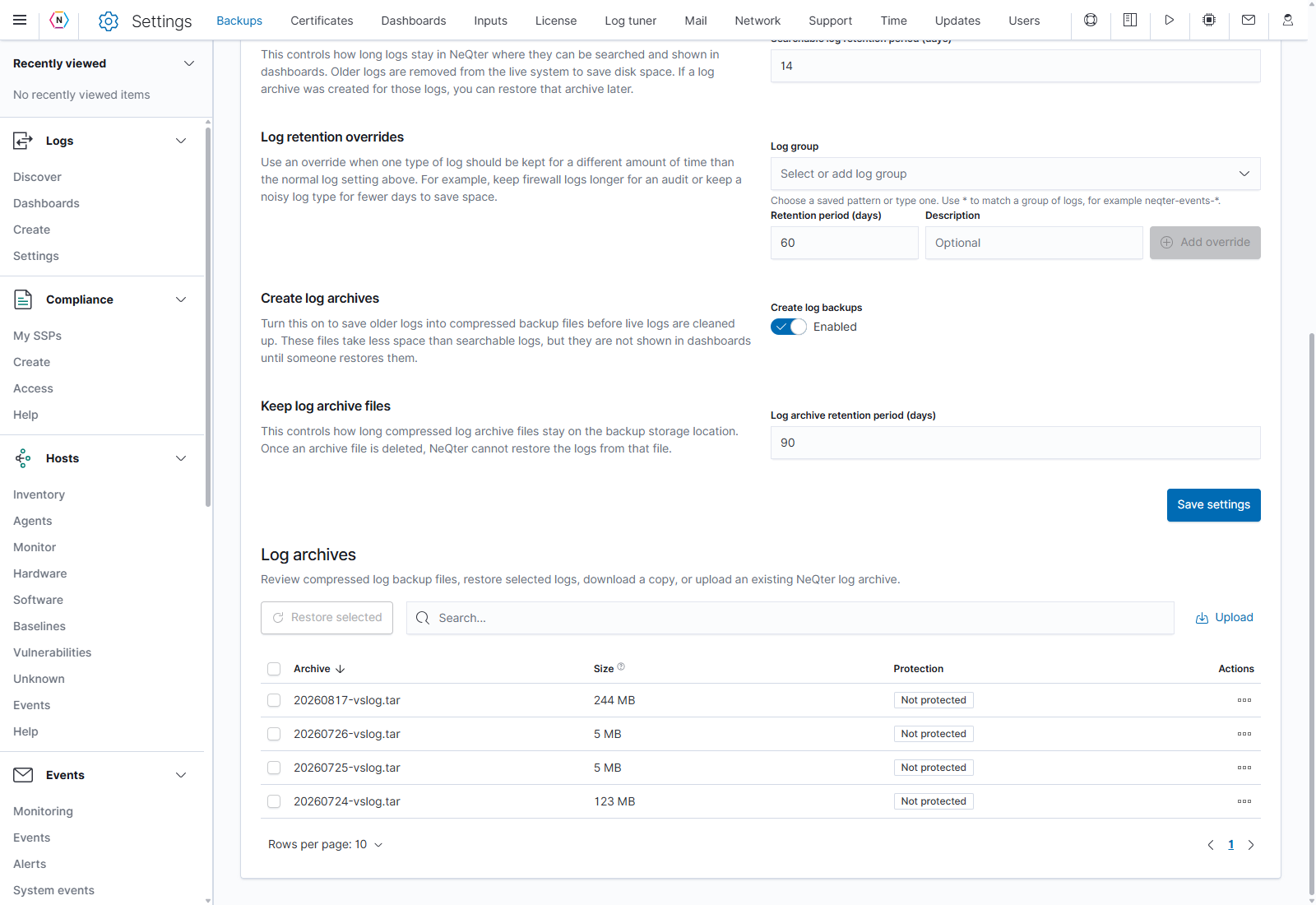
Add a log retention override
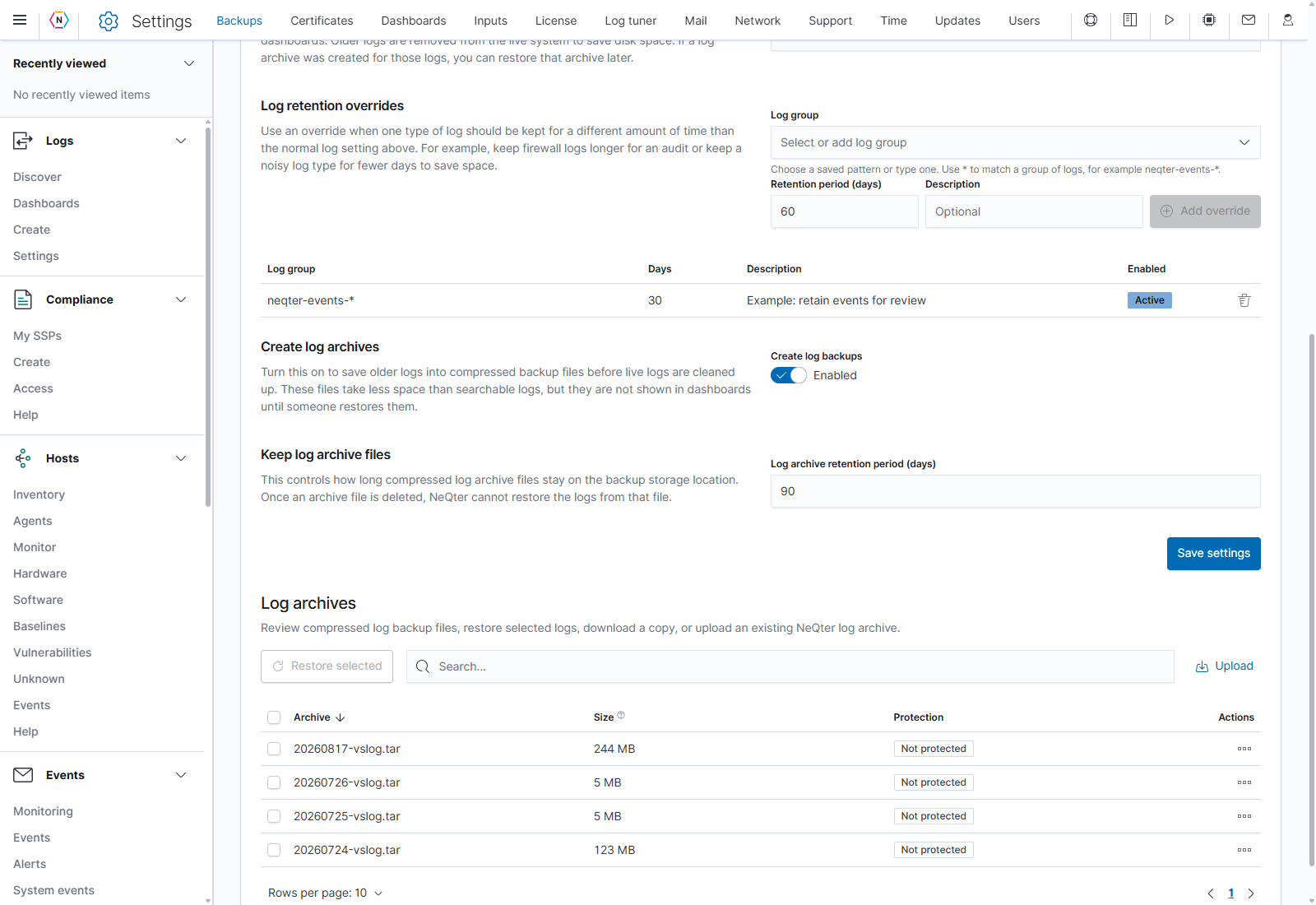
Use an override when a particular log family needs a different searchable retention period.
- In Log group, select a pattern or type one and accept it in the selector. An asterisk matches a group; for example,
neqter-events-*. - Enter Retention period (days) from 1 to 1,095. Add an optional Description.
- Click Add override and review the new row.
- Click Save settings to apply the full log configuration.
The row’s trash icon removes an override from the draft list; save afterward to apply the removal. An Active badge in a newly added row does not mean the draft has already been saved.
Archive files
The Log archives table lists each archive’s filename, compressed Size, Protection status, and Actions. Use Search, sortable column headings, Rows per page, and the page arrows to find a file.
Open a row’s three-dot menu to choose an action:
| Control | Result |
|---|---|
| Export | Downloads that archive to your computer. |
| Restore | Opens the archive’s restore workflow. Protected files require their backup password. |
| Row checkboxes and Restore selected | Start the restore-selection workflow for the checked archives. |
| Delete | Opens a confirmation before removing the archive file from backup storage. |
| Upload | Opens a chooser for an existing NeQter log archive. Select or drag in the original file, then click Upload inside the flyout to send it. |
For uploads, keep the original filename and archive format, such as YYYYMMDD-vslog.tar. Choosing a local file alone does not upload it. close or X closes the chooser. After upload, the file is available in the table; uploading and restoring are separate actions.
Restore
Restore only the logs you need from an archive:
- Choose a row’s Restore action, or check archives and click Restore selected.
- Enter the backup password if requested.
- In Restore from log archive, use search and the index checkboxes to select the logs to import.
- Click Restore selected to start. NeQter checks available disk space and may ask for an additional confirmation when space is low. Cancel leaves the selection without starting a restore.
- Review the index status and any errors. When finished, click Next to configure rotation exceptions for restored old indices that must remain searchable.
The status identifies pending, importing, successful, and failed indices. Stop interrupts an active restore; data already imported may be incomplete. Other conflicting backup actions remain unavailable while the operation runs.
This interface restores NeQter log archives created by version 3 or newer. Unsupported files display a compatibility notice instead of usable restore choices.
Rotation exceptions
A rotation exception protects a selected live log index from ordinary retention cleanup until its Removal date. Use this after restoring old logs that would otherwise already be eligible for cleanup. A log retention override applies to a pattern; a rotation exception applies to a particular index.
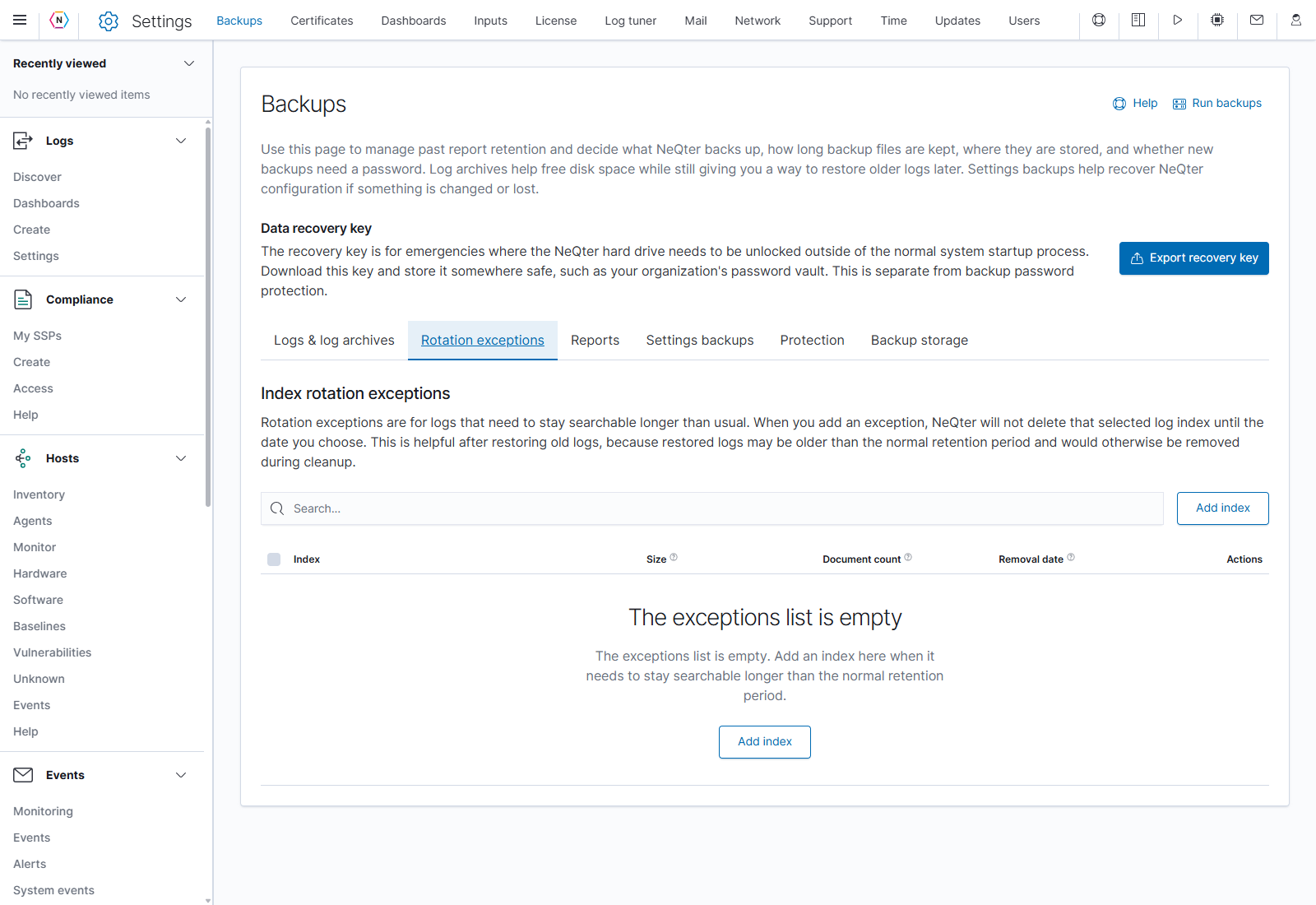
- Open Rotation exceptions and click Add index.
- In Add indices to exceptions, use search and On exception list / Not on exception list to find indices, then select the required rows.
- Click Add N indices, choose a future removal date, and click Save in the date dialog.
- Check the indices and dates in the exceptions table. Selecting an index already on the list updates its removal date.
Use the table’s Edit pencil to change a date or its Remove trash icon to remove an exception. Selecting multiple rows reveals Edit N indices and Remove N indices. Confirm Yes, delete the exceptions only when those indices should return to normal retention cleanup. Eligible logs can then be removed during ordinary cleanup.
Report retention
Open the Reports tab to set how long files remain on Past reports. Enable Rotate past reports, enter Report retention period (days) from 1 to 3,650, and click Save settings. Disable rotation and save if files should remain until manually deleted. This setting controls generated files; it does not set report schedules.
Continue with Settings Backups and Archive Storage, or see the complete Backups reference.