
Discover
Discover lets you search collected logs, narrow the results to the events you need, inspect individual records, and export the results. Start here when you want to answer a question such as “What did this host report?” or “Which events occurred during this time?”
On this page
- Discover
- Open Discover and identify the page
- Run your first search
- Choose the data source
- Search text and query language
- Set the time range and refresh
- Add and manage filters
- Read the histogram and hit count
- Use fields and arrange the table
- Inspect an individual event
- Find common and unusual values with Unique count
- Start, save, and reopen Discover searches
- Share a search view
- Export matching logs
- Inspect the search request
- Open monitoring and alert information
- Troubleshoot unexpected results
Open Discover and identify the page
Open the navigation menu at the top left, then choose Logs → Discover. If the Logs section is already open, select Discover in the top navigation.
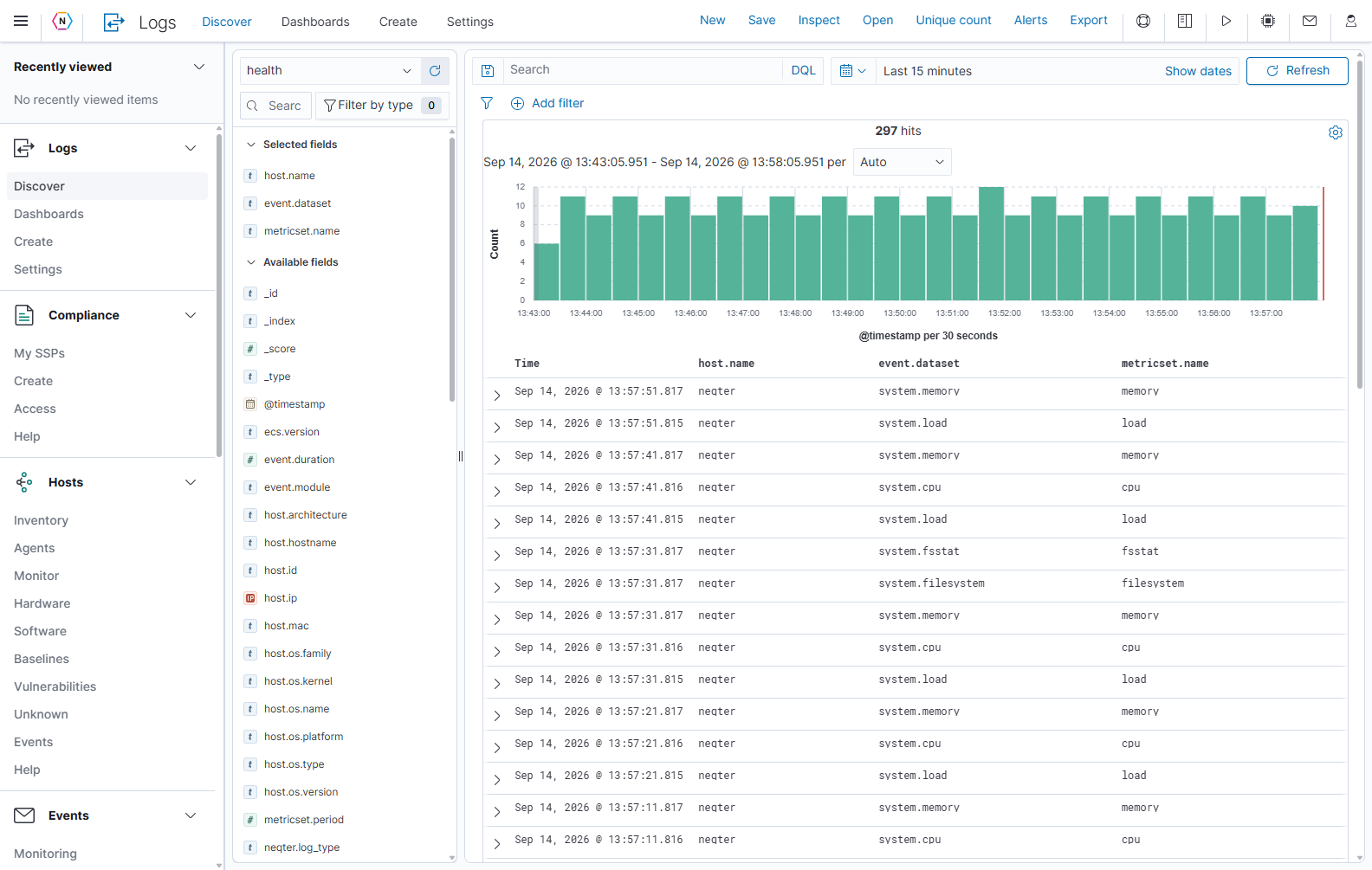
| Area | What it is | How to use it |
|---|---|---|
| Main navigation | The far-left menu for the application. | Choose Logs → Discover. The menu button and dock control change how much navigation stays visible. |
| Discover toolbar | New, Save, Share, Inspect, Open, Unique count, Alerts, Export across the top. | Start or reuse a search, share its view, investigate its results, or download logs. Each control is explained below. |
| Data source selector | The drop-down above the field list; health in this example. | Choose the group of logs you want to search. The list identifies these as Index patterns. |
| Field sidebar | Selected fields and Available fields, with a field-name search box. | Inspect fields and choose the columns shown in the results table. |
| Query bar | The wide Search box, its saved-query icon, and DQL/Lucene selector. | Type search conditions, choose the correct query language, and apply the search. |
| Time controls | Calendar menu, time range, and Refresh/Update. | Set when the events occurred and fetch matching results. |
| Filter bar | The funnel icon, Add filter, and any filter pills. | Add visible field conditions and manage them separately from the query text. |
| Hits and histogram | The matching event count and bars across the time range. | Identify busy periods, quieter periods, and the timing of matching events. |
| Results table | One event per row. | Sort, compare selected fields, and expand a row to inspect all its fields. |
Source + query + enabled filters + time range determine the results. Changing the visible columns changes the presentation of those results. A field-name search in the sidebar only narrows the field list.
Run your first search
- Open Discover and select health from the data source drop-down.
- Open the calendar menu and choose Last 15 minutes.
- Leave the query box empty initially and check that events appear. Use Refresh if needed.
- In the query box, enter
event.dataset: "system.cpu"with DQL selected. - Press Enter or select Update to apply the query.
- In the field sidebar, add host.name, event.dataset, and metricset.name to the table using each field’s plus button.
- Expand a row with its left-hand chevron to read the full event.
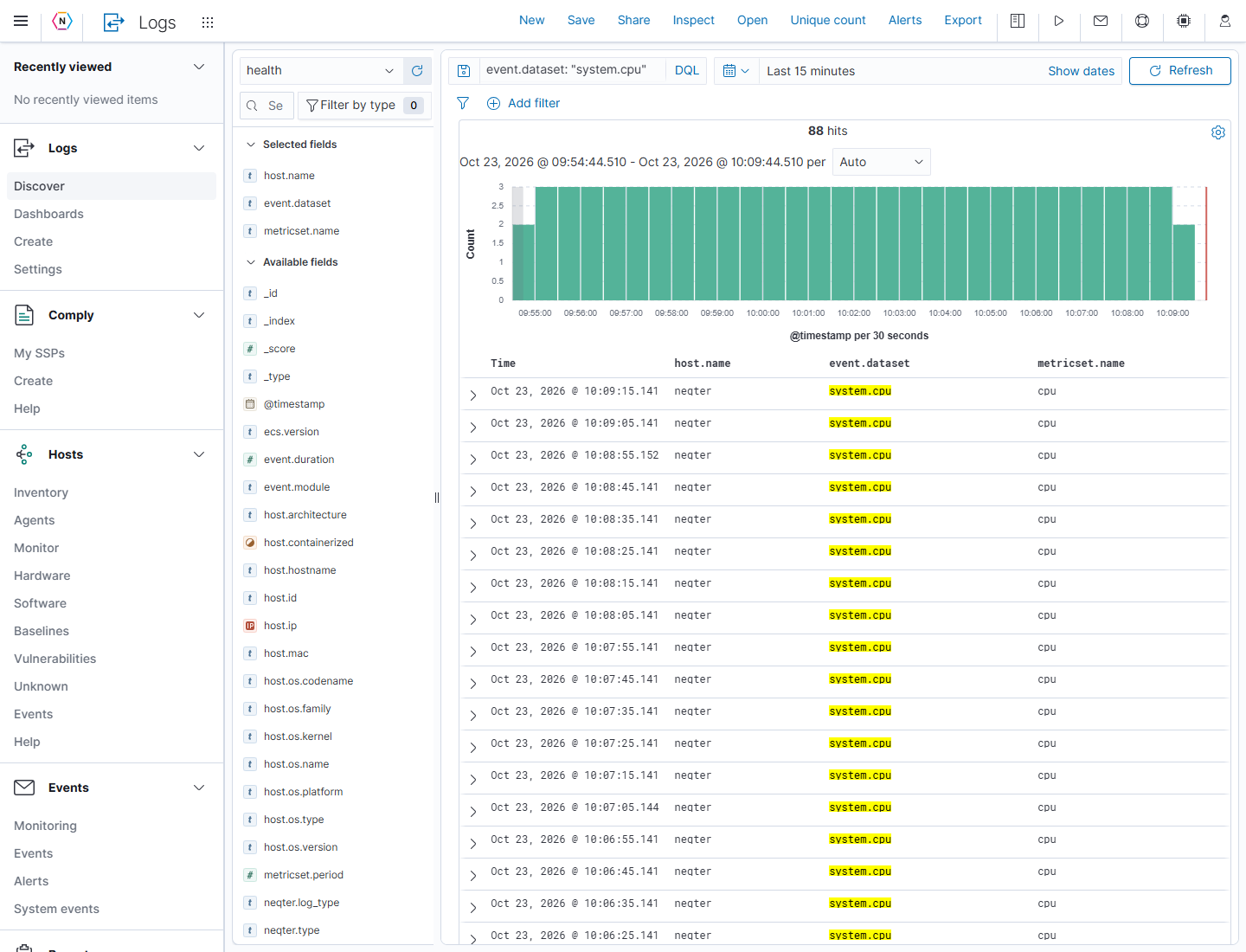
The example returned CPU events on the reference appliance. If your appliance returns no events, check the source and time range before changing the query. The numerical count in a screenshot is an example, not an expected result.
Choose the data source
The selector at the top of the field sidebar defines which indexed logs Discover searches. Friendly names such as health, cisco-asa, or agents identify different searchable data sets. This selector does not configure log collection.
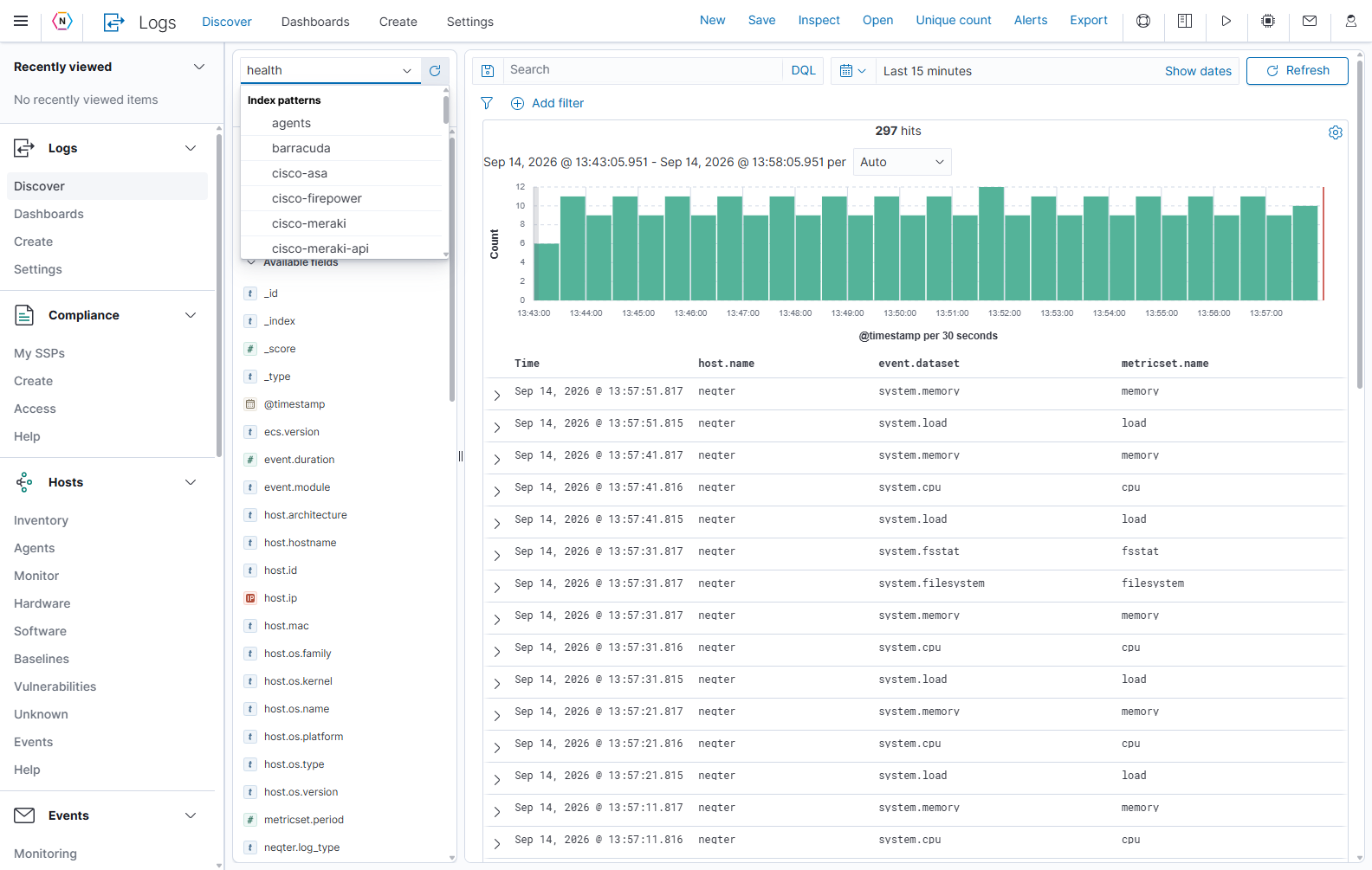
- Select the source’s drop-down arrow.
- Type part of the source name or scroll through the options.
- Select the source. Review the updated fields and results.
- Check that any existing query and filters make sense for this source. A field available in one source may be absent from another.
| Control | What it does |
|---|---|
| Source name and down arrow | Open the searchable list; selecting an entry changes the search scope. |
| Circular arrow beside the selector | Refresh data selector reloads the selector’s available choices. Use the main Refresh button to rerun the event search. |
| Divider between fields and results | Drag to resize the two panels. When focused, the resize control also supports left/right arrow keys. |
If a source is missing, check Logs > Settings with an administrator, then refresh the data selector. Enabling an index or dashboard set does not configure a device to send logs; check Inputs or the relevant agent configuration when the source has no incoming data.
Search text and query language
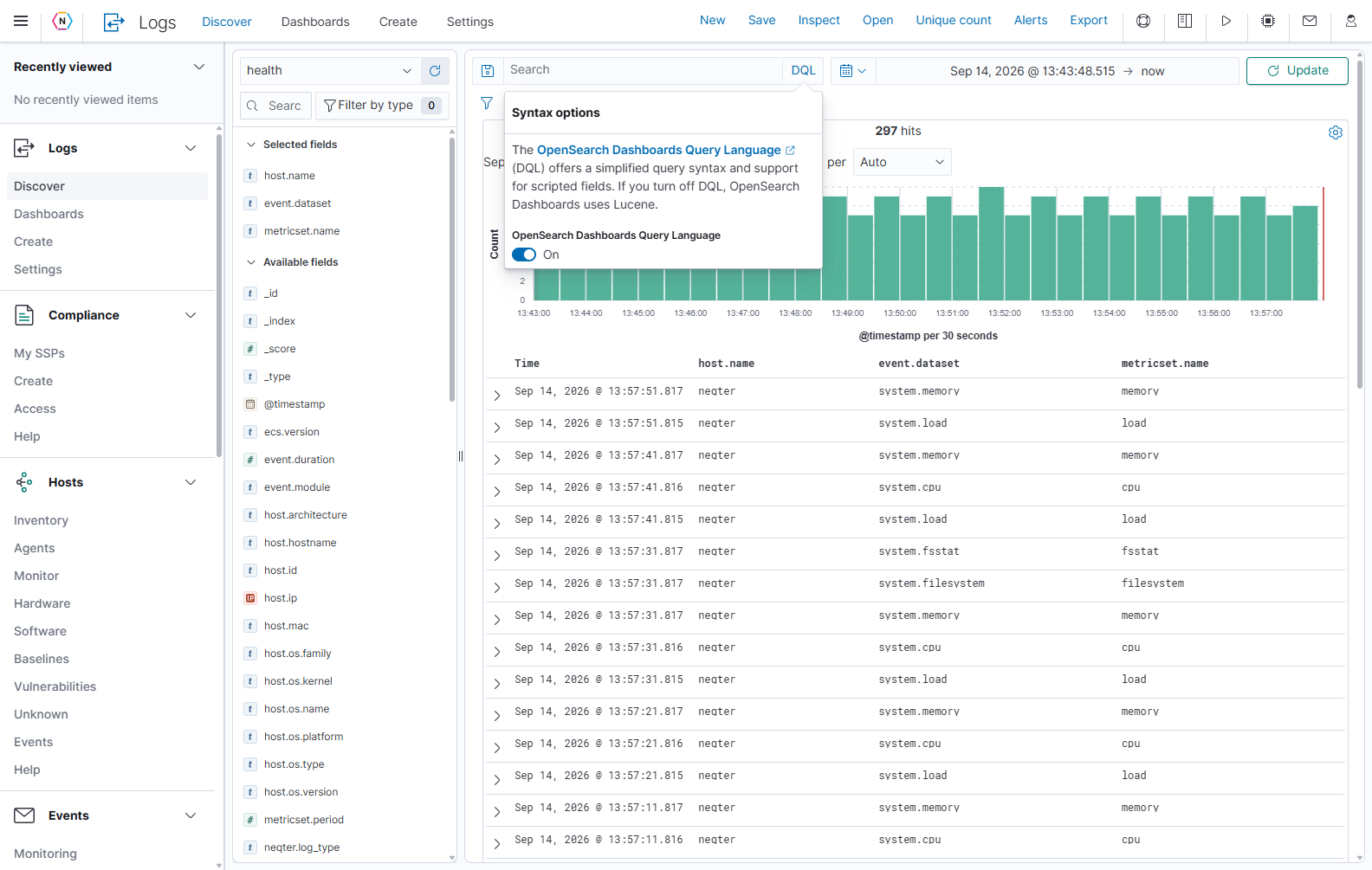
Type in the main Search box to narrow events. Press Enter or select Update after changing the query. With no pending change, the button reads Refresh and reruns the current search. Clear the text and apply the change to remove the text condition; existing filters and the time range still apply.
The language label on the right of the query box shows the active syntax. Select it to open Syntax options. OpenSearch Dashboards Query Language on means DQL; off selects Lucene. Switching the language does not rewrite your query.
| Example in DQL | Meaning |
|---|---|
event.dataset: "system.cpu" | Find CPU health events. |
host.name: "neqter" AND event.dataset: "system.cpu" | Require both the host name and the event data set. |
event.dataset: ("system.cpu" OR "system.memory") | Accept either of these event data sets. |
NOT event.dataset: "system.cpu" | Exclude CPU events. |
host.ip: * | Find events where the field has a value. |
system.cpu.total.norm.pct > 0.9 | Find events above the numeric threshold, where this field is present. |
Use field names from your own sidebar. Quotes group values containing spaces or special characters. Field mapping affects matching: a text field and a keyword field can behave differently, so do not assume every quoted text search is an exact whole-field comparison. Use parentheses when combining alternatives with additional conditions.
Lucene has its own syntax. For example, a numeric range can be written as system.cpu.total.norm.pct:[0.9 TO 1]. Select Lucene before using its range syntax; do not mix it with DQL’s comparison syntax.
Reuse query text with Saved Queries
The small save icon at the left of the query box opens Saved Queries. A saved query reuses search text and optional filters/time settings. The top toolbar’s Save/Open controls manage saved Discover searches, including their table columns.
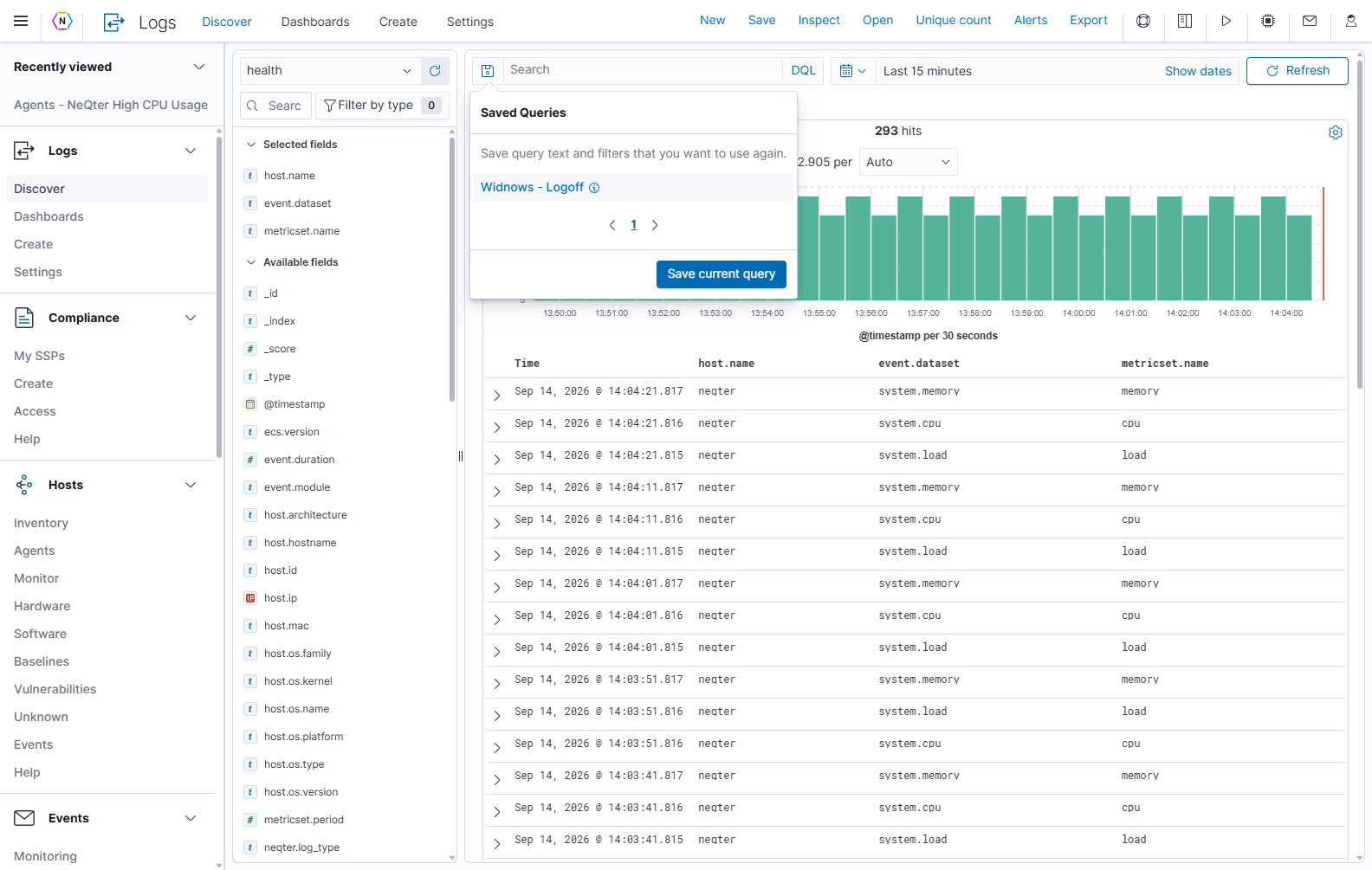
- Enter and apply the query and filters you want to reuse.
- Select the query box’s save icon, then Save current query.
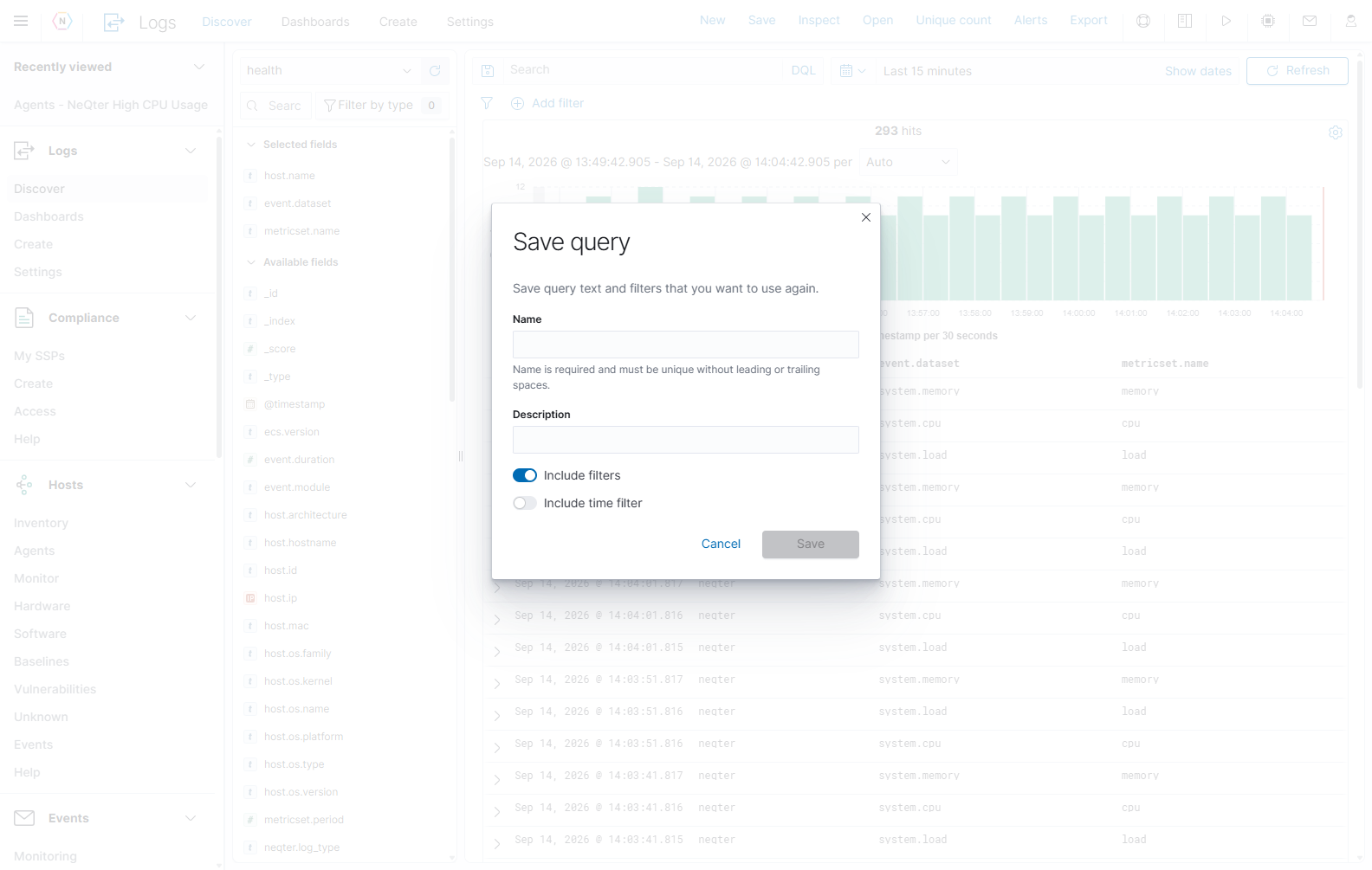
- Enter a unique Name. The name must not have leading or trailing spaces. Description is optional.
- Choose Include filters if the saved query should retain the current field filters.
- Choose Include time filter if loading the query should also restore its time settings.
- Select Save, or Cancel to leave without saving. To load a saved query later, select its name from the saved-query menu.
Set the time range and refresh
Discover uses the source’s configured time field; the example source uses @timestamp. Always check the selected range before treating an empty result as missing data.
Quick ranges and automatic refresh
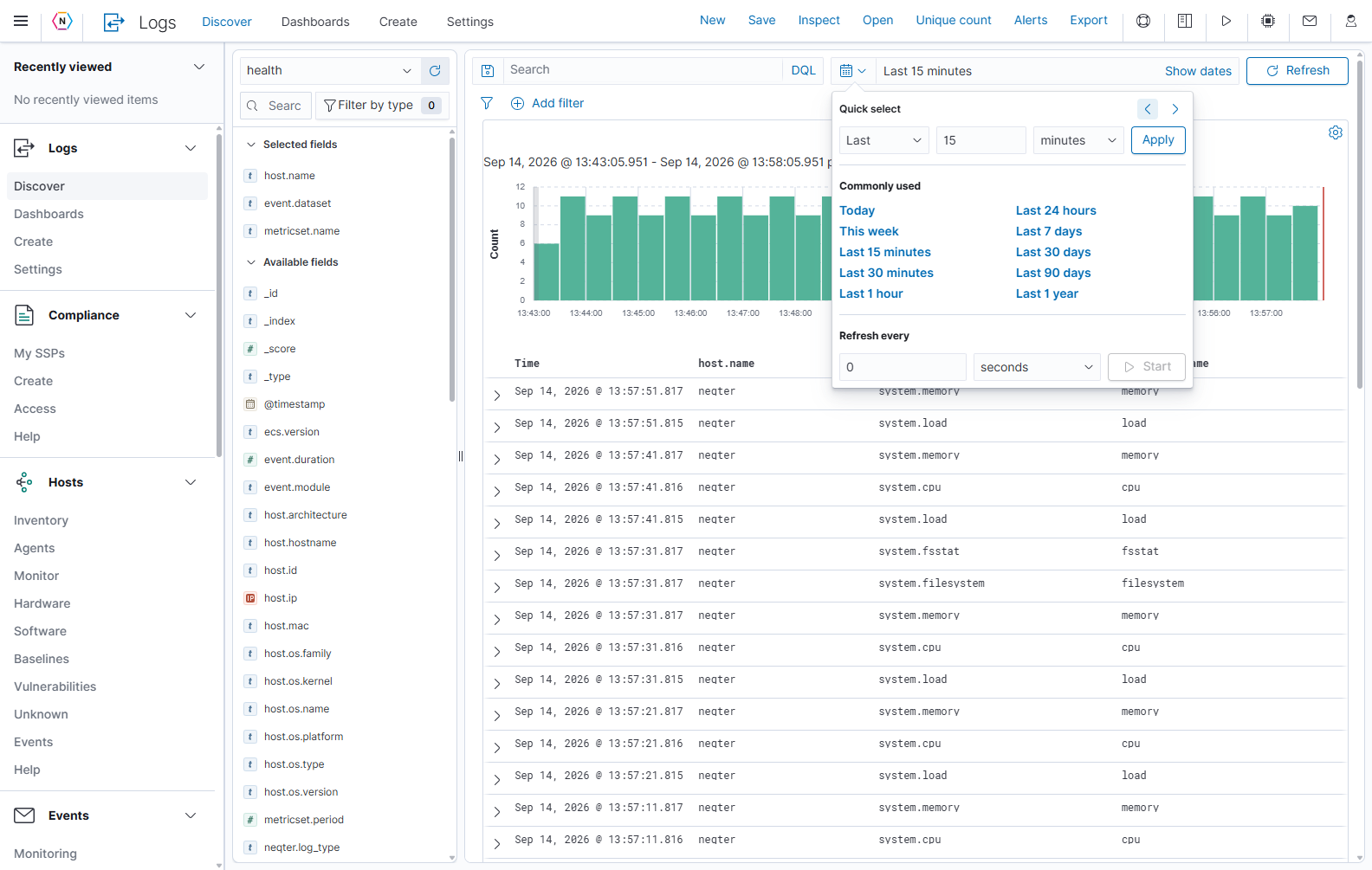
| Control | How to use it |
|---|---|
| Calendar/down arrow | Open Quick select a time range. |
| Last / Next, number, unit, Apply | Build a relative interval, such as Last 2 hours, then apply it. |
| Previous/next range arrows | Move the selected window backward or forward. Check the displayed dates afterward. |
| Commonly used | Select a preset such as Today, Last 24 hours, or Last 7 days. |
| Recently used date ranges, when shown | Reapply a range used earlier in the session. |
| Refresh every | Enter a number and select seconds, minutes, or hours. |
| Start / Stop | Start or stop automatic refresh at that interval. |
| Main Refresh button | Fetch the current search again immediately. |
| Main Update button | Apply pending query or time changes. The table can still show the previous result until you apply them. |
Use a rolling range such as Last 15 minutes with automatic refresh when watching incoming logs. Use fixed start and end dates when investigating a particular incident. Automatic refresh of a fixed range rechecks that fixed interval; it does not move the interval forward.
Relative, absolute, and Now
Select Show dates to expose the start and end values. Select an endpoint to edit it. The endpoint editor has Absolute, Relative, and Now tabs.
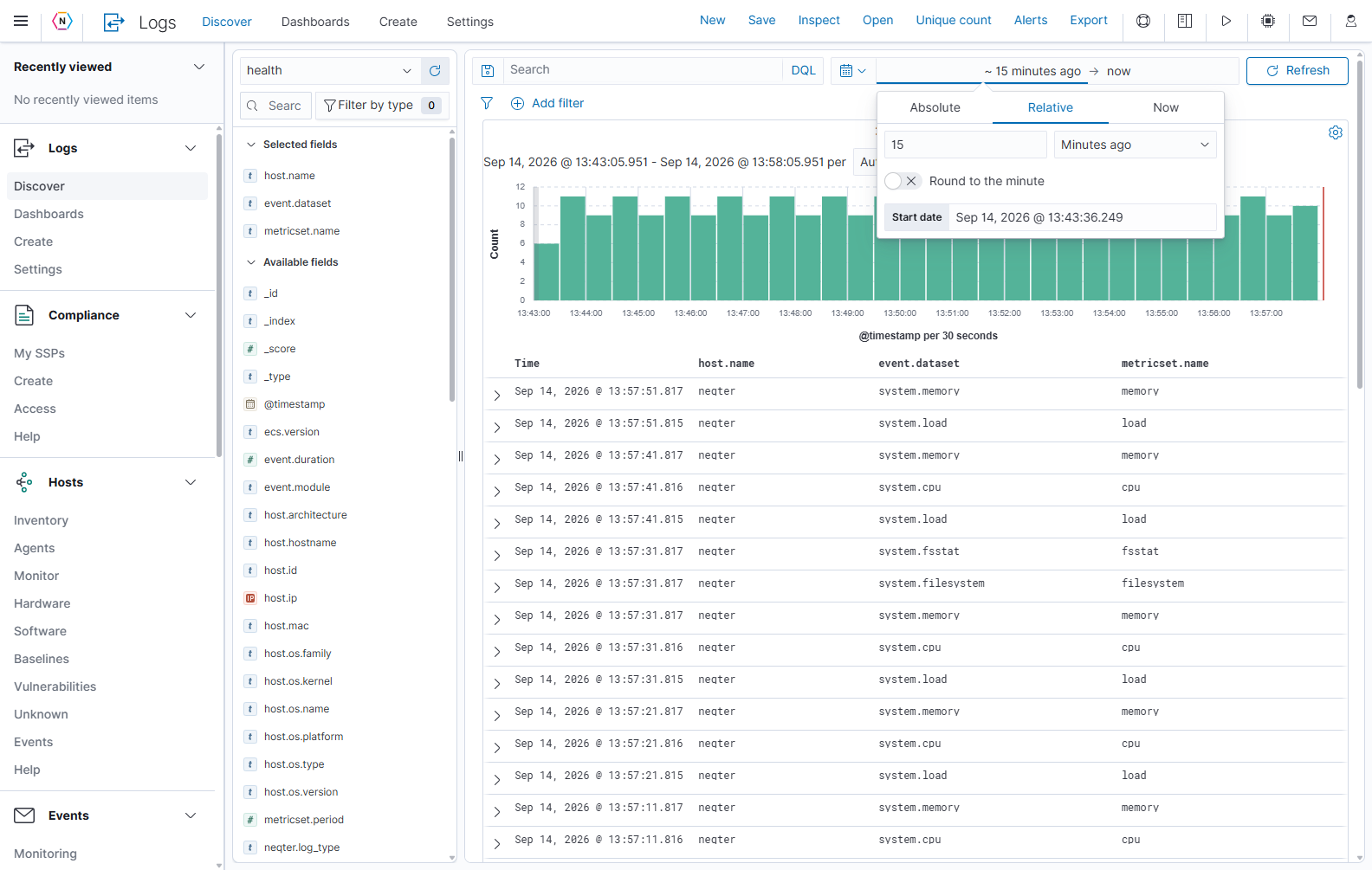
| Tab or control | Meaning |
|---|---|
| Relative | An amount before or after the current time, such as 15 Minutes ago. |
| Round to… | Align the relative endpoint to the selected unit boundary. This changes the boundary, not just its display. |
| Absolute | A specific calendar date and clock time. Use the calendar, previous/next month buttons, month/year selectors, time list, or date text field. |
| Now | Set that endpoint to the current time. Useful as the end of a rolling search. |
| Start/end date text | Review or enter the endpoint using the format shown by the control. |
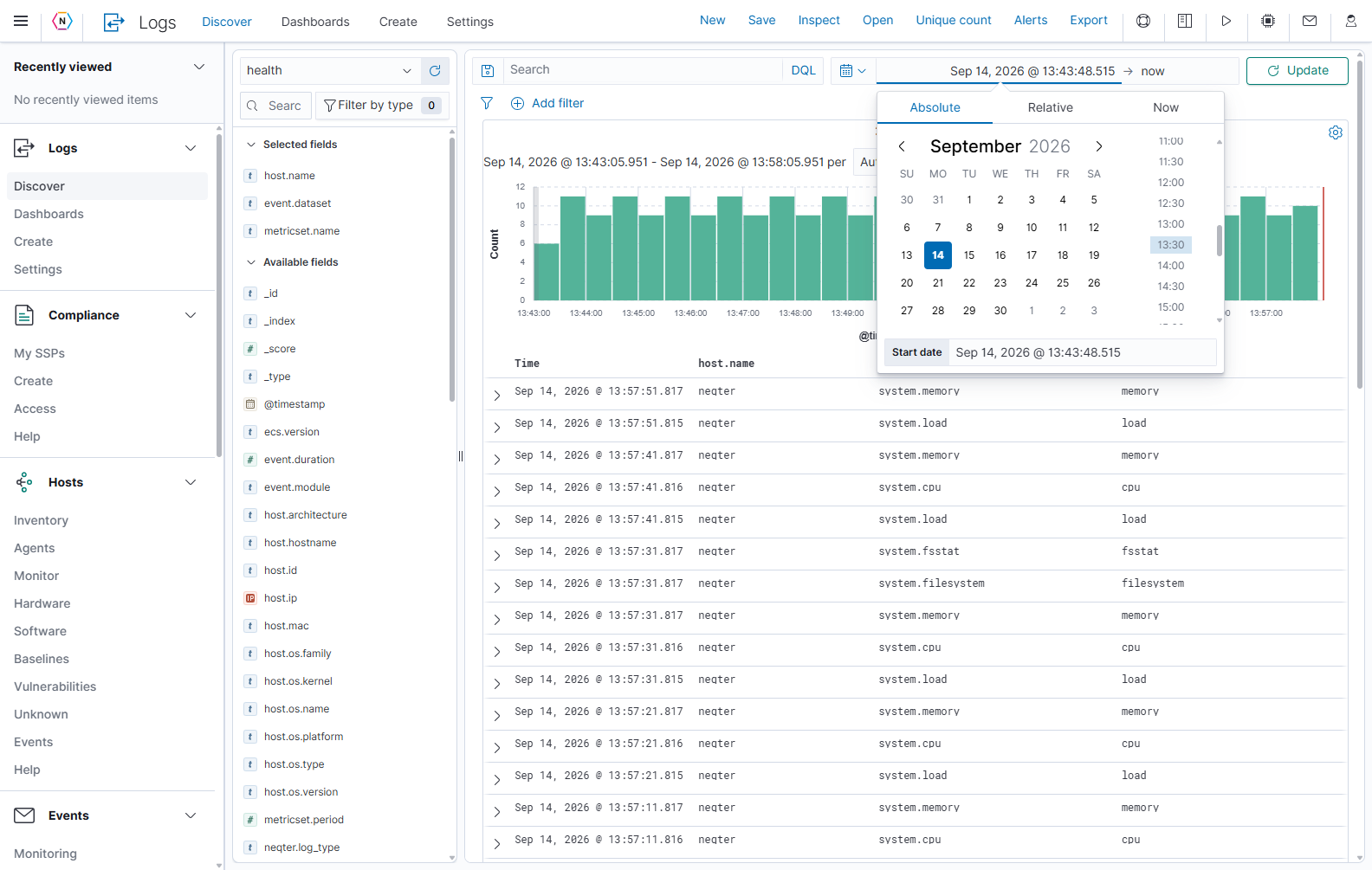
To investigate an exact interval, edit the start endpoint on Absolute, then edit the end endpoint on Absolute, and select Update. Confirm the time range above the histogram after the results load. Check the display timezone when comparing these timestamps with another system’s logs.
Add and manage filters
Filters appear as pills below the query box. Enabled filters combine with the query and time range. Multiple enabled filter pills narrow the result together; an is one of filter accepts any of its listed values.
Create a field filter
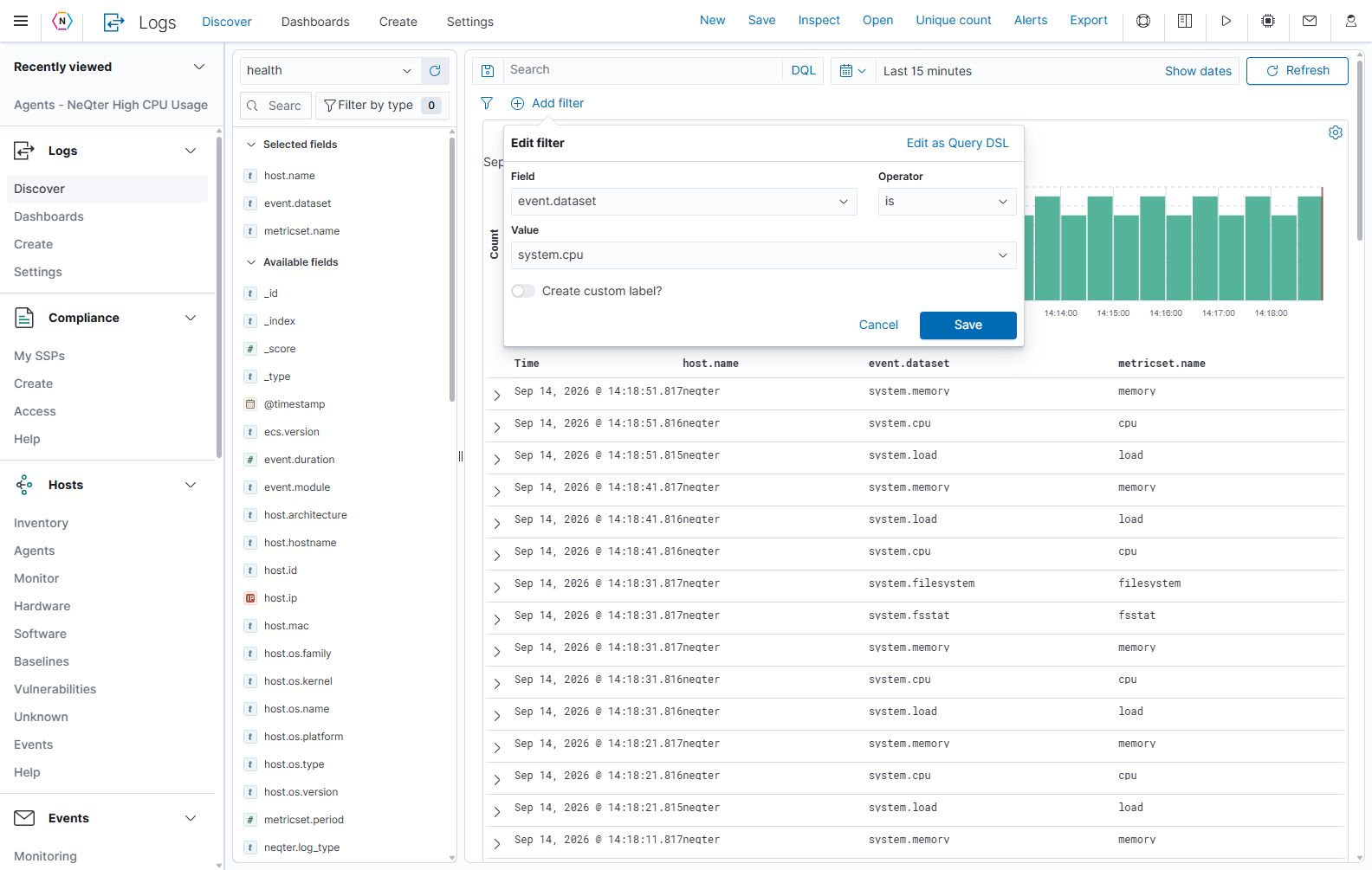
- Select Add filter. The resulting dialog is titled Edit filter.
- Select a Field, such as event.dataset. You can type to find it.
- Select an Operator, such as is.
- Select or enter a Value, such as system.cpu.
- Optionally enable Create custom label? and enter an explanation that makes the filter easy to recognize.
- Select Save to add the filter, or Cancel to discard it.
| Operator | Meaning |
|---|---|
| is / is not | Include or exclude the selected value. |
| is one of / is not one of | Include any listed value, or exclude all listed values. |
| exists / does not exist | Require a populated field, or find events without one. These do not need a value. |
| Range operators, where offered | Limit a compatible numeric or date field to a range. The available operators depend on the selected field. |
Edit as Query DSL switches the filter editor to its advanced JSON query representation. Use the regular field/operator/value controls for ordinary filters. The Query DSL editor is separate from the main DQL/Lucene search box.
Change an existing filter
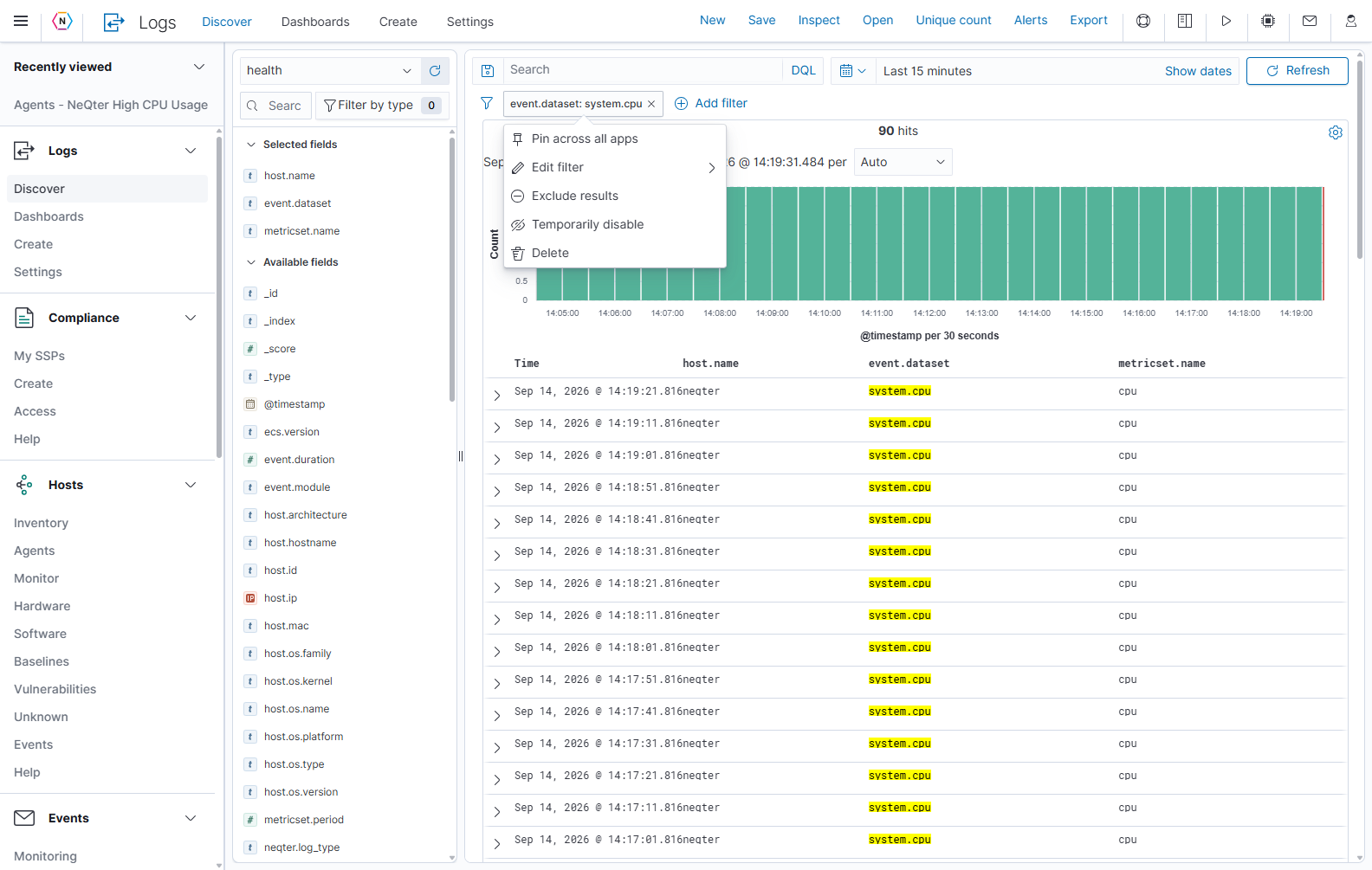
Select a filter pill to open its actions.
| Action | Result |
|---|---|
| Pin across all apps | Carry this filter into other compatible application views. Use the corresponding unpin action to make it local again. |
| Edit filter | Change the field, operator, value, or custom label. |
| Exclude results / Include results | Reverse whether matching events are excluded or included. |
| Temporarily disable / Re-enable | Stop or resume applying the condition while keeping the pill available. |
| Delete | Remove this filter from the search. It does not delete log records. |
The funnel button to the left of the pills is Change all filters. Its menu offers Enable all, Disable all, Pin all, Unpin all, Invert inclusion, Invert enabled/disabled, and Remove all. Invert inclusion reverses include/exclude conditions; Invert enabled/disabled swaps which filters are active. Remove all clears the filters, not the logs. Review pinned filters when moving to another source or application.
You can also add a filter using a field value’s plus icon to include it or minus icon to exclude it. These controls appear in field summaries and alongside values in the results and expanded event table. Hover a value or field row to reveal its available actions.
Read the histogram and hit count
Hits is the count of events matching the applied source, query, filters, and time range. Each histogram bar groups events into a time interval. The horizontal axis shows event time; the vertical axis shows the count in each bucket.
| Control or interaction | What it does |
|---|---|
| Interval selector beside per | Choose Auto, Millisecond, Second, Minute, Hour, Day, Week, Month, or Year. Auto chooses an interval for the displayed range. |
| Hover a bar | Inspect the bucket’s time and count. |
| Select a bar or drag across a time span | Narrow the time window to investigate that period. Review the changed time range, then use the time picker to return to a broader range. |
| Gear at the upper right | Open Options for discover. On this appliance it contains Enable legacy Discover, a layout setting. |
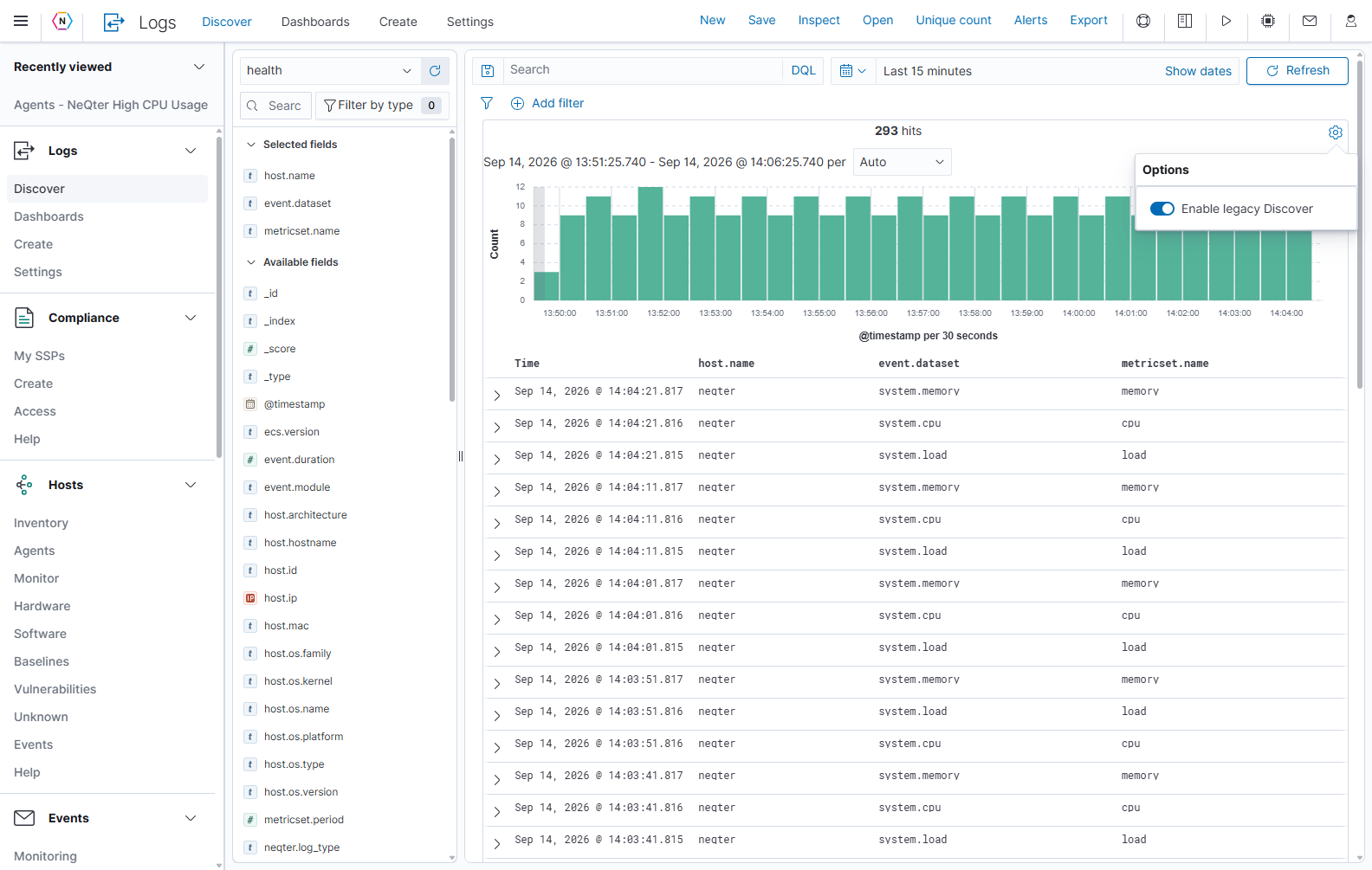
These screenshots document the table layout with Enable legacy Discover enabled. Changing that setting changes the results interface, so some table controls may move. The gear is not an export or query control.
The hit count may exceed the number of rows currently loaded or rendered in the table. Use Export with an appropriate limit when you need a file containing more matching events. A gap in this chart describes the current search; it does not by itself establish that a source stopped sending logs.
Use fields and arrange the table
Fields are the named values parsed from each event. A dotted name such as host.name identifies a nested property; fields available for one source may not exist in another.
| Field sidebar control | How to use it |
|---|---|
| Search field names | Type part of a field name. This searches field names, not event text. Clear it to show the list again. |
| Filter by type | Narrow the sidebar by field capabilities or data type. The badge reports active field-list filter settings. |
| Selected fields | Fields currently displayed as table columns. Expand/collapse the section with its arrow. |
| Available fields | Other fields for the selected source. Expand/collapse the section with its arrow. |
| Field name/summary control | Open a summary of that field’s values. |
| Plus beside a field | Add the field as a results column. It moves into Selected fields. |
| Remove/minus beside a selected field | Remove that column. The event still retains the field. |
| _source | The event’s source content. When no specific fields are selected, the table shows an event summary in this column. |
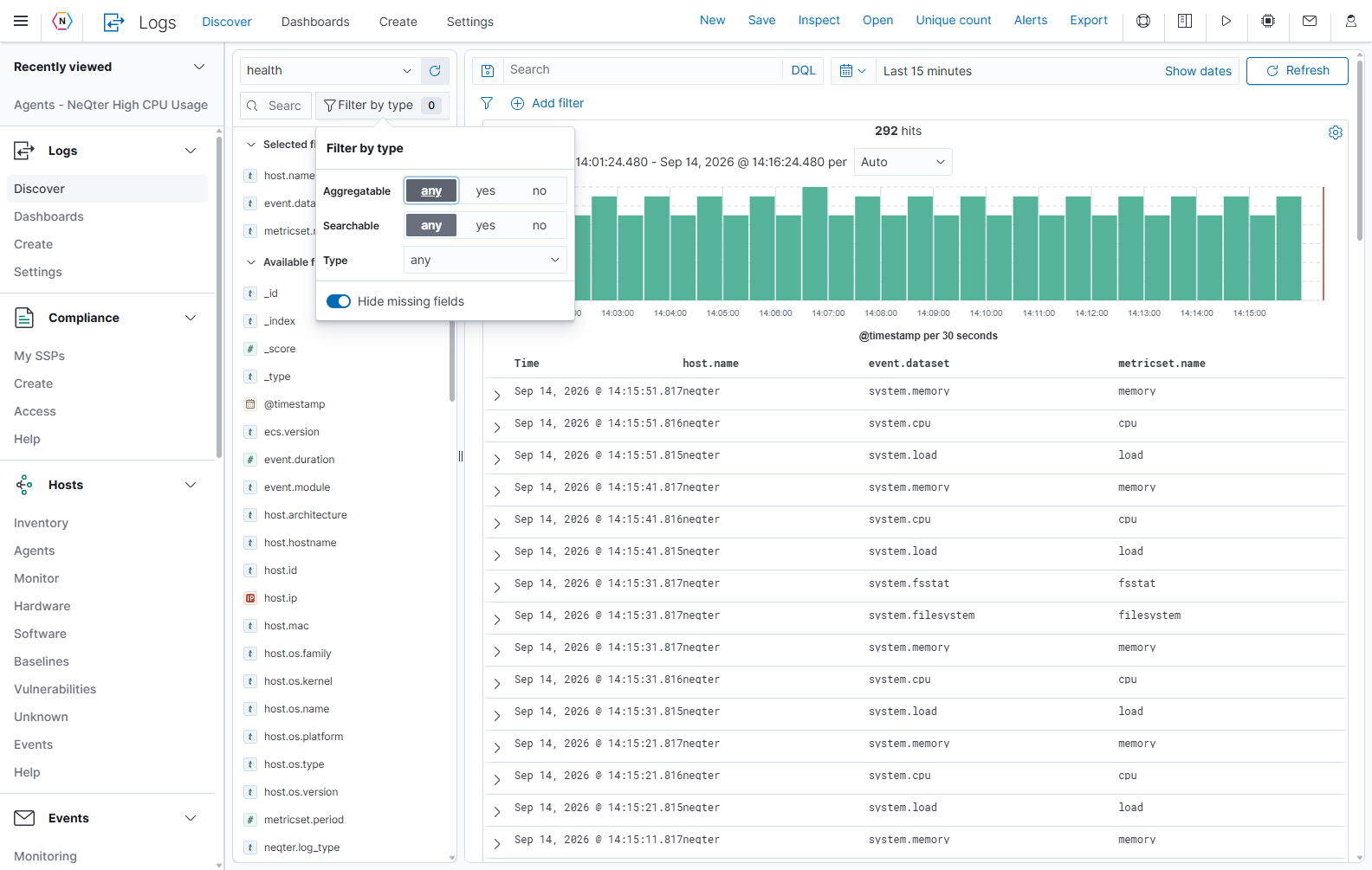
Aggregatable fields support value grouping/statistics. Searchable fields support search queries. Each capability can be set to any, yes, or no. Type selects a kind of field, such as string, number, date, IP, or boolean. Hide missing fields hides fields without values in the current records. These controls narrow the sidebar; they do not add an event filter.
Inspect a field’s top values
Select a field such as event.dataset to display Top 5 values, percentages, and Exists in … / … records. Use plus/minus beside a value to include or exclude it. The Exists in action creates an existence filter for that field.
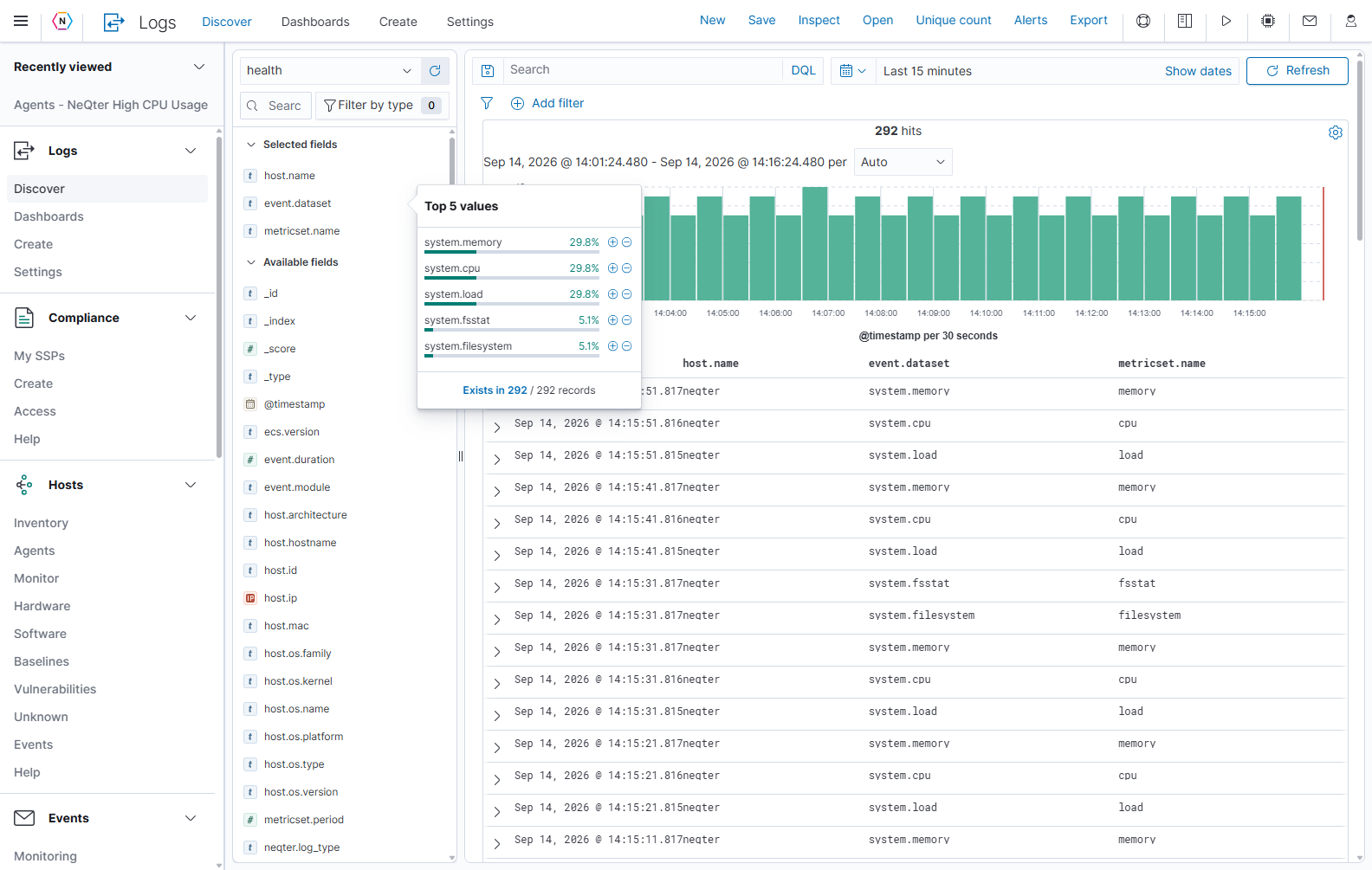
The sidebar summary describes the records loaded for the field summary. Do not treat its percentages or existence total as an exhaustive analysis of a larger search. Use Unique count for the separate value-frequency analysis described below.
Sort, remove, and reorder columns
Hover a column heading to reveal its controls. Use the sort arrow to change its sort direction, the remove control to drop the column, and the left/right arrows to move it. Time represents the source’s time field. Sorting changes which matching events appear first; it does not change the search conditions.
Use a small number of relevant columns so values remain readable. For the health example, host.name, event.dataset, and metricset.name make it easy to compare event types. For another source, choose fields that actually appear in its events.
Inspect an individual event
Select the chevron at the left of a results row to open Expanded document. Select the same control again to collapse it.
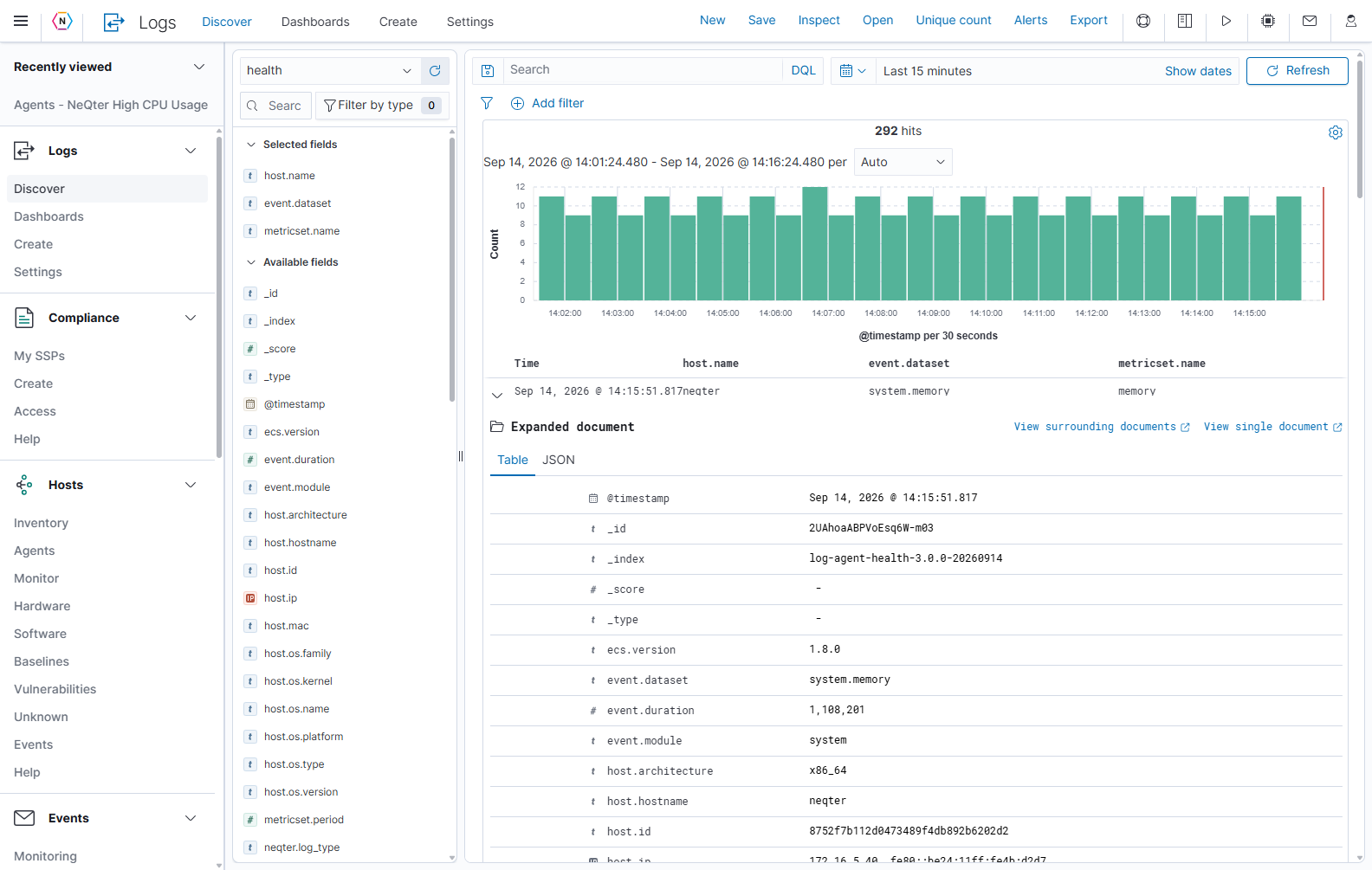
| Control | What it does |
|---|---|
| Table | Show each field and its readable value. Hover a field row for available actions. |
| Include/plus and exclude/minus | Add a filter for or against that field value. |
| Toggle column | Add or remove that field in the main results table. |
| Filter for field present | Add an existence condition for the field, where available. |
| JSON | Show the structured record, useful when examining nested values or comparing formatted display values with raw data. |
| Copy icon in JSON view | Copy the JSON shown by that view. |
| View single document | Open a focused view of this record in another tab/window. |
| View surrounding documents | Open a context view of records before and after this event. Check that view’s filters and context controls before interpreting the sequence. |
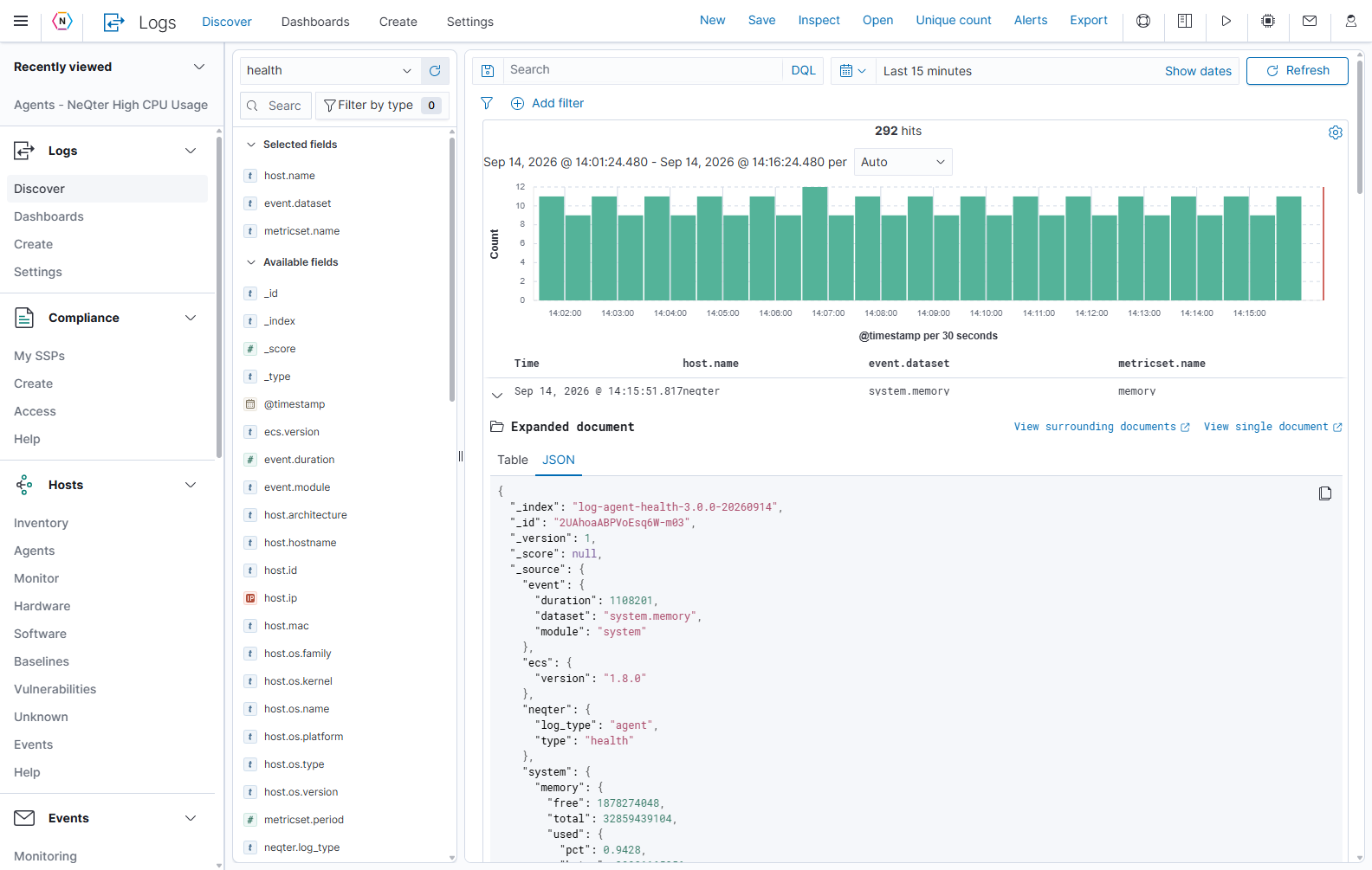
Common metadata includes _index, the index storing the record, and _id, the record identifier. @timestamp is the example source’s event time. A dash or missing value indicates that the displayed field has no usable value in that record. Field values can be strings, numbers, arrays, or objects; do not assume every event has the same fields.
Find common and unusual values with Unique count
Unique count opens a panel that lists a field’s values and the number of matching documents for each value. For example, it can show how many events are CPU, memory, or filesystem events, or which source IP addresses occur most often.
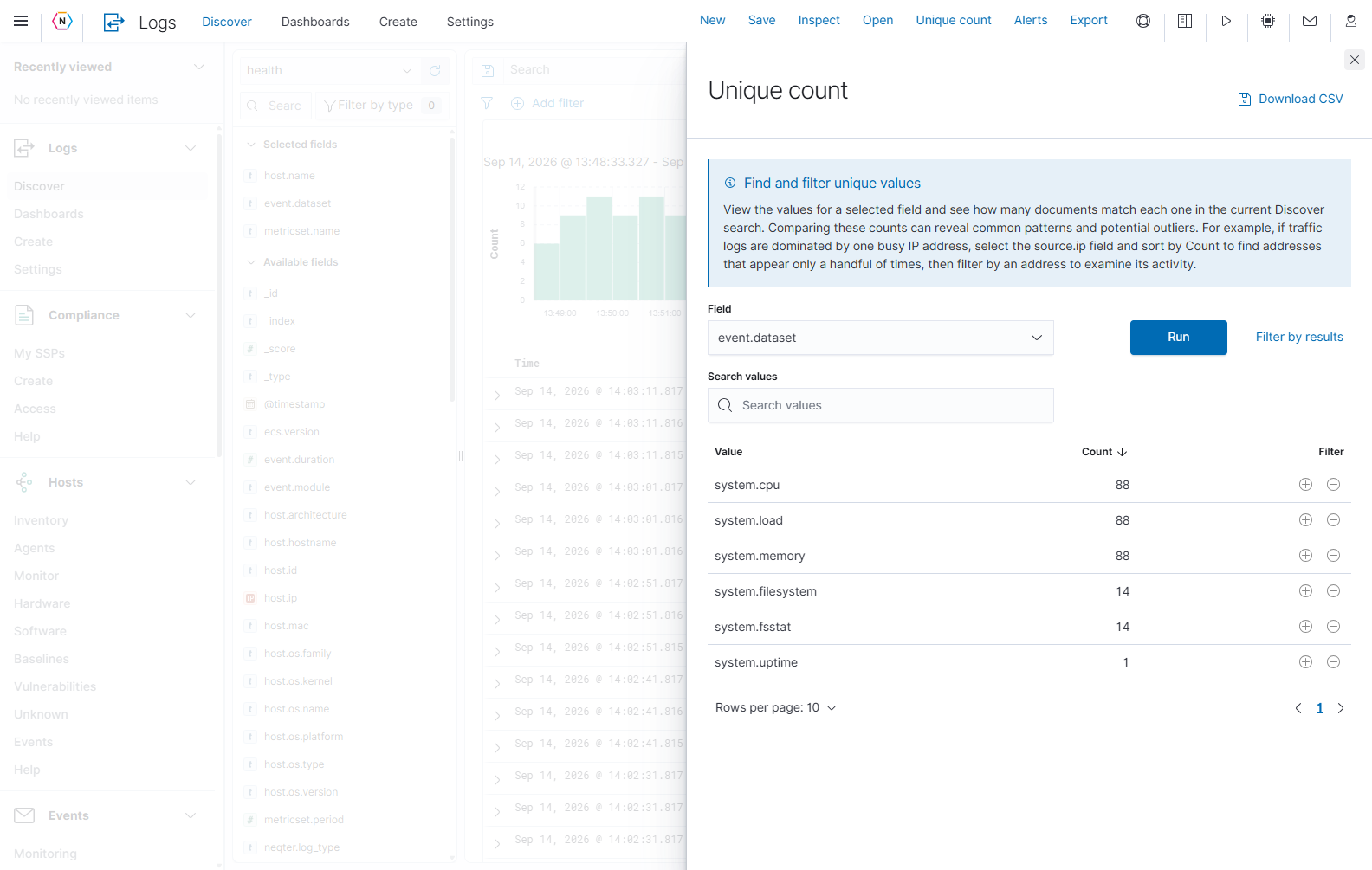
- Apply the source, query, filters, and time range you want to analyze.
- Select Unique count in the toolbar.
- Choose the Field, such as event.dataset.
- Select Run. Wait for the Value/Count table.
- Sort Count to compare common and less frequent values, or use Search values to find a returned value.
- Use the row’s plus/minus controls to include or exclude a value in Discover. Close the panel with X to inspect the resulting events.
| Control | Meaning |
|---|---|
| Field | Select a compatible field for grouping. Eligible choices depend on the current source and loaded fields. |
| Run | Calculate value frequencies after choosing a field. After changing Discover’s source, query, filters, or time range, close and reopen this panel, then run again. |
| Value / Count headings | Sort the value-frequency table. Count is the number of documents associated with a value. |
| Search values | Filter the already returned value rows by text. It does not change the underlying Discover query by itself. |
| Plus / minus | Add an include/exclude filter for that value. |
| Filter by results | Add an inclusion filter from the first 100 values remaining after Search values. It is not limited to the currently visible page. |
| Rows per page, page numbers, arrows | Change or navigate the visible results page. |
| Download CSV | Download the returned value/count rows remaining after Search values, across pages. This exports the frequency table, not individual raw logs. |
| X | Close the panel. |
This feature returns up to 10,000 values for the selected field. It is a frequency table, not a guarantee that every distinct value in a very large data set is listed. For fields containing multiple values per event, counts across value rows can add up to more than the number of events.
Start, save, and reopen Discover searches
New
Select New to start a new Discover search. Save work you intend to reuse before doing this. Check the resulting source, time range, and any pinned filters before beginning the next investigation. New does not delete existing saved searches or log records.
Save a new search
- Set the source, query, and filters.
- Choose the columns and sort order you want to reuse.
- Select Save in the top toolbar.
- Enter a meaningful Title, such as Health - CPU events by host.
- Select Save in the dialog. Cancel or X closes it without saving.
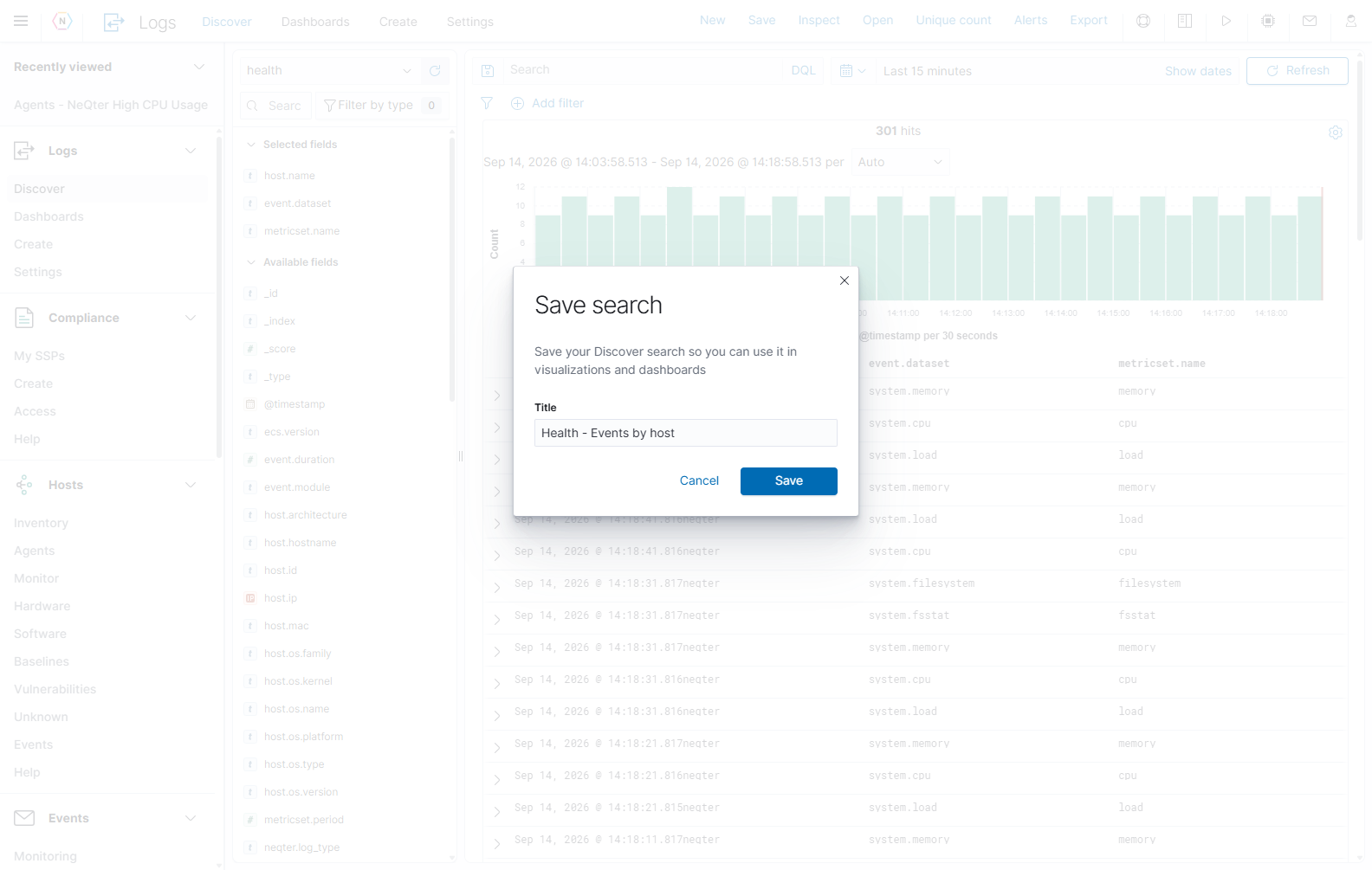
A saved search retains the search definition and table setup. It does not freeze the matching records into an evidence snapshot. The Save search dialog shown here has no Include time filter option; that option belongs to Save query. Check the time range whenever reopening a saved search.
Open an existing search
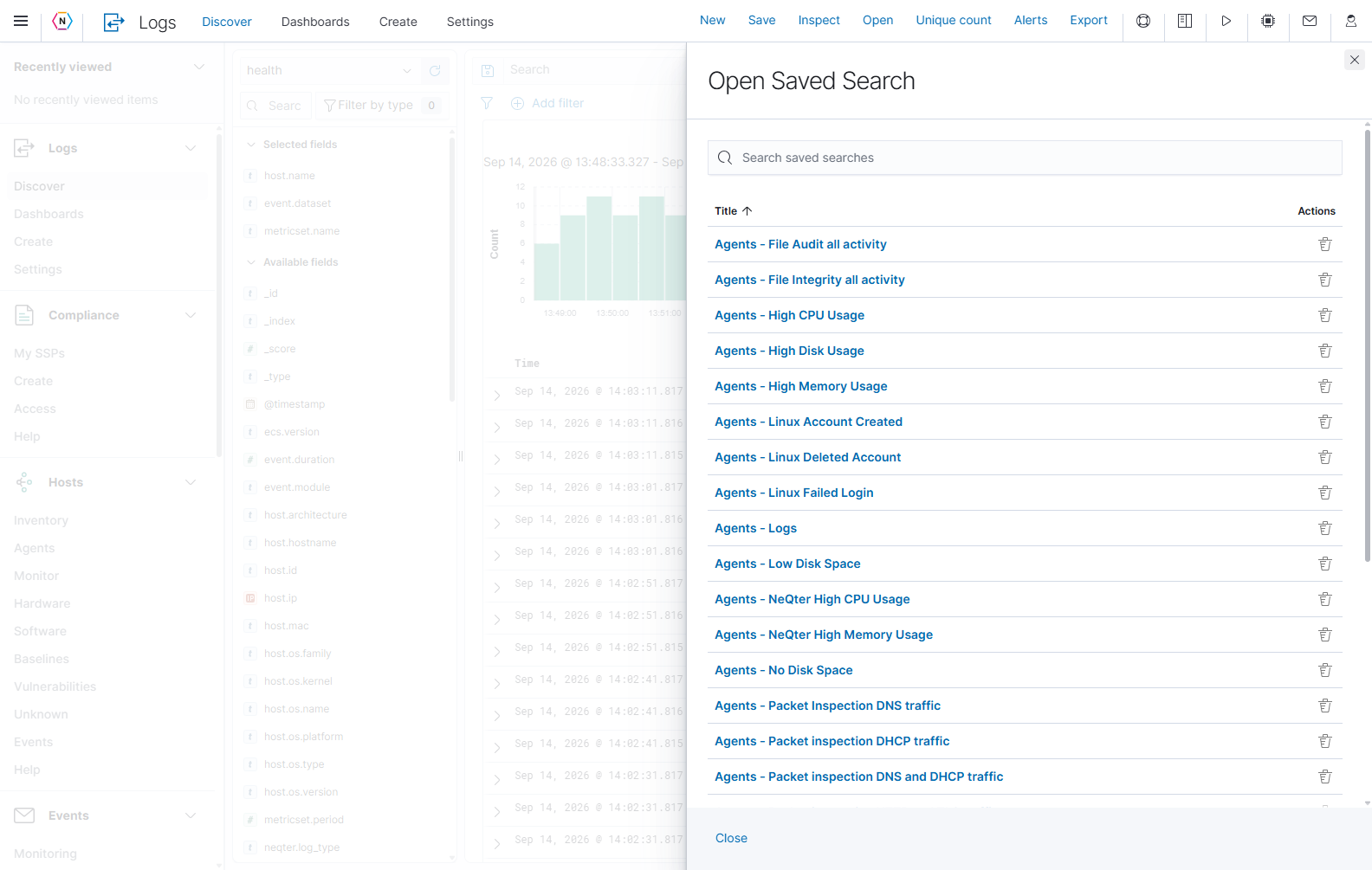
Select Open, type in Search saved searches, and select a title. The selected search loads its source, conditions, and table setup. Rows per page, the page numbers, and the arrows navigate the list. Close dismisses it without opening a search.
When a saved search is loaded, Reset search beside Hits reopens that saved search. Save changes you want to keep before resetting, then recheck the time range and any pinned filters.
The row’s Delete action removes that saved search definition. Use it only when you intend to remove the saved item; opening a search requires selecting its title. Deleting a saved search is different from removing a filter and does not delete the underlying events.
Save changes or make a copy
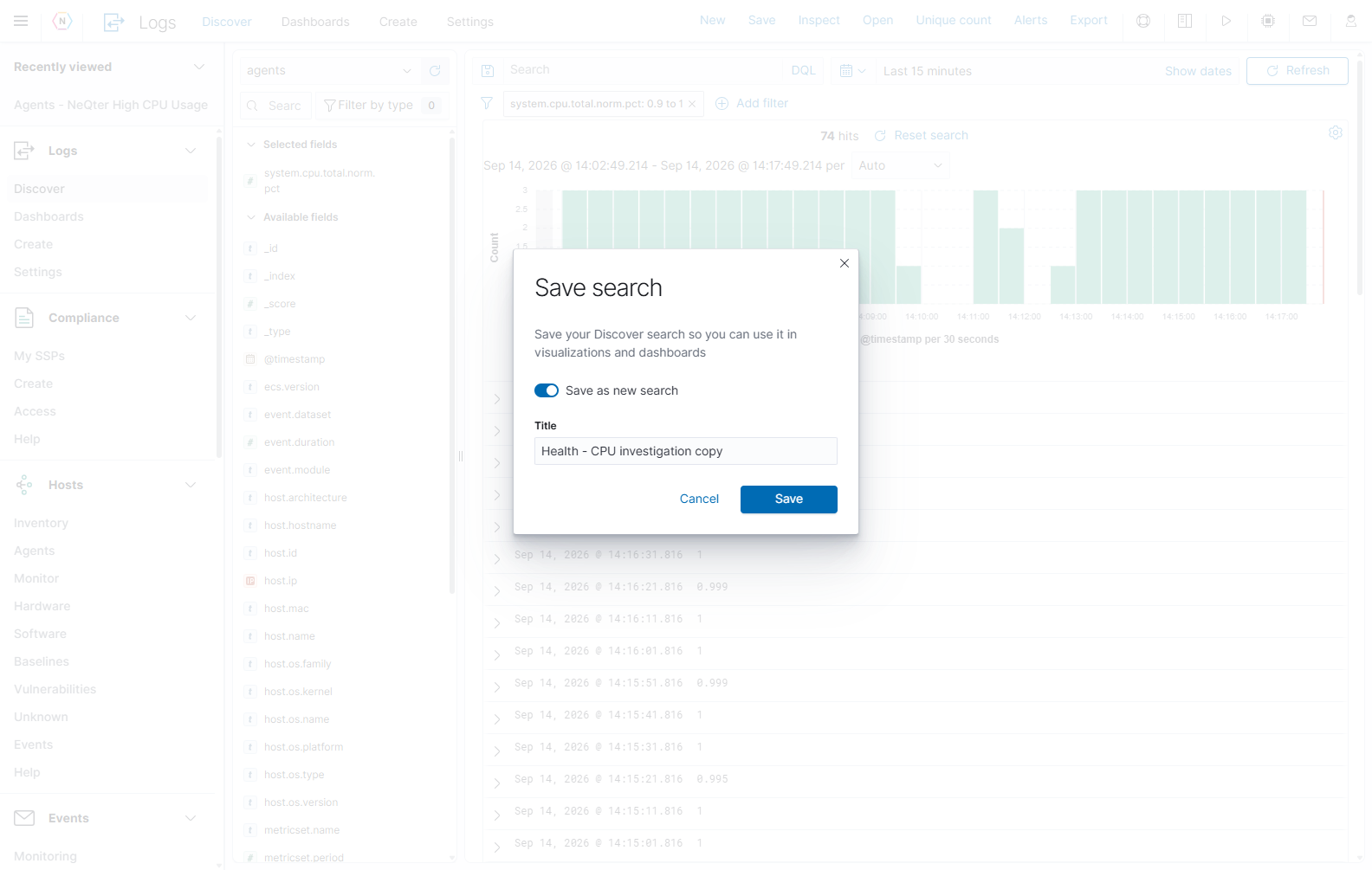
When an existing search is open, Save offers Save as new search. Leave that switch off to update the current saved search. Turn it on and enter a different title to create a separate search. Select Save to commit, or Cancel to discard the dialog.
Share a search view
Use Share in the top toolbar to copy a link to the investigation. Set the source, query, filters, columns, and time range first. Choose an absolute time range when another person needs to investigate the same interval.
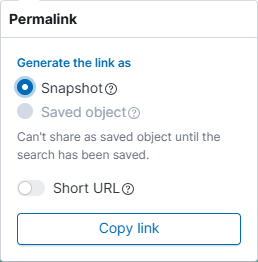
- Select Share to open Permalink.
- Under Generate the link as, choose Snapshot to include the current search configuration in the link, or Saved object to open the latest saved version of the search. Saved object is unavailable until the search has been saved.
- Optionally enable Short URL for a shorter link.
- Select Copy link, then paste it into your investigation notes or message to a colleague who can access the appliance.
- Press Escape or click outside the menu to close it.
Later edits to a saved search do not change a Snapshot link’s encoded search configuration. A Saved object link follows the latest saved configuration. Neither option stores a copy of the matching log records: new data, retention, and relative time ranges can change the results. Use Export when you need a file containing the records.
Sharing a link does not grant access to the appliance or its data. The recipient still needs the appropriate account permissions.
Export matching logs
Select Export in the top toolbar to open Export logs. On this appliance, exporting raw logs is available to global administrators.
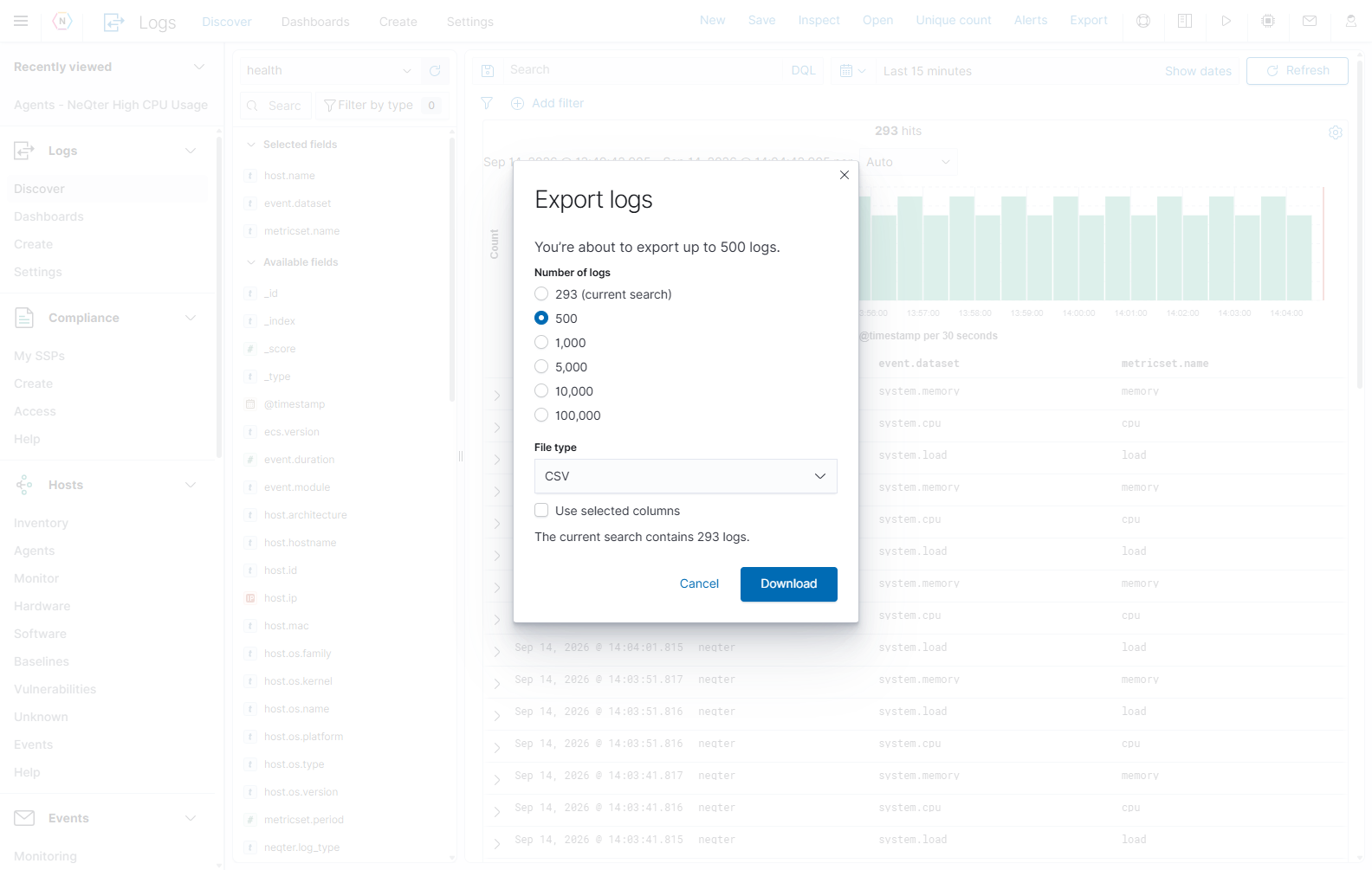
- Apply the source, query, filters, and time range. For a fixed evidence interval, use absolute start and end times.
- If you want a column-focused spreadsheet, add the required fields to the results table first.
- Select Export.
- Choose Number of logs: the displayed current-search count, or 500, 1,000, 5,000, 10,000, or 100,000.
- Choose CSV, XLSX, or JSON under File type.
- For CSV/XLSX, enable Use selected columns if the file should contain the selected fields. Leave it off to export source fields more broadly.
- Review the message saying how many logs may be exported, then select Download. Cancel or X leaves without downloading.
| Setting | What to expect |
|---|---|
| Number of logs | A maximum. If 293 events match and you select 500, the export cannot create 500 matching events; it exports up to the available matches. |
| Current search option | Targets the displayed matching count. This option is unavailable when that count exceeds 100,000. |
| CSV | A delimited table for spreadsheets or further processing. |
| XLSX | An Excel workbook. |
| JSON | Structured event results, including record metadata; it is not controlled by the selected spreadsheet columns. |
| Use selected columns | Applies to CSV/XLSX and requires specific fields to be selected in Discover. |
Export uses the active search and retrieves matching records beyond the visible table rows, up to the selected limit. For searches larger than the limit, split the investigation into smaller time windows or narrower conditions. Changing table page or scroll position is not a way to choose an export segment.
Inspect the search request
Use Inspect when you need to understand what the page requested or troubleshoot a query. It describes the search request and response; use an expanded event to read one particular log.
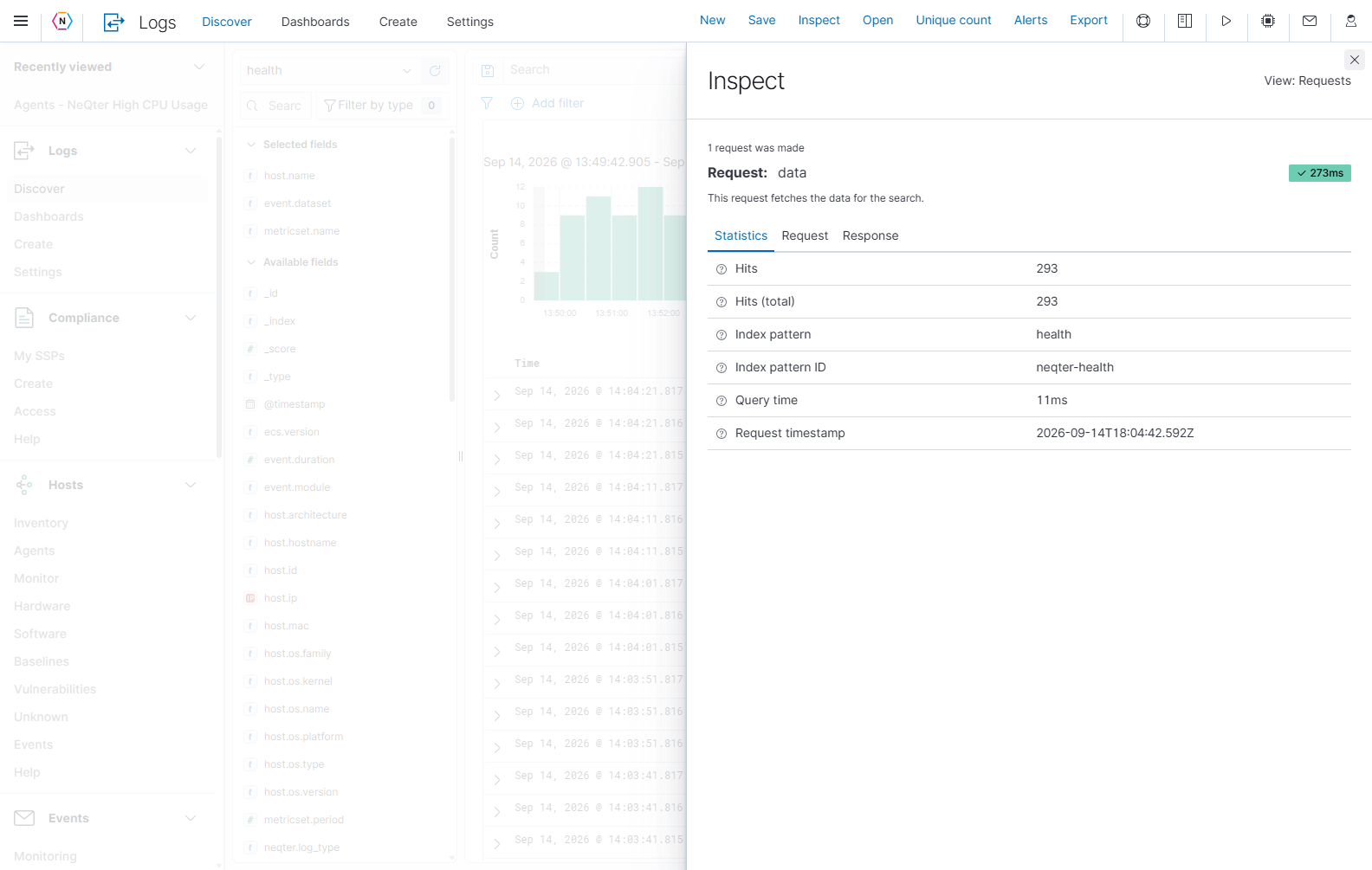
| Control | Purpose |
|---|---|
| View: Requests | Identify the type of information being inspected. |
| Request selector | Choose the request to examine when more than one is available. |
| Statistics | Read the returned hits, total matching hits, index pattern, query time, and request timestamp. |
| Request tab | Read the generated search request. The copy icon copies the displayed request. |
| Response tab | Read the backend response and any useful result or diagnostic details. |
| X / Close Inspect | Return to Discover. |
Hits and Hits (total) can differ when the request returns a sample of a larger matching set. Query time measures backend query work, not every part of the browser’s loading time.
Open monitoring and alert information
Discover’s Alerts button opens the Events side panel. It initially shows Monitoring. The panel has its own time controls, initially Last 7 days on the reference appliance; do not assume they match Discover’s time range.
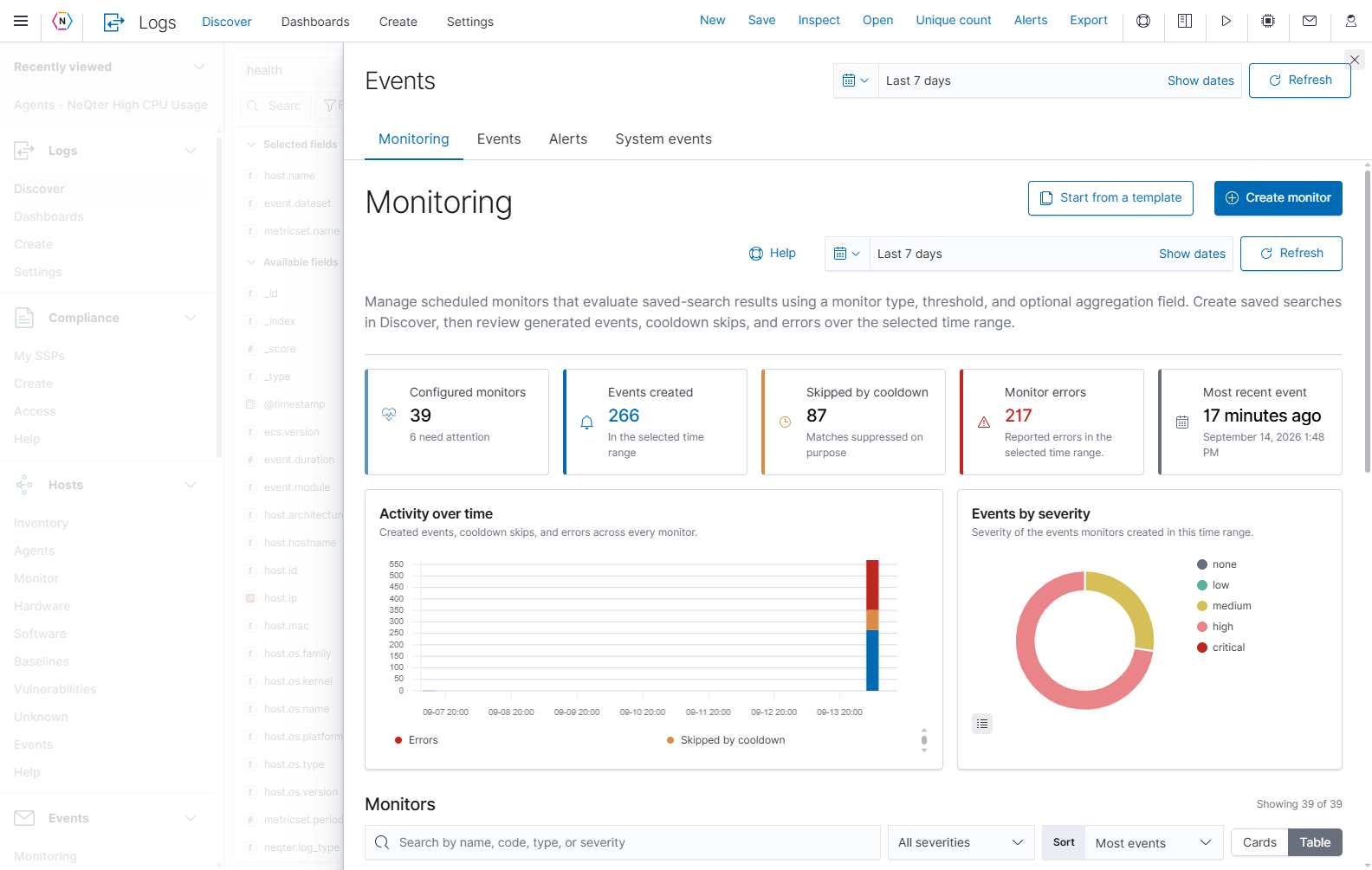
| Tab or control | What it is for |
|---|---|
| Monitoring | Review scheduled monitors, their generated-event counts, cooldown skips, errors, and recent activity. Monitors evaluate saved-search results. |
| Create monitor / Start from a template | Open monitor setup. Save the Discover search you want a monitor to evaluate before configuring it. |
| Events | Review events generated by the monitoring system. |
| Alerts | Review notification rules that select events and their delivery destinations. |
| System events | Review appliance/system event information. |
| Panel time picker and Refresh | Set and refresh the panel’s own time-dependent information. The Monitoring view also exposes its own visible time controls. |
| X | Close the panel and return to the search. |
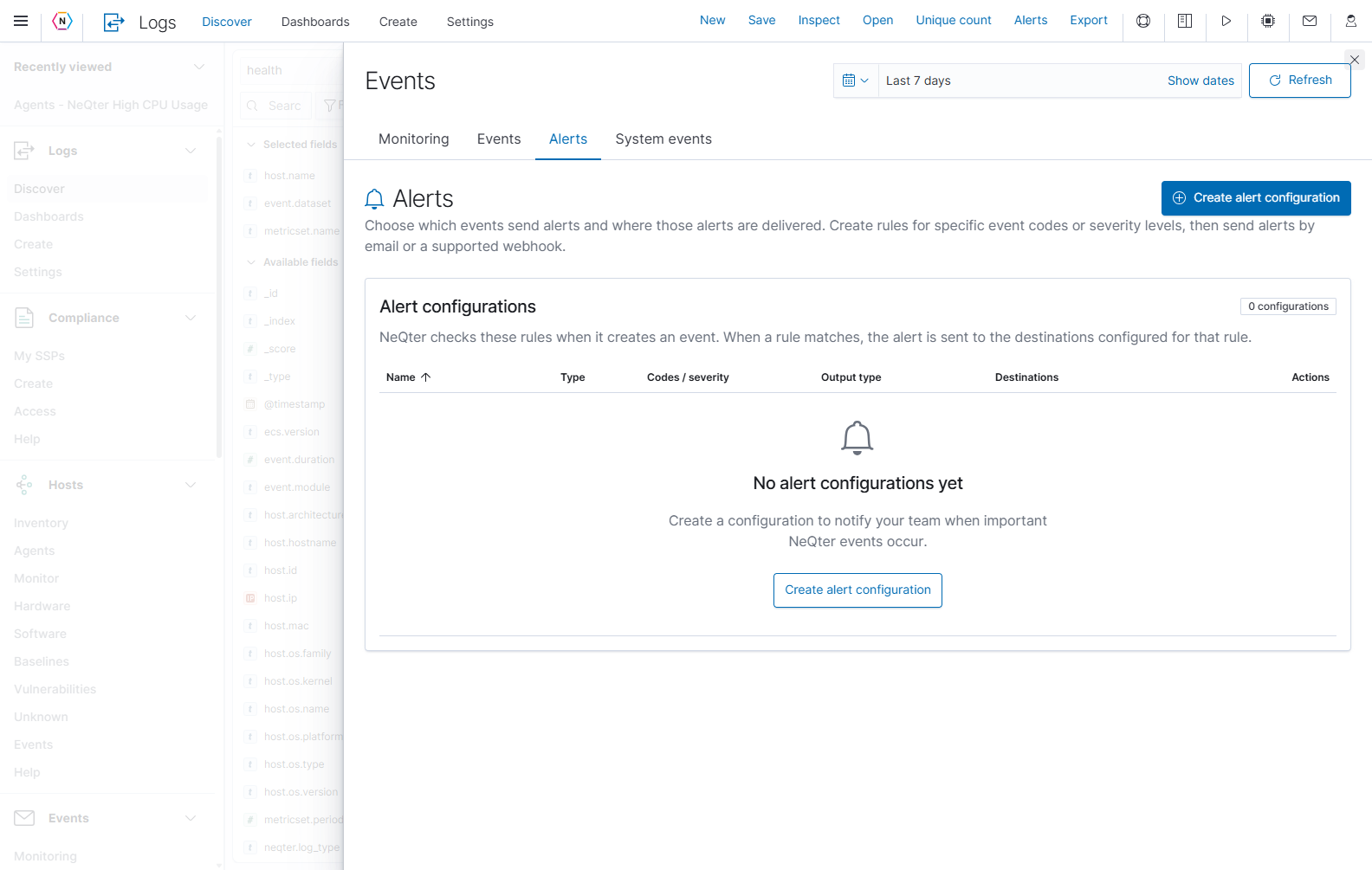
In Alerts, Create alert configuration opens rule setup for event codes or severities and delivery destinations such as email or supported webhooks. Opening the panel or selecting a tab does not create a monitor or notification rule. Follow the saved-search-to-notification workflow for the complete sequence, or go directly to monitor setup and alert rules.
Troubleshoot unexpected results
| What you see | What to check |
|---|---|
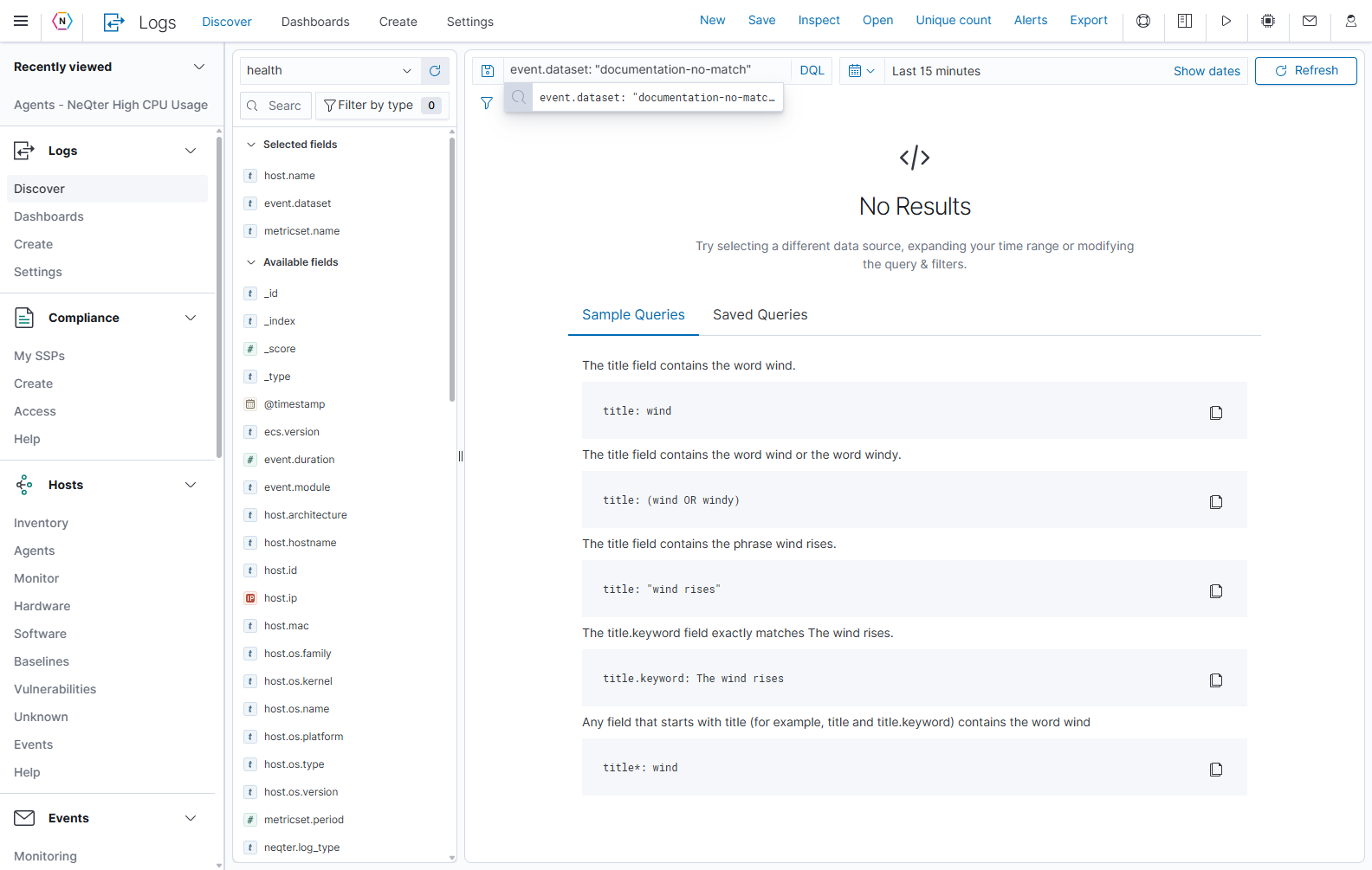
| No Results | Confirm the source, broaden the time range, clear the query, and disable filters one at a time. Check pinned filters too. |
| Update remains highlighted | Apply the pending change before interpreting the table or taking an evidence screenshot. |
| A field is missing from the sidebar | Clear Search field names and Filter by type settings; check Hide missing fields and the selected source. |
| A selected column is blank | Expand an event to see whether that event actually contains the field. |
| The query fails | Check DQL versus Lucene, field spelling, quotes, parentheses, and value type. |
| The table has fewer rows than Hits | The displayed records can be a subset. Use the appropriate Export limit for a larger download. |
| Unique count does not list a field/value | Check field eligibility, current source/results, the Search values text, and the 10,000-value limit. |
| Export is missing or unavailable | Check account permissions. Selected-column export also requires specific fields and a compatible file type. |
| Reopening a saved search gives different results | Check the current time window, filters, source, and newly arrived or expired data. A saved search is a reusable definition. |
| Alerts panel totals differ from Discover | Check the panel’s separate time range and remember it summarizes monitors/events, not the raw Discover log table. |
The empty-results screen also shows Sample Queries with copy icons. Those examples illustrate syntax; replace their example fields and values with ones present in your source.