

SonicWall
Configure the source in NeQter before enabling its syslog sender. The screenshots below use fictional examples; replace the example address with the actual sender address that reaches your appliance.
Step 1: NeQter Input Setup
- Open Settings → Inputs → Syslog and select Add input.
- Enter a descriptive Label and the sending device’s IP address. Account for any relay or source address translation. This field identifies the sender, not the NeQter destination.
- Select SonicWall under Manufacturer. Review the optional DNS resolution, tags, and dashboard choice.
- Select Save to create the input. Cancel closes an unsaved draft.
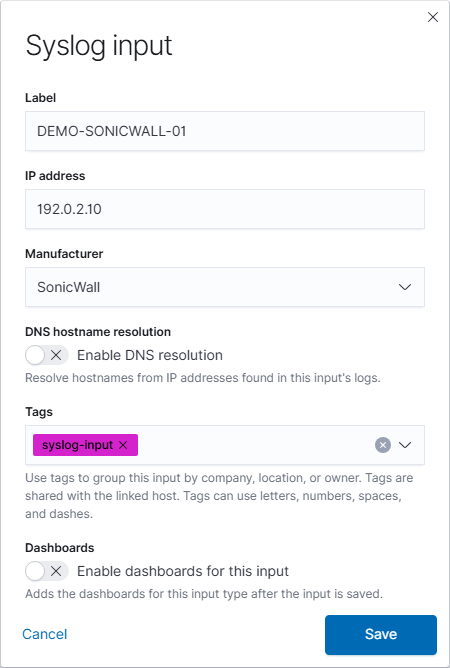
NeQter drops syslog messages that do not match a configured input. See Syslog setup for source matching and reception checks.
Step 2: NeQter Dashboard Setup
- Open Settings → Dashboards and find SonicWall.
- Turn on Enable index if needed, then select the supplied dashboard checkboxes you want.
- Select Apply changes at the top of the page to save the pending selections.
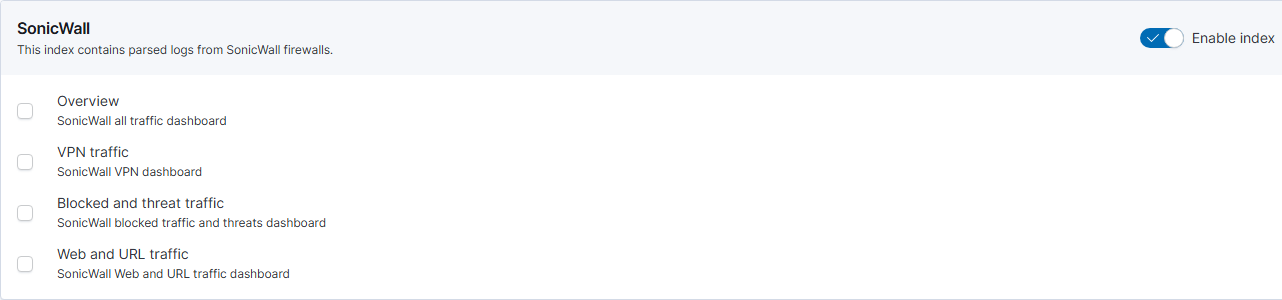
Open enabled dashboards through Logs → Dashboards. Selecting dashboards does not configure the sender or establish that logs are arriving.
Step 3: SonicWall Configuration
1. Logon to the SonicWall Device.
2. Go to Device in the top navigation bar.
3. Navigate to Log → Syslog on the side navigation bar.
4. Open the Syslog Servers tab.
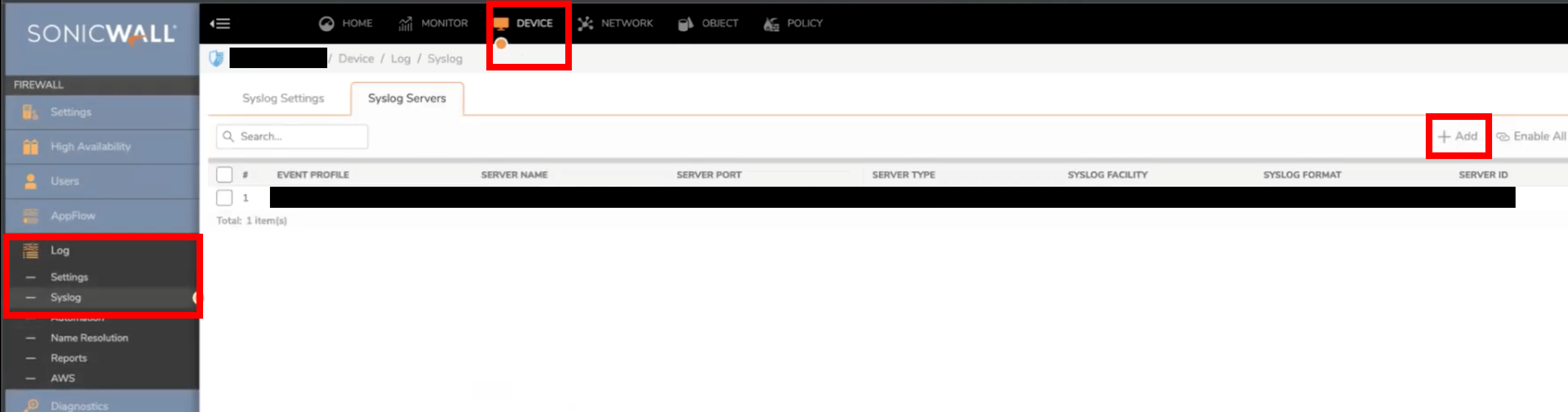
5. Click Add, then configure the following:
- Name or IP Address: Select the NeQter Object. If none exist, create one for the NeQter Device.
- Port: 514
- Server Type: Syslog Server
- Syslog Format: Leave as Default for all logs, or change to Enhanced if for more customization of logs sent to NeQter.
- Leave the remaining settings as default.
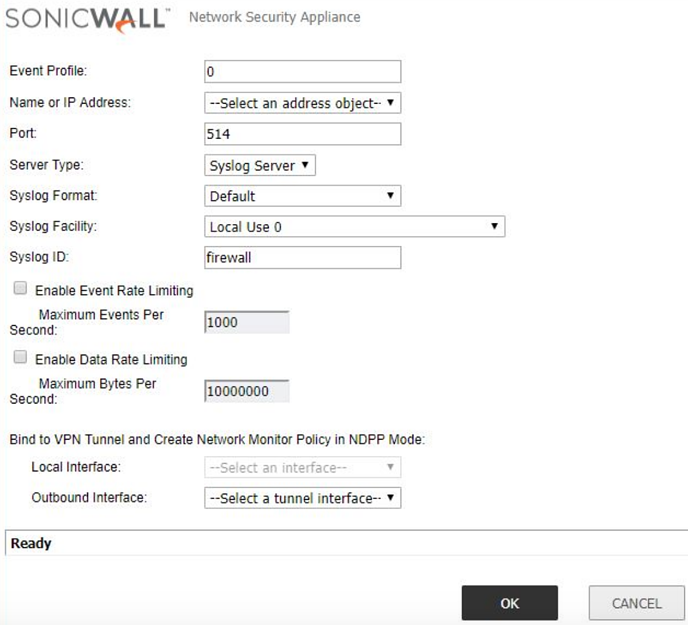
6. Click Ok to save syslog server profile.
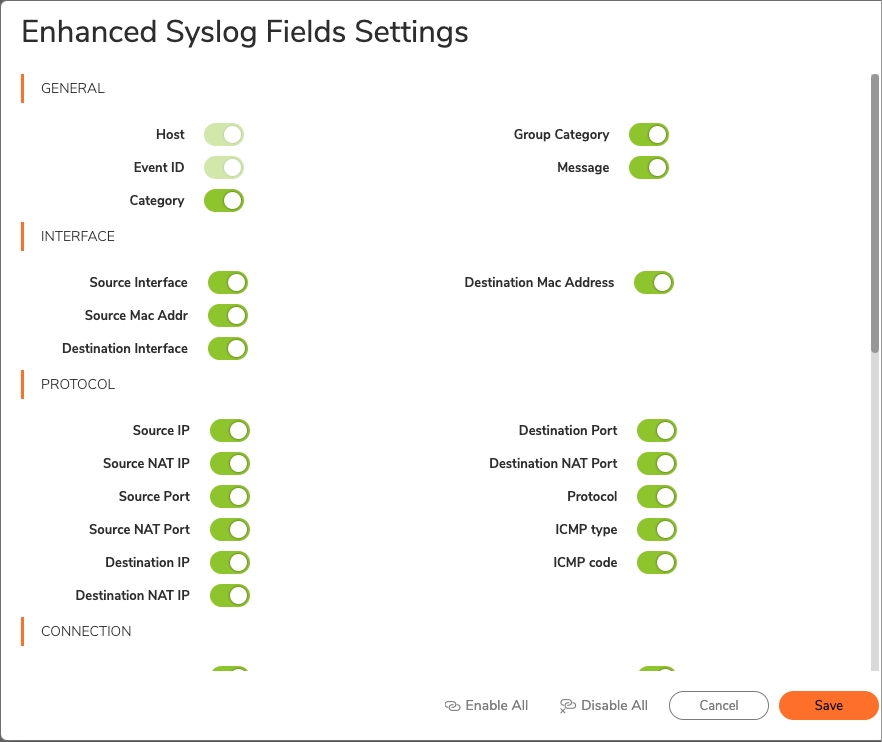
7. If Enhanced was selected in step 5, navigate to Syslog Settings tab and click Configure next to Enhanced Syslog Fields Settings. From there, select which fields should be sent to the NeQter device.
If configured correctly, traffic should be visible in NeQter within an hour. If no new traffic appears after completing the steps above, contact support here for further assistance.