
Google Workspace
Use Settings → Inputs → Google Workspace to authorize audit-log collection in NeQter. The collector uses Google sign-in and an authorization grant from a Workspace domain administrator.
Keep the account’s two-step verification enabled and complete it during sign-in when prompted. The old Less secure app access procedure does not apply: Google Workspace has retired that password-only access, and its audit Reports API uses OAuth authorization. See Google’s less-secure-app transition and Reports API authorization guidance.
Choose events and authorize
- Open Settings → Inputs → Google Workspace. For a new or disabled collector, choose at least one event type to retrieve.
- Select Request auth URL. Complete Google sign-in with the intended domain administrator account and review the audit-report access request. If the sign-in window does not open, use the continuation link displayed by NeQter.
- Complete the consent flow and copy the returned authorization code.
- Return to NeQter and paste it under Enter authorization code.
- Select Authorize and enable. This completes authorization, saves the selected options, and enables collection when successful.
If organizational Google app-access policy blocks consent, have the Workspace administrator review the application’s requested access under that policy. Do not weaken account sign-in controls to bypass the authorization flow.
Read the configured page
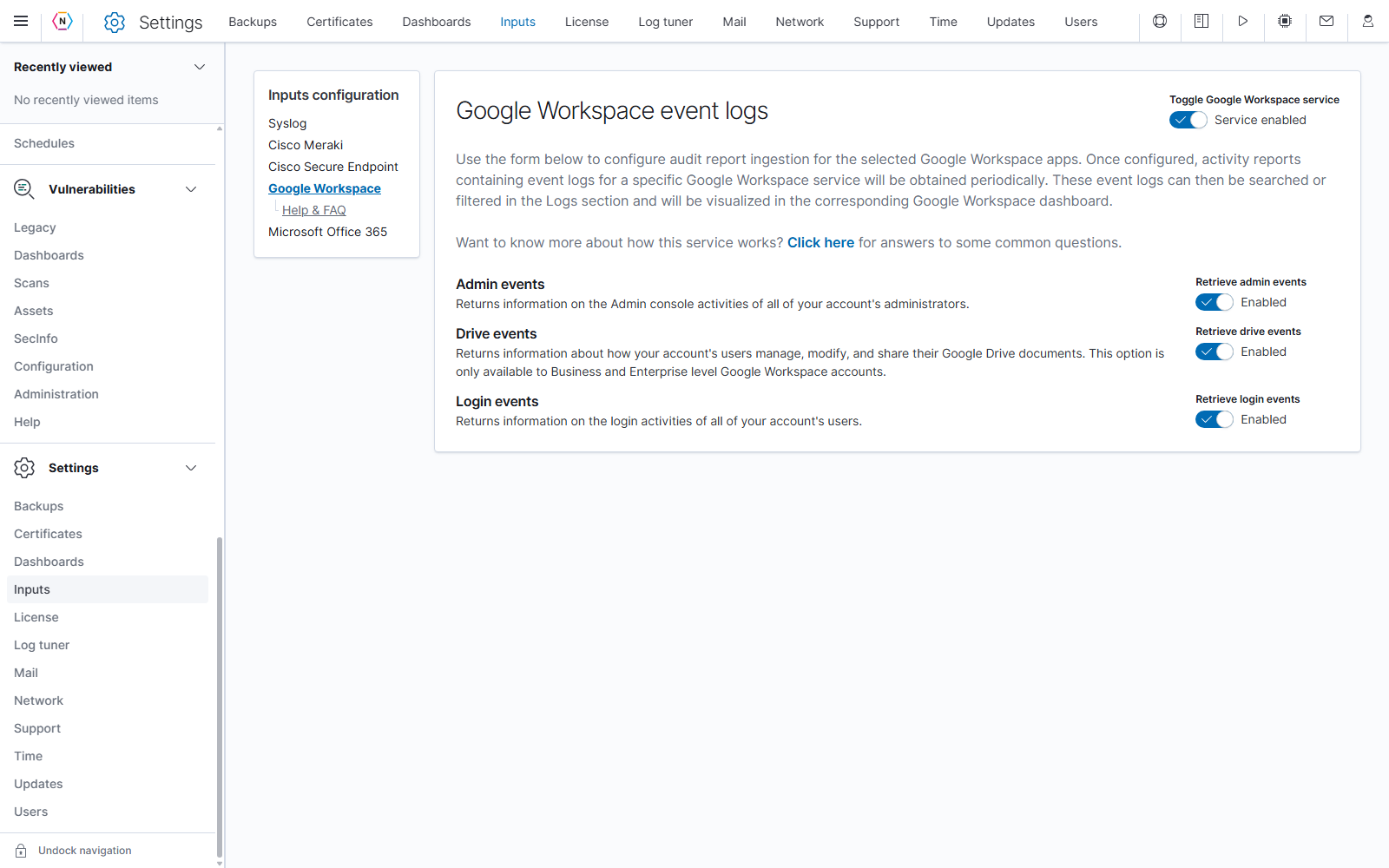
This is the page after authorization. Each event-type switch changes the saved collection selection immediately.
| Control | Purpose |
|---|---|
| Retrieve admin events | Collect administrators’ Admin console activity. |
| Retrieve drive events | Collect activity involving Drive documents. The NeQter form identifies this option as requiring a Business or Enterprise account; confirm the audit data available for your Workspace edition. |
| Retrieve login events | Collect users’ login activity. |
| Toggle Google Workspace service | Disable the active service and remove its authorization token. Enabling it again requires completing authorization again. |
| Help & FAQ / Click here | Open authorization, refresh-token, collection-delay, and revocation guidance. |
Verify collection
Generate an appropriate test event and allow for Google’s audit-data delay and the collector’s periodic retrieval. Then find the activity in Discover, checking the event type and time range.
Enable the desired Google Workspace dashboards in Settings → Dashboards after configuring collection. Dashboard selection does not authorize the collector or choose which audit events it retrieves.
Resolve authorization problems
If NeQter reports Google did not return a refresh token, select Open Google sign-in again and follow the displayed recovery guidance. It explains when to remove the previous NeQter authorization from the Google account and authorize again. Collection requires a refresh token.
If the service is enabled but an event is missing, check the saved event-type switches, the Workspace account/edition, and audit-data availability before repeating authorization. The Google Workspace Settings reference covers the complete collector behavior.