
Packetbeat Dashboards in NeQter
Packetbeat data describes observed network transactions. In NeQter, these dashboards are grouped under Packets. Use them to investigate traffic sources and destinations, protocol errors, HTTP and TLS activity, DNS responses, and DHCP exchanges.
Table of contents
Packetbeat dashboard set
| Dashboard | Use it for |
|---|---|
| Packets - Packet overview | Source and destination addresses, countries and ports, traffic between hosts, protocol errors, and connection trends. |
| Packets - Packet HTTP and TLS | HTTP transactions and status codes, TLS versions and alerts, established sessions, and server names. |
| Packets - Packet DNS and DHCP | DNS queries, response codes and response times; DHCP message types, client counts, transactions, and address assignments. |
These dashboards do not replace full packet capture. Packetbeat records transaction metadata and parsed protocol fields. It does not decrypt encrypted application content.
Enable the dashboards
- Confirm the NeQter agent is sending packet-inspection data from the intended capture point.
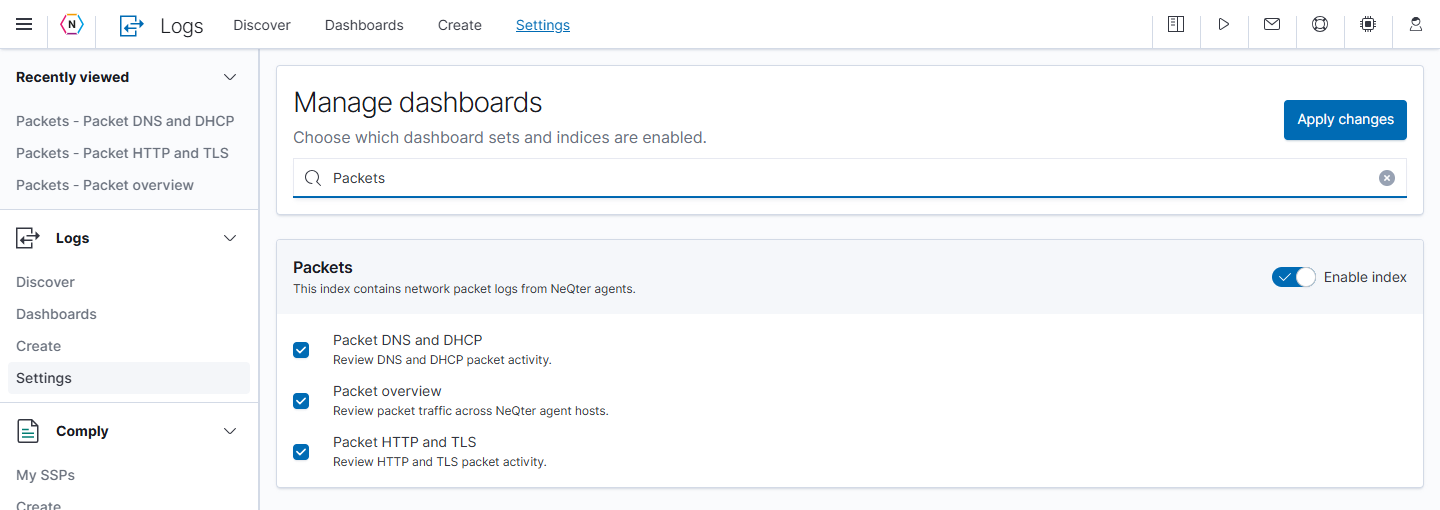
- Open Logs → Settings. The main navigation’s Settings → Dashboards provides the same dashboard management controls.
- Enter
Packetsin Search index labels or dashboards. - Turn on Enable index for Packets if it is off.
- Select Packet overview, Packet HTTP and TLS, and Packet DNS and DHCP as needed.
- Select Apply changes at the top.
- Open Logs → Dashboards, enter
Packetsin Search…, and press Enter. - Select the dashboard title you need.
If the dashboards are enabled but empty, check the capture point, selected time range, active filters, and whether the observed traffic includes the expected protocol.
Packet overview workflow
Start here when you know a host or a time window but have not yet isolated the protocol or destination involved.
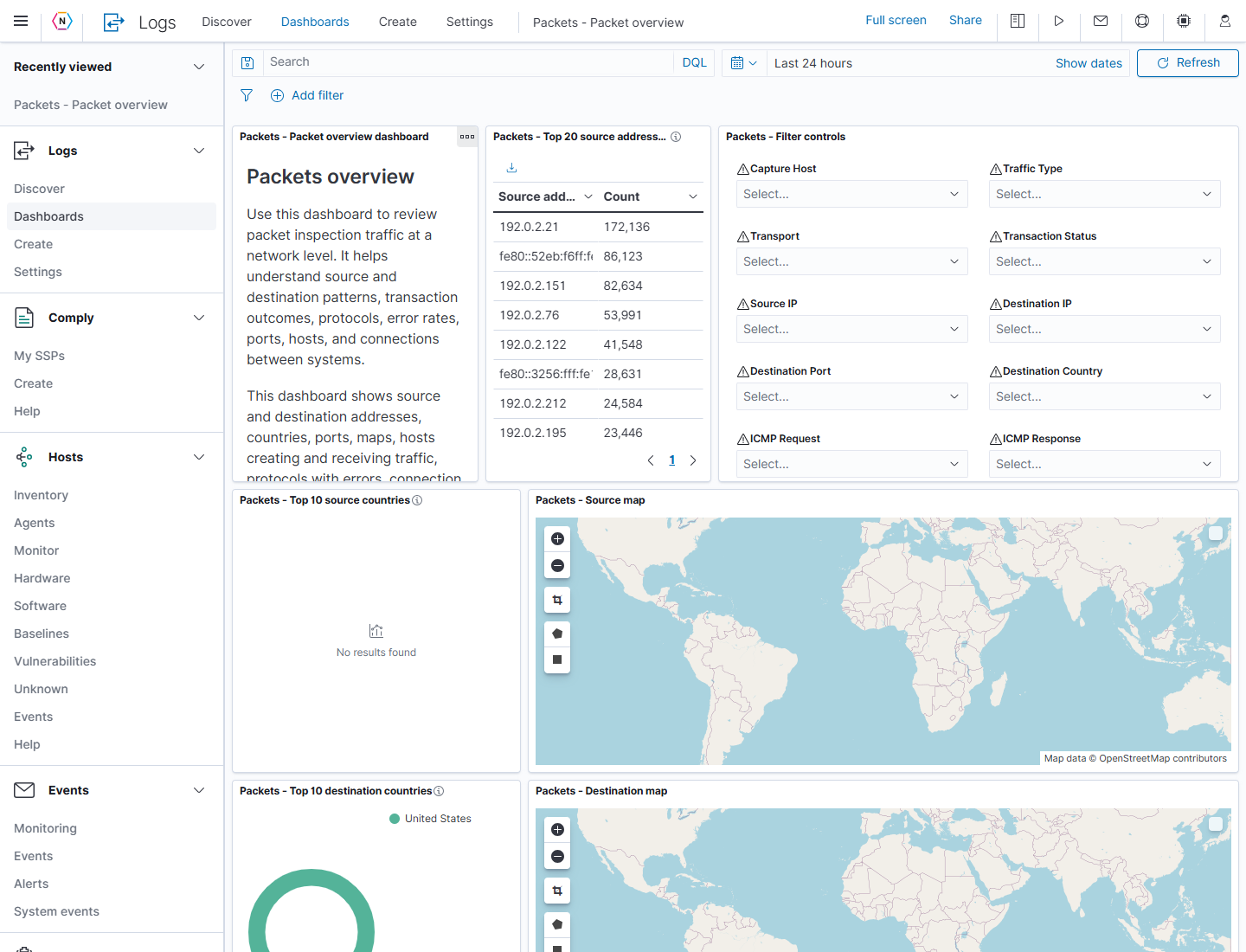
- Open Packets - Packet overview and choose Last 24 hours, or use Show dates to set an absolute incident interval.
- Check the query and filter pills, then select Refresh.
- Read Top 20 source addresses list to identify busy sources. Scroll through the dashboard to compare destination ports, hosts creating or receiving traffic, and Top 10 network flows between hosts.
- In Packets - Filter controls, choose a Capture Host when you need to isolate one agent’s observations. Use Source IP or Destination IP to isolate an endpoint; the capture host and traffic endpoints can be different systems.
- Select Apply changes at the bottom of the controls panel. Scroll inside the panel if necessary, or use its three-dot menu → Maximize panel to reveal all controls.
- Compare Top 10 protocols with errors count, the corresponding time chart, and Connections over time to find when the activity changed.
- Scroll to Packet inspection traffic and expand a record using its row arrow to inspect the individual transaction. For a broader field search, open Discover, choose the Packets source, and reproduce the same time range and filters.
| Overview control | Use it to narrow by |
|---|---|
| Capture Host | The host collecting the packet data. |
| Traffic Type / Transport | The recorded traffic type or transport protocol. |
| Transaction Status | The transaction’s recorded status. |
| Source IP / Destination IP / Destination Port | A traffic endpoint or destination service. |
| Destination Country | Geographic destination enrichment, when available. |
| ICMP Request / ICMP Response | ICMP request or response values for connectivity investigations. |
To remove a control selection, remove its selected value and select Apply changes. Clear form resets the control selections; review the filter pills afterward. Use the panel menu’s Minimize to return from a maximized panel. The main query, filter pills, and time range remain separate conditions.
An empty country panel can coexist with populated address and traffic panels because private addresses may not have geographic enrichment. Counts, byte totals, and unique-flow counts measure different things; read each panel’s title and units before comparing them.
HTTP and TLS workflow
Use the HTTP/TLS dashboard to review web transactions and TLS negotiation metadata.
- Open Packets - Packet HTTP and TLS and set the time range.
- In Packets - Filter controls, choose Capture Host, Source IP, Destination IP, or Destination Port to isolate the relevant traffic.
- For web-application troubleshooting, use HTTP Domain, HTTP Method, or HTTP Status Code. For TLS negotiation, use TLS Server Name, TLS Version, or TLS Session Established.
- Select Apply changes. Maximize the controls panel or scroll inside it to reach the lower controls.
- Compare Total HTTP transactions, HTTP Transactions over time, and Top 10 HTTP status codes for web traffic. For TLS, compare the versions, alerts, established sessions, and server-name panels.
- Scroll to Packet inspection traffic. Check
network.protocol,http.response.status_code, and the source/destination addresses and ports. Expand a row for the complete record.
For example, to review responses with status code 500, select Add filter → http.response.status_code → is, enter 500, and select Save. Remove the filter afterward to compare other response codes. An HTTP transaction can be present even when no response-status field was parsed.
Encrypted application content is not decrypted merely because TLS metadata is present.
DNS and DHCP workflow
Use the DNS/DHCP dashboard to review name-resolution and address-assignment activity.
For DNS investigations:
- Open Packets - Packet DNS and DHCP and set the time range.
- Use Protocol, Source IP, or Destination IP to focus on DNS traffic and the relevant client or server.
- Choose DNS Query Name, DNS Query Type, DNS Response Code, or DNS Resolved IP, then select Apply changes.
- Review DNS Min/Max/Avg Response Time, the request-status panels, and the DNS client/server panels. The response-time chart labels its values in nanoseconds; do not read those values as milliseconds.
- Scroll to Packet Inspection DNS traffic and compare
dns.response_code,dns.type,dns.question.registered_domain, anddns.resolved_ip. Expand a row to review all parsed fields.
For a failed-name lookup example, use Add filter → dns.response_code → is → NXDOMAIN, then Save. Use a value present in your data; remove the filter afterward to compare the successful responses.
A high query count is not automatically malicious. Confirm repetition, response results, timing, and the host responsible.
For DHCP investigations:
- In the same dashboard, use DHCP Client MAC, DHCP Assigned IP, or DHCP Message Type to select the client or exchange you need, then select Apply changes.
- Compare the DHCP transaction count, client count, message-type chart, and data-transfer panels. A unique-transaction count and a unique-client count answer different questions.
- Review Packet inspection DHCP traffic for
dhcpv4.client_mac,dhcpv4.assigned_ip, and the subnet, DNS-server, domain-name, and server-identifier fields. - Expand the relevant record to inspect the exchange. Confirm that both the requests and responses were visible from the capture point before concluding that a lease failed.
Packetbeat can only display traffic visible to the capture point.
Dashboard actions
| Action | What it does | Guidance |
|---|---|---|
| Time picker | Limits packet transactions to a selected time range. | Use an absolute time range for incident notes. |
| Add filter | Narrows all panels by field, operator, and value. | Filter to host, protocol, response code, or server name. |
| Select chart value | Adds a panel-driven filter when supported. | Confirm the new filter above the dashboard. |
| Inspect panel | Shows the data behind a panel when allowed. | Use this to troubleshoot missing or unexpected counts. |
| Expand a record row | Shows the fields of an individual packet event in the dashboard’s record table. | Use this to verify the exact addresses, protocol fields, and timestamp behind a summary. |
| Discover | Opens the log-search application. | Choose the Packets source and reproduce the time range and filters for field review or saved searches. |
| Share | Opens dashboard permalink options. | See Share a dashboard link. |
| Create Dashboard | Starts a custom dashboard from the dashboard list. | Add the saved panels you need; see Create your own dashboard. |
Troubleshooting
| Symptom | Check |
|---|---|
| No Packetbeat dashboards appear | Search for Packets, then check Enable index and the individual dashboard checkboxes in Logs → Settings. Apply any changes and confirm user permissions. |
| Dashboards are empty | Time range, active filters, Packetbeat input, capture point, and protocol visibility. |
| DNS or DHCP panel is empty | Whether the capture point can see DNS or DHCP traffic. |
| HTTP panel is populated but TLS is blank | Whether TLS traffic is visible and parsed by Packetbeat. |
| A host is missing | NAT, load balancers, capture location, parser fields, and time range. |
| A filter control shows a warning triangle | Hover the warning to read its cause. A terms-list timeout can produce an incomplete list even while traffic panels have results. Narrow the time range or use Add filter with a known field value. |
| A transaction has blank fields | Not every event contains every protocol field. Expand the event to see what was parsed; confirm that the capture point observed the relevant exchange. |
For DQL syntax and saved-search instructions, see Discover.