
Office 365
Use Settings → Inputs → Microsoft Office 365 to retrieve supported Microsoft 365 audit activity in NeQter. Each configured tenant has its own credentials, subscription environment, workload selection, and collection state.
Before setup, identify the tenant and Microsoft cloud environment, arrange access to register an application and grant its permissions, and confirm that unified audit logging is enabled. Microsoft’s Management Activity API reference describes that auditing prerequisite and the available content types.
Register an Application
In NeQter, select Add Office 365 tenant to open the setup form. Setup Guides provides App registration, Client secret, and API permissions tabs; the form’s follow our guide links open the relevant instructions.
- In the correct Microsoft tenant, open Entra ID → App registrations and start a new registration.
- Give it a descriptive name and select the single-tenant account type for an application used only with that organization’s tenant.
- Complete the registration. Record the Application (client) ID and Directory (tenant) ID from its overview.
Use Microsoft’s current app-registration instructions for portal details. Application registration and permission consent may require different administrator privileges.
Create the client secret
The NeQter input form accepts a client secret. In the app registration, use Certificates & secrets → Client secrets → New client secret. Set an expiration under your organization’s credential policy, then securely record the secret Value, not its ID. Microsoft displays the value only when it is created. Schedule its replacement before expiry; do not automatically choose the longest available lifetime. See Microsoft’s credential instructions.
Configure API permissions
Follow the appliance’s Setup Guides → API permissions procedure for the Office 365 Management APIs application permissions and administrator consent. Audit-feed access uses ActivityFeed.Read; collecting DLP sensitive data also needs the corresponding DLP permission, ActivityFeed.ReadDlp. Add the permissions for the intended workloads and have an authorized tenant administrator grant consent. Microsoft’s Management API setup guide explains application configuration and consent.
Verify that the permission status shows consent for the intended tenant before returning to NeQter. A successful app registration alone does not establish audit-feed access.
Add the tenant in NeQter
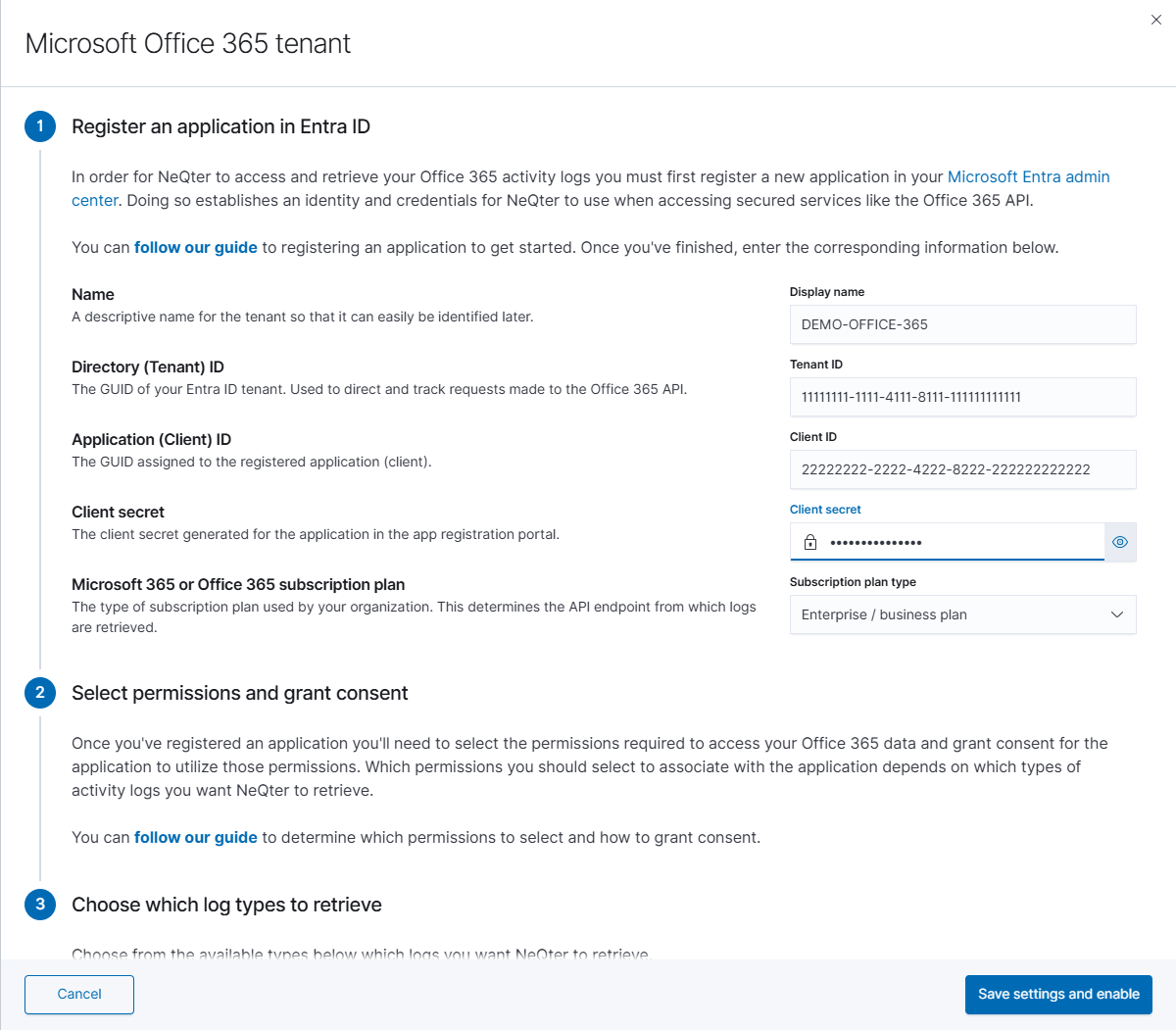
| Field | What to enter |
|---|---|
| Display name | A recognizable tenant label. The form allows up to 50 characters using letters, numbers, and spaces. |
| Tenant ID | The Directory (tenant) ID. |
| Client ID | The Application (client) ID. |
| Client secret | The secret value recorded during creation. The eye button shows or hides the value you entered. |
| Subscription plan type | Enterprise / business plan, GCC government plan, or GCC high government plan, matching the tenant’s environment. This selects the API endpoint. |
Next, enable at least one option under Choose which log types to retrieve:
| Workload | Activity described by the form |
|---|---|
| Microsoft Entra ID | Directory user and policy events. |
| Data Loss Prevention | DLP policy events; requires the associated permission. |
| Exchange | Exchange activity. The form links to mailbox-auditing guidance. |
| General | Activity outside the other listed categories. |
| SharePoint | SharePoint activity. |
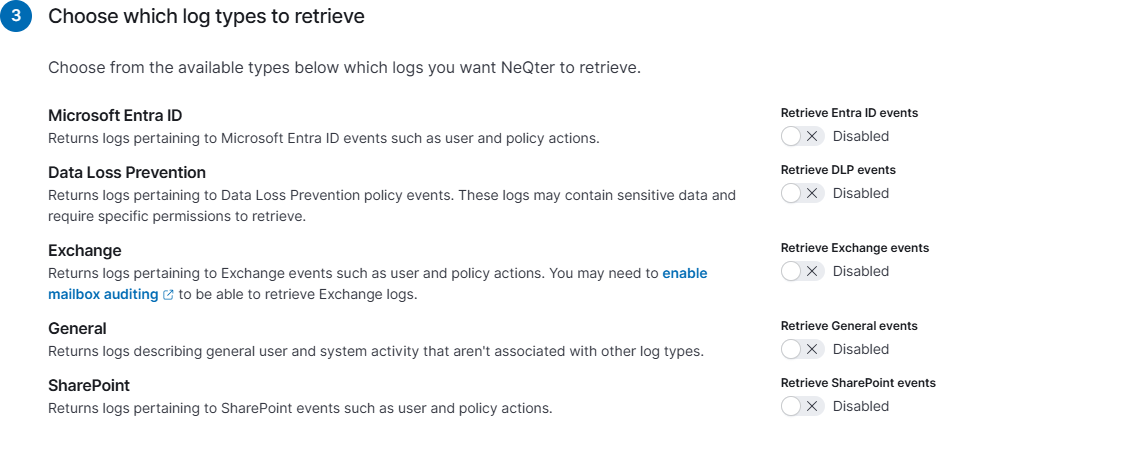
Select Save settings and enable to validate access, save the configuration, and enable collection. Read any validation error before retrying. Cancel or X closes the draft without creating the tenant.
Verify and maintain collection
Confirm the tenant appears in the list with the expected workloads and enabled state. Generate an appropriate test action, allow for Microsoft’s audit-data availability delay, and find it in Discover. Check the tenant, workload, and time range if no event appears. An enabled switch alone is not proof that a particular workload is producing records.
The tenant’s Enabled switch saves immediately. Edit input lets you change its name, workload choices, and secret; Tenant ID, Client ID, and subscription plan are read-only. Leave the secret field empty to retain the saved value, or enter a replacement and select Save when rotating it.
Use Help & FAQ for collection guidance, and see the Office 365 Settings reference for editing, tenant deletion, and all list controls.