
User Configuration
Open Settings > Users to create individual appliance accounts and assign access to NeQter tools. A global administrator can use all tools and administrative settings. An Admin permission for one tool applies only to that tool.
Setting up new users
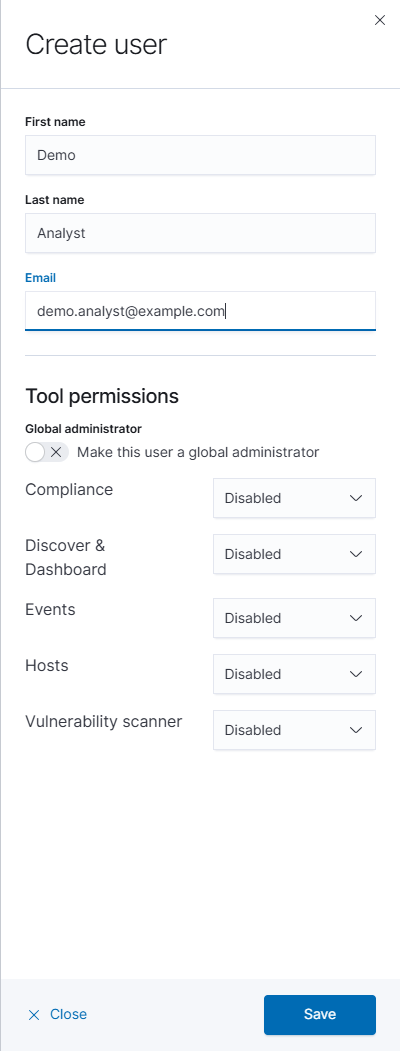
- Select Create user, then Local user.
- Enter First name, Last name, and Email. The email address is the account’s login name.
- Assign the required Tool permissions. New local-user forms start with tool access disabled.
- Enable Make this user a global administrator only for an account that needs appliance-wide administration.
- Select Save to create the account. Close or X discards the draft.
When creation returns a temporary password, NeQter displays a Temporary password dialog. Use Copy temporary password and deliver it through your organization’s approved process before closing the dialog. If mail is configured, NeQter also attempts to email the password. The user must change the temporary password at the next login.
Tool permissions
Tool permissions determine which parts of NeQter an account can open and which changes it can make. Assign each tool separately. For example, giving a user Hosts access does not also give them access to vulnerability scan results or event dismissal.
| Tool | Available levels |
|---|---|
| Compliance | Disabled, Read / write, Admin |
| Discover & Dashboard | Disabled, Read only, Read / write, Admin |
| Events | Disabled, Read only, Read / write, Admin |
| Hosts | Disabled, Read only, Read / write, Admin |
| Vulnerability scanner | Disabled, Read only, Read / write, Admin |
| Level | What it controls |
|---|---|
| Disabled | Removes access to that tool. Permissions assigned to another tool do not replace this permission. |
| Read only | Allows viewing and investigation, including searches, filters, and opening available details. It does not grant permission to change saved tool configuration. Compliance uses SSP-specific read access instead of a Read only choice in this form. |
| Read / write | Includes viewing and the tool’s editing operations. Some actions, such as starting a scan or dismissing an event, also require this level. Administrative actions can still require Admin or global administrator access. |
| Admin | Includes Read / write and administrative operations for the selected tool. It does not grant appliance-wide administration or access to unrelated tools. |
Compliance
Controls access to Compliance and its System Security Plans (SSPs): system information, control responses, supporting artifacts, tasks, revisions, and plan exports.
Compliance has two layers of access. The tool permission allows access to the application; organization membership and each SSP’s access settings determine which plans the user can work on.
- Disabled: No access to the Compliance tool.
- Read / write: Access to Compliance, with the user’s effective permissions on each SSP determining whether they can view or edit it. An SSP’s Read only access allows viewing, exports, and comments. Read/Write access also permits editing system details, control responses, tasks, uploads, and artifact associations.
- Admin: Administrative access to the Compliance tool. Review organization and SSP access when assigning this level; plan management includes access settings, revisions, plan name and owner changes, and deletion. Organization managers have management access to their organization’s SSPs.
See Compliance access settings for the separate SSP roles. Granting Compliance access does not itself create a user or assign access to every plan.
Discover & Dashboard
Controls log investigation in Discover and access to Dashboards, including saved searches and dashboard content.
- Disabled: No access to Discover or Dashboards.
- Read only: View available logs and dashboards, open saved searches, and investigate using time ranges, queries, and filters. Changing a filter for an investigation is different from saving an edit to a search or dashboard.
- Read / write: Includes investigation and editing saved content, such as saving searches and creating or editing custom dashboards and their panels. Managed dashboards can have different editing controls.
- Admin: Includes the tool’s editing and administrative operations. This remains a tool-specific role: the Discover raw-log export workflow documented for this appliance requires global administrator access.
See Discover and Dashboards for the search, saved-content, and dashboard workflows.
Events
Controls access to generated Events and their review status. Event access is separate from configuring the monitors that generate events or the alerts that deliver them.
- Disabled: No access to event investigation, including event views reached through Hosts.
- Read only: View events and their details, and search or filter the list.
- Read / write: Includes viewing and dismissing events to record their review status.
- Admin: Includes Events editing and administrative operations. Monitoring and Alerts configurations require global administrator access; assigning Events Admin alone does not grant that access.
For example, an analyst who needs to review and dismiss notifications needs Events Read / write. An administrator who needs to change the monitor or delivery rule needs global administrator access. See Events.
Hosts
Controls the host inventory, groups, interfaces, host monitors, hardware views, and software baselines.
- Disabled: No access to the Hosts tool.
- Read only: Search and filter hosts, open available host details, and view inventory information.
- Read / write: Add or edit hosts, move hosts between groups, create or edit groups, manage interfaces and host monitors, and save hardware views and software baselines. Deleting eligible interfaces or host monitors also requires write access.
- Admin: Includes write access, plus deleting hosts or groups, deleting saved hardware views or software baselines, and removing baseline assignments.
Host pages can also show information from other tools. Viewing host events requires Events Read only or higher; dismissing them requires Events Read / write or higher. Viewing vulnerability findings requires Vulnerability scanner Read only or higher; starting a scan requires Vulnerability scanner Read / write or higher. See Hosts permissions.
Vulnerability scanner
Controls Vulnerabilities, including scan tasks, reports and findings, and the configuration objects used to run scans.
- Disabled: No access to the scanner or its findings, including vulnerability information reached through Hosts.
- Read only: Investigate scan tasks, reports, and findings without changing scan configuration or starting scans.
- Read / write: Includes investigation, task operations such as creating, editing, and starting scans, and access to Configuration for targets, port lists, credentials, scan configurations, alerts, schedules, and tags.
- Admin: Includes write access, plus administrative operations, deletion, credential exports, and Legacy scanner access. Task status and object state can still limit the actions available.
For example, a reviewer who only needs scan results can use Read only; an operator who prepares and runs scans needs Read / write. See Vulnerability scanner permissions.
Global administrator
Make this user a global administrator grants access across all tools and appliance administrative settings. The individual tool selectors are hidden when this option is enabled. Use this role for users who need to manage appliance settings, user accounts, or Monitoring and Alerts configurations. A per-tool Admin role does not make the account a global administrator.
After saving a user’s permissions, have them sign in and check both the pages they need and the actions they are expected to perform. For Compliance, also check access to the intended organization and SSPs.
Review and edit accounts
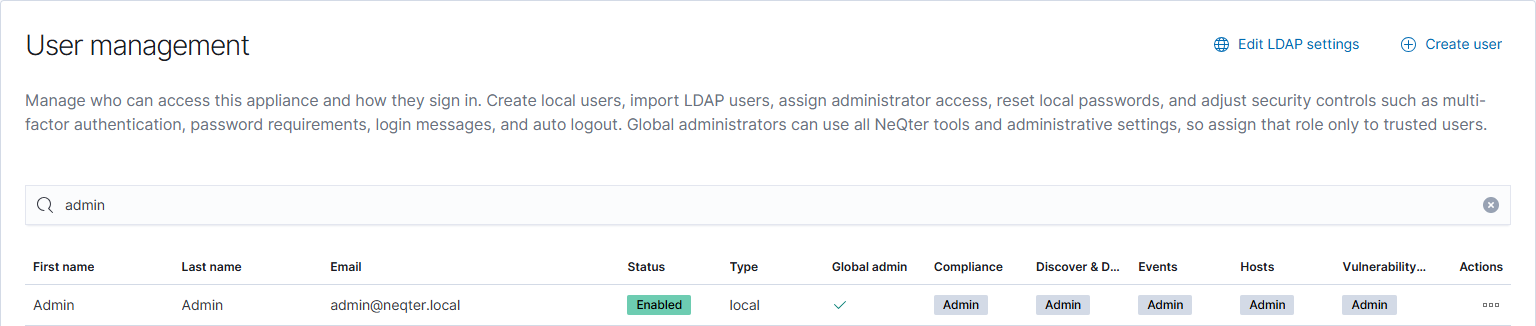
Use Search to find an account by name or email. The table shows its status, type, global administrator access, and tool permissions. Column headings sort the list; Rows per page and the page arrows control pagination.
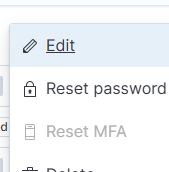
Open the account’s three-dot Actions menu and select Edit. Adjust its identity, enabled status, or permissions, then select Save. Close or X discards edits. You cannot disable your own account. You can delete the web administrator account if you choose by selecting Delete from its Actions menu and confirming the deletion.
| Action | Use |
|---|---|
| Edit | Change account details, enabled status, or tool access. |
| Reset password | Confirm replacement of a local user’s password with a temporary password. |
| Reset MFA | Confirm removal of that user’s authenticator enrollment so they can enroll again. This does not disable the appliance’s MFA policy. |
| Delete | Open a confirmation to remove the appliance account. Cancel keeps the account. |
Directory users and sign-in policies
For directory accounts, configure Edit LDAP settings, then use Create user > LDAP user to import users and assign their appliance permissions. LDAP authentication is separate from local password management. Follow the LDAP setup instructions.
Review the Login message, Auto logout, Login lockout, Multi-factor authentication, and Password settings tabs. Each tab manages its own settings; use its save action to apply edits. See the Users reference for these controls and their effects.
Confirm that each new user can sign in and access the intended tools. Continue with Certificates.